

Introduction — Why You Must Take Control of Your Privacy Settings to Stop Google from Tracking You
Have you ever wondered just how much Google knows about you?
The answer might shock you.
From your search history, to your current location, voice commands, videos you watch, websites you visit—even the apps you use daily—Google is silently keeping tabs on everything.
And unless you take proactive action, this invisible tracking will continue 24/7, quietly building a detailed profile of you.
In today’s hyper-connected world, protecting your privacy online is no longer optional—it’s a necessity.
That’s why learning about the privacy settings to stop Google from tracking you is one of the smartest digital habits you can adopt right now.

📌 Here’s the real issue:
Google’s tracking is turned on by default across almost all devices, browsers, and apps tied to your Google account.
This means, unless you’ve manually changed those settings, your personal data is constantly being collected—with or without your permission.
In this detailed guide, you’ll discover the exact steps to take back control over your online footprint.
We’ll walk you through the most powerful privacy control tips, how to pause tracking features, and how to delete the massive data trail Google might already have on you.
But don’t worry—this isn’t about ditching Google completely.
Instead, it’s about minimizing unnecessary data collection, staying safe, and making sure you’re the one in control—not some algorithm.
🔒 Whether you’re concerned about your Google search privacy, want to stop location tracking on your phone, or just wish to reduce targeted ads, these privacy settings will help you regain peace of mind.
By the time you finish reading, you’ll know how to:
- ✅ Stop Google tracking on Android, iPhone, Chrome, and all Google services
- ✅ Manage your account’s Web & App Activity, Location History, and YouTube data
- ✅ Protect yourself from personalized ads and invasive tracking techniques
- ✅ Implement simple but effective privacy control tips used by digital security experts
⚠️ Important reminder:
These settings change frequently as Google updates its platforms.
That’s why this article provides up-to-date instructions for 2025—based on the latest privacy tools and controls available right now.
If you value your privacy—and you should—don’t skip this.
👉 Take 10 minutes now to secure your account and protect your personal data.
It’s time to stop letting Big Tech make decisions for you.
Take back control.
Stay informed.
And start using these privacy-focused tools to protect your digital life today.
Why You Should Be Concerned About Google Tracking
Most people think Google is just a helpful search engine or a reliable map tool.
But behind the scenes, it’s one of the most sophisticated data collection machines in history.
Every time you use a Google service—whether it’s Search, Maps, Gmail, Chrome, or YouTube—Google is watching, recording, and storing data about your actions.
And not just your clicks.
Your location, device type, browsing habits, voice recordings, and even offline activity can be tracked and archived.
Sounds like something out of a sci-fi movie, right?
But it’s real—and it’s happening every day, all the time.
That’s why understanding the privacy settings to stop Google from tracking you is no longer optional.
It’s an urgent digital hygiene habit.

🔍 What Exactly Is Google Tracking?
Let’s break it down.
Google uses a network of tools and algorithms to monitor your:
- ✅ Search history and autocomplete suggestions
- ✅ Maps navigation history and real-time locations
- ✅ YouTube watch and search patterns
- ✅ Voice activity from Google Assistant or “Hey Google”
- ✅ Gmail content scanning (for ad targeting and machine learning)
- ✅ Third-party website activity using cookies and trackers
- ✅ Smartphone app usage, even when apps are closed
What makes this concerning is not just the sheer volume of data, but how it’s interconnected to form a detailed, AI-powered digital fingerprint of who you are.
You’re not just being tracked—you’re being profiled.
🧠 Why Should You Care?
Here’s the hard truth:
The more data Google collects, the more it can manipulate what you see—and even influence what you think.
Google uses your data to:
- Serve hyper-personalized ads
- Tailor your search results (sometimes showing or hiding info)
- Auto-suggest products, services, or videos that benefit advertisers
- Feed data to machine learning models that power predictive behavior engines
And while you might think, “I have nothing to hide,” the issue is not just about secrecy—it’s about control, freedom, and choice.
You’re essentially giving a corporation unlimited insight into your personal life, habits, emotions, and decisions—without boundaries.
🔒 Real-Life Privacy Risks of Google Tracking
Let’s look at why stopping Google tracking matters in real life.
- 🧭 Location data can reveal your daily routines, commute routes, and even sensitive visits (e.g., clinics, religious centers).
- 🗂️ Search history can be used to judge your interests, beliefs, or vulnerabilities.
- 📩 Gmail content scanning might leak personal or business-sensitive information.
- 🔔 Ad targeting can become aggressive, intrusive, and sometimes even manipulative.
- 📲 Cross-device tracking follows you from mobile to desktop, apps to websites.
And here’s the worst part:
Even if you’re not actively using a Google service, background tracking may still occur unless you deliberately disable it through privacy settings.
📢 What Google Says vs. What It Does
Yes, Google gives you access to “privacy controls.”
But let’s be honest—most of them are deeply buried, confusing, and intentionally hard to navigate.
The truth?
Google makes money from your data.
Their entire advertising business is built on knowing who you are, what you like, where you go, and what you’re about to do next.
That’s why they track so much—because it’s incredibly profitable.
⚠️ Take Action Before It’s Too Late
The longer you wait, the bigger your digital footprint becomes.
That means more data collected.
More profiling done.
More exposure to privacy risks, identity theft, and even misinformation bubbles.
But here’s the good news…
👉 You can take back control starting today.
By following the right privacy settings to stop Google from tracking you, you’ll drastically reduce how much personal information is being collected—without losing access to the services you love.
✅ Your first step? Follow our step-by-step guide in the next section and start securing your privacy now.
Don’t just think about protecting your data—do it now.
⚡ Take action and lock down your privacy with these trusted tools and apps.
Essential Privacy Settings to Stop Google from Tracking You
If you want to stop Google tracking you, you need to do more than just log out of your account or use Incognito Mode.
🛑 These are surface-level tactics—they don’t stop background tracking, data collection, or hidden syncing.
To truly regain your digital privacy, you need to dig into the core privacy settings of your Google account.
Below, we break down each key setting you must change—step-by-step—with modern, 2025-updated instructions.
These privacy control tips will help reduce your digital footprint and prevent Google from storing unnecessary personal information.
Let’s get started 👇
🔒 1. Turn Off Web & App Activity (The #1 Setting to Disable)
This setting is the backbone of Google tracking.
It records your Google searches, Chrome activity, Maps usage, and interactions with third-party apps tied to your account.
✅ Here’s how to disable it:
- Go to: https://myaccount.google.com/activitycontrols
- Click on Web & App Activity
- Toggle it Off
- Also uncheck the box that says “Include Chrome history and activity from sites…”
- Confirm when prompted
🚫 What this stops:
- Search logging
- Google Maps queries
- Assistant commands
- Chrome browsing history (if synced)
📝 Pro tip: Also click “Manage Activity” and delete your past history manually or set it to auto-delete every 3 months.
📍 2. Pause Location History (Stop Google From Knowing Where You Go)
Did you know Google can track every move you make—even when you’re not using Maps?
Location History builds a timeline of where you’ve been, when, and for how long.
✅ How to pause it:
- Go to the same Activity Controls page
- Click on Location History
- Toggle it Off
- Tap “Pause” on the confirmation prompt
🗺️ You can also view and delete your entire location timeline at: https://www.google.com/maps/timeline
📌 Privacy tip: Disable location permissions on the Google app via your phone’s settings for extra protection.
🎯 3. Turn Off Ad Personalization
Google uses your activity to serve targeted ads.
While this may seem harmless, it actually means your online behavior is being analyzed and sold to advertisers.
✅ To disable it:
- Visit: https://adssettings.google.com
- Toggle Ad Personalization to Off
- Click on “Manage Ad Settings” to remove any interests tied to your profile
👀 This won’t stop ads completely, but they’ll be less creepy and not based on your private data.
💡 Bonus tip: Use a privacy-focused browser extension to block hidden trackers on sites you visit.
🔁 4. Auto-Delete Your Activity
Even after disabling tracking, Google may still retain old data.
So it’s crucial to set up auto-deletion of past activity.
✅ Steps:
- Go to: https://myactivity.google.com
- Click on “Web & App Activity”, Location History, and YouTube History one by one
- Select “Auto-delete”
- Choose a timeframe (we recommend 3 months)
- Click Confirm
This ensures your data won’t stay in Google’s servers forever—even if tracking resumes later.
📺 5. Pause YouTube Watch & Search History
Your YouTube activity is tracked to recommend videos and ads.
But it also feeds into your Google profile.
✅ How to disable it:
- Go to: https://myaccount.google.com/activitycontrols
- Scroll to YouTube History
- Toggle Off
- Also uncheck “Include the YouTube videos you watch” and “YouTube searches”
🧼 Clean slate? Visit: https://myactivity.google.com > Filter by YouTube and delete your past watch/search history.
📱 6. Revoke Unused App Permissions
Google apps often request access to your microphone, camera, contacts, calendar, and more.
If you haven’t checked app permissions recently, you may be exposing more than you think.
✅ Here’s what to do (Android/iOS):
- On Android:
- Open Settings > Privacy > Permission Manager
- Review each category (Location, Camera, Microphone, etc.)
- Set unused apps to “Don’t allow”
- Open Settings > Privacy > Permission Manager
- On iPhone:
- Go to Settings > Privacy & Security
- Tap into each section (Microphone, Camera, etc.)
- Toggle off access for any app you don’t fully trust
- Go to Settings > Privacy & Security
📌 Do this monthly—it only takes 5 minutes to dramatically improve your privacy.
🎙️ 7. Turn Off Voice & Audio Activity (“Hey Google”)
When you say “Hey Google,” your voice is recorded.
Even if you’re not speaking directly to it, Google Assistant may be listening in the background.
✅ Steps to disable:
- Visit: https://myactivity.google.com
- Click “Activity Controls”
- Under Web & App Activity, click the gear icon
- Uncheck “Include voice and audio recordings”
You can also disable Google Assistant entirely in your phone’s settings.
🛡️ Tip: Cover your smart speaker’s mic when not in use or mute it manually.
🔐 8. Use Incognito Mode Wisely
While Incognito Mode doesn’t make you invisible, it does stop your browsing activity from being saved to your account.
✅ When to use it:
- Researching sensitive topics
- Logging into multiple accounts
- Browsing without saving cookies or history
🚨 Note: Incognito doesn’t stop your IP from being tracked. For full privacy, pair it with a secure VPN service.
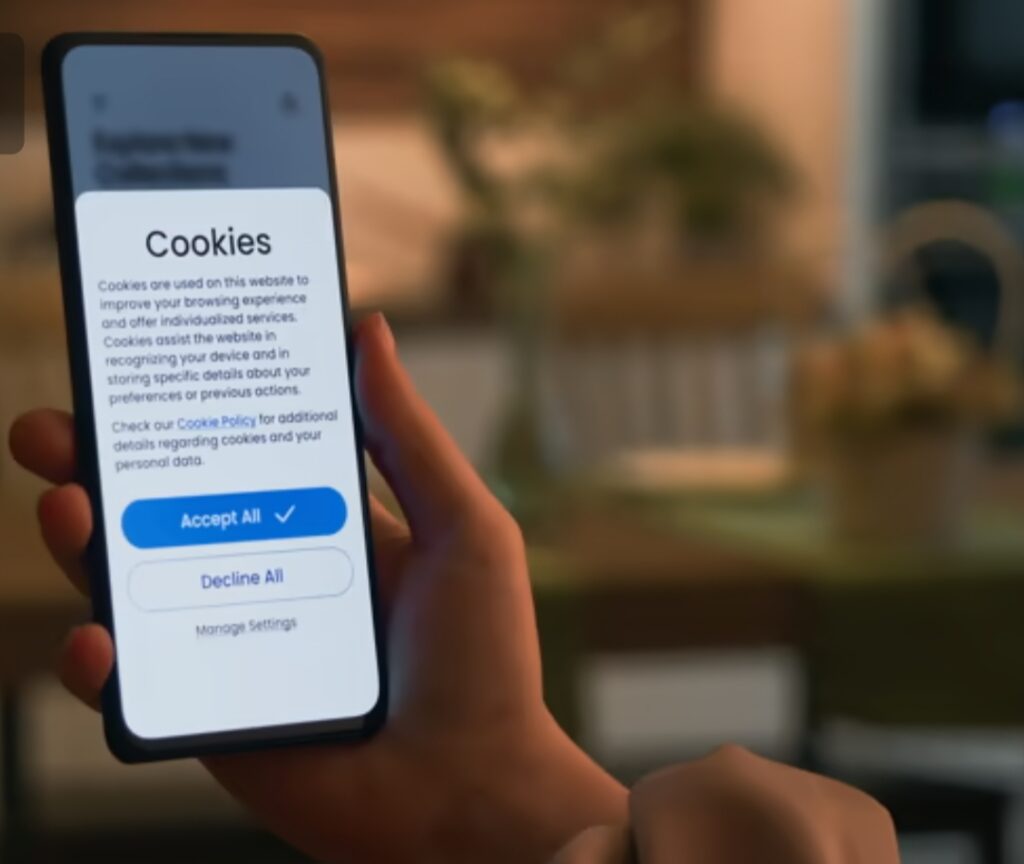
🧹 9. Block Third-Party Cookies in Chrome
Cookies track your activity across websites—even when you’re not using Google.
✅ How to block them:
- Open Chrome Settings
- Go to Privacy and Security
- Click Cookies and other site data
- Select Block third-party cookies
For better protection, use privacy-focused browsers like Brave Browser or extensions like uBlock Origin.
🛡️ 10. Complete a Google Privacy Check-Up
Google offers a built-in tool to help you review all privacy settings in one place.
✅ How to do it:
- Visit: https://myaccount.google.com/privacycheckup
- Follow the step-by-step guide
- Turn off features you don’t need
- Review what data is shared with third parties
It takes less than 5 minutes, and it’s your best quick privacy fix.
🔚 Summary of Essential Privacy Settings to Stop Google Tracking
Here’s a quick recap of what you should do TODAY:
✔️ Turn off Web & App Activity
✔️ Pause Location History
✔️ Disable Ad Personalization
✔️ Set Activity Auto-Delete
✔️ Pause YouTube tracking
✔️ Review app permissions
✔️ Disable voice activity
✔️ Use Incognito wisely
✔️ Block third-party cookies
✔️ Run a Google Privacy Check-Up
👉 Ready to protect your digital life?
💥 Take control now—start with your Google Privacy Dashboard and lock down these critical settings.
⚠️ Don’t wait. Every moment your settings stay unchanged, your data is at risk.
Bonus Privacy Control Tips for Maximum Protection Beyond Google Settings
Even after adjusting the privacy settings to stop Google from tracking you, your personal data may still be vulnerable if you don’t take additional precautions.
Why?
Because Google isn’t the only one tracking you.
Social platforms, websites, apps, smart devices, and even your ISP can also collect data in the background.
That’s why these bonus privacy control tips are essential if you want to supercharge your online privacy and make sure your efforts aren’t wasted.
These go beyond Google settings and offer complete privacy armor for your digital life.
Let’s dive into these next-level protection tips 🔐👇
🧭 Use a Reputable VPN to Mask Your IP Address
Even with Google tracking turned off, your Internet Service Provider (ISP) and other sites can still monitor your traffic.
A VPN (Virtual Private Network) encrypts your connection, hides your IP address, and makes your online activity virtually untraceable.
✅ What a VPN protects you from:
- Tracking by your ISP
- Location detection
- Government surveillance
- Data logging by websites
- IP-based ad targeting
🛡️ Recommended VPNs to stay anonymous:
- NordVPN
- ExpressVPN
- Surfshark
- ProtonVPN (Free plan available)
💡 Pro tip: Choose a VPN with a strict no-logs policy and RAM-based servers for maximum security.
🦊 Switch to Privacy-Focused Browsers
Google Chrome is fast—but it’s also a data magnet.
Even when you disable account tracking, Chrome still shares usage data with Google.
To truly escape, consider switching to browsers that prioritize user privacy by design.
✅ Best privacy-first browsers:
- Brave Browser – Blocks ads, trackers, and third-party cookies by default
- Mozilla Firefox – Open-source and highly customizable with security add-ons
- DuckDuckGo Browser – Simple, secure, and doesn’t track you
- Tor Browser – For advanced users who need anonymity and encryption
🌐 These browsers also support HTTPS Everywhere, script blockers, and tracking prevention tools built right in.
💥 Use a Private Search Engine
Google isn’t the only search engine out there.
If you want to avoid data profiling, start using private search engines that don’t store your queries or personal info.
✅ Top Google alternatives for private search:
- DuckDuckGo – No logs, no tracking, just search
- Startpage – Uses Google results but strips out tracking
- Qwant – Based in Europe, strict on user data privacy
- Mojeek – A true independent engine with its own index and zero tracking
🔍 Bonus tip: Set your browser to always open your preferred private search engine by default.
🚫 Block Trackers and Ads with Browser Extensions
Most websites use dozens of hidden trackers—even if you’re not logged in to anything.
The solution?
Install powerful privacy extensions that stop these scripts in their tracks.
✅ Top must-have browser privacy tools:
- uBlock Origin – Blocks ads and tracking scripts without slowing down your browser
- Privacy Badger – Developed by the EFF, learns and blocks non-consensual tracking
- HTTPS Everywhere – Forces secure connections
- ClearURLs – Removes tracking codes from URL links
- Cookie AutoDelete – Automatically deletes cookies after you close a tab
💥 These tools are lightweight, free, and can be installed in minutes.
👉 Don’t browse the web without them.
🔐 Use Encrypted Alternatives to Google Services
If you really want to go all-in on privacy, start switching from Google to encrypted, privacy-friendly tools.
Below are safe alternatives for everyday services:
| Google Service | Privacy Alternative |
| Gmail | ProtonMail, Tutanota |
| Google Docs | CryptPad, OnlyOffice, Skiff |
| Google Drive | Internxt, Sync.com, Tresorit |
| Google Calendar | Etar, Proton Calendar |
| Google Maps | Organic Maps, OsmAnd, HERE WeGo |
| Google Chrome | Brave, Firefox, Tor Browser |
| Google Authenticator | Authy, Aegis, andOTP |
📌 You don’t have to replace everything at once.
Start with one switch at a time, and build your privacy fortress piece by piece.
📵 Limit App Permissions on Your Phone
Even non-Google apps could be leaking your data.
Make it a monthly habit to review and remove unnecessary permissions from your apps.
✅ Things to look for:
- Does a flashlight app really need access to your contacts?
- Why does a game need your microphone?
- Does every app need background location access?
👀 Most apps over-request permissions by default.
Don’t grant what isn’t necessary.
Less access = less risk.
🧼 Clear Your Digital Footprint Regularly
Deleting your history just once isn’t enough.
Make it a routine to erase your browser data, cookies, app cache, and unused accounts.
✅ Here’s what to clear monthly:
- Browser history & cookies
- Google Activity logs
- Location history
- Cached data from apps
- Unused accounts (close them!)
- Old social media posts
Use tools like Jumbo Privacy App or CCleaner to automate and manage this easily.
🛑 Don’t Rely on Incognito Mode Alone
We get it—Incognito Mode feels private.
But it only stops your data from being saved locally.
👎 It does not prevent websites, ISPs, or Google itself from tracking you.
Instead, combine Incognito with:
- VPN
- Private search engines
- Browser tracker blockers
- Encrypted email providers
🔐 Think of Incognito Mode as a privacy accessory, not a complete solution.
✅ Build Your Privacy Armor
Now that you’ve disabled Google’s tracking settings, these bonus privacy control tips will fortify your online security like never before.
Remember:
🔹 Privacy is not a one-time fix—it’s a mindset.
🔹 You don’t have to be tech-savvy to lock down your data.
🔹 Every small action adds up to massive protection over time.
⚡ Take back control. Don’t wait for a data leak or breach to start caring about your digital privacy.
👉 Start today by installing your first privacy browser, running a VPN, or trying a private email tool like ProtonMail.
Bold step = safer you.
🛡️ Stay private. Stay empowered.
FAQs on Google Privacy Settings
This section answers the most frequently asked questions about Google tracking, privacy settings, and how to manage your digital footprint effectively.
Let’s break down the top concerns users have 👇

❓Does turning off Google tracking stop all data collection?
No, turning off tracking settings reduces—but doesn’t completely eliminate—data collection.
Even after disabling Web & App Activity, Location History, and other tracking features, some system-level data (such as crash reports, device diagnostics, or service logs) may still be collected by Google for maintenance or performance purposes.
To minimize this further, use privacy-focused tools like VPNs, secure browsers, and privacy extensions.
🔒 For full protection, combine Google privacy settings with independent privacy control tips listed earlier.
❓Will disabling these settings affect how my apps work?
In most cases, no—but some personalized features may be limited.
For example:
- Google Maps may stop offering location-based suggestions
- YouTube recommendations might become less relevant
- Google Assistant may not respond to “Hey Google” without voice activity enabled
📌 Important: You can still use all essential Google services with tracking off—it just means you’ll have less personalization, more privacy.
Many users report faster loading times and fewer distractions after turning off tracking features.
❓Can I delete all my Google data permanently?
Yes, but you have to do it manually for each data type.
To permanently delete your activity:
- Visit https://myactivity.google.com
- Filter by product (e.g., Search, Maps, YouTube)
- Click on the trash icon or “Delete activity by”
- Choose time range (e.g., All time)
- Confirm deletion
🧹 You can also set auto-delete options to automatically wipe future data every 3, 18, or 36 months.
⚠️ Note: Once deleted, your data cannot be recovered, so proceed with caution.
❓Does Incognito Mode protect my privacy from Google?
No, Incognito Mode only hides your activity from other people using the same device.
While it prevents Chrome from saving your browsing history, cookies, and form entries, it does not stop websites, your internet provider, or Google from tracking you.
For true privacy, use Incognito Mode along with:
- A secure VPN
- Private search engines
- Tracker-blocking browser extensions
💡 Think of Incognito as “local privacy,” not full privacy.
❓How often should I review my Google privacy settings?
At least once every 3 months—or any time Google updates its terms of service or privacy policy.
Tech companies regularly change default settings or add new features that may enable more data collection by default.
✅ Schedule a quarterly privacy check-up at https://myaccount.google.com/privacycheckup
Also, revisit:
- App permissions
- YouTube and Search activity
- Google Assistant voice recordings
- Location and Web activity settings
🛠️ Keeping your settings up-to-date helps you stay one step ahead of unwanted tracking.
❓Is it possible to use Google without signing into an account?
Yes, but with limitations.
You can use Google Search, Maps, YouTube, and other services without signing in, but:
- Your activity will still be tracked via cookies, device fingerprinting, and IP address
- You’ll lose access to personalized features like synced bookmarks, app history, saved places, etc.
✅ To minimize tracking when using Google without an account:
- Use Incognito Mode
- Block cookies and third-party trackers
- Search through Startpage, which uses Google results without tracking you
❓Can Google still track me through third-party websites?
Yes.
Google uses embedded tracking tools—like Google Analytics, reCAPTCHA, Ads, Fonts, and more—that are built into millions of websites across the internet.
These tools can track:
- Your browser type
- IP address
- Time spent on page
- What you click and scroll
✅ To prevent this kind of passive tracking:
- Use uBlock Origin and Privacy Badger
- Enable third-party cookie blocking in your browser
- Consider browsing with a tool like Brave or Tor
📌 Even if you’re not logged into Google, passive trackers can still collect behavioral data unless blocked.
❓Is there a single button to turn off all Google tracking at once?
Unfortunately, no.
Google requires users to manually adjust multiple settings across various dashboards:
- Activity Controls
- Ad Settings
- YouTube History
- Location History
- App permissions (device-specific)
✅ However, you can start with a full Google Privacy Check-Up here:
https://myaccount.google.com/privacycheckup
💡 Pro tip: Bookmark this page and revisit it regularly to ensure your privacy settings stay locked down.
❓What’s the easiest way to make all these changes quickly?
Use the Google My Activity and Privacy Check-Up tools, combined with:
- Jumbo Privacy App – Automates privacy cleanup
- DuckDuckGo Privacy Essentials – Blocks hidden trackers while browsing
- Browser extensions that simplify privacy settings in Chrome or Firefox
⚡ If you’re overwhelmed, start small.
Pick one setting per day, and by the end of the week—you’ll have built a bulletproof privacy defense.
✅ Final Reminder:
Even small steps can make a BIG difference in your online privacy.
Your personal data is valuable—don’t give it away for free.
👉 Take action now. Bookmark this post. Share it with friends. Revisit your settings monthly.
✅ The more informed you are, the more control you have.
Final Thoughts / Conclusion
In today’s hyper-connected world, your data is more valuable than gold—and companies like Google know it. While Google offers world-class tools and services, they come at a cost: your privacy.
But here’s the empowering truth:
✅ You don’t have to sacrifice your privacy to stay connected.
✅ You have control—right at your fingertips.

By following the privacy settings to stop Google from tracking you outlined in this guide, you’re taking real steps to reclaim your digital freedom.
Whether you’re:
- Disabling Web & App Activity,
- Turning off Ad Personalization,
- Reviewing your Google Account permissions, or
- Using privacy extensions to block hidden trackers…
Every adjustment you make is a bold step toward stopping Google tracking and taking back your online space.
🛡️ Your Privacy is Your Right—Not a Luxury
Too many people assume tracking is just “part of being online.”
It’s not.
You can enjoy the internet—search, navigate, learn, and share—without giving away your personal data.
And it starts with just a few intentional clicks.
📌 Before You Go…
If this guide helped you:
✅ Bookmark it for future reference
✅ Share it with your friends, family, or on social media
✅ Encourage others to do a privacy check-up today
The more we take control of our data, the harder it becomes for companies to exploit it.
🔐 Stay Informed. Stay Protected.
New privacy threats emerge all the time. But you now have the tools, knowledge, and step-by-step tips to stay ahead of them.
Remember: Privacy isn’t a one-time setup—it’s a habit.
Revisit your settings. Keep learning. And always question what’s being tracked.
Thanks for reading, and here’s to a more private, more secure you online. 💪🌐
You might also like :