

🔍 Introduction: Unlock the Full Power of Your Android Device
In today’s hyper-connected world, your Android smartphone is more than just a communication tool — it’s your assistant, organizer, camera, wallet, and entertainment hub all rolled into one.
Yet, despite its immense power, most users only scratch the surface of what their Android devices can actually do.
That’s where hidden Android settings come into play.
These lesser-known features are tucked away within your phone’s menus — not to confuse you, but to give tech-savvy users the chance to enhance functionality, boost performance, and secure their device like never before.
But let’s face it — Android settings menus can feel overwhelming and intimidating.
And unless you know exactly where to look, it’s easy to miss out on game-changing adjustments that could help you optimize your Android for speed, battery life, and security.
That’s why we’ve done the heavy lifting for you.
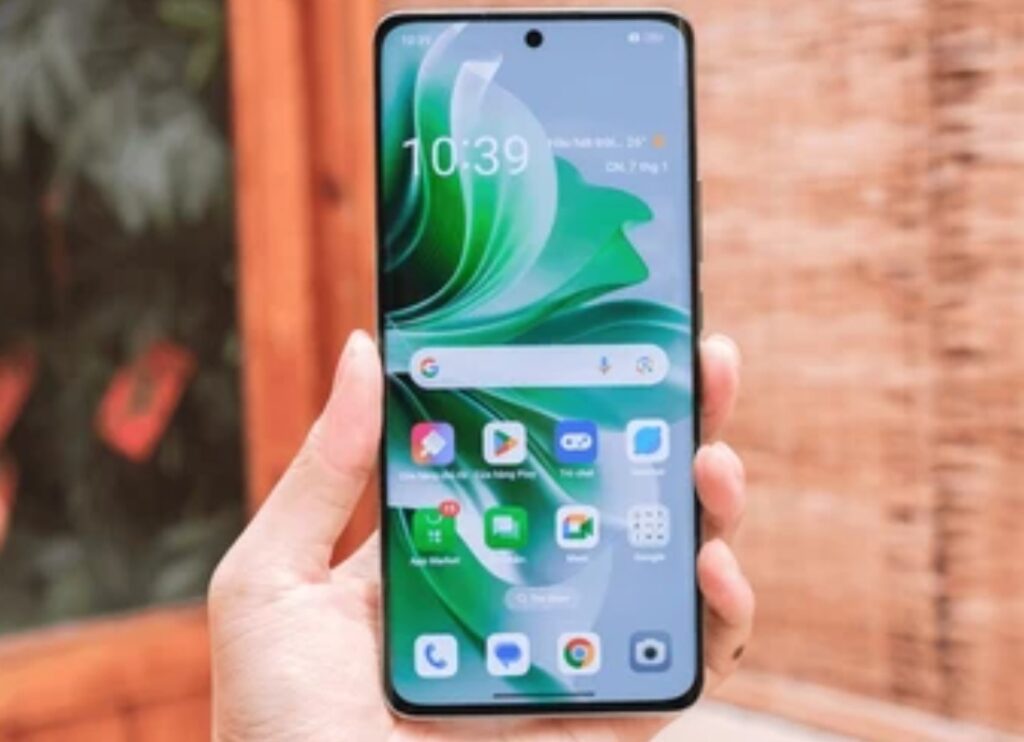
In this ultimate guide, we’re pulling back the curtain to reveal 5 powerful hidden Android settings you should change right now.
Whether you’re a casual user or a mobile power user, these settings will help you unlock performance-enhancing tweaks that most people have never even heard of.
⚠️ Don’t worry — no tech degree needed.
These actionable, step-by-step Android tips and tricks are easy to follow, even if you’re not a tech geek.
💡 Why You Should Care About Hidden Android Settings
If you’ve ever wondered why your phone slows down over time, drains battery quickly, or seems to be listening to more than it should — you’re not alone.
Many of these issues stem from settings that are either turned on by default or buried deep in your phone’s system.
By adjusting a few of these hidden Android settings, you can:
- 🔋 Dramatically improve battery life
- 🚀 Speed up overall system performance
🛡️ Strengthen privacy and app control - 📲 Make your Android feel brand new
These aren’t just gimmicky “life hacks.”
They’re real, underused Android features that give you more control over your device — without needing to install third-party apps or root your phone.
🧠 What You’ll Discover in This Guide
In this guide, you’ll discover:
- ✅ How to access Developer Options for advanced tweaks
- ✅ Smart ways to save mobile data and prolong battery life
- ✅ Privacy-enhancing tools that most users ignore
- ✅ How to customize your device for better speed and security
🚀 Ready to Transform Your Android Experience?
If you’re tired of your phone lagging, draining too fast, or being out of your control — this guide is your solution.
🔥 You’re about to unlock the features that Android power users don’t want you to know.
➡️ Don’t just use your phone — master it!
Let’s dive into the first hidden Android setting you need to activate today.
⚙️ 1. Enable Developer Options for Advanced Tweaks
If you’ve ever wondered how tech enthusiasts make their Android devices run faster, look cleaner, and behave smarter — the answer often lies in a powerful feature called Developer Options.
This menu is usually hidden by default because it was originally intended for app developers.
But here’s the secret: you don’t need to be a developer to benefit from it.
With just a few simple taps, you can unlock a treasure trove of settings that allow you to optimize Android performance, enhance visuals, limit background activity, and even simulate device behavior.
Let’s break it down step by step.
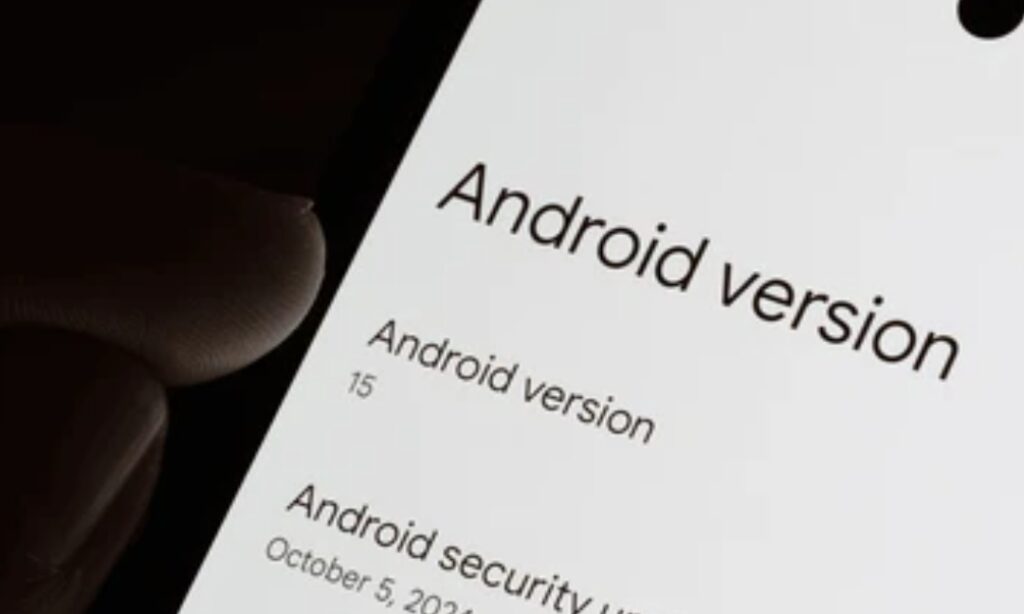
🔓 How to Unlock Developer Options on Any Android Device
Before you can explore all the powerful tools inside, you’ll need to unhide Developer Options.
Here’s how you do it:
- 📱 Go to your phone’s Settings
- 📁 Scroll down and tap on About phone
- 🔢 Find the Build number
- 👆 Tap Build number 7 times in quick succession
- 🔐 You may be asked to enter your device PIN or password
- 🎉 You’ll see a message that says “You are now a developer!”
Now go back to your main Settings menu, and scroll down.
You’ll see a new option called Developer Options — usually located under System or Additional Settings depending on your Android version or phone brand (Samsung, Xiaomi, OnePlus, etc.).
🚀 Key Tweaks Inside Developer Options to Speed Up Your Device
Once inside the Developer Options menu, you’ll find dozens of advanced settings.
But don’t get overwhelmed — you only need to change a few to get powerful results.
Let’s explore the most effective ones:
⚡ Reduce Animation Scale to Speed Up UI Navigation
One of the best Android tips and tricks for making your phone feel instantly faster is reducing or disabling system animations.
These visual effects may look pretty, but they slow down the perceived speed of your device.
To fix this:
- Go to Developer Options
- Scroll to the Drawing section
- Locate these three settings:
- Window animation scale
- Transition animation scale
- Animator duration scale
- Window animation scale
- Set all of them to 0.5x or Off
📈 Result: Menus will open faster, transitions will feel snappier, and your device will appear to run much smoother.
🔋 Limit Background Processes to Save Battery
If your Android feels sluggish or your battery drains too quickly, background processes may be the culprit.
Here’s how to control them:
- Inside Developer Options, scroll to the Apps section
- Tap on Limit background processes
- Choose from the following:
- Standard limit (default)
- No background processes
- 1, 2, 3, or 4 processes at most
- Standard limit (default)
This forces Android to reduce the number of apps it keeps running silently in the background.
💡 Pro Tip: Set this to “At most 4 processes” for a balanced performance boost without compromising multitasking.
📸 Force GPU Rendering for Smoother Graphics
Some older apps or devices rely on CPU rendering, which can lag.
By forcing GPU rendering, your device will use its graphics processor to handle screen drawing more efficiently.
- In Developer Options, enable “Force GPU rendering”
🎮 Ideal for: Gamers or users who use graphically intensive apps.
📡 Enable USB Debugging (Optional but Useful)
While not directly linked to performance, enabling USB Debugging allows you to connect your device to a PC for advanced troubleshooting, sideloading apps, or using Android tools.
Simply toggle USB Debugging on from the Developer Options menu.
🧰 This feature is especially useful if you plan to install custom ROMs, transfer files, or automate device actions.
📈 Why Developer Options Matter for Optimization
Most people never realize their device is capable of so much more.
By unlocking and properly configuring Developer Options, you’re not just “tinkering” — you’re upgrading the way your phone performs.
These advanced settings allow you to:
- Speed up your Android’s interface
- Reduce lag and bloat
- Extend battery life
- Gain more control over your apps and background activity
And the best part? It’s completely free and reversible.
You can turn off Developer Options at any time if you change your mind.
✅ Best Practices & Warnings
While Developer Options are incredibly useful, they also come with advanced-level settings that can impact your device if misused.
Here’s what to keep in mind:
- ⚠️ Do not enable options unless you fully understand them
- ✅ Stick to performance-related tweaks only
- 🔄 Always reboot after making major changes to test impact
- 📤 Back up your data before enabling experimental features
Used wisely, Developer Options are one of the most underrated features in Android.
🛠️ Power Up Your Android With Developer Tools
To recap:
- You can easily unlock Developer Options in under 30 seconds
- Key settings like animation scaling, GPU rendering, and background process limits can significantly boost speed and battery life
- Always change settings responsibly, and stick to performance and usability tweaks
🔥 Ready to continue?
Let’s explore the next hidden setting that will help you optimize your Android to run more efficiently and smarter every day.
➡️ Keep reading – your phone is about to get a serious upgrade.
📶 2. Activate Data Saver Mode to Optimize Data Usage and Speed
Ever wonder why your mobile data disappears faster than you expect?
Or why your apps seem to be using data even when you’re not actively on your phone?
Here’s the truth:
📡 Many apps continue running in the background, auto-refreshing, syncing, or updating even when you’re not using them — all while quietly eating up your data and battery.
But there’s a built-in feature in Android that can stop this in its tracks:
Data Saver Mode.
This underrated tool is one of the most effective hidden Android settings that not only helps you optimize Android for better performance but also saves you money by preventing unnecessary background data usage.
💡 What Is Data Saver Mode and How Does It Work?
Data Saver Mode is a smart Android feature that limits background data access for apps when you’re using mobile data.
When activated:
- Apps can only use background data when you’re connected to Wi-Fi
- Background updates and syncing are paused
- Only essential system functions and whitelisted apps can bypass the restriction
The result?
🚀 Faster performance, 🔋 longer battery life, and 💰 less mobile data usage
📲 How to Turn On Data Saver Mode (Step-by-Step Guide)
Here’s how you can enable this hidden setting:
- Open the Settings app
- Tap Network & Internet
- Select Data Saver
- Toggle Use Data Saver to ON
And that’s it — Android will immediately begin restricting background data activity.
✅ You’ll see a small Data Saver icon in your status bar when it’s active.
📱 Allow Specific Apps to Bypass Data Saver (Optional)
Need certain apps — like WhatsApp, Gmail, or Maps — to work in the background while Data Saver is on?
You can whitelist specific apps so they continue receiving background data even with restrictions.
Here’s how:
- Go to Settings > Network & Internet > Data Saver
- Tap on Unrestricted data access
- Toggle ON for any apps you want to exclude from Data Saver
💡 Pro Tip: Only whitelist essential apps that rely on background data, such as messaging or navigation apps.
🧠 Why Data Saver Mode Helps You Optimize Android
This feature goes beyond just saving mobile data.
It also has a huge impact on performance and battery efficiency, especially on devices with lower RAM or slower processors.
✅ Less background data = less processing power = faster device.
Here’s what enabling Data Saver can help you achieve:
- 🔋 Reduce battery drain caused by background syncs
- 🧹 Free up memory and CPU by limiting background activity
- 🌐 Prevent overage charges on limited data plans
- 🔒 Improve privacy by blocking some passive tracking from apps
By controlling background data access, you’re giving your phone room to breathe and operate more smoothly.
🧩 Related Android Tips and Tricks for Data Optimization
To further enhance your control over data usage, try these bonus tweaks:
- 📊 Monitor Data Usage:
Go to Settings > Network & Internet > Mobile Network > App data usage
Check which apps are using the most data — and limit them manually. - 🚫 Disable Auto-Updates in Google Play Store:
Open Play Store > Settings > Network Preferences > Auto-update apps > Set to “Over Wi-Fi only” - ❌ Restrict Background Data for Individual Apps:
Settings > Apps > Choose App > Mobile data & Wi-Fi > Toggle off Background data
Each of these additional tips works together with Data Saver Mode to create a supercharged optimization effect for both performance and data efficiency.
🚀 Stop Wasting Data and Speed Up Your Android
If you’re tired of data running out fast, or your phone lagging due to background app activity — Data Saver Mode is your secret weapon.
To summarize:
- Activate Data Saver from Settings > Network & Internet
- Limit background activity and boost performance
- Whitelist essential apps for uninterrupted usage
- Combine with bonus tweaks for ultimate data control
🔥 Stop letting your apps run wild in the background.
➡️ Take control of your Android today and experience faster speeds, longer battery, and lower data bills!
🔐 3. Utilize Smart Lock for Seamless Security and Convenience
Imagine this:
You’re at home, your phone is in your hand, and you still have to enter a PIN or scan your fingerprint every time you unlock it.
Frustrating, right?
Now picture this instead:
Your phone automatically stays unlocked when you’re in a safe place — like home, your car, or even when it’s in your pocket.
That’s exactly what Smart Lock does.
This often-overlooked feature is one of the best hidden Android settings that balances security with convenience — letting you keep your device secure without constantly unlocking it.
It’s not just about comfort — it’s about smartly optimizing your Android experience with built-in intelligence.
Let’s explore how to enable and use this underutilized gem.
🧠 What Is Smart Lock and Why You Should Use It?
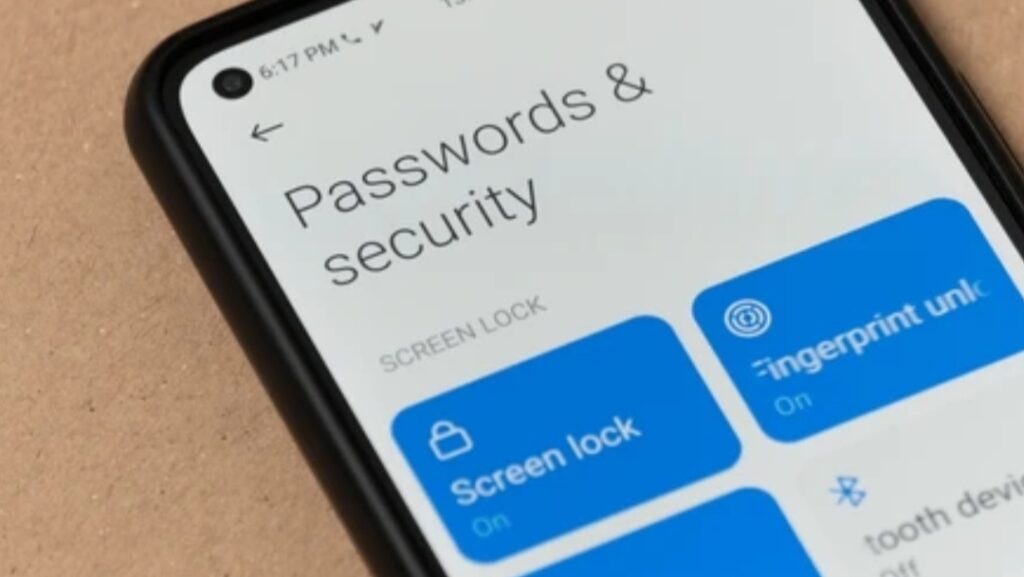
Smart Lock is a native Android feature that automatically keeps your device unlocked in trusted situations, so you don’t need to use a password or biometric lock every time.
It intelligently adapts based on your:
- Location (like home or work)
- Devices connected via Bluetooth (e.g., smartwatch or car)
- Physical contact (like when it’s in your hand or pocket)
- Your face (older Android versions)
By reducing the number of times you unlock your device daily, Smart Lock helps you save time, reduce wear on hardware buttons, and still maintain control over your privacy.
📌 And yes, it’s completely secure — you choose where and when it applies.
🔑 How to Enable Smart Lock on Android (Step-by-Step)
Activating Smart Lock is simple, and it takes less than 60 seconds:
- Open the Settings app
- Tap Security & Privacy (or just Security on some devices)
- Choose More security settings
- Tap on Smart Lock
- Enter your PIN, password, or pattern to confirm
Now you’ll see a list of Smart Lock options.
Let’s break them down.
📍 Smart Lock Options You Can Customize
🏠 Trusted Places
Set your device to stay unlocked at specific GPS locations — like your home, office, or any safe zone.
- Great for when you’re working or relaxing at home
- No need to unlock the phone repeatedly
➡️ Go to Smart Lock > Trusted Places and add any address from Google Maps.
🔗 Trusted Devices
Pair your Android with trusted Bluetooth devices — like your smartwatch, fitness tracker, earbuds, or car stereo.
Whenever your phone is connected to these, it will remain unlocked.
🔋 Bonus Tip: This also helps conserve battery since your screen wakes less frequently for manual unlocks.
➡️ Go to Smart Lock > Trusted Devices > Add a Bluetooth device.
✋ On-Body Detection
Keeps your phone unlocked when it detects that you’re carrying it — in your hand, bag, or pocket.
Once you set your phone down, it locks again.
⚠️ Note: While convenient, it’s less secure than other methods, so use cautiously.
➡️ Go to Smart Lock > On-body detection and toggle it ON.
🧩 How Smart Lock Helps Optimize Android and Boost Productivity
Smart Lock is more than just a convenience — it actively helps optimize your Android in the following ways:
- ✅ Reduces screen wake-ups and unlock attempts, saving battery
- 🚀 Speeds up access to apps, messages, and tools while working
- 🔐 Keeps your phone secure in unfamiliar environments
- ⏱️ Saves time by eliminating repetitive unlocking
- 🔄 Reduces wear and tear on fingerprint sensors or power buttons
These subtle improvements add up — giving you a faster, more responsive Android experience while still keeping security intact.
⚙️ Pro Tips to Use Smart Lock Effectively
Here’s how to get the most out of Smart Lock:
- 🧭 Only set Trusted Places that are truly secure (like your personal home)
- 🎧 Use Trusted Devices like Bluetooth headphones for quick unlock while commuting or jogging
- 📉 Avoid using On-body Detection in public areas — it’s less secure
- 🔄 Regularly review and update your Trusted Places list to reflect changes
- 🚫 Disable Smart Lock when traveling or in high-risk areas for extra safety
💡 Smart Lock is best used as a balance between accessibility and safety — always prioritize your data security.
✅ Unlock Convenience Without Compromising Safety
If you’re tired of typing your password every few minutes, Smart Lock is your best friend.
Here’s a quick recap:
- Unlock your phone automatically in safe zones and with trusted devices
- Save time, reduce button usage, and optimize your Android experience
- Customize Smart Lock settings to match your lifestyle and environment
- Still maintain full control over where and when your phone stays unlocked
🔥 Don’t waste time unlocking your phone over and over again.
➡️ Enable Smart Lock today and enjoy seamless access, faster navigation, and smarter security.
🛡️ 4. Manage App Permissions for Enhanced Privacy and Control
Do you know how many apps are silently accessing your camera, microphone, contacts, or even your real-time location — right now?
📱 Most Android users install dozens of apps without checking the permissions they grant.
This opens the door to serious privacy risks, potential data misuse, and even malware exploitation.
But here’s the good news:
Android gives you full control over what permissions each app can access.
It’s one of the most crucial yet overlooked hidden Android settings that empowers you to optimize Android for privacy, performance, and battery life.
Let’s break down how to manage app permissions — and why it’s one of the most important Android tips and tricks you should know.
🔍 Why App Permissions Matter More Than You Think
Every app you install asks for permissions — sometimes necessary, sometimes completely excessive.
For example:
- A flashlight app asking to access your contacts? 🚩
- A game wanting your microphone data? 🚩
- A shopping app tracking your real-time location? 🚩
These aren’t just harmless requests.
When you allow unnecessary permissions, you’re giving apps the power to:
- 📥 Collect sensitive personal information
- 🕵️ Track your movements and habits
- 📡 Drain battery by running location or sensor-based services in the background
- 📛 Sell your data to third parties or ad networks
Managing app permissions puts the power back in your hands.
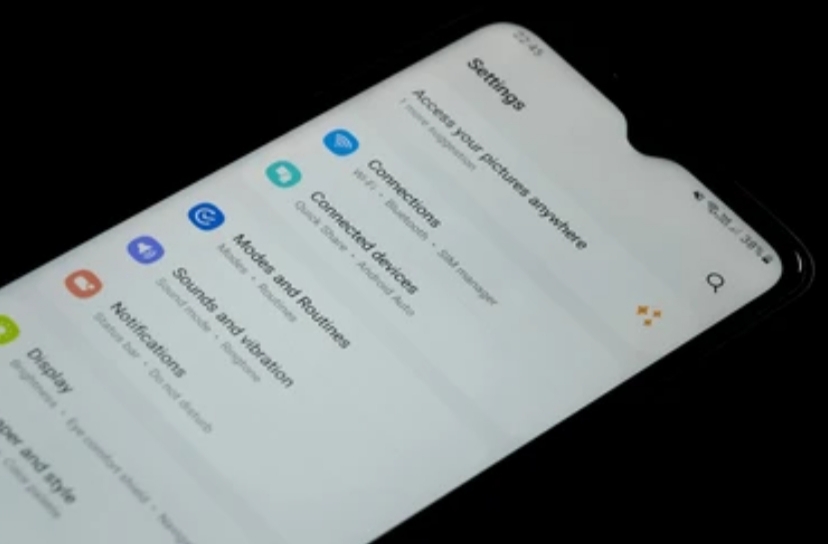
⚙️ How to Review and Change App Permissions (Step-by-Step)
Want to take back control? Follow these steps:
- Open the Settings app
- Tap Privacy (or Security & Privacy on newer versions)
- Tap Permission Manager (or App Permissions)
- Select a permission category (e.g., Camera, Microphone, Location)
- You’ll now see a list of apps that have access to that permission
- Tap each app and choose:
- Allow only while using the app
- Ask every time
- Don’t allow
- Allow only while using the app
🔐 Pro Tip: Choose “Ask every time” for sensitive permissions like camera or microphone.
📲 Use Android’s One-Time and Auto-Reset Permissions
Starting from Android 11 and above, there are two privacy-enhancing tools built into the OS:
⏳ One-Time Permission
When you open an app for the first time and it requests access, you’ll now see a “Only this time” option.
This grants access just once, until the app is closed — perfect for rare-use apps like scanners or tools.
🧼 Auto-Reset Permissions
If you haven’t used an app for a few months, Android automatically revokes all permissions granted to it.
That means no app can linger in the background accessing your stuff while it collects digital dust.
➡️ You can manage or turn off this feature under Settings > Apps > Special app access > Auto-remove permissions.
🔍 Focus on These Sensitive Permissions First
When optimizing app permissions, start with the most sensitive ones:
- 🎙️ Microphone
- 📷 Camera
- 📍 Location
- 👥 Contacts
- 📁 Files and media
- 📞 Call logs and SMS (if applicable)
Review each app carefully and ask yourself:
“Does this app really need this access to work?”
If the answer is no — deny it.
You’ll be amazed how many apps function perfectly without those invasive privileges.
🔋 How Managing Permissions Helps Optimize Android Performance
This isn’t just about security.
Tightening permissions has a direct impact on your phone’s performance:
- ✅ Improves battery life by stopping apps from running in the background
- 🧠 Frees up memory and CPU by blocking background services
- 🔒 Reduces your attack surface for malware or ad trackers
- 🌐 Minimizes unnecessary data usage
Managing app permissions is one of the easiest and most powerful Android tips and tricks to enhance both privacy and device optimization.
🧩 Bonus Tips to Lock Down Your Digital Life
Take your privacy even further with these add-ons:
- 🧯 Uninstall apps you haven’t used in 30 days
- 🚫 Disable “Install unknown apps” for apps that don’t need it
➡️ Go to Settings > Apps > Special access > Install unknown apps - 🔐 Use Privacy Dashboard (Android 12+) to monitor what apps accessed sensitive data and when
➡️ Find it under Settings > Privacy > Privacy dashboard
✅ Take Back Control of Your Privacy and Android Experience
Don’t let your apps spy on you or hog your system resources.
By managing app permissions wisely, you’ll:
- 🔐 Regain control over your private data
- ⚙️ Optimize Android for better speed and longer battery
- 🚫 Stop shady apps from accessing sensitive features
- 📈 Improve your phone’s overall performance and security
🔥 Start today — review your app permissions and shut the door on digital intruders.
➡️ Your phone, your rules. Don’t give away access you don’t need.
🔋 5. Use Adaptive Battery and Adaptive Brightness for Smart Power Management
If your Android phone’s battery drains faster than expected, the solution might be hiding in plain sight.
Modern Android devices are equipped with AI-powered features designed to optimize battery life and performance — yet many users never activate them.
That’s where Adaptive Battery and Adaptive Brightness come in — two of the smartest and most underrated hidden Android settings that can drastically improve how long your phone lasts between charges.
Let’s break down how these settings work, why they matter, and how they tie into essential Android tips and tricks that every user should implement to optimize Android performance.
🔋 What Is Adaptive Battery and How Does It Work?
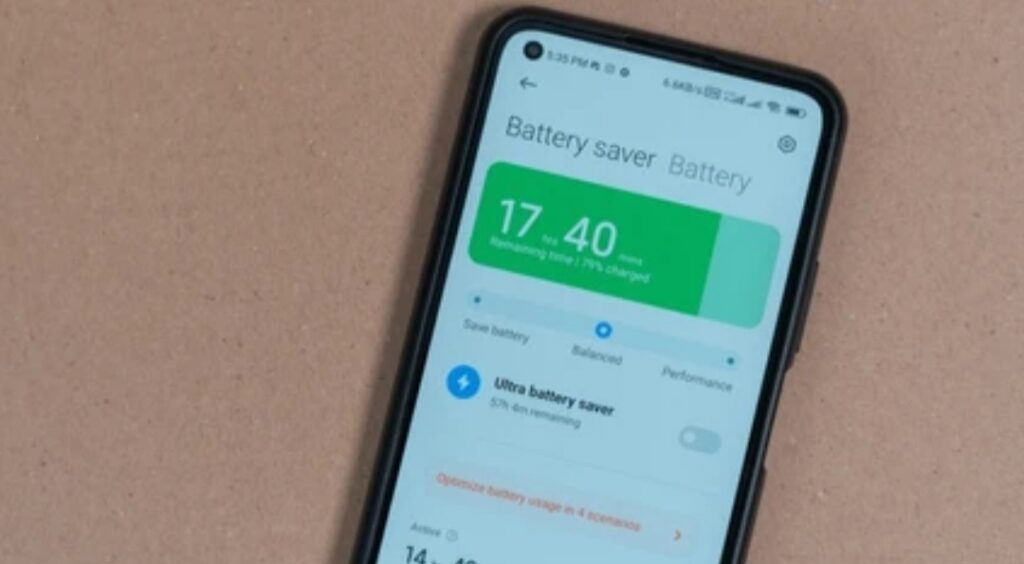
Adaptive Battery is a machine learning feature introduced in Android 9 (Pie) and perfected in later versions.
It intelligently analyzes how you use your phone — tracking which apps you use most frequently and which ones you rarely touch.
Then, it places rarely used apps into a lower priority mode, reducing their background activity and cutting off unnecessary battery drain.
🧠 Think of it as a personal assistant that learns your habits and silently adjusts your system to preserve battery life without you doing anything.
🔌 Key Benefits of Adaptive Battery:
- 🚫 Stops unused apps from draining battery in the background
- 🧠 Learns your usage patterns over time for smarter battery allocation
- 📉 Reduces CPU load and background wake-ups
- 🔄 Improves overall performance and app responsiveness
⚙️ How to Turn On Adaptive Battery
Enabling this smart setting takes less than 30 seconds:
- Open the Settings app
- Tap Battery
- Choose Battery usage or Adaptive Preferences
- Toggle Adaptive Battery ON
💡 On some Android skins like Samsung’s One UI, it may appear as “Put unused apps to sleep” under Battery and device care.
🌞 What Is Adaptive Brightness and Why It’s Better Than Auto-Brightness
Adaptive Brightness is not your old-school auto-brightness.
Instead, it uses AI to learn your lighting preferences in different environments — and then automatically adjusts your screen brightness based on your past behavior.
For example:
- If you always increase brightness in daylight, your phone learns to pre-emptively brighten the screen in similar situations.
- If you lower brightness before bed, it’ll begin doing that on its own.
This results in smarter energy savings, reduced eye strain, and a smoother user experience.
📉 The brighter the screen, the faster your battery drains. Adaptive Brightness helps fix that automatically.
⚙️ How to Turn On Adaptive Brightness
Here’s how to activate it:
- Go to Settings
- Tap Display
- Select Adaptive Brightness
- Toggle it ON
💡 If you ever feel it’s too dim or too bright, just adjust it manually — your phone will remember your correction and learn from it.
⚡ How These Features Help Optimize Android for Long-Term Use
By combining both Adaptive Battery and Adaptive Brightness, you unlock a synergistic effect that leads to:
- ✅ Up to 15-25% better battery life (based on usage)
- ⚡ More efficient CPU and GPU usage
- 🔕 Reduced background activity and app wake-ups
- 👁️ Better visual comfort in all lighting environments
- 🚀 Smoother performance even on older Android devices
📱 It’s one of the most effective ways to “set it and forget it” while still dramatically improving your Android experience.
🧩 Pro Tips for Maximum Battery Optimization
Want to push things even further? Try these power moves:
- 🔋 Use Battery Saver mode when your battery drops below 20%
- 🚫 Disable background activity for rarely-used apps
➡️ Settings > Apps > Choose App > Battery > Restricted - 📵 Turn off unnecessary location, Bluetooth, and Wi-Fi scanning
- 🌑 Use Dark Mode — it saves battery on OLED displays
- 📊 Monitor battery usage in Settings > Battery > Usage to find drainers
✅ Smarter Settings for Smarter Battery Life
If you want a longer-lasting Android experience without constantly hunting for a charger, these two built-in features are a game-changer.
Let’s recap:
- Adaptive Battery learns how you use apps and limits background power consumption
- Adaptive Brightness fine-tunes screen levels based on your personal preferences
- Together, they optimize Android for both performance and longevity
- It’s a no-effort, high-reward move that every Android user should enable today
🔥 Turn them on now — and experience a smarter, longer-lasting Android device every day.
➡️ No root. No apps. Just hidden Android settings doing the heavy lifting.
🧠 Bonus Tips to Further Optimize Android Performance and Security
Think you’ve unlocked all the best features of your Android device?
Think again.
Even after tweaking the core hidden Android settings, there are still advanced tips and lesser-known tricks you can apply to optimize Android performance, improve privacy, and give your smartphone a serious boost in speed and security.
Let’s dive into the best-kept secrets and Android tips and tricks that most users never take advantage of.
These bonus strategies can help you unlock your phone’s true potential — while keeping your data safe.
🛡️ Use “Private DNS” to Block Trackers & Ads Without Apps
Did you know Android lets you block unwanted ads and trackers at the DNS level — no root or extra apps needed?
Here’s how:
- Go to Settings > Network & Internet > Private DNS
- Select Private DNS provider hostname
- Enter: dns.adguard.com or dns.family.adguard.com for safe browsing
- Tap Save
✅ This will:
- Block most in-app ads and malicious trackers
- Speed up page loads
- Add an extra layer of privacy
📌 It’s like having a built-in ad blocker that works across your entire device.
🧽 Clean Up Cached Data and Unused Apps Regularly
Junk files, old caches, and forgotten apps can slow your phone down significantly.
🧹 Freeing up space is one of the fastest ways to optimize Android without spending a dime.
Try this monthly:
- Head to Settings > Storage
- Tap Free up space or use Files by Google
- Remove:
- Cached app data
- Temporary files
- Large, unused files
- Unused apps you haven’t opened in months
- Cached app data
🔁 Repeat this monthly to keep your Android running like new.
📡 Turn Off “Nearby Device Scanning” and “Bluetooth Scanning”
These background scanning options are silently draining your battery — even when Bluetooth and Wi-Fi are off.
Disable them here:
- Settings > Location > Wi-Fi scanning & Bluetooth scanning
- Toggle both OFF
This reduces background data usage and battery drain without affecting performance.
🧯 Disable Unused System Apps (Bloatware)
Your Android phone may come with pre-installed apps that run in the background — even if you never use them.
Instead of deleting (which might not be possible), disable them to free up system resources:
- Go to Settings > Apps
- Tap the app you don’t use
- Tap Disable
✅ This removes them from your app drawer and stops background activity.
Pro Tip: Focus on disabling apps like:
- Samsung Daily / One UI Feed
- Carrier-specific tools
- Pre-installed games
- Duplicate apps (e.g., two messaging apps)
🔐 Use Biometric Lock for Individual Apps
Many phones (especially Xiaomi, Samsung, and OnePlus) now let you lock individual apps using your fingerprint or face ID.
This prevents unauthorized access to:
- Messaging apps
- Payment apps
- Social media
To enable:
- Settings > Privacy > App Lock (or Security > App Lock)
Set a fingerprint or pin, and choose which apps to protect.
👉 This is especially useful if you frequently hand your phone to friends, family, or coworkers.
💡 Enable Developer Options for Extra Control
Want to push your Android even further?
Unlock Developer Options:
- Go to Settings > About Phone
- Tap Build Number 7 times
- Enter your PIN when prompted
Now, go to Settings > System > Developer Options
Useful tweaks here:
- 🏃♂️ Reduce animation scale (Window/Transition/Animator scale to 0.5x) to make your phone feel faster
- 🔄 Limit background processes for better performance
- 💻 Stay awake while charging during long sessions
⚠️ Only adjust what you understand — some settings may affect stability if used improperly.
📊 Set Digital Wellbeing Goals for Better Focus and Performance
Too many apps fighting for your attention?
Digital Wellbeing helps you cut distractions, save battery, and stay focused.
- Go to Settings > Digital Wellbeing & Parental Controls
- Set:
- App timers
- Focus mode
- Wind Down mode
- App timers
This helps you reduce unnecessary screen time while also freeing up performance in the background.
📈 Go Beyond the Basics and Stay Ahead
You’ve now gone above and beyond the typical Android user.
Let’s recap what you’ve unlocked with these bonus tips:
- 🧠 You’ve fine-tuned performance with system tools most users overlook
- 🛡️ Boosted your digital privacy with DNS-level ad blocking and app permissions
- 🧽 Cleaned up junk and cut bloat to optimize Android speed
- 🔋 Stopped battery drain from hidden background services
- 🔐 Secured your device without installing third-party tools
🔥 Don’t just use your phone — master it.
➡️ Start implementing these hidden Android settings and tips today to experience faster speeds, better battery, and airtight privacy.
🧠 Check out these top-rated Android utility tools that can take your performance to the next level — optimize your Android like a pro in just a few taps!
⚠️ Common Mistakes to Avoid When Tweaking Settings
As powerful as Android’s hidden features can be, tweaking the wrong setting can easily backfire.
Many users unintentionally degrade performance, create security loopholes, or even cause app crashes by misconfiguring settings they don’t fully understand.
That’s why it’s crucial to know what not to do when customizing your Android.
Let’s break down the most common mistakes, so you can avoid them and optimize Android safely and effectively — without compromising stability, privacy, or battery life.

❌ Disabling System Apps Without Understanding Their Function
While disabling bloatware is one of the best Android tips and tricks, doing so carelessly can lead to serious problems.
Some system apps are tightly integrated with essential functions — like notifications, updates, or even calling features.
🔴 Mistake: Disabling apps such as:
- Google Play Services
- System UI
- Android System WebView
- Phone/Dialer App
🔧 Fix: Before disabling any app:
- Google its purpose
- Check if it’s critical to system performance
- Disable only apps clearly marked as bloatware or duplicates
🔋 Using Aggressive Battery Saver Apps
Third-party “Battery Saver” apps often promise longer battery life — but most do more harm than good.
They force-stop background processes, which leads to:
- App crashes
- Delayed notifications
- Restart loops
- Even increased battery usage when apps relaunch repeatedly
🧠 Instead of these, use:
- Native Battery Saver Mode
- Adaptive Battery settings
- Built-in Device Care tools on Samsung or Pixel Optimizations
✅ These smart tools are already optimized to work in harmony with your device.
🛑 Clearing App Cache Too Frequently
Yes, cache can pile up.
But constantly wiping it is like resetting your apps every day.
🔴 Mistake: Clearing app caches weekly or daily without reason
This leads to:
- Slower app load times
- Increased mobile data usage
- More battery drain from re-downloading content
✅ Only clear cache when:
- An app is misbehaving
- You’re running out of space
- A site isn’t loading correctly in the browser
🔁 A monthly cleanup is usually enough for most users.
🔐 Ignoring App Permissions and Privacy Settings
Android gives you full control over what apps can access — but too often, people skip reviewing these permissions.
🔴 Mistake: Leaving access to:
- Location
- Microphone
- Contacts
- Camera
…enabled for apps that don’t need them
🛡️ This opens up your data to unnecessary tracking, battery drain, and security risks.
✅ Pro Tip:
Go to Settings > Privacy > Permission Manager and:
- Revoke access from apps you rarely use
- Grant access only while using the app
- Check which apps can see your location, SMS, or call logs
⚙️ Over-tweaking Developer Options
Activating Developer Options is powerful — but risky.
🔴 Mistake: Changing random settings without knowing what they do, like:
- Background process limits
- Forced GPU rendering
- Logger/debug settings
📛 This can cause:
- App crashes
- Overheating
- Slow boot times
✅ Only use Developer Options to:
- Shorten animation scale (0.5x for speed)
- Show taps (for screen recording)
- Force dark mode (if your device supports it)
📌 Always make small changes and monitor behavior.
📵 Using Task Killers or Auto-Close Apps
Many users think that manually closing apps or using task killers helps speed up Android.
The truth?
It actually makes things worse.
🔴 Why?
- Android is built to manage RAM automatically
- Force closing apps restarts them in the background, draining more battery
- It can prevent notifications from apps like Gmail, WhatsApp, and others
✅ Let Android do the heavy lifting.
Instead, focus on optimizing battery and limiting background usage through built-in settings.
🔄 Forgetting to Reboot After Tweaks
It may seem basic — but it’s incredibly effective.
After making major changes like:
- Disabling multiple apps
- Adjusting battery or network settings
- Installing system updates
🔁 Rebooting your device helps apply settings properly and flush out minor bugs.
✅ Make it a habit: Reboot at least once a week to maintain peak performance.
🧠 Smart Customization Requires Smart Decisions
Customizing Android can be incredibly rewarding — but only if done right.
Here’s what to avoid when tweaking hidden settings:
- 🚫 Don’t disable system-critical apps
- 🧪 Don’t experiment with developer options you don’t understand
- 🔋 Don’t rely on third-party battery savers or task killers
- 🔐 Don’t ignore app permissions
- 🧽 Don’t over-clean your cache unnecessarily
Instead, follow proven, built-in features and data-driven tips to genuinely optimize Android performance, extend battery life, and lock down your privacy.
✅ Smart tweaks = smoother performance, longer battery, and fewer headaches.
👉 Want even me pro-level Android hacks? Click here to explore top Android utility tools that will take your performance to the next level — and give you full control over your smartphone with just a few simple tweaks!
✅ Conclusion: Take Control of Your Android Experience
Congratulations — you’ve just unlocked some of the most powerful hidden Android settings that most users overlook.
By taking the time to understand and tweak these smart features, you’ve taken a huge step toward customizing your smartphone experience, improving privacy, boosting speed, and saving battery — all while staying secure.
Android is more than just a mobile operating system — it’s a fully customizable ecosystem designed to adapt to your needs.
The trick is knowing where to look… and what to change safely.
Let’s recap what you’ve learned:

📋 Key Takeaways from This Guide
- 🔒 Smart Lock can make security seamless without compromising protection
- 📱 Developer Options open the door to hidden performance boosts — when used wisely
- ⚙️ App Permissions are your privacy’s first line of defense
- 🔧 Quick Settings Customization puts control just one swipe away
- 🛡️ Avoiding common mistakes like aggressive task killers or blind setting changes can save you hours of frustration
Each of these hidden Android settings gives you more control, more speed, and more privacy — if used correctly.
🧠 Why These Android Tips and Tricks Matter
Most users settle for the default setup.
But you’re not most users.
You’re now equipped with advanced, yet safe Android tips and tricks to dramatically optimize Android without needing to root your phone or install shady third-party apps.
You’ll experience:
- ⚡ Faster load times
- 🔋 Longer battery life
- 🔐 Improved privacy
- 🎯 Personalized performance
The best part? These changes are all within your current settings — you just had to know where to find them.
🚀 What’s Next? Start Your Android Mastery Journey
Now that you’ve gained insider knowledge of these advanced tweaks, why stop here?
There are even more secret settings, automation tools, and smart apps that can supercharge your Android experience and help you:
- Block spam calls
- Create task automations
- Turbocharge your gaming performance
- Or even set up voice-command routines for hands-free control
👉 Tap here to access a curated list of essential Android optimization tools that every power user should have in 2025!
Don’t let your Android run on default mode — take control today and unlock its full potential 💡
🏁 Final Words — Make Android Work For You, Not Against You
Your Android device is a powerful tool, and now you know how to make the most of it.
By understanding what’s under the hood — and tweaking it thoughtfully — you’re not just using your phone… you’re mastering it.
✅ Keep exploring.
✅ Keep optimizing.
✅ Keep controlling your digital experience.
You deserve a smartphone that works the way you want.
You might also like :