

🟥 Introduction: Why Your Phone Charges Slowly (And How to Speed It Up) ⚡
Let’s face it — waiting for your phone to charge feels like forever, especially when you’re in a rush.
Whether you’re heading out, trying to catch a ride, or need your battery topped up before a Zoom call, slow charging is more than just frustrating — it’s inconvenient and unnecessary.
The good news?
You’re not stuck with slow charging.
In fact, with just a few smart tweaks and proven strategies, you can dramatically improve your charging speed today — no technical skills needed.
This guide will walk you through 7 powerful charging speed tips that have helped thousands of users learn exactly how to make your phone charge faster — whether you’re on Android, iPhone, or any other smartphone brand.
☑️ You’ll discover fast phone charging techniques most people don’t know about.
☑️ You’ll also avoid the common mistakes that secretly slow down your charging speed.
☑️ And best of all? These tips are simple, safe, and supported by tech experts in 2025.
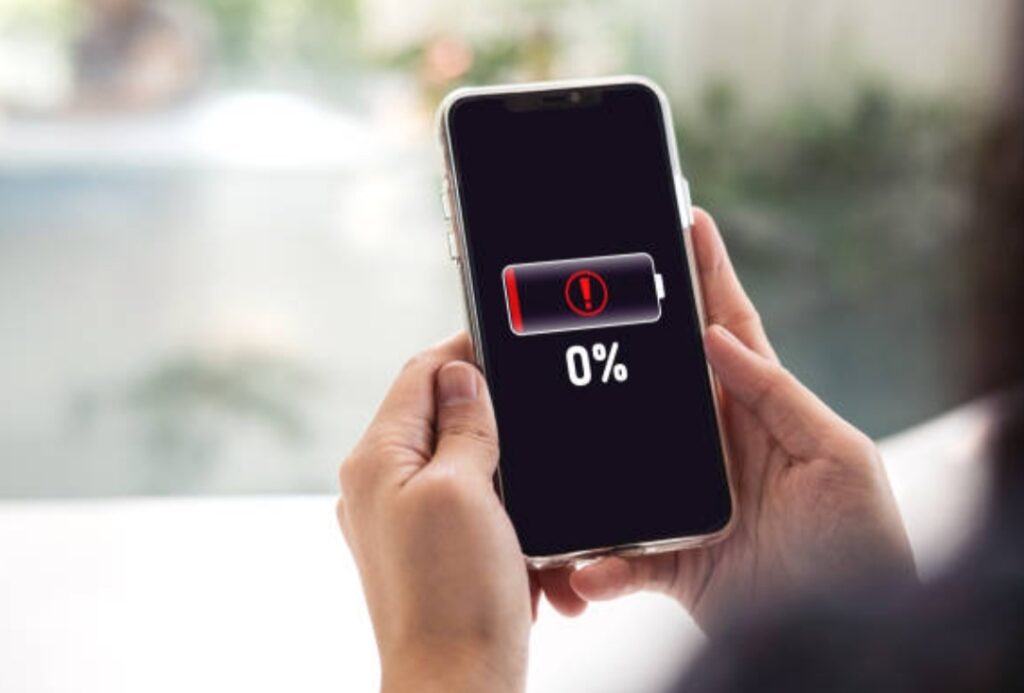
✅ Why Charging Speed Matters More Than Ever in 2025
We now use our phones for everything — from streaming, emails, remote work, video calls, shopping, GPS, and more.
But all of that drains your battery fast.
And unless you’re glued to a charger all day (which no one wants), the ability to charge your phone faster is more important than ever.
That’s why many are searching for updated charging speed tips — ones that work with the latest smartphones, chargers, and battery-saving technologies.
Whether your phone supports fast charging or not, this article will show you how to:
- Optimize your settings for faster charging
- Avoid bad habits that slow things down
- Use the right tools to improve efficiency
- Get the most juice in the shortest time possible
🔍 What You’ll Learn in This Guide
This isn’t just another basic blog post.
Inside, we’ll reveal:
✅ The real reason your phone charges slowly — and how to fix it
✅ 7 proven methods to supercharge your device quickly
✅ Common charging myths that are wasting your time
✅ Bonus pro tips to level-up your battery performance
And yes — we’ll show you the difference between hardware tricks (like using the right fast charging cable) and smart software adjustments that boost speed immediately.
💡 Real Talk: Not All Charging Hacks Are Equal
There are tons of outdated tips floating around online — like freezing your phone (please don’t), using sketchy fast chargers, or disabling everything.
We’ve done the research and filtered out what actually works in 2025, based on real user experiences and reliable data.
So if you’ve ever asked:
- “How to make your phone charge faster without damaging the battery?”
- “What’s the best way to speed up iPhone charging?”
- “Can I safely use third-party chargers?”
- “Why is my phone still charging so slowly even with a fast charger?”
You’ll get clear, no-fluff answers here.
🧠 Who Is This Guide For?
If you:
✅ Constantly run out of battery
✅ Get annoyed waiting for your device to charge
✅ Use your phone heavily for work or content
✅ Want to extend your phone’s battery life
✅ Love mobile gadgets and tech optimization
Then this is your guide.
🚀 Let’s Supercharge Your Charging Routine
You’re just minutes away from discovering real, no-nonsense tips that will boost your charging speed instantly.
Don’t settle for slow charging anymore.
Scroll down to learn the first trick that can help you charge faster — starting right now!
👉 Pro Tip: Bookmark this post or share it with a friend who’s always low on battery.
You’ll thank yourself later.
🟩 Use a Certified Fast Charger (Not All Chargers Are Equal!) 🔌⚡
If you’re serious about learning how to make your phone charge faster, the very first — and arguably most important — step is using the right charger.
And no, we’re not talking about the old charger that came with your phone five years ago.
Let’s break it down.
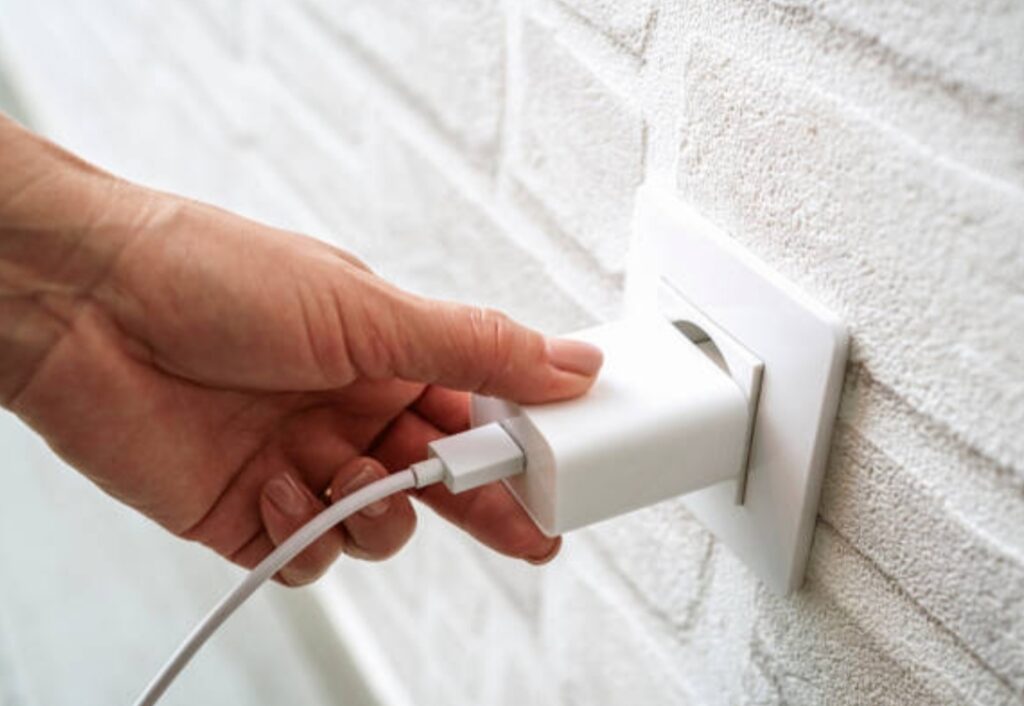
🧠 What Exactly Is a Fast Charger (And Why You Should Care)
A fast charger delivers more power (measured in watts) to your device in less time.
This helps you go from 0% to 80% in a fraction of the time it takes with a standard 5W charger.
Most modern smartphones, including the latest iPhones, Samsung Galaxy, Xiaomi, and OnePlus models, support fast charging technology out of the box.
However, here’s the catch:
🔴 Your phone won’t charge faster unless you’re using a certified fast charger.
Many users don’t realize that simply plugging your phone into any charger — even if it “fits” — doesn’t mean it’s optimizing charging speed.
To enable true fast phone charging, your charger must support protocols like:
- USB Power Delivery (USB-PD)
- Qualcomm Quick Charge
- SuperVOOC / Warp Charge / TurboPower (for specific brands)
✅ Always check if your phone and your charger are compatible with the same protocol.
⚠️ Why Cheap or Knockoff Chargers Are Hurting You
Let’s be blunt:
Low-quality chargers may seem like a bargain, but they can cause:
- Overheating
- Battery damage over time
- Incredibly slow charging speeds
- Risk of short-circuit or fire
Even worse?
Some generic cables don’t support high-speed data or power delivery at all.
So while your phone might charge, it could take 3x longer than necessary.
🔌 That’s why using an original or certified third-party charger is always worth it.
✅ Best Practices When Choosing a Fast Charger
Want to guarantee faster, safer charging?
Here’s what you should look for:
1. Wattage Compatibility
- For iPhones: 20W USB-C PD charger is the sweet spot.
- For Android: Look for 25W–65W chargers depending on model (some phones like Xiaomi or OnePlus support up to 100W+).
2. Fast-Charging Support Label
Look for tags like:
- “Quick Charge 3.0 / 4.0+”
- “USB-PD”
- “Certified Fast Charging”
3. Brand Matters
Top fast charging brands:
- Anker ⚡
- Aukey 🔋
- Belkin 📱
- Spigen ⚙️
- Ugreen 🔌
- Official phone brand (Samsung, Apple, Xiaomi, etc.)
✅ Pro Tip: Pair your fast charger with a high-quality USB-C to USB-C or Lightning cable for maximum speed.
🧲 Real-World Example: Standard vs Fast Charging Time
Let’s say you have an iPhone 13 or Galaxy S22:
| Charger Type | Charging Time (0% to 50%) |
| 5W Basic Charger | 1 hour+ |
| 20W Fast Charger | ~30 minutes |
| 65W Fast Charger (Android) | ~15–20 minutes |
The results are clear.
Just switching your charging gear can literally cut your charging time in half.
🚫 What NOT to Do When Choosing a Charger
- Don’t buy from shady online shops or unverified sellers.
- Avoid cables without proper wattage rating.
- Skip “2-in-1 charging cable” gimmicks — many are slow or unstable.
- Don’t rely on free chargers given with cheap power banks.
📌 Bottom line: If you want fast charging, invest in trusted hardware — it pays off.
💬 What If My Phone Doesn’t Support Fast Charging?
Even if your phone isn’t labeled as “fast charging compatible,” using a better charger can still:
- Improve stability
- Reduce heat
- Slightly improve speed compared to low-output chargers
✅ Still worth the upgrade.
You’ll get a more efficient charge and protect your battery over time.
🔥 Your Charger Is Half the Battle
Let’s not sugarcoat it:
Using the wrong charger is like filling your tank with a garden hose — it will work, but painfully slow.
If you’re serious about discovering how to make your phone charge faster, start by upgrading your charger today.
👉 Ready to make the switch?
Check out our recommended fast chargers and cables here for safe, verified options.
⚡ Stop wasting time — charge smarter, not slower!
🟦 Enable Airplane Mode While Charging: The Quickest Hack You’re Not Using ✈️
Want a fast, zero-cost way to speed up your phone’s charging process instantly?
Try this simple trick — switch on Airplane Mode while your phone charges.
It might sound too easy to work, but it’s one of the most underrated charging speed tips that can give your battery a noticeable boost in less time — no apps, no extra gear required.
Let’s dive into why this works and when it’s most effective.
🧠 Why Airplane Mode Speeds Up Charging (The Science Behind It)
When your phone is connected to the network, it’s constantly working in the background to:
- Maintain a signal
- Search for towers (especially in weak areas)
- Run push notifications and sync data
- Keep apps connected (WhatsApp, email, Messenger, etc.)
All of this background activity drains your battery — even while it’s plugged in.
That’s where Airplane Mode comes in.
When you enable it, your phone disconnects from all radio signals, including:
- Mobile data / SIM
- Wi-Fi
- Bluetooth
- GPS
This creates a low-power environment that allows your phone to focus solely on charging — nothing else.
📱⚡In short, less multitasking = faster energy transfer to your battery.
⚡ How Much Faster Can It Charge with Airplane Mode On?
While actual numbers may vary by device, the average charging improvement can range from:
🟢 Up to 10–25% faster charging time compared to normal mode.
That means if your phone usually takes 60 minutes to reach 80%, it might only take around 45–50 minutes with Airplane Mode enabled.
It’s not a miracle jump like using a fast charger, but it’s still a smart, free way to boost efficiency — especially in a pinch.
✅ When Should You Use Airplane Mode While Charging?
This trick works best in the following situations:
- ⏰ You’re short on time and need the fastest possible charge
- 🛫 Before a flight or commute when you’ll switch it on anyway
- 🔋 Low battery emergencies and no fast charger around
- 🌐 Weak signal zones (your phone uses more power trying to stay connected)
🛡️ Bonus: It helps reduce heat while charging — which protects battery health in the long run.
⚙️ How to Enable Airplane Mode (Step-by-Step)
For Android Users:
- Swipe down from the top of the screen
- Tap the Airplane Mode ✈️ icon
- You’ll see the signal bar and Wi-Fi turn off automatically
For iPhone Users:
- Swipe down from the top-right corner (or up from the bottom on older iPhones)
- Tap the Airplane Mode icon
- Done — your phone will disconnect from all signals
🟡 Optional: You can also turn off Wi-Fi and Bluetooth separately if you still need one of them (like playing downloaded music via Bluetooth speaker).
❓ Will I Miss Notifications or Calls?
Yes — while Airplane Mode is on, your phone won’t:
- Receive calls or messages
- Access mobile data or the internet
- Connect to cloud-based apps
So it’s best to use this feature:
- When you’re not expecting urgent messages
- While you’re sleeping, commuting, or working offline
- During moments when notifications aren’t important
💬 Pro Tip: Let friends or coworkers know you’ll be offline if needed.
🚫 When NOT to Use Airplane Mode While Charging
Although it’s a powerful trick, Airplane Mode isn’t ideal if:
- You need to stay connected (Zoom calls, work emails)
- You’re using the phone for music streaming or hotspot
- You’re waiting for a ride or delivery update
In those cases, try other tips like closing background apps (we’ll cover this in a later section) instead.
🔋 Combine Airplane Mode with Other Charging Hacks for Best Results
Want to go full throttle?
Combine Airplane Mode with:
✅ A certified fast charging adapter
✅ High-speed USB-C or Lightning cable
✅ Cool, ventilated charging conditions
✅ Screen turned off
You’ll likely get one of the fastest safe charging experiences possible — even better than stock conditions.
💥 Small Change, Big Boost
If you’re wondering how to make your phone charge faster without spending a dime, turning on Airplane Mode is a game-changing trick that works across nearly every smartphone.
It’s easy to do.
It costs nothing.
And it gives you just enough extra juice when you need it most.
👉 Try this tonight and see how much faster your phone charges.
And if it helps, be sure to share this tip with friends who are always charging on the go.
🟨 Avoid Charging from a Laptop or Power Bank: Why Wall Sockets Win Every Time 🔋🔌
If you’re in the habit of plugging your phone into your laptop USB port or portable power bank for convenience, here’s a wake-up call:
⚠️ You’re unknowingly slowing down your charging speed — sometimes by over 50%!
While these methods are helpful in emergencies or when you’re on the move, they are not the best solution if you’re aiming for fast phone charging.
Let’s explore why charging from laptops and power banks is often inefficient, and what you should do instead to get faster, more reliable charging.
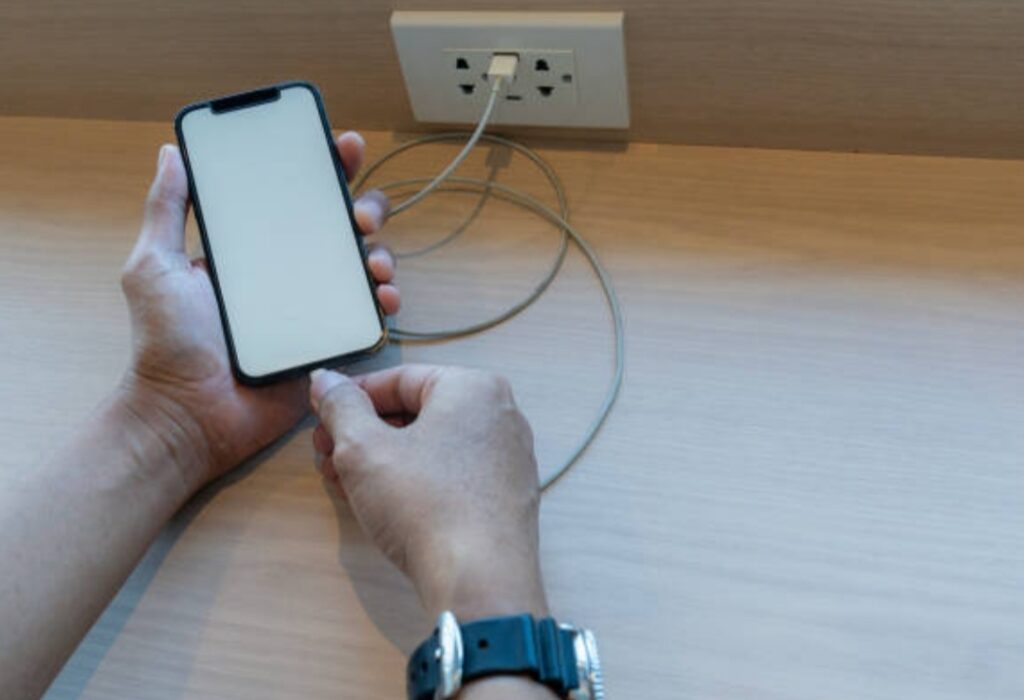
🧠 Why Laptop USB Ports Charge Slower Than Wall Outlets
Laptop USB ports were designed primarily for data transfer, not high-wattage power delivery.
Here’s a breakdown of what you typically get:
| USB Type | Output Power |
| USB 2.0 | 2.5W (0.5A) |
| USB 3.0 | 4.5W–5W (0.9A) |
| USB-C PD (newer laptops) | Up to 15W–30W |
Now compare that with wall chargers:
- Standard 5W charger = 5W
- Fast USB-C charger = 20W–100W
✅ That’s a 4x–10x difference in output depending on your charger!
So if you’re trying to learn how to make your phone charge faster, step one is to ditch the laptop USB port unless there’s no other option.
🔌 Power Banks — Useful but Not Always Fast
Power banks are great for charging on the go — but not all are created equal.
Many people use older or cheap power banks that only deliver:
- 5W or less
- Inconsistent output
- No fast-charging protocol
Unless you’re using a premium, PD-enabled power bank with sufficient wattage, your phone might trickle charge slowly — sometimes twice as long as wall charging.
💡 Want a faster experience on the go? Use a power bank with USB-C PD and at least 18W output for much better results.
⚠️ Risks of Charging from Inconsistent Sources
Besides speed, charging from laptops or low-quality power banks can also create other issues:
- Battery degradation over time
- Charging interruption or unstable power flow
- Overheating
- Slower charging even when the battery is critically low
This inconsistency wears down the battery faster than normal, reducing your phone’s lifespan and reliability.
✅ The Wall Socket Advantage — Why It’s Still the King of Charging
Wall sockets are directly connected to your home’s power grid, delivering stable and higher current flow.
This allows fast chargers to draw the full potential wattage needed for rapid battery top-ups.
Here’s why wall outlets are the best for fast phone charging:
- ✅ Delivers higher current without interruption
- ✅ Supports fast-charging protocols reliably
- ✅ Reduces charging time significantly
- ✅ Keeps charging consistent and safe
⚡ Tip: If your phone supports fast charging, always pair it with a PD-enabled wall charger + compatible cable directly into a wall socket.
🔋 When It’s OK to Use a Laptop or Power Bank (Situational Charging)
There are times when alternative charging methods are useful:
✅ Traveling and no outlet is nearby
✅ Emergency battery top-up during commute
✅ Charging low-power accessories (earbuds, fitness bands)
But for regular use?
It’s best to reserve these methods for backup only — not your daily routine.
📊 Charging Speed Comparison: Wall vs. Laptop vs. Power Bank
Let’s look at an example (charging a 3,000mAh phone battery from 0% to 80%):
| Charging Method | Estimated Time |
| Wall socket (25W) | ~35 minutes |
| Laptop USB 2.0 | ~90+ minutes |
| Power bank (non-PD) | ~80 minutes |
| Power bank (PD) | ~40 minutes |
The takeaway?
Wall charging wins every time — hands down.
🚀 Choose the Right Charging Source for Maximum Speed
Charging your phone faster isn’t just about cables and settings — it also comes down to where you plug in.
Using laptops or underpowered banks will always slow you down.
If you’re serious about mastering how to make your phone charge faster, then:
- Use wall sockets with high-wattage adapters whenever possible
- Reserve laptops and basic power banks for backup only
- Upgrade to a fast-charging power bank if you need charging on the go
👉 Want to cut your charging time in half? Then stop plugging into laptops — and start powering up like a pro.
🟥 Turn Off Background Apps and Features: Quiet the Battery Drainers for a Faster Charge 🚫📲
One of the biggest reasons your phone charges slowly — even with the right charger — is that background apps and features are secretly draining your battery during the process.
Think about it:
🔋 Your phone is trying to charge…
…but at the same time, it’s:
- Syncing cloud data ☁️
- Pulling email updates 📧
- Running social media notifications 📲
- Using GPS for weather or location tracking 🌍
- Refreshing background apps like Spotify, TikTok, or YouTube 🎵
The result?
⚠️ Slower charging speeds, more heat, and longer wait times.
If you truly want to learn how to make your phone charge faster, you need to quiet these background processes.
Let’s dive into how — and why — this matters so much.

🧠 How Background Activity Slows Down Charging
When your phone is charging, it should ideally be resting — like sleeping while it eats.
But with multiple apps open or syncing, your device has to work while recharging — pulling power to run tasks instead of storing it in the battery.
This results in:
- Slower charge rate
- Hotter device temperatures
- More battery cycles wasted
➡️ It’s like trying to fill a bucket with a hole in it.
No matter how powerful your charger is, background tasks can reduce charging efficiency by 15% to 30% or more.
⚙️ How to Disable Background Apps and Features on Android & iPhone
🔷 For Android Users:
- Open Settings
- Tap Battery & Performance or Apps
- Choose Background Apps or Battery Usage
- Select apps and tap Restrict Background Activity
📌 Bonus Tip: You can also enable Battery Saver Mode during charging to stop most non-essential processes.
🔵 For iPhone Users:
- Go to Settings → General → Background App Refresh
- Toggle off apps you don’t need updating in the background
- Enable Low Power Mode (Settings → Battery)
✅ Doing this reduces CPU usage and prioritizes battery intake instead of power output.
💡 Other Features to Turn Off While Charging
Want to push charging speed even further?
Turn off or pause these:
- Bluetooth 🔵
- Wi-Fi (if not in use) 📶
- GPS/Location Services 📍
- Live Wallpapers or Animations 🌈
- Auto-sync for apps like Google Photos or Dropbox
Each one adds to the background power draw — even if you don’t notice it.
📱💨 By pausing them, your phone charges faster and stays cooler.
🧪 Real-Life Charging Test: Background Apps ON vs. OFF
| Condition | Time to Reach 50% Charge |
| With background apps running | ~45 minutes |
| With all features disabled | ~30–35 minutes |
⚡ That’s a 25% faster charge, just by turning off unnecessary activity.
✅ Set It and Forget It — Use Charging Automation
For advanced users, you can even automate this process using:
- Focus Mode / Do Not Disturb schedules
- Battery-saving routines in Android
- Shortcuts app on iPhone to auto-enable Low Power Mode when plugged in
🛠️ These small automations help you get the fastest charge every single time.
🚫 Common Mistakes to Avoid
- ❌ Leaving 30+ apps open while charging
- ❌ Syncing photo backups while plugged in
- ❌ Playing music, videos, or games during charging
- ❌ Charging in hot environments (adds to overheating)
➡️ Remember: The less your phone “does,” the faster it can focus on charging.
💥 Let Your Phone Rest So It Can Recharge Faster
If you’re multitasking your phone while charging, you’re literally working against yourself.
Whether you’re on Android or iPhone, shutting down background apps and features will supercharge your charging routine and improve your battery health.
👉 Want an instant boost in charging speed without buying anything?
Turn off those battery-draining features now — and let your phone do what it does best.
📌 Pro Tip: Before bed or meetings, disable all unnecessary background activity, then plug in — you’ll wake up to a fully charged phone faster than usual.
🟧 Don’t Use Your Phone While Charging: Let It Recharge Without Interruption 📴🛑
This one may feel obvious — but it’s one of the most ignored fast charging tips of all time.
📱🔌 Using your phone while it’s charging significantly slows down charging speed, creates heat, and can shorten your battery’s overall lifespan.
If you’re truly serious about learning how to make your phone charge faster, then stop using it while it’s plugged in.
Let’s break down the real reasons why — and what to do instead.

🧠 Why Using Your Phone During Charging Slows It Down
When you’re actively using your phone — texting, scrolling TikTok, watching YouTube, gaming, or even checking emails — you’re pulling power from the battery while it’s trying to fill up.
Imagine trying to pour water into a cup while someone is drinking from it.
No matter how fast the pour is, the cup takes longer to fill.
That’s exactly what happens here.
The phone’s internal processor, screen, radios (Wi-Fi, Bluetooth, LTE/5G), and background apps are consuming power, leaving less energy available to actually charge the battery.
🌡️ Using Your Phone While Charging Increases Heat — A Battery Killer
Another major issue?
Heat.
Using your device while charging:
- Increases CPU and GPU activity
- Keeps the screen on (which is power-hungry)
- Keeps the phone’s backlight, radios, and sensors working
This generates excess heat, especially if you’re gaming or watching videos — and heat is one of the leading causes of long-term battery damage.
❌ Excessive heat reduces your battery’s lifespan and charging efficiency over time.
⚡ Real-World Impact: Charging with vs. without Phone Use
Here’s a rough idea of what you lose:
| Activity While Charging | Time to Reach 50% | Temperature Increase |
| Idle (no use) | ~30–35 minutes | +2°C |
| Watching videos | ~45 minutes | +5–7°C |
| Playing games | ~50+ minutes | +8–10°C |
So yes — just using your phone adds up to 20 extra minutes to reach the same battery level, and causes unnecessary heat.
✅ What You Should Do Instead While Charging
Want fast phone charging with no extra tools?
Then let your phone rest.
Here’s how to do it smartly:
- Turn off the screen
- Enable Airplane Mode or at least disable Wi-Fi and mobile data
- Close all background apps (refer to previous section)
- Place it in a cool, flat surface — not under a pillow or in sunlight
- Avoid using navigation or Bluetooth-heavy apps like Waze, Maps, Spotify, etc.
💡 Pro Tip: If possible, turn the phone off entirely while charging — especially when you need a full charge fast.
❓ “But What If I Have to Use My Phone While Charging?”
Sometimes, it’s unavoidable.
Here are safe compromises:
- Use Low Power Mode while charging
- Keep screen brightness to a minimum
- Only use lightweight apps (e.g., messaging)
- Avoid media-heavy or gaming apps at all costs
- Unplug once you’ve gained enough battery, then continue use
📌 You won’t get the maximum charging speed, but this minimizes the impact.
🧪 Power Users’ Tip — Let Your Battery Focus
Your phone’s battery can only handle so much at once.
By not using it, you give the charging process full access to system resources, instead of sharing it between tasks.
That means:
✅ Faster top-ups
✅ Cooler operation
✅ Longer battery life
✅ More efficient power intake
🚫 Common Mistakes to Avoid While Charging
- ❌ Playing games like PUBG, Mobile Legends, or Genshin Impact
- ❌ Watching Netflix or YouTube on full brightness
- ❌ Making long video calls or live streaming
- ❌ Charging while phone is inside a pocket, blanket, or hot space
These mistakes cause power draw + overheating, a double-whammy that ruins both speed and battery health.
💬 Stop Touching, Start Charging Faster
It might be tempting to “just check something” while your phone is charging…
…but every second of usage slows the charge and hurts long-term performance.
If you’re serious about learning how to make your phone charge faster, here’s the golden rule:
👉 Plug it in, leave it alone, and walk away.
✅ Let it rest — and you’ll be shocked at how quickly your battery fills up.
📌 Pro Tip: Charge while you shower, nap, meditate, or focus on work. It’ll be done before you know it.
🟩 Keep Your Charging Port Clean: Hidden Dust Could Be Slowing You Down 🧹🔍
Here’s a sneaky reason your phone might be charging slower than usual — even with the best charger and cable:
⚠️ Dirt, dust, or lint inside your charging port.
Yes, you read that right.
A clogged or partially blocked charging port can seriously disrupt the power flow, leading to:
- Slow charging
- Unstable connections
- Cable not fitting properly
- Intermittent charging drops
If you’ve tried everything and still feel like your phone isn’t charging as fast as it should, this might be the silent culprit.
Let’s uncover what you can do about it.
🧠 Why a Dirty Port Slows Down Charging (Or Stops It Completely)
Your phone’s charging port is a tiny but critical point of contact between your device and power source.
Any small obstruction — like a dust bunny or a tiny lint ball — can:
- Prevent the cable from plugging in all the way
- Cause poor electrical contact between cable and pins
- Trigger false “charging” notifications without real power flow
- Lead to overheating or power interruptions
Think of it like trying to water your plants through a straw filled with dirt.
💡 Your phone might “say” it’s charging — but the energy flow is weak and slow.
🔍 Signs That Your Charging Port Needs Cleaning
Here are some telltale signs:
- 🔌 Charger fits loosely or wiggles in the port
- ⚡ Charging starts and stops randomly
- 🔋 Phone charges slower than usual even with a fast charger
- 📵 Charging only works when the cable is held at a specific angle
If any of these sound familiar, your charging port likely needs attention.
🧰 How to Safely Clean Your Phone’s Charging Port (Step-by-Step)
⚠️ Important: Be gentle. The charging port is delicate and can be easily damaged.
Here’s a safe cleaning method:
✅ Tools you’ll need:
- A wooden or plastic toothpick (never metal!)
- A soft brush (like a clean, dry toothbrush)
- A can of compressed air (optional but helpful)
- A bright light or flashlight 🔦
Cleaning Steps:
- Turn off your phone completely
- Shine a light into the charging port to check for debris
- Gently insert the toothpick and scrape along the walls of the port, not the center pins
- Pull out any lint, dust, or dirt you find
- Use a soft brush to clear out loosened particles
- Optionally, use short bursts of compressed air to blow out remaining debris
🔁 Repeat once a month to keep your port clean and charging at top speed.
⚠️ What NOT to Do When Cleaning Your Charging Port
❌ Never use metal objects (paper clips, pins, needles)
❌ Don’t use water, alcohol, or any liquids
❌ Avoid aggressive poking that could bend the charging pins
❌ Don’t use vacuum cleaners or DIY air blowers
📌 If you’re not confident, take your phone to a professional repair technician.
🔌 Bonus Tip — Use Dust Plugs or Port Covers
If you often carry your phone in your pocket, purse, or bag, consider using dust plugs or silicone port covers to prevent future build-up.
They’re cheap, easy to install, and protect your port from:
- Pocket lint
- Sand
- Moisture
- Food crumbs (yes, it happens!)
✅ A clean port ensures fast, stable power delivery every time you charge.
⚡ Real Results — Before vs. After Cleaning
| Condition | Charging Behavior |
| Dirty port | Charger keeps disconnecting, charges slow (2% in 10 min) |
| After cleaning | Stable connection, fast charging restored (10%+ in 10 min) |
Sometimes, it’s not your cable or adapter — it’s just the gunk inside your port slowing things down.
💬 Clean Port, Faster Power
Keeping your charging port clean is one of the easiest and most overlooked ways to improve charging speed.
It costs nothing.
It takes 2–3 minutes.
And it can make a huge difference.
👉 Want your phone to charge faster right now?
Check your port — and clean it today. You might be shocked at what you find!
📌 Pro Tip: Add “clean charging port” to your monthly phone maintenance checklist for consistently better performance.
🟦 Use a High-Quality Cable: Why Your Cable Might Be Slowing You Down ⚙️🔗
When it comes to fast phone charging, everyone talks about the charger — but very few realize that your charging cable plays an equally important role.
Yes, that little cord connecting your phone to the charger can make or break your charging speed.
If you’re using a low-quality, worn-out, or incompatible cable, your phone may:
- Charge much slower than it should
- Experience inconsistent power delivery
- Overheat or stop charging completely
So if you’re still wondering how to make your phone charge faster, it’s time to give your charging cable a closer look.

🧠 How Charging Cables Affect Charging Speed
Cables may look similar, but they’re not all built the same.
Here’s what makes a high-quality cable essential for fast phone charging:
- Wire gauge: Thicker internal wires (lower gauge) allow more current to pass through efficiently
- Fast-charging support: Some cables are only built for slow charging (5W) and don’t support protocols like USB-PD or Quick Charge
- Connector quality: Cheap connectors degrade quickly, causing poor contact and slower speeds
- Data + power transmission: Some cables only support data — not high-wattage power
💡 Think of your cable like a water pipe — a narrow or blocked pipe restricts the flow, no matter how strong the water pressure is.
⚡ Symptoms of a Bad Charging Cable
Do any of these sound familiar?
- 🔌 Your phone charges slower than usual
- ⚠️ Charging keeps stopping and starting
- 🧊 Cable or connector gets hot
- 🟡 You have to wiggle the cable to make it work
- ❌ Cable works with one device but not another
If so, chances are high your cable is damaged or underpowered.
✅ Time to upgrade.
🛠️ What to Look for in a High-Quality Charging Cable
When buying a replacement or backup cable, don’t just grab the cheapest one.
Here’s what to look for:
✅ 1. Certified Fast-Charging Support
- USB-C to USB-C with Power Delivery (PD)
- USB-A to USB-C with Quick Charge 3.0 or 4.0
- USB-C to Lightning (for iPhones) with MFi Certification
✅ 2. Sufficient Wattage
Make sure it’s rated for at least 18W–60W (or more, depending on your device).
- 20W for iPhone 13/14/15
- 25W–45W for Samsung Galaxy
- 65W+ for some Xiaomi or OnePlus models
✅ 3. Durable Build Quality
- Nylon braided or reinforced jacket
- Aluminum or gold-plated connectors
- Strain relief near the tips to prevent fraying
✅ Bonus: Look for 3A or 5A-rated cables for even faster, more stable charging.
🔄 When to Replace Your Charging Cable
Cables degrade over time — especially if:
- You bend or twist them frequently
- They’re exposed to heat or moisture
- You store them tightly coiled or shoved in bags
🔁 Replace your cable every 12–18 months (or sooner if signs of wear appear).
And always test with a different device before assuming your charger is the issue.
🧪 Cable Speed Comparison Test
Here’s how two cables can perform very differently — even with the same charger:
| Cable Type | Charging Time (0–50%) |
| Cheap 5W generic cable | 50–60 mins |
| 3A Fast Charging cable | 25–30 mins |
➡️ That’s literally twice as fast, just from upgrading the cable!
📌 Trusted Brands for High-Quality Cables
Need recommendations?
Here are trusted, durable, and fast-charging cable brands:
- Anker 🔌
- Baseus ⚙️
- Belkin
- UGREEN
- Aukey
- Spigen
- Apple MFi-certified cables for iPhones
- USB-C PD-certified cables for Androids
✅ They’re slightly pricier, but they last longer and charge much faster.
🚫 Mistakes to Avoid When Buying Charging Cables
- ❌ Buying cheap, unbranded cables online
- ❌ Using old micro-USB cables with adapters
- ❌ Ignoring wattage ratings
- ❌ Falling for “extra-long” gimmicks with poor build quality
- ❌ Using cables meant for power banks only (low amp output)
📌 Remember: Fast phone charging starts with fast, reliable components.
💬 Don’t Let a $5 Cable Waste 2 Hours
You could have the most advanced fast charger on the market…
…but if your cable can’t handle the power, your phone won’t charge any faster.
So if you want to finally master how to make your phone charge faster, this is your sign:
👉 Upgrade your charging cable today.
It’s one of the easiest, cheapest, and most effective ways to instantly improve your charging speed.
✅ Pair it with a certified charger and clean port, and you’re golden.
🟨 Bonus Tips to Maximize Charging Speed Without Upgrading Your Phone 🚀📈
Already tried fast chargers, high-quality cables, and cleaning your port — but still want more speed?
Good news:
There are still a few bonus charging speed tips you can apply to squeeze every drop of power into your battery — without having to buy a new phone or replace expensive components.
Here are the top expert tricks you can start using today to boost your phone’s charging performance.
🔋 1. Charge Your Phone Before It Hits 0%
Letting your phone battery completely die before charging?
❌ Bad idea.
Modern lithium-ion batteries charge fastest in the 20% to 80% range.
Charging from 0% causes:
- Slower energy intake at the beginning
- Higher heat generation
- More battery stress over time
✅ Try plugging in your phone once it hits around 15–20% — this ensures a faster initial charge and better long-term battery health.
🌡️ 2. Keep Your Phone Cool While Charging
Heat is the #1 enemy of charging speed and battery lifespan.
To keep things cool:
- Remove your phone case while charging
- Don’t charge in direct sunlight
- Avoid pillows, couches, or tight spaces
- Use a fan or airflow nearby if possible
📌 Cooler temperatures = faster, safer, and more efficient charging.
🌓 3. Charge During Low-Usage Hours
Ever noticed your phone charges slower during the day?
That’s because:
- Background apps are more active
- Notifications and sync services increase
- Network activity spikes
✅ Charge your phone overnight or during low-usage periods like early morning or while you’re away from the phone.
This lets your battery focus entirely on charging without distractions.
⚙️ 4. Switch to Battery Saver or Ultra Power Saving Mode
Both Android and iPhone offer built-in features to reduce power drain:
- Android: Battery Saver / Ultra Power Saving Mode
- iPhone: Low Power Mode
Turning these on while charging reduces:
- CPU usage
- Screen brightness
- Background syncs
- Non-essential visual effects
This minimizes energy consumption so more power goes straight to the battery.
📴 5. Turn Off Your Phone Entirely While Charging
This is the ultimate fast-charging trick.
When the phone is powered off:
- There are no background tasks
- No CPU load
- No screen usage
- No power drain
✅ All energy goes directly to the battery.
If you’re in a hurry, power down your phone completely — and get 10–25% faster charging.
📈 6. Use a Wall Socket Over Wireless Charging or Car Chargers
While convenient, wireless charging and car ports are typically:
- Slower
- Less efficient
- More prone to heating
Unless you’re using high-speed Qi wireless chargers or fast-charging car adapters, you’re better off plugging directly into a wall outlet with a certified fast charger.
💡 Wall = best. Everything else = backup.
🚫 7. Avoid Battery-Draining Habits While Charging
Want to keep your phone at its best?
Here’s what not to do when charging:
- ❌ Avoid streaming videos, games, or music
- ❌ Don’t leave Bluetooth, GPS, or Wi-Fi on if not needed
- ❌ Don’t charge while using heavy apps like Instagram, Maps, or TikTok
- ❌ Don’t keep screen brightness high
➡️ Turn it all off — and let the battery focus on filling up.
💥 Small Hacks, Big Results
You don’t need a brand-new phone to enjoy faster charging.
By applying these bonus tricks, you can:
✅ Improve charging speed
✅ Extend battery lifespan
✅ Protect your device from overheating
✅ Get more power in less time
👉 Combine these hacks with the main charging tips in this guide and you’ll never feel battery-anxious again.
🟢 Ready to charge smarter, not slower?
Start using these tips today — and experience the speed boost for yourself.
🟫 FAQs About How to Make Your Phone Charge Faster 🙋♂️📱
Still have questions about fast phone charging?
Here are the most frequently asked questions to help you charge smarter and faster without damaging your device.
❓ Why is my phone charging so slowly all of a sudden?
There are several reasons why your phone may suddenly start charging slowly:
- 🔌 Faulty or low-quality charging cable
- ⚡ Weak power adapter or incompatible charger
- 🧹 Dirty or clogged charging port
- 🔋 Background apps or heavy phone usage during charging
- 🌡️ Overheating or hot environment
- 📉 Battery health degradation (especially in older devices)
✅ Start by testing with a different cable and adapter. Then, clean the port and turn off background apps for improved charging speed.
❓ Is fast charging safe for my phone’s battery?
Yes — fast charging is safe, as long as:
- You use an original or certified fast charger
- The cable and adapter support your phone’s fast-charging standard (PD, QC, etc.)
- You don’t let the phone overheat during charging
Modern smartphones are designed with charging management chips that regulate voltage and temperature.
That said, fast charging can produce more heat, so it’s a good practice to keep your phone cool while it charges.
❓ How can I tell if my phone is fast charging or just charging normally?
Most phones will show a different indicator or text when fast charging is active.
Examples:
- ⚡ A lightning bolt with the word “Fast Charging”, “Charging Rapidly”, or “Super Charging”
- 🔋 Higher percentage increase per minute (e.g., 1% every 60–90 seconds)
- Some phones vibrate briefly or make a unique sound when fast charging begins
📌 You can also install battery monitoring apps that show real-time wattage.
❓ Can I use my phone while it’s charging?
You can, but it’s not recommended if you want the fastest charge.
Using your phone while it charges:
- Slows down the charging process
- Generates extra heat
- Increases wear on the battery
💡 For the best results, keep your phone idle or turn it off during charging.
❓ Is wireless charging slower than wired charging?
Yes — in most cases, wireless charging is slower than wired charging.
Here’s why:
- Wireless pads typically offer 5W–15W, while fast wired chargers go up to 20W–65W+
- Wireless charging generates more heat and is less efficient
- Misalignment on the pad can interrupt charging
✅ Use wireless charging for convenience — not speed. For the fastest results, stick to wired fast chargers.
❓ How do I check my phone’s battery health?
Checking battery health helps you know if your slow charging is due to an aging battery.
🔵 For iPhones:
- Go to Settings → Battery → Battery Health & Charging
- Look under Maximum Capacity (80% or lower means your battery is aging)
🟢 For Android:
- Some phones like Samsung have Device Care or Battery settings
- You can also use apps like AccuBattery, Ampere, or Battery Guru
📌 If your battery health is poor, fast charging may no longer be as effective.
❓ Does charging overnight damage the battery?
No, charging overnight won’t harm your battery — as long as:
- You’re using a certified charger and cable
- Your phone has built-in charging protection (most modern phones do)
- You keep the phone in a cool, ventilated space
However, leaving it on charge at 100% constantly can slowly wear down the battery.
Enable Optimized Charging or Battery Protection Mode if your phone supports it.
❓ Can airplane mode really make my phone charge faster?
Yes, enabling Airplane Mode can help your phone charge 10–20% faster.
That’s because it disables:
- Cellular radios
- Wi-Fi and Bluetooth
- Background syncing
- Network searching (which drains a lot of power)
💡 If you’re in a rush, switching to Airplane Mode is a simple but powerful charging speed tip.
❓ How often should I replace my charging cable or adapter?
Replace your cable or charger if:
- It shows visible damage or fraying
- It no longer fits snugly or makes inconsistent contact
- Charging has slowed down even with a clean port
- It heats up more than usual
✅ Most cables last 12–18 months with regular use. Invest in high-quality, durable cables for better longevity.
✅ Still Struggling With Slow Charging?
👉 Don’t wait — take action today.
Revisit the tips in this guide, clean your charging port, replace your old cable, and upgrade your power brick if needed.
🔋 Faster charging is possible — without buying a new phone.
Start with small changes, and watch your battery fill up like never before!
🟦 Conclusion of How to Make Your Phone Charge Faster 🔋🚀
By now, you’ve discovered the most powerful, proven tips on how to make your phone charge faster — without buying a new phone or wasting hours waiting by the plug.
Let’s recap:
- ✅ Use a certified fast charger and a high-quality cable
- ✅ Clean your charging port regularly to remove hidden blockages
- ✅ Turn off background apps and features to reduce battery drain
- ✅ Avoid using your phone while charging to maximize speed
- ✅ Charge from a wall outlet, not a car or laptop USB
- ✅ Keep your phone cool and in battery-friendly conditions
- ✅ Use smart features like Battery Saver or Airplane Mode when needed
Each one of these small habits adds up to faster charging, better battery health, and longer device lifespan.
💬 Real Talk: Charging Slow Isn’t Normal Anymore
If your phone still charges like it’s stuck in 2010, chances are you’re:
- Using outdated accessories
- Leaving background tasks draining energy
- Letting your phone overheat
- Missing out on the smart tricks shared in this guide
But now you know better — and you’re equipped to change that starting right now.
💡 Final Power Tip
Want your phone to go from 20% to 80% in under 30 minutes?
➡️ Use a certified PD fast charger, a USB-C to USB-C 60W cable, turn on Airplane Mode, and don’t touch your phone while it charges.
Simple. Smart. Fast.
🔥 Take Action Now
👉 Stop wasting time with slow charges.
👉 Start charging smarter with the tips you’ve learned today.
And if you’re ready to go even further:
✅ Upgrade to a high-speed charger and cable combo today and never look back.
Don’t let slow charging hold you back.
Charge faster. Live smarter. Stay powered. ⚡📱
You might also like :