

🔋 Introduction – The Mystery of Overnight Battery Drain
Have you ever gone to bed with your phone battery at 80%, only to wake up to a shockingly low percentage—or worse, a dead device?
You’re not alone.
Millions of users across the globe are frustrated by overnight battery loss and are actively searching for how to stop phone battery draining overnight.
This common problem affects both Android and iPhone users and can cause unnecessary stress, especially if your phone dies right when you need it most.
🔍 But here’s the deal:
Most people have no idea what’s really causing their phone to lose power while it’s just sitting idle.
They think something’s wrong with their battery health—but in reality, the issue is often background processes, app syncing, wireless settings, and poor phone habits that silently sap your battery life while you sleep.
If you’re wondering whether your phone is secretly running battery-hogging tasks or if your settings are draining power unnecessarily, you’re in the right place.
This comprehensive guide will show you exactly how to fix overnight battery drain—step by step—without needing to be a tech expert.
We’ll dig deep into:
- The most overlooked reasons behind overnight power loss
- How to apply a reliable phone battery drain fix in just a few minutes
- And smart tweaks that can extend your battery’s lifespan in the long term
📱 Whether you’re on iOS or Android, the solutions here are updated for the latest operating systems and tailored to real-world phone usage in 2025—not outdated hacks from years ago.
You’ll also learn how to identify the real culprits behind hidden battery drain, and how to customize your settings for maximum efficiency—without sacrificing performance.
👉 If you’re tired of waking up to a drained phone, it’s time to take control.
Don’t let invisible apps or unnecessary features sabotage your battery life ever again.
✅ This post is designed to help you prevent battery drain overnight, protect your phone’s health, and wake up fully charged and ready to go—every single day.
So, grab your phone, follow along, and let’s fix this together.
⚡ Ready to stop the battery drain once and for all? Scroll down to find the real solution.
👉 Don’t miss the powerful hacks in the next section—they might just save your phone’s life.
🔋 Common Reasons Why Your Phone Battery Drains Overnight
If your phone mysteriously loses battery while you’re asleep, there’s always a reason behind it.
Most causes are surprisingly easy to fix once you know what to look for.
Below, we’ll explore the most common reasons behind overnight battery loss and how you can identify which one is affecting your device.
Knowing these culprits is the first step to finding the perfect phone battery drain fix.
📲 Background Apps Running Silently
Your phone might appear idle—but behind the scenes, it’s wide awake.
Many apps keep running in the background even when you’re not using them.
Social media apps like Facebook, Instagram, TikTok, and even messaging apps like WhatsApp and Telegram constantly check for updates, refresh content, and push notifications.
This background activity consumes CPU power, data, and drains your battery overnight.
🛠️ What to do:
- Go to Settings > Battery > App Usage (on both iOS and Android)
- Identify apps using battery in the background
- Restrict background activity or force-stop them before sleeping
- Consider enabling battery optimization for resource-heavy apps
📡 Poor Network or Constant Signal Search
When your phone has weak signal strength or is between Wi-Fi zones, it works harder to stay connected.
This results in constant scanning, tower switching, and increased overnight battery drain.
It’s one of the most overlooked issues—especially if your home has Wi-Fi dead zones or poor carrier coverage.
🛠️ Phone battery drain fix tip:
- If signal is weak, turn on Airplane Mode before bed
- Use Wi-Fi calling if supported
- Avoid sleeping in areas with zero bars
📌 Pro Tip: If your phone constantly flips between Wi-Fi and mobile data, it eats more battery. Either disable mobile data or enable Wi-Fi assist only when needed.
📍 Location Services & GPS Left On
Location tracking is another sneaky power thief.
Many apps (weather, maps, ride-hailing, shopping) request your location 24/7—even when you’re not using them.
While useful in the day, at night this can cause massive overnight battery loss.
🛠️ Here’s how to stop phone battery draining overnight due to GPS:
- Turn off location entirely or set it to “While using the app”
- Go to Settings > Location > App Permissions
- Disable high-accuracy mode or background location tracking
🔁 Auto-Syncing of Emails, Files, and Data
Your phone might be silently syncing:
- Emails every few minutes
- Cloud backups
- App updates
- Gallery photos uploading to Google Photos or iCloud
This constant data exchange uses both power and bandwidth—even while you sleep.
🛠️ Fix this by:
- Disabling auto-sync temporarily at night
- Switching off photo backups or schedule them manually
- Turning off background data for apps like Gmail, OneDrive, or Dropbox
⚙️ System or App Glitches After Updates
Sometimes, a new system update or faulty app version causes an unintentional bug that drains your battery overnight.
Your phone might be stuck in a background process loop, using CPU cycles even without any input.
🛠️ Quick Fixes:
- Restart your phone at least once every few days
- Always install official app updates
- Check forums or app reviews if others report the same issue
- Use battery health check apps to find misbehaving software
📉 Battery Health is Degrading
If your phone is older or has been charged improperly, battery capacity naturally degrades.
A battery that once held 100% charge may now only hold 70-80%, causing faster overnight loss.
📊 iPhones now show Battery Health in Settings > Battery > Battery Health & Charging.
Android phones vary, but third-party apps like AccuBattery can help monitor capacity.
🛠️ Solutions:
- Use original charging cables
- Avoid extreme charging cycles (0% or 100%)
- Replace the battery if health is below 80%
- Avoid charging overnight to reduce wear
🔔 Too Many Push Notifications & Background Alerts
Every push notification lights up your screen, activates vibrations, and may even fetch content in real time.
Multiplied over 6–8 hours of sleep, this can easily consume 10–15% of your battery.
🛠️ Steps to control notification-based drain:
- Go to Settings > Notifications
- Disable non-essential notifications (games, news, promotions)
- Use Do Not Disturb mode overnight
- Turn off vibrate for notifications
✅ Know the Problem Before You Fix It
Now that you understand the root causes of why your phone battery drains overnight, you’re better equipped to fix it.
Whether it’s background apps, poor signal, GPS overuse, or syncing overload, the key is awareness and smart configuration.
🔋 Knowing is half the battle—the next step is applying proven techniques to stop the drain.
💡 Stay tuned for the next section where we walk you through exactly how to stop phone battery draining overnight—step-by-step. You don’t want to miss these life-saving tips!
🔧 How to Stop Phone Battery Draining Overnight (Step-by-Step Fix)
If you’ve made it this far, you already know the most common reasons behind your phone’s overnight battery loss.
Now it’s time for action.
This section will walk you through proven, up-to-date solutions that are simple to apply—no tech background required.
These techniques work for both Android and iPhone users and are fully optimized for the latest OS versions in 2025.
So, whether you want a quick phone battery drain fix or a complete power-saving overhaul, follow the steps below to get immediate results.
💥 Don’t just read—do this tonight, and wake up to a fully charged phone.
Ready to regain control? Let’s go!
✅ Step 1 – Restrict Background App Activity
🔍 Many apps don’t need to run while you sleep—but they do anyway.
Stopping background activity is one of the most effective ways to stop phone battery draining overnight.
📲 How to fix this on Android:
- Go to Settings > Battery > Battery Usage
- Tap the app > Select “Restricted” or “Don’t run in background”
📱 On iPhone:
- Go to Settings > General > Background App Refresh
- Toggle off apps that aren’t critical at night
📝 Recommended apps to disable overnight:
- Social media (Facebook, TikTok, X)
- News apps
- Food delivery and ride-hailing apps
- Shopping apps
Pro Tip: Use Battery Saver Mode before bed for an automatic boost.
📶 Step 2 – Turn on Airplane Mode or Disable Wireless Services
If you’re not expecting calls or texts during sleep, Airplane Mode is a lifesaver.
Wireless radios—like Wi-Fi, Bluetooth, and mobile data—drain power just by staying connected.
📲 What you should do:
- Turn on Airplane Mode before sleeping
- Alternatively, disable Wi-Fi, Bluetooth, and Mobile Data manually
- On iPhone, swipe down > tap Airplane icon
- On Android, swipe down > tap Network toggles
Why it works:
No background syncing, no location tracking, no signal searching—just peace and power savings.
📌 This one move can cut 10–20% of your nightly drain instantly.
📍 Step 3 – Disable Location Services While You Sleep
We often forget that GPS runs silently in the background—even when you’re not moving.
Turning off Location Services overnight will instantly prevent battery drain caused by apps constantly tracking your position.
📲 Here’s how:
- Go to Settings > Privacy > Location Services
- Turn off location entirely, or set to “While using the app”
🧠 If you need emergency services to locate you at night, keep location ON for essential apps only—disable the rest.
🔁 Step 4 – Turn Off Auto-Sync and Cloud Backups Overnight
Syncing photos, emails, and files while you sleep drains power and data unnecessarily.
📲 Disable this in your settings:
- Android: Settings > Accounts > Auto-sync data > Turn OFF
- iPhone: Disable iCloud photo sync or set it to manual
🛑 Also turn off background syncing for:
- Gmail
- Google Drive
- Dropbox
- OneDrive
- Social media accounts
💡 Tip: Schedule cloud backups for early morning when you’re awake and charging.
🆕 Step 5 – Keep Your System & Apps Updated
Outdated software = bugs, battery leaks, and poor optimization.
Updates fix known issues that could cause hidden overnight drains.
📲 To update apps & system:
- Android: Go to Play Store > My Apps > Update All
- iPhone: Go to App Store > Profile > Update All
Also check:
- Settings > Software Update on your device for latest OS version
✅ Stay up to date—it’s a battery-saving move that takes 2 minutes.
🔔 Step 6 – Mute Notifications and Use Do Not Disturb
Every vibration, screen wake-up, and alert notification adds micro-strain to your battery.
📲 Do this before sleep:
- Turn on Do Not Disturb mode
- Disable notification previews
- Set screen to stay OFF for messages and calls unless urgent
⚙️ iPhone: Settings > Focus > Do Not Disturb
⚙️ Android: Settings > Notifications > Do Not Disturb
🎯 Want total peace? Combine DND with Airplane Mode for max battery gain.
🔋 Step 7 – Use Battery Saver or Low Power Mode
Modern phones come with built-in tools to extend battery life.
Battery Saver on Android and Low Power Mode on iOS reduce background activity, brightness, and syncing—all key to stopping overnight battery loss.
📲 Turn it on like this:
- Android: Settings > Battery > Battery Saver > Enable manually
- iPhone: Settings > Battery > Low Power Mode
💡 Want it to activate automatically at night? Schedule Battery Saver with routines or third-party apps.
🛠️ Step 8 – Restart Your Phone Before Bed
Sounds simple, right?
But restarting your device clears memory, closes stuck processes, and resets background activity.
🧠 A simple reboot can stop buggy apps from draining power while you sleep.
⚠️ Step 9 – Check for Battery-Draining Apps or Malware
Rarely, your phone might have installed an app that’s secretly draining power—or even spying on your activity.
🔎 Look out for:
- Apps using unusually high battery
- Apps you didn’t install yourself
- Increased data usage
- Pop-up ads or random reboots
📲 Use security apps like Malwarebytes Mobile or Bitdefender Free to scan your device.
Remove anything suspicious immediately.
✅ Consistency is Key to Battery Health
Fixing your phone’s overnight battery drain isn’t a one-time trick.
It’s a combination of smart habits, optimized settings, and using built-in features effectively.
Take these 9 simple steps and apply them tonight—you’ll likely wake up with 90–100% battery still intact.
💥 Stop the drain. Save your power. Take back control of your device.
📱 Device-Specific Tips for iPhone and Android Users to Stop Overnight Battery Drain
Not all phones are built the same—so how your iPhone handles background activity isn’t exactly how your Android does it.
That’s why it’s critical to customize your phone battery drain fix based on the device you’re using.
Whether you’re team Apple 🍎 or an Android enthusiast 🤖, the following targeted fixes will help you stop your overnight battery loss like a pro.
🍏 iPhone-Specific Tips to Fix Overnight Battery Drain
iPhones are known for their sleek ecosystem—but even iOS users aren’t immune to overnight power loss.
Here’s what you can do to maximize your battery overnight:
🔋 Enable Low Power Mode Every Night
Low Power Mode is iOS’s built-in solution to preserve battery by limiting non-essential background processes.
🛠️ How to enable it:
- Go to Settings > Battery > Low Power Mode
- OR swipe down and add it to Control Center for quick access
🧠 Pro Tip: Schedule a Shortcut automation to turn on Low Power Mode every night at bedtime.
🔕 Use Focus Mode or Do Not Disturb
iOS 17+ offers enhanced Focus Modes that mute notifications, stop screen wake-ups, and limit background processes—all overnight battery savers.
🛠️ Go to:
- Settings > Focus > Do Not Disturb
- Customize what apps and people can notify you during sleep
🎯 Want more power savings? Use “Sleep Focus” and link it to your Health app or alarm schedule.
🧭 Turn Off Unused Location Services
Location tracking is often left ON for every app—but you only need it for a few.
🛠️ Go to:
- Settings > Privacy & Security > Location Services
- Set most apps to “While Using” or “Never”
- Disable System Services like Location-Based Apple Ads and Product Improvement
📌 Your iPhone doesn’t need GPS to sleep. Turn it off and rest easy.
📊 Monitor iPhone Battery Health
iPhones include a powerful built-in tool to track Battery Health.
🛠️ Check yours at:
- Settings > Battery > Battery Health & Charging
🔎 If your Maximum Capacity is below 80%, your battery might need servicing.
Consider a battery replacement kit or visit authorized service providers.
🤖 Android-Specific Fixes to Prevent Overnight Battery Drain
Android devices come in all shapes and brands—but the core fixes remain largely the same.
Here’s how to reduce battery loss overnight on any Android phone:
🔧 Use Battery Saver Mode Automatically
Android phones allow you to schedule Battery Saver or activate it automatically.
🛠️ Set it up via:
- Settings > Battery > Battery Saver > Set Schedule or Adaptive
- Enable Extreme Battery Saver if available (Pixel, OnePlus, etc.)
📌 You can even use Bixby Routines, Google Routines, or MIUI Automation depending on your brand.
🛑 Restrict Background Activity on a Per-App Basis
Android gives you more control over app power usage.
🛠️ Go to:
- Settings > Apps > Choose App > Battery > Restrict
- Or open Settings > Battery > Battery Usage > View by Apps
🎯 Focus on apps like Facebook, Snapchat, TikTok, Instagram—they often wake up your phone for background syncs.
📶 Disable Mobile Data & Wi-Fi Overnight
Don’t need the internet while you sleep?
🛠️ Here’s how to do it easily:
- Use Airplane Mode
- Or turn off Wi-Fi and Mobile Data via Quick Settings
- If your phone has Bedtime Mode, enable it to auto-disable wireless radios
🔒 Detect Power-Hungry Apps or Malware
Some apps misbehave silently—or worse, could be malware pretending to be useful.
🛠️ Go to:
- Settings > Battery > Battery Usage
- Spot apps using abnormal power
- Delete or reset the app
🔐 Bonus: Use free security tools like Kaspersky Mobile Security or Bitdefender Lite to scan your device.
🧠 Key Differences Between iOS and Android in Battery Handling
| Feature | iPhone (iOS) | Android |
| Battery Saver | Low Power Mode | Battery Saver / Extreme Mode |
| App Control | Limited per-app battery settings | Full per-app restriction available |
| Background Control | Background App Refresh toggle | Background activity management for each app |
| Automation | Shortcuts app | Routines, Macros, Schedulers |
| Battery Health Info | Built-in in settings | Available via third-party apps like AccuBattery |
🔥 Pick the Right Fix for Your Phone
Whether you use an iPhone or Android, the key to stopping overnight battery loss is understanding your system and tailoring your approach.
Every setting matters. Every app counts.
And with these targeted tweaks, your phone will finally rest when you do.
📣 No more waking up to a 12% battery—wake up to 95% instead.
👉 Follow these tips tonight, and let your phone recharge while you do.
🔋 Pro Tips to Extend Battery Life in the Long Run
Stopping overnight battery drain is just the beginning.
If you want your smartphone battery to last longer, perform better, and age gracefully, you need to adopt smart daily habits.
These pro tips go beyond quick fixes—they’re about optimizing your phone’s battery health for the long run and avoiding the damage that silently builds up over months or years.
Whether you use Android or iPhone, these tips are 100% relevant and up-to-date for 2025.
💡 Want your phone to last all day—and all year? Start here.
⚡ Avoid Full Discharge and Constant 100% Charging
Old-school advice said to charge your phone to 100% and drain it to 0%.
That’s outdated and harmful today.
Modern lithium-ion batteries last longer when kept between 20% and 80%.
📌 Why?
Charging to full or letting it hit 0% creates stress cycles and degrades battery cells over time.
🛠️ Best Practice:
- Plug in at ~20–30%
- Unplug before it hits 100%
- Use smart charging apps that pause charging at 80–90%
🌡️ Keep Your Phone Cool (Literally)
Heat is a battery killer.
Using your phone in direct sun, charging under a pillow, or playing games while plugged in can cause overheating—and long-term battery degradation.
🧠 Battery capacity can drop significantly faster when your device exceeds 35°C (95°F).
🛠️ How to prevent overheating:
- Avoid charging your phone under covers or near hot surfaces
- Don’t use power-hungry apps while charging
- Remove thick or insulated cases when charging overnight
- Disable fast charging if you don’t need it (some Androids allow this)
🔥 Stay cool, stay charged.
🔌 Use Only Certified Charging Accessories
Cheaper isn’t always better—especially with charging cables and adapters.
⚠️ Non-certified accessories can damage your battery, cause voltage irregularities, or even result in device failure.
📲 Stick to:
- Apple MFi-certified cables for iPhones
- USB-IF certified chargers for Android
- Avoid fast-charging bricks unless your phone supports it officially
💡 Protect your battery with a trusted high-quality charger that won’t fry your phone.
🛡️ Enable Optimized Charging Features
Modern devices now include AI-driven charging habits that prevent battery stress.
For example:
- iPhones use Optimized Battery Charging to delay charging past 80% when you sleep
- Samsung, OnePlus, and Pixel offer Adaptive Charging or Battery Protection Mode
🛠️ How to enable it:
- iPhone: Settings > Battery > Battery Health & Charging > Optimized Charging ON
- Android: Settings > Battery > Charging or Device Care > Adaptive Charging
✅ Let your phone learn your routine and charge smartly, not aggressively.
📱 Turn Off Features You Don’t Use
Modern smartphones come with tons of features—many of which you never touch.
Every enabled feature uses system resources—even passively.
🛠️ Review and disable:
- NFC
- Bluetooth (when unused)
- 5G (if not needed)
- Always-On Display
- Live Wallpapers
- Motion gestures
- Voice Assistants always listening
🧠 Streamlining your phone reduces background activity, heat, and energy consumption.
🧼 Perform Monthly Maintenance Checks
Think of this as your battery’s wellness check-up.
At least once a month, take 10 minutes to:
✔️ Check Battery Usage graphs
✔️ Remove unused apps
✔️ Clear cached data
✔️ Update system software
✔️ Restart your phone
📲 Use apps like AccuBattery, GSam Battery Monitor, or CoconutBattery for iOS to analyze charging cycles and battery wear.
🧠 Myths to Avoid – What NOT to Do for Battery Life
Even in 2025, battery myths are everywhere.
Let’s bust a few.
❌ Myth 1: You must charge to 100% every night
✔️ Reality: Stop at 80–90% for better longevity.
❌ Myth 2: Closing all apps saves battery
✔️ Reality: Force-closing apps can increase drain by causing reload loops.
❌ Myth 3: Airplane Mode at night ruins alarm functions
✔️ Reality: Your alarm will still work fine—just test it once to be sure.
❌ Myth 4: Overnight charging always kills your battery
✔️ Reality: Modern phones stop charging when full—but avoid letting it stay at 100% for hours.
🔚 It’s Not Just About Today’s Charge, But Tomorrow’s Too
Fixing overnight battery drain is about reclaiming power—literally and figuratively.
But going beyond that and building smart, long-term battery care habits ensures your device performs at its best for years.
Your smartphone is a powerful tool, and your battery is its beating heart.
💡 Don’t ignore the signals. Start building better charging routines, adjust your settings, and protect your phone’s health like a pro.
🚀 Ready to extend your phone’s battery life and performance long-term?
👉 Follow these pro tips and enjoy a faster, longer-lasting phone starting today.
➡️ Want to keep optimizing your phone? Discover our top battery-saving app recommendations
➡️ Curious about wireless charging and battery impact? Read our wireless vs cable charging guide
❓ FAQs – Phone Battery Losing Charge Overnight
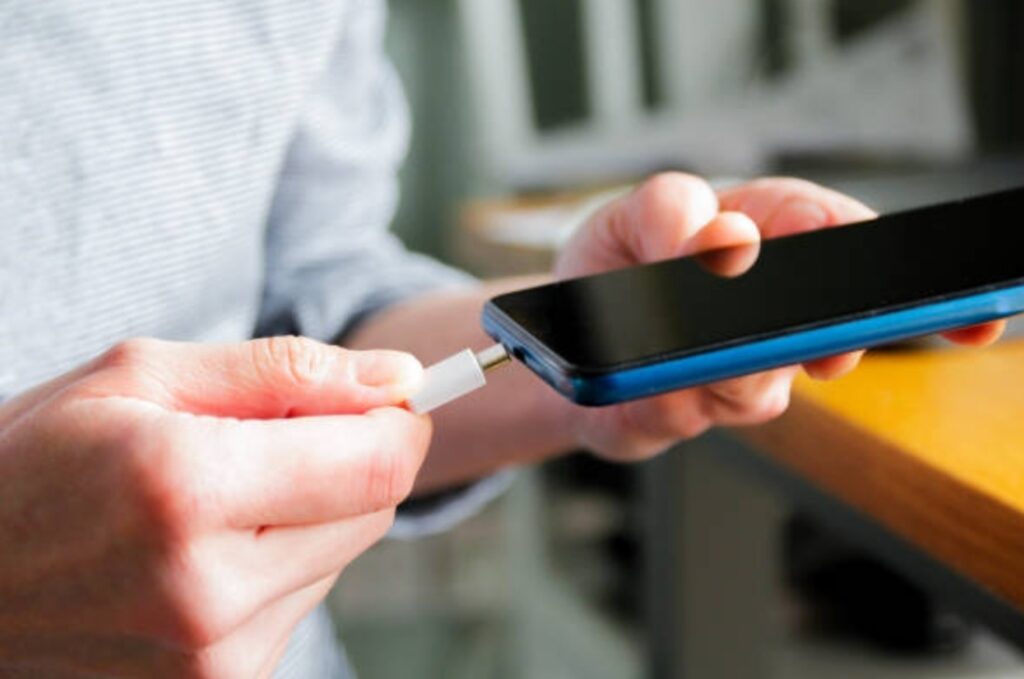
🔋 Why is my phone battery draining overnight when I’m not using it?
Even when you’re not actively using your phone, background apps, Wi-Fi, mobile data, location services, and syncing activities can keep running.
These silent processes are often the top culprits behind overnight battery drain.
To fix this, disable background refresh, turn on Battery Saver, and limit syncing before you sleep.
📶 Should I put my phone on Airplane Mode overnight to save battery?
Yes.
If you don’t need to receive calls or messages during the night, enabling Airplane Mode is one of the most effective ways to stop phone battery draining overnight.
It disables cellular radios, Wi-Fi, Bluetooth, and background network activity—leading to significant power savings.
📱 Does charging my phone overnight damage the battery?
Not necessarily.
Modern phones stop charging at 100%, but keeping them plugged in for hours can keep the battery at full capacity for too long, which stresses it.
To minimize wear, enable Optimized Charging or unplug once it’s around 80–90% if possible.
Avoid letting your phone stay hot while charging.
📍 Can location services cause overnight battery loss?
Absolutely.
Location tracking, especially when set to “Always On,” uses GPS, Wi-Fi, and cellular data to track your position—even when you sleep.
To prevent battery drain, turn off location services or restrict them to “While Using the App” for non-essential apps.
🔧 How do I check which apps are draining my battery overnight?
You can check battery usage by app on both iPhone and Android:
- iPhone: Go to Settings > Battery > Battery Usage by App
- Android: Go to Settings > Battery > Battery Usage
Look for apps using high background power and restrict or uninstall them if necessary.
🛠️ What’s the best way to stop my Android battery from draining overnight?
For Android, here’s a quick checklist to stop overnight battery drain:
- Enable Battery Saver mode
- Turn on Airplane Mode or disable Wi-Fi/data
- Restrict background activity per app
- Turn off location and auto-sync
- Use adaptive charging features if available
Following these steps is a reliable phone battery drain fix for Android users.
🔒 Can a virus or malware cause battery drain at night?
Yes.
Malware or rogue apps may run silently in the background, using resources, data, and battery—even when you’re not using the phone.
Signs include unusual battery drain, overheating, and slow performance.
Use trusted antivirus apps like Malwarebytes Mobile to scan and remove suspicious apps.
📊 What’s considered normal battery loss overnight?
A healthy phone should lose no more than 3–8% overnight if not in use.
If your device is losing 10% or more, it’s a sign that background apps, syncing, or connectivity settings are draining power.
Applying the steps in this guide will help reduce that significantly.
⚙️ Does Low Power Mode help stop battery drain at night?
Yes!
Low Power Mode (iOS) and Battery Saver (Android) reduce CPU usage, disable background refresh, and limit visual effects—all of which prevent battery drain overnight.
You can activate these modes manually or schedule them with automation tools or routines.
💡 Pro Tip Box – Fast Fix Checklist Before Bed
✔️ Close background apps
✔️ Turn on Battery Saver or Low Power Mode
✔️ Enable Airplane Mode (if no calls needed)
✔️ Disable Wi-Fi, Bluetooth, GPS
✔️ Stop auto-sync and app updates
✔️ Put phone on a cool surface, avoid heat
🔒 Sleep smarter, charge smarter.
🔚 Final Thoughts – Take Back Control of Your Battery
Your phone’s battery is more than just a number at the top of the screen—it’s your connection to the world, your digital assistant, and your lifeline in emergencies.
And waking up to a drained phone?
That’s not just annoying—it’s unnecessary and preventable.
This guide gave you a deep look into why your phone battery drains overnight and provided step-by-step solutions you can start using tonight.
Whether it’s sneaky background apps, excessive syncing, or overlooked settings like GPS and notifications, you now have the knowledge and tools to stop phone battery draining overnight—permanently.
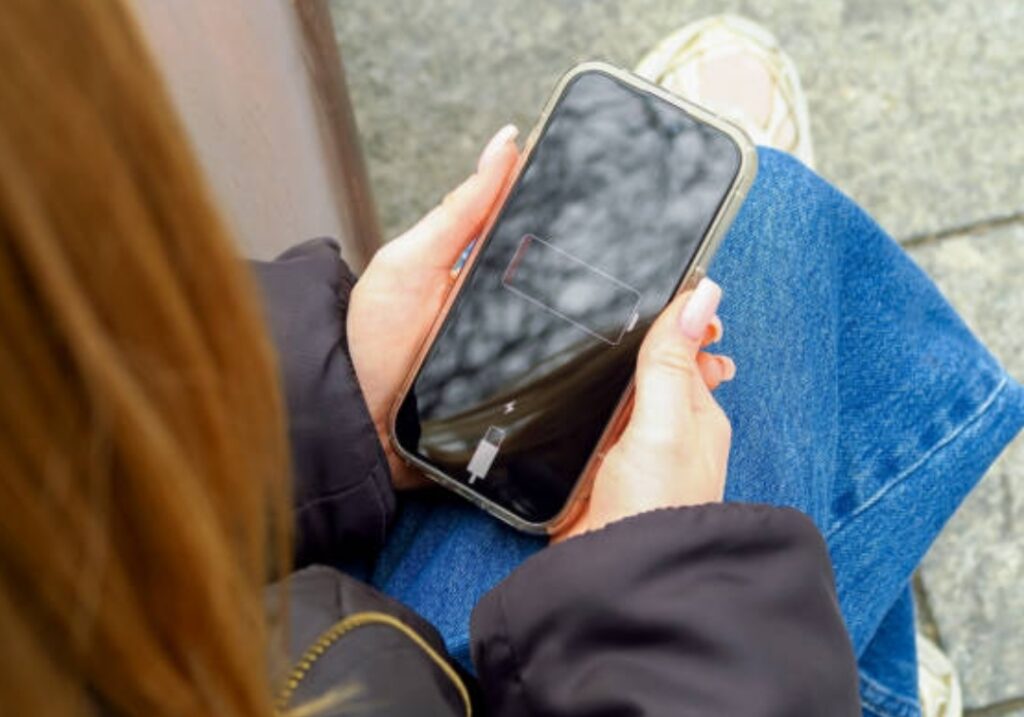
📌 Here’s What to Remember:
✅ Use Battery Saver or Low Power Mode every night
✅ Turn off Wi-Fi, mobile data, and Bluetooth when not needed
✅ Restrict or close power-hungry background apps
✅ Disable unnecessary location and auto-sync
✅ Keep your phone cool and avoid overcharging
✅ Monitor battery health regularly and act early
⚠️ Don’t Wait for Your Battery to Hit 5% to Make a Change
Most people ignore these signs until it’s too late—until they’re constantly charging, their battery depletes in hours, or worse, the phone dies in the middle of something important.
But not you.
You’ve now got the most updated and effective strategies to take control of your battery—tonight, tomorrow, and long-term.
🚀 Ready to Wake Up Fully Charged?
👉 Take just 3 minutes tonight to apply these tips—you’ll feel the difference the moment you unplug tomorrow morning.
💥 No more battery anxiety. No more low-battery panic before noon.
Start reclaiming your battery life now.
Your phone (and your future self) will thank you.
💼 Looking for tools to optimize your phone automatically overnight? Click here for the best battery saver apps of 2025
🔌 Want to upgrade your charger? Here’s our curated list of safe, fast, and battery-friendly charging accessories
📢 Share this post with your friends who always complain about their phone dying too soon—help them fix their battery problems once and for all!
You might also like :