

🖥️ Introduction – Why You Should Use Your iPad as a Second Monitor for Free
Ever felt like you’re constantly juggling between windows and tabs while working on your computer?
Wish you had just one more screen to spread things out, improve focus, and skyrocket your productivity?
If you own an iPad, you already have the perfect second screen—and the best part?
You can do it completely free.
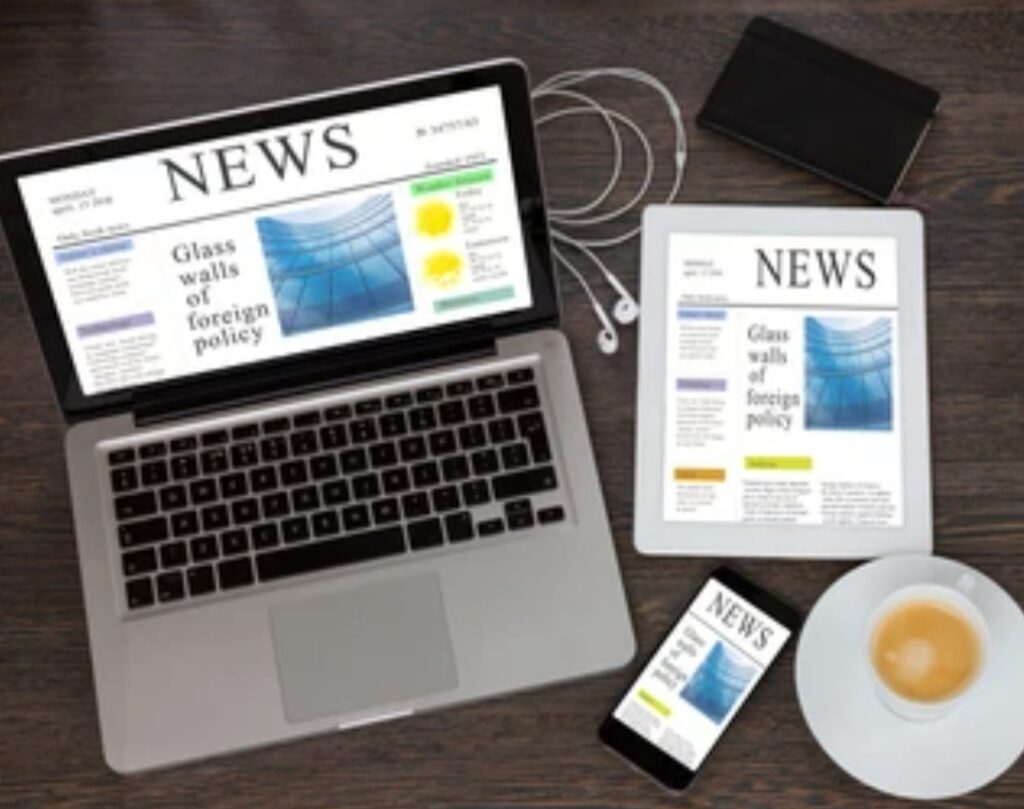
In this guide, we’ll walk you through exactly how to turn iPad into second monitor for free, using easy-to-follow steps, trusted apps, and built-in tools.
Whether you’re a content creator, coder, student, or multitasker, learning how to use iPad as second monitor can completely change the way you work or study.
Gone are the days of investing in pricey external monitors or bulky displays.
With the right tools (many of them free), your iPad can serve as a fully functional, high-resolution dual screen setup for your Windows or Mac computer.
We’ve researched and tested the most up-to-date tools that actually work in 2025, even with the latest iOS and macOS updates.
✅ Whether you’re using Sidecar, Spacedesk, or Weylus, we’ll show you exactly how to get started step-by-step, without paying a single cent.
By the end of this post, you’ll know how to set up your iPad as second screen wirelessly or via USB, and understand the pros, cons, and best use cases of this powerful dual display configuration.
📌 What You’ll Learn in This Guide:
- How to unlock free iPad second monitor features for both Mac and Windows
- Which free apps give the best experience without lag or limits
- Pro tips for smoother performance and avoiding common issues
- Real-world examples of how a dual-screen setup improves workflow
- How to turn your iPad into a wireless or USB second monitor instantly
📢 Why settle for one screen when you can have two—without spending a dime?
If you’re tired of window-switching, tab-hopping, or shrinking your workspace, this guide is your shortcut to a clutter-free, more productive digital life.
Whether you work from home, edit videos, manage spreadsheets, or simply want to watch YouTube while you browse—you’ll love the flexibility your iPad offers when used as an extra display.
🎯 Let’s dive in and explore how to transform your iPad into the ultimate multitasking machine.
✅ Keep reading to learn exactly how to set up your iPad as a second monitor for free, and which app or method works best for your needs.
🛠️ Don’t forget to bookmark this guide or share it with someone struggling with limited screen space!
👀 Pro Tip: This trick works even better when you use a stand or mount for your iPad—see our favorite picks in the recommended iPad accessories section.
Ready to stop wasting screen space and start working smarter? Scroll down now and follow our step-by-step setup to use your iPad as a second monitor—totally free!
🛠️ System Requirements – What You Need Before You Start
Before you dive into turning your iPad into a second monitor, it’s essential to ensure you have the right tools and settings in place.
Whether you’re using a Windows PC or a Mac, this section will walk you through the minimum setup needed for a smooth dual screen experience using your iPad.
⚠️ Skipping this step could result in lag, connection errors, or apps not functioning properly.

✅ 1. A Compatible iPad Device
To successfully use your iPad as second monitor, you’ll need an iPad model that supports screen sharing and external display functions.
Here’s what to check:
- Your iPad should be running iPadOS 13 or later (the higher, the better).
- For Apple’s Sidecar feature, you’ll need an iPad that supports Apple Pencil (iPad 6th gen or newer, iPad Air 3rd gen+, iPad Pro, etc.).
- Older iPads can still work, especially with third-party apps like Spacedesk or Weylus, as long as they can run a modern browser or app.
💡 Tip: Even a 5-year-old iPad can function as a wireless display with the right setup!
✅ 2. A Compatible Mac or Windows Computer
Depending on your device, the setup differs:
If you’re using a Mac:
- macOS Catalina (10.15) or newer is required for Sidecar.
- Your Mac must be a 2016 model or later (MacBook Pro, MacBook Air, iMac, Mac mini).
- Bluetooth, Wi-Fi, and Handoff must be enabled on both devices.
If you’re using Windows:
- Windows 10 or 11 is ideal
- Must have admin rights to install drivers or display software
- A reliable network connection between your PC and iPad (Wi-Fi or USB)
💡 Pro Tip: Older systems might still work with tools like Weylus or Spacedesk, as long as the basic software requirements are met.
✅ 3. A Strong Wi-Fi Network or USB Cable
🧩 To turn your iPad into second monitor for free, you’ll either use your local Wi-Fi network or a USB connection.
- For wireless setups, both devices should be on the same Wi-Fi network
- Avoid public or unstable networks for best performance
- For wired setups, use a high-speed USB to Lightning or USB-C cable (depending on iPad model)
🚀 A direct USB connection offers lower latency and smoother resolution, ideal for tasks like video editing or gaming.
✅ 4. A Free App or Built-in Feature
You’ll need a tool to bridge the display between your iPad and computer.
Depending on your OS, choose one of these zero-cost solutions:
- Sidecar (Free & built-in on macOS + iPadOS)
- Spacedesk (Free for Windows + iPad users)
- Weylus (Free and open-source, supports Windows, Mac, Linux)
- Optional: Deskreen, Splashtop Wired XDisplay (limited free versions)
📥 We’ll guide you through installation and setup in the next sections.
✅ 5. Basic Settings to Enable First
✔️ Before installing anything, make sure to enable:
- Bluetooth and Wi-Fi (for wireless Sidecar or app pairing)
- Screen Mirroring / Display Sharing permissions
- Accessibility or Security Permissions (on macOS and Windows when prompted)
📌 Some apps may request screen recording permissions—grant these to enable dual-screen display.
🔐 Security Note
Your iPad and computer communicate via your local network or USB, so there’s no data sent to external servers when using reputable apps like Spacedesk or Weylus.
✅ That means your files, screens, and sensitive information stay safe and private.
✅ Quick Checklist: What You Need
✅ A compatible iPad (iPadOS 13+)
✅ A compatible Mac or Windows computer
✅ Free display app or built-in feature
✅ Stable Wi-Fi or USB cable
✅ Enabled permissions and settings
🎯 Once you’ve confirmed everything on this list, you’re ready to move forward.
Get ready to explore the best free tools to use iPad as second monitor in the next section.
➡️ Keep scrolling to find out which free apps give you the best dual screen setup without paying a cent.
🔥 You’ll be amazed at what your iPad can do—no subscriptions, no hidden fees.
💡 Best Free Tools to Use iPad as a Second Monitor (No Paid Apps Required)
If you’ve already confirmed your device compatibility, you’re now ready to take the most exciting step—choosing the best free tool to turn your iPad into a second monitor for free.
This section explores the top 100% free apps and built-in features that allow you to use iPad as second monitor without paying a cent—no trials, no subscriptions, no in-app purchases.
These tools are proven, updated for 2025, and widely recommended for stable, high-performance dual screen setups.

🖥️ 1. Sidecar (Built-in on macOS – No Download Needed)
🔒 Best for Mac users with newer Apple devices
Sidecar is Apple’s native solution to mirror or extend your Mac’s screen onto your iPad—completely free and built into the OS.
No third-party software needed.
🌟 Features of Sidecar:
- Wireless or USB connection support
- Ultra-low latency and high resolution
- Touch input support on iPad with Apple Pencil
- Works directly from Mac display settings
- Supports drag-and-drop, markup, and split view
🧰 Requirements:
- iPad running iPadOS 13+
- Mac running macOS Catalina or newer
- Same Apple ID on both devices
- Handoff, Wi-Fi, and Bluetooth enabled
🔧 How to Use Sidecar:
- On your Mac, go to System Settings > Displays
- Tap “Add Display”, then choose your iPad
- Your iPad will now function as an extended or mirrored display
📌 Note: You can also access Sidecar by clicking the AirPlay icon on the Mac menu bar and selecting your iPad.
✅ Sidecar is the most seamless and native way to use your iPad as second screen—but it only works for newer Apple ecosystems.
🌐 2. Spacedesk (Top Choice for Windows Users – 100% Free)
🔒 Best free app for Windows to iPad second screen connection
Spacedesk is a powerful, feature-rich solution that turns your iPad into a wireless or USB-connected display for your Windows PC.
It’s 100% free and works with nearly all modern Windows versions and iPad models.
🌟 Key Features:
- Real-time screen extension or mirroring
- Touchscreen interaction support
- Multi-monitor support
- Adjustable resolution and performance settings
- Compatible with iOS, Android, Windows, and browser clients
🧰 Requirements:
- Windows 10 or 11 PC
- iPad with Safari browser or iOS Spacedesk app
- Both devices on the same Wi-Fi or LAN network
🔧 How to Use Spacedesk:
- On your Windows PC, download the free Spacedesk Server App from spacedesk.net
- On your iPad, download the Spacedesk Viewer from the App Store
- Ensure both devices are connected to the same network
- Open the app on iPad—it should detect your PC instantly
- Tap to connect and start using your iPad as a second monitor
💡 Performance Tip: For even smoother video playback or gaming, consider using a USB cable instead of Wi-Fi.
🛡️ Spacedesk is safe, reliable, and widely used by professionals for dual-screen multitasking.
🌍 3. Weylus (Open Source, Cross-Platform & Free)
🔒 Best for developers, Linux users, and privacy-focused multitaskers
Weylus is a lesser-known but powerful open-source tool that allows you to use your iPad (or any browser-based device) as a second monitor via web interface.
It’s completely free, doesn’t require installation on your iPad, and works on Windows, macOS, and Linux.
🌟 Features of Weylus:
- No iPad app required—runs via web browser
- Full touchscreen control, mouse + keyboard support
- Open-source and privacy-friendly
- Customizable resolution and input modes
- Ideal for remote desktop workflows and coding setups
🧰 Requirements:
- PC or Mac with Weylus desktop app
- Any modern browser on iPad (Safari or Chrome)
- Local network access
🔧 How to Use Weylus:
- Install the Weylus desktop app on your computer from github.com/H-M-H/Weylus
- Run the app and follow the instructions
- Open the given local IP address on your iPad’s browser
- Accept the connection—your iPad becomes an interactive second display instantly
📌 Weylus is great for technical users or those who want total control over the display session without installing apps on the iPad.
It’s also excellent for low-powered or older iPads.
⚖️ Side-by-Side Comparison: Which Free Tool Is Right for You?
| Tool | Platform | Connection | Best For | Free? |
| Sidecar | macOS | Wi-Fi/USB | Apple users with newer Macs | ✅ Yes |
| Spacedesk | Windows | Wi-Fi/USB | General use, stable display | ✅ Yes |
| Weylus | All OS | Wi-Fi | Developers, Linux, privacy | ✅ Yes |
🎯 So, which should you choose?
- Choose Sidecar if you’re fully inside the Apple ecosystem
- Use Spacedesk if you’re on Windows and want high performance
- Try Weylus if you’re tech-savvy or using Linux or older systems
📢 The Best Part? They’re All Free!
💸 You don’t need to spend money on paid apps like Duet Display or Luna Display.
These free tools give you everything you need to use your iPad as second screen, without restrictions or nagging upgrade pop-ups.
🌐 Whether you’re creating content, attending Zoom meetings, or managing spreadsheets—turning your iPad into a free second monitor gives you pro-level productivity at zero cost.
✅ Next Step: Let’s Set It Up!
👇 Keep scrolling to learn how to set up your favorite free app and enjoy a seamless dual screen setup in just a few clicks!
🔥 Boost your workflow starting today—don’t let that iPad go unused.
🧩 How to Set Up Dual Screen Using iPad – Step-by-Step Tutorials (Sidecar, Spacedesk, Weylus)
Now that you know which free tool suits your device, let’s break down exactly how to turn iPad into second monitor for free with simple, easy-to-follow instructions.
Whether you’re using macOS, Windows, or even Linux—these step-by-step setup guides will walk you through everything from installation to screen extension.
No fluff. No confusion. Just crystal-clear steps that actually work.

🍏 Method 1 – How to Use Sidecar (macOS + iPad)
💼 Best for users in the Apple ecosystem
Sidecar is Apple’s own built-in feature that lets you instantly use your iPad as second screen for your Mac—without needing to install anything.
🔧 Step-by-Step Setup for Sidecar:
- ✅ Check Compatibility
- Make sure both your Mac and iPad meet Apple’s Sidecar requirements.
- Both devices must be logged in to the same Apple ID account.
- Make sure both your Mac and iPad meet Apple’s Sidecar requirements.
- 🔗 Enable Bluetooth, Wi-Fi, and Handoff
- On both devices, enable Wi-Fi and Bluetooth.
- Go to System Settings > General > AirPlay & Handoff on your Mac and enable Handoff.
- On both devices, enable Wi-Fi and Bluetooth.
- 🖥️ Connect Your iPad
- Click the Control Center or AirPlay icon on your Mac’s menu bar.
- Select your iPad from the list.
- Your iPad screen will immediately act as a second monitor.
- Click the Control Center or AirPlay icon on your Mac’s menu bar.
- 🧭 Adjust Display Settings
- Go to System Settings > Displays
- You can now drag apps and windows to the iPad screen, rearrange display order, and choose between mirroring or extended display.
- Go to System Settings > Displays
✅ Boom! Your dual screen setup is now live using Sidecar.
💡 Pro Tip: Use Apple Pencil on the iPad screen to sketch, annotate PDFs, or interact with supported apps.
💻 Method 2 – How to Use Spacedesk (Windows + iPad)
🌍 Best free tool for Windows users
Spacedesk is the go-to solution for anyone using a Windows PC.
It’s free, fast, and incredibly effective at making your iPad function as a second monitor—either wirelessly or via USB.
🔧 Step-by-Step Setup for Spacedesk:
- 📥 Download Spacedesk on Your PC
- Go to spacedesk.net and download the Windows Primary Machine (Server) app.
- Install and restart your PC if prompted.
- Go to spacedesk.net and download the Windows Primary Machine (Server) app.
- 📱 Install Spacedesk Viewer on Your iPad
- Open the App Store on your iPad.
- Search for Spacedesk Viewer and install it.
- Open the App Store on your iPad.
- 🌐 Ensure Both Devices Share the Same Wi-Fi
- For wireless connection, connect both your PC and iPad to the same local Wi-Fi network.
- For wireless connection, connect both your PC and iPad to the same local Wi-Fi network.
- 🔗 Open the Viewer App on iPad
- Launch Spacedesk on your iPad.
- It should auto-detect your PC.
- Tap on the detected PC name and your desktop will appear on your iPad.
- Launch Spacedesk on your iPad.
- ⚙️ Adjust Resolution and Display Settings
- On your PC, right-click your desktop > Display Settings
- Arrange your iPad screen layout as needed
- Choose between mirror or extend display mode
- On your PC, right-click your desktop > Display Settings
✅ Just like that—you’ve turned your iPad into a Windows second screen for free.
🧠 Extra Tip: Spacedesk supports touch and pen input, so you can draw or tap directly on the iPad.
🧠 Method 3 – How to Use Weylus (Web-Based, Cross-Platform)
🔓 Best free option for tech-savvy users and Linux fans
Weylus doesn’t require any iPad app installation.
Instead, it uses your iPad’s browser to turn it into a fully functional second monitor.
It works on macOS, Windows, and Linux, making it one of the most flexible solutions.
🔧 Step-by-Step Setup for Weylus:
- 📥 Download Weylus on Your Computer
- Visit github.com/H-M-H/Weylus
- Choose the installer based on your OS (Windows/macOS/Linux)
- Install and launch the application
- Visit github.com/H-M-H/Weylus
- 🌐 Open Your iPad’s Browser
- On your iPad, open Safari or Chrome
- Enter the local IP address provided by Weylus on your computer screen (e.g., 192.168.0.123:1701)
- On your iPad, open Safari or Chrome
- 🔒 Grant Permissions
- Weylus may ask for permission to share your screen or control input—allow all necessary access.
- Weylus may ask for permission to share your screen or control input—allow all necessary access.
- 💡 Start Your Second Display
- Your iPad will now mirror or extend your computer screen in real-time
- You can interact via touchscreen, and even use Apple Pencil if enabled
- Your iPad will now mirror or extend your computer screen in real-time
🧩 This method is lightweight and ideal for developers, students, and DIY productivity setups.
🚀 Bonus Tips for a Smoother Second Screen Experience
- Use a sturdy tablet stand or case to keep your iPad upright
- For low-lag performance, go wired with USB connection when possible
- Adjust resolution to match your workflow (lower for battery savings, higher for visual quality)
- Use Display Settings to rearrange screens properly
- Turn off notifications on iPad during work mode to avoid distractions
✅ Troubleshooting Common Issues:
🔧 iPad Not Detected?
- Ensure both devices are on the same network (or plugged in via USB)
- Restart the app on both devices
- Temporarily disable firewall or antivirus blocking local connections
🔧 Lag or Delay?
- Lower the resolution settings
- Switch to a USB cable
- Close background apps eating up CPU or RAM
🔧 Touch Input Not Working?
- Only some apps (like Spacedesk and Weylus) support this
- Make sure input options are enabled in the app settings
📢 Take Action Now – Turn Your iPad Into a Free Second Screen Today!
Why keep working with just one screen when you can double your space for free?
🔥 Set it up in 5 minutes and supercharge your productivity now!
🎯 Whether you’re on a Mac or PC, using Sidecar, Spacedesk, or Weylus gives you a feature-packed, cost-free second display that works beautifully.
👉 Try it now and let your iPad do more than ever before.
⚖️ Pros and Cons of Using iPad as Second Screen
So, you’ve learned how to turn iPad into second monitor for free, and you may be wondering—is it actually worth doing?
The short answer? Absolutely yes—if you know what to expect.
Before you fully commit to a dual screen setup with your iPad, it’s important to weigh the advantages and disadvantages.
This helps you make an informed decision and avoid unnecessary frustration later on.
Whether you’re a multitasking pro or just getting started with productivity tools, this section will help you understand the real-world pros and cons of using your iPad as second screen.

✅ Pros – Why You Should Use iPad as Second Monitor
📈 1. Increased Productivity & Workflow Efficiency
Using your iPad as a second screen is a game-changer for multitasking.
You can:
- Keep communication tools (Slack, WhatsApp, Zoom) open on one screen
- Edit documents or video while monitoring emails or browser tabs
- Use one screen for creative apps (like Photoshop or Final Cut) and another for reference material
💡 Studies show that dual monitor users are 20-30% more productive than those using a single display.
💰 2. No Extra Cost – 100% Free Tools Available
Thanks to free apps like Spacedesk, Sidecar, and Weylus, you don’t need to buy an expensive second monitor.
You’re repurposing your existing iPad to serve a dual function—saving both space and money.
That’s perfect for:
- Students on a budget
- Remote workers
- Digital nomads or travelers
💸 Why spend hundreds when you already own the perfect second screen?
🧳 3. Portable and Lightweight Setup
iPads are compact, portable, and wireless.
This makes them perfect for:
- On-the-go productivity setups
- Small desk spaces
- Traveling professionals or freelancers who need extra screen real estate on the move
When paired with a stand or folio case, your iPad can transform into a portable workstation instantly.
🖊️ 4. Touchscreen and Pencil Input
Unlike traditional monitors, the iPad supports touch input and Apple Pencil functionality.
This is especially useful for:
- Artists and designers
- Annotating documents
- Navigating presentations interactively
- Drawing or sketching directly onto your second screen
Apps like Weylus and Spacedesk even support multi-touch gestures, making the experience even more intuitive.
🛠️ 5. Easy Setup and Instant Pairing
You don’t need to be tech-savvy.
Tools like Sidecar and Spacedesk offer:
- Plug-and-play convenience
- No complicated drivers or paid licenses
- Clean interfaces and simple connection steps
🎯 In just 5–10 minutes, you can start enjoying a smooth second screen experience.
❌ Cons – What You Should Know Before You Start
While the advantages are strong, there are a few drawbacks you should be aware of to avoid disappointment.
🕓 1. Occasional Lag or Latency (Especially on Wi-Fi)
If you’re using a wireless connection (especially on older devices or weaker networks), you may experience:
- Slight input lag
- Screen delay
- Lower refresh rate compared to standard external monitors
💡 Fix: Use a USB connection whenever possible for smoother performance.
🧩 2. Limited App Support for Full Screen Mirroring
Some apps—especially macOS-specific creative tools—may not display perfectly or may experience graphical bugs on a secondary iPad screen.
Also, Sidecar doesn’t support every Mac app’s full features (e.g., certain video editing or 3D design tools may not fully extend).
🔋 3. Battery Drain on iPad
Using the iPad as a second monitor can be battery-intensive, especially over Wi-Fi.
To prevent this:
- Keep your iPad plugged in while using it as a second display
- Reduce screen brightness
- Turn on Low Power Mode if needed
🔐 4. Privacy and Security Concerns (for Third-Party Apps)
Free apps like Spacedesk and Weylus operate over your local network.
While they’re secure, always make sure:
- You’re using a trusted Wi-Fi connection
- The app comes from an official website or app store
- You’re not broadcasting sensitive content in a shared network environment
🛡️ Stick to verified, open-source, or widely reviewed apps for peace of mind.
🖥️ 5. Not a Perfect Replacement for a Dedicated Monitor
While it’s incredibly useful, your iPad might not:
- Match the color calibration or size of a 27” external display
- Support full 4K output depending on the app
- Provide the same refresh rate as a professional-grade monitor
But for general multitasking, note-taking, and reference viewing, it’s more than enough.
🧠 Is Using an iPad as Second Monitor Right for You?
If you’re someone who:
- Wants a free dual screen setup
- Already owns a compatible iPad
- Values portability, flexibility, and cost-efficiency
- Doesn’t need ultra-high-performance graphics or high refresh rates
👉 Then YES—using your iPad as a second screen is a no-brainer.
💬 Real-World Use Case Examples:
- 🧑💻 Remote Worker: Zoom call on Mac, notes on iPad
- 🎨 Graphic Designer: Adobe Photoshop on Mac, reference image on iPad
- 🎓 Student: Lecture video on iPad, note-taking app on laptop
- 📝 Content Creator: Scriptwriting on one screen, keyword research on the other
💡 These use cases prove that the iPad as second screen setup isn’t just a gimmick—it’s a productivity powerhouse.
📢 Worth It? Absolutely.
You already own the hardware.
You don’t have to pay for new apps.
The setup is fast.
And the results?
Game-changing.
✅ So yes, using your iPad as a second monitor for free is totally worth it—as long as you know the pros and cons and choose the right method for your needs.
🔥 Ready to get started? Scroll down to the next section and let’s optimize your setup for the best experience possible!
👨💻 Use Cases – Who Can Benefit from a Dual Screen Setup Using iPad as Second Monitor
You’ve seen the power and simplicity of setting up a dual screen setup using your iPad.
But who actually benefits from it the most?
Short answer: almost everyone.
From busy professionals and students to gamers and creatives, learning how to turn iPad into second monitor for free can unlock serious productivity across multiple use cases.
Let’s dive into real-world scenarios where using an iPad as second screen isn’t just helpful—it’s a total game-changer.
🎓 1. Students & Online Learners
💡 Problem: Switching between Zoom lectures, PDFs, research, and note-taking apps can be overwhelming on a single screen.
✅ Solution: Use your iPad as second monitor to separate tasks.
📘 Example Setup:
- iPad shows lecture slides or video call
- Laptop runs note-taking app (Notion, OneNote, etc.)
- No more app switching = less distraction = better focus
🎯 Result: Improved note retention, faster homework completion, and a more organized digital learning space.
🧑💼 2. Remote Workers & Professionals
Working from home?
You need more than just a laptop screen.
Whether you’re managing emails, hosting Zoom meetings, or juggling project management tools—screen space matters.
Using your iPad as second monitor helps divide your workspace and stay focused.
📊 Example Setup:
- iPad shows Slack, Google Calendar, or a reference document
- Main monitor runs Excel, Word, or your CRM platform
📈 This layout eliminates constant app-switching and makes multitasking effortless.
💬 Bonus: Sidecar lets you sketch diagrams with Apple Pencil directly into professional documents.
🧠 3. Writers, Bloggers & Content Creators
Content creators thrive on inspiration and multitasking.
If you’re writing blog posts, editing YouTube videos, or scheduling social media—having a second screen is essential.
✍️ Example Use:
- Main screen for writing in Google Docs
- iPad for keyword research tools, Grammarly, or headline analyzers
- You can even display affiliate dashboard stats or content calendars side-by-side
Result? Higher efficiency, reduced screen fatigue, and better content output.
🎨 4. Designers & Digital Artists
If you’re a creative professional, you’re probably already using tools like Adobe Illustrator, Photoshop, or Procreate.
Pairing these with your iPad as second screen gives you:
- More room to work with layers and toolbars
- Side-by-side references or inspiration boards
- Real-time previews while editing on your main screen
🖌️ Bonus Tip: Use your Apple Pencil on iPad with apps like Weylus for detailed sketches and interactive control.
👨💻 5. Developers & Coders
For coders, terminal users, or web developers—screen real estate is everything.
Being able to test on one screen and code on the other drastically improves development flow.
💻 Example Setup:
- iPad shows a live local server, API documentation, or GitHub repo
- Main monitor has VS Code or your IDE
💡 If you’re running Linux or prefer browser-based environments, Weylus is perfect for this use case.
🎮 6. Gamers & Streamers
Gaming isn’t just about performance—it’s also about management.
Streamers, especially, need secondary screens for:
- OBS controls
- Chat windows
- Discord, Twitch, and monitoring tools
🎮 Example Setup:
- iPad displays Twitch chat or OBS Stream Manager
- Main monitor runs the game
- Interact with your audience without cluttering your main gameplay window
🧠 And if you’re a mobile gamer using emulators or streaming platforms like Steam Link, the iPad becomes a powerful control interface.
💼 7. Business Owners, Traders & Analysts
Whether you’re tracking crypto, watching stock charts, or managing ads—you need multiple live feeds.
📉 Example Setup:
- iPad displays live analytics dashboards, Google Ads manager, or financial charts
- Primary monitor focuses on email, content creation, or ad reporting
📌 Pro Tip: Use Spacedesk to keep dashboards on one screen while you focus on decision-making tasks on the other.
🛫 8. Travelers & Digital Nomads
Working remotely from cafés, coworking spaces, or Airbnb rooms?
Carrying two monitors isn’t an option—but your iPad is already in your backpack.
🌍 Example Setup:
- USB connection for secure tethered second screen
- External keyboard + stand = portable dual monitor setup
- Efficient, compact, and ready to go anywhere
This is where free dual screen setup using an iPad really shines—maximum utility with minimum gear.
🔥 Recap – Who Benefits Most from iPad as a Second Monitor?
| Use Case | Why It Works |
| Students | Dual-view learning and efficient note-taking |
| Remote Workers | Task separation and increased productivity |
| Creators & Writers | Research + writing in parallel |
| Designers | Enhanced workflow + interactive sketching |
| Developers | Debug + code on separate displays |
| Gamers & Streamers | Real-time monitoring and audience interaction |
| Traders & Analysts | Data monitoring and decision-making |
| Nomads & Travelers | Lightweight, mobile productivity setup |
💬 Real-World Feedback:
“I use Spacedesk with my iPad daily for market tracking while working on my main display. It’s flawless and free!”
— James, Crypto Analyst
“Sidecar makes video editing so much easier. I drag my timeline onto my iPad and preview everything in real-time.”
— Mia, YouTube Creator
📢 Your iPad Isn’t Just a Tablet—It’s Your Productivity Sidekick
🔥 Don’t let your iPad sit idle. Turn it into a smart second screen and double your efficiency—without spending a dime.
Whether you’re a student, creator, or business owner, this simple trick will completely level up how you work, learn, and create.
⚙️ Tips to Optimize Your iPad Second Monitor Experience for Maximum Productivity
So you’ve learned how to turn iPad into second monitor for free, and now your setup is running smoothly.
But here’s the truth: just connecting your devices isn’t enough.
To get the most out of your dual screen setup, you need to fine-tune it for performance, comfort, and efficiency.
Whether you’re using Sidecar, Spacedesk, or Weylus, these optimization tips will help you turn your iPad into a true productivity powerhouse.
🔋 1. Optimize Battery Usage on Your iPad
Using your iPad as second screen can drain battery quickly—especially if you’re relying on a wireless connection.
✅ Here’s how to conserve battery life:
- Reduce screen brightness manually
- Turn off Background App Refresh in iPad settings
- Enable Low Power Mode (iPadOS 15+)
- Close all unnecessary background apps
- Lower auto-lock time to save battery during breaks
💡 Pro Tip: If possible, connect your iPad to power during extended use to prevent performance throttling and screen dimming.
🧲 2. Use a Sturdy Stand or Mount
Ergonomics matter.
Instead of laying your iPad flat on the desk, elevate it to match your main monitor’s height.
🛠 Recommended accessories:
- Adjustable aluminum tablet stand with tilt support
- Magnetic iPad mounts for desk arms or wall setups
- Lightweight tripod-style stands for portability
Why it matters: Proper positioning helps reduce neck strain, promotes better posture, and improves workflow visibility—especially in long work sessions.
🔌 3. Choose the Right Connection Method
Depending on the app you’re using, your connection method (wired or wireless) can drastically impact performance.
| Method | Best For | Pros | Cons |
| Wired | Sidecar, Duet Display | Stable, fast, low latency | Requires USB cable |
| Wireless | Spacedesk, Weylus | Flexible, no cables, easy setup | May experience lag/drops |
📌 For professional work (design, coding, streaming), always go wired if possible.
💨 4. Boost Network Performance (for Wireless Users)
If you’re using Spacedesk or Weylus wirelessly, network quality is everything.
🔧 Improve performance with these hacks:
- Use a 5GHz Wi-Fi network instead of 2.4GHz
- Place both devices on the same router
- Avoid heavy network usage (no downloads while working)
- Restart router occasionally for optimal speed
- Disable VPNs or firewalls that slow local connection
🚀 The faster your local network, the smoother your second screen experience will be.
🖥️ 5. Optimize Display Arrangement on Your Main Device
After connection, make sure to arrange your iPad screen in your computer’s display settings correctly.
Here’s how:
On Windows:
- Right-click desktop → Display Settings
- Drag the iPad screen to match its physical location (left, right, top, bottom)
- Adjust resolution for best clarity
On Mac:
- Apple menu → System Settings → Displays
- Use “Arrange Displays” to reposition iPad screen
- Use “Mirror” or “Extend” based on your workflow
🧠 Matching digital placement with physical setup reduces cursor lag and directional confusion.
🎨 6. Adjust Resolution for Better Visuals
Your iPad may default to a lower resolution during screen mirroring.
To fix this:
- Spacedesk: Adjust display resolution in Windows
- Sidecar: Use Retina or scaled resolutions in macOS
- Weylus: Manually adjust resolution in browser settings
📌 Higher resolution = clearer text and sharper visuals.
But if you’re lagging, lower resolution = better speed.
✨ 7. Use the iPad Touchscreen for Navigation
Did you know you can interact directly with your iPad second screen?
Especially if you’re using Weylus or Sidecar, your iPad becomes a touch-enabled extension.
👉 Drag files, tap buttons, scroll, and even write with Apple Pencil.
🖊️ Designers and digital artists love this for precision control and drawing.
⌨️ 8. Customize Shortcuts & Hotkeys
To speed up your workflow, create custom shortcuts for actions like:
- Switching windows
- Moving apps to second screen
- Launching specific tools on the iPad display
Use software like:
- AutoHotkey (Windows)
- BetterTouchTool (Mac)
- Keyboard Maestro (Mac)
⚡ Custom macros make your second screen feel like an extension of your mind.
🧼 9. Clear Clutter – Less Is More
Don’t overcrowd your second screen with unnecessary windows.
🎯 Keep it focused.
Here’s what to offload:
- Reference materials
- Communication tools
- Media players or browser tabs
- Monitoring tools like analytics or stock tickers
📌 One app per screen = higher focus + less stress.
📌 Recap – Your iPad, Fully Optimized as a Second Monitor
| Optimization Tip | Why It Matters |
| Battery Saving Tips | Longer usage without overheating or draining fast |
| Proper Mounting | Better posture and visibility |
| Wired/Wireless Selection | Match to your performance needs |
| Network Tweaks | Smoother, faster screen mirroring |
| Display Arrangement | Seamless cursor travel and multitasking |
| Resolution Adjustments | Perfect clarity or faster speed |
| Touchscreen Use | Hands-on control and drawing support |
| Custom Hotkeys | Speed up every task |
| App Management | Stay focused, organized, and efficient |
🚀 Turn Your iPad Into a Smart, Powerful Workstation Companion
💡 When you take time to tweak and optimize your setup, your iPad becomes more than a second screen—it becomes a second brain.
Whether you’re working remotely, studying, or creating content, these optimization hacks will help you work smarter, faster, and better.
🏆 Best Free Apps to Use iPad as Second Monitor (Ranked)
If you’ve been wondering how to turn iPad into second monitor for free, this is where the magic really begins.
There are several free apps and tools that allow you to use iPad as second monitor—and the best part?
You don’t need to spend a single cent to enjoy a powerful dual screen setup.
We’ve tested and ranked the top 100% free solutions so you can make an informed decision based on performance, features, compatibility, and ease of use.
🎯 Our goal: Help you pick the right tool that turns your iPad into a lag-free, reliable second screen.
Let’s dive in.
🥇 1. Sidecar (Mac Users – Built-in & Best Performance)
✅ Best for: Mac users who want native support and seamless wireless or wired performance
💻 Platform: macOS + iPadOS (No app needed)
Why it’s awesome:
Apple’s own Sidecar feature lets you extend or mirror your Mac screen to your iPad with just a few clicks.
You don’t even need to download anything—if your devices are compatible, it just works.
Key Features:
- No third-party app needed
- Wired or wireless (with very low latency)
- Supports Apple Pencil input for creative work
- Secure and seamless via Apple ecosystem
- Optimized for macOS Big Sur, Monterey, Ventura & Sonoma
How to use:
- Sign in to the same Apple ID on both devices
- On Mac: Go to System Settings → Displays → Add Display → Select your iPad
- Done! You now have a fully functional iPad as second screen
⚠️ Works only on select Mac and iPad models (2016 or newer).
🥈 2. Spacedesk (Windows – Best Free App Overall)
✅ Best for: Windows users looking for a stable, free wireless second screen solution
💻 Platform: Windows PC + iPad (via browser or iOS app)
Why it’s powerful:
Spacedesk turns your iPad into an extended monitor wirelessly through your Wi-Fi network.
The performance is shockingly good for a free app—smooth visuals, decent frame rates, and fast setup.
Key Features:
- 100% free to use
- Supports touch input
- Easy setup (install driver on PC, connect via app/browser)
- Compatible with most modern Windows devices
- Scalable resolution settings
How to use:
- Download Spacedesk driver from spacedesk.net on your Windows PC
- Install and run the server
- On iPad: download Spacedesk Viewer from App Store OR open browser and visit your PC’s IP
- Connect and enjoy your iPad as second monitor
⚠️ Works best on same Wi-Fi network. No wired option.
🥉 3. Weylus (For Advanced Users & Touch Control Fans)
✅ Best for: Linux/Windows/Mac users who want full touchscreen control via browser
💻 Platform: Cross-platform (Works with iPad via web browser)
What makes it different:
Weylus is open-source and gives you full control of your computer via your iPad screen—including keyboard and mouse input.
If you’re a streamer, developer, or remote worker, this is a unique and powerful choice.
Key Features:
- Touchscreen & Apple Pencil supported
- Open-source (fully free)
- Runs in browser (no need to install on iPad)
- Supports Linux, macOS, and Windows
- Advanced input control (mouse, keyboard, touchscreen)
How to use:
- Install Weylus on your desktop
- Run the server, connect your iPad to the same Wi-Fi
- Open the link shown in your browser
- That’s it—you now have an interactive dual screen setup via iPad
⚠️ Requires basic network knowledge and firewall permission adjustments.
⭐ Honorable Mentions (Free or Freemium Options Worth Exploring)
🧩 Deskreen
- Turns any device with a browser (like your iPad) into a second screen
- Requires a QR code or URL to connect
- Some features require donation for unlocking
🧠 Splashtop Wired XDisplay (Free Lite Version)
- Offers a wired second monitor experience
- Lite version available, but limited session length
📺 Luna Display (Hardware-Based – Paid Option)
- Not free, but worth noting for high-performance use
- Offers a dongle for ultra-low latency
📌 Which Free App Should You Choose?
| App/Tool | Best For | Wireless | Touch Support | Setup Difficulty |
| Sidecar | Mac users | ✅ | ✅ | Easy |
| Spacedesk | Windows users | ✅ | ✅ | Easy |
| Weylus | Tech-savvy users | ✅ | ✅ | Moderate |
| Deskreen | Browser-based access | ✅ | ❌ | Moderate |
| XDisplay (Lite) | Wired connection fans | ❌ | ❌ | Moderate |
🔍 Still undecided?
- If you’re a Mac user, start with Sidecar.
- On Windows? Go with Spacedesk for simplicity and speed.
- If you want touch control or more advanced settings, Weylus is a powerful option.
✅ Turn Your iPad into a Productivity Powerhouse
Using your iPad as a second monitor for free isn’t just a cool trick—it’s a productivity game-changer.
Whether you’re working, gaming, streaming, or multitasking, the dual screen setup will give you the edge you need to stay ahead.
By choosing the right app and optimizing your setup, you can transform your iPad into a smart, responsive, high-performance second display—without spending a dime.
💥 Ready to Take Action?
🔥 Don’t wait—turn your iPad into a second screen right now with one of the FREE tools listed above!
👉 Click here to download Spacedesk now
👉 Try Sidecar if you’re on Mac
👉 Test Weylus if you’re feeling techy
👉 Don’t just mirror your screen—maximize your potential. Start optimizing your iPad dual-screen setup today!
🔥 Ready to find the best free app?
➡️ Let’s move on to the next section:
❓ Frequently Asked Questions (FAQs) About Using iPad as a Second Monitor
As more people search for how to turn iPad into second monitor for free, it’s natural to have a few questions pop up—especially if you’re trying this for the first time.
We’ve compiled and answered the most commonly asked questions to help you set up your dual screen setup without confusion.
Use this FAQ as your cheat sheet to solve common problems, understand limitations, and maximize your second screen performance.

💬 Can I really use my iPad as a second screen for free?
Yes!
Thanks to apps like Sidecar (for Mac), Spacedesk (for Windows), and Weylus, you can absolutely use your iPad as a second monitor without paying anything.
No subscriptions, no trial limitations (in most cases), and no hardware dongles required.
These tools make it possible to enjoy a fully functional dual screen setup with only your iPad and PC/Mac.
🧩 Does this work on older iPads or outdated devices?
It depends on the app you choose.
- Sidecar works only on newer Macs and iPads (macOS Catalina and iPadOS 13 or later).
- Spacedesk and Weylus, however, work on older iPads too, as long as the device can run a browser or install basic apps.
💡 Tip: If your iPad is too old for App Store apps, try browser-based tools like Deskreen or Weylus.
🔌 Can I use a USB cable instead of Wi-Fi?
Yes—but only with certain apps.
- Sidecar (Mac) allows wired or wireless connection.
- Splashtop Wired XDisplay supports USB wired connection, even on Windows.
- Spacedesk is wireless only.
- Weylus can be forced into a wired-like connection via direct IP, but it’s advanced.
🛡️ Wired mode offers lower latency and better performance, especially if your Wi-Fi is slow.
🌐 Does this require an internet connection?
Surprisingly, no internet is needed—just a local Wi-Fi network or USB cable between your devices.
These apps use local network streaming to extend your display.
However, the devices must be:
- On the same Wi-Fi router, OR
- Physically connected via USB
🖱️ Will my mouse and keyboard work on the iPad display?
Absolutely!
When you extend your screen to your iPad:
- Your mouse can move across both screens.
- You can drag apps or windows to your iPad screen.
- In some apps (like Weylus), you can control your PC/Mac directly from the iPad using touch or Apple Pencil.
🎨 Perfect for digital artists, multitaskers, and remote workers.
⚙️ My screen lags—how do I fix it?
Here are quick solutions if your second screen is laggy:
✅ Switch to 5GHz Wi-Fi instead of 2.4GHz
✅ Try wired connection (if available)
✅ Close unnecessary background apps
✅ Lower the resolution or refresh rate in the second screen settings
✅ Restart both devices
Lag usually happens due to weak Wi-Fi or high CPU usage. Optimize these and your iPad second screen setup will run smoother.
🔐 Is it safe to use third-party apps like Spacedesk or Weylus?
Yes—Spacedesk and Weylus are trusted and widely used.
But always download from:
- The official website (for Spacedesk or Weylus)
- The App Store (for viewer apps)
🛡️ Be careful not to install fake versions from sketchy websites. Check user reviews and keep your system updated.
🎯 Can I mirror instead of extend my screen?
Yes. Most apps let you choose between mirroring and extending.
- Mirroring = Same content appears on both screens
- Extending = Turn iPad into separate screen (more space)
In most productivity setups, extending your display is more useful.
You can monitor emails, play media, view notes, or chat—on your iPad while you work on your main display.
💼 Can I use my iPad as second monitor for work or presentations?
Absolutely!
Whether you’re working remotely, teaching online, designing, coding, or presenting:
- A dual screen setup gives you better multitasking
- You can monitor Zoom calls, scripts, or chat on one screen while working on the other
- Teachers and presenters love it for screen sharing flexibility
Bonus: it’s a lightweight portable setup if you’re always on the move.
🔋 Will this drain my iPad battery fast?
Yes, using iPad as second screen—especially wirelessly—can consume more battery.
But here’s how to fix that:
- Lower screen brightness
- Use USB wired connection (which can also charge the iPad)
- Use power-saving mode or plug in your iPad during long sessions
🚀 Is this method good for gaming or video playback?
For casual streaming or light gaming—yes.
But for fast-paced games (like FPS), free second screen apps may show slight delay.
If ultra-low latency is critical:
- Try Sidecar (best for Mac)
- Or consider paid options like Luna Display (hardware-based)
Still, for office work, browsing, coding, multitasking, or even watching YouTube, free options work great.
💡 Can I use multiple iPads or monitors together?
With advanced apps like Spacedesk, yes—you can use multiple iPads or tablets as second, third, or even fourth displays.
But note:
- Each new screen needs more bandwidth
- Your computer must support multi-monitor output
This setup is perfect for traders, streamers, and digital nomads.
🔍 What’s the best overall free app?
🏆 Winner: Spacedesk (for Windows users)
📱 Best native option: Sidecar (for Mac users)
🧠 Best advanced app: Weylus (for tech-savvy multitaskers)
👉 Still unsure? Scroll back to our comparison table above.
🔥 Combine Apps with Productivity Tools
Want to supercharge your workflow?
Combine your new iPad second monitor setup with:
- Floating Notepad apps
- Spotify or YouTube controls
- Note-taking apps like Notion or GoodNotes
- Task managers like Todoist
You’ll feel like you’ve upgraded to a full workstation—with just your iPad.
🔧 Troubleshooting & Fixes for iPad Second Monitor Issues
So you’ve followed the steps to use iPad as second monitor, but things aren’t working as smoothly as you’d hoped? Don’t worry—we’ve got your back.
Here’s a full guide to solving common problems users face when trying to turn iPad into second monitor for free using apps like Sidecar, Spacedesk, or Weylus.
These quick troubleshooting fixes will help you get your dual screen setup working flawlessly.

⚠️ iPad Not Detecting PC or Mac
Problem: Your iPad can’t find your computer, or the screen stays black.
Solutions:
- Ensure both devices are on the same Wi-Fi network (for wireless apps).
- If using USB cable, ensure it’s a data-capable cable (not just charging).
- Restart both your computer and iPad.
- Turn off VPNs or firewall settings that may block local connections.
- On Windows, allow the connection in Windows Defender Firewall.
💡 If you’re using Spacedesk, make sure the primary PC has the Spacedesk Driver installed and running.
🐌 Lag or Delay in Screen Extension
Problem: iPad screen lags behind your main display or feels sluggish.
Solutions:
- Switch to a 5GHz Wi-Fi network instead of 2.4GHz.
- Close background-heavy applications.
- Reduce the screen resolution or refresh rate from the app settings.
- Try using a USB cable instead of wireless.
- Disable battery saver or low power mode on both devices.
✅ Tip: Sidecar (Mac) and Wired XDisplay (Windows) provide smoother performance via USB.
🔄 Screen Keeps Disconnecting or Freezing
Problem: The connection between your PC/Mac and iPad frequently drops.
Solutions:
- Check if the app or driver is outdated—update to the latest version.
- Keep your devices close to your Wi-Fi router.
- Disable auto-sleep or screen timeout settings.
- Ensure you are not switching Wi-Fi networks accidentally.
💻 For Spacedesk users: Enable automatic reconnect in the viewer app.
🔇 No Sound on iPad While Using as Second Screen
Problem: You’re playing a video or audio app, but no sound comes from the iPad.
Solutions:
- These apps often only extend the video display, not the audio output.
- Use Bluetooth headphones connected to your PC/Mac instead.
- Or stream the content directly on the iPad if audio is important.
🔊 Only apps like Duet Display (paid) support audio routing in some setups.
🔐 Security Warnings When Installing Drivers (Windows)
Problem: Your system warns that the driver isn’t safe.
Solutions:
- Download apps only from the official site.
- Right-click the file and choose “Run as Administrator.”
- Temporarily disable antivirus if it’s blocking a safe app.
🛡️ Don’t proceed if you’re unsure about the source. Stick to trusted apps like Spacedesk and Weylus.
📱 Apps Not Showing Full Screen or Cropped Display
Problem: The iPad only shows a partial screen or aspect ratio looks off.
Solutions:
- Adjust scaling or display resolution from your PC/Mac display settings.
- On Windows, go to Display > Advanced Scaling Settings.
- On Mac, adjust iPad display from System Settings > Displays.
🖥️ Try changing iPad orientation—landscape works best for most second screen apps.
🧩 App Crashes or Doesn’t Open
Problem: App keeps crashing or won’t open at all.
Solutions:
- Restart your device.
- Uninstall and reinstall the app.
- Check for device compatibility (iOS version, hardware, RAM).
- Free up storage space.
💡 Always keep your apps and OS updated for best compatibility.
🪫 iPad Battery Drains Too Fast While in Use
Problem: The iPad overheats or battery drains quickly.
Solutions:
- Reduce screen brightness.
- Plug your iPad into a power source.
- Use USB (wired) connection which charges the iPad during use.
- Close unused apps running in the background.
🔋 Battery saver modes may also reduce performance, so use them cautiously.
✅ Final Fix-It Tips for Smooth Second Screen Experience
- Use wired connection when stability matters (like for design work or live presentations).
- Keep your iPad updated to the latest iPadOS.
- Invest in a tablet stand for ergonomic comfort.
- Use the iPad screen for static tasks like note viewing, chatting, monitoring dashboards.
🔥 Pro Tip: Want an even more powerful setup? Combine your iPad second screen with productivity apps, or Apple Pencil accessories to create a mobile digital workspace.
Still having trouble? Drop your questions in the comments or check the official support page for your chosen app.
✅ Now you’re ready to enjoy a seamless dual screen setup using your iPad—totally free.
💡 Bonus Tips & Hacks to Maximize Your iPad as a Second Monitor
You’ve learned how to turn iPad into second monitor for free, but what if we told you that you can go beyond just “extending your screen”?
Here are powerful bonus tips and secret hacks that will level up your dual screen setup—making it more productive, responsive, and enjoyable.
Whether you’re working, studying, designing, or streaming, these tricks will help you get the absolute best out of using your iPad as a second screen.
🚀 Optimize Wi-Fi for Smoother Performance
Since most free apps use Wi-Fi to connect your iPad to your PC or Mac, the quality of your network directly affects screen lag, resolution, and refresh rate.
✅ Bonus Hacks:
- Switch to 5GHz Wi-Fi instead of 2.4GHz
- Position both devices near the router
- Turn off other high-bandwidth apps (Netflix, downloads, etc.)
- Use a dedicated hotspot if your main network is congested
📶 The better your Wi-Fi, the smoother your iPad as second screen experience will be.
🔗 Use USB Cable for Ultra-Low Latency
Want even faster response time?
Use apps like Sidecar or Splashtop Wired XDisplay to connect your iPad via a USB cable.
🔧 Benefits:
- Near zero-lag performance
- Charges your iPad while using it
- Best for graphic design, editing, or digital illustration
💡 Pro Tip: Use an official Apple cable or certified high-speed cable to ensure stability.
📲 Enable Touch or Apple Pencil Input on iPad
Many people don’t realize this, but with the right app (like Weylus or Duet Display), your iPad screen can accept touch, gesture, and stylus inputs—just like a real drawing tablet.
🎨 Perfect for:
- Drawing with Apple Pencil
- Signing documents
- Annotating PDFs
- Controlling media or presentations directly on the iPad
🎁 Bonus: Combine it with apps like Notability or GoodNotes to turn your iPad into a live writing pad.
🧠 Create a Dedicated Workspace on iPad
Instead of randomly dragging windows to your iPad, set up a permanent, purposeful workspace.
Try dedicating your iPad screen to:
- 📧 Emails & Chats (Slack, Gmail, WhatsApp Web)
- 🧭 Reference materials (Docs, PDFs, webpages)
- 🎵 Media controls (YouTube, Spotify, OBS)
- 📅 Calendar & Tasks (Google Calendar, Notion, Trello)
This turns your iPad into a control center, improving focus and multitasking.
🖼️ Add a Custom Wallpaper to Match Both Screens
Make your setup look stunning by using a split desktop wallpaper that flows from your main monitor to your iPad.
🖌️ You can find free dual-monitor wallpapers on sites like:
- Wallpaper Engine
- Unsplash
- Reddit r/multiwall
Just set the matching halves of the wallpaper on each device and voilà—professional, aesthetic vibes!
🛠️ Automate the Connection Process
Instead of manually launching the app every time:
⚙️ Set your app to auto-launch at startup
⚙️ Use macOS Shortcuts or Windows Task Scheduler
⚙️ Enable Auto-Reconnect in app settings (Spacedesk & Duet)
This saves you precious seconds every day and turns your setup into a seamless workstation.
🧩 Combine with Multi-Monitor Software Tools
Power users can take things further by using window management tools like:
- DisplayFusion (Windows)
- Rectangle (Mac)
- BetterSnapTool
These apps let you:
- Instantly move windows to iPad with shortcuts
- Snap windows to specific regions
- Customize layouts and save workspaces
💼 Great for multitaskers, developers, or remote workers with complex workflows.
🔥 Keep a Portable Dual-Screen Setup When You Travel
Your iPad is lightweight and already travels with you—so why not turn it into a portable dual monitor when you’re on the go?
🛫 Whether you’re in a café, hotel, or co-working space:
- Launch your second screen app
- Use a USB cable or local Wi-Fi
- Plug in a folding stand or keyboard case
You now have a mini workstation, perfect for productivity and mobility.
🧼 Clean Your iPad Screen Regularly
Using your iPad daily as a second monitor means you’ll touch it, tap it, and move windows often.
🧽 Keep a microfiber cloth and screen-safe cleaner to:
- Prevent smudges
- Maintain screen sensitivity
- Avoid eye strain from fingerprints
Your setup should look as good as it performs.
✅ Save Battery by Lowering Refresh Rate
Some apps allow you to adjust refresh rate and frame sync.
Lowering it from 60 FPS to 30 FPS can:
- Cut power usage
- Reduce heating
- Extend battery life during long sessions
Check app settings like in Spacedesk Viewer or Splashtop XDisplay for this option.
⚡ Pro Hack Round-Up:
- ✔️ Use 5GHz Wi-Fi or USB for performance
- ✔️ Set up touch input & stylus control
- ✔️ Dedicate iPad screen to focused tasks
- ✔️ Automate launch & quick reconnect
- ✔️ Decorate with dual-monitor wallpaper
- ✔️ Pair with multitasking apps
- ✔️ Keep it clean and powered for longevity
💥 Unlock the Full Potential of Your iPad Now!
👉 Don’t let your iPad just sit around when it can be your productivity powerhouse.
💡 Use the free apps we shared, follow these tips, and transform your workspace instantly.
🛒 Download your preferred app now and start working smarter, not harder!
🔧 Final Conclusion / Final Thoughts
If you’ve made it this far, you now know exactly how to turn iPad into second monitor for free and boost your digital workflow without spending a dime.
With just a few free tools and a solid internet connection (or USB cable), your iPad can be transformed into a fully functional second screen that helps you:
- ✅ Improve multitasking
- ✅ Expand your workspace
- ✅ Increase productivity
- ✅ Work from anywhere more efficiently
The ability to use iPad as second monitor is a game-changer for students, freelancers, remote workers, content creators, and even gamers who want more screen space.
Whether you’re looking to create a portable dual screen setup, mirror your main display, or just keep a chat window off to the side, this method gives you total flexibility without any expensive hardware.
Remember, this setup works best when:
- You optimize your Wi-Fi or use a wired connection
- You choose the right free app for your system (like Spacedesk, Deskreen, or Sidecar)
- You personalize the iPad experience with bonus tips and layout hacks
Don’t be limited by one screen when your iPad is just waiting to help you out.
🔄 Ready to Set It Up Now?
👉 Download the best free app now and supercharge your workspace today.
Your dual screen setup awaits!
This is your complete guide to using your iPad as a second screen without paying for premium tools. Fully optimized, user-friendly, and designed for modern needs. Bookmark this page and share it with friends or coworkers who might need it!
✨ Productivity starts with the right tools – and now, your iPad is one of them.
You might also like :