
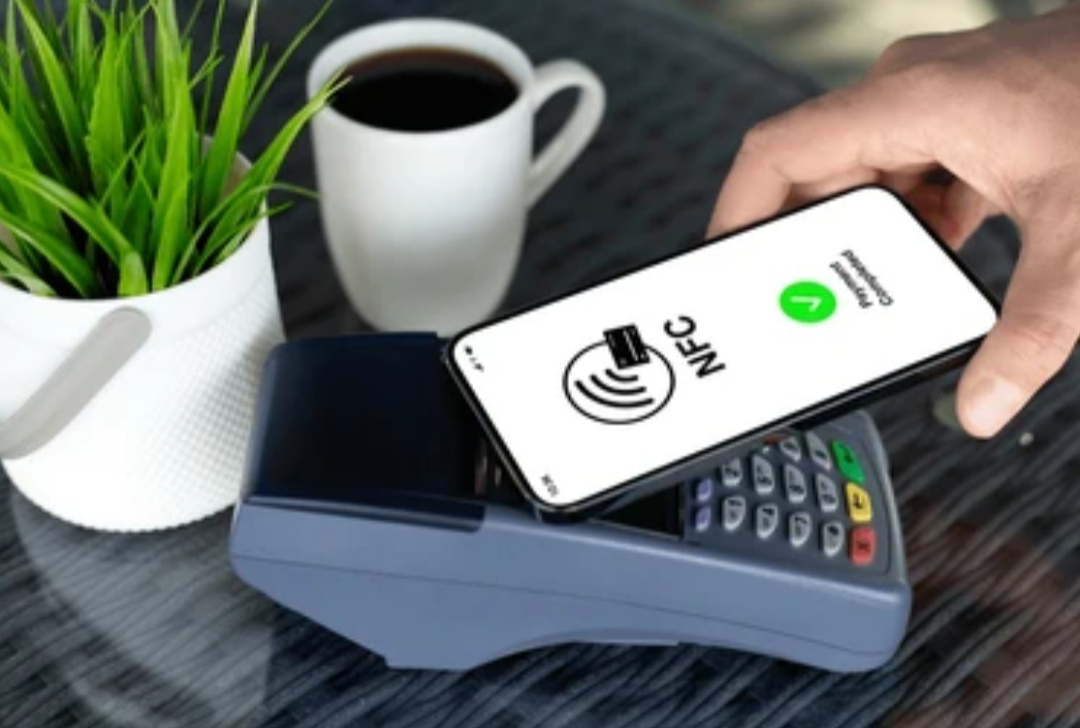
Introduction to NFC: What It Is & Why Knowing How to Use NFC on Your Phone Unlocks Powerful Android NFC Tricks
Understanding how to use NFC on your phone is the first step toward unlocking smart automation, contactless sharing, and hidden features available on modern Android devices.
Let’s dive into exactly what NFC (Near Field Communication) is, how it works, and why it’s quietly revolutionizing everyday smartphone routines.
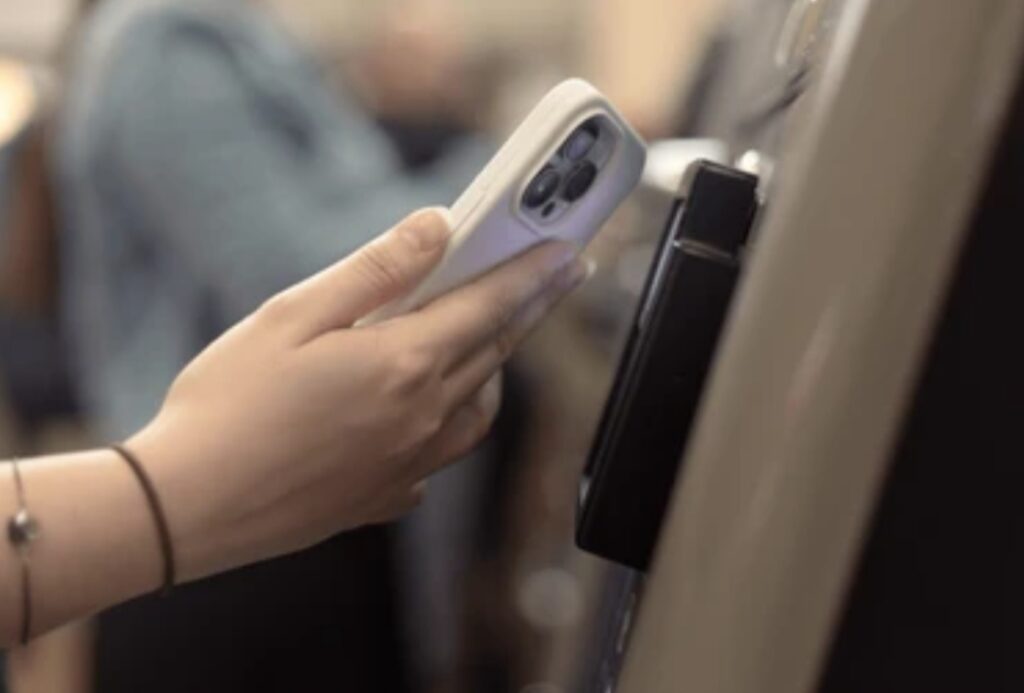
What Is NFC (Near Field Communication)?
NFC is a short‑range wireless technology built into most Android phones that enables communication when devices are brought within a few centimeters of each other.
It operates at a frequency of 13.56 MHz, following standards like ISO/IEC 18092, and enables electromagnetic induction–based data exchange, ranging from 106 to 424 kbps.
In practical terms, your phone becomes an interactive tag reader, payment device, or automation controller that can initiate fast, secure actions with just a tap.
How NFC Works – Active vs. Passive Modes
- Active Mode: Both devices generate electromagnetic fields and exchange data—ideal for tap to share, launching automation, or connecting devices.
- Passive Mode: A powered device (like your phone) activates an unpowered tag (such as an NFC sticker), reading data or executing programmed commands like launching apps or toggling settings.
This dual‑mode flexibility means Android NFC tricks can span from peer-to-peer data exchange to simple tag‑triggered routines.
Why NFC Matters on Android—and What’s New in 2025
Nearly all modern Android smartphones—from Google, Samsung, Huawei, Xiaomi, and more—support NFC, making it a ubiquitous yet under-utilized feature
And here’s the latest upgrade: NFC Release 15 now enables a maximum operational range up to 2 cm—four times longer than before—reducing the need for perfectly aligned taps and improving reliability for actions like tap-to-share file transfers, contactless payments, or NFC‑powered locks and access control systems.
This means smoother, more forgiving interactions—and a better user experience for Android NFC tricks like contactless share, pairing, and automation.
What You Can Do Once You Know How to Use NFC on Your Phone
Once you see how NFC works, you’ll realize it unlocks a suite of creative, practical Android NFC tricks:
- Tap to Share: While the old Android Beam feature was deprecated in Android 10, Nearby Share still supports NFC‑initiated sharing—bringing back the magic of a simple tap to begin file or photo transfer.
- Programmable NFC Tags: Stick tags around your home or workspace that trigger routines like turning on Wi-Fi, launching music apps, or silencing your phone when scanned.
- Contactless Payments & Access Control: Use Google Wallet, host card emulation (HCE) or specialized NFC smart locks to pay, gain access, or scan tickets—all built around NFC protocols.
Key Takeaways from This Introduction
- You now know what NFC is and that it’s powered by electromagnetic induction and ISO-based standards.
- You understand how NFC works in active and passive modes, enabling tap-to-initiate actions and tag-triggered automation.
- You’re aware of the 2025 NFC standard upgrade, which enhances range and user experience.
- And you’ve glimpsed the potential of Android NFC tricks—from fast sharing to home automation—all tied to mastering how to use NFC on your phone.
How to Check If Your Android Phone Has NFC (And Why You Might Not Know It’s Already There)
If you’re wondering whether your phone is equipped with NFC, you’re not alone.
Many Android users don’t realize their phones already support this powerful feature.
Before diving into awesome Android NFC tricks like tap to share or using NFC tags, it’s essential to confirm whether your device has NFC hardware built-in.
Here’s how to find out — quickly and accurately.
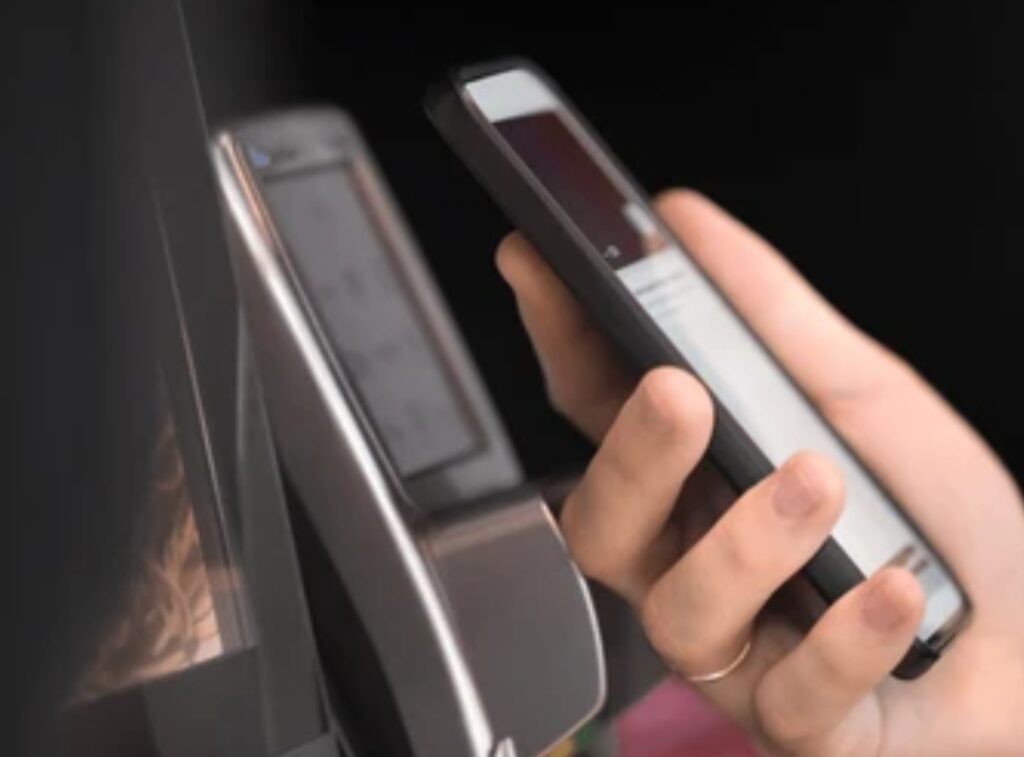
Quick Ways to Check If Your Android Phone Supports NFC
To check if your phone supports NFC, follow these simple steps:
✅ Method 1: Use Android Settings
- Open your phone’s “Settings” app
- Tap “Connected devices” or “Connection preferences” (wording may vary)
- Look for the NFC option
- If available, toggle it ON
If you see an NFC option, congratulations — your phone has built-in NFC capability.
📌 Pro Tip: Once you enable it, you’ll usually see an “N” icon appear in the status bar when NFC is active.
✅ Method 2: Use the Search Bar in Settings
- Open Settings
- Tap the Search bar at the top
- Type “NFC”
- If NFC is supported, it will appear in the results — you can tap it directly to enable it
This is the fastest way to confirm NFC compatibility across all Android versions, especially on brands like Samsung, Google Pixel, Xiaomi, or OnePlus.
✅ Method 3: Check Your Phone’s Specs Online
Still unsure?
Search your exact phone model on GSMArena or the manufacturer’s official site.
Look under Connectivity or Features and check for NFC.
Here’s an example search phrase you can type in Google:
Samsung Galaxy A52 NFC support site:gsmarena.com
If NFC is listed — you’re good to go.
List of Popular Android Phones with NFC Support (Updated 2025)
Here are just some of the NFC-enabled Android smartphones widely used in 2025:
- Samsung Galaxy Series (S10 and up, A52 and above, Fold/Flip series)
- Google Pixel Phones (Pixel 3 and newer)
- OnePlus Devices (OnePlus 6T and newer)
- Xiaomi Phones (Mi 11, Mi 12, and newer Pro/Ultra models)
- Motorola Edge, Moto G Stylus (2022+)
- Sony Xperia and Asus ROG Phones
✅ If you have a mid-range or flagship Android phone released in the past 4 years, chances are high it has NFC support.
Why You Might Not See NFC (Even If It’s There)
Sometimes, NFC may not be visible in your settings because:
- You’re using a carrier-modified Android skin with renamed menus
- Your device has NFC hardware, but it’s disabled by default
- The ROM or firmware you installed doesn’t support NFC settings
If you’re tech-savvy and using a custom ROM (like LineageOS), ensure NFC support is enabled in system settings or install the required NFC service module manually.
Troubleshooting Tips If You Can’t Find NFC on Your Phone
- Double-check spelling — type “NFC” in your Settings search bar
- Ensure you’re on the latest Android version
- Restart your phone after checking for updates
- Some older or budget models may lack NFC entirely
If none of these help, use third-party hardware checker apps like:
🔍 Phone INFO ★Samsung
🔍 Device Info HW
These apps can confirm NFC availability at the hardware level.
Why You Should Know If Your Phone Has NFC Before Trying Android NFC Tricks
Knowing whether your phone supports NFC is the first step before trying advanced tasks like:
- Automating actions with NFC tags
- Using Google Wallet for contactless payments
- Tap to share files, links, and media between devices
- NFC-based security and locking features
- Smart pairing with Bluetooth and smart devices
If your device supports NFC, you’re officially ready to unlock a world of creative automation and smart Android NFC tricks.
✅ Key Takeaway & Action Step
You now know how to:
✔ Check for NFC using settings
✔ Verify with the search bar or online specs
✔ Troubleshoot why it might be hidden
🔥 If you found NFC on your device — turn it on now!
Start experimenting with NFC tricks like tap to share, automation, and smart device control today.
How to Enable NFC on Your Android Phone (Step-by-Step Guide for 2025 Devices)
So, you’ve confirmed your phone supports NFC—awesome!
Now it’s time to activate it and start exploring smart features like tap to share, automated routines with NFC tags, and advanced Android NFC tricks that simplify daily tasks.
Enabling NFC is fast, easy, and unlocks a hidden world of tech convenience.
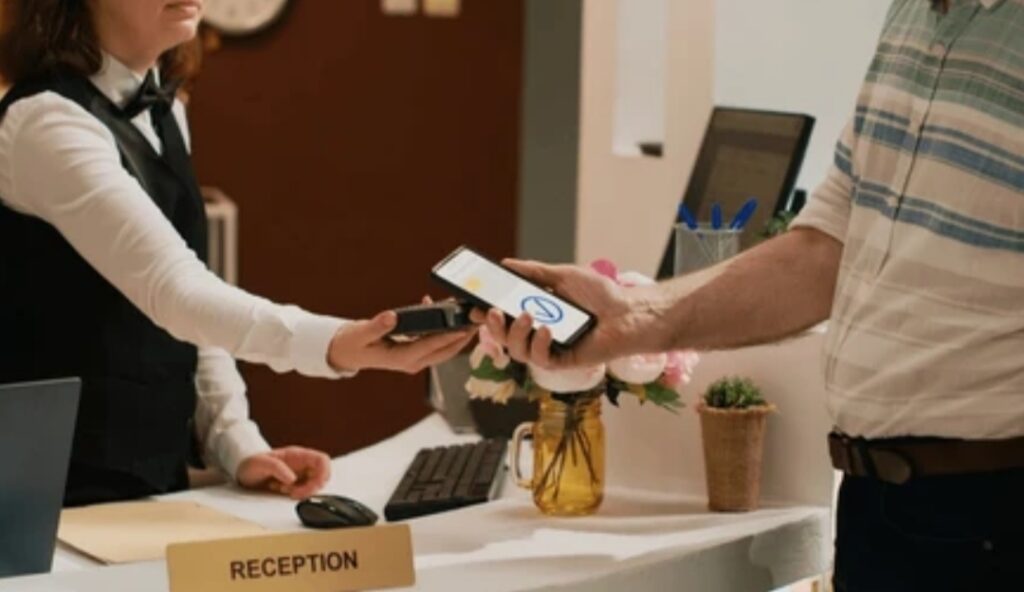
Why You Need to Enable NFC Before Using Tap-to-Share or Tags
Even if your phone has NFC, it’s often disabled by default to save battery or prevent accidental scans.
By turning it on, you unlock:
- Tap to share photos, videos, links, and contacts
- Use of NFC tags for home/office automation
- Instant pairing with Bluetooth or Wi-Fi devices
- Google Wallet and other contactless payment apps
- Access control and security features using NFC
How to Enable NFC on Stock Android (Google Pixel, Motorola, Nokia)
✅ These instructions apply to phones running near-stock Android or Android One.
- Open the Settings app
- Tap Connected Devices
- Choose Connection Preferences
- Tap on NFC
- Toggle the switch to ON
📌 Once enabled, you’ll often see an “N” icon in the status bar, confirming NFC is active.
How to Enable NFC on Samsung Galaxy Phones (One UI 6 & 7)
🧠 Samsung uses a slightly different interface, but the steps are just as simple.
- Open the Settings app
- Tap Connections
- Scroll down and tap NFC and contactless payments
- Toggle NFC to ON
- Under “Default payment service,” select Google Wallet or Samsung Wallet as needed
🔒 You can also tap “Tap and pay” settings to configure how NFC payments behave by default.
How to Enable NFC on Xiaomi, POCO, and Redmi Devices (MIUI 14/15)
- Go to Settings
- Tap Connection & Sharing
- Scroll down and tap NFC
- Enable NFC
- Optional: Tap Contactless payments to set your default payment app
⚠️ Some Xiaomi phones hide NFC settings under “More Connections” or “Wireless & networks”, depending on the MIUI version.
Enable NFC Using the Quick Settings Panel (Fastest Method)
Most Android phones now include a Quick Toggle for NFC in the notification shade.
To enable NFC via Quick Settings:
- Swipe down from the top of your screen
- Look for the NFC icon (usually a capital “N”)
- Tap it once to enable
- Tap again to disable
✅ If you don’t see NFC, tap the pencil/edit icon and drag the NFC toggle into the active panel for quick access.
Troubleshooting Tips If You Can’t Find NFC Option
- Make sure your phone model actually supports NFC
- Update your system software to the latest version
- If using a custom ROM, make sure it includes NFC services
- Restart your phone after a settings change
You can also download an app like NFC Check from the Play Store to verify the presence and functionality of NFC hardware.
Bonus: Configure Default Tap Behavior After Enabling NFC
After turning on NFC, you can customize how your device reacts to NFC triggers.
On most phones:
- Go to Settings > NFC > Tap & Pay
- Set your default payment app (Google Wallet, Samsung Pay, etc.)
- Choose preferred behavior when scanning NFC tags (e.g., open an app, execute a task)
You’re Now Ready to Use Android NFC Tricks
Now that NFC is turned on, you can begin exploring:
- Tap to share files between two phones
- Program NFC tags to automate daily tasks
- Pay with your phone at supported terminals
- Unlock your door or PC using NFC tools
The real power lies ahead, and the next section will guide you through the first must-try feature: Tap to Share.
✅ Action Step – Turn on NFC Now and Try a Tap
🔥 Go to your settings and turn on NFC right now — you’ll be amazed what one tap can do!
Once it’s enabled, hold your phone near another NFC-compatible device or a blank tag and see the magic happen.
Tap to Share – The Simplest Android NFC Trick You Should Try First
When people first ask how to use NFC on your phone, one of the easiest and most impressive tricks to try is Tap to Share.
This feature lets you instantly transfer files, contacts, links, or other content from one NFC-enabled device to another — simply by bringing them close together.
No cables.
No apps.
Just a quick tap.
Whether you’re sharing your favorite YouTube video, a contact card, or even a map location, Tap to Share is one of the most practical and fun Android NFC tricks available.
What Is Tap to Share and How Does It Work?
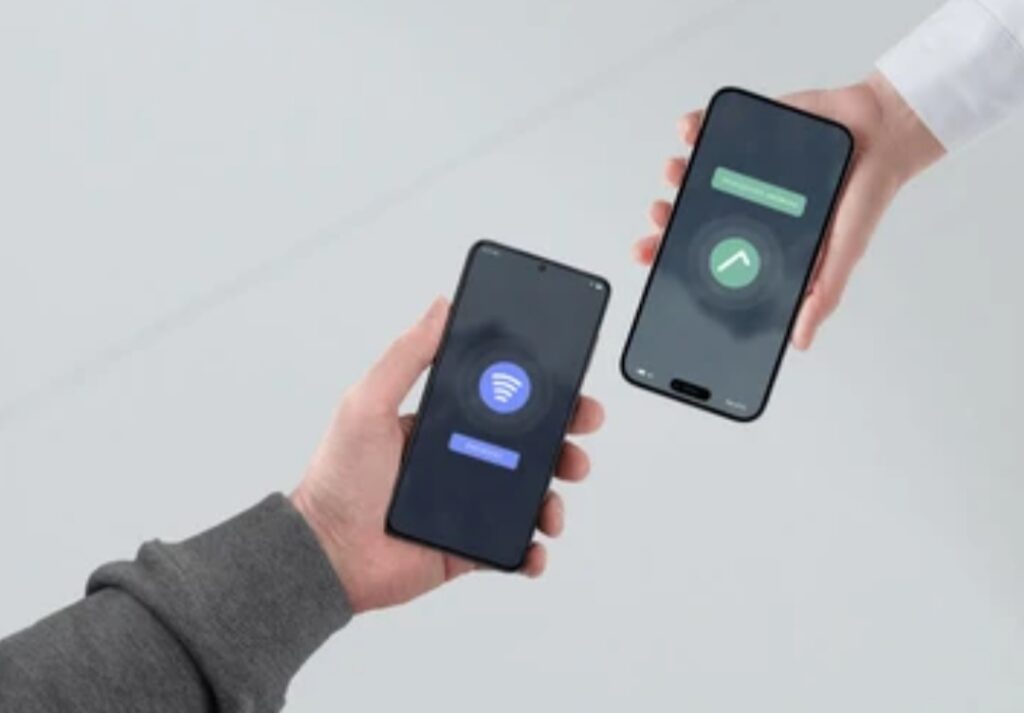
Tap to Share is a peer-to-peer (P2P) data transfer feature that allows two NFC-enabled Android devices to exchange content instantly by touching their backs together.
It relies on Near Field Communication (NFC) to establish a quick connection, then uses Bluetooth or Wi-Fi Direct to complete the actual data transfer.
In older Android versions, this was known as Android Beam.
While Android Beam was officially retired in Android 10, modern alternatives like Nearby Share and Google’s Quick Share continue to support NFC tap initiation — allowing you to launch a transfer simply by tapping devices.
What Can You Share with Tap to Share?
Here’s a list of things you can quickly transfer between two Android phones using NFC tap-to-share:
✅ Web links (URLs)
✅ Contacts and digital business cards
✅ Google Maps locations
✅ YouTube videos
✅ Images and videos
✅ App links from Google Play Store
✅ Wi-Fi credentials
✅ Notes or clipboard content
✅ Files and documents (PDFs, audio files, etc.)
💡 This makes Tap to Share a smart replacement for clunky file sharing apps or QR codes.
How to Use Tap to Share on Android (Step-by-Step Guide)
Follow these steps to try out Tap to Share:
✅ Step 1: Turn On NFC on Both Devices
Make sure both phones have NFC enabled.
(Refer back to the previous section for exact steps if needed.)
✅ Step 2: Open the Content You Want to Share
Example:
- Open a web page in Chrome
- Open a photo in Google Photos
- Open a contact in your Contacts app
- Select a location in Google Maps
✅ Step 3: Bring the Phones Back-to-Back (Touching)
Hold the two phones with their backs lightly touching.
You’ll feel a vibration, or hear a tone, confirming NFC has established a connection.
✅ Step 4: Tap the Screen to Send
When the “Tap to Beam” or “Send” prompt appears, tap your screen to confirm.
The content will transfer instantly to the second phone.
✅ Step 5: Done!
The receiving device will open the shared content in the appropriate app (browser, maps, gallery, etc.).
Quick Tip – Use NFC Tap to Share to Save Time at Work
Use it to instantly send files during meetings, share a slide deck with a colleague, or pass on your digital business card without emailing.
This is one of the best time-saving Android NFC tricks you can master.
Can Tap to Share Still Work Without Android Beam? (2025 Update)
Yes, it can — but with a few differences:
🔁 Android Beam (deprecated): Tap to Share worked directly with NFC to push files. It was available on Android 4.0 to 9.
📲 Nearby Share (current): Now supports tap-to-initiate transfers with NFC and Wi-Fi/Bluetooth. It’s faster, smarter, and cross-compatible with Chromebook and Windows.
To use Nearby Share with NFC:
- Go to Settings > Google > Devices & Sharing > Nearby Share
- Enable Nearby Share
- Enable NFC on both devices
- Tap the backs of the phones together to initiate sharing
Compatible Devices for Tap to Share (Updated for 2025)
Most Android phones from 2020 and later support Nearby Share with NFC including:
- Google Pixel series
- Samsung Galaxy S, A, Fold, Flip series
- OnePlus 8 and newer
- Xiaomi Mi/Redmi with MIUI 13+
- Oppo, Vivo, and Realme with Android 11+
Troubleshooting Tap to Share Not Working
Here are quick fixes if NFC Tap to Share doesn’t work:
❌ NFC not enabled – Double check settings
❌ Phones are not aligned properly – NFC range is less than 4cm
❌ One device lacks Nearby Share – Install Google Play Services updates
❌ File type not supported – Use Google Files or Bluetooth manually
❌ Battery optimization settings – May block NFC sharing in the background
Why Tap to Share Is Still One of the Coolest Android NFC Tricks
Tap to Share is one of those features that feels like magic the first time you use it.
It’s lightning fast, incredibly convenient, and completely wireless.
Whether you’re a casual user or a power user, this feature will save you time and improve your phone’s usability.
💥 Pro Tip: Combine Tap to Share with NFC Tags for Ultimate Convenience
You can even program an NFC tag to auto-share contact info or open a folder of shareable files when scanned.
Perfect for business, networking, or smart home automation.
🔥 Give Tap to Share a try today — tap your phone with a friend’s and watch the magic happen!
It’s one of the fastest, simplest ways to unleash the full power of how to use NFC on your phone in real life.
10 Powerful Android NFC Tricks You Didn’t Know You Could Do
Once you’ve learned how to use NFC on your phone, it’s time to go beyond the basics.
Sure, you can tap to share — but that’s just scratching the surface.
NFC on Android opens the door to automation, smart connectivity, and mind-blowing shortcuts that most users have no idea exist.
Below are 10 powerful Android NFC tricks that will truly supercharge your phone and daily routine.
💡 Best part? Most of these tricks are FREE to try and work with inexpensive NFC tags you can buy online.
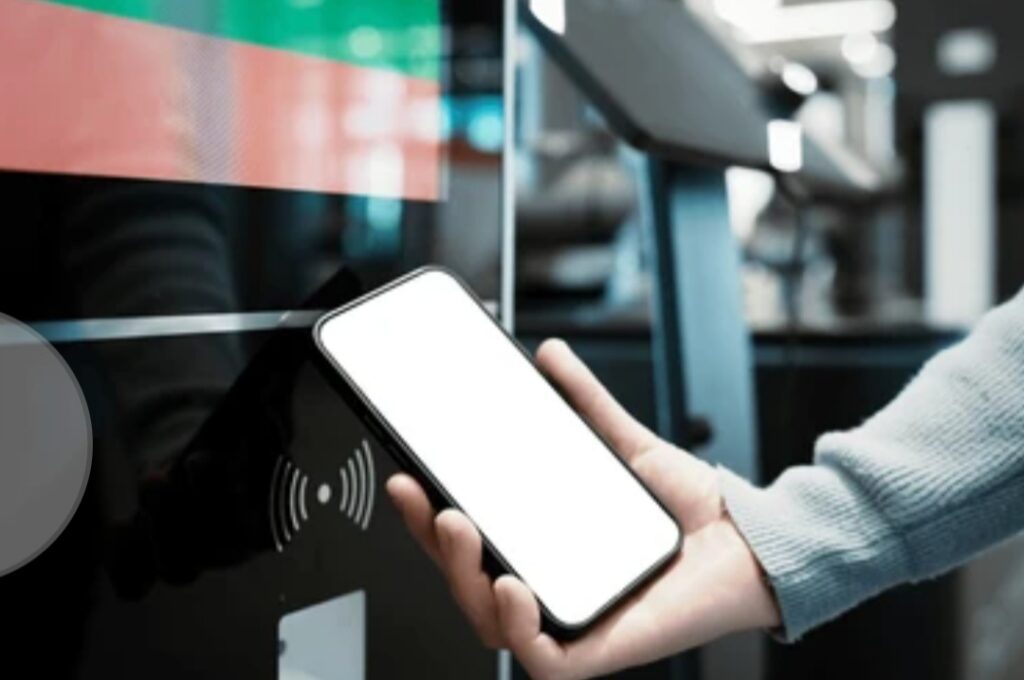
1. Automate Daily Tasks with NFC Tags
Imagine scanning a sticker and your phone:
- Turns on Wi-Fi
- Switches to silent mode
- Sends a pre-written text
- Opens your favorite playlist
All in one tap.
With apps like NFC Tools or Trigger, you can program NFC tags to execute tasks like:
✔ Toggle Bluetooth
✔ Enable hotspot
✔ Start navigation to work
✔ Launch camera or WhatsApp
✔ Set alarms or reminders
🎯 Buy blank NFC tags online, stick them on your desk, car dashboard, or nightstand — and enjoy automation with zero effort.
2. Instantly Share Wi-Fi Passwords
Tired of spelling out your complicated Wi-Fi password?
You can store your Wi-Fi credentials on an NFC tag.
Stick it near your router and allow guests to join your network instantly just by tapping their phone on the tag.
🛜 This NFC trick is a game-changer for homes, cafés, or co-working spaces.
3. Launch Specific Apps with a Tap
Want to open Spotify while working out?
Google Maps when you get in the car?
YouTube while cooking?
Just assign that action to an NFC tag.
✅ Tap your phone = open your chosen app
✅ Tap again = launch a task or even a folder of apps
This is one of the most personalizable Android NFC tricks for boosting productivity.
4. Put Your Phone on Silent Mode While You Sleep
Place an NFC tag on your bedside table.
When you tap it at night, it can:
- Set your phone to Do Not Disturb
- Turn off Wi-Fi
- Enable your alarm
- Lower screen brightness
No more distractions. No manual steps.
💤 Set the mood for sleep with just one tap.
5. Start Navigation to Frequent Destinations
Use NFC to quickly launch turn-by-turn directions to places you visit often:
- Work
- Home
- Gym
- Favorite café
Stick a tag in your car or wallet to instantly pull up directions in Google Maps with one scan.
6. Smart Bluetooth Pairing
You can pair your phone with Bluetooth speakers, earbuds, or car kits by tapping on an NFC tag placed near them.
No need to go into Bluetooth settings — one tap connects them instantly.
This trick is great for:
🎧 Headphones
🚗 Car infotainment systems
📻 Home audio gear
7. Share a Digital Business Card
Forget printed cards.
You can store your vCard or contact info in an NFC tag or directly beam it to someone’s phone using NFC.
Tap-to-share your name, number, email, social profiles, or website URL instantly — no apps needed.
💼 Perfect for entrepreneurs, freelancers, and networkers.
8. Automate Smart Home Scenes
Using apps like SmartThings, Google Home, or IFTTT, you can connect NFC tags to trigger smart home actions:
✅ Turn off all lights
✅ Set thermostat to a preset
✅ Lock smart doors
✅ Activate security camera mode
✅ Dim lights and start relaxing music
Stick an NFC tag near your entry door, sofa, or bedroom to tap into comfort mode anytime.
9. Use NFC to Lock or Unlock Devices
You can use NFC tags to:
🔒 Lock your device (with certain launchers or security apps)
🔓 Unlock your PC (via apps like NFC Tools Pro + Tasker)
🔐 Control smart locks with tap access (check compatibility)
This gives you hands-free security control in both personal and office setups.
10. Trigger Custom Profiles for Work, Home, Gym, and More
Set up multiple NFC tags for different scenarios:
🏢 Work Tag – Turn off music, enable email notifications, mute ringtone
🏡 Home Tag – Connect to home Wi-Fi, disable mobile data, open Netflix
🏋️ Gym Tag – Start workout playlist, disable calls, open fitness tracker
With Tasker or NFC Tools, the combinations are endless.
🧠 This is one of the most powerful Android NFC tricks for creating a smarter lifestyle.
🧲 Bonus: Combine NFC Tricks for Ultimate Power
Stack multiple actions on a single tag:
✔ Tap = Connect to Bluetooth + launch YouTube Music + start stopwatch
✔ Tap = Set Do Not Disturb + start meditation timer + turn off notifications
You can go from manual routines to magical automation with just a tap.
✅ Why These Android NFC Tricks Are Total Game-Changers
The tap-to-share feature might introduce you to NFC, but these tricks will keep you hooked.
With a little creativity and a few NFC tags, you can:
- Eliminate boring manual steps
- Automate your digital life
- Save time at home, at work, and on the go
- Feel like a tech wizard with every tap
🔥 Start with one NFC tag today — you’ll wonder how you ever lived without it.
You’ve now unlocked the full potential of how to use NFC on your phone beyond basic use.
Next, let’s go even deeper with using NFC for secure payments, smart cards, and contactless transactions.
Using NFC for Contactless Payments – Setup & Safety Tips You Should Know
In today’s fast-moving digital world, contactless payments have become more than just a trend — they’re a modern necessity.
One of the most practical and widely used functions when learning how to use NFC on your phone is tapping to pay.
If you’ve ever waved your phone at a card reader and heard a beep, you’ve already experienced it.
But let’s go deeper.
Below, you’ll learn how to set up NFC payments, what devices and apps support it, how safe it really is, and how to troubleshoot common issues.
💳 Learn the exact steps to turn your phone into a secure, tap-and-pay wallet — no plastic cards required.
What Are NFC Payments and How Do They Work?
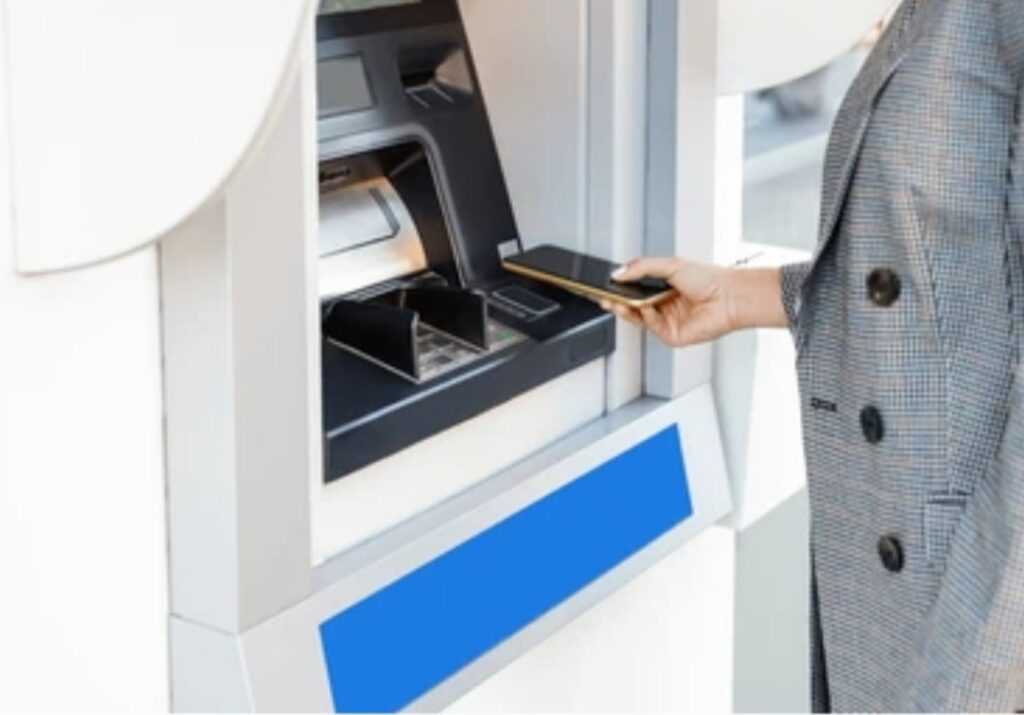
NFC payments allow you to wirelessly pay at stores, transit systems, restaurants, and more by simply tapping your smartphone near a contactless-enabled terminal.
Here’s what’s happening under the hood:
- Your phone uses Near Field Communication (NFC) to create a short-range radio connection with the terminal (typically under 4cm).
- Your payment app (like Google Pay or Samsung Wallet) transmits a secure tokenized version of your card to authorize the transaction.
- No actual credit card numbers are sent — only encrypted data.
🧠 This makes it faster and safer than traditional magnetic strip or even chip payments.
Devices That Support NFC Payments
To use contactless payments, you need:
✔ An NFC-enabled Android phone (most phones from 2015 onward include this)
✔ A supported payment app
✔ A card or bank that allows mobile payments
Popular Android phones with NFC support:
📱 Google Pixel (All models)
📱 Samsung Galaxy series
📱 OnePlus (from 6T onwards)
📱 Xiaomi, Oppo, and Realme (select models)
📱 Motorola, ASUS, and Sony (many newer models)
📌 To check, go to: Settings > Connected Devices > Connection Preferences > NFC — and toggle it ON.
Setting Up Google Pay (Step-by-Step)
Google Pay is the default and most widely supported NFC payment app on Android.
Here’s how to set it up:
- Download Google Wallet from the Play Store
- Open the app and sign in with your Google account
- Tap “Add a card” – then either scan your physical card or enter details manually
- Verify the card via SMS/email from your bank
- Once approved, set it as your default contactless payment method
Now, you can tap to pay at millions of merchants around the world.
💥 Look for the contactless symbol at checkout: 🟢📶
Is NFC Payment Safe? (Yes — Here’s Why)
Security is often the biggest concern.
Here’s why NFC mobile payments are actually safer than using your physical card:
🔐 Your real card number is never shared — only a token is used
🔐 Every transaction requires biometric authentication (fingerprint or face unlock)
🔐 If your phone is lost/stolen, it can be locked or erased remotely
🔐 No one can steal your data unless they physically unlock your phone
Also, payment terminals must be very close (within a few centimeters) to your phone — meaning remote hacking isn’t a realistic threat.
✅ Android NFC tricks are cool — but secure tap payments are downright brilliant.
Where Can You Use Tap-to-Pay NFC?
You can use your NFC-enabled Android phone to pay at:
🏪 Retail stores (Target, Walmart, Best Buy, etc.)
🍽 Restaurants and cafes
🚉 Public transport systems (varies by city)
🛒 Grocery stores and markets
📦 Online and in-app purchases (via Google Pay integration)
🔍 If you see the contactless symbol or Google Pay logo — you’re good to go.
Bonus: Use NFC for Transit Cards & Digital Access
In many countries, your NFC-enabled phone can also function as a metro pass, bus card, or building access badge.
Google Pay, Samsung Wallet, and some city-specific apps support this.
Examples include:
🚇 London’s Oyster Card
🚊 Tokyo’s Suica and PASMO
🚍 Malaysia’s Touch ‘n Go (Android support)
🏢 Corporate access cards via third-party platforms like HID Mobile Access
🎫 Check your local transit authority’s website for compatibility with Android NFC features.
Common NFC Payment Issues & How to Fix Them
If your tap to share or tap to pay features aren’t working, try these:
❌ Phone not recognized at terminal?
👉 Check that NFC is enabled in settings
❌ No payment method detected?
👉 Make sure Google Wallet is set as default under:
Settings > Apps > Default Apps > Tap & Pay
❌ App crashes or won’t open?
👉 Update Google Pay or Samsung Wallet
👉 Clear cache from the app settings
❌ Card not accepted?
👉 Not all banks support NFC yet — check with your issuer or add another card
🛠️ You may need to restart your phone or reinstall the app for stubborn issues.
✅ Is NFC Payment Worth It?
Absolutely.
Once you set it up, you’ll never want to pull out your wallet again.
✅ Faster checkout
✅ Secure and encrypted
✅ Cleaner (no touching terminals)
✅ Works in most countries and locations
💥 Start using tap-to-pay today — it’s free, safer, and easier than you think.
You’ve now mastered one of the most powerful features in learning how to use NFC on your phone — mobile payments.
NFC vs. Bluetooth vs. QR Code – What’s the Difference and Which Is Better?
When exploring how to use NFC on your phone, it’s natural to wonder how it stacks up against other wireless technologies like Bluetooth and QR codes.
All three are used for sharing data, making payments, or connecting devices—but they’re designed for different purposes.
Understanding the differences, pros, and cons will help you pick the best tool for the job—especially if you love smart tech efficiency.
🧠 Knowing when to use each one can help you move faster, share smarter, and stay more secure.
What Is NFC? Quick Recap
NFC (Near Field Communication) is a short-range, high-frequency wireless communication that allows two devices to exchange data over a distance of less than 4 cm.
Key Highlights:
✅ Instant connection — no pairing needed
✅ Low power usage
✅ Works best for payments, ID verification, or fast file transfers
⚡ It’s perfect for quick actions like tap to share or contactless checkout.
What Is Bluetooth?
Bluetooth is a wireless technology for transferring data between devices over longer distances (up to 10 meters or more).
It’s great for:
📱 Streaming music to wireless headphones
📷 Connecting your phone to a smart camera
📲 Sending larger files or syncing wearables
However, it requires pairing, consumes more battery, and is slower to initiate compared to NFC.
🔋 Bluetooth is better for continuous connections, but not ideal for instant one-time actions.
What Is a QR Code?
A QR (Quick Response) code is a visual barcode that you scan with your phone’s camera.
It encodes data such as:
🔗 Website URLs
💳 Payment info
📄 Contact details
🎟 Event tickets
Pros of QR Codes:
✅ Universal — any phone with a camera can scan
✅ Doesn’t require special chips
✅ Great for menus, event check-ins, or marketing
Cons:
❌ Slower than NFC or Bluetooth
❌ Needs proper lighting and camera alignment
❌ Less secure (easily spoofed)
NFC vs Bluetooth vs QR Code – Feature Breakdown
| Feature | NFC | Bluetooth | QR Code |
| Range | ~4 cm | Up to 10 meters | Depends on camera focus |
| Speed | Instant | Moderate (pairing time) | Slow (scan + load) |
| Power Consumption | Very low | Moderate to high | None (passive) |
| Security | High (encrypted & short) | Moderate | Low (can be copied) |
| Ease of Use | Tap and go | Requires pairing | Requires camera & scan |
| Best For | Payments, quick data | Audio, long transfers | One-way info (e.g., links) |
When to Use NFC Instead of Bluetooth or QR?
NFC is the go-to tech when:
🔹 You want secure tap-to-pay payments
🔹 You need to share small files, links, or contacts instantly
🔹 You want to automate tasks with an NFC tag (like putting your phone on silent at bedtime)
Bluetooth is ideal for:
🔸 Streaming or constant connection (headphones, watches)
🔸 Gaming controllers or external accessories
QR Codes work well when:
🔻 You’re advertising, printing posters, or hosting events
🔻 You need to share info without touching devices
🎯 If speed, security, and ease matter most — go with NFC.
Can You Combine NFC, Bluetooth & QR?
Absolutely.
Some apps and services use all three technologies together.
For example:
🔄 A smart lock might use Bluetooth to connect, and NFC as a backup access method.
📱 Payment apps may use QR codes in areas where NFC terminals aren’t available.
🎫 Event apps allow NFC check-in or QR scan depending on what’s fastest.
🔧 Knowing how to switch between these gives you flexibility and better control over your digital experience.
The Winner? It Depends on Your Use Case
If you’re wondering which is “best,” the real answer is:
💡 Use the right tool for the right job.
But for daily convenience, security, and simplicity, NFC is the most user-friendly for mobile users.
💥 Ready to make life simpler? Start using NFC to streamline your daily tasks — from payments to smart automations.
Secret Android NFC Tricks You’ve Probably Never Tried
So, you know the basics of how to use NFC on your phone — but did you know there are dozens of lesser-known Android NFC tricks that can save time, simplify tasks, and make your phone feel next-level smart?
Beyond contactless payments, NFC is a hidden productivity weapon—especially if you love automations, shortcuts, or just showing off your phone’s hidden powers.
🎯 This is where the magic happens. Ready to unlock the real potential of your device? Let’s get into it.
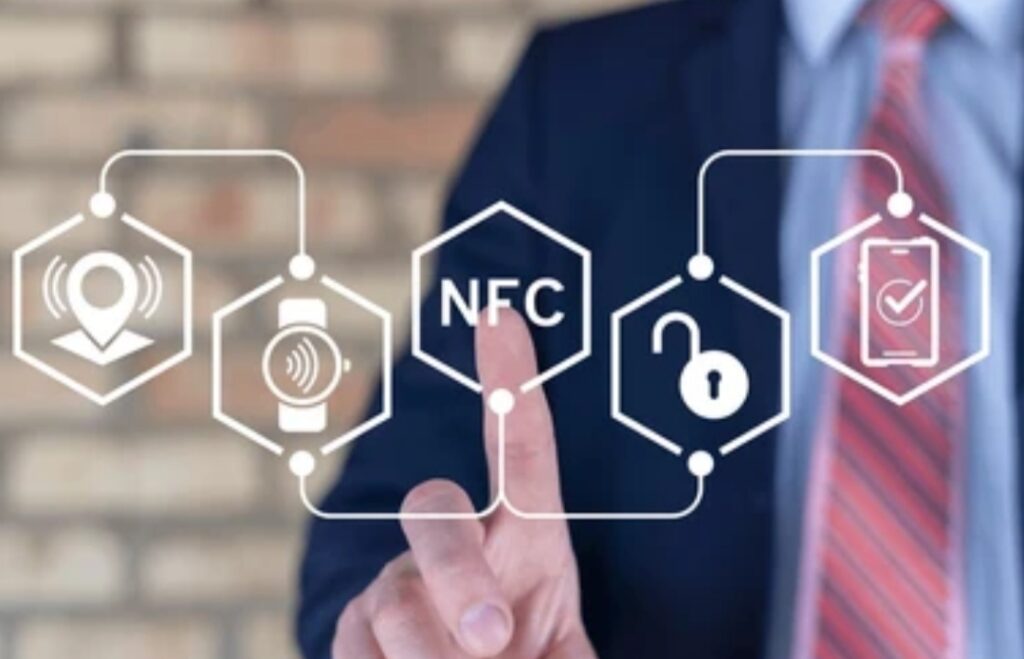
1. Automate Your Life with NFC Tags
One of the most powerful Android NFC tricks is using NFC tags to automate everyday actions.
These small, cheap stickers can be programmed with your phone to perform actions like:
🔇 Putting your phone on silent when you tap it on your nightstand
📶 Turning on Wi-Fi when you get home
🎵 Launching Spotify when you tap it in your car
🌙 Activating Do Not Disturb during your bedtime routine
How to do it:
- Buy blank NFC tags (cheap on Amazon or online)
- Install an app like NFC Tools or Trigger
- Tap your phone on the tag and assign an action
💡 You don’t need root or coding skills — it’s all drag and drop.
2. Share Wi-Fi Instantly with a Tap
Tired of spelling out long Wi-Fi passwords?
You can program an NFC tag to automatically connect a device to your Wi-Fi network.
Just tap a friend’s phone on the tag and boom — they’re connected.
Perfect for:
🏠 Home guests
🏨 Airbnb hosts
🏢 Office visitors
🔐 Bonus: You don’t have to reveal your actual password.
3. Launch Apps with a Tap
Set an NFC tag on your dashboard, gym locker, or office desk, and link it to specific apps.
Example Uses:
📻 Tap to launch your favorite podcast app when you get in your car
📸 Tap to launch your camera instantly
🧘 Tap to open your meditation app when you get into bed
It’s like building your own real-world shortcuts.
🎯 No need to scroll through apps — just tap and go.
4. Share Contact Info or Business Card (Digital Style)
Skip paper business cards and go digital.
You can embed your contact info into an NFC tag or directly into your phone to share via tap.
When someone taps their phone, they get:
📱 Your name
📧 Email
🌐 Website
📞 Phone number
🔗 Link to your digital portfolio
Great for entrepreneurs, freelancers, or tech-savvy professionals.
💼 It’s the modern handshake.
5. Send Preset Messages or Texts
Need to send the same message regularly?
Like:
📩 “I’m on the way!”
📩 “At the meeting now, will call later.”
📩 “Pick up groceries on your way.”
Program an NFC tag to send that message with one tap. Super useful while driving or during meetings.
🚗 Hands-free messaging — like magic.
6. Connect to Bluetooth Devices Instantly
You can use NFC to auto-pair with:
🎧 Bluetooth headphones
🎮 Game controllers
🖨 Bluetooth printers
🎵 Smart speakers
Just tap to connect instead of digging through settings.
🎶 From silent to synced in seconds.
7. Launch Google Maps with Specific Destinations
Set an NFC tag in your car to open Google Maps with preset directions.
Examples:
📍 Office
📍 Gym
📍 Favorite café
📍 Client meeting address
Program it once, and you’re always just one tap away from the fastest route.
8. Use NFC to Trigger Emergency Alerts
You can also program NFC tags to:
🚨 Send emergency SOS texts to loved ones
📍 Share your location instantly
📞 Dial emergency contacts with one tap
Stick one in your car, backpack, or wallet for extra peace of mind.
🛡 A smart safety trick you’ll hopefully never need, but always want ready.
9. Turn NFC Into a Sleep Aid Routine
Stick an NFC tag next to your bed.
Program it to:
🌙 Activate Do Not Disturb
📲 Turn off notifications
🌡 Launch your sleep tracker
🎵 Play calming sounds or white noise
😴 Build a bedtime ritual with just one tap.
10. Use Tap to Share Files, Contacts, or App Links (Yes, It Still Works)
Though Android Beam is now retired, you can still tap to share data using third-party apps like:
📥 NFC Tools Pro
📲 Send Anywhere
🔗 Link to Share
Great for sharing:
📎 Files
🗂 Contacts
📲 Installed app APKs
🔗 URLs
🔁 Sharing made seamless and secure.
Bonus: Combine NFC with Tasker or IFTTT for Supercharged Automation
Want to go next level?
Pair NFC with Tasker or IFTTT to:
🔄 Automatically turn on smart lights
🧠 Trigger a focus timer
💡 Log your work hours into a spreadsheet
📷 Auto-upload photos to Google Drive
The possibilities? Literally endless.
Not All Phones Support All Tricks — Here’s What to Check
✅ Your phone must have NFC hardware (Check in Settings > Connected Devices)
✅ You must enable NFC toggle
✅ Some tricks require third-party apps
✅ Older phones may have limited functionality
🔍 Always test your tags and setups first before going full automation.
Final Thoughts on Android NFC Tricks
From tap to share shortcuts to NFC tag magic, Android’s NFC capability opens a world of futuristic functionality.
These are not just party tricks — they’re real solutions to daily problems.
🔥 Start small: grab a few NFC tags, install an app, and set up one automation today — you’ll never look at your phone the same way again.
How to Set Up and Program NFC Tags on Android – Step-by-Step Tutorial
Setting up NFC tags on your Android phone may sound techy, but it’s surprisingly easy. You don’t need coding knowledge or fancy tools — just your phone, a few blank NFC tags, and the right free apps.
This step-by-step guide will walk you through everything you need to know to unlock the full potential of how to use NFC on your phone using tags.
🛠 Whether you’re a beginner or tech enthusiast, this setup is quick, customizable, and game-changing.
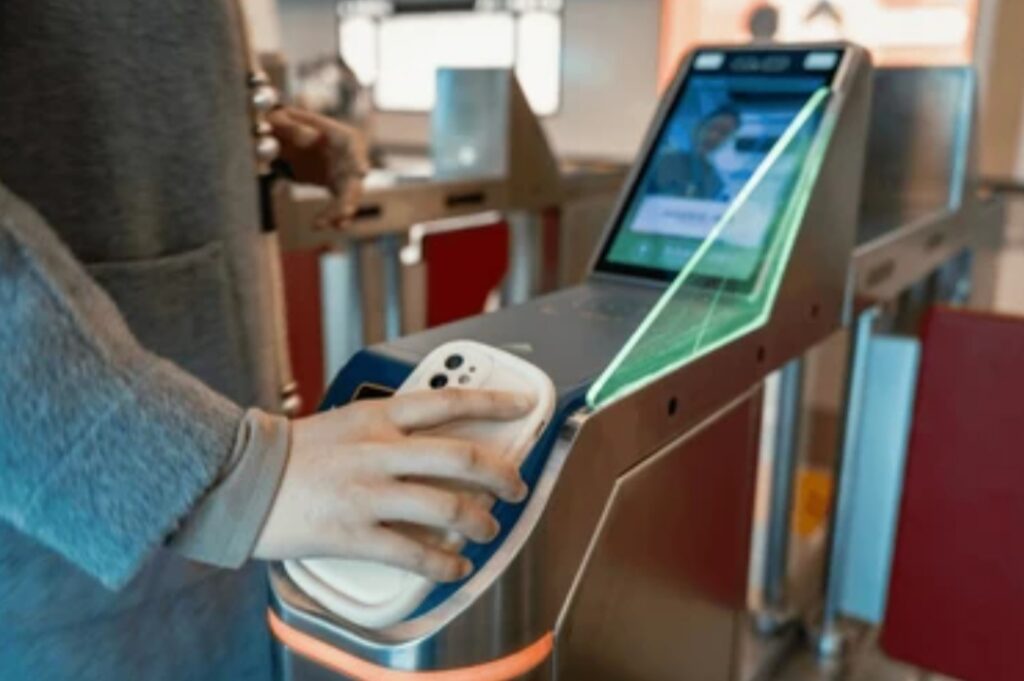
🧾 What You Need Before You Start
Before jumping into the fun part, make sure you have the following:
✅ An Android smartphone with NFC capability
✅ NFC enabled in your phone settings
✅ A few blank NFC tags or stickers (Buy them here)
✅ A free app like NFC Tools, NXP TagWriter, or Trigger
📦 Pro Tip: Look for NFC tags with NTAG213/215/216 chips for better compatibility and storage capacity.
🔎 How to Check If Your Android Phone Has NFC
- Go to Settings
- Tap Connected Devices or More Connection Settings
- Look for NFC toggle and turn it on
- Alternatively, swipe down the notification panel and look for the NFC icon
If your phone has this option, you’re good to go.
🧠 Still unsure? Just Google “Your phone model + NFC support” to confirm.
📲 Step-by-Step Guide to Programming NFC Tags Using NFC Tools App
Let’s now program your first NFC tag in minutes.
Step 1 – Install the NFC Tools App
Download NFC Tools from the Google Play Store. It’s free, easy to use, and doesn’t require root access.
Step 2 – Launch the App and Tap ‘Write’
Open NFC Tools
Go to the ‘Write’ tab
Tap “Add a record” – this lets you define what you want the NFC tag to do.
Step 3 – Choose What You Want the Tag to Do
Here are just a few options you’ll see:
📶 Enable/disable Wi-Fi
📳 Set phone to silent
📞 Call a number
🌐 Open a URL
🎵 Launch an app
📅 Add a calendar event
📍 Share location
Select your desired action. You can even combine multiple actions into one tag.
Step 4 – Tap to Write
Once you’ve chosen the action(s), tap ‘Write’ and hold the back of your phone against the NFC tag.
Within seconds, it’ll write the data and confirm success.
⚠️ Make sure your phone’s screen is unlocked and NFC is turned on.
Step 5 – Test Your NFC Tag
Now, exit the app and simply tap your phone on the tag again.
If everything was done correctly, it will trigger your assigned action — like magic!
🛡 Tips for Making the Most of NFC Tags
Here are expert-level tips to take your Android NFC tricks to the next level:
✅ Label your tags clearly (e.g., “Sleep Mode”, “Car Mode”)
✅ Stick tags in convenient locations like desks, car dashboards, or near your bed
✅ Use waterproof or protected tags for outdoor use
✅ Use IFTTT or Tasker for advanced automations
✅ Use password-protected tags for security (supported in NFC Tools Pro)
🧠 Think beyond the basics — NFC tags can be the glue that connects your entire smart ecosystem.
⚠️ Troubleshooting Common NFC Issues
Not working? Try these fixes:
❌ Phone not responding to tag?
– Make sure NFC is turned on
– Try moving the tag to the sweet spot on your phone’s back
❌ App doesn’t detect tag?
– Use a different app like NXP TagWriter
– Make sure your tag isn’t locked or already written
❌ Nothing happens after tapping?
– Reprogram the tag
– Try a different NFC chip type (some phones are picky)
🛠 Don’t give up — most issues are minor and easy to fix.
🎯 Programming NFC is Easier Than You Think
Setting up and using NFC on Android is a game-changer — especially when you realize how much time it can save you daily.
With just a few taps, you’ve built:
✔️ Your own shortcut center
✔️ Personalized automations
✔️ A smarter, faster Android experience
🔥 Start with one NFC tag today and build your own automated ecosystem. You’ll wonder how you ever lived without it. Grab your NFC tag starter kit now and join the smart tech revolution.
NFC vs Bluetooth vs QR Codes – Which One’s Best for You?
In today’s connected world, sharing data and triggering actions wirelessly has become second nature. But when it comes to choosing between NFC, Bluetooth, and QR codes, many users get confused about which one to use—and when.
If you’re wondering whether NFC is better than Bluetooth or QR, you’re not alone.
This section breaks down the differences between NFC, Bluetooth, and QR codes, and helps you decide which one fits your needs based on speed, convenience, security, and real-life use cases.
⚖️ Let’s settle the score once and for all—see which tech is best for you!
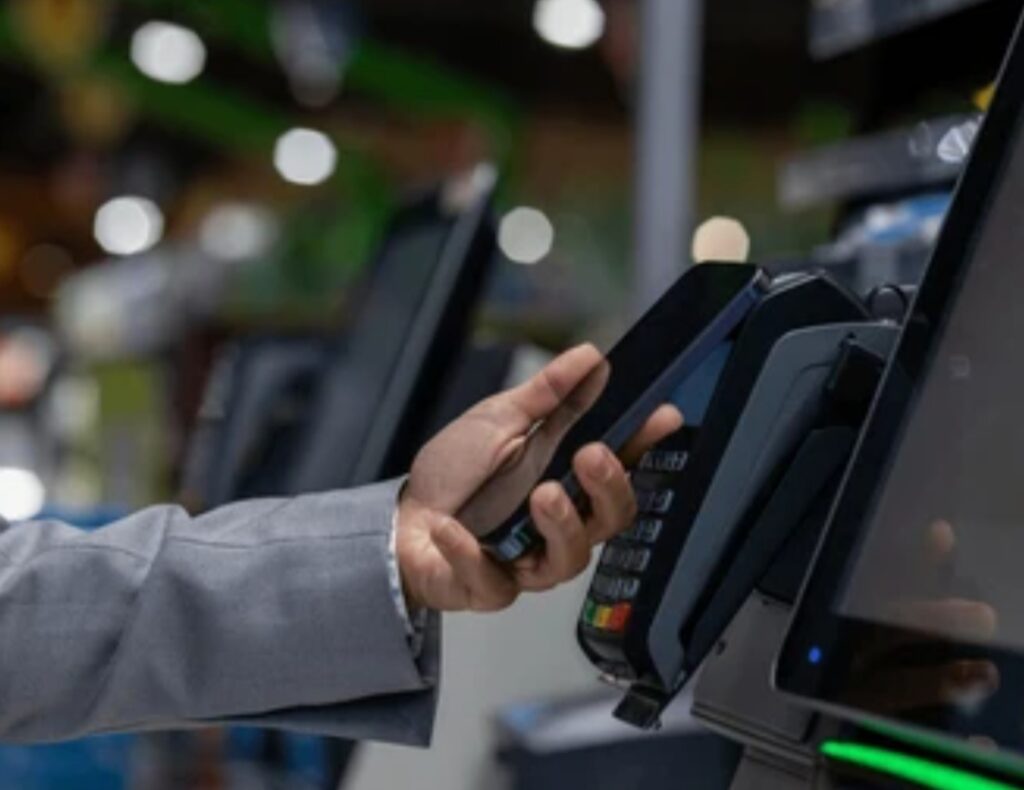
📡 What Is NFC – A Quick Refresher
NFC (Near Field Communication) allows two devices (or a device and a tag) to communicate when they’re within 4 cm or less.
It’s used in:
- Tap to share files
- Mobile payments like Google Pay
- Quick phone pairing
- NFC tags for automation
NFC is extremely fast, secure, and requires no manual pairing—just tap and go.
🧠 Still wondering how to use NFC on your phone? Just turn on NFC, tap it with a tag or another phone, and magic happens.
🔊 What Is Bluetooth – The Veteran of Wireless Tech
Bluetooth works over longer ranges (up to 10 meters or more) and is ideal for ongoing connections like:
- Audio streaming to headphones/speakers
- File transfers
- Game controller syncing
- Smart home device pairing
However, Bluetooth requires manual pairing, uses more battery, and isn’t always seamless.
⚠️ Bluetooth is great for continuous data flow, but not ideal for quick one-off actions like those done with Android NFC tricks.
📷 What Are QR Codes – The Visual Alternative
QR (Quick Response) Codes are black-and-white square barcodes that can be scanned with your phone’s camera to:
- Open a website
- Join Wi-Fi
- View a document or image
- Make a payment
- Check in at locations
QR codes are visually scannable, require no NFC chip, and can be printed anywhere.
However:
❌ Slower than NFC
❌ Not great for automation
❌ Can be faked (less secure)
❌ Requires camera access and stable lighting
📌 Great for public use, but not ideal for personalized phone automations.
⚔️ NFC vs Bluetooth vs QR – Feature Comparison Table
| Feature | NFC | Bluetooth | QR Code |
| Speed | 🔥 Instant (within seconds) | 🕒 Slower (manual pairing) | ⚠️ Depends on camera speed |
| Security | 🔒 Very secure (short range) | 🔓 Moderate (longer range) | ❌ Low (easy to spoof) |
| Ease of Use | ✅ Tap & go | ❌ Manual pairing needed | ✅ Scan camera |
| Power Usage | ♻️ Minimal | 🔋 High | ♻️ Minimal |
| Best For | ⚡ Automations, payments | 🎧 Audio, smart devices | 📱 Info sharing, menus |
⭐ Winner for automation and security: NFC
🎧 Winner for audio streaming: Bluetooth
📄 Winner for static info sharing: QR Codes
🧠 When to Use NFC Instead of Bluetooth or QR
Choose NFC when:
- You want to automate daily routines using tap to share
- Need quick and secure one-tap actions
- Want to launch apps, toggle settings, or share content instantly
- Don’t want to rely on internet or camera access
🚀 If you’re all about speed, convenience, and smart Android NFC tricks, NFC wins—hands down.
🎯 Final Verdict – Choose the Right Tech for Your Lifestyle
Each of these technologies has its own place, but:
- For quick, local, personal automation — go with NFC
- For audio streaming or ongoing device connections — choose Bluetooth
- For public information sharing or contactless menus — use QR Codes
If you’re looking for the most seamless, low-power, and secure wireless action for your Android, learning how to use NFC on your phone is your best bet.
💥 Supercharge your smartphone experience today—start using smart NFC tags and transform how you interact with your world.
Hidden Android NFC Tricks You Probably Didn’t Know About
Did you think NFC was only useful for contactless payments or quick file transfers? Think again.
Many Android users are completely unaware of the powerful and creative NFC tricks their phone is capable of.
If you’re wondering how to use NFC on your phone to its full potential, this section reveals clever, real-world Android NFC tricks that can simplify your daily routine, automate tasks, and even impress your friends.
✨ Let’s unlock your phone’s hidden potential with next-level NFC hacks!

📱 Automate Your Daily Routine with NFC Tags
One of the most underrated uses of NFC is automation. With inexpensive NFC stickers or tags, you can program them to perform complex actions with a single tap.
Here’s how to use it:
- Buy blank writable NFC tags online.
- Install an app like NFC Tools or Trigger.
- Program your NFC tag with custom actions.
- Stick it anywhere (desk, car, nightstand).
- Tap your phone — and it does the rest!
NFC tag examples you can create:
✅ Morning Routine Tag — Enable Wi-Fi, disable silent mode, open your calendar.
✅ Car Mode Tag — Start Google Maps, launch Spotify, enable Bluetooth.
✅ Bedtime Tag — Turn on DND, set alarm, lower brightness.
✅ Work Desk Tag — Connect to office Wi-Fi, open Slack, mute notifications.
🔥 All it takes is a tap—no swiping, no voice commands, no unlocking.
💳 Tap to Pay Securely with Google Pay
You probably know about this one—but many don’t realize how secure and versatile it really is.
Once you’ve set up Google Pay or Samsung Wallet, you can:
- Make fast, secure contactless payments in stores.
- Store loyalty cards, boarding passes, and gift cards.
- Use your phone as your digital wallet—no physical cards needed.
Why it’s better than using a credit card:
🔒 Tokenized transactions
📵 No data is shared with merchants
🛡️ Protected with your phone’s biometric security
✋ Want to use Android NFC tricks for payments? Just open your phone, tap, and walk away confidently.
🎧 Pair Bluetooth Devices Instantly
Yes, you read that right.
If you have NFC-enabled headphones, earbuds, or speakers, simply tapping your phone to the device pairs it instantly—no need to go into Bluetooth settings.
This works seamlessly on most modern Android devices with:
- Sony headphones
- Bose speakers
- Samsung Galaxy Buds
- And other NFC-enabled audio gear
🎵 The result? A lightning-fast, hassle-free connection in one tap.
🔓 Unlock Smart Doors and Locks
NFC isn’t just for phones. It can also interact with smart locks or access cards.
Use it to:
- Unlock NFC-enabled doors at work or home
- Gain secure access to buildings or hotel rooms
- Replace keycards with your Android device
If your office or condo supports NFC entry, you may already be able to tap in using your phone!
🏠 Combine this with secure biometric unlock—and you have a powerful smart access system.
🏷️ Launch Apps or Websites with a Tap
Want to impress clients or make a great first impression?
You can program NFC business cards or tags to:
- Launch your website
- Open your portfolio
- Display a Google Maps location
- Share your Wi-Fi password securely
This is a professional and tech-savvy way to connect without asking people to “Google you.”
Example NFC ideas:
🖼️ Link to your Instagram or LinkedIn
🛍️ Send customers to your online store
📍 Open directions to your shop
🌐 These tricks are perfect for networking events, trade shows, and client meetings.
🔄 Instantly Share Files, Photos, or Contacts
Looking for the fastest way to transfer content between Android phones?
Tap to share lets you do just that.
With Android Beam (deprecated but replaced by Nearby Share on newer Android versions), or other third-party apps, you can:
📁 Share contacts
📷 Send photos
🔗 Pass links or YouTube videos
🗂️ Transfer files or documents
All it takes is bringing the devices close together and tapping “Send.”
🚀 No cables. No uploads. Just tap, share, done.
🔐 Secure Your Device with NFC Lock/Unlock Tags
If privacy is a concern, you can set up a smart NFC-based lock/unlock trigger.
Set a tag on your office desk or inside your car. When your phone taps the tag:
✅ It disables your lock screen
✅ Or enables it when you walk away
Use with Tasker or Automate for even deeper control.
🛡️ This is a power-user’s dream feature—maximum security and control with minimal effort.
✅ Why You Need to Use These NFC Tricks Today
So now you know—NFC on Android isn’t just a gimmick.
It’s a powerful tool that can automate your life, boost your productivity, and add convenience you didn’t think was possible.
🎯 Whether you’re a student, freelancer, entrepreneur, or tech enthusiast—learning how to use NFC on your phone will change the way you interact with technology every day.
💥 Don’t wait—grab some affordable NFC tags today and start building your own tap-powered smart environment.
❓FAQs About How to Use NFC on Your Phone
To wrap things up and help you make the most of your phone’s capabilities, here are the most frequently asked questions about how to use NFC on your phone, including helpful answers and expert insights.
These FAQs also include related search phrases like Android NFC tricks, tap to share, and more—so you’re covered from A to Z.

What is NFC and how does it work on Android phones?
NFC (Near Field Communication) is a short-range wireless communication technology.
It allows two NFC-enabled devices—or an NFC device and a tag—to exchange data when they’re within a few centimeters of each other.
On Android phones, NFC is typically used for contactless payments, automations, device pairing, and tap to share functions like sending photos, links, or files instantly.
How do I check if my Android phone supports NFC?
You can usually find this in your phone’s Settings under:
- Connections > NFC and Payment
- Or search for “NFC” in the settings search bar
Alternatively, check the phone specs on the manufacturer’s website or in the NFC-enabled phone list. Most mid-range to flagship Android phones support NFC by default.
How do I turn on NFC on my Android device?
To enable NFC:
- Go to Settings
- Tap Connections or Connected Devices
- Toggle on NFC
You can also turn it on quickly through the Quick Settings Menu by swiping down and tapping the NFC icon.
Is using NFC safe for mobile payments and sharing?
Yes, NFC is very secure.
It requires close physical proximity, and all NFC payment systems like Google Pay or Samsung Pay use tokenization and encryption for each transaction.
However, for added safety:
- Only use trusted payment apps
- Turn off NFC when not in use
- Avoid tapping to unknown tags in public
Can I program my own NFC tags without coding skills?
Absolutely!
Apps like NFC Tools or Trigger let you create tasks with zero coding required.
You can:
- Set your phone to silent at bedtime
- Auto-launch apps like Spotify
- Share Wi-Fi passwords
- And even trigger custom alerts
Just scan your NFC tag, write the action, and it’s ready to go.
What are some cool Android NFC tricks I can try today?
Some beginner-friendly Android NFC tricks include:
- Tap to share YouTube videos with friends
- Create a travel mode tag that launches Google Maps, turns on Bluetooth, and opens Spotify
- Use a tag at your desk to enable work mode: silent notifications, turn off Wi-Fi, and open email
- Tap a tag in your car to open Waze, enable DND, and launch your favorite podcast
- Place a tag at your bedside to turn on alarms and enable night light mode
These can all be set up with free or low-cost apps.
Where can I buy NFC tags for cheap?
You can easily find affordable NFC tags on:
- Amazon
- AliExpress
- eBay
- Or local tech stores
Make sure to get NTAG215 or NTAG213 tags—they work well with most Android apps and phones.
Does NFC drain battery life?
No, NFC uses very low power and won’t noticeably drain your battery.
It’s only active when you’re making a connection (like scanning a tag or paying).
Unlike Bluetooth or GPS, it doesn’t run in the background constantly.
Why doesn’t tap to share work on my Android phone?
There are a few common causes:
- NFC is turned off
- You’re using an older Android version without Android Beam or Nearby Share
- The other device doesn’t support NFC
- There’s a case or metal interference blocking the sensor
- You’re not tapping the correct NFC zone (usually on the back center or top of the phone)
Try troubleshooting using these steps or switching to Nearby Share if needed.
Can I use NFC on iPhones like on Android?
Newer iPhones (from iPhone 7 onward) support limited NFC features.
But unlike Android, you may need third-party apps to write NFC tags.
The best NFC flexibility and automation still comes from Android devices, which support a broader range of actions without needing special permissions.
🧠 Final Thoughts on How to Use NFC on Your Phone (And Why You Should Start Today)
By now, you’ve unlocked a whole new perspective on what NFC can do.
It’s no longer just a tech term buried deep in your settings—it’s a powerful feature that, when used smartly, can transform your smartphone into a productivity machine, a security tool, a smart home remote, and so much more.
Whether you’re just discovering how to use NFC on your phone, or you’re already experimenting with Android NFC tricks, the possibilities are limitless—and surprisingly easy to access.
Let’s quickly recap why you shouldn’t sleep on this technology:
✅ Why NFC Is Worth Using Today
- 📲 It’s already built into your phone—no extra gadgets needed
- ⚡ It saves time by automating boring, repetitive tasks
- 🧠 It boosts productivity with smart routines and one-tap triggers
- 🔒 It enhances security with contactless payments and emergency alerts
- 🌐 It simplifies sharing of Wi-Fi, contacts, links, and more
- 💡 It unlocks creativity for tech-savvy users, marketers, and creators alike
✨ NFC isn’t just for geeks or tech nerds anymore—it’s for anyone who wants to make everyday life smarter, faster, and more convenient.
🚀 What’s Next? Start Small, Think Big
You don’t need to be an expert to get started.
Here’s your quick action plan:
- Check if NFC is enabled on your Android phone
- Download the NFC Tools app
- Order some cheap NFC tags (they cost less than a coffee ☕)
- Program 1 or 2 simple automations like a “bedtime routine” or “drive mode”
- Start tapping and see the magic unfold
💥 Ready to unlock your phone’s hidden powers? Grab your NFC tags today and start automating your world—one tap at a time.
🔄 Final Pro Tip:
Keep iterating. NFC is a “set-it-and-forget-it” type of feature. Once set up, it works silently in the background—making your digital life feel seamless, smart, and futuristic.
So don’t stop at just one tag.
Play around.
Experiment.
And turn your phone into a true smart assistant.
You might also like :