
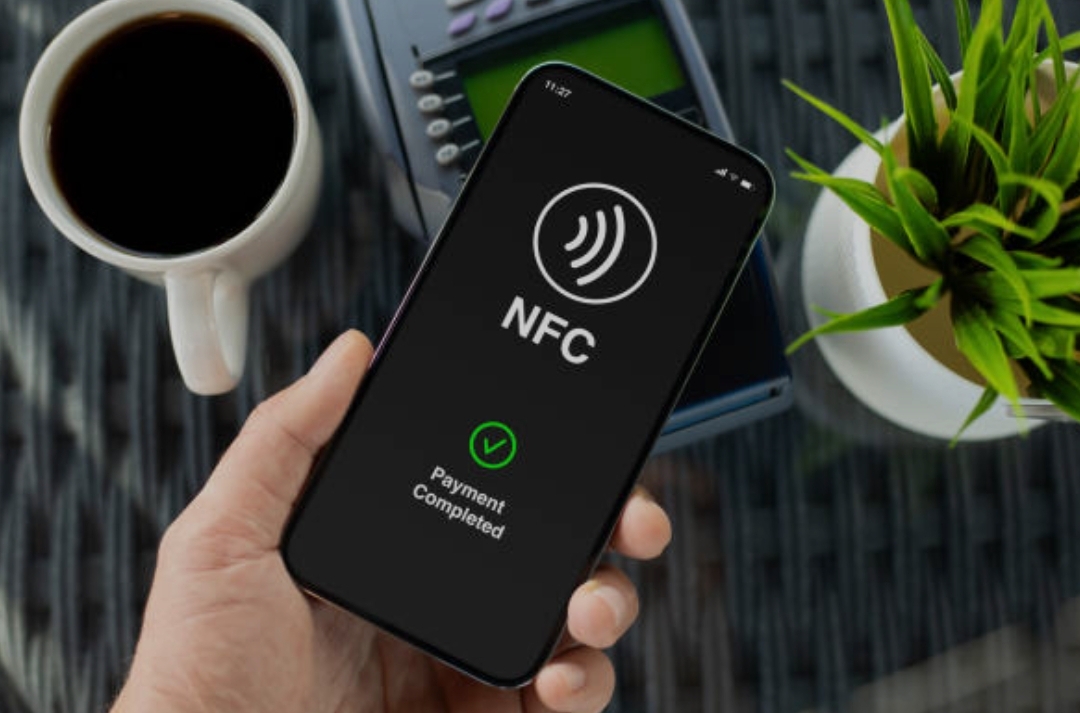
🔹 Introduction – Automate Your Life with the Power of NFC Tags 🔹
In today’s fast-paced digital world, time is your most valuable asset ⏳.
Whether you’re juggling work, managing your home, or simply trying to stay productive on the go, finding ways to automate your daily routines can be a game changer.
That’s where NFC (Near Field Communication) comes in.
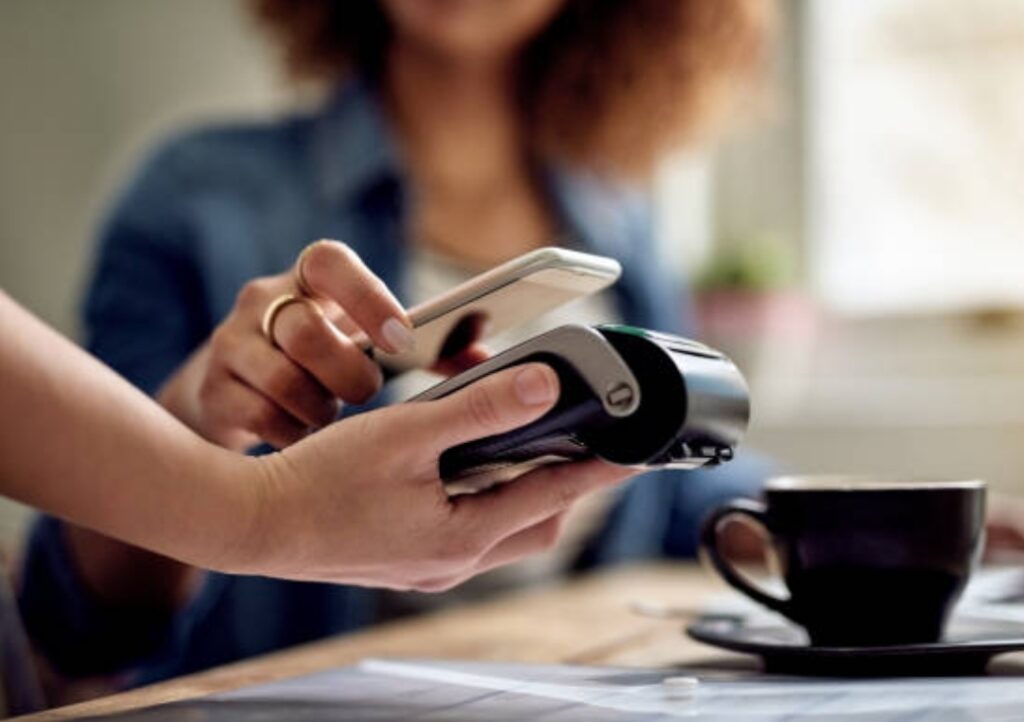
This tiny yet powerful wireless technology is already embedded in most smartphones — and when paired with affordable NFC tags, it opens up a world of automation possibilities.
So, if you’ve been wondering how to use NFC tags to make your life smarter, more efficient, and hands-free, you’re in the right place.
This blog post will walk you through the most creative NFC tag uses that go far beyond just sharing contacts or opening websites.
From streamlining your morning routine ☕, to launching work apps instantly 💼, to controlling smart home devices effortlessly 🏠 — you’ll discover clever Android automation tips that transform how you interact with your environment.
And the best part?
No advanced tech skills are needed!
With just a few taps, you can turn any Android phone into a personalized automation hub.
In this in-depth guide, you’ll learn:
- ✅ What NFC tags are and how they work
- ✅ Why NFC tags are perfect for automating everyday tasks
- ✅ Step-by-step instructions on how to program them
- ✅ Powerful NFC tag automation ideas to try today
- ✅ Best Android apps to make your automation even smarter
If you’re looking to cut down repetitive tasks, supercharge your productivity, or add some futuristic flair to your life — this guide is tailored just for you.
Whether you’re new to NFC tech or already experimenting with smart automation, the following tips, insights, and real-world examples will give you a complete blueprint to get started and master how to use NFC tags like a pro.
💡 Pro Tip:
With prices starting as low as $0.20 per tag, NFC tags are one of the most affordable ways to automate your world.
Check out our top recommended NFC tags on Amazon to start experimenting today!
Don’t just read — take action!
👉 Bookmark this page, share it with your tech-savvy friends, and get ready to unlock the full potential of your smartphone.
The future of automation starts with a tap 🔄 — let’s dive in!
🔹 What Are NFC Tags and How Do They Work? 🔹
If you’ve ever tapped your phone to pay at a store or paired it with a speaker, you’ve already used NFC technology — even if you didn’t realize it.
NFC, short for Near Field Communication, is a short-range wireless communication standard that allows two devices to exchange data securely when placed close together — usually within 4 centimeters.
📶 NFC tags are small, programmable chips (often embedded in stickers or cards) that can store and transmit data to any NFC-enabled device — like your smartphone.
These tags don’t require batteries or a power source; they draw energy from the phone that scans them.
This makes them incredibly lightweight, portable, and practical for a wide range of daily automation routines.
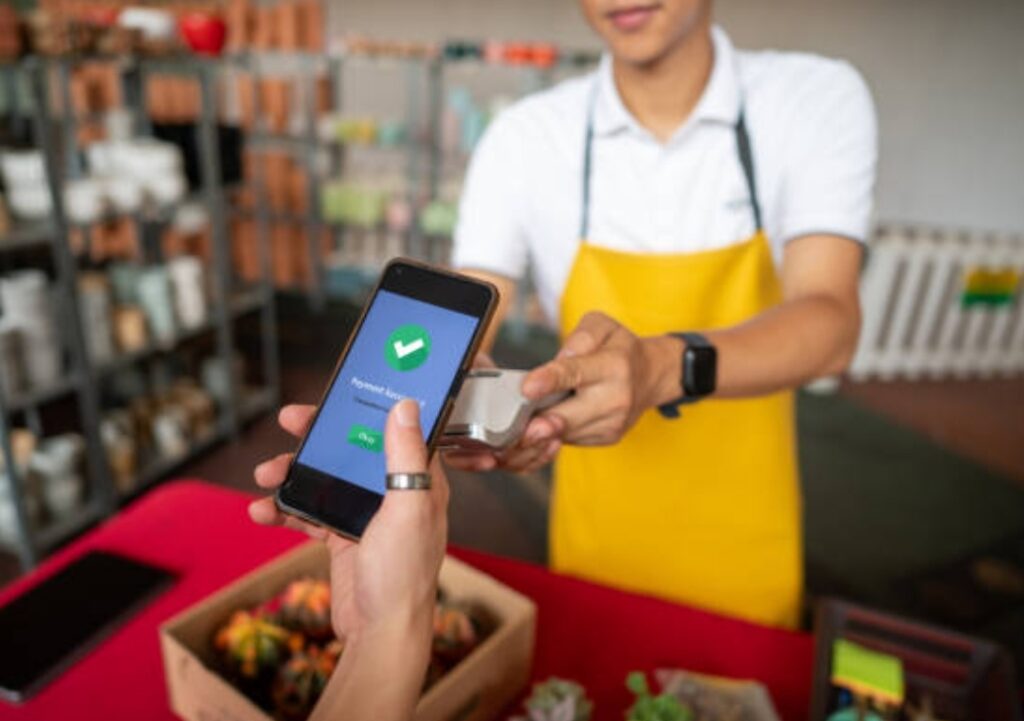
🧠 How NFC Tags Work Behind the Scenes
When your smartphone’s NFC feature is enabled and it comes into close proximity with an NFC tag, the tag transmits its stored information or action to the phone.
This action can be as simple as opening a URL, or as complex as triggering multiple automated tasks through an app like Tasker or NFC Tools.
Here’s how it works step by step:
- 🟢 Your phone emits a small electromagnetic field.
- 🟢 The NFC tag absorbs this energy and sends back a response.
- 🟢 The response triggers an action stored on the tag — such as launching an app, adjusting phone settings, or sharing data.
Because NFC is passive, there’s no need for pairing, passwords, or even an internet connection.
It’s fast, seamless, and secure.
🔍 Types of NFC Tags You Should Know
Before you dive into automation, it’s useful to understand the most common types of NFC tags used for Android automation tips:
- NTAG213 – Most popular and versatile; great for basic automation (supports up to 144 bytes of data)
- NTAG215 – Slightly more memory (504 bytes); perfect for slightly more complex actions like launching Google Assistant routines
- NTAG216 – Largest memory (888 bytes); ideal for storing Wi-Fi passwords, business card info, or multi-action scripts
✅ Pro Tip: Choose NTAG213 if you’re just starting out.
They’re affordable and compatible with nearly every Android and NFC-supported device.
📱 Are NFC Tags Compatible with All Smartphones?
Not every phone supports NFC — but most modern Android devices do.
Here’s how to check:
- Go to Settings
- Search for “NFC”
- If available, toggle it ON
Most phones from Samsung, Google Pixel, OnePlus, and newer Xiaomi models come with built-in NFC support.
Although iPhones also support NFC, their usage is more limited compared to Android when it comes to custom automations.
🔄 Why NFC Tags Are Ideal for Everyday Automation
NFC tags are like shortcut buttons for your real-world routines.
They’re small, discreet, easy to stick anywhere — and they let you automate actions with just a tap.
Here are just a few reasons why people love them:
- ⚡ Instant action – No need to open apps or dig through settings
- 🔒 Secure and private – NFC requires physical proximity to trigger
- 🎯 Customizable – Store exactly the action you want
- 💰 Cost-effective – Tags cost less than a coffee ☕
Whether you’re controlling your smart home lights, enabling Do Not Disturb at bedtime, or sharing your contact info with a tap — the NFC tag uses are practically endless.
📦 Want to get started right away?
Check out these highly rated blank NFC tags on Amazon — perfect for beginners and pros alike.
🔥 Feeling inspired?
👉 Stick around — up next, we’ll show you how to actually program these tags to control your daily life with style and ease!
🔹 How to Use NFC Tags with Your Smartphone (Step-by-Step Guide) 🔹
So you’ve got your NFC tags — now what?
It’s time to unleash the full potential of your Android phone by learning how to use NFC tags effectively.
Whether you’re a beginner or a curious tech enthusiast, this step-by-step guide will show you exactly how to write data to NFC tags, set up useful automations, and create routines that simplify your daily life.
In this section, we’ll walk you through:
- The tools you need
- How to program your first tag
- The best Android apps for NFC automation
- Bonus tips for power users
Let’s dive in 👇
🧰 What You’ll Need to Get Started
Before programming your NFC tag, make sure you have the following ready:
✅ An NFC-enabled Android smartphone
✅ A few blank NFC tags (NTAG213 is recommended for beginners)
✅ A free NFC writing app — we recommend NFC Tools or Trigger
✅ A clear idea of the automation you want (e.g., launch an app, toggle Wi-Fi, set an alarm)
✍️ Step-by-Step: How to Write to an NFC Tag
Here’s how to use NFC tags to automate tasks using the NFC Tools app:
- Install the App
Go to Google Play and download NFC Tools. - Open the App and Tap ‘Write’
On the home screen, tap on the “Write” tab to start programming your tag. - Add an Action
Tap “Add a record” and choose an action:
- Open an app
- Call a phone number
- Send a text
- Toggle Wi-Fi or Bluetooth
- Launch a URL
- Add a custom Tasker task (advanced users)
- Open an app
- Tap Your NFC Tag
Hold the blank NFC tag close to the back of your phone.
When detected, the app will automatically write the action to the tag. - Done!
That’s it — your tag is now programmed!
Tap your phone on the tag to test it.
You can stick the tag anywhere: by your bedside, in your car, at your desk, or even on your laptop.
🧠 Android Automation Tips for NFC Tags
Now that you’ve learned the basics of how to use NFC tags, here are some powerful Android automation tips to level up your setup:
- 🔁 Combine multiple actions
Apps like Tasker or MacroDroid let you assign a sequence of tasks to one tag.
Example: Turn off Wi-Fi, set alarm, open meditation app — all in one tap before bed. - 🗓️ Schedule automations based on time or location
Use triggers in combination with your NFC tags for more advanced workflows. - 📲 Use widgets and shortcuts with NFC
Link NFC tags to custom widgets or Android shortcuts to extend automation further. - 🔄 Make reusable tags
Use dynamic actions that change based on your phone’s state.
For instance, tap a tag once to turn Wi-Fi on, and again to turn it off.
🔧 Best Android Apps for NFC Tag Automation
Here are the top Android apps we recommend for getting the most out of your NFC tag uses:
🟢 NFC Tools
- User-friendly interface
- Great for simple actions like URLs, toggles, or messages
🟢 Trigger
- Offers condition-based automations
- Useful for advanced users (e.g., set up work/home profiles)
🟢 Tasker (with NFC plugin)
- Powerful and customizable
- Best for creating complex automation chains
- Combine NFC with other Android triggers (like location, charging, Wi-Fi)
🟢 MacroDroid
- Drag-and-drop logic builder
- Great for non-programmers
- Can connect with NFC to automate routines easily
🟢 Samsung Routines / Bixby (Samsung users only)
- Native integration for those using Samsung Galaxy devices
- Supports NFC-triggered routines directly
✅ Bonus Tips to Get the Most Out of Your Tags
- 🏷️ Label your NFC tags – Use a permanent marker or sticker to remind you what each tag does.
- 🧼 Keep tags clean and protected – Consider placing them inside plastic or waterproof cases if used outdoors.
- 🎨 Get creative! – Use decorative NFC stickers for aesthetic appeal while still being functional.
- 🧠 Think beyond tech – Use tags in physical spaces where you often perform repetitive tasks.
Example: Stick a tag on your gym water bottle to start your workout playlist.
💥 Did You Know?
NFC tags can also be password protected.
Use this feature if you’re placing tags in public areas or handling sensitive data.
⚡ Ready to get hands-on?
👉 Try writing your first NFC tag today and experience the magic of tap-based automation.
You’ll be shocked how many everyday tasks you can eliminate — just like that.
Buy your NFC starter kit here and start building your smart life today!
🔹 10 Genius NFC Tag Uses to Automate Your Life
One of the most exciting things about learning how to use NFC tags is discovering the endless ways they can simplify your everyday tasks.
From controlling smart devices and boosting productivity to launching entertainment setups with a single tap — NFC tag uses are only limited by your imagination.
Here are 10 real-life automation examples that will not only save you time but also bring a little “wow” factor into your day.
These NFC automation tips work seamlessly with Android phones and can be set up in just minutes.
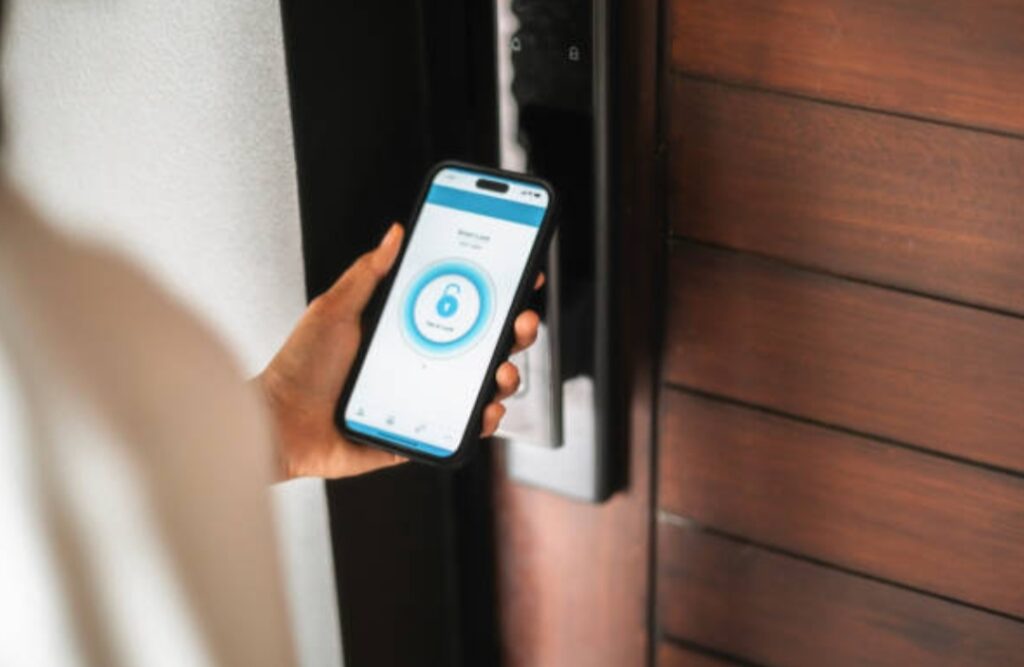
🏠 1. Smart Home Automation with NFC Tags
Imagine walking through your front door and tapping your phone on a tag to turn on the lights, adjust the thermostat, and play your favorite Spotify playlist.
All without lifting a finger.
🟢 Place a tag near your entrance to:
- Turn on/off smart lights (via SmartThings or Google Home)
- Activate a scene like “Movie Mode” or “Sleep Mode”
- Control air purifiers, fans, or smart plugs
Recommended tag placement: front door, bedroom wall, living room table
☀️ 2. Morning Routine in a Tap
Kickstart your day like a productivity ninja.
Use an NFC tag on your bedside table to automatically:
- Turn off Do Not Disturb
- Open your calendar and weather app
- Start your coffee maker via smart plug
- Play your “Wake Up” Spotify playlist
💡 Combine this with a Tasker routine for a supercharged morning setup!
🚗 3. Car Automation for a Safer Drive
Driving should be distraction-free.
Stick a tag on your dashboard and program it to:
- Launch Google Maps
- Enable Bluetooth
- Start your favorite driving playlist
- Toggle Do Not Disturb while driving
This NFC tag use improves safety and gets you ready to roll instantly.
💼 4. Focus Mode at Work
Productivity matters — and small habits matter even more.
Tap your phone on a tag at your desk to:
- Open Gmail, Slack, and Google Docs
- Mute notifications
- Turn on Wi-Fi and disable mobile data
- Set your status to “working” on your calendar
It’s like entering a virtual productivity bubble. ☁️
🏋️ 5. Fitness & Health Boosters
Stick a tag to your gym bag, yoga mat, or water bottle.
Use it to instantly:
- Launch your workout app (like Strava or Fitbod)
- Start a timer for high-intensity intervals
- Log your water intake in a hydration app
- Play energizing music for your session
It’s automation that keeps you motivated and accountable.
👨👩👧👦 6. Guest & Parental Control Modes
Make tech safer and more convenient for others.
Set up a tag for:
- Enabling parental controls before handing your phone to kids
- Auto-sharing Wi-Fi credentials with guests (secure and quick)
- Launching guest-mode apps for shared devices
No more spelling out your long Wi-Fi password for visitors!
✈️ 7. Travel Setup Simplified
Automate your phone’s travel prep with a tap.
Use a tag in your suitcase or travel wallet to:
- Activate airplane mode
- Open your boarding pass and travel itinerary
- Launch language translation apps
- Enable offline maps
Perfect for frequent flyers or digital nomads 🌍
🧾 8. Smart Business Card
Upgrade your networking game with a modern twist.
Program a tag with:
- Your LinkedIn profile
- vCard or contact info
- Company website or product demo
- Portfolio or resume link
Tap to share — no paper, no QR codes. Just NFC elegance.
🎮 9. Home Entertainment Setup
Movie night, gaming marathon, or chill tunes — all with a single tap.
Stick a tag near your console, remote, or TV to:
- Power on your smart TV and speakers
- Open Netflix, Spotify, or Xbox app
- Dim smart lights and close curtains
- Enable DND mode for uninterrupted viewing
Your living room just got a tech upgrade. 🎬
🚨 10. Emergency or Safety Features
Program NFC tags with life-saving shortcuts:
- Instantly send an emergency SMS with location
- Call a trusted contact
- Share allergy or medical info
- Open a custom “In Case of Emergency” (ICE) file
Stick it on your phone case, bike helmet, or wallet — just in case.
✅ Quick Recap – Endless Possibilities at Your Fingertips
As you can see, NFC tag uses go far beyond novelty.
They’re practical, affordable, and seriously powerful when paired with your Android phone.
From smarter routines to safer driving, and from productivity boosts to smarter workouts — the right tag in the right place can save you minutes every day (and hours every month!).
🛒 Want to start building your own tag network today?
Check out our handpicked NFC Tag Starter Pack and see just how easy it is to make everyday automation a part of your lifestyle.
🔥 Take Action Now!
👉 Which of these genius NFC tag uses will you try first?
Tap into your new smart routine today, and share your favorite ideas with us in the comments!
🔹 Best Apps for Android NFC Automation
Now that you know how to use NFC tags and what you can do with them, the next step is choosing the right app to help you bring your automation dreams to life.
There are many apps available for Android, but not all offer the same power, flexibility, or ease of use.
Whether you’re a complete beginner or a seasoned automation enthusiast, the tools below will help you turn those small, programmable tags into powerful productivity triggers.
Let’s explore the top-rated NFC tag apps for Android automation.
📲 1. NFC Tools – Best for Beginners
🟢 Free / Paid version available
🔧 Skill level: Easy to Intermediate
NFC Tools is the go-to app for anyone just starting to explore how to use NFC tags.
It has a clean interface, straightforward functionality, and makes writing NFC tags as easy as tapping a few buttons.
Key Features:
- Write basic actions to tags (URLs, text, apps)
- Read tag data
- Add multiple records in a single tap
- View tag info and memory size
- Create automation chains with NFC Tasks (companion app)
Why We Recommend It:
Perfect for basic routines like launching apps, toggling Wi-Fi, or opening a website.
Easy enough for beginners, yet powerful enough for casual tech users.
🛠️ Pro Tip: Use NFC Tools Pro to unlock advanced features like executing Tasker tasks or app launching sequences.
⚙️ 2. Trigger – Condition-Based Power Automation
🟢 Free / Premium upgrades available
🔧 Skill level: Intermediate
Trigger takes NFC automation to the next level by letting you stack multiple conditions — not just NFC, but battery level, location, Bluetooth state, and more.
Key Features:
- Create “triggers” using NFC + other events (time, charging, Wi-Fi, etc.)
- Design profiles like “At Work”, “At Home”, or “Night Mode”
- Toggle multiple settings with one tag
- Backup and share profiles across devices
Why We Recommend It:
Ideal for creating context-aware automation routines, like turning on specific settings when you arrive at work or plug in your charger.
🔁 Best NFC tag uses: Smart car mode, daily commute setup, nighttime DND routine.
🧠 3. Tasker – For Advanced Users & Power Automators
🟢 Paid app ($3.49 USD)
🔧 Skill level: Advanced
Tasker is hands down the most powerful Android automation app available.
If you want complete control over every action your phone takes — based on any number of conditions, including NFC — this is your app.
Key Features:
- Create custom “Tasks” with detailed scripts
- Trigger actions via NFC, time, location, gestures, or voice
- Integrate with Google Assistant, IFTTT, and SmartThings
- Automate phone behavior like brightness, notifications, app launching, SMS
Why We Recommend It:
Tasker is the ultimate tool for users who want fine-grain control and endless customization.
It works beautifully with NFC tags when you install the NFC Plugin for Tasker.
⚡ Use Case: Tap a tag near your desk to disable mobile data, launch Slack and Google Docs, set your screen timeout to 30 minutes — all in one tap.
🔄 4. MacroDroid – Automation Without Coding
🟢 Free / Premium available
🔧 Skill level: Beginner to Intermediate
MacroDroid is a powerful visual automation tool that works well with NFC tag uses.
Its intuitive “if-this-then-that” interface allows you to create macros — automated routines that trigger based on defined conditions.
Key Features:
- Drag-and-drop automation builder
- NFC triggers built into the macro logic
- Actions include settings, SMS, app control, volume, and more
- Wide range of templates for beginners
Why We Recommend It:
Perfect for those who want Tasker-level automation without the steep learning curve.
🧩 Best use: Fitness tag on your gym bottle that opens a timer, adjusts volume, and launches Spotify.
📦 5. Samsung Modes and Routines (Samsung Devices Only)
🟢 Pre-installed on most Samsung Galaxy devices
🔧 Skill level: Beginner
If you’re using a Samsung device, you’re in luck.
The built-in Modes and Routines app supports NFC triggers without needing third-party apps.
Key Features:
- Native NFC tag writing
- Trigger routines when you scan tags
- Adjust device settings, open apps, toggle Bluetooth, and more
- Integrates with Bixby and Samsung SmartThings
Why We Recommend It:
No need to download extra tools.
Super fast, deeply integrated, and perfect for everyday automation.
🧩 Choosing the Best NFC App for Your Needs
| App | Best For | Skill Level |
| NFC Tools | Basic tag writing | Beginner |
| Trigger | Multi-condition automation | Intermediate |
| Tasker | Advanced, custom tasks | Expert |
| MacroDroid | Visual automation builder | Beginner–Intermediate |
| Samsung Routines | Built-in quick automation | Beginner (Samsung only) |
🛠️ Quick Tip:
Want to test your tag actions before writing?
Use “Preview” mode in apps like NFC Tools or Trigger to simulate the outcome before finalizing your automation.
🔥 Ready to choose your NFC toolkit?
👉 Start with NFC Tools if you’re a beginner, or jump into Tasker if you’re ready for full-on smart automation!
Pair it with your NFC tag starter pack for instant results — Buy Here.
🔹 Android Automation Tips for NFC Power Users
Once you’ve mastered the basics of how to use NFC tags, it’s time to step up your game.
This is where automation becomes truly magical.
Whether you want to build complex workflows or just squeeze every drop of productivity from your day, these advanced Android automation tips will help you elevate your NFC tag uses and unlock pro-level performance.
Let’s explore the secrets used by tech power users 👇

🧠 Use Conditional Logic for Smarter Automation
Why settle for a single action when you can build an entire routine?
Advanced tools like Tasker, Trigger, and MacroDroid allow you to use if-this-then-that logic.
This means your tag’s behavior can change depending on time, location, Wi-Fi connection, battery level, and more.
Examples:
- If time = before 9AM, launch calendar + news app
- If Wi-Fi = Office, trigger work profile
- If charging = true, enable DND and lower brightness
📌 Pro Hack: Use Tasker variables to store information like current profile state, and toggle actions based on that.
🔄 Create Toggle Actions with a Single Tag
Want your NFC tag to act differently depending on the current state of your phone?
You can create a toggle action using condition-based logic.
Example Use Case:
One tap = Enable Wi-Fi + Disable Mobile Data
Second tap = Disable Wi-Fi + Enable Mobile Data
This setup is great for power-saving, switching environments, or toggling between personal and work profiles.
🛠️ Tools: Use NFC Tools Pro, MacroDroid, or Tasker with state-detection plugins.
🗂️ Group Automations by Location
Place different NFC tags in key locations around your home, office, or car — each with its own unique routine.
Here’s a sample smart zone layout:
📍 Bedroom Tag:
- Launch sleep meditation
- Activate “Night Mode”
- Turn off smart lights
📍 Office Desk Tag:
- Open work apps (Slack, Notion, Gmail)
- Turn on Wi-Fi
- Silence notifications
📍 Car Dashboard Tag:
- Launch navigation
- Start Spotify
- Enable Do Not Disturb
This helps your environment react to you, not the other way around.
🔐 Add a Layer of Security to Your Tags
Important Reminder: NFC tags don’t require authentication.
That means anyone with an NFC reader could potentially scan them — unless you lock them.
Tips to secure your NFC automation:
🔒 Use apps that support password-protected tags
🔒 Avoid storing sensitive data like passwords or financial links
🔒 Use NFC to launch automation on your phone, rather than storing data directly on the tag
🔒 Set tags to trigger actions that only make sense on your own device
This keeps your routines private, even if the tag is exposed.
🧰 Combine NFC with Google Assistant and Smart Home Routines
Take your Android automation tips to the next level by pairing NFC with Google Assistant Routines or SmartThings scenes.
You can:
- Program an NFC tag to trigger Google Assistant to run a full morning routine
- Use SmartThings scenes like “Movie Mode” or “Workout Mode” and link them to NFC
- Tap a tag to activate multiple smart devices at once (lights, plugs, music, blinds)
💡 This unlocks the power of voice + tap + routine, creating a truly intelligent lifestyle.
📅 Schedule NFC Tasks or Add Delays
Want your NFC tag to trigger something — then follow it up with another action after a delay?
✅ Example Use Case:
Tap a tag in the kitchen →
Play podcast →
Wait 10 minutes →
Send a reminder to drink water
Use Tasker’s “Wait” command or MacroDroid’s delay function to chain timed events together.
This can be great for:
- Reminders
- Stretch breaks
- Water tracking
- Time-blocked productivity sessions
🧠 Backup & Clone Your NFC Setups
Once you’ve created several NFC-powered workflows, it’s smart to back them up or duplicate them.
✅ Use NFC Tools Pro or Trigger to export tag profiles
✅ Store them in Google Drive or your local storage
✅ Clone tag setups to reuse them in multiple places
This saves time when replacing tags or creating similar routines in different locations.
📌 Maintenance Tips for NFC Tag Performance
Just like any tech, NFC tags work best when maintained well.
Here are some quick tips to keep your smart life running smoothly:
- 🧽 Clean the surface of the tag occasionally
- ✅ Re-test every few weeks to ensure actions still work
- 🧷 Use sticker covers or cases to prevent wear and tear
- 🛠️ Update automation apps regularly for compatibility
A well-maintained tag can last for years — and keep your routines lightning-fast.
🔥 Supercharge Your Life, One Tap at a Time
👉 Ready to automate like a pro?
Put these expert-level Android automation tips to work and experience the real power of NFC.
From micro-habits to full-blown smart environments — it’s all possible with a few well-placed tags.
Shop our curated list of NFC tags and tools here to get started today!
🔹 Limitations and Troubleshooting NFC Tags 🔹
While NFC tags are incredibly powerful tools for automation, they’re not without their quirks.
Even seasoned users sometimes run into issues where tags don’t respond, phones don’t scan, or actions don’t trigger as expected.
In this section, we’ll break down the common limitations of NFC technology, share simple fixes, and help you avoid frustration so your smart automation setup stays rock-solid.
⚠️ Common NFC Tag Limitations to Be Aware Of
Even though NFC tech is awesome, it does come with a few built-in limitations.
Understanding these can help you plan better workflows and avoid setup errors.
📌 1. Very Short Range
NFC tags only work within a 1–4 cm range.
You must tap your phone directly on the tag — it won’t work like Bluetooth or Wi-Fi from a distance.
📌 2. Not All Phones Support NFC
Although most Android phones now support NFC, some budget or older models do not.
Always check your device settings:
Go to Settings → Connection → NFC to confirm.
📌 3. iOS Limitations
Apple’s iPhones (especially models before iPhone XS) have restricted access to NFC writing.
While newer iPhones can scan tags, they can’t execute complex automations like Android can.
Also, writing to tags is often not supported on iOS without third-party apps or special hardware.
📌 4. Limited Storage on NFC Tags
Each NFC chip has a memory limit — e.g., NTAG213 supports only 144 bytes.
This limits what you can store on a single tag, especially if you’re writing long URLs or multiple actions.
📌 5. One-Way Communication
NFC tags are passive — they can’t receive information back from your phone.
This means no feedback loop or error checking unless handled by your phone’s automation app.
🔧 Troubleshooting NFC Tag Not Working (Quick Fixes)
Here’s what to do if your tag doesn’t respond or trigger as expected:
📱 1. Check If NFC Is Enabled
Go to your Android phone’s Settings → Connected Devices → NFC
Make sure it’s toggled ON.
🎯 2. Find the NFC Reader Spot on Your Phone
Most phones place the NFC antenna near the top or center of the back panel.
Move your tag around gently until it connects.
📌 Pro Tip: Add a small mark or sticker where your phone reads NFC best.
🧹 3. Clean the Tag Surface
Dust, dirt, or metal surfaces can interfere with NFC signal.
Wipe the tag with a clean cloth and avoid placing them on metal objects (unless they are anti-metal tags).
🛠️ 4. Try Rewriting the Tag
Use NFC Tools to erase and reprogram the tag.
Sometimes the data becomes corrupted or partially written.
🔄 5. Restart Your Phone and Retry
Software bugs or app crashes may interrupt the reading process.
Restart your phone and re-test with a different tag if needed.
🧪 NFC Tag Not Triggering on iPhone? Here’s Why
If you’re using iPhone, remember:
- Only iPhone XS and newer support background NFC scanning
- iOS doesn’t allow launching custom apps or phone settings through tags
- You may need Apple Shortcuts or NFC reader apps to make it work
📌 For full automation potential, Android phones still lead the way.
📲 App Conflicts or Permissions Issues
Sometimes your automation apps (like Tasker, Trigger, or NFC Tools) may not execute actions due to lack of permissions.
✅ Make sure to:
- Grant all required permissions (like Location, App Usage, etc.)
- Turn off Battery Optimization for your automation app
- Check for app updates or reinstall if bugs persist
🔄 When to Replace a Tag
If all else fails, the tag may be faulty or overused.
🔁 Signs it’s time to replace your NFC tag:
- Tag doesn’t respond on multiple phones
- It worked previously but now fails repeatedly
- Rewriting attempts consistently fail
📦 Solution: Order a fresh batch of quality NFC tags like NTAG213 tags here — they’re cheap and super reliable.
🔥 Fix First, Automate Fast
👉 Don’t let small glitches hold back your smart life goals.
By understanding and overcoming these common limitations, you’ll keep your NFC tag uses reliable and frustration-free.
🔹 FAQs About NFC Tags & Automation
Got questions about using NFC tags for automation?
You’re not alone.
Here are the most frequently asked questions from users who are curious about how to use NFC tags, troubleshoot issues, and unlock their full automation potential.
Let’s dive into the answers you need 👇

❓ Are NFC tags safe to use?
✅ Yes, NFC tags are completely safe for both personal and professional use.
They do not emit signals on their own and only respond when a compatible device (like your phone) scans them.
They also do not store personal data unless you write it directly — which is entirely optional.
📌 Tip: For added privacy, avoid writing sensitive info like passwords or financial links directly on your tags.
❓ Can NFC tags be reused or rewritten?
✅ Absolutely.
Most NFC tags — especially NTAG213, NTAG215, and NTAG216 — can be rewritten hundreds of times.
You can erase and reprogram them using apps like NFC Tools or Trigger.
If you want to make a tag permanent, you can also choose to “lock” it — but this action is irreversible.
🛠️ Pro Tip: Keep a few blank tags handy so you can reuse them as your routines evolve.
❓ Do NFC tags need an internet connection to work?
🚫 No internet needed.
NFC tags operate via Near Field Communication and work entirely offline.
Your phone only needs to be powered on and have NFC enabled.
However, if your tag is programmed to open a URL, stream media, or launch a cloud-based app, then internet will be required for that action to complete.
❓ How long do NFC tags last?
⏳ Most high-quality NFC tags are built to last 10 years or more with normal use.
They can typically withstand 100,000+ read/write cycles, making them extremely durable.
Store them in safe, clean environments and avoid placing them on metal unless they are labeled “anti-metal tags.”
❓ What happens if my phone can’t read an NFC tag?
If your NFC tag isn’t responding, try the following steps:
- Make sure NFC is enabled in phone settings
- Restart your phone and try again
- Ensure the tag is not damaged or dirty
- Test with another phone or app like NFC Tools
- Try repositioning the tag — NFC antenna placement varies by device
If none of these work, the tag may be faulty and should be replaced.
❓ Can I use NFC tags to control smart home devices?
✅ Yes!
This is one of the most powerful NFC tag uses.
You can control smart lights, plugs, thermostats, speakers, and routines by connecting your NFC tags to:
- Google Home / Assistant Routines
- Samsung SmartThings
- IFTTT (If This Then That)
- Alexa Routines (via Android integrations)
📲 Just place the tag near the action zone — like your desk, bedside, or entrance — and tap to automate.
❓ Can NFC tags work with iPhones?
🟡 Partially.
iPhones from iPhone 7 and newer can scan NFC tags, but their usage is limited compared to Android.
Only iPhone XS and above support background scanning.
You can use the Shortcuts app to assign basic actions, but iOS still lacks full access to phone settings and deep automation.
📌 For best results, Android is the top choice for NFC automation.
❓ How many actions can I store on one NFC tag?
That depends on the type of tag and its memory size.
Here’s a quick breakdown:
| Tag Type | Memory (bytes) | Approx. Action Capacity |
| NTAG213 | 144 bytes | 1–2 simple actions |
| NTAG215 | 504 bytes | 3–5 moderate actions |
| NTAG216 | 888 bytes | 5–10 complex actions |
If you need more, combine NFC with Tasker or MacroDroid to execute larger automation chains using just a small trigger on the tag.
❓ Can NFC tags be read without unlocking my phone?
✅ Yes, but it depends on your phone model and OS.
Most Android devices can scan NFC tags even when the phone is locked, although executing sensitive actions (like calling or sending SMS) may still require unlock confirmation.
iPhones require the device to be unlocked for most custom tag actions to trigger.
❓ Are there waterproof or outdoor NFC tags?
✅ Yes!
Many NFC tags are available in waterproof, heat-resistant, or anti-metal versions.
These are perfect for sticking on bikes, outdoor walls, cars, or near sinks.
Look for IP-rated NFC tags on Amazon or specialized automation stores.
🛒 Check our recommended waterproof NFC tags here
🔥 Have more questions?
👉 Drop them in the comments or contact us here — we’re here to help you automate smarter!
🔹 Final Thoughts on Using NFC Tags to Automate Your Life
In a world where every second counts, smart automation isn’t just a luxury — it’s a productivity superpower.
Learning how to use NFC tags is one of the simplest yet most powerful ways to reclaim your time, simplify your routines, and level up your daily life using just your smartphone.
From turning on lights and launching music to starting work apps or sharing your business info — NFC tag uses are only limited by your creativity.
Whether you’re a beginner tapping your first tag or a power user building multi-step automation flows, there’s no better time than now to join the NFC revolution.
The future of convenience is already here — and it fits in the palm of your hand.
🔥 Ready to build your own smart routine?
👉 Don’t wait. Start creating your own NFC-powered lifestyle today!
📦 Grab your NFC starter pack here and download one of the best Android NFC apps now to begin automating your world — one tap at a time.
💬 We Want to Hear From You!
💡 What was the most surprising NFC tag use you discovered today?
📍 How are you planning to use NFC to simplify your daily routines?
Drop your thoughts in the comments.
Let’s build smarter, more efficient lives — together.
📣 Help Others Discover This Life Hack!
🚀 If this post helped you, help someone else too!
✅ Bookmark this page
✅ Share it with friends who love Android tips or productivity hacks
✅ Join our newsletter for more insider smart tech tutorials
✅ Follow us on social media platform for weekly automation tips
Let’s make automation accessible for everyone — starting with a simple tag.
You might also like :