
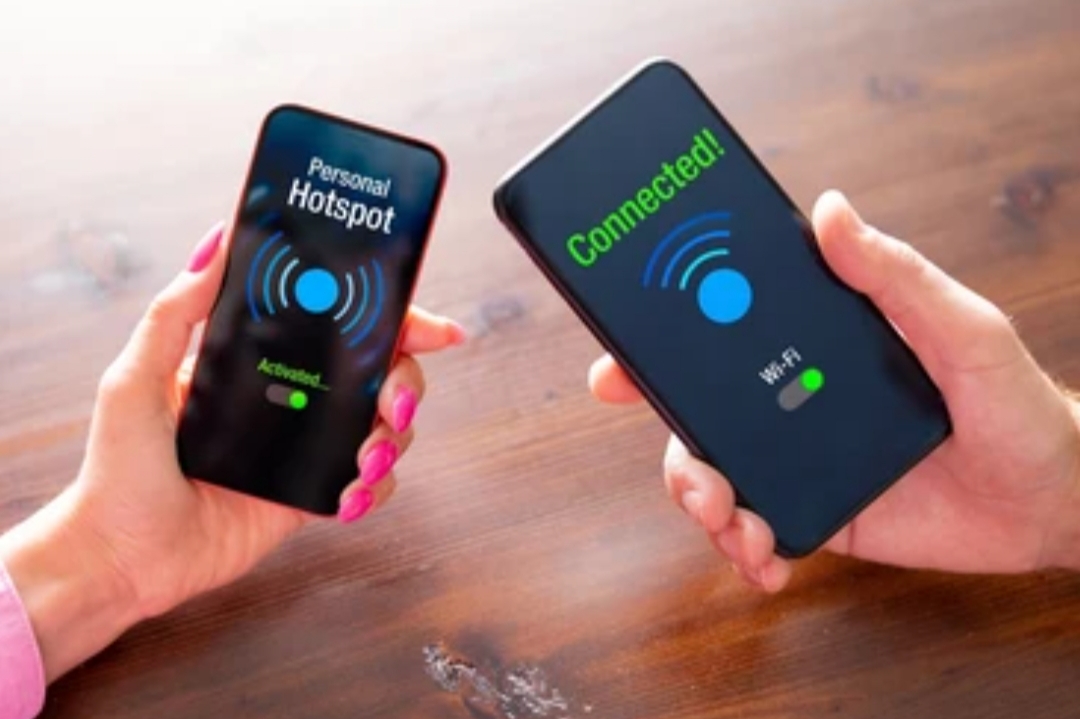
📶 Introduction – Stay Connected Anytime, Anywhere 🌍
In today’s fast-paced, hyper-connected world, having internet access wherever you go is more than a luxury — it’s a necessity.
Whether you’re traveling, working remotely, commuting, or simply facing a home internet outage, knowing how to use smartphone as Wi-Fi hotspot can be a total game-changer.
This technology lets you transform your mobile device into a personal wireless router, giving your laptop, tablet, or even another phone the ability to access the internet using your mobile data connection.
It’s convenient, quick to set up, and can often be the only reliable way to get online when public Wi-Fi isn’t an option.
🔗 Pro Tip: You can boost your hotspot performance using portable signal boosters or upgrading your mobile plan for more data capacity.
But how exactly does it work?
And what are the best practices to ensure your connection is fast, secure, and cost-effective?
This in-depth guide will walk you through everything you need to know about setting up and using a smartphone hotspot — whether you’re using an Android or an iPhone.
We’ll also explore alternative tethering methods, data usage tips, security best practices, and common troubleshooting solutions so you’re never left without internet access when you need it most.
🎯 By the end of this post, you’ll be equipped to use your mobile hotspot like a pro — staying productive, secure, and connected no matter where you are.

🔍 What You’ll Discover in This Guide
Here’s a quick preview of what you’ll discover inside this powerful guide:
- ✅ Step-by-step instructions for enabling mobile hotspot on both Android & iOS devices
- ✅ Best practices for securing your hotspot and protecting your data
- ✅ How to manage data usage and avoid overage fees
- ✅ Troubleshooting tips if your hotspot isn’t working
- ✅ Alternatives like USB and Bluetooth tethering
- ✅ Real-world use cases and bonus tips for maximizing hotspot efficiency
And yes, this blog post is 100% up to date for 2025, including support for Android 15 and iOS 18 — with references to the latest mobile interfaces and carrier technologies.
📈 Why Knowing How to Use Smartphone as Wi-Fi Hotspot Matters More Than Ever
The ability to use your phone as a mobile hotspot is not just a tech-savvy trick — it’s becoming a vital digital survival skill.
As more people work remotely and depend on mobile data, Wi-Fi tethering bridges the gap between productivity and mobility.
Here’s why you need to master this feature:
- 🌐 Traveling Abroad or Off-Grid: When you’re in a hotel, airport, or rural area with no stable Wi-Fi, your hotspot is your lifeline.
- 📱 Emergency Backup: Internet down at home? Turn your phone into a hotspot and get back online instantly.
- 💼 Remote Work Flexibility: Digital nomads and freelancers rely on mobile hotspots to run their businesses from anywhere.
- 🚗 In-Car Connectivity: Need to keep kids entertained or colleagues connected during a road trip? Hotspot to the rescue.
💡 Don’t wait until you’re stranded without internet.
Learn now how to turn your smartphone into a reliable Wi-Fi source — and always be ready.
✅ Key Benefits of Using Your Smartphone as a Wi-Fi Hotspot
Here are the top reasons to master this powerful feature today:
- 📱 Convenience: No need to hunt for public Wi-Fi or carry an extra device
- 🔐 Security: Hotspots are more secure than public networks
- 🚀 Speed: With 5G and LTE, mobile hotspots can be surprisingly fast
- 💰 Cost Savings: Skip paying for extra devices or hotel Wi-Fi fees
- 🌍 Accessibility: Internet on demand anywhere with cell signal
🚀 Ready to transform your smartphone into a powerful internet hub?
Let’s dive into the exact steps so you can take control of your connectivity today.
⚡ Don’t let slow Wi-Fi hold you back!
Unlock the full potential of your smartphone by learning how to set up a secure and high-speed mobile hotspot right now.
Start using your phone as a hotspot today with this top-rated accessory 🔗
📡 What Is a Smartphone Wi-Fi Hotspot?
A smartphone Wi-Fi hotspot is a powerful feature that allows your mobile device to act like a portable wireless router.
Instead of relying on traditional broadband or public Wi-Fi, you can use your phone’s cellular data connection to provide internet access to other devices — like laptops, tablets, smart TVs, or even other phones.
This is also known as tethering, and it’s one of the most useful ways to stay online when you’re away from home.
When you enable your smartphone’s hotspot feature, your phone creates a mini Wi-Fi network.
Other devices can then connect to that network using the password you’ve set — just like you would with any regular Wi-Fi router.
🔐 Secure, fast, and incredibly convenient — learning how to use smartphone as Wi-Fi hotspot gives you ultimate control over your connectivity.
📱 How Does a Smartphone Hotspot Work?
Here’s how it works in simple terms:
- Your smartphone connects to the internet through mobile data (3G, 4G, 5G).
- It then broadcasts a Wi-Fi signal that nearby devices can detect and connect to.
- These connected devices use your phone’s data to access the internet.
The process is seamless, and most modern smartphones support this feature — though availability may depend on your mobile carrier or data plan.
⚠️ Note: Not all carriers allow hotspot usage on every plan. Some may charge extra or have data limits. Always check with your service provider.
🔄 Types of Tethering: More Than Just Wi-Fi
While Wi-Fi tethering is the most popular method, your smartphone can also share internet via:
🔌 USB Tethering
- Connects your phone directly to a laptop using a USB cable.
- Offers a more stable and faster connection.
- Ideal for situations where power saving or performance is key.
🔵 Bluetooth Tethering
- Shares internet over a Bluetooth connection.
- Slower than Wi-Fi or USB, but good for low-bandwidth tasks.
- Uses less battery than Wi-Fi.
Each method has its pros and cons, and we’ll explore them in detail later in the post so you can choose the best option for your needs.
🌐 Mobile Hotspot vs. Portable Hotspot Device
You might hear the term “mobile hotspot” used interchangeably with dedicated hotspot devices like MiFi routers.
Here’s how they compare:
| Feature | Smartphone Hotspot | Portable Hotspot Device |
| Cost | Free with your phone plan (usually) | Requires separate purchase and data plan |
| Portability | High (you already carry your phone) | Also portable, but extra device to carry |
| Battery Usage | Uses your phone’s battery | Has its own battery |
| Speed & Signal | Depends on phone & carrier | Often stronger signal and battery life |
💡 For most users, learning how to use smartphone as Wi-Fi hotspot is the most affordable and convenient option.
🚀 Key Terms You Should Know
Before diving deeper, here are some common terms that will help you better understand the process:
- Tethering: The act of sharing your phone’s internet with other devices
- SSID: The name of your Wi-Fi hotspot network
- Hotspot Password: A user-defined password that others must enter to connect
- Data Plan: The mobile plan that determines how much internet you can use
- Throttling: Slowing down of internet speed after reaching a data cap
Understanding these basics will make the rest of this guide easier to follow — especially when setting up or troubleshooting your hotspot connection.
🔥 Why More People Are Turning to Smartphone Hotspots in 2025
With the rise of remote work, mobile gaming, smart devices, and the increasing need for internet on the go, more people are turning their smartphones into all-in-one connectivity hubs.
Here’s why smartphone hotspots are more valuable than ever in 2025:
- 5G Expansion: Faster speeds and wider coverage make mobile hotspots faster than many home Wi-Fi setups
- Flexible Work Styles: Digital nomads and freelancers need internet wherever they go
- Power-Efficient Devices: Modern phones are optimized to handle tethering with better battery management
- Carrier-Friendly Plans: More affordable data plans now include generous hotspot allowances
🌍 Hotspots aren’t just a backup plan anymore — they’re becoming the primary internet source for millions worldwide.
🟡 Ready to unlock the full power of your phone?
Master the art of mobile tethering and never depend on unreliable public Wi-Fi again.
Grab the best hotspot-compatible power bank here 🔗
🔧 How to Turn On Mobile Hotspot on Android and iPhone (Step-by-Step)
Learning how to use smartphone as Wi-Fi hotspot is surprisingly simple once you know where to look.
In this section, we’ll walk you through the step-by-step instructions for both Android and iPhone devices — so no matter what device you’re using, you’ll be ready to share your mobile internet connection in just minutes.
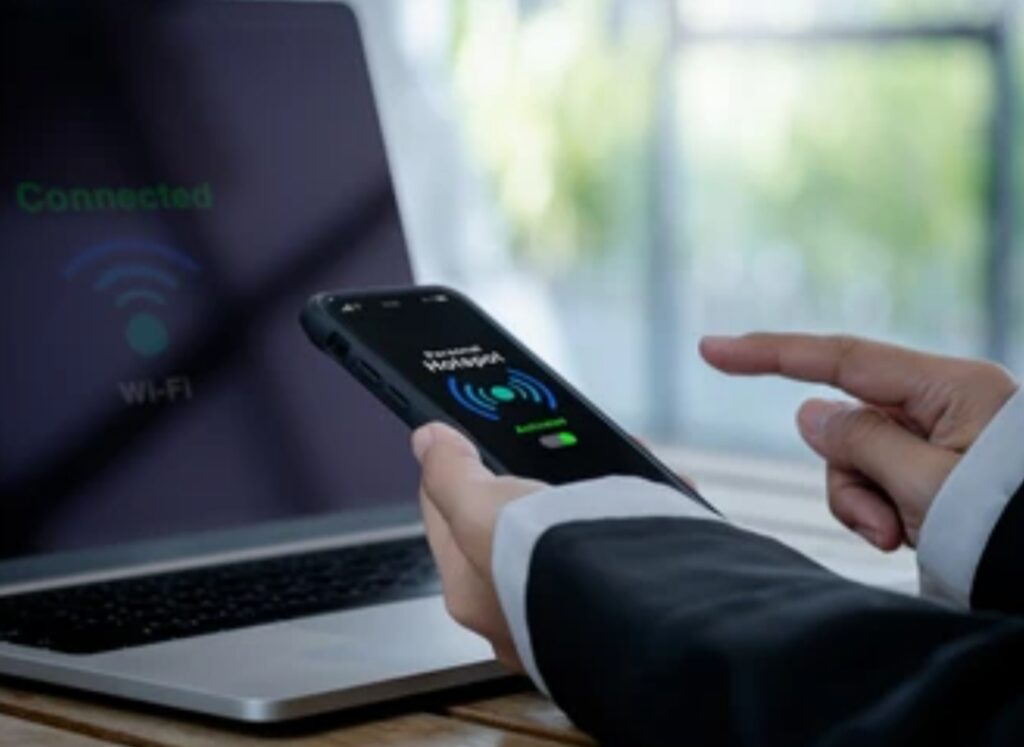
🤖 How to Turn On Mobile Hotspot on Android
The steps may vary slightly depending on your Android manufacturer (Samsung, Google Pixel, OnePlus, etc.), but the general process remains the same.
Here’s how to set it up:
✅ Step-by-Step Instructions for Android
- Open the Settings App on your Android device.
- Tap on Connections or Network & Internet (depending on your device).
- Select Hotspot & Tethering.
- Tap Wi-Fi Hotspot or Mobile Hotspot.
- Toggle the switch to Turn On your hotspot.
- Tap Set up Wi-Fi hotspot to configure your network name (SSID), password, and security settings.
- You can now connect other devices using the name and password you just set.
Pro Tip: Use WPA2 or WPA3 security for the strongest protection, and create a strong password that’s hard to guess.
⚙️ Customize Your Android Hotspot Settings
To make your hotspot more efficient:
- Limit the number of connected devices to save battery and bandwidth.
- Set a data limit or warning to avoid going over your plan.
- Use Power saving mode to prevent your battery from draining too fast.
- Turn on auto shutoff when no devices are connected for a while.
🔋 Battery life matters — keep your phone charged or plug in a power bank Check best-selling portable chargers here
🍎 How to Turn On Mobile Hotspot on iPhone
If you’re an iPhone user, Apple has made tethering even more intuitive.
Here’s what you need to do:
✅ Step-by-Step Instructions for iPhone (iOS 16+)
- Open the Settings App on your iPhone.
- Tap on Cellular.
- Select Personal Hotspot.
- Toggle Allow Others to Join to the ON position.
- Your hotspot is now active.
- Below the toggle, you’ll see your network name (usually your iPhone name) and Wi-Fi password.
- Connect your other devices by selecting your iPhone from the Wi-Fi list and entering the password.
Want faster tethering? Connect via USB or Bluetooth under the same settings.
⚙️ Customize Your iPhone Hotspot Settings
Though iPhones have fewer hotspot options than Android, you can still optimize performance:
- Change your device name in Settings > General > About for easier recognition.
- Keep your Personal Hotspot password secure and don’t share it openly.
- Use Low Data Mode to reduce data usage.
- Enable Family Sharing if you want trusted devices to join automatically.
⚡ Need to keep multiple devices online at once? An iPhone hotspot can support up to five devices simultaneously (varies by model and carrier).
🧠 Additional Tips Before You Start Tethering
Before you start using your smartphone hotspot, keep these important points in mind:
- Check with your mobile carrier — some limit or charge extra for hotspot use.
- Use Wi-Fi-only modes on connected devices to prevent background data syncing.
- Monitor your data usage regularly to avoid unexpected charges.
- Use hotspot selectively to save your mobile data for when you really need it.
🔐 Security Tip: Never leave your hotspot open (unsecured). Always require a password.
🟢 Tired of slow, sketchy public Wi-Fi?
Set up your own secure, fast, and private hotspot in minutes.
Get a lightning-fast data SIM here 🔗
📶 Benefits of Using a Smartphone as a Wi-Fi Hotspot
In today’s fast-moving digital world, staying connected isn’t just a convenience — it’s a necessity.
Whether you’re working remotely, attending a virtual class, or just browsing your favorite sites, having reliable internet access is crucial.
That’s why knowing how to use smartphone as Wi-Fi hotspot can be a total game-changer.
When you enable the mobile hotspot feature on your device, you’re essentially turning your phone into a portable internet gateway — also known as tethering.
Let’s dive into the key benefits of using your smartphone this way and why more people are doing it every day.

🌍 Internet Access Anytime, Anywhere
One of the biggest advantages is the freedom to connect wherever you are — no Wi-Fi? No problem.
If you’re traveling, stuck in a remote area, or working from your car, your smartphone hotspot ensures you’re never offline.
Just a few use cases include:
- Connecting your laptop while working in a coffee shop with no Wi-Fi
- Watching Netflix on your tablet during a long commute
- Sharing internet with family while camping or on road trips
- Emergency backup when your home internet goes down
With a hotspot, your phone becomes a lifeline to the web.
⚡ Fast and Stable Connection
Modern 4G LTE and 5G smartphones offer blazing-fast internet speeds, often outperforming public Wi-Fi.
You can stream HD videos, join Zoom calls, and even play online games smoothly — as long as your data signal is strong.
Compared to unreliable, overcrowded networks in cafes, libraries, and airports, your private hotspot is cleaner, faster, and more secure.
Tip: Use your hotspot near a window or in open areas for the best signal.
🛡️ Better Security Than Public Wi-Fi
Public Wi-Fi networks can be dangerous.
They’re often unsecured, leaving your sensitive data exposed to hackers and malicious software.
But when you use your smartphone hotspot, you’re creating a secure, password-protected network — just like your home Wi-Fi.
This is especially important if you:
- Handle work emails
- Use online banking apps
- Log into sensitive accounts
- Share personal data
Protect your hotspot connection with a trusted VPN service 🔐
📲 No Need for Extra Devices
Unlike dedicated portable Wi-Fi routers, your smartphone hotspot needs no extra hardware or accessories.
It’s already in your pocket — just a few taps, and you’re connected.
That means:
- No extra costs for new gear
- No need to carry another gadget
- Instant setup — no complicated configurations
It’s one of the simplest and most convenient ways to stay online.
🧠 Full Control Over Your Network
When you use your mobile hotspot, you control who connects, how long it runs, and what’s allowed.
You can:
- Set a strong password
- Limit how many devices can connect
- Monitor real-time data usage
- Turn it off whenever you want
Whether you’re sharing your connection with friends, coworkers, or kids, you stay in charge of your bandwidth.
✅ Great for Backup Internet
Let’s face it — even the best home internet can go down at the worst time.
A smartphone hotspot acts as a reliable backup plan when your broadband service crashes or slows down.
No need to panic or cancel your online meetings — just switch on your hotspot and you’re back in business.
Never lose productivity again — use your phone as a safety net.
🧳 Perfect for Digital Nomads, Travelers, and Remote Workers
For those who live a mobile lifestyle, knowing how to use smartphone as Wi-Fi hotspot is non-negotiable.
Digital nomads, remote freelancers, van-lifers, or long-term travelers can all benefit.
With a global SIM card or a good roaming plan, you can get internet access even on the go — without paying hotel Wi-Fi fees or hunting for coffee shops.
Want unlimited global data for your hotspot? Find the best SIM card for international travel
✨ Summary of Key Benefits
- Access internet anywhere using your smartphone
- Avoid unsafe public Wi-Fi connections
- Fast 4G/5G speeds for smooth browsing
- No extra equipment needed
- Share your connection with multiple devices
- Ideal for remote work, school, and travel
- Monitor and manage your own private network
- Works as a reliable backup during Wi-Fi outages
🟢 Ready to stay connected wherever life takes you?
Unlock the full power of your phone by learning how to use it as a reliable Wi-Fi hotspot.
Discover top-rated mobile data plans and hotspot accessories here 🔗
⚙️ Things You Need Before Using Your Phone as a Hotspot
Before diving into how to use smartphone as Wi-Fi hotspot, there are a few essential things you need to check.
Activating a mobile hotspot isn’t just about tapping a button — it requires the right setup, data plan, and device capabilities.
This section will walk you through all the key requirements so you can start tethering confidently and avoid frustrating issues.

✅ 1. A Smartphone with Hotspot Capability
Not every phone supports hotspot functionality — especially older models or budget devices.
Make sure your smartphone has built-in mobile hotspot features.
Most Android phones (Android 8 and above) and iPhones (iOS 10 and above) support tethering.
To check: Go to your Settings > Network & Internet > Hotspot & Tethering (on Android), or Settings > Cellular > Personal Hotspot (on iPhone).
If you don’t see these options, your phone may not support it or your carrier may have it blocked.
📶 2. An Active Mobile Data Plan
You must have a cellular data plan from your network provider.
Hotspot data is typically drawn from your main data allowance unless you have a separate hotspot quota.
Before turning on your hotspot:
- Check if your plan includes tethering
- Confirm how much hotspot data you’re allowed
- Be aware of data limits or speed throttling
Some providers throttle speeds after you use 5GB–15GB of hotspot data. Always read the fine print.
Check your data plan eligibility here 🔗
⚠️ 3. Carrier Support for Hotspot Feature
Even if your phone can create a hotspot, some mobile carriers block or restrict this feature unless you’re on a premium plan.
For example:
- T-Mobile, Verizon, and AT&T offer hotspot data on most postpaid plans, but limit usage on prepaid ones
- Some budget carriers (like MVNOs) charge extra for hotspot access
- International roaming plans may disable hotspot use entirely
Always verify with your provider if your plan supports tethering.
If not, consider upgrading or switching to a carrier with unlimited hotspot access 🔗.
🔋 4. A Full Battery or Power Source
Using your smartphone as a Wi-Fi hotspot can drain your battery quickly.
Why?
Because the phone is simultaneously managing a data connection, broadcasting a Wi-Fi signal, and handling multiple device connections.
To avoid sudden shutdowns:
- Charge your phone fully before turning on hotspot
- Use a power bank or connect to a charger
- Enable battery saver mode if needed
Tip: Use a USB tether instead of Wi-Fi if you want to save battery.
🔐 5. A Secure Password for Your Hotspot
Security is non-negotiable when sharing your mobile data.
Never leave your hotspot open or with a weak password.
Here’s what you should do:
- Use WPA2 encryption (default on most phones)
- Set a strong, unique password with at least 12 characters
- Avoid using common phrases or your phone’s name
A secure hotspot keeps hackers and freeloaders out of your network.
Learn how to generate secure passwords automatically 🔐
📱 6. Optional: Hotspot-Compatible Apps and Tools
While built-in settings are enough for most users, some apps can enhance your hotspot experience by providing additional features like data tracking, firewall rules, or usage controls.
Top-rated apps include:
- NetShare (Android) — advanced tethering controls
- PDANet+ — USB and Bluetooth tethering support
- My Data Manager — real-time data usage monitor
- VPN apps — for secure browsing while tethered
These apps can help you take full control of your hotspot experience.
🧠 Quick Checklist Before You Begin
- Do you have a smartphone with built-in hotspot support?
- Is your data plan active and hotspot-enabled?
- Does your carrier allow hotspot usage on your plan?
- Is your battery charged or connected to power?
- Have you set a strong Wi-Fi password?
- Do you want extra features? Try a hotspot app.
Before you activate your hotspot, double-check this list!
You’ll save time, avoid errors, and ensure a smooth and secure connection every time.
Upgrade to an unlimited hotspot-friendly data plan here 🔗
🔗 How to Connect Other Devices to Your Smartphone Hotspot
Once you’ve set up your phone to act as a hotspot, the next step is connecting your other devices — whether it’s your laptop, tablet, or another smartphone — to share your internet connection.
This process is easy, but the exact steps can vary slightly depending on your operating system and device type.
If you’re wondering how to use smartphone as Wi-Fi hotspot for your laptop, smart TV, or gaming console, this section will walk you through everything — step by step.

🧩 1. Turn On the Hotspot on Your Smartphone
Before you can connect another device, you need to activate the mobile hotspot feature on your phone.
On Android:
- Go to Settings
- Tap Network & Internet (or Connections)
- Select Hotspot & Tethering
- Tap Wi-Fi Hotspot
- Toggle the switch ON
You can edit your hotspot name and password here too.
On iPhone:
- Go to Settings
- Tap Cellular > Personal Hotspot
- Toggle Allow Others to Join to ON
Important: Note your hotspot name (SSID) and password before switching to the other device.
💻 2. Connect from a Laptop (Windows/macOS)
Now let’s connect your laptop to the hotspot you just turned on.
On Windows 10/11:
- Click the Wi-Fi icon on the taskbar
- Find your phone’s hotspot name
- Click Connect
- Enter the password
- Hit Next
On macOS:
- Click the Wi-Fi symbol in the top right corner
- Select your hotspot name
- Enter the password
- Click Join
Once connected, your device will remember this network for the future.
📱 3. Connect Another Smartphone or Tablet
The steps to connect another phone or tablet are similar to connecting to any Wi-Fi network.
- Open Wi-Fi settings on the device
- Find your phone’s hotspot SSID in the list
- Tap to connect
- Enter the password
- Confirm and enjoy the internet!
This works across iPhones, Androids, iPads, and Android tablets.
Tip: You can rename your hotspot to make it easier to recognize on shared networks.
🎮 4. Connect Smart TVs, Gaming Consoles, and Other Devices
Most smart devices with Wi-Fi capability can connect to your hotspot just like a regular router.
For example:
Smart TV (Samsung, LG, Android TV):
- Go to Settings > Network > Wi-Fi
- Select your phone’s hotspot
- Enter password
- Tap Connect
Gaming Consoles (PlayStation, Xbox, Nintendo Switch):
- Navigate to Network Settings
- Choose Wi-Fi Setup
- Scan for available networks
- Select your hotspot and enter the password
Some devices may not support 5GHz Wi-Fi — if you’re having trouble, switch your phone’s hotspot to 2.4GHz in the settings.
📊 5. Monitor Device Connections & Usage
Your smartphone lets you see which devices are currently connected and how much data they’re using.
To monitor:
- Android: Go to Settings > Hotspot & Tethering > Connected Devices
- iPhone: Open Settings > Personal Hotspot to view connected devices
You can:
- Kick off unauthorized devices
- Set a data limit to avoid overages
- Turn off hotspot automatically when no device is connected
Managing your hotspot protects your data and improves speed.
⚙️ Quick Troubleshooting Tips if Devices Won’t Connect
Sometimes, things don’t go as planned. If your devices can’t connect:
- Restart both the smartphone and the device trying to connect
- Double-check your hotspot password
- Try switching between 2.4GHz and 5GHz in hotspot settings
- Disable and re-enable Wi-Fi or airplane mode
- Make sure data is turned on and you have enough balance
- Contact your carrier if hotspot is blocked on your plan
✅ Summary
- Turn on hotspot from your phone’s settings
- Connect from laptop, tablet, or smart device via Wi-Fi
- Enter the correct password
- Monitor and manage device connections
- Troubleshoot if needed for smooth access
🟢 Now that you’re connected — stream, work, or game without limits.
Need faster speeds or more data? Upgrade your plan to maximize your hotspot performance 🔗
⚡ Tips to Optimize Hotspot Performance and Speed
Using your smartphone as a Wi-Fi hotspot is super convenient — but the experience can quickly become frustrating if your connection is slow or unreliable.
Whether you’re working remotely, gaming online, or streaming HD videos, having a fast and stable hotspot connection is key.
In this section, we’ll walk you through expert-backed tips to boost your mobile hotspot performance, reduce lag, and maximize your data efficiency — while keeping your phone cool and your battery healthy.
These tips are essential if you really want to get the most out of how to use smartphone as Wi-Fi hotspot in real-world situations.

🚀 1. Place Your Phone in a Strong Signal Area
The speed of your hotspot largely depends on your cellular signal strength.
Here’s what to do:
- Move your phone closer to a window or open space
- Avoid basements or enclosed rooms
- Use apps like OpenSignal or Speedtest to test signal strength
- Switch between 4G and 5G manually if needed
A stronger signal equals faster data — and a better experience for every connected device.
⚙️ 2. Switch to 5GHz for Faster Speeds
Most modern smartphones allow you to broadcast your hotspot on either the 2.4GHz or 5GHz frequency band.
- 2.4GHz: Better range but slower speed
- 5GHz: Faster speed but shorter range
To optimize performance:
- Go to your Hotspot Settings
- Tap on AP Band or Frequency Band
- Select 5GHz (if available)
Devices closer to your phone will benefit from faster speeds and lower latency using 5GHz.
💤 3. Limit the Number of Connected Devices
Every connected device shares your smartphone’s internet bandwidth.
The more users, the slower it gets.
To maintain top speeds:
- Limit to 2–4 devices
- Disconnect unused devices
- Block unknown or unauthorized connections
You can manage this from Hotspot Settings > Connected Devices.
Pro Tip: Name your hotspot uniquely to avoid others trying to connect!
🔋 4. Keep Your Phone Cool & Charged
Running a hotspot can heat up your device and drain battery rapidly.
Here’s how to protect your phone:
- Place it on a cool, flat surface
- Avoid direct sunlight
- Use a fan or ventilation pad if tethering for hours
- Keep it plugged into a charger or power bank
Overheating can reduce your hotspot speed and even cause auto-shutdown.
📉 5. Turn Off Background Apps & Sync
Apps running in the background can eat into your hotspot data and slow down performance.
Do this before activating your hotspot:
- Close unused apps
- Pause auto-updates (Google Play / App Store)
- Turn off cloud sync (like Google Drive, iCloud, OneDrive)
- Disable streaming or downloads on your smartphone
Freeing up resources helps your phone dedicate more power to tethering.
🧹 6. Use Lite or Data-Saving Versions of Apps
Encourage connected users to use data-efficient apps:
- Use YouTube Go, Facebook Lite, or Opera Mini
- Lower video streaming quality (360p–480p)
- Disable autoplay features on websites and apps
This will stretch your data usage further and maintain better speeds for everyone.
⚠️ 7. Update Your Phone and Carrier Settings
Running outdated software can negatively impact performance.
Ensure the following are up to date:
- System software/firmware
- Carrier configuration settings
- Security patches
- Hotspot-related apps or tools
To check:
Go to Settings > Software Update and install any available updates.
Updated phones perform faster, handle multiple devices better, and avoid glitches.
🧠 Optimize Your Hotspot in 60 Seconds
- Place phone in a strong signal zone
- Choose 5GHz over 2.4GHz for better speeds
- Limit devices to avoid bandwidth overload
- Keep your phone cool and powered
- Kill background apps and sync
- Encourage lite apps on connected devices
- Stay updated with latest software
Want to turbocharge your hotspot?
Try a premium mobile plan with higher hotspot speeds and priority data 🔗
Experience the power of blazing-fast tethering wherever you go.
❗ Common Issues and How to Fix Them
While using your phone as a Wi-Fi hotspot is incredibly convenient, it’s not always smooth sailing.
You might face connection drops, slow speeds, devices refusing to connect, or hotspot options missing entirely.
This section addresses the most common issues users face when learning how to use smartphone as Wi-Fi hotspot, along with step-by-step solutions to get you back online quickly.
If you’re struggling with hotspot errors, these practical fixes can help you resolve them without needing technical support.
⚠️ 1. Hotspot Not Showing Up on Other Devices
Sometimes your smartphone’s hotspot doesn’t appear in the available Wi-Fi networks list on your laptop, tablet, or TV.
How to fix:
- Restart your phone and the device you’re trying to connect
- Ensure hotspot is turned on
- Switch from 5GHz to 2.4GHz in hotspot settings (older devices don’t support 5GHz)
- Rename your hotspot SSID — avoid special characters
- Toggle Airplane Mode ON, then OFF
- Check if your device’s Wi-Fi is turned on and scanning
Tip: Always double-check that the phone’s screen is unlocked and hotspot is active in the background.
🐌 2. Slow Hotspot Internet Speed
A common complaint is that your internet connection slows down significantly when sharing via hotspot.
Here’s how to boost it:
- Move to an area with better cellular reception
- Switch to 5GHz hotspot band (if available)
- Disconnect unused devices
- Restart your phone and disable background apps
- Check if you’ve reached your hotspot data limit — speeds may be throttled by your carrier
- Use data-efficient browsers or apps
If your speed is consistently slow, contact your provider about hotspot throttling or upgrade to a plan with high-speed tethering.
🔄 3. Devices Keep Disconnecting Randomly
If your connected devices keep dropping the Wi-Fi signal from your hotspot, try the following:
- Keep your phone plugged in to avoid low-battery shutdowns
- Disable battery saver mode or power-saving apps
- Ensure no other devices are interfering with the connection
- Turn off auto-sleep or idle timeout for your hotspot
- Update your device’s network drivers or software
Tip: Adjust the hotspot timeout setting to “Never Turn Off” if it’s available in your phone’s settings.
🚫 4. Hotspot Option is Missing or Greyed Out
If you can’t find the hotspot option in your settings, or it’s greyed out, the problem is usually with your phone or carrier.
Solutions:
- Check if your carrier plan includes hotspot/tethering
- Insert a different SIM card to test if hotspot is unlocked
- Reset network settings (Settings > System > Reset > Network Settings)
- Update your phone software
- Try a third-party app like PdaNet+ (Android) as a workaround
- Contact your carrier to enable hotspot manually
Some carriers restrict hotspot access on basic or prepaid plans.
❓ 5. Can’t Connect to Internet Even After Connecting to Hotspot
Sometimes your device connects to the hotspot but doesn’t access the internet.
Here’s how to resolve this:
- Check if your smartphone has active mobile data
- Confirm you haven’t run out of data
- Restart both devices
- Reset APN settings under Mobile Network Settings
- Disable any active VPN that may be blocking traffic
- Try switching SIM cards if the issue is network-related
You may still have Wi-Fi, but without mobile data on the phone, there will be no internet to share.
🧠 Summary – Common Issues & Fixes
- Hotspot not visible? Restart, change band, and rename SSID
- Experiencing slow speed? Move locations and reduce device load
- Frequent disconnections? Keep phone charged and adjust settings
- Hotspot option missing? Check your carrier plan and reset network settings
- No internet after connecting? Verify data and APN settings
Frustrated by hotspot issues? Don’t settle for slow or broken connections.
Upgrade your phone plan or hotspot device for a seamless experience 🔗
Stay connected — without interruptions.
🔐 Security Tips for Safe Hotspot Use
While using your phone as a hotspot is convenient, it also exposes you to potential security risks — especially when sharing your connection in public places.
If you’re frequently using or learning how to use smartphone as Wi-Fi hotspot, securing your mobile network should be a top priority.
This section will guide you through essential mobile hotspot security practices to protect your data, your devices, and your privacy.
Whether you’re working from a café, traveling, or just sharing data with friends, these simple yet powerful tips will help you stay safe and avoid cyber threats.
🛡️ 1. Always Use a Strong, Unique Password
A weak password is the #1 reason unauthorized users gain access to mobile hotspots.
Here’s how to create a strong one:
- Use at least 12 characters
- Combine uppercase, lowercase, numbers, and symbols
- Avoid using names, birthdays, or “123456”
- Change your password regularly
Example of a strong password: GigaFi$2025#SecureNet
To change it:
- Android: Settings > Hotspot > Configure Hotspot
- iPhone: Settings > Personal Hotspot > Wi-Fi Password
A strong password is your first line of defense. Don’t skip it.
🧑💻 2. Use WPA3 or WPA2 Security Protocol
Your hotspot’s security protocol determines how safe your connection is.
WPA3 is the latest and most secure, but not all phones support it yet. WPA2 is still safe and widely supported.
To check or change:
- Go to Hotspot Settings > Security
- Choose WPA2-Personal or WPA3-Personal if available
Avoid using “Open” or unsecured networks — these leave you completely exposed to hacking.
🚷 3. Turn Off Your Hotspot When Not in Use
This might sound obvious, but it’s crucial.
Leaving your hotspot on when not needed:
- Drains battery
- Exposes your phone to unwanted access
- Slows down performance
Make it a habit to disable your hotspot as soon as you’re done.
You can even automate it on Android:
- Go to Hotspot Settings > Turn off hotspot automatically
- Set to turn off after X minutes of inactivity
👀 4. Monitor Connected Devices Regularly
Always keep an eye on who is connected to your hotspot.
How to check:
- Android: Settings > Hotspot > Connected Devices
- iPhone: Settings > Personal Hotspot > Connected Devices
If you notice unfamiliar connections:
- Remove or block them immediately
- Change your password right away
You’re responsible for any activity performed over your hotspot — so stay in control.
🧩 5. Avoid Using Hotspot in Public Without a VPN
Public environments like coffee shops, airports, or parks are hotspots for cyberattacks.
To protect your data:
- Use a VPN (Virtual Private Network)
- Choose trusted apps like NordVPN, ExpressVPN, or ProtonVPN
- Enable kill-switch and auto-connect features for extra protection
A VPN encrypts your data and hides your IP address, making it unreadable to hackers.
📶 6. Hide Your Hotspot SSID (Advanced Users)
This option isn’t available on all devices, but if supported, hiding your SSID (network name) makes it harder for others to find your hotspot.
Steps (if supported on Android):
- Go to Hotspot Settings > Configure Hotspot
- Look for “Hide SSID” or “Broadcast Network Name”
- Toggle to OFF
Then, manually enter the SSID and password on the device you want to connect.
It adds an extra layer of obscurity — perfect for high-security environments.
🧠 Summary – Stay Safe While Using Smartphone as Hotspot
- Use strong, complex passwords
- Choose WPA2 or WPA3 encryption
- Turn off hotspot when not in use
- Monitor and remove unknown devices
- Always use a VPN in public
- Hide SSID if available
Protect your privacy — don’t let cyber threats piggyback on your data.
Use a trusted VPN with your hotspot for military-grade protection 🔗
Your connection. Your rules. Your safety.
⚖️ When You Should (and Shouldn’t) Use a Smartphone Hotspot
Using your smartphone as a Wi-Fi hotspot can be a lifesaver in many situations—but it’s not always the best option.
Understanding when to use (and when to avoid using) your mobile hotspot can help you save data, preserve battery life, and maximize performance without unnecessary risks or costs.
This section will help you make smart decisions around how to use smartphone as Wi-Fi hotspot effectively in real-world situations.

✅ When You SHOULD Use Your Smartphone Hotspot
Here are the best-case scenarios where using your hotspot is smart, safe, and efficient:
1. During Travel or Commutes
- Ideal for remote work on the go
- Keep your laptop connected in airports, trains, or rideshares
- Avoid risky public Wi-Fi and stay secure
2. As a Backup Internet Connection
- When your home Wi-Fi goes down
- For emergency Zoom calls, file uploads, or client meetings
- Perfect for students and freelancers
3. For Short-Term Internet Sharing
- Let friends or family connect quickly
- Share access in hotels or outdoor events
- Useful for temporary setups like pop-up shops or kiosks
4. In Rural or Remote Locations
- Great for areas without reliable broadband
- Take advantage of strong LTE/5G signals
- Use with external antennas or signal boosters for better coverage
5. While Monitoring Smart Devices
- Ideal for CCTV or IoT device setup in areas without Wi-Fi
- Quickly connect smart gadgets like printers or tablets
Using your phone’s hotspot is perfect for quick fixes, temporary access, or staying connected in unpredictable environments.
❌ When You SHOULD NOT Use Your Smartphone Hotspot
Even though hotspots are convenient, there are scenarios where it’s best to avoid them.
1. Long-Term Internet Use
- Mobile data caps are usually lower than broadband
- Most carriers throttle speeds after a certain limit
- Can cause overheating and battery stress if used for hours daily
Better alternative: Get a dedicated mobile hotspot device or data SIM 🔗
2. Heavy Streaming, Gaming, or Downloads
- Activities like Netflix in HD, gaming, or downloading large files can burn through your hotspot data very quickly
- Expect lag, buffering, and poor performance during peak network hours
Pro Tip: Stream in 480p or lower when on mobile hotspot
3. Sharing with Too Many Devices
- Most phones can handle 5–10 devices, but performance drops with each added connection
- More devices = slower speeds for everyone
- Potential security risks if you lose track of who’s connected
4. When Battery Is Low or Overheating
- Running a hotspot drains battery faster than normal usage
- It generates heat, especially during long sessions or under the sun
- Overheating may cause your phone to shut down or throttle speeds
Solution: Plug into a high-capacity power bank 🔗 and place phone on a cool surface
5. When Data Privacy Matters
- Avoid using hotspot in sensitive business or legal work without a VPN
- Some hotspots may be vulnerable to man-in-the-middle attacks on unsecured connections
- Not all devices encrypt traffic on tethered networks
🧠 Quick Decision Guide – Should You Use a Hotspot?
| Situation | Use Hotspot? |
| Short commute or travel | ✅ Yes |
| Heavy gaming or 4K streaming | ❌ No |
| Office Wi-Fi goes down | ✅ Yes |
| Sharing with 8+ devices | ❌ No |
| Working with confidential data | ❌ No (unless VPN) |
| Temporary setup at an event booth | ✅ Yes |
Need a reliable backup internet plan?
Explore unlimited hotspot plans or portable Wi-Fi devices 🔗
Stay connected without the compromises.
🔄 Alternatives to Using a Smartphone as a Hotspot
While learning how to use smartphone as Wi-Fi hotspot is an essential skill, it’s not always the most efficient or cost-effective solution—especially for long-term or high-data usage scenarios.
If you’re regularly relying on your smartphone to power your internet connection, you might benefit from these powerful alternatives that offer greater stability, speed, and security.
Let’s explore some practical options and compare them so you can choose what works best for your needs.
📱 1. Dedicated Mobile Hotspot Devices (MiFi)
What it is: A small portable device designed exclusively to broadcast a Wi-Fi signal using a SIM card and mobile data.
Why it’s better:
- Longer battery life than smartphones
- Can connect more devices simultaneously
- Often supports 5G speeds and external antennas
- Less strain on your primary phone
Ideal for: Travelers, digital nomads, remote workers, and small business setups.
Top picks:
- Netgear Nighthawk M6 🔗
- TP-Link M7350 4G LTE MiFi 🔗
- Skyroam Solis X 🔗
💾 2. USB Tethering (More Stable)
What it is: Connect your phone to a computer via USB and share your mobile data without creating a Wi-Fi signal.
Advantages:
- Faster and more stable than Wi-Fi hotspot
- Doesn’t drain your phone battery as fast
- Great for secured, one-on-one device connections
How to use:
- Connect phone to computer with USB cable
- Go to Settings > Hotspot & Tethering > USB Tethering
- Enable the option; your computer will now use your phone’s internet
Ideal for when you’re working on a laptop and want a direct, low-lag connection.
🌐 3. Ethernet to 4G/5G Router
What it is: A stationary router that accepts a SIM card and provides wired and wireless internet, much like traditional home routers.
Why it’s powerful:
- Supports more users and stronger Wi-Fi signal
- Includes LAN ports for wired connections
- Perfect for rural homes, small offices, or camper vans
Best for: Those who want a permanent backup internet solution.
Popular models:
- Huawei B818 4G Router 🔗
- TP-Link TL-MR6400 4G LTE Router 🔗
☁️ 4. Public Wi-Fi (Use with Caution)
Free but risky. Available in airports, hotels, libraries, and cafes.
Cons:
- Often slow and crowded
- Highly insecure — your data can be intercepted
- Many require login, time limits, or data restrictions
Use only if:
- You’re using a VPN
- You’re not entering sensitive information
- You need quick access for browsing or emails
Always treat public Wi-Fi like a public bathroom — proceed with caution.
💼 5. Business Data Plans or Shared Plans
If you frequently use your phone for tethering in professional situations, ask your provider about:
- Unlimited tethering plans
- Family or business data pool plans
- Priority data access for work devices
These options offer greater speeds, no throttling, and better support for multiple device connections.
Carriers like Verizon, AT&T, and T-Mobile have custom hotspot plans for remote professionals.
🧠 Summary – Hotspot Alternatives at a Glance
| Alternative | Best For | Key Advantage |
| Mobile Hotspot Devices | Travel, remote work, business | Long battery, more devices |
| USB Tethering | One-on-one laptop use | Fast and power-efficient |
| Ethernet 4G Routers | Homes/offices without broadband | Stronger, more permanent |
| Public Wi-Fi | Short-term access in public spaces | Free but less secure |
| Business/Shared Plans | Teams and professionals | High-data, reliable connections |
Tired of draining your phone battery for Wi-Fi?
Explore long-term internet solutions that are faster and smarter 🔗
Invest in convenience, speed, and reliability.
📊 Data Usage Considerations
If you’re planning to use your phone as a hotspot regularly, understanding how much data you’re using—and how to manage it—is absolutely critical.
When researching how to use smartphone as Wi-Fi hotspot, most people forget to consider how quickly mobile data can be consumed when shared with laptops, tablets, or smart devices.
In this section, we’ll break down how hotspot data works, what impacts your usage the most, and how to keep your data consumption under control—without sacrificing performance.

📱 What Counts Toward Your Hotspot Data Usage?
When you turn on your phone’s hotspot, every connected device shares your mobile data plan.
Here’s what contributes heavily to data usage:
- Streaming videos (YouTube, Netflix, Hulu)
- Video conferencing (Zoom, Google Meet, Teams)
- Online gaming
- System updates and app downloads
- Cloud backups (Google Drive, iCloud, Dropbox)
- Social media apps with auto-play videos
Even background updates and notifications can quietly eat into your data limits.
Fun Fact: Streaming a one-hour Netflix show in HD can use up to 3 GB of data!
📦 Average Data Consumption by Activity
Here’s a quick breakdown of how much data common tasks use while on a mobile hotspot:
| Activity | Data Usage per Hour |
| Web Browsing | 60–150 MB |
| Music Streaming (Standard) | 40–150 MB |
| Video Streaming (480p) | 500 MB |
| Video Streaming (1080p HD) | 1.5–3 GB |
| Zoom/Video Call (Standard) | 600 MB–1 GB |
| Online Gaming | 40–300 MB |
| File Upload/Download (Large) | 1–5+ GB |
Your data plan can disappear fast without the right management!
🛑 Beware of Data Caps and Throttling
Most mobile carriers impose data caps and may throttle speeds once you reach a certain threshold—even on “unlimited” plans.
Examples:
- T-Mobile: May slow hotspot speeds after 40GB
- Verizon: Premium data up to 50GB, then reduced
- AT&T: Plans may include 15GB–40GB high-speed hotspot data
After hitting the limit:
- Your speeds may drop to 600 Kbps or lower
- Streaming becomes laggy, and downloads crawl
- Some apps may stop working efficiently
Always read the fine print in your plan to avoid bill shock or slowdowns.
🧠 Smart Tips to Manage Hotspot Data
Here’s how you can maximize your data without burning through it:
✅ Set Data Limits and Alerts
- On Android:
Go to Settings > Network & Internet > Data Usage > Billing cycle > Set data warning/limit - On iPhone:
Check usage in Settings > Cellular > Cellular Data Usage
✅ Lower Streaming Quality
- Watch in 480p (SD) instead of HD/4K
- On YouTube: Tap the three dots > Quality > Data Saver
- On Netflix: Go to Playback Settings in the app
✅ Turn Off Auto Updates
- Disable OS updates while on hotspot
- Turn off auto-backups, iCloud sync, OneDrive, Google Photos
✅ Use Data Compression Apps
- Opera browser and Google Chrome Lite Mode reduce web usage
- Use data-saving features in apps like Facebook, Instagram, or TikTok
✅ Limit Background Activity
- Close apps not in use
- Restrict background data usage in app settings
Every MB you save gives you more freedom and flexibility on the go.
📈 Consider Upgrading Your Data Plan
If you find yourself frequently tethering:
- Switch to a plan with more high-speed hotspot data
- Consider unlimited hotspot plans or dedicated mobile data SIMs
- Ask about business or remote work data packages
Compare hotspot data plans from major carriers here 🔗
🧠 Summary – Mastering Hotspot Data Management
- Know what uses the most data
- Monitor and limit usage with built-in tools
- Use apps and browser modes to compress data
- Avoid HD streaming or auto-downloads
- Consider a better plan if you’re always maxing out
Your hotspot is powerful—but your data isn’t unlimited.
Track, control, and stretch your GBs with smarter tools 🔗
Stay connected longer, without the stress.
📡 Carrier Policies and Data Plans
Before relying heavily on your phone’s hotspot feature, it’s essential to understand your mobile carrier’s policies and data plan terms.
When people search for how to use smartphone as Wi-Fi hotspot, they often miss a critical point: not all data plans treat hotspots equally.
Some carriers restrict speeds, impose hotspot data limits, or charge extra fees—while others offer premium tethering plans with generous allowances.
This section will break down what you need to know about carrier hotspot rules, how to choose the right plan, and what to avoid so you don’t get throttled, overcharged, or disconnected.

🧾 Key Terms You MUST Understand
Before diving into your options, here are essential terms to know:
- Mobile Hotspot/Tethering: Using your phone’s mobile data to provide internet access to other devices.
- High-Speed Hotspot Data: The data you can use at full LTE/5G speeds before throttling kicks in.
- Data Cap: The amount of high-speed data your plan allows per month.
- Throttling: Intentional slowdowns by your carrier once you hit a data limit.
- Deprioritization: Lowering your data speed during network congestion (even before reaching your cap).
These policies can vary between carriers—and even between different plans from the same provider.
🗂️ Overview of Major Carrier Hotspot Policies (USA)
Here’s how the top U.S. carriers handle mobile hotspot usage as of 2025:
| Carrier | Hotspot Limit | Throttling After Cap? | Unlimited Option? |
| Verizon | 15–50 GB | Yes (600 Kbps) | Yes (with add-ons) |
| AT&T | 15–40 GB | Yes (128 Kbps) | Yes (Elite plans) |
| T-Mobile | 20–50 GB | Yes (512 Kbps) | Yes (Magenta Max) |
| Google Fi | 5–50 GB | Yes | Limited |
| Visible | Unlimited | Speed limited (5 Mbps) | Yes |
| Mint Mobile | 5–10 GB | Yes | No |
These numbers may vary depending on the specific plan and promos available in your area.
📶 Tiers of Hotspot Access by Plan Type
1. Prepaid Plans
- Usually offer lower hotspot data caps
- Speeds are often throttled by default
- Good for light, casual use
2. Unlimited Postpaid Plans
- Include high-speed hotspot allotments (e.g., 40GB/month)
- Some offer full-speed tethering with premium tiers
- Ideal for remote work, travel, or backup internet
3. Family or Shared Plans
- Allow multiple lines to share data pool
- May charge extra for hotspot per line
- Great for households with varied needs
4. Business Plans
- Offer priority network access
- Larger hotspot limits or unlimited plans
- Designed for teams, entrepreneurs, and mobile professionals
🧠 Tips to Choose the Best Hotspot Plan
Here’s how to find a hotspot-friendly mobile plan that suits your lifestyle:
- Check the Hotspot Cap: Look for plans offering at least 20GB–50GB of high-speed hotspot data.
- Confirm Throttling Details: Know what speeds you drop to after your cap is reached.
- Compare Speeds: Some “unlimited” plans still limit hotspot to 600 Kbps or 1 Mbps, which is too slow for video calls or streaming.
- Look for 5G Support: Plans that include 5G hotspot access can offer huge speed improvements.
- Watch Out for Hidden Fees: Some carriers charge extra for enabling hotspot on prepaid or budget plans.
🌍 What About International Use?
Using your phone’s hotspot abroad? Be cautious.
- Some carriers offer international hotspot support, but speeds are often capped
- Hotspot use may require a travel add-on or roaming plan
- Always confirm hotspot availability in the destination country
T-Mobile, AT&T, and Google Fi offer the best hotspot support for travelers.
⚠️ Avoid These Common Pitfalls
- Assuming “unlimited” means unlimited hotspot – It rarely does
- Using hotspot beyond your cap – Expect painfully slow speeds
- Ignoring plan details – You might lose hotspot access mid-month
- Roaming without checking rates – Unexpected charges can pile up fast
✅ Recommended Plans for Heavy Hotspot Users
Here are some popular hotspot-friendly options to consider:
- Verizon Unlimited Plus – 50GB hotspot + 5G Ultra Wideband
- T-Mobile Magenta MAX – 40GB high-speed hotspot + no deprioritization
- Visible+ by Verizon – Unlimited hotspot at 5 Mbps
- AT&T Unlimited Elite – 40GB hotspot + 5G priority data
- Google Fi Unlimited Plus – 50GB total high-speed data usable as hotspot
Compare the latest mobile hotspot plans 🔗
Don’t let a bad plan slow you down.
Find the perfect mobile data plan with hotspot support 🔗
Stay fast, secure, and connected—anywhere.
⚙️ Enhancing Your Hotspot Experience
Learning how to use smartphone as Wi-Fi hotspot is just the beginning.
To truly benefit from this powerful feature, it’s essential to optimize your hotspot for performance, reliability, and security.
A poor hotspot setup can lead to sluggish connections, overheating phones, and wasted mobile data. But with a few strategic tweaks, you can transform your smartphone into a high-performance mobile router—ready to support video meetings, streaming, gaming, and even remote work.
In this section, we’ll reveal pro-level tips to enhance your hotspot experience on both Android and iOS, ensuring you get the most out of every megabyte.

🚀 Boost Hotspot Speed & Signal Strength
Here are effective ways to improve the speed and stability of your mobile hotspot:
✅ Position Your Phone Like a Router
- Place it in a central, elevated location
- Avoid putting it near walls or metal surfaces
- Keep it away from other electronic devices that cause interference
✅ Switch to 5GHz Band (If Available)
- Most newer phones allow toggling between 2.4GHz and 5GHz
- 5GHz offers faster speeds but shorter range—ideal for close proximity use
On Android: Settings > Network & Internet > Hotspot & tethering > Wi-Fi hotspot > AP Band
On iPhone: 5GHz band is used by default when compatible
✅ Use 5G or LTE Networks
- Ensure your phone is set to 5G/4G LTE for best performance
- Avoid using hotspot in areas with poor mobile signal
- Check signal boosters or portable repeaters 🔗 if you’re in a weak zone
✅ Limit Connected Devices
- More devices = slower speeds
- For optimal performance, limit to 2–4 connections at a time
🔒 Strengthen Hotspot Security
Your hotspot is a private network—treat it like one.
Here’s how to secure your smartphone hotspot against unauthorized access:
✅ Set a Strong Password
- Avoid default or simple passwords
- Use a combination of letters, numbers, and special characters
- Change it regularly if you’re sharing the connection with others
✅ Use WPA3 Encryption (If Supported)
- WPA3 is the latest and most secure Wi-Fi encryption standard
- If WPA3 isn’t available, stick to WPA2
✅ Turn Off When Not in Use
- This prevents unauthorized access
- Also saves battery life and reduces overheating
✅ Hide Your SSID (Network Name)
- Prevents your hotspot from being visible to random devices
- On Android: Go to Hotspot settings > Hide device name (SSID)
- Not available on iPhones by default
🔋 Avoid Overheating & Battery Drain
Hotspotting can heat up your phone and drain the battery quickly.
Here’s how to keep your device cool and powered up:
- Plug in your phone while using it as a hotspot
- Use airplane mode + Wi-Fi on when using the hotspot over Wi-Fi only
- Keep your phone in a cool, shaded place
- Avoid resource-heavy background apps running in the background
⚡ Use Hotspot Extenders & Accessories
Take your mobile hotspot to the next level with these add-ons:
- USB-C to Ethernet Adapter – Connect your phone to a wired device for faster speeds
- Mobile Hotspot Booster/Repeater – Extend your signal in large spaces
- Cooling Stand or Pad – Prevent overheating during long sessions
- Power Banks – Keep your phone charged when on the go
Shop for hotspot accessories here 🔗
🧠 Best Practices for Long-Term Use
Make your hotspot more efficient with these daily habits:
- Restart your phone before long hotspot sessions
- Clear the cache or memory occasionally for better performance
- Check which devices are connected—disconnect unknown users
- Use browser extensions (like data savers or ad blockers) to reduce data load
✨ Summary – Your Hotspot, Your Rules
A well-optimized hotspot setup can rival traditional home Wi-Fi.
With the right tools and configurations, you can:
- Stream without buffering
- Join video calls without lag
- Work remotely with confidence
- Protect your data and privacy on the go
Turn your smartphone into a high-speed, secure portable Wi-Fi powerhouse.
Level up your hotspot setup today with pro tips and tools 🔗
✅ Conclusion – Mastering How to Use Smartphone as Wi-Fi Hotspot
In today’s fast-paced, hyper-connected world, knowing how to use smartphone as Wi-Fi hotspot isn’t just a tech skill—it’s a power move for productivity, freedom, and staying connected anywhere life takes you.
Whether you’re working remotely, traveling, or simply need a backup internet source during outages, your smartphone has the power to become a portable Wi-Fi hub—no wires, no routers, no waiting.
Throughout this guide, we’ve covered everything from:
- What a mobile hotspot is and how it works
- Step-by-step instructions for both Android and iOS
- Advanced settings to customize and secure your hotspot
- Data usage tips to prevent overages and speed throttling
- Understanding carrier policies and choosing the right plan
- Pro techniques to enhance speed, signal, and battery life
- Troubleshooting hacks when things go wrong
And much more.
This isn’t just about turning a feature on—it’s about unlocking a smart, reliable, and secure way to connect your laptop, tablet, or other devices when you need them most.
Final Thoughts: Why This Matters
Mobile hotspots are more than a convenience—they’re a lifeline for remote workers, freelancers, travelers, students, and even small business owners.
But if you don’t use them correctly and strategically, you could end up with:
- Sluggish connections
- Unexpected data charges
- Security vulnerabilities
- Limited device support
That’s why this guide was designed to arm you with knowledge, walk you through every step, and help you build a hotspot setup that works flawlessly whenever and wherever you need it.
Your Turn – Take Action Now
Don’t let a weak connection slow you down.
Turn your smartphone into your most powerful internet tool today.
Explore data plans, hotspot-ready accessories, and pro security tools here 🔗
Stay connected. Stay productive. Stay ahead.
Let’s Recap – How to Use Smartphone as Wi-Fi Hotspot (Quick Summary):
- Turn on Mobile Hotspot from your phone settings
- Choose a strong network name and password
- Limit devices and choose 5GHz band if available
- Monitor data usage and stay within your plan limits
- Optimize for performance, security, and battery life
- Troubleshoot when necessary with the tips provided
With these steps, you’ll never have to rely on public Wi-Fi again.
Looking for More?
If you found this guide helpful, make sure to bookmark it, share it, or even recommend your favorite hotspot-friendly phone or plan 🔗.
Stay informed. Stay mobile. Stay connected.
You might also like :