

Introduction — Unlock the Power of Android Device 🔓📱
Most Android users don’t realize they’re only scratching the surface of what their phones can actually do.
Beneath the simple menus and icons you use daily lies a treasure chest of Android hidden settings, secret features, and smart tools designed to enhance your device’s performance, security, and usability.
These powerful tools aren’t visible on the surface — yet they hold the key to transforming your phone into a faster, smarter, and more personalized machine.

Why Most People Don’t Know About These Hidden Android Settings 🤔
It’s no surprise that even long-time Android users miss out on the platform’s deeper functions.
Unlike iPhones, Android offers countless customization options and advanced controls — but many are buried under menus that most people never explore.
Manufacturers like Samsung, Google, Xiaomi, and OnePlus often add their own layers of features, making it easy to overlook some of the most useful settings.
This is where Android hacks and advanced Android tips 2025 come in handy — they reveal shortcuts, tricks, and hidden menus that even experienced users rarely discover.
By exploring these, you’ll not only use your smartphone — you’ll master it.
The Evolution of Android — Smarter, Faster, and More Customizable Than Ever ⚙️
Android has evolved drastically over the past few years.
From Android 10 to Android 15, every version has added smarter features, tighter privacy controls, and more automation.
Today’s Android system is designed for flexibility — giving you tools to tweak everything from background battery optimization to gesture controls and hidden system UI options.
With Android 14 and the upcoming Android 15, Google has quietly packed in new capabilities that make your phone feel like a personal assistant rather than just a device.
Features like Smart Lock, Battery Adaptive AI, and Developer Options tweaks allow you to fine-tune your experience down to the smallest detail.
So, if you think you already know your Android phone, think again — there’s a lot more beneath the surface waiting to be explored.
What You’ll Learn in This Guide 🧭
In this detailed guide, you’ll discover:
✅ How to unlock Developer Options and use it safely.
✅ The secrets behind the System UI Tuner and how to customize your interface.
✅ Powerful Android hacks that improve battery life, speed, and usability.
✅ The hidden gesture controls, Smart Lock settings, and security tweaks most users never touch.
✅ Insider Android tips 2025 that give you an edge over average users.
Each section of this post is designed to help you uncover one more layer of your phone’s hidden power.
Whether you’re a casual user who wants to save battery life or a tech enthusiast ready to experiment with system-level features — this guide will walk you through everything step by step.
Why You Should Explore These Hidden Android Features 🔍
Here’s the truth — Android’s flexibility is its greatest strength.
Every phone running Android offers deeper customization options that let you shape your user experience to your exact needs.
By understanding and using Android hidden settings, you can:
- Speed up system performance.
- Extend battery life significantly.
- Strengthen your device’s privacy and data protection.
- Customize visual and sound settings to your personal taste.
- Automate daily tasks and make your phone smarter.
These hidden tools are not “developer-only secrets” — they’re meant for everyone who wants to make the most out of their phone.
With a few simple tweaks, you can unlock next-level performance and convenience without installing any risky third-party apps.
Android Tips 2025 — What’s New and Worth Trying 🚀
As of 2025, Android has introduced a range of under-the-hood improvements that make these hidden features even more powerful.
Here are a few highlights worth mentioning:
- Adaptive Battery & Charging: Learns your routine and optimizes energy usage intelligently.
- Enhanced Privacy Dashboard: Lets you see which apps access your camera, microphone, or location in real time.
- Clipboard History & Smart Paste: Helps you access previously copied text easily.
- Hidden Gesture Navigation: Makes multitasking faster and more fluid.
- AI-Powered System Suggestions: Offers contextual actions like sharing, scheduling, or replying instantly.
These aren’t just minor tweaks — they’re game-changing Android tips 2025 that redefine how you interact with your phone daily.
Your Android, Your Rules — Take Control Today 💪
If you’ve ever felt your phone slowing down or wished it could “just do more,” then now is the perfect time to take control.
Your Android device is capable of much more than most people realize — and you don’t need to be a tech expert to unlock its full potential.
Start exploring Android hidden settings today, experiment with Android hacks, and apply the latest Android tips 2025 shared in this guide.
You’ll quickly notice smoother performance, smarter automation, and a level of personalization that feels uniquely yours.
👉 Ready to unleash your phone’s true potential? Don’t just use Android — master it. Click here to explore the best Android optimization tool and start transforming your smartphone experience today!
Key Takeaway 🧠
- Android hides dozens of useful settings that can make your device run better and feel more personal.
- By applying these Android tips 2025, you can boost battery, performance, and customization effortlessly.
- The upcoming sections will guide you step-by-step to uncover these features safely and effectively.
Why You Should Explore Android’s Hidden Settings ⚙️📱
Have you ever wondered why your friend’s phone runs faster, lasts longer, or looks more customized than yours — even though it’s the same model?
The secret often lies in Android hidden settings — those tucked-away options that give you deeper control over how your device behaves.
Exploring these hidden menus isn’t just for tech geeks anymore.
In fact, anyone can access them to make their phone smoother, smarter, and more efficient.
Whether you want to boost performance, strengthen privacy, or just personalize your device, diving into these Android tips 2025 will completely change the way you use your phone.
What Are Android Hidden Settings? 🤔
Every Android phone comes with two layers of settings:
1️⃣ The visible layer — what most users see in the Settings app.
2️⃣ The hidden layer — where the real customization power lies.
These hidden settings control system behaviors, performance optimizations, and advanced personalization options.
You can tweak everything from animation speeds to battery charging logic, app permissions, and developer-level functions.
Think of them as the control center of your Android device — hidden not to confuse users, but to prevent accidental misconfiguration.
However, when used correctly, these Android hacks can unlock premium-level performance and flexibility without rooting your device or installing third-party apps.
Benefits of Exploring Hidden Android Settings 🌟
Exploring the hidden menus on your phone might sound intimidating — but the rewards are absolutely worth it.
Here are some of the powerful benefits you’ll gain:
1. Boost Performance Instantly ⚡
You can disable unnecessary animations, background limits, or processes that slow your phone down.
Within minutes, your device will feel snappier and more responsive.
Many Android tips 2025 highlight that changing animation scale values in Developer Options alone can improve speed without affecting functionality.
2. Extend Battery Life 🔋
Hidden battery tools like Adaptive Battery, Sleep Mode, and Background Process Limits can dramatically improve battery efficiency.
By allowing Android’s AI-based optimization features to learn your usage patterns, you’ll easily get hours of extra screen time every day.
3. Improve Security and Privacy 🔒
The new Privacy Dashboard in Android 14+ lets you see which apps access your microphone, camera, or location — even in the background.
You can toggle permissions instantly and prevent suspicious activity before it happens.
This kind of control used to require extra apps, but now it’s built right into Android’s system-level hidden settings.
4. Customize Everything 🎨
Want a cleaner status bar, a different icon shape, or new gesture shortcuts?
The System UI Tuner and Developer Options can do all of that — and more.
These tweaks help you design a phone experience that looks and feels uniquely yours.
5. Smarter Automation 🤖
Modern Android versions now support automation through “Rules” and “Routines.”
These allow your phone to automatically switch settings (like Wi-Fi, DND, or brightness) based on triggers such as location or time.
It’s one of the best Android hacks that turns your phone into a smart assistant that works for you — not just with you.
Why Android Tips 2025 Matter More Than Ever 🚀
With Android 14 and 15 rolling out globally, Google has quietly focused on user empowerment — giving people more control over how their phones function.
The Android tips 2025 trend is all about discovering the next generation of hidden settings that blend AI, automation, and customization.
These features are designed to:
✅ Save you time through automation.
✅ Protect your privacy with smarter tracking controls.
✅ Extend your device’s life span through adaptive optimization.
✅ Deliver smoother, lag-free multitasking experiences.
By exploring these hidden menus, you’re not just using Android — you’re mastering it.
You’re making the operating system work around your habits, not the other way around.
Is It Safe to Use Hidden Android Settings? 🛡️
Absolutely — as long as you understand what each option does before you change it.
Most of these settings are developer-facing but safe for average users to explore when following trusted guides.
To stay safe:
- Always back up your data before making changes.
- Avoid altering options you don’t understand (especially system processes or ADB commands).
- Keep your device updated with the latest Android security patches.
By staying cautious, you can experiment freely without risking your phone’s stability.
If you ever make a mistake, you can easily reset most hidden options back to default with a few taps.
Real-World Examples — Hidden Settings That Make a Difference 🌍
To show you how powerful these hidden tweaks can be, here are a few examples that real users swear by:
✅ Animation Speed Reduction: Setting Window, Transition, and Animator scales to 0.5x in Developer Options instantly makes your phone feel 2x faster.
✅ Battery Optimization: Using Adaptive Battery and Background Process Limits can extend screen time by up to 25%.
✅ Smart Lock Setup: Keep your phone unlocked in trusted places or near specific Bluetooth devices — safe and convenient.
✅ Enhanced Audio Settings: Adjust hidden equalizer or Dolby settings for richer sound quality.
✅ Gesture Navigation Customization: Enable double-tap gestures for camera or flashlight, saving time in daily use.
These are just a few of the hundreds of possibilities that exist when you explore Android hidden settings deeply.
Take Control of Your Android Experience — Starting Now 💪
Here’s the thing — most people let their phones control them.
But with a few minutes of exploration, you can flip that relationship entirely.
👉 Take charge of your Android today! Explore this trusted Android optimization app to safely unlock advanced performance tweaks and personalization options that most users never touch.
Your phone should feel faster, last longer, and reflect you — not just the factory defaults.
So, don’t settle for the ordinary.
Experiment with these Android hacks today and see how your phone transforms overnight into a truly smart device.
Key Takeaways 🧠
- Android hidden settings give you full control over how your phone behaves and performs.
- Using Android tips 2025, you can make your phone faster, more secure, and perfectly tailored to your lifestyle.
- These Android hacks are 100% safe if used correctly — no rooting required.
- The next sections will show you step-by-step how to access and apply these features for maximum impact.
Hidden Android Features You Probably Don’t Know About 🔎📲
If you’ve been using Android for years, you might think you already know your phone inside out.
But here’s the truth — most of the best features are buried deep inside Android hidden settings that the average user never touches.
These secret options aren’t just for developers or advanced users — they’re for anyone who wants to unlock the full potential of their smartphone.
From improving speed and battery life to personalizing your entire user experience, these Android hacks can transform your phone into a next-level powerhouse.
Below, we’ll explore some of the most useful and updated Android tips 2025, available on the latest Android 14 and Android 15 devices.
1️⃣ Developer Options — The Secret Menu Every Android User Should Unlock 💻
Hidden beneath your phone’s settings lies a powerful menu called Developer Options.
This menu gives you access to tools originally designed for app developers, but anyone can use it to fine-tune their device performance.
How to Unlock Developer Options
- Go to Settings → About Phone.
- Tap on Build Number seven times until you see a message that says “You are now a developer!”
- Go back to the Settings main page, and you’ll see Developer Options appear near the bottom.
Once unlocked, you’ll gain access to dozens of advanced tweaks that can change how your phone behaves.
Best Developer Options Tweaks for 2025
- Animation Scale: Reduce Window Animation Scale, Transition Animation Scale, and Animator Duration Scale from 1x to 0.5x.
→ This instantly makes your phone feel faster without actually increasing hardware speed. - Limit Background Processes: Set “Background Process Limit” to 2 or 3 to reduce app lag and improve battery life.
- Force GPU Rendering: Enables smoother graphics in some apps and games by forcing the phone to use its GPU.
- Show Taps: Perfect for tutorials or recording your screen — shows visual touch feedback.
These tweaks are safe, reversible, and among the top Android tips 2025 for improving user experience.
2️⃣ System UI Tuner — Customize Your Status Bar and Notifications 🎨
The System UI Tuner is one of those features that Google doesn’t advertise but can drastically improve your daily phone experience.
It allows you to customize your status bar, control what icons appear, and even adjust how notifications behave.
How to Access System UI Tuner
This feature isn’t always directly visible.
To unlock it:
- Swipe down your notification shade and long-press the ⚙️ Settings icon for about 5 seconds.
- Release it, and you’ll see a message confirming that the System UI Tuner has been added.
- You’ll now find it under Settings → System → Advanced.
🧠 Note: Some manufacturers like Samsung and Xiaomi may hide this option entirely — but you can still access similar tools using third-party system customization apps.
Best System UI Customization Tricks
- Add Battery Percentage to your status bar.
- Remove unnecessary icons (Bluetooth, NFC, etc.) to make your bar cleaner.
- Adjust Do Not Disturb (DND) behavior for better control.
- Reorganize your Quick Settings tiles for faster access.
It’s simple, powerful, and one of the easiest Android hidden settings to start exploring.
3️⃣ Gesture Controls and Shortcuts — Navigate Like a Pro 🖐️
Modern Android versions are all about fluidity and convenience.
Hidden within your phone are advanced gesture controls that make navigation faster and more intuitive.
Hidden Gesture Tricks You’ll Love
- Double-tap to wake/sleep: Quickly turn your screen on or off.
- Swipe fingerprint for notifications: On supported phones, swiping down your fingerprint sensor pulls down the notification shade.
- Back tap actions (Pixel & others): Set double-tap on the back of your phone to launch the camera or flashlight.
- One-handed mode: Shrinks the screen so you can reach everything easily.
These gestures aren’t just convenient — they help reduce wear on physical buttons and make your phone feel futuristic.
If you haven’t tried these yet, they’re one of the most practical Android hacks for 2025.
4️⃣ Smart Lock and Advanced Security Settings 🔐
Tired of unlocking your phone every few seconds?
Smart Lock is an underused but brilliant Android feature that balances security with convenience.
What Smart Lock Can Do
- Trusted Places: Keep your phone unlocked when you’re at home or work.
- Trusted Devices: Stay unlocked when connected to your smartwatch, earbuds, or car Bluetooth.
- On-body Detection: Stays unlocked while you’re holding or carrying your phone.
In Android 14 and 15, Google enhanced Smart Lock’s AI to recognize context even better — making it more accurate and reliable.
For maximum safety, pair this with App Lock and Privacy Dashboard controls to know exactly which apps access your data.
This balance of freedom and security makes Smart Lock one of the most underrated Android tips 2025 worth activating.
5️⃣ Battery Optimization and Adaptive Performance Settings 🔋⚡
Battery life remains one of the biggest concerns for Android users.
Thankfully, Android now includes powerful AI-based optimization tools buried inside the settings.
Hidden Battery Tools You Should Enable
- Adaptive Battery: Learns your app usage habits and limits background activity for apps you rarely open.
- Battery Saver Schedules: Automatically activates at a set percentage (you can adjust this manually).
- Adaptive Charging: Protects your battery health by controlling charge speed based on your routine.
- Background Process Limit: Found under Developer Options — controls how many apps can run at once.
These Android hidden settings ensure your battery lasts longer without sacrificing performance.
Tip: Avoid constantly charging your phone to 100%. Keeping it between 20–80% helps extend its overall lifespan.
6️⃣ Hidden Audio and Display Tweaks 🎧🌈
Your phone’s sound and display systems are more powerful than you think.
Yet most users never touch their hidden calibration settings.
Audio Enhancements
- Enable Dolby Atmos or Sound Enhancer for richer bass and clearer vocals.
- Check for Hi-Fi Audio options under Sound Settings on certain brands like OnePlus and Xiaomi.
- Adjust Left/Right Balance under Accessibility → Hearing Enhancements for personalized sound.
Display Adjustments
- Access Color Calibration or Screen Mode for truer color accuracy.
- Use Night Light or Eye Comfort Shield to reduce blue light during night hours.
- Experiment with High Refresh Rate modes for smoother scrolling and gaming.
These Android hacks make your device look and sound like a premium flagship — even if it’s mid-range.
7️⃣ Clipboard History and Smart Text Selection ✂️📋
If you frequently copy and paste text, you’ll love this hidden gem.
Android now saves your clipboard history automatically — and you can access it easily.
How to Use Clipboard Manager
- Long-press on any text input field.
- Tap Clipboard to view your copy history.
- Pin or delete saved clips as needed.
You can also use Smart Text Selection — Android automatically detects important info like addresses, phone numbers, and links, letting you take quick actions instantly.
It’s one of those Android tips 2025 that boosts productivity for students, writers, and professionals.
8️⃣ Accessibility Settings That Make Life Easier 🧏♂️📱
Android’s Accessibility menu hides some of the most useful and innovative features — even for users without disabilities.
Top Accessibility Hacks
- Magnification Shortcut: Zoom in on small text or fine details anywhere on the screen.
- Voice Access: Control your phone completely hands-free.
- Color Correction & Inversion: Improve visibility for certain color-blind conditions.
- Switch Access: Use external devices (like keyboards or buttons) for easier control.
These Android hidden settings can make your device more user-friendly, efficient, and inclusive.
Final Thoughts — Don’t Just Use Android, Master It 💪
Most users settle for what their phone gives them out of the box — but you don’t have to.
Now that you know about Android hidden settings, Android tips 2025, and Android hacks that make your phone smarter, faster, and safer — it’s time to take action.
👉 Start unlocking your Android’s full potential today! Check out this trusted Android system optimizer and discover just how powerful your smartphone truly is.
Every great performance boost, every customization, every time-saving tweak — it all starts with exploring what’s already hidden in your pocket.
Bonus: Android Hacks for Power Users in 2025 💡🚀
If you’ve already explored some Android hidden settings, congratulations — you’re ahead of most smartphone users.
But if you want to take things to the next level, this section is where the real fun begins.
These advanced Android hacks are designed for power users — people who want to squeeze every drop of performance, speed, and intelligence from their devices.
And the best part? You don’t need to root your phone or install shady third-party apps.
With the latest Android tips 2025, Google has quietly built in powerful customization and automation tools that make your phone smarter, more efficient, and completely your own.
Let’s uncover these professional-level tweaks step-by-step.

Automate Everything with Rules and Routines 🤖📲
Imagine your phone automatically turning on Wi-Fi when you reach home, lowering brightness at bedtime, or switching to silent mode when you enter the office.
Sounds futuristic? It’s already built into Android — you just have to activate it.
How to Use “Rules” (Android’s Built-In Automation Tool)
- Go to Settings → System → Rules.
- Tap Add Rule.
- Choose triggers such as Location or Wi-Fi connection.
- Select what you want to happen automatically (e.g., turn off Do Not Disturb, change sound profile, enable Bluetooth).
With Android 14 and 15, “Rules” now integrates with Google Assistant and third-party apps — giving you limitless automation possibilities.
If your device doesn’t support native Rules, you can use Tasker or IFTTT, two highly trusted automation apps that give you professional-level control.
These Android hacks can save you time every day while keeping your phone optimized around your lifestyle.
Unlock Hidden Chrome Flags for a Faster Browsing Experience 🌐⚡
If you use Chrome on Android, you’re sitting on a goldmine of hidden features called Chrome Flags.
These are experimental tools that improve browsing speed, security, and usability.
How to Access Chrome Flags
- Open the Chrome browser.
- Type chrome://flags in the address bar.
- You’ll see a long list of experimental options.
- Use the search bar to find and enable specific flags.
⚠️ Tip: Only change one flag at a time to avoid instability.
Best Chrome Flags to Enable in 2025
- Parallel Downloading: Increases download speed by breaking files into smaller chunks.
- Smooth Scrolling: Makes webpage navigation more fluid and responsive.
- Password Leak Detection: Alerts you if your credentials appear in known data breaches.
- Reader Mode: Simplifies web pages for distraction-free reading.
By combining these settings, you can turn Chrome into a lightweight, high-speed browser tailored perfectly for you.
This is one of the best-kept Android tips 2025 for anyone who spends time online daily.
Advanced Customization — Make Your Android Truly Yours 🎨📱
Why settle for a generic interface when you can customize everything?
Android gives you freedom that iPhone users can only dream of.
And the latest updates have added even more personalization options inside Android hidden settings and Developer Options.
Pro Customization Tricks
- Use Custom Icon Packs via third-party launchers like Nova Launcher or Smart Launcher.
- Enable Themed Icons to match your wallpaper colors for a cohesive aesthetic.
- Dive into Developer Options → Accent Color or UI Style (on supported devices).
- Experiment with Monet Engine (introduced in Android 12+) for dynamic theming based on wallpaper tones.
You can create a completely unique interface that reflects your personal style — all without rooting or flashing ROMs.
Supercharge Productivity with Split Screen & Pop-Up View 🧠🪟
Multitasking is one of Android’s strongest advantages — and yet most users never fully leverage it.
Split Screen Mode
- Open any app.
- Swipe up from the bottom or use the Recents button.
- Tap the app’s icon → choose Split Screen.
- Select another app to open below or beside it.
Now you can browse the web while taking notes, or reply to emails while watching a video.
Pop-Up View (Floating Apps)
On Samsung and some other Android phones, you can run apps in floating windows.
This feature is perfect for multitasking and quick switching between apps.
These are simple yet powerful Android hacks that can save hours of productivity every week.
Unleash Hidden Power Modes and Game Boosters 🎮⚙️
Modern Android phones come with performance modes that are often hidden deep in the settings.
How to Access Them
- Go to Settings → Battery → More Battery Settings → Performance Mode (varies by brand).
- You’ll find options like High Performance, Balanced, and Power Saving.
For gamers, brands like Samsung, ASUS, and OnePlus offer Game Boosters hidden within their system apps.
They allow you to block notifications, prioritize GPU performance, and even record gameplay without lag.
For 2025, these boosters have AI-based optimizations that automatically adapt to your gaming style — giving you smoother graphics and longer playtime.
Use Secret Android Debug Bridge (ADB) Commands 🧰 (For Tech-Savvy Users)
If you want to explore Android’s core capabilities without rooting, you can use ADB commands via your PC.
This allows you to unlock features not visible in standard settings.
Examples of Safe ADB Commands
- Disable unwanted preinstalled apps (bloatware).
- Adjust hidden animation and power settings.
- Enable advanced USB debugging features.
⚠️ Warning: Only use trusted ADB command lists from reputable sources.
A single wrong command can affect system stability.
If you’re confident with tech, ADB gives you near-root control without voiding warranties.
This is one of the ultimate Android hacks that separates casual users from true power users.
Combine AI and Automation for a Truly Smart Phone 🧠📲
With Android’s integration of Google Assistant, AI routines, and machine learning optimizations, you can create a phone experience that adapts to you.
Examples include:
- Automating messages or reminders using Assistant commands.
- Setting AI routines that adjust brightness and network modes based on your habits.
- Using Digital Wellbeing insights to balance screen time intelligently.
These Android tips 2025 turn your smartphone into a personalized digital assistant that anticipates your needs.
Bonus Pro Hack — Use Third-Party Apps to Unlock More Hidden Settings 🧩
Even though Android itself has plenty of hidden tools, some apps help reveal even more features.
Recommended Tools
- Activity Launcher → Access any hidden activity within your phone’s system.
- SetEdit (Settings Database Editor) → Modify advanced system parameters safely.
- Good Lock (Samsung only) → Redesign your interface, lock screen, and multitasking UI.
These apps are used by professional Android modders and enthusiasts to unlock functions that manufacturers hide by default.
Just make sure to download them only from trusted sources like Google Play.
Become an Android Power User Today ⚡
There’s a big difference between using a smartphone and mastering one.
By applying these advanced Android hacks and Android tips 2025, you’ll elevate your experience far beyond what casual users achieve.
Whether you want to save time, boost speed, or customize your device like a pro — everything you need is already inside your phone.
👉 Ready to supercharge your Android experience? Explore this trusted Android customization toolkit and take full control of your device starting today.
Your phone shouldn’t just be smart — it should be your kind of smart.
How to Safely Experiment with Hidden Android Features 🔒📱
Discovering Android hidden settings is exciting — but you need to handle them with care.
Some of these tweaks control sensitive system processes, and if you change the wrong option, your phone might slow down, overheat, or drain battery faster.
This section will show you how to explore Android hacks safely without damaging your phone or voiding its warranty.
Let’s go step-by-step.
Step 1 — Back Up Your Android Before Tweaking Anything 🗄️
Before diving into any hidden menus or advanced tools, always create a complete backup.
That way, you can restore your data if something goes wrong.
How to Back Up Your Android Properly
- Use Google One or Google Drive:
Go to Settings → Google → Backup → Backup Now.
This saves your photos, contacts, app data, and settings. - Manual Backup (Optional):
Copy important files, documents, and videos to your PC or an external drive. - App Backup:
Some apps like SMS Backup & Restore or Titanium Backup (for rooted phones) allow more control.
This is your safety net before experimenting with Android hidden settings.
Step 2 — Enable Developer Options the Right Way ⚙️
Most Android hacks start with unlocking Developer Options.
This menu hides deeper system-level settings that can boost speed, animation performance, and debugging tools.
How to Unlock Developer Options
- Go to Settings → About Phone.
- Tap Build Number 7 times quickly.
- You’ll see the message “You are now a developer!”
- Go back to Settings → System → Developer Options.
Once inside, you’ll have access to hundreds of hidden Android settings, including animation speed, background process limits, and hardware acceleration controls.
⚠️ Tip: Change one setting at a time. Take note of default values before modifying anything.
Step 3 — Use Safe and Verified Apps for Deeper Customization 🧰
Some apps claim to unlock secret menus but can damage your system or contain malware.
To avoid risks, only use Google Play-certified tools or trusted developer utilities.
Recommended Safe Apps
- Activity Launcher — Access hidden activities and menus.
- SetEdit (Settings Database Editor) — Safely adjust advanced system parameters.
- Good Lock (Samsung devices) — Deep UI and layout customization.
- Nova Launcher — Change animations, icons, and layouts without rooting.
These apps give you pro-level access while keeping your device secure.
✅ Always check reviews, update history, and permissions before installation.
Step 4 — Record All Changes You Make 📝
This might sound boring, but it’s a pro move most users skip.
Whenever you tweak something inside Developer Options or SetEdit, write it down.
If something starts acting weird, you’ll know exactly which change caused it.
You can use a simple note app to record:
- The setting name
- Default value
- Your new value
- Date of change
This way, you’ll always have a record to roll back to normal.
Step 5 — Test Gradually (Never All at Once) 🧩
When trying Android tips 2025 or enabling hidden settings, it’s tempting to do everything at once — but that’s a bad idea.
Instead:
- Make one change at a time.
- Use your phone for 1–2 days to observe performance, battery life, and app behavior.
- If everything runs fine, proceed to the next tweak.
This method helps isolate any potential issue before it becomes a bigger problem.
Step 6 — Know What Not to Touch ❌
Some Android hidden settings are off-limits unless you’re a developer or experienced modder.
Avoid touching these unless you fully understand their function:
- OEM Unlocking: Allows bootloader unlocking (can void warranty).
- Logger Buffers & Tracing: Affects system-level diagnostics.
- Animation Scales beyond “0.5x” (too low can cause app lag).
- USB Debugging (if left on): Can expose phone to unauthorized PC access.
⚠️ Always research a setting name online before changing it.
If you don’t understand what it does — don’t touch it.
Step 7 — Use Safe Mode to Troubleshoot Issues 🩺
If your phone becomes unstable after applying multiple Android hacks, Safe Mode can help.
How to Enter Safe Mode
- Hold the Power button.
- Long-press Power Off until “Reboot to Safe Mode” appears.
- Tap OK to restart.
In Safe Mode, Android temporarily disables third-party apps so you can diagnose problems.
If the issue disappears, you’ll know an app or tweak caused it.
You can then uninstall that app or reset specific settings safely.
Step 8 — Factory Reset Only as a Last Resort 🧨
If your tweaks go wrong and your phone behaves unpredictably, a factory reset can restore stability.
How to Reset Properly
- Go to Settings → System → Reset Options.
- Choose Erase All Data (Factory Reset).
- Confirm the action.
This wipes all settings and data, returning your phone to its original state.
That’s why Step 1 (backing up) is so important!
Bonus Tip — Use Virtual Machines or Emulators for Testing 🧑💻
For advanced users, you can install Android emulators (like Bluestacks or Android Studio Emulator) on your PC to safely test tweaks before applying them to your real phone.
It’s the safest playground for experimenting with new Android hacks or automation routines.
Final Thoughts — Safe Tweaking = Smart Tweaking ⚡
Exploring Android hidden settings is one of the best ways to personalize your device and discover cool new tricks.
But safety comes first.
Always back up, research, and document every step.
This ensures your tweaks improve performance instead of breaking it.
Remember: True Android power users aren’t reckless — they’re strategic.
Top 25 Safe Android Hidden Settings You Should Start Using in 2025 🔥📱
You might think you already know your phone inside and out — but Android’s system hides dozens of secret tools that most users never touch.
These Android hidden settings can dramatically boost speed, extend battery life, enhance privacy, and even improve your overall smartphone experience — all without installing third-party apps or rooting your phone.
Below are 25 powerful yet safe Android hacks and tweaks that every Android user should start using in 2025.
Each setting is tested, easy to access, and 100% reversible.
Let’s unlock your phone’s full potential. 🚀
1️⃣ Reduce Animation Scales for Instant Speed Boost ⚡
Path: Settings → System → Developer Options → Drawing → Animation Scale Settings
Set the following to 0.5x instead of 1x:
- Window Animation Scale
- Transition Animation Scale
- Animator Duration Scale
This gives your phone a snappier feel — apps open faster, transitions are smoother, and performance feels doubled.
It’s one of the most effective Android tips 2025 for instant speed optimization.
2️⃣ Enable “Force GPU Rendering” for Smoother Graphics 🎮
In Developer Options, toggle Force GPU Rendering ON.
This forces your device to use the graphics processor (GPU) instead of CPU for 2D rendering.
It results in smoother UI animations, cleaner scrolling, and reduced lag — especially on mid-range phones.
3️⃣ Activate “Limit Background Processes” to Save RAM 🧠
Path: Settings → Developer Options → Apps → Background Process Limit
Choose “At most 2 processes.”
This setting stops apps from running endlessly in the background, freeing memory and improving speed.
It’s one of the most underrated Android hidden settings for keeping older phones responsive.
4️⃣ Use “Battery Optimization” and Adaptive Battery 🔋
Go to Settings → Battery → Battery Optimization.
Enable Adaptive Battery to let Android’s AI learn your usage pattern.
It prioritizes power for your most-used apps and restricts the ones you rarely open.
Result? Up to 20–30% more screen time per charge.
5️⃣ Enable “Smart Lock” for Effortless Security Unlocking 🔑
Path: Settings → Security → Smart Lock
You can keep your phone unlocked when it’s in a trusted location or connected to your smartwatch, earbuds, or car Bluetooth.
It’s secure, smart, and eliminates the hassle of entering your PIN every time.
6️⃣ Customize Status Bar with “System UI Tuner” 🧭
Access System UI Tuner (available via Activity Launcher or ADB command).
Here, you can:
- Remove unnecessary icons from the status bar.
- Reorder Quick Settings toggles.
- Enable battery percentage display.
This Android hack gives you full control over your interface — clean, minimal, and tailored to your style.
7️⃣ Enable “Notification History” 🕓
Missed a notification by accident?
Android 13+ has a Notification History feature that records every alert.
Path: Settings → Notifications → Notification History → Toggle ON.
Now, you’ll never lose an important message again.
8️⃣ Use “App Pinning” for Privacy Protection 🔐
Path: Settings → Security → App Pinning → Enable.
This feature locks a specific app on screen — useful when lending your phone to someone else.
They won’t be able to exit or snoop through your data until you unlock it.
9️⃣ Adjust “Default USB Configuration” for Faster File Transfer ⚡
In Developer Options → Default USB Configuration, choose File Transfer (MTP).
This prevents Android from defaulting to “Charge Only” mode and speeds up data transfers to PC.
🔟 Optimize Audio with “Sound Enhancer” or Dolby Settings 🎧
Many Android devices (Samsung, OnePlus, Xiaomi, etc.) hide sound enhancement tools under:
Settings → Sounds → Sound Effects / Dolby Atmos / Equalizer.
You can tweak bass, treble, and surround modes for a personalized, premium audio experience.
11️⃣ Activate “Enhanced Location Accuracy” 📍
Path: Settings → Location → Location Services → Google Location Accuracy → Toggle ON.
This improves GPS precision for maps, ride-hailing, and fitness apps by using Wi-Fi and Bluetooth alongside GPS signals.
12️⃣ Enable “Nearby Share” for Lightning-Fast File Transfers 🚀
Think of it as Android’s answer to AirDrop.
Path: Settings → Google → Devices & Sharing → Nearby Share → Enable.
Share photos, videos, and links instantly with nearby Android users — no Wi-Fi required.
13️⃣ Use “Adaptive Connectivity” for Smarter Network Switching 📶
In Android 12+, this feature automatically switches between 5G, 4G, and Wi-Fi for best speed and battery efficiency.
Path: Settings → Network & Internet → Adaptive Connectivity.
It’s one of the most useful Android tips 2025 for optimizing both battery and performance.
14️⃣ Hide Sensitive Info on Lock Screen 🛑
Go to Settings → Notifications → Lock Screen Notifications → Hide Sensitive Content.
This prevents message previews or confidential app notifications from appearing when your screen is locked.
15️⃣ Use “Digital Wellbeing Focus Mode” 🧘
Path: Settings → Digital Wellbeing → Focus Mode.
Temporarily pause distracting apps like Instagram, TikTok, or YouTube during work or study hours.
Your productivity will skyrocket.
16️⃣ Enable “One-Handed Mode” for Easier Navigation ✋
Path: Settings → System → Gestures → One-Handed Mode.
Perfect for large phones — it lets you pull the screen downward for easy reach.
Ideal for multitasking or one-thumb use.
17️⃣ Schedule Dark Mode 🌙
In Display → Dark Theme → Schedule.
Automatically switch between light and dark themes based on time or sunset.
Reduces eye strain and saves battery on AMOLED screens.
18️⃣ Turn On “Wi-Fi Safe Mode” for Troubleshooting 🌐
Path: Settings → Developer Options → Wi-Fi Scan Throttling.
Enable this to reduce network scan frequency — fixes Wi-Fi drops and extends battery life.
19️⃣ Check App Permissions via “Privacy Dashboard” 🔍
Path: Settings → Privacy → Privacy Dashboard.
View which apps access your microphone, camera, or location — and when.
You can revoke permissions instantly to strengthen privacy.
20️⃣ Use “RAM Expansion” or Virtual Memory (on Supported Phones) 🧩
Some newer Android phones (Xiaomi, Vivo, Samsung, Realme) allow RAM Expansion.
It temporarily allocates internal storage as virtual memory to improve multitasking.
Enable it under Settings → Additional Settings → RAM Expansion.
21️⃣ Enable “Game Mode” or “Performance Mode” 🎮
Boost frame rates and reduce background processes while gaming.
Path: Settings → Battery → Performance Mode / Game Mode.
Perfect for smoother gameplay without overheating.
22️⃣ Auto-Translate Any App 🌍
Android 14+ introduces per-app language and translation settings.
You can now set different languages for individual apps or auto-translate foreign content on-screen.
Find it under Settings → System → Languages & Input → App Languages.
23️⃣ Enable “Clipboard Protection” ✂️
Path: Settings → Privacy → Advanced → Clipboard Access.
Prevents apps from reading copied text (like passwords or credit card info) without your permission.
A crucial Android hidden setting for privacy in 2025.
24️⃣ Use “Rules” for Smart Automation 🤖
Path: Settings → System → Rules.
You can set automatic actions — for example:
- Turn on Silent Mode at night.
- Enable Wi-Fi at home.
- Launch Maps when connecting to your car’s Bluetooth.
It’s one of the most futuristic Android hacks that automates your life effortlessly.
25️⃣ Turn On “Voice Access” for Hands-Free Control 🎙️
Path: Settings → Accessibility → Voice Access → Enable.
Control your phone completely through voice — open apps, scroll, type, or tap without touching the screen.
This setting is perfect for multitasking or accessibility.
Bonus Tip — Combine These Android Hacks for Ultimate Power 💥
Don’t just use one or two tweaks — combine them.
For example:
Enable animation reduction + adaptive battery + game mode together for a noticeable speed and endurance boost.
Or pair focus mode + rules automation for a smarter, distraction-free workflow.
That’s the beauty of Android — customization without limits.
Unlock Your Android’s Hidden Power ⚡
You now have the 25 best Android hidden settings to explore and optimize your smartphone like a pro.
👉 Ready to take your phone to the next level?
Check out this must-have Android optimization toolkit to safely unlock and manage these features automatically.
Don’t let your device’s potential go unused.
Start experimenting today — safely, smartly, and confidently.
Your phone isn’t just a device — it’s a powerhouse waiting to be unleashed. 🚀
Pro Android Hacks for Power Users 2025 — Advanced Customization Tips 💻🚀
If you’ve already explored the basics, it’s time to go deeper.
These pro Android hacks reveal powerful developer-level tools that can completely transform your smartphone into a custom-built performance machine.
From hidden debugging menus to system-level controls, these advanced Android hidden settings let you fine-tune every inch of your device.
The best part? You don’t need to root your phone or risk security issues — just follow these steps carefully.
1️⃣ Unlock “Developer Flags” for Experimental Features 🧩
Google hides unreleased or experimental functions behind internal “developer flags.”
These features allow you to test new system behaviors before they become public.
How to Access Developer Flags
- Open Chrome or WebView on Android.
- Type chrome://flags in the address bar.
- You’ll see a list of hidden experimental settings.
- Search for features like Parallel Downloading, Smooth Scrolling, or Dark Mode for Web Contents.
Toggle them to Enabled, then restart your browser or device.
These hidden Android tips 2025 give you early access to the next-gen Android experience.
⚠️ Caution: Only enable one flag at a time to avoid compatibility issues.
2️⃣ Use ADB Commands for Hidden Power Tweaks 💻
ADB (Android Debug Bridge) allows you to control your phone via PC using USB.
It’s one of the most powerful Android hacks for professionals and enthusiasts.
Steps to Use ADB Safely
- Enable USB Debugging in Developer Options.
- Connect your phone to your PC with a cable.
- Install Android Platform Tools on your PC.
- Open Command Prompt or Terminal.
You can now execute commands like:
- adb shell pm uninstall –user 0 <package.name> → Remove bloatware safely.
- adb shell settings put global animator_duration_scale 0.5 → Change animation speeds.
- adb reboot → Restart your device remotely.
✅ ADB lets you customize your device at a deep level — without rooting.
3️⃣ Fine-Tune Display Quality with “DPI Scaling” 🖥️
Want your screen to look sharper or fit more content?
You can adjust DPI (Dots Per Inch) directly from Developer Options.
Path: Settings → System → Developer Options → Smallest Width.
Change the value gradually:
- Default: 360 DPI
- Higher = smaller icons, sharper look
- Lower = bigger icons, easier readability
This is one of the most visually impactful Android hidden settings for advanced customization.
4️⃣ Force 90Hz or 120Hz Refresh Rate (on Supported Phones) ⚡
If your phone supports high refresh rates, but not all apps take advantage of it, you can force it manually.
Path: Settings → Developer Options → Force Peak Refresh Rate → Enable.
You’ll instantly enjoy smoother scrolling, animations, and gameplay — perfect for modern Android devices in 2025.
⚠️ Note: This may slightly increase battery consumption, but the experience feels premium and ultra-responsive.
5️⃣ Enable “Wireless Debugging” — No Cable Needed 🔌
Starting with Android 11, you can connect ADB over Wi-Fi — no cables required.
Path: Developer Options → Wireless Debugging → Enable.
You’ll receive a pairing code to connect your PC wirelessly.
Once paired, you can execute ADB commands remotely — faster and cleaner for tech tinkerers.
6️⃣ Use “Hidden System UI Gestures” 🖐️
Modern Android versions hide gesture customization deep within the interface.
You can tweak or enable advanced gestures such as:
- Double-tap to lock or wake screen.
- Swipe-down for notifications.
- Quick switch between last two apps.
Path: Settings → System → Gestures.
Some phones (like Pixel, Samsung, or OnePlus) include extra gesture options accessible through Activity Launcher — perfect for customizing your navigation experience.
7️⃣ Disable Unused System Apps Without Root 🧹
Bloatware can slow down your device and waste resources.
With ADB, you can safely disable these apps instead of uninstalling them permanently.
Example command:
adb shell pm disable-user –user 0 com.facebook.appmanager
This stops background data and services from apps you never use — freeing RAM and improving battery life.
⚙️ Pro Tip: Keep a list of disabled apps in case you want to restore them later.
8️⃣ Modify Hidden Camera Settings 📸
Some OEMs hide advanced camera configurations within system flags.
Apps like Camera2 Probe can reveal if your device supports Camera2 API — which unlocks RAW photography, manual ISO, and shutter speed control.
Once confirmed, install a GCam (Google Camera) mod for pro-level image processing.
This is one of the most rewarding Android tips 2025 for photography lovers.
9️⃣ Enable “Hidden Logging Tools” for Diagnostics 📊
In Developer Options → Feature Flags, you can turn on Show CPU Usage, Profile GPU Rendering, and Strict Mode.
These tools display real-time performance stats, perfect for monitoring app lag, frame drops, or overheating.
This feature is great for developers or advanced users who want to understand exactly what’s slowing their phone down.
🔟 Create Custom Automation with “Tasker” or “MacroDroid” 🤖
For true power users, automation apps like Tasker or MacroDroid can combine Android hidden settings with triggers to build your own smart rules.
Example automations:
- Auto-enable Bluetooth when you get in your car.
- Turn on Battery Saver when below 20%.
- Launch Camera when you shake the phone twice.
This gives you AI-like functionality — all without coding.
You’re basically programming your phone to think like you.
11️⃣ Monitor Sensors in Real-Time (Hidden Sensor Menu) 📡
Path: Settings → About Phone → Tap “Build Number” 7 times → Developer Options → Sensors Off.
Toggle Sensors Off to disable all sensors temporarily — including accelerometer, gyroscope, and camera.
This is useful for testing or privacy situations where you don’t want your phone to track any movement.
12️⃣ Force “Dark Mode” on Unsupported Apps 🌙
Go to Developer Options → Override Force-Dark → Enable.
Even if an app doesn’t support dark mode, this option will invert its theme system-wide.
This hidden Android hack not only looks sleek but also reduces battery drain on OLED displays.
13️⃣ Access “Hidden Feature Flags” in Settings Database ⚙️
Install SetEdit (Settings Database Editor) from the Play Store.
It lets you unlock additional system parameters hidden in Android’s database — such as:
- Custom screen timeouts
- Animation speed multipliers
- UI layout preferences
⚠️ Be careful — only change entries you understand.
Always back up your current database first.
14️⃣ Boost Gaming with “GPU Watch” and “Game Driver Preferences” 🎮
Path: Settings → Developer Options → Game Driver Preferences.
Select Game Driver (default) for smoother gameplay and fewer crashes.
For monitoring, enable GPU Watch in the same menu to track frame rates while gaming — perfect for performance tuning.
15️⃣ Unlock Hidden Chrome Features for Faster Browsing 🌐
Besides system flags, Chrome also has hidden optimization tools:
- Type chrome://flags/#enable-parallel-downloading → Faster downloads.
- chrome://flags/#smooth-scrolling → Improved scrolling experience.
- chrome://flags/#darken-websites-checkbox-in-themes-setting → Force dark mode for web pages.
These Android hidden settings make browsing faster and smoother instantly.
Power Users Deserve Full Control 💪
Exploring advanced Android hacks doesn’t just make your phone faster — it makes it smarter.
You gain control over performance, battery, design, and automation — all while staying secure and avoiding root risks.
With the right balance of caution and curiosity, these Android tips 2025 let you create a device that works the way you want — efficient, powerful, and personalized.
👉If you’re ready to level up your Android mastery, try this trusted Android automation & performance toolkit that safely manages hidden settings and developer options for you.
Don’t settle for average.
Make your phone a true powerhouse — faster, smarter, and customized to perfection.
Hidden Security and Privacy Settings Every Android User Should Enable in 2025 🔒📱
Your phone knows more about you than any other device.
From saved passwords and locations to app permissions, your Android device stores a vast amount of personal data.
That’s why it’s crucial to explore the hidden security settings that most people never touch.
These Android hidden settings help you take full control of your privacy, reduce app tracking, and enhance your digital safety — especially in 2025, where mobile threats are more sophisticated than ever.
Let’s unlock the most powerful security and privacy tweaks you should activate today.
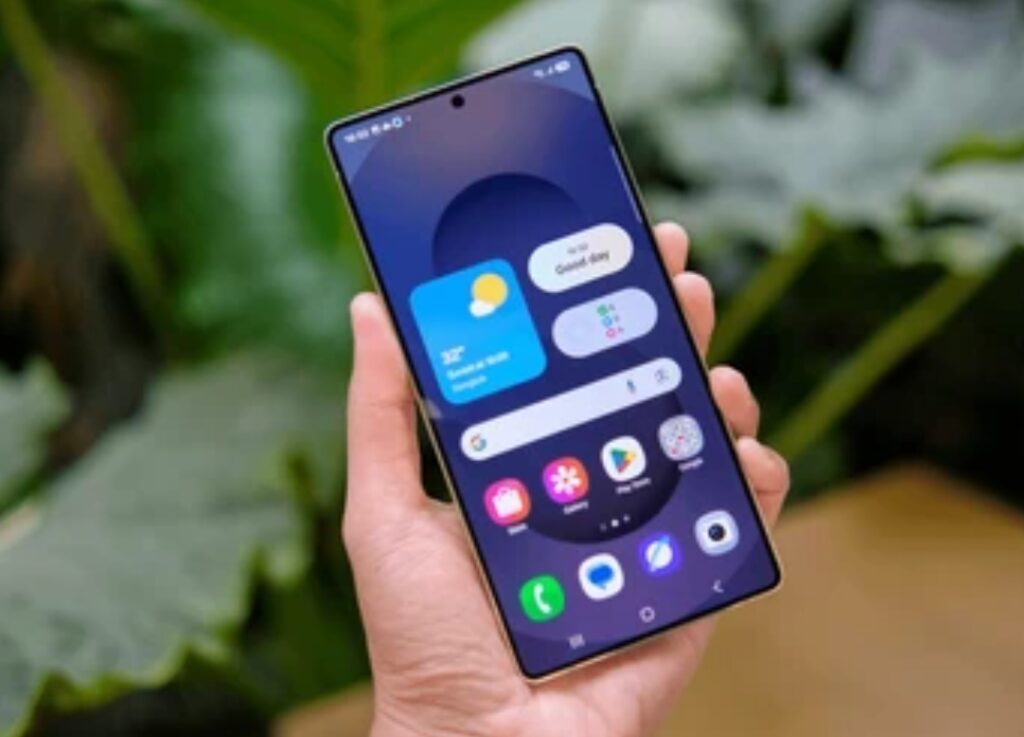
1️⃣ Privacy Dashboard — See Who’s Spying on You 👀
Android 12 introduced a game-changing tool called the Privacy Dashboard.
It lets you monitor how often apps access your camera, microphone, and location.
How to Access
Go to Settings → Privacy → Privacy Dashboard.
Here, you’ll see a timeline showing every time an app used your sensors.
Tap any permission (like “Location”) to see which apps accessed it and when.
🧠 Pro Tip: If you see unknown or rarely used apps appearing here, consider revoking their permissions.
This single feature makes your phone far more transparent and secure — one of the most underrated Android tips 2025.
2️⃣ Turn Off Microphone and Camera Access Instantly 🎙️📸
Sometimes, apps use your mic or camera even when they shouldn’t.
Android now includes a Master Switch to disable them completely.
How to Enable
- Go to Quick Settings → Privacy Controls.
- Toggle off Microphone Access and Camera Access.
When these are off, no app can use your mic or camera — not even background services.
It’s a powerful, one-tap privacy barrier that every Android user should know about.
3️⃣ Use “App Permissions Auto-Reset” 🛡️
In Android 11 and above, unused apps automatically lose their permissions after a few months.
How to Enable
- Settings → Apps → Special App Access → Auto-reset permissions.
- Turn it ON.
This hidden feature keeps old or forgotten apps from silently tracking you — one of the smartest Android hacks for security.
4️⃣ Lock Sensitive Files with “Secure Folder” 🔐
Samsung, OnePlus, and other OEMs include Secure Folder — a sandboxed storage area encrypted with your fingerprint or PIN.
You can store photos, documents, and apps inside it that only you can access.
How to Set It Up
- Go to Settings → Biometrics and Security → Secure Folder.
- Log in with your Samsung Account (for Samsung phones).
- Move files or apps you want to hide.
Even if someone gets your unlocked phone, they can’t access what’s inside the Secure Folder.
💡 Use it for confidential work files, IDs, or banking apps.
5️⃣ Enable “Google Play Protect” for Real-Time Threat Scanning 🦠
Play Protect is Android’s built-in antivirus system.
It automatically scans all installed and downloaded apps for malware or risky behavior.
How to Check
- Open Google Play Store → Tap your profile → Play Protect → Turn ON “Scan apps with Play Protect.”
Make sure real-time scanning is enabled.
This constantly monitors app activity in the background — keeping your phone safe from hidden malware.
6️⃣ Disable “Install Unknown Apps” Access 🚫
Many malicious apps come from outside the Play Store.
You can stop unauthorized installations by disabling unknown sources for each app.
How to Do It
- Settings → Apps → Special App Access → Install Unknown Apps.
- Turn OFF the permission for all apps except trusted ones (like Chrome or Files).
This prevents hidden APKs from installing malware behind your back — one of the most crucial Android hidden settings to enable.
7️⃣ Use “App Pinning” to Prevent Snooping 🔒
App Pinning locks your screen to a single app.
It’s perfect when lending your phone to someone — like letting a friend use your browser without accessing your gallery or messages.
How to Enable
- Settings → Security → App Pinning.
- Turn it ON.
- Open the app → Tap Recent Apps → Pin icon → Start Pinning.
Now the user can’t exit that app without your unlock code.
A simple but genius Android hack for privacy.
8️⃣ Hide Notifications on Lock Screen 🔔
Notifications often reveal personal messages or app alerts on your lock screen.
How to Hide
- Settings → Notifications → Lock Screen Notifications.
- Choose “Hide sensitive content.”
Now, only the app name will appear — not the message content.
A must-have tweak for those who value privacy.
9️⃣ Manage “Ad Personalization” and “App Tracking” ⚙️
Google allows you to limit ad tracking and reset your advertising ID.
How to Access
- Settings → Privacy → Ads → Delete Advertising ID.
- Toggle OFF “Ad personalization.”
This stops advertisers from building behavioral profiles based on your usage data — giving you more digital freedom.
🔟 Use “Safety Check” and “Emergency SOS” 🚨
Android 13+ includes a hidden Safety & Emergency menu that most users ignore.
How to Enable
- Settings → Safety & Emergency.
- Add emergency contacts, enable Car Crash Detection, and Emergency SOS.
Now, pressing the power button five times sends your location to emergency contacts automatically.
This can save lives — one of the most practical Android tips 2025.
11️⃣ Enable “Find My Device” — Even When Offline 📍
Google’s Find My Device now works even when your phone is turned off or offline (on supported devices).
Setup Steps
- Settings → Security → Find My Device → Enable.
- Turn ON Offline Finding if available.
You can track, lock, or erase your phone remotely from google.com/android/find.
🧭 Bonus: It uses nearby Android devices in the network to help locate yours — even if it’s not connected to Wi-Fi or data.
12️⃣ Check for “Hidden Spy Apps” with Permission Manager 🔍
Some spyware apps disguise themselves with generic icons or invisible names.
How to Detect
- Settings → Privacy → Permission Manager.
- Check which apps can access Location, Camera, Microphone, or SMS.
If you see suspicious apps here, uninstall or revoke permissions immediately.
🛡️ Tip: Use tools like Activity Launcher to reveal hidden system apps if you suspect something unusual.
13️⃣ Encrypt Your Entire Device 🧱
Encryption ensures that even if your phone is stolen, your data remains unreadable.
How to Enable
- Settings → Security → Encryption & Credentials → Encrypt phone.
This adds an additional layer of protection beyond your screen lock — one of the most powerful Android hidden settings for total data safety.
Make Privacy a Habit 🔐
In 2025, data is more valuable than gold.
Your smartphone holds your identity, location, and personal communications.
By enabling these hidden security and privacy settings, you regain control over who sees your data, when, and how.
You don’t need third-party apps or complicated mods — these tools are already built into Android.
You just need to know where to find them.
🔥 Go through each setting above today and activate them.
You’ll instantly make your Android device safer, faster, and completely under your control.
Secret Customization Tricks to Personalize Your Android Like a Pro 🎨📱
Your Android isn’t just a phone — it’s your digital fingerprint.
Every wallpaper, icon, and setting tells a story about who you are.
Yet, most people never tap into the deep Android hidden settings that can completely transform how their phone looks, feels, and responds.
If you’ve ever wondered how tech reviewers get those clean, futuristic home screens — this is your chance to do the same.
Let’s dive into the best Android hacks and Android tips 2025 that will make your phone truly one-of-a-kind.
1️⃣ Unlock Developer Animation Controls for Smoother Performance ⚡
Ever noticed laggy transitions when opening apps?
You can fix that instantly using a hidden trick inside Developer Options.
How to Do It
- Go to Settings → About Phone → Build Number.
- Tap it 7 times to unlock Developer Options.
- Then go to Settings → System → Developer Options.
- Scroll down to:
- Window Animation Scale
- Transition Animation Scale
- Animator Duration Scale
- Window Animation Scale
- Change all three from 1x → 0.5x.
This reduces animation time by half — making your phone feel twice as fast.
⚙️ Pro Tip: You can even set them to 0x to remove animations completely for instant response.
A simple tweak that’s among the most effective Android hidden settings to make your phone buttery smooth.
2️⃣ Customize Your Icons and Home Screen Layouts 🧭
If you’re bored of the same default icons, you can change every single one without rooting your device.
How to Personalize Icons and Layouts
- Download a launcher like Nova Launcher, Niagara Launcher, or Smart Launcher 6.
- Long-press the home screen → Home Settings → Icon Layouts or Themes.
- Choose your preferred icon pack from the Play Store.
🌈 Try minimalist packs like Whicons or futuristic ones like Delta and Moonshine.
You can also adjust grid size, label font, gesture shortcuts, and even folder transparency.
This level of control is what makes Android unbeatable for personalization.
3️⃣ Use Material You (Dynamic Color Customization) 🎨
Android 12 introduced Material You, a feature that matches your phone’s entire color theme to your wallpaper.
It automatically adjusts icons, widgets, and buttons with adaptive colors.
How to Activate
- Go to Settings → Wallpaper & Style → Color Palette.
- Turn ON “Apply to App Icons.”
Now, every time you change your wallpaper, your phone adopts a new matching color scheme.
💡 It’s like having a fresh theme every day — automatically.
One of the most beautiful Android tips 2025 for users who love visual harmony.
4️⃣ Create Custom Gestures for Speed and Style ✋
Android gestures are not just for navigation — they can be customized to perform shortcuts.
How to Enable Gestures
- Settings → System → Gestures.
You can assign:
- Double-tap back to open camera or flashlight.
- Swipe up for Google Assistant.
- Swipe down for notifications.
- Knock twice to lock the screen (on supported devices).
Some phones like OnePlus and Samsung offer Custom Gesture Drawing — allowing you to draw letters (like “V” for flashlight).
⚡ These are not just Android hacks — they save seconds every single time you use your device.
5️⃣ Hide Unwanted System Icons from Status Bar 🧩
Ever felt annoyed by too many icons cluttering your status bar?
You can hide them using a secret tool called System UI Tuner.
How to Unlock
- Pull down the Quick Settings menu.
- Press and hold the ⚙️ Settings icon for 5–10 seconds.
- You’ll see a message: “System UI Tuner added to Settings.”
- Go to Settings → System UI Tuner → Status Bar.
- Toggle OFF icons you don’t want to see (like Bluetooth, NFC, Alarm, etc).
Clean, minimal, and distraction-free — the hallmark of pro Android setups.
6️⃣ Change Font and Icon Shape Without Launchers
If you’re on Android 12 or newer, you can customize font style, icon shape, and accent colors natively.
How to Do It
- Settings → Wallpaper & Style → Themed Icons / Icon Shape / Font.
Choose between Rounded, Square, Teardrop, or Cylindrical icons, and experiment with playful fonts.
🎯 Combine this with your wallpaper palette for a cohesive design.
7️⃣ Add Interactive Live Wallpapers 🪄
Static wallpapers are old news.
Android lets you set live, dynamic wallpapers that react to your touch or system motion.
How to Enable
- Download apps like Muzei Live Wallpaper, Cartogram, or Wallipop Live.
- Apply via Settings → Wallpaper → Live Wallpapers.
You can even use your own videos as wallpapers (on some devices) for a cinematic lock screen experience.
✨ This is one of those Android hidden settings that instantly impresses anyone who sees your phone.
8️⃣ Customize Always-On Display (AOD) 🌙
If your phone supports Always-On Display, you can customize it far beyond what most people know.
Hidden Options You Can Tweak
- Settings → Lock Screen → Always-On Display.
- Change clock styles, animations, and notifications.
- Add your signature, emoji, or battery meter.
On Samsung devices, you can even add GIFs or your own photo — making AOD a personalized screensaver.
💡 Combine this with dark wallpapers to save battery and look sleek.
9️⃣ Add Widgets That Actually Work (Not Just Look Good) 📊
Widgets have evolved — they’re now dynamic, smart, and resizable.
Top Functional Widgets to Try
- At a Glance (Google) — shows events, weather, and travel updates.
- KWGT or UCCW — create your own custom widgets with animations and data feeds.
- Battery Widget Reborn — detailed battery analytics in real time.
You can even make a productivity dashboard right on your home screen.
🧠 Power users often combine widgets and custom icons to create a “Smart Control Center.”
🔟 Change Navigation Bar Buttons or Switch to Gesture Mode 🧭
Depending on your Android version, you can choose between 3-button navigation or gesture-based navigation.
How to Change
- Settings → System → Gestures → System Navigation.
Choose Gestures for full-screen edge swipes (modern look), or 3 Buttons for classic navigation.
If your device allows, you can even remap navigation buttons using tools like Button Mapper — another cool Android hack for personalization.
11️⃣ Set Custom Ringtones and Notification Sounds 🎵
A small detail that makes your phone truly yours.
How to Do It
- Settings → Sound & Vibration → Phone Ringtone.
- Tap “Add” to upload your own music clip or sound file.
You can assign unique tones for contacts, apps, or even notifications.
🎧 Tip: Use short, punchy tones for alerts and gentle ones for calls — it feels more premium.
12️⃣ Make Your Lock Screen a Command Center 🔐
Lock screens are no longer just for unlocking.
You can add shortcuts, smart widgets, or even live feeds.
How to Customize
- Settings → Lock Screen → Shortcuts / Widgets.
- Add quick access to Camera, Google Wallet, or Smart Home controls.
🚀 You’ll be amazed how much faster your daily routine becomes with this setup.
Your Phone, Your Personality 🌟
The best thing about Android?
You’re not stuck with what the manufacturer gives you.
With these Android hidden settings and customization tricks, you can transform your phone into a sleek, fast, and visually stunning reflection of your personality.
Every change — from animation speed to icon shape — adds up to a smoother and smarter experience.
🔥 Start customizing now! Try one tweak today and see how it transforms your experience.
You’ll never want to go back to a boring, stock setup again.
Hidden Performance and Battery Optimization Settings You Should Turn On ⚙️🔋
Your Android might look fast on the surface — but underneath, dozens of background apps, sensors, and system processes quietly drain power and slow things down.
The good news?
Hidden deep inside Android are performance and battery optimization settings that most people never use.
These Android hidden settings and Android hacks can instantly boost your phone’s speed, extend battery life, and make your system run smoother than ever — without rooting or third-party apps.
Let’s unlock them one by one.
1️⃣ Turn On “Battery Optimization” for All Apps 🔋
Android automatically manages background power usage, but not all apps are optimized by default.
How to Enable It
- Go to Settings → Battery → Battery Usage.
- Tap the three-dot menu → Battery Optimization.
- Choose All Apps and make sure every app is set to Optimized.
⚡ Pro Tip: If you notice lag in certain apps, switch only those to “Not optimized.”
This feature forces apps to sleep when not in use — improving battery health and device efficiency.
It’s one of the most overlooked Android tips 2025 that can extend your battery by hours.
2️⃣ Limit Background Processes for Peak Speed 🚀
Inside Developer Options lies a hidden gem: the Background Process Limit.
This setting controls how many apps can stay active behind the scenes.
How to Use
- Settings → System → Developer Options.
- Scroll to Apps → Background Process Limit.
- Choose At most 4 processes (recommended).
Your phone will now free up RAM faster and reduce lag when switching between apps.
🧠 Tip: Combine this with animation scale tweaks (as shown earlier) for lightning-fast performance.
3️⃣ Disable Unused System Apps 🗑️
Some system apps run silently even when you never use them — wasting storage and memory.
How to Disable Safely
- Settings → Apps → See All Apps.
- Select the unused app (like Google TV, AR Services, or Game Center).
- Tap Disable.
Be cautious not to disable system-critical apps like Google Play Services or System UI.
✅ Only disable bloatware or manufacturer add-ons you never use.
This simple Android hack can make older phones feel brand new.
4️⃣ Use “Adaptive Battery” and “Adaptive Charging” ⚙️
Modern Android versions (9 and above) come with Adaptive Battery — an AI-powered feature that learns your usage habits.
How to Activate
- Settings → Battery → Adaptive Preferences.
- Turn ON both Adaptive Battery and Adaptive Charging.
These options automatically limit power to rarely used apps and control charging speed overnight to extend battery lifespan.
💡 Result: Your phone stays fast longer, and the battery degrades slower.
5️⃣ Reduce Background Location Access 📍
Location tracking is a major cause of hidden battery drain.
Optimize It
- Settings → Location → App Permissions.
- Change “Allow all the time” to “Allow only while using.”
- Turn OFF Wi-Fi and Bluetooth scanning under Location Services → Advanced.
This ensures your phone isn’t constantly pinging satellites or sensors when not needed.
🛰️ Bonus: Improves privacy and reduces app spying.
6️⃣ Disable Auto-Sync for Unused Accounts 🔁
Auto-sync keeps pulling updates from accounts you rarely use — draining your data and power.
How to Manage
- Settings → Accounts → Auto Sync Data.
- Turn OFF global sync, or disable per-account sync for unused apps like Drive, Dropbox, or Gmail backups.
🔋 You can manually sync anytime you want — saving hours of battery life every day.
7️⃣ Clear Cached Data the Right Way 🧹
Over time, cached data clogs memory and slows down performance.
How to Clear It
- Settings → Storage → Cached Data → Clear Cache.
- Alternatively, go to each app → Storage → Clear Cache.
⚠️ Note: Avoid “Clear Data” unless you want to reset the app completely.
Regularly cleaning cache is one of those timeless Android hacks that keeps your phone feeling fresh.
8️⃣ Turn Off Animations (Optional)
Animations make Android look smooth — but disabling them saves CPU and battery power.
How to Do It
- Settings → Developer Options → Window, Transition, Animator Scales → 0x.
Your phone will respond instantly with zero visual delay.
💨 Ideal for users who prioritize performance over aesthetics.
9️⃣ Use “Data Saver Mode” to Reduce Background Sync
Data Saver Mode not only saves mobile data but also reduces background CPU activity.
How to Enable
- Settings → Network & Internet → Data Saver → ON.
You can whitelist specific apps like WhatsApp or Gmail to continue syncing.
⚙️ Fewer background connections = less battery usage = longer screen-on time.
🔟 Optimize Apps with “Device Care” or “Digital Wellbeing” 🧠
Brands like Samsung, Xiaomi, and OnePlus offer built-in optimization tools.
How to Access
- Settings → Device Care / Battery & Performance / Digital Wellbeing.
- Tap Optimize Now to auto-close unused background apps and free memory.
You can even schedule automatic nightly optimizations.
🧩 These features act like digital housekeepers for your phone.
11️⃣ Turn On “Performance Mode” for Gaming & Heavy Use 🎮
If you game or edit videos on your phone, enable Performance Mode.
How to Enable
- Settings → Battery → Performance Profile → High Performance.
- On Samsung: Settings → Device Care → Battery → Performance Mode.
This temporarily unlocks higher CPU/GPU output for smoother gameplay and rendering.
🚀 Use sparingly — it boosts power but drains battery faster.
12️⃣ Monitor Battery Health and Usage Stats 🔍
Understanding what drains your battery is half the battle.
How to Check
- Settings → Battery → Battery Usage.
- Review top-draining apps and usage patterns.
If you find hidden battery hogs, restrict them using Battery Saver → Restricted Mode.
⚡ Apps like Facebook, Snapchat, and TikTok are common culprits — limit their background access.
13️⃣ Keep Software Updated Regularly 🔄
Updates aren’t just about features — they often fix battery and performance bugs.
Check for Updates
- Settings → System → System Update → Check Now.
Always install official updates (avoid beta firmware unless experienced).
🧠 Updated firmware ensures optimal thermal control, better RAM management, and improved efficiency.
A Faster, Smarter Android Awaits ⚙️✨
When you master these Android hidden settings, you unlock your phone’s full potential.
Your device becomes faster, smoother, and smarter — without overheating, lagging, or draining halfway through the day.
All it takes is a few minutes of setup to save hours of frustration later.
🔥 Try enabling 3 of these performance tweaks today.
Within 24 hours, you’ll feel the difference — snappier response, cooler temps, and longer battery life.
That’s the power of mastering Android tips 2025 and using your phone like a true pro.
Final Thoughts — Mastering Android Hidden Settings Like a Pro 🚀
Your Android device is far more powerful than most people realize.
Beneath the surface lies a treasure chest of Android hidden settings and smart tools designed to give you total control — you just need to know where to look.
By unlocking these Android hacks and optimization tweaks, you can:
✅ Boost speed and performance instantly
✅ Extend battery life without sacrificing usability
✅ Keep your device running smoother, cooler, and longer
✅ Enjoy pro-level customization — all without rooting your phone
What separates an average Android user from a power user is knowing these hidden tricks — and actually using them.
As Android evolves, 2025 brings more smart features than ever, making your phone more customizable, efficient, and AI-driven.
The best part? Most of these tools are built right in — free, safe, and just a few taps away.
So go ahead:
🔓 Dive into your settings, experiment with new tweaks, and discover what your phone can really do.
💡 Pro Tip: Revisit your settings every few months.
Each Android update often introduces new hidden options and performance upgrades — and staying updated keeps your device at peak performance.
🚀 Ready to Unlock More?
If you found these Android tips 2025 helpful, make sure to:
⭐ Bookmark this guide for future reference
⭐ Share it with friends who use Android daily
⭐ Explore our next post on Advanced Android Hacks and Secret Codes for Power Users
Because once you start exploring what’s hidden beneath Android’s surface — you’ll never use your phone the same way again.
You might also like :