
Introduction – Why iPhone Privacy Settings Matter More Than Ever 🔐📱
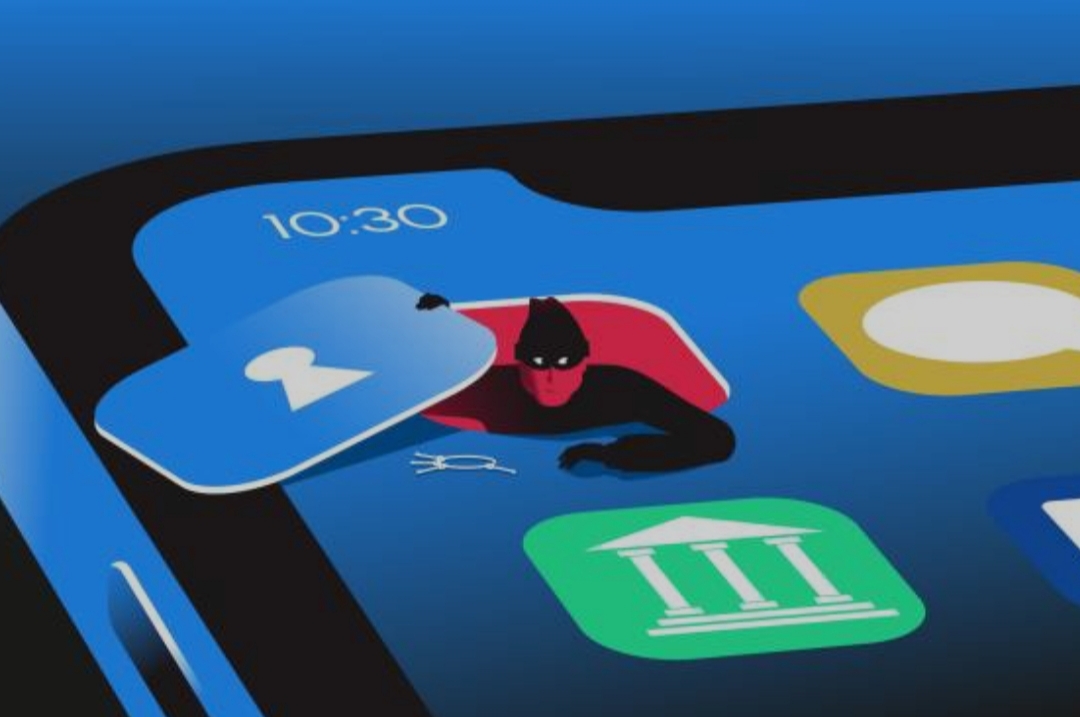
In today’s fast-paced digital world, your smartphone is more than just a communication tool – it’s a vault of your personal life.
From your banking apps to your health data, photos, browsing history, messages, and even your exact location – everything is stored right inside your iPhone.
This is precisely why turning on the right iPhone security settings is no longer optional – it’s essential.
Every year, thousands of iOS users fall victim to data leaks, hacking attempts, tracking by third-party apps, or privacy intrusions simply because their settings weren’t optimized.
That’s where iOS privacy tips come into play – to help you take back control and keep your information safe from prying eyes, cybercriminals, and even invasive apps.
✅ Here’s the truth:
Even though Apple is known for its strong stance on privacy, not all features come pre-enabled.
Many of the most powerful iPhone privacy settings are buried deep within your Settings menu – and if you don’t know where to look, you’ll miss out on crucial protections.
That’s why this complete guide will walk you through step-by-step:
- What security settings you should enable immediately
- How to limit app tracking and surveillance
- What privacy tools Apple offers – and how to use them correctly
- Lesser-known but highly effective iOS privacy tips you never knew existed
And best of all?
You don’t need to be a tech expert to protect your device.
This guide is written in a friendly, easy-to-follow tone, so you can implement the best practices within minutes – even if you’ve never touched these settings before.
🛡️ In this digital age, your data is your identity.
And the sad reality is: If you’re not actively protecting it, someone else is actively trying to access it.
So if you’re wondering:
- “How do I protect my iPhone from spying apps?”
- “Which iOS settings improve privacy the most?”
- “What are the best iPhone security settings in 2025?”
You’re in the right place.
We’ll cover all of that and much more.
By the end of this post, you’ll walk away with a fully optimized iPhone that’s locked down, invisible to trackers, and running at peak privacy performance.
Let’s dive in and activate the must-have iPhone security settings that will keep your personal data safe, private, and fully under your control.
👉 Take action now – don’t wait until your privacy is already compromised.
Must-Enable iPhone Security Settings Today 🔐
Your iPhone may come with Apple’s famous walled garden, but that doesn’t mean it’s impenetrable.
Without manually enabling the right iPhone security settings, your device – and everything on it – is still vulnerable to cyber threats, invasive tracking, and even unauthorized access.
Below are the essential security settings you should turn on immediately if you want to keep your data private, your identity safe, and your iPhone protected in 2025 and beyond.
🔓 Set Up Face ID or Touch ID With a Strong Alphanumeric Passcode
Relying on a simple 4-digit passcode is no longer safe.
Hackers can crack predictable PINs in seconds.
Instead, combine biometric security with a strong alphanumeric passcode – this adds an extra layer that brute-force attempts can’t easily bypass.
✅ Steps to enable and strengthen this setting:
- Go to Settings > Face ID & Passcode (or Touch ID & Passcode)
- Tap on “Change Passcode”
- Choose “Passcode Options”
- Select Alphanumeric Code for maximum security
- Enable Face ID or Touch ID if not already set
Why it matters:
Even if your iPhone gets stolen, no one can access your apps, messages, or data without both your biometric and password – making it almost impossible to breach.
Pro Tip: Use a combination of uppercase, lowercase, numbers, and symbols in your passcode to make it more secure.
📍 Turn On “Find My iPhone” and Enable Activation Lock
This powerful feature allows you to track your device, remotely lock it, or even erase your data in case it’s lost or stolen.
Activation Lock also prevents thieves from erasing your device or linking it to a new Apple ID – even if they perform a factory reset.
✅ How to activate:
- Go to Settings > Your Name > Find My
- Tap Find My iPhone
- Toggle on Find My iPhone and Send Last Location
- Make sure Activation Lock is enabled automatically
Power Tip:
Always double-check that “Send Last Location” is enabled. It can save you when your battery dies in a lost device scenario.
⛔ Enable Auto-Wipe After 10 Failed Passcode Attempts
Imagine a thief tries to unlock your iPhone by guessing your passcode.
This setting will automatically erase all your data after 10 failed attempts – instantly protecting your private photos, contacts, apps, and documents.
✅ To turn it on:
- Go to Settings > Face ID & Passcode
- Scroll to the bottom
- Toggle on Erase Data
Don’t worry – this only activates after 10 incorrect tries.
It’s like a self-destruct button for your data – and one of the most powerful iPhone security settings you can activate today.
📱 Require Immediate Passcode After Lock
Some users delay the passcode requirement for convenience.
But this creates a dangerous window of opportunity for anyone who picks up your phone.
✅ Enable immediate lock:
- Go to Settings > Display & Brightness > Auto-Lock
- Set it to 30 seconds or 1 minute
- Under Face ID & Passcode, ensure Require Passcode is set to Immediately
This simple change can block unauthorized access even if your phone is momentarily unattended.
🔐 Enable USB Accessories Lock (Prevent Physical Hacking)
Did you know hackers can use USB devices to bypass your lock screen?
This lesser-known iOS privacy tip helps stop them in their tracks.
✅ Steps to enable:
- Go to Settings > Face ID & Passcode
- Scroll down to USB Accessories
- Make sure the switch is off
This ensures no USB accessory can connect to your iPhone if it’s locked for over an hour – keeping your data safe from advanced cyber threats.
📌 Quick Summary of Must-Turn-On iPhone Security Settings:
- ✅ Enable Face ID/Touch ID with a strong passcode
- ✅ Turn on Find My iPhone + Activation Lock
- ✅ Enable Auto-Wipe after 10 failed attempts
- ✅ Set Auto-Lock to 30 seconds–1 min
- ✅ Disable USB Accessories access when locked
These iPhone security settings are your digital armor – turn them on today to lock down your device like a pro.
🔥 Ready to go even deeper?
In the next section, we’ll explore the most overlooked – but powerful – iOS privacy tips that stop sneaky apps and websites from spying on your every move.
👉 Stick around – your privacy depends on it.
Critical iOS Privacy Tips You Can’t Ignore 📱🛡️
Even with your iPhone locked down, there’s another major threat lurking in the background – apps, websites, and advertisers quietly tracking your every move.
From your location and microphone to your camera and habits, third-party apps collect more than you think.
But here’s the good news: Apple’s iOS offers powerful privacy tools – you just have to know where to find and activate them.
Below are the most important iOS privacy tips to take your iPhone protection to the next level.
These steps are often overlooked but are absolutely essential for your digital safety in 2025 and beyond.
Ready to stop trackers, snoopers, and spy apps in their tracks?
Let’s begin.
🚫 Limit App Tracking with App Tracking Transparency
You’ve likely seen the popup:
“Allow App to track your activity across other companies’ apps and websites?”
That’s Apple’s App Tracking Transparency (ATT) at work – and it’s a game-changer for your privacy.
✅ How to disable tracking permanently:
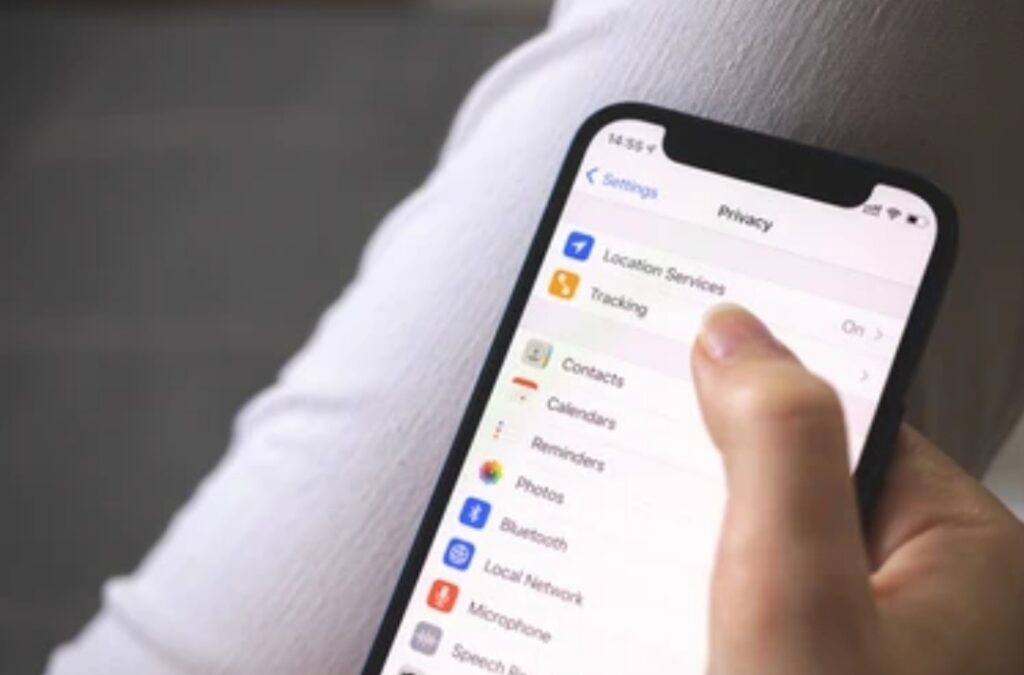
- Go to Settings > Privacy & Security > Tracking
- Toggle off Allow Apps to Request to Track
Now, apps won’t even be able to ask for permission – they’ll be blocked by default.
📌 Why this matters:
Apps like Facebook, TikTok, and Instagram use background tracking to collect data on your habits, interests, and even your device usage.
Turning this off instantly stops the majority of that surveillance.
Pro Tip:
You can still review or adjust tracking permissions for individual apps below that toggle.
📍 Disable Location Services for Unnecessary Apps
Did you know many apps access your location even when you’re not using them?
That’s a huge privacy red flag – and one you can fix in just minutes.
✅ Here’s how to audit your app location access:
- Go to Settings > Privacy & Security > Location Services
- Review each app one by one
- Set each one to:
- Never
- Ask Next Time
- Or While Using the App (best option for apps that need it)
- Never
Turn off “Precise Location” for apps that don’t need pinpoint accuracy (like shopping or games).
Power Tip:
If you rarely use System Services like “Location-Based Apple Ads” or “Routing & Traffic,” you can disable those too.
🎤🎥 Restrict Microphone and Camera Access
Yes – it’s possible for rogue apps to listen or even watch through your iPhone without you knowing.
That’s why managing microphone and camera permissions is one of the top iPhone privacy settings you should review right now.
✅ To check permissions:
- Go to Settings > Privacy & Security > Microphone
- Toggle off access for any apps that don’t require it
- Repeat the same under Camera
Warning signs of abuse:
- Apps you don’t recognize having access
- Games or utilities requesting microphone or camera without reason
🧠 Expert Insight:
Some free flashlight or photo-editing apps secretly use these permissions to harvest audio or visual data.
📧 Hide Your Email with Apple’s “Hide My Email” Feature
When you sign up for websites, newsletters, or apps, you often give away your real email address – which can lead to spam or phishing attacks.
Apple’s Hide My Email lets you use a random, unique email address that forwards to your real inbox.
✅ To activate:
- Go to Settings > Apple ID > iCloud > Hide My Email
- Tap Create New Address
- Use this alias wherever privacy matters
This simple iOS privacy tip can shield your inbox and protect your identity.
🌐 Use Safari Privacy Settings to Hide IP Address
When you browse the web, sites and trackers can see your IP address, which reveals your location and device type.
Apple’s Safari now lets you hide your IP address to block this data from being exposed.
✅ Enable in seconds:
- Go to Settings > Safari
- Tap Hide IP Address
- Select From Trackers
This blocks advertisers and trackers from profiling you based on your IP – reducing targeted ads and surveillance.
📌 Quick-Action Privacy Checklist:
- ✅ Block app tracking with ATT
- ✅ Limit location access by app
- ✅ Disable camera/mic for untrusted apps
- ✅ Use Hide My Email for safer logins
- ✅ Activate IP hiding in Safari
These iOS privacy tips don’t just protect your phone – they protect you.
They stop silent data leaks, limit surveillance, and let you browse, message, and live with peace of mind.
⚠️ Don’t leave your digital footprint exposed.
👉 Review these settings today – and protect your personal life from invisible threats.
Next up, we’ll dive into even more powerful – but often overlooked – privacy features that most iPhone users don’t even know exist.
Let’s go!
Bonus iPhone Privacy Settings Most Users Overlook 🌐🔒
You’ve enabled the basics – but there’s more.
Apple has quietly packed in some of the most advanced iOS privacy features deep within your iPhone’s settings.
Sadly, most users never touch them.
But that’s good news for you – because you’re about to unlock the next level of iPhone security settings that offer stealth protection from trackers, apps, and even Apple itself.
If you want true digital privacy, these are the bonus tips you can’t afford to skip.
Let’s uncover the hidden gems. 💎
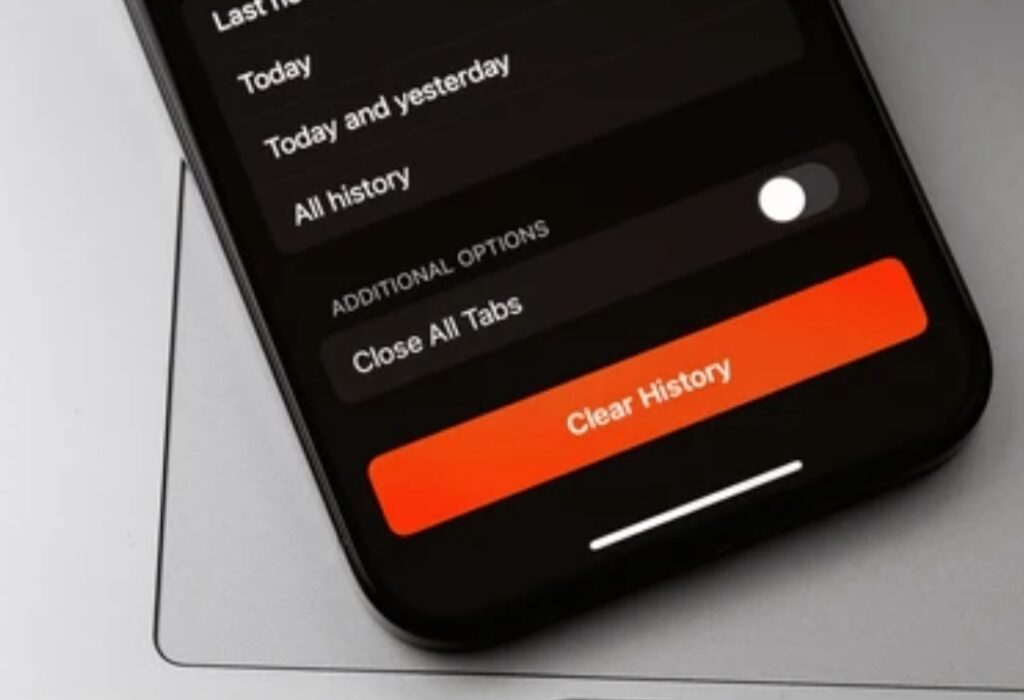
🕵️♂️ Hide Your IP Address in Safari to Block Trackers Instantly
When you browse online, your IP address acts like a digital name tag.
Advertisers, hackers, and trackers use it to fingerprint your device, monitor your activity, and build a profile about you – even across websites.
But Safari now includes a built-in option to hide your IP address from trackers.
✅ To activate:
- Go to Settings > Safari
- Tap Hide IP Address
- Choose From Trackers
🧠 Why it’s important:
This one setting makes it dramatically harder for advertisers to stalk you across the internet – even if cookies are blocked.
🔇 Disable Siri Suggestions and Lock Screen Access
Siri is convenient – but she can also be a privacy liability.
If Siri is allowed to appear on your lock screen, anyone who picks up your phone could ask questions or get previews of your content – without unlocking it.
✅ To restrict Siri’s access:
- Go to Settings > Siri & Search
- Disable:
- Suggestions on Lock Screen
- Allow Siri When Locked
- Suggestions on Lock Screen
- You can also toggle off Siri suggestions in Spotlight or Safari if you value maximum privacy
📌 Tip: You’ll still be able to use Siri hands-free, but you’ll prevent unwanted access when your device is idle.
📊 Turn Off Sharing iPhone Analytics & Usage Data with Apple
Believe it or not, your iPhone may be sending analytics data to Apple and its partners – including app crash logs, usage statistics, and even data about how you use Siri or Safari.
Even if Apple claims the data is anonymized, many privacy experts recommend disabling it.
✅ To turn it off:
- Go to Settings > Privacy & Security > Analytics & Improvements
- Toggle off the following:
- Share iPhone Analytics
- Improve Siri & Dictation
- Share With App Developers
- Share iPhone Analytics
This stops passive background sharing and gives you more control over your personal usage patterns.
🧩 Disable Ad Personalization in Apple Ads
Yes – Apple runs ads too.
And unless you turn it off, your device will share interest-based data to personalize ads inside the App Store, Apple News, and more.
✅ How to reduce ad tracking:
- Go to Settings > Privacy & Security > Apple Advertising
- Toggle off Personalized Ads
📌 This won’t stop all ads – but it will stop Apple from using your data to tailor them.
Pro Tip:
If you use Safari, consider using a reliable ad blocker to boost this protection.
🧿 Turn Off Location-Based Apple Services
Apple uses your location for useful things like Maps, Weather, and Find My – but it also uses it for ads, suggestions, and system customization.
That’s often not necessary – and disabling these options can reduce data exposure.
✅ Here’s how to do it:
- Go to Settings > Privacy & Security > Location Services
- Scroll down and tap System Services
- Disable:
- Location-Based Apple Ads
- Location-Based Suggestions
- Location-Based Alerts (optional)
- Location-Based Apple Ads
You’ll still get GPS features where needed – but without feeding extra data into Apple’s ecosystem.
📌 Hidden Privacy Settings Checklist (Quick Recap):
- ✅ Hide IP Address in Safari
- ✅ Disable Siri on Lock Screen
- ✅ Turn off iPhone analytics & diagnostics
- ✅ Disable Apple ad personalization
- ✅ Limit location-based system services
These features may be hidden – but they’re game-changers when it comes to keeping your iPhone secure and your private life, well, private.
🔥 Most users miss these settings – but not you.
👉 Activate these now and become invisible to trackers, hackers, and data harvesters.
Best Practices for Long-Term iPhone Privacy 🔁📅
Activating the right iPhone security settings is a great first step – but maintaining your privacy is an ongoing commitment.
Hackers evolve.
Apps update their permissions silently.
New iOS versions introduce both features and risks.
So, how do you ensure your data stays locked down not just today, but always?
Below are the top best practices for long-term iOS privacy – habits that will keep your digital life secure in the background while you focus on what matters most.
🔄 Review App Permissions Monthly
Apps often request access to your camera, mic, location, and more.
Over time, your permission list grows – and some apps may still have access even if you don’t use them anymore.
✅ Set a monthly reminder to audit these areas:
- Settings > Privacy & Security > Microphone
- Settings > Privacy & Security > Camera
- Settings > Location Services
- Settings > Tracking
Look for:
- Apps that haven’t been used in weeks
- Apps with full-time access (e.g., Always/While Not Using)
- New apps you recently installed
Pro Tip: Delete unused apps entirely – they may still collect data silently.
⏫ Keep iOS Updated at All Times
Every iOS update includes security patches, bug fixes, and privacy upgrades.
By delaying or skipping updates, you leave your phone open to known vulnerabilities.
✅ To ensure auto-updates are active:
- Go to Settings > General > Software Update
- Tap Automatic Updates
- Enable Download iOS Updates and Install iOS Updates
📌 Tip: Always check after a major iOS release – Apple occasionally resets preferences.
🧹 Clear Safari and App Data Regularly
Safari and many apps store cache, cookies, and usage history.
Over time, this data can be used to fingerprint your device or expose your activity.
✅ How to clear it:
- Settings > Safari > Clear History and Website Data
- For apps: Go to Settings > General > iPhone Storage, select app > Offload App or clear cache inside the app if supported
Use Private Browsing Mode in Safari for added protection against trackers and cookies.
🧠 Stay Informed About New iOS Privacy Features
Apple frequently rolls out new privacy options in iOS updates – like App Tracking Transparency, Hide My Email, and Lockdown Mode.
If you’re not staying up to date, you’re missing out on the latest defenses.
✅ Ways to stay informed:
- Follow Apple Newsroom or official iOS update pages
- Subscribe to privacy-focused tech blogs or newsletters
- Join Apple-related communities or forums
🔐 Use a Trusted VPN for Public Wi-Fi
Public Wi-Fi at cafes, hotels, or airports is a breeding ground for hackers.
A VPN encrypts your connection so your data stays private – even on unsafe networks.
✅ Look for these VPN features:
- Strict no-logs policy
- Military-grade encryption
- Kill switch & DNS leak protection
- Compatible iOS app with regular updates
Note: While Apple has strong native encryption, a VPN adds an extra shield – especially for browsing and streaming.
🔒 Enable Two-Factor Authentication (2FA) for Apple ID
Your Apple ID is the gateway to your entire iOS ecosystem.
If it’s compromised, so is your iCloud, photos, notes, backups, and more.
✅ Enable 2FA immediately:
- Go to Settings > Your Name > Password & Security
- Tap Two-Factor Authentication
- Follow prompts to add your trusted device or phone number
This ensures that even if someone guesses your Apple ID password, they can’t log in without your approval.
📌 Your iPhone Privacy Maintenance Checklist:
- ✅ Review app permissions monthly
- ✅ Update iOS automatically
- ✅ Clear browsing & app data
- ✅ Stay updated on new privacy features
- ✅ Use a trusted VPN when on public Wi-Fi
- ✅ Enable Two-Factor Authentication for Apple ID
These simple habits will keep your privacy tight – without requiring constant effort.
💥 Don’t wait for your data to be compromised.
👉 Start building these privacy habits today – your future self will thank you.
In the next section, we’ll answer the most frequently asked questions about iPhone privacy and security, so you can fill in any final gaps.
FAQs – Your iPhone Privacy Questions Answered ❓📲
Still have questions about keeping your iPhone private and secure?
You’re not alone.
Here are the most commonly asked questions about iPhone privacy settings and iOS security – answered in clear, simple terms so you can take action with confidence.
❓Is Apple better than Android when it comes to privacy?
✅ Answer:
Yes – Apple offers significantly better default privacy protections compared to most Android devices.
With features like App Tracking Transparency, Hide My Email, on-device Siri processing, and robust encryption, iOS leads in safeguarding user data.
Apple also doesn’t rely on advertising revenue the way Google does, giving it fewer incentives to collect user data.
However, your privacy still depends on which settings you’ve enabled – so turning on the right iPhone security settings is still essential.
❓How do I know if apps are tracking me?
✅ Answer:
You can check this by going to:
Settings > Privacy & Security > Tracking.
If the toggle for “Allow Apps to Request to Track” is on, apps may be requesting permission to track you across other apps and websites.
To block all future tracking requests, turn this off completely.
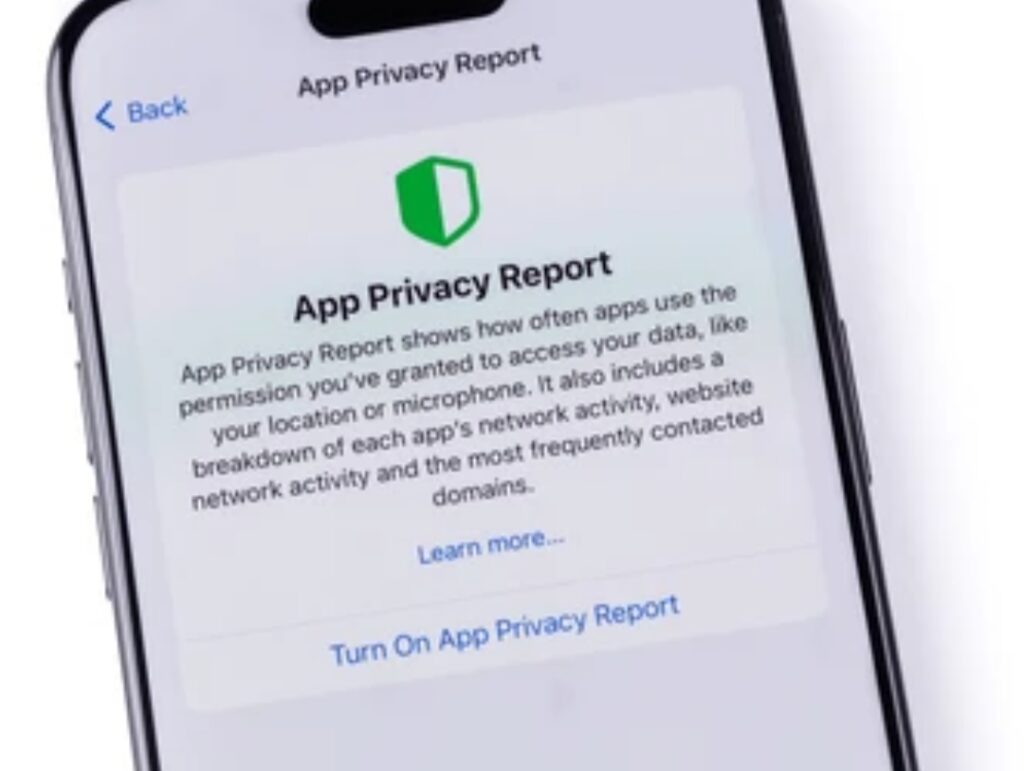
You can also use Apple’s App Privacy Report to see how often apps access your data like location, microphone, or photos:
Settings > Privacy & Security > App Privacy Report.
❓Can I stop Siri from listening to me?
✅ Answer:
Yes – you can control how and when Siri listens.
To prevent Siri from always listening in the background, go to:
Settings > Siri & Search
Then toggle off:
- Listen for “Hey Siri”
- Allow Siri When Locked
You can also limit Siri’s access to specific apps and disable Siri Suggestions for more privacy.
❓Is “Hide My Email” really safe to use?
✅ Answer:
Absolutely. Hide My Email generates random Apple-controlled email addresses that forward messages to your real inbox – without ever revealing your actual address to third parties.
This protects your identity and helps you avoid spam, phishing, and unwanted promotions.
You can delete any alias at any time.
Find it under:
Settings > Apple ID > iCloud > Hide My Email.
❓Does using a VPN make my iPhone completely private?
✅ Answer:
A VPN enhances your privacy, especially on public Wi-Fi, by encrypting your internet traffic and hiding your IP address.
However, it doesn’t replace the need for good iPhone privacy settings.
You should still control app permissions, turn off trackers, and enable two-factor authentication.
❓What is “Lockdown Mode” on iPhone and should I enable it?
✅ Answer:
Lockdown Mode is an extreme security setting introduced in iOS for users at risk of highly targeted attacks – like journalists, politicians, and activists.
It blocks:
- Most message attachments
- Complex web technologies
- Incoming FaceTime calls from unknown numbers
- Shared albums in Photos
- USB accessories when the device is locked
You’ll find it under:
Settings > Privacy & Security > Lockdown Mode.
Only enable this if you’re truly at risk of high-level threats, as it may limit everyday functionality.
❓Can Apple see what’s in my iCloud or iPhone backups?
✅ Answer:
By default, Apple encrypts your iCloud data, but holds the keys – meaning they technically can access some types of data if compelled.
To protect your iCloud data with end-to-end encryption, enable Advanced Data Protection.
✅ To activate it:
- Go to Settings > Apple ID > iCloud > Advanced Data Protection
- Follow the setup steps
This makes your data fully inaccessible to Apple or anyone else, even in legal cases.
📌 Have More Questions? Drop Them Below or Reach Out!
We update our FAQ section regularly to help readers stay informed and protected.
Have a question we didn’t cover?
Leave a comment or contact us and we’ll help you get the answers you need.
🔒 Privacy shouldn’t be complicated – but it must be intentional.
👉 Take a few minutes today to double-check these settings – it could save your identity tomorrow.
Final Thoughts – Take Control of Your iPhone’s Privacy Now 🚀📵
Your iPhone is one of the most powerful tools in your daily life.
It holds your photos, your memories, your passwords, your conversations – and in many ways, your identity.
But here’s the scary truth:
If you’re not actively protecting it, someone else is already trying to exploit it.
We live in a digital age where privacy is power, and inaction is a risk you can’t afford to take.
✅ You’ve just discovered the most critical iPhone security settings to enable.
✅ You’ve explored expert-level iOS privacy tips that go far beyond the basics.
✅ You now have long-term strategies to keep your iPhone protected for years to come.
Now the only question is: Will you act?
Don’t wait for a data breach.
Don’t wait for your photos to be leaked, your emails hacked, or your identity stolen.
Take 15 minutes right now and lock down your iPhone – step by step.
✅ Here’s a Quick Final Privacy Action Plan You Can Start Right Now:
- 🔐 Set up Face ID or Touch ID with a strong passcode
- 📍 Turn on Find My iPhone and Activation Lock
- ⛔ Block apps from tracking you with App Tracking Transparency
- 🎤 Restrict microphone, camera, and location access by app
- 🌐 Hide your IP address and use Safari privacy features
- 🧠 Review permissions and update iOS monthly
- 📧 Use Hide My Email when signing up for services
- 🛡️ Consider using a trusted VPN for public Wi-Fi
- 🔑 Enable Two-Factor Authentication for your Apple ID
- 🧩 Turn off analytics, Apple ads, and lock screen Siri access
- 🧿 Explore Advanced Data Protection and even Lockdown Mode if needed
👉 Each of these takes just a few taps – but can protect you for life.
📣 Before You Go…
If this guide helped you understand how to protect your iPhone and privacy, don’t keep it to yourself.
📤 Share it with friends, family, and anyone who uses an iPhone – because digital safety is something we all deserve.
And if you’re looking for extra tools to enhance your privacy further, check out our recommended resources here:
➡️ Best VPN for iPhone
➡️ Top Privacy Screen Protectors
➡️ Secure Password Managers for iOS
💬 Got Questions or Tips?
We love hearing from our readers!
Drop your questions in the comments or reach out directly. If you have your own iOS privacy tips, share them – we may even feature your input in a future update.
🚀 Final Power Thought:
You can’t control every threat – but you can control how prepared you are.
And today, you’ve just taken a major leap toward becoming untrackable, unhackable, and in full control of your iPhone’s privacy.
👉 So go on – lock it down. Own your data. And take back your digital life. Starting now.
You might also like :