

🔐 Introduction – Why It’s Crucial to Stay Safe on Public Wi-Fi
Public Wi-Fi is everywhere — from bustling coffee shops and airports to hotel lobbies and co-working spaces.
We rely on these open networks to check emails, browse social media, send work files, or even access sensitive banking information.
But while the convenience is undeniable, the risks are far too real to ignore.
Every time you connect to an unsecured public network, your private data is potentially exposed to lurking cybercriminals, data sniffers, and malicious third parties.
This is exactly why understanding how to keep your data safe on public Wi-Fi networks has become an essential digital life skill in 2025 and beyond.
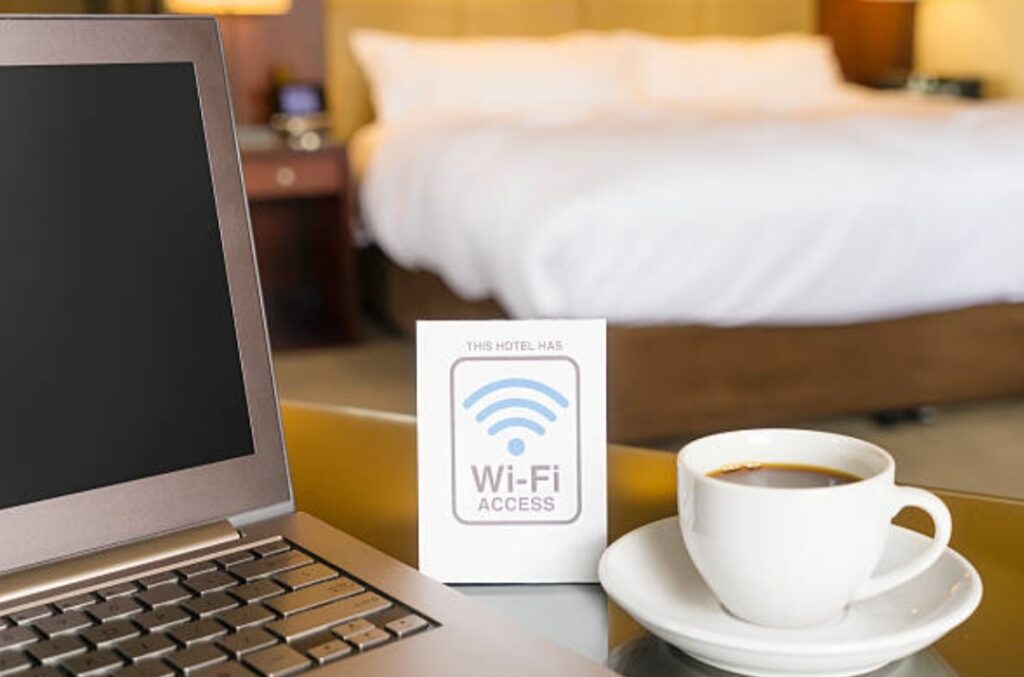
Imagine this: you’re sipping coffee, connected to free café Wi-Fi, and unknowingly your passwords, private messages, or credit card information are being intercepted by a hacker on the same network.
Sounds terrifying, right?
Unfortunately, it’s not just hypothetical — it happens every day to thousands of unsuspecting users.
Whether you’re a remote worker, frequent traveler, student, or simply someone who enjoys free connectivity, knowing how to stay safe on public Wi-Fi can literally protect your identity, finances, and digital peace of mind.
And here’s the shocking part — most people don’t even realize when they’ve been compromised.
They assume public Wi-Fi is “safe enough” because it’s provided by a well-known business.
In reality, without the right digital hygiene and protective tools, it’s like leaving your front door wide open for thieves — but online.
In this comprehensive, up-to-date guide, you’ll discover:
⚡ Proven strategies to protect your data on any public Wi-Fi network
📱 The best tools — like VPNs, firewalls, 2FA apps — to shield your online activity
🚫 Common mistakes most users make (and how to avoid them)
🔐 Insider tips for spotting fake networks and “Evil Twin” hotspots
🌐 Safer alternatives to public Wi-Fi you should be using
Our mission?
To empower you with actionable, easy-to-follow advice that helps you stay safe on public Wi-Fi every single time you connect.
And not just stay safe — but become digitally smarter and more resilient against the ever-growing cyberthreat landscape.
Because here’s the truth: cyber threats don’t discriminate.
Whether you’re on your phone, laptop, or tablet — the moment you connect to a public network without protection, you’re a target.
But with the knowledge and tools you’ll gain from this article, you’ll no longer be vulnerable prey.
You’ll be the one in control.
💡 Pro Tip: Bookmark this guide so you can return to it anytime you’re about to use public Wi-Fi — especially while traveling or working remotely.
👉 So, ready to take back control of your online safety?
Then let’s dive in and explore the smartest, most effective ways to stay safe on public Wi-Fi — from A to Z.
🔥 Your data deserves better.
Let’s make sure you protect it like a pro.
🛡️ Don’t just read this — take action!
If you don’t already use a trusted VPN provider, this is your sign to secure your devices now.
🔐 Understanding the Risks of Public Wi-Fi
Public Wi-Fi might feel harmless, but in reality, it’s one of the most dangerous digital spaces you can enter unprotected.
Before you can truly understand how to keep your data safe on public Wi-Fi networks, you first need to know exactly what you’re up against.
These networks are often unencrypted, unmonitored, and highly vulnerable — making them a cybercriminal’s playground.
Let’s break down the real threats you’re exposed to every time you connect to a public network.

🛑 Common Threats Lurking on Public Wi-Fi
Public Wi-Fi poses a wide range of security risks that can compromise your data in seconds.
Here are some of the most common and dangerous threats you need to know:
- ⚠️ Data Interception (a.k.a. “Eavesdropping”)
Hackers can intercept the information you’re sending and receiving — including logins, emails, credit card details, and personal data.
This can happen even if you’re just checking your bank balance or sending a seemingly harmless message.
- 🕵️♂️ Man-in-the-Middle Attacks (MITM)
In this stealthy attack, a hacker secretly relays and possibly alters the communication between two parties.
You may think you’re communicating directly with a website, but a third party is eavesdropping and stealing your data in real-time.
- 👿 Fake Hotspots (Evil Twin Attacks)
Cybercriminals create Wi-Fi networks with names similar to legitimate ones (e.g., “Starbucks_WiFi” vs. “Starbuck_FreeWiFi”).
When you connect, they gain full access to your device’s traffic — passwords, files, even messages.
These rogue networks are extremely difficult to detect without proper knowledge or tools.
- 🦠 Malware Distribution
Unsecured networks are often used to spread malicious software to connected devices.
Clicking a pop-up, downloading an attachment, or even just visiting a compromised site can install spyware, ransomware, or trojans silently in the background.
- 📡 Packet Sniffing Tools
Hackers use packet sniffers — software that intercepts and logs traffic flowing over a digital network — to analyze everything you send and receive online.
Without encryption, your data is served to attackers like an open buffet.
💥 Real-World Incidents That Prove the Dangers
Need proof that these threats are more than just “theoretical”?
Here are real cases where public Wi-Fi led to data disasters:
- A major hotel chain experienced a cyber breach in 2023 where hackers exploited unsecured lobby Wi-Fi to gain access to guest booking information and payment records.
- In airports around the world, travelers were targeted using “Evil Twin” networks, which mimicked legitimate airline hotspots.
Thousands of passwords were stolen and sold on the dark web. - A tech conference in 2024 saw attendees’ devices compromised due to malware-laced public Wi-Fi, causing credential leaks from high-level executives.
These cases aren’t rare.
They happen every single day — and you could be next if you don’t take action.
🎯 Why Public Wi-Fi Is More Vulnerable Than You Think
Unlike your home network, public Wi-Fi often lacks:
- 🔒 Encryption
- 🧑💼 Proper network authentication
- 📶 Secure configurations
- 👨💻 Active IT monitoring or firewalls
Anyone can connect.
No one is tracking who’s connected or what they’re doing.
And that’s exactly why attackers love it.
Even something as basic as logging into your email could lead to identity theft if done on an unsecured public network.
That’s why it’s more important than ever to stay safe on public Wi-Fi with the right tools and habits.

🚨 Who Is Most at Risk When Using Public Wi-Fi?
You may think, “I don’t do anything important online, so I’m safe.”
Wrong.
Here’s who hackers are targeting most:
- Remote workers sending sensitive company files
- Freelancers accessing project dashboards
- Travelers logging into their banking apps
- Students submitting assignments through school portals
- Shoppers entering card info on e-commerce sites
- Entrepreneurs using cloud-based tools on the go
If you fall into any of these groups (and most people do), you’re a prime target — especially if you’re not using a trusted VPN or other protection.
💡 Quick Ways to Spot a Risky Public Network
Want to know if the Wi-Fi you’re about to join is sketchy?
Look for these red flags:
- Network name looks suspicious or misspelled (e.g., “C0ffeeSh0p” instead of “CoffeeShop”)
- No login page or authentication required
- Website connections aren’t redirecting to HTTPS
- Random pop-ups or update requests appear after connection
- You see multiple versions of the same Wi-Fi network name
If you spot any of the above, disconnect immediately.
Your data could already be at risk.
🧠 Knowledge Is Your First Line of Defense
By understanding the risks behind public networks, you can make smarter decisions every time you connect.
And now that you know the threats, it’s time to explore how to prevent them — effectively and permanently.
🔥 If you don’t already have a security strategy, you’re surfing blind.
Arm yourself now with tools like military-grade VPNs, advanced antivirus software, and password managers to lock down your digital footprint.
🔐 Best Practices to Stay Safe on Public Wi-Fi
Every time you connect to an unsecured public Wi-Fi network, you risk exposing your personal information to cybercriminals.
But the good news?
You can protect yourself with a few simple, proven strategies.
Let’s explore the smartest, most effective ways to stay safe on public Wi-Fi and keep your data out of the wrong hands.
These best practices will transform you from an easy target into a security-savvy user.

💡 Always Use a Trusted VPN (Virtual Private Network)
If there’s one tool that dramatically increases your safety on public Wi-Fi, it’s a VPN.
A VPN encrypts your entire internet connection — shielding your data from hackers, snoopers, and man-in-the-middle attacks.
Here’s how a VPN protects you:
- It hides your IP address and location
- It creates a secure, encrypted “tunnel” for your data
- It prevents network monitoring and packet sniffing
Whenever you’re on public Wi-Fi — whether at a café, airport, or hotel — turn on your military-grade VPN provider before doing anything else.
⚠️ Pro Tip: Not all VPNs are created equal.
Avoid free VPNs — they often log your data or slow down your connection.
Stick to premium providers with a strong no-logs policy and fast, reliable servers.
🛡️ Turn Off Auto-Connect & File Sharing
Most devices are set to connect automatically to saved networks — which might sound convenient but is incredibly risky.
Here’s what to do:
- Disable “Auto-Join” or “Connect Automatically” settings
- Turn off AirDrop, Bluetooth sharing, and Nearby Sharing
- Disable file/printer sharing through your system settings
- Set your network to “Public” instead of “Private” to limit access
These small tweaks add an extra layer of protection to prevent others on the same network from accessing your files.
📴 Use Two-Factor Authentication (2FA) for All Logins
Two-Factor Authentication is one of the most powerful and simple ways to secure your accounts.
Even if someone manages to steal your password, they won’t be able to access your account without the second verification step.
Here’s how 2FA works:
- You enter your password
- You receive a code via SMS, email, or an authentication app
- You enter that code to complete login
We recommend using a secure 2FA authenticator app like Authy or Google Authenticator instead of SMS-based codes for extra protection.
🔍 Only Visit HTTPS-Encrypted Websites
Never browse or enter sensitive information on websites that don’t use HTTPS encryption.
Look for this in the browser address bar:
🔒 HTTPS://www.example.com
HTTPS ensures your data is encrypted between your browser and the website’s server.
Without it, attackers can intercept your data even if you’re doing something as simple as checking your inbox.
📱 Keep Your Devices Updated and Patched
Outdated software is one of the easiest ways for hackers to infiltrate your system.
Make sure to:
- Regularly install OS updates (Android, iOS, Windows, macOS)
- Update apps and browsers (especially your email and banking apps)
- Enable automatic updates whenever possible
This protects you from known vulnerabilities that hackers exploit on public networks.

🧠 Be Wary of Fake Wi-Fi Networks (Evil Twin Attacks)
Always verify the official network name before connecting — especially in public places like airports or restaurants.
If you’re unsure, ask a staff member to confirm the correct network name.
Avoid connecting to any network that:
- Has unusual spelling (e.g., “C@feFreeWiFi”)
- Doesn’t require a login or password
- Shows suspicious pop-ups or redirects
Fake hotspots are one of the fastest ways hackers gain access to your device.
📛 Don’t Access Sensitive Information on Public Wi-Fi
Even with security tools, it’s best to avoid activities like:
- Online banking
- Accessing your crypto wallet
- Entering credit card details
- Submitting business reports or contracts
If it can wait until you’re on a secured private network, let it wait.
The risk is simply not worth it.
🛑 Log Out of Accounts & Disconnect When Finished
Once you’ve finished using public Wi-Fi:
- Log out of all your accounts (email, social, banking, etc.)
- Disconnect from the Wi-Fi network
- Clear your browser cache and cookies
This helps prevent session hijacking — a common tactic where attackers use active sessions to impersonate you online.
🧰 Use Security Tools Like Firewalls, Antivirus, and Password Managers
Don’t rely on memory or guesswork to stay secure.
Equip yourself with tools that automate protection:
- 🔥 A personal firewall blocks unauthorized connections
- 🛡️ A powerful antivirus solution detects malware before it causes damage
- 🔑 A password manager creates and stores complex, uncrackable passwords
These tools act like your digital bodyguards, protecting you from the shadows while you focus on your tasks.
🔥 Don’t just read these tips — implement them.
Use a trusted VPN, activate 2FA, and secure your devices today before your data becomes tomorrow’s headline.
✅ Recap: Quick Checklist to Stay Safe on Public Wi-Fi
- Use a premium VPN
- Disable auto-connect and sharing settings
- Always verify Wi-Fi network names
- Avoid accessing sensitive data
- Enable 2FA for all major accounts
- Update your devices and apps regularly
- Stick to HTTPS-secured websites
- Use firewalls, antivirus, and password managers
Want the easiest way to apply all these steps at once?
Download this all-in-one cybersecurity toolkit and level up your protection in minutes.
🔐 Advanced Security Measures
Already following basic Wi-Fi safety steps?
That’s a great start.
But if you truly want to stay safe on public Wi-Fi—especially as a business traveler, remote worker, or digital nomad—you need to go a step further.
Advanced security strategies protect you from sophisticated threats like packet sniffing, credential harvesting, rogue access points, and advanced malware.
Let’s break down the high-level tools and protocols that take your digital defenses to the next level.

🧠 Implement Endpoint Protection Across All Devices
Endpoint protection isn’t just for large organizations anymore.
If you use a phone, laptop, or tablet to connect to public networks, you’re technically a network endpoint—and you need protection.
Modern endpoint security platforms provide:
- Real-time malware and spyware detection
- Ransomware defense
- Device behavior monitoring
- AI-based threat response systems
Use a top-rated endpoint protection suite that works across multiple devices—especially if you’re handling sensitive files, banking, or business data on-the-go.
🔐 Leverage Zero-Trust Security Practices
The zero-trust model is one of the most powerful cybersecurity concepts you can adopt.
Instead of trusting a network by default (even after login), it treats every access request as a potential threat.
Here’s how you can apply zero-trust security principles on public Wi-Fi:
- Don’t trust any device, even yours—keep it protected at all times
- Use identity verification at every login (MFA, biometrics)
- Encrypt all data at rest and in transit
- Grant access only when absolutely necessary
In simple terms: Trust nothing. Verify everything.
That mindset alone will drastically reduce your vulnerability on public hotspots.
💻 Encrypt Your Local Storage and Backups
Even if your online traffic is secure, unencrypted files on your device are still vulnerable.
A stolen laptop or an infected USB drive could expose everything.
Here’s what you can do:
- Turn on full-disk encryption (e.g., FileVault on macOS or BitLocker on Windows)
- Use secure cloud backup tools that offer end-to-end encryption
- Store sensitive files in an encrypted vault app instead of in plain folders
If your data is encrypted, it’s useless to cybercriminals—even if your device is stolen.
🕵️ Use DNS-Level Protection for Safer Browsing
Hackers often use phishing websites that look identical to legitimate login pages.
One wrong click, and your credentials are gone.
DNS filtering tools can block you from ever reaching these malicious sites.
They work by rerouting your internet traffic through a secure DNS server that automatically filters out unsafe domains.
Tools like NextDNS or Cloudflare DNS are perfect for private users and small teams.
They’re lightweight, fast, and free for most users.

🦺 Turn On Network Firewalls and Configure Them Properly
Many users don’t realize that their firewall is off—or worse, misconfigured.
A firewall acts as a digital barrier between your device and suspicious incoming traffic.
To maximize its effectiveness:
- Make sure your operating system’s firewall is active
- Set it to block all unsolicited incoming requests
- Use a smart firewall tool with app-based permissions and intrusion alerts
Don’t ignore your firewall—it’s often your last line of defense on sketchy networks.
🔐 Invest in Physical Security for Your Devices
Data loss doesn’t always come from hackers—it can come from old-fashioned theft.
If you work in public places like cafés, airports, or co-working spaces, physical device protection is just as important.
Tips for physical security:
- Use privacy screens to prevent shoulder surfing
- Attach a cable lock to your laptop
- Set automatic screen locks after inactivity
- Never leave your device unattended in public
Consider using a remote device wipe tool in case your laptop or phone is stolen.
🧬 Practice Cyber Hygiene Consistently
Advanced security isn’t just about tech—it’s also about your habits.
This is where digital hygiene (a.k.a. cyber hygiene) comes in.
Smart behaviors that reduce your risk dramatically:
- Don’t click unknown links or attachments, even if they seem urgent
- Use burner emails when signing up on unknown sites
- Rotate your passwords regularly with the help of a password manager
- Audit your online accounts for old or unused logins
- Delete any apps you no longer use
💥 Powerful Reminder: Hackers love lazy habits.
The more disciplined your digital hygiene, the harder it becomes to exploit you.
🧯 Stay Educated About Emerging Threats
New threats emerge every month—from advanced phishing kits to zero-day exploits.
Staying informed is your secret weapon.
Follow trusted cybersecurity blogs, Reddit forums, and YouTube channels.
Subscribe to alerts from resources like:
- CISA.gov (U.S. Cybersecurity & Infrastructure Security Agency)
- KrebsOnSecurity
- The Hacker News
- Threatpost
💡 Bonus Tip: Use a Google Alert for terms like “Wi-Fi security breach” or “VPN vulnerability” to stay one step ahead.
🛡️ Advanced security isn’t optional—it’s your competitive advantage.
Start protecting your digital life today by enabling encryption, applying zero-trust policies, and practicing rock-solid cyber hygiene.
Your privacy is worth the investment.
📶 Recognizing and Avoiding Rogue Hotspots
Connecting to free Wi-Fi may feel like a win—until you realize it’s a trap.
Rogue hotspots are fake Wi-Fi networks set up by cybercriminals to intercept your data.
To truly stay safe on public Wi-Fi, recognizing these deceptive networks is critical.
In this section, we’ll break down what rogue hotspots are, how they work, and what warning signs to watch for—plus smart ways to avoid falling into these digital traps.

🚨 What Are Rogue Hotspots (a.k.a. Evil Twin Networks)?
A rogue hotspot, often called an “evil twin,” is a fraudulent Wi-Fi network created to mimic a legitimate one.
Here’s how it works:
- A hacker sets up a Wi-Fi access point named identically (or nearly so) to a real network (e.g., “Starbucks_WiFi” becomes “StarbucksFreeWiFi”)
- Unsuspecting users connect thinking it’s the official connection
- All traffic gets routed through the attacker’s device, allowing them to steal credentials, spy on activity, or inject malware
This is a common tactic in places with heavy foot traffic—airports, cafés, hotels, and conferences.
⚠️ Common Signs You’re Dealing with a Rogue Hotspot
Even though these networks can look convincing, there are usually red flags you can watch out for:
- You see multiple Wi-Fi networks with similar names (e.g., “AirportWiFi” vs. “Airport_WiFi_Free”)
- The connection is unusually fast or oddly slow—rogue hotspots often have unstable bandwidth
- You’re redirected to suspicious login pages that ask for email, passwords, or payment info
- Your VPN connection drops or won’t activate
- No password is required to connect (especially in places that usually use WPA2)
🔥 Pro Tip: If it feels suspicious, it probably is. Always verify the exact network name with staff if you’re in a public space.
🧠 How Hackers Use Rogue Hotspots to Steal Your Data
Cybercriminals use these fake networks to launch what’s known as “man-in-the-middle” (MitM) attacks.
Here’s what they can do after you connect:
- Intercept emails and login credentials
- View all unencrypted traffic (such as sites without HTTPS)
- Trick you into logging into fake sites to capture passwords
- Deliver malware to your device via malicious redirects
- Inject ads or scripts to track and exploit your browsing behavior
In some advanced cases, attackers can even spoof secure websites using SSL stripping.
🛡️ How to Stay Safe on Public Wi-Fi by Avoiding Rogue Networks
To recognize and avoid rogue hotspots like a pro, follow these security tips:
✔️ Ask for the official Wi-Fi name before connecting—don’t guess
✔️ Always use a premium VPN service like NordVPN or ExpressVPN
✔️ Disable auto-connect settings on your phone, tablet, and laptop
✔️ Use mobile data for sensitive transactions instead of Wi-Fi
✔️ Never log in to banking, work emails, or cloud storage over public Wi-Fi
✔️ Install a reliable firewall and endpoint security solution
✔️ Monitor your network activity for unusual traffic using tools like GlassWire
✔️ If available, connect via WPA3-secured networks only
🧯 Bonus Tip: Use your smartphone as a personal hotspot when dealing with high-risk environments.
🧪 Tools That Can Help Detect Rogue Hotspots
For those who travel frequently or handle sensitive data, it’s smart to use tools that can identify and block suspicious networks:
🔍 Wi-Fi Analyzer Apps
Apps like NetSpot, WiFiMan, or WiFi Analyzer can detect signal overlaps, duplicate SSIDs, and sudden changes in access point behavior.
🔐 VPN Kill Switch
Many high-quality VPNs offer a “kill switch” feature that automatically cuts off internet access if the secure tunnel is compromised or blocked—this is crucial if you accidentally connect to a rogue network.
🛠 Network Intrusion Detection
Advanced users can install apps like Little Snitch (macOS) or GlassWire (Windows) to monitor and alert on strange traffic patterns.
👁️🗨️ MAC Address Filtering
On some devices, you can block known rogue MAC addresses or prevent auto-connection entirely unless whitelisted.
💥 Don’t let rogue hotspots exploit your digital life.
Train yourself to spot red flags, use protection tools, and verify networks before you connect.
Take 2 minutes to configure your device today—it could save your data tomorrow.
📱 Utilizing Mobile Data as a Safer Alternative
Sometimes, the best way to stay safe on public Wi-Fi is to skip it altogether.
If you’re unsure about the legitimacy of a Wi-Fi network, switching to your mobile data connection can be the smartest move—especially when dealing with sensitive information like banking, business logins, or confidential communications.
In fact, mobile data is often more secure than most free public networks, making it an ideal alternative for secure browsing.
Let’s explore how you can use your phone’s data plan to protect your digital life and maintain safe online activity—even in crowded public places.

🔒 Why Mobile Data Is Safer Than Public Wi-Fi
When you connect through your carrier’s cellular data (3G, 4G, 5G), your internet traffic bypasses potentially vulnerable networks like airport or coffee shop Wi-Fi.
Here’s why mobile data is considered more secure:
- Encrypted by default between your device and the cell tower
- Less susceptible to man-in-the-middle (MitM) attacks
- Immune to rogue hotspots and fake SSIDs
- Not shared with dozens of users like public networks
- Doesn’t require a login through sketchy captive portals
📌 Bottom line: Cellular data networks are harder for hackers to exploit, giving you a much safer connection in untrusted environments.
🔥 Power Tip: If you’re performing tasks like online banking, password resets, or accessing private files—skip the café Wi-Fi. Use mobile data instead.
📶 Use Your Smartphone’s Hotspot Feature for Private Internet
Want the safety of mobile data on your laptop or tablet?
Turn your smartphone into a portable Wi-Fi hotspot.
Here’s how:
- Go to your phone’s settings → Hotspot & Tethering
- Set a strong password (at least 12 characters with symbols)
- Choose WPA3 if available for added encryption
- Turn it off when not in use to avoid unauthorized access
This allows you to work securely on the go, without exposing your device to open Wi-Fi risks.
🧠 Smart Tip: Use a mobile data booster or signal enhancer if you’re working in areas with weak cellular reception.
📊 How to Conserve Mobile Data While Staying Secure
Worried about burning through your data plan?
You can browse smartly without sacrificing safety.
Try these tips:
- Use text-only or lite versions of websites (e.g., Gmail Basic HTML)
- Disable automatic cloud sync and large file downloads
- Turn off autoplay for videos in apps like YouTube, Facebook, and Instagram
- Use offline versions of productivity tools like Google Docs or Notion
- Block background data usage for apps you don’t need in real-time
With these tweaks, you can stretch your data while still avoiding risky public networks.
💡 Pro Tip: Apps like Datally or GlassWire for Android can help you track and control your data usage on the fly.

🔐 When to Prioritize Mobile Data Over Wi-Fi
Knowing when to make the switch to mobile data can save you from a privacy disaster.
Use cellular data instead of public Wi-Fi when:
- You’re in a high-traffic public place (e.g., airports, hotels, subways)
- You’re accessing sensitive websites or documents
- You notice multiple suspicious Wi-Fi networks
- VPN is malfunctioning or won’t connect
- You receive certificate errors or HTTPS warnings
💥 Power Reminder: If your gut says “This Wi-Fi doesn’t feel right,” trust it. Switch to mobile data immediately.
🛡️ Combine VPN With Mobile Data for Maximum Protection
While mobile data is secure, you can enhance it even further by layering it with a high-quality VPN.
Benefits of using a VPN on mobile data:
- Double encryption (carrier + VPN tunnel)
- Hides your IP address from trackers and ISPs
- Adds protection on untrusted apps or networks
- Allows access to geo-restricted content safely
Use a top-rated mobile VPN like Surfshark, ExpressVPN, or ProtonVPN that has a kill switch, auto-connect, and zero-logs policy.
🧯 Important Tip: Always test your VPN before traveling to avoid connectivity issues abroad.
🧬 Future of Mobile Data and Wi-Fi Security
With the rise of 5G and eSIMs, mobile networks are becoming faster, smarter, and even more secure.
In the near future, we might see:
- Seamless 5G coverage replacing the need for public Wi-Fi
- Secure carrier hotspots replacing open networks in airports
- On-demand data plans for remote workers
- Mobile-first cloud access built into laptops and tablets
Until then, mobile data remains your most reliable backup when you’re unsure about public Wi-Fi security.
💥 Your data deserves protection—every time, everywhere.
Switch to mobile data or set up a personal hotspot today to bypass the hidden dangers of free Wi-Fi.
Don’t wait until you’re hacked—take control of your digital safety now.
🚫 What Not to Do on Public Wi-Fi (Critical Mistakes to Avoid)
Let’s face it—public Wi-Fi is convenient.
But it can also be a digital danger zone if you aren’t cautious.
To truly stay safe on public Wi-Fi, it’s just as important to know what not to do as it is to know best practices.
Even one small mistake—like logging into your bank account or skipping your VPN—can lead to identity theft, stolen credentials, or worse.
Here’s a comprehensive breakdown of the most common (and most dangerous) mistakes people make on unsecured networks.

❌ Don’t Access Sensitive Accounts on Public Wi-Fi
Accessing your email, bank account, or cloud storage over an open network is like yelling your passwords in a crowded room.
Avoid logging into:
- Online banking or financial apps
- Corporate work dashboards
- Google Drive or iCloud
- Shopping accounts with stored credit cards (e.g., Amazon)
- Healthcare portals
🛑 Power Tip: If you must log in—use mobile data or a trusted VPN and ensure the website uses HTTPS with a valid certificate.
🔓 Don’t Leave Auto-Connect or Bluetooth On
Leaving “Auto-Connect” enabled can cause your device to jump onto risky or rogue hotspots without you realizing.
Also, Bluetooth can be exploited by attackers using BlueBorne-style attacks or snarfing techniques.
Make sure to:
- Disable Auto-Connect in Wi-Fi settings
- Turn off Bluetooth unless you need it
- Forget networks you no longer use
🧠 Smart Reminder: Hackers can spoof known SSIDs—your device may connect to a malicious hotspot automatically if Auto-Connect is active.
⚠️ Don’t Use Apps with Weak or No Encryption
Many mobile apps don’t use full HTTPS encryption—or worse, they use outdated SSL protocols that are vulnerable to attacks.
Examples of risky apps:
- Old versions of email clients
- Unofficial third-party messaging apps
- Torrent or P2P apps
- Free apps from unknown developers
Stick to verified apps from the App Store or Google Play with high ratings and up-to-date security patches.
🛡️ Pro Tip: Look for apps that support end-to-end encryption or zero-knowledge protocols.
📤 Don’t Share Files or Use AirDrop in Public
File sharing settings like AirDrop (iOS) or Nearby Share (Android) can be exploited to send or receive malicious files—even if you didn’t accept them.
Never:
- Leave AirDrop/Sharing set to “Everyone”
- Accept files from strangers
- Use shared drives on public Wi-Fi (e.g., Google Shared Drives)
Set your file-sharing settings to “Contacts Only” or turn them off entirely when in public.

📡 Don’t Skip Your VPN-Even for a Minute
Many people connect to public Wi-Fi first, then activate their VPN.
That’s too late.
Your device can start leaking DNS queries and other data the moment it connects.
Always:
- Enable “Connect on Launch” in your VPN settings
- Choose a VPN with a Kill Switch
- Start your VPN before connecting to Wi-Fi
🔥 Power Reminder: That first minute without encryption is all a hacker needs to start intercepting your traffic.
🪤 Don’t Fall for Fake Captive Portals or Pop-ups
Fake login pages, sometimes cloned from Starbucks, airports, or even Google, are designed to harvest your credentials.
Warning signs include:
- Pop-ups asking for unnecessary details (e.g., full name, address, credit card)
- Login pages with spelling errors or low-res logos
- Sites that lack HTTPS in the address bar
💡 Tip: Always verify with staff if you’re unsure of a public Wi-Fi login page.
🚨 Don’t Assume HTTPS Alone Will Protect You
While HTTPS adds a layer of security, it’s not a silver bullet.
Hackers can use techniques like SSL stripping to downgrade secure connections into unencrypted HTTP versions—especially on poorly configured networks.
Avoid:
- Logging into sensitive sites based only on the presence of HTTPS
- Clicking suspicious links emailed to you while on public Wi-Fi
- Ignoring browser certificate warnings
Always pair HTTPS browsing with a VPN, and never ignore browser alerts.
📣 Knowledge is your best defense.
Avoid these common mistakes, and you’ll instantly reduce your exposure to public Wi-Fi risks.
Don’t wait until it’s too late—set up your device for secure browsing before your next coffee shop visit.
🛡 Real-Time Monitoring and Apps That Help
Even if you’ve taken all the right precautions, staying vigilant in real time is essential to stay safe on public Wi-Fi.
Threats evolve fast—so should your defenses.
Thanks to modern mobile and desktop tools, you can detect, block, and avoid risks as they happen.
Let’s explore the most powerful tools you can use right now to safeguard your online activity, whether you’re on a public hotspot or simply want peace of mind.

📲 Best Mobile Apps for Public Wi-Fi Security
If you frequently connect to public hotspots, installing a few essential apps can give you instant feedback and protection.
Here are the top security apps trusted by cybersecurity professionals:
- ProtonVPN (Free & Paid)
- Open-source, strict no-logs, high-speed servers
- Auto-connect and kill switch features for public Wi-Fi
- Open-source, strict no-logs, high-speed servers
- Fing – Network Scanner
- Detect unknown devices on your network
- See if someone is snooping or if a rogue device connects
- Detect unknown devices on your network
- NetGuard (Android only)
- Firewall-level blocking of unauthorized traffic
- Shows real-time data flow from apps and websites
- Firewall-level blocking of unauthorized traffic
- Lookout Mobile Security
- Tracks phishing, identity theft, and app threats
- Alerts you about suspicious Wi-Fi connections
- Tracks phishing, identity theft, and app threats
- Avast SecureLine or Bitdefender VPN
- Reliable encryption over unsecured networks
- Works on Android, iOS, and Windows
- Reliable encryption over unsecured networks
🧠 Smart Tip: Install Fing Premium for advanced alerts when new devices join your Wi-Fi or when a potential threat is detected.
🖥 Best Desktop Tools for Wi-Fi Risk Detection
For laptops, real-time security matters even more—especially if you work remotely from cafés or airports.
Top apps for secure desktop browsing:
- GlassWire (Windows)
- Monitors data traffic, blocks suspicious activity
- Alerts when unknown programs connect to the internet
- Monitors data traffic, blocks suspicious activity
- Little Snitch (macOS)
- Real-time outbound connection monitor
- Lets you allow or deny specific IPs
- Real-time outbound connection monitor
- Wireshark
- Deep network packet analyzer
- Best for tech-savvy users to catch hidden threats
- Deep network packet analyzer
- NordLayer or ExpressVPN for Business
- Team-level VPN management and secure tunneling
- Great for hybrid or remote workers
- Team-level VPN management and secure tunneling
🔐 Pro Tip: If you’re using a shared public network for work, pair GlassWire with NordLayer for total endpoint security.
🧪 What to Monitor in Real Time on Public Wi-Fi
Knowing what to watch for can be the difference between safety and data loss.
Here’s what your monitoring tools should help you spot:
- Unusual spikes in network traffic
- Unknown IP addresses accessing your device
- Sudden disconnections and reconnections
- HTTP websites being accessed without your action
- Certificate or DNS warnings
If any of these signs appear, disconnect immediately and switch to mobile data or another verified connection.
⚙️ Set Up Auto Alerts and Notifications
The best apps can alert you instantly when something’s off.
Look for tools that offer:
- Push notifications for rogue network detection
- Alerts when you connect to unsecured Wi-Fi
- Activity logs you can review for suspicious behavior
- Bandwidth usage graphs that show anomalies
Many VPN apps now offer “Auto-VPN” triggers—your device instantly activates the VPN when it detects a public or unsafe network.
🔥 Power Tip: Use a password manager like 1Password with breach alerts to get notified if your credentials are ever leaked while using public Wi-Fi.
📣 Real-time protection is your invisible bodyguard online.
Install these apps now and let them do the heavy lifting—so you can browse, work, and relax without fear.
Don’t wait until your data is compromised—secure your setup before your next coffee shop session.
🛡️ Conclusion – Staying Safe on Public Wi-Fi
Public Wi-Fi is everywhere—from your favorite coffee shop to the airport gate.
But while these free networks offer convenience, they also open the door to serious digital threats.
If you want to truly stay safe on public Wi-Fi, it’s not enough to rely on luck or basic precautions.
It requires proactive habits, the right tools, and ongoing vigilance.

Throughout this guide, we’ve covered:
- How cybercriminals exploit unsecured networks
- The most critical mistakes you should never make on public Wi-Fi
- The advanced tools and apps that give you real-time protection
- Smart practices like using a VPN, disabling auto-connect, and avoiding sensitive transactions
- How to spot rogue hotspots and spoofed networks
- Safer alternatives like mobile data or personal hotspots when security truly matters
Now you’re fully equipped to take control of your online safety—no matter where you connect.
💥 Don’t be a soft target for hackers.
Start using a trusted VPN today, install key monitoring apps, and create a checklist of safe habits before logging onto any public Wi-Fi network.
Because your data, identity, and peace of mind are far too valuable to leave unprotected.
And remember—true digital safety isn’t a one-time task.
It’s a lifelong mindset.
Ready to lock down your connection and browse with confidence?
Check out our recommended tools and secure your setup today.
🧠 Power Reminder: Whether you’re working remotely, scrolling social media, or just checking your email—be intentional, be informed, and always think before you connect.
You might also like :