
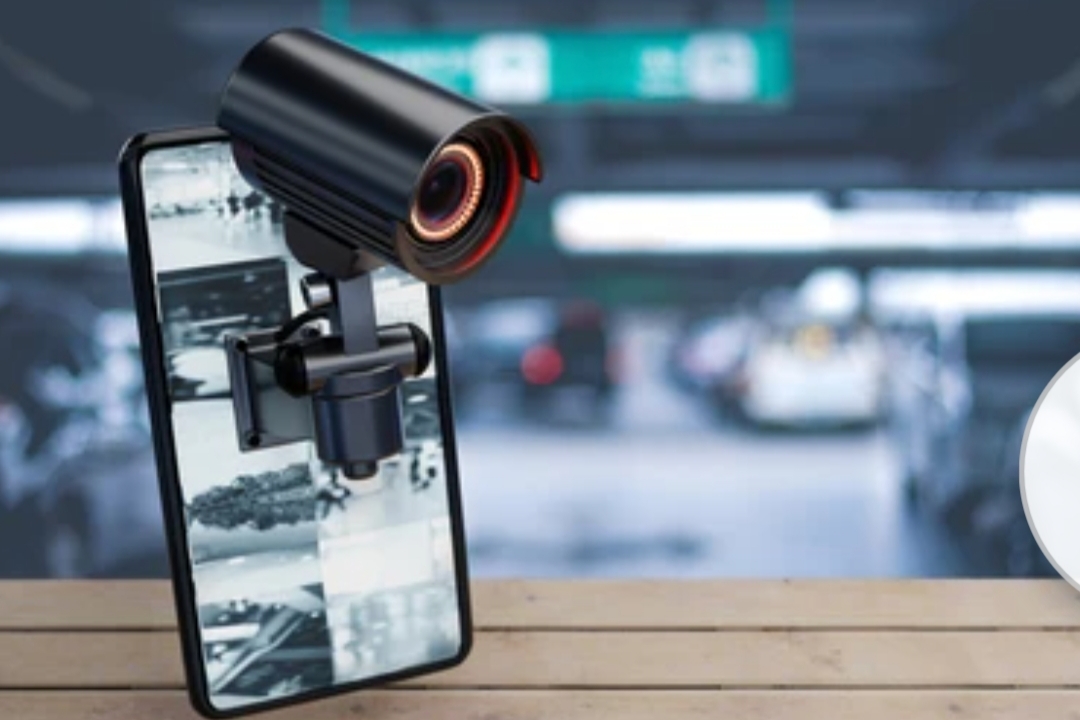
Introduction – Why You Should Turn Your Old Phone into a Smart Security Cam
In today’s fast-paced digital world, we constantly upgrade to newer, faster smartphones loaded with advanced features.
But what happens to those old devices gathering dust in drawers?
Instead of letting them go to waste, why not repurpose your old smartphone into a powerful, budget-friendly security camera?
Yes, you read that right.
With a few simple phone camera hacks, your old device can become a fully functional smart home surveillance system—no expensive hardware, no complicated installation, and no monthly subscriptions required.
🔍 If you’ve been searching for clever ways to use old phone as security cam, you’re in the right place.
This blog post is your step-by-step guide to turning forgotten devices into 24/7 home security cameras using free or low-cost apps and basic tools you already have at home.
♻️ Why Throw It Away When You Can Reuse It Smartly?
Every year, millions of smartphones are tossed aside or left idle, adding to tech waste.
But many of these older phones still come with working cameras, Wi-Fi capabilities, storage, and even motion sensors—the core essentials for a basic security system.
Rather than spending hundreds of dollars on smart cameras, why not utilize what you already own?
With some tweaks, your device can:
- Keep an eye on your front door 👀
- Watch over your pets 🐶
- Serve as a baby monitor 👶
- Or act as a secondary view inside your garage or backyard 🚪🌲
This approach isn’t just economical, it’s also eco-friendly.
You’re reducing e-waste and giving new life to tech that still has potential.
🔧 A DIY Phone Camera Hack That Actually Works
This is one of the most underrated phone camera hacks around.
Most people don’t realize that with the right apps and setup, they can get many of the same features offered by expensive security systems like Ring, Arlo, or Nest—without spending a dime.
Your old phone can provide:
✅ Live video streaming
✅ Motion alerts
✅ Cloud storage or local backups
✅ Night vision (with compatible apps)
✅ Two-way audio communication
Whether it’s an outdated Android or a no-longer-used iPhone, most smartphones made in the last 6–7 years are still capable of supporting lightweight security apps and performing as effective indoor monitoring tools.
💡 Tip: Don’t worry if your phone is cracked or the battery drains quickly—plug it in, place it in one spot, and it’s ready to become your home guardian.
💬 Common Questions People Ask Before Starting
Wondering if this is really worth your time?
Let’s address some popular questions readers often have when deciding to use old phone as security cam:
- “Can my old phone work without a SIM card?”
Yes! As long as it connects to Wi-Fi, no cellular plan is needed. - “Will it be safe from hackers?”
We’ll cover that too. You’ll learn how to secure your phone and app with strong passwords and network protection. - “What’s the best app for transforming an old phone into a surveillance camera?”
We’ve reviewed several top-rated options for both Android and iOS, including AlfredCamera, IP Webcam, and Presence. - “Can I monitor the feed from my current phone?”
Absolutely. All you need is a secondary phone or web browser to view your live stream from anywhere.
🚀 What You’ll Gain From This Guide
By the end of this post, you’ll learn:
- The exact step-by-step process to turn your device into a smart cam
- Which security apps are the best performers in 2025
- Clever setup tricks to maximize coverage and video clarity
- Smart power and placement hacks for long-term use
- How to optimize privacy and network security
- And bonus uses beyond home security (like baby monitors, pet cams, and intercoms)
This isn’t just another tech tip—it’s a transformational guide that gives you control over your home security with zero cost.
💡 Power Tip Before You Dive In:
If you have more than one old phone lying around, consider setting up multiple security cams throughout your home.
You can create a multi-room surveillance system for absolutely free!
✅ Let’s Get Started — Turn Your Old Phone into a Powerful, Free Security Cam Now!
🔐 Ready to reclaim your unused smartphone and turn it into a digital watchdog?
Grab your old device, follow the steps in this guide, and unlock a smarter, safer home—without spending a penny.
👉 Click here to download the recommended security app and get started now.
Why Turn Your Old Phone Into a Security Camera? 📱➡️🎥
In an age where smart homes are becoming the norm and home security is more important than ever, turning your old smartphone into a security camera is not just a clever hack—it’s a smart, sustainable, and money-saving decision.
Instead of tossing that device into a drawer or letting it collect dust, you can easily use an old phone as a security cam to monitor your home, office, garage, pets, or loved ones.
This section explains the key reasons why more and more tech-savvy homeowners are embracing this powerful DIY method in 2025.
🔒 1. It’s Completely Free—No Hidden Costs or Hardware Required
One of the biggest advantages of this phone camera hack is its cost-effectiveness.
Why spend $100–$300 on a smart camera when you already have a fully capable camera sitting unused?
✔️ Zero installation costs
✔️ No monthly subscription fees
✔️ Free or freemium apps available
✔️ No need to hire a technician
Most security camera brands require you to buy hardware and sign up for a subscription to access basic features like cloud storage or motion alerts.
But when you use your old phone as a security cam, you eliminate those recurring costs.
If your budget is tight or you simply want to avoid unnecessary expenses, this is the ultimate DIY home security solution.
🌍 2. Eco-Friendly & Reduces Electronic Waste
Did you know that over 150 million smartphones are discarded every year?
That’s a lot of waste piling up in landfills, with batteries and rare earth metals causing long-term environmental damage.
By repurposing your smartphone into a security device, you’re doing your part to:
- 🌱 Reduce tech waste
- 🔋 Extend the useful life of lithium batteries
- 💚 Minimize your carbon footprint
♻️ Turning your phone into a surveillance cam is one of the smartest and most responsible phone camera hacks that aligns with eco-conscious living.
🔍 3. Your Old Phone Still Has a High-Quality Camera
Just because your phone is a few years old doesn’t mean it’s useless.
In fact, many older devices from brands like Samsung, Apple, and Google still feature:
- 1080p or even 4K video recording
- Optical zoom and autofocus
- Built-in motion sensors
- Front and rear camera flexibility
- Night mode or low-light recording
These specs are comparable to many entry-level security cameras.
So rather than underestimating your device’s capabilities, unlock its full potential by using it for 24/7 surveillance.
📶 4. Works Seamlessly with Wi-Fi—No SIM Card Needed
A lot of people ask, “Do I need a SIM card for this to work?”
Not at all.
As long as your device can connect to Wi-Fi, it can serve as a security camera.
You don’t need cellular data, a phone number, or even a working speaker or mic (unless you’re using two-way audio features).
This makes the setup easy, even for users who aren’t tech-savvy.
💡 Bonus: You can place it in any room within your Wi-Fi range—even outdoors under cover.
🧠 5. Perfect for Smart Home Integration
Many of the best apps for this hack are compatible with smart home systems.
That means you can easily connect your phone cam to:
- 🗣️ Amazon Alexa or Google Assistant
- 🌐 Smart TVs or home hubs
- 🔔 Smart doorbells or external sensors
- 📲 Remote monitoring apps
Imagine getting a real-time alert on your phone the moment movement is detected on your old device—no extra hardware needed.
With voice commands like “Hey Google, show me the front door,” you can turn your smart home dream into reality using what you already own.
🧸 6. Versatile Use Cases Beyond Home Security
Once your old phone is set up as a camera, the possibilities are endless:
- 🐕 Monitor your pets while you’re at work
- 🧒 Use it as a DIY baby monitor
- 🏠 Keep tabs on the elderly or loved ones
- 💼 Watch over your garage, driveway, or workshop
- 🔐 Add extra coverage near your home’s entry points
Whether you’re at the office or on vacation, you’ll have eyes on your space from anywhere, using only your current phone or laptop to check in.
⚙️ 7. Easy to Set Up – No Technical Skills Required
Setting up an old smartphone as a security camera is a straightforward process.
If you can download an app and plug in a charger, you’ve got what it takes.
No drilling, no complicated wiring, and no confusing settings.
In the next section, we’ll walk you through exactly how to turn your device into a live-streaming security cam in minutes.
💬 Real-Life Benefits from DIY Users
Here’s what people love most about this hack:
🧠 “I used my old Galaxy S9 to monitor my backyard. It’s been running non-stop for 6 months—saved me from a package thief!”
🛡️ “With two kids and a tight budget, using our retired iPhone 8 as a baby cam was a total game-changer.”
👀 “I set mine up to monitor my Airbnb entrance. Guests don’t even realize it’s an old phone!”
⚡ So, Why Not Turn That Old Phone into a Powerhouse Security Cam Today?
Don’t let your unused smartphone become another forgotten gadget.
Instead, unlock its hidden potential and take control of your home security without spending a single cent.
👉 Download the top-rated free security cam app here and get started instantly.
Bold Move. Zero Cost. Total Control.
What You’ll Need to Get Started 🧰📱
So you’re ready to transform your old smartphone into a powerful home security camera?
Excellent choice! Before we dive into the step-by-step guide, let’s break down exactly what you’ll need to get started.
This isn’t a complicated or expensive project—you probably already have most of these essentials lying around your house.
Whether you’re setting this up in your living room, front porch, nursery, or even your garage, this checklist will ensure you’re prepared for a smooth setup.
✅ 1. An Old Smartphone (Android or iPhone) 📱
This is the core component of your DIY smart surveillance system.
Any relatively modern smartphone will do the job, as long as:
- The camera still works
- It can connect to Wi-Fi
- It can run apps from the App Store or Google Play
- The screen still functions well enough for setup
Recommended Specs:
🛠️ Android 6.0 or later (for Android users)
🛠️ iOS 12 or later (for iPhone users)
Even older models like the iPhone 6, Galaxy S7, or Google Pixel 2 can run most camera monitoring apps just fine.
💡Pro Tip: If you have multiple old phones, you can create a full home surveillance grid using just Wi-Fi and free apps.
🔌 2. A Charger or Power Bank (For Continuous Power) ⚡
Since your old phone will be running continuously, battery drain is a concern.
You’ll need to keep the phone plugged in 24/7 to ensure non-stop operation.
Here are a few reliable power options:
- ✅ Wall adapter and USB cable
- ✅ Long charging cable (to reach higher shelves or corners)
- ✅ Power bank for short-term backup or portable setups
- ✅ Smart plugs with timers (for advanced power management)
🛠️ Bonus Hack: Use a cable clip or adhesive hooks to keep cords tidy and hidden from view.
📶 3. Reliable Wi-Fi Connection 🌐
Your smartphone-turned-security cam doesn’t need mobile data or a SIM card.
It just needs to connect to your home’s Wi-Fi network.
✔️ Ensure the phone is within range of your router
✔️ Use a Wi-Fi extender if signal strength is weak in the camera location
✔️ Use a 2.4 GHz network for broader coverage (many camera apps recommend this)
🔐 Don’t forget to secure your Wi-Fi network with a strong password—this helps keep your live feed safe from hackers.
🛠️ 4. A Phone Stand or Mount (Stability is Key) 🖼️
A shaky or tilted phone won’t provide clear footage.
You can stabilize your phone using:
- 📱 Tripod or flexible phone stand
- 📎 DIY hacks (binder clips, rubber bands, cardboard)
- 🧲 Magnetic mounts
- 🔧 Wall mounts or corner shelves
📌 Placement tip: Position your phone with a wide-angle view of the space you want to monitor.
Aim near windows, doors, hallways, or entry points.
📲 5. Security Camera App (Turns Phone Into Smart Cam) 📷
Now comes the real magic.
To transform your phone into a security cam, you’ll need to install a dedicated security app that enables live streaming, motion detection, and video recording.
Here are top-rated apps for 2025 that work on most devices:
🥇 AlfredCamera – Best All-Around App
- Free and easy to use
- Offers motion detection and cloud storage
- Works on both Android and iOS
🥈 IP Webcam – Great for Android Users
- Live streaming and video recording
- Can stream over local networks
- Fully customizable
🥉 Manything – Ideal for iOS Devices
- Time-lapse recording
- Cloud backup options
- iPhone to iPhone monitoring
💡 Make sure to install the viewer app on your main phone and the camera app on the old device.
🔒 6. A Secure Cloud Storage Option (Optional but Recommended) ☁️
Some apps store footage locally, while others offer cloud storage for remote viewing and backup.
This ensures that your footage is safe, even if your phone is damaged or stolen.
Popular cloud options include:
- Google Drive
- Dropbox
- iCloud (for iPhones)
- Built-in cloud plans from camera apps
💾 Look for apps that support encrypted backups or motion-triggered cloud uploads for extra safety.
🔐 7. Strong Passwords & Network Settings (For Privacy) 🔐
Security should always be a priority.
To prevent unauthorized access, make sure to:
- Use a unique, strong password for the app
- Turn on 2-factor authentication (if supported)
- Set up your Wi-Fi with WPA2 encryption
- Disable unnecessary features like Bluetooth, screen wake, and notifications on the old phone
🧠 If your phone has facial or fingerprint unlock, disable it for always-on monitoring.
🛑 What You DON’T Need
Let’s bust a few myths.
You do not need:
🚫 A new SIM card
🚫 A mobile service plan
🚫 Expensive hardware
🚫 Monthly subscriptions (unless you choose premium cloud storage)
This entire setup can be done for free or under $10, depending on whether you need a mount or long charging cable.
🚀 Quick Checklist to Get Started
✅ Old smartphone (with working camera & Wi-Fi)
✅ Charging cable or power source
✅ Mount or stand for phone placement
✅ Reliable home Wi-Fi
✅ Free security app (like Alfred or IP Webcam)
✅ Viewer device (main phone or computer)
✅ Optional: Cloud storage and strong passwords
🎯 Ready to Set Up? Here’s What to Do Next
You now have everything you need to use your old phone as a security cam that works like a pro system.
Now it’s time to set it up step by step and start monitoring your space like a tech-savvy home security expert.
Step-by-Step Guide: Turning Your Phone into a Security Camera 🛠️📸
Turning your old smartphone into a powerful, 24/7 home surveillance device is easier than you think.
With just a few simple steps, you can use your old phone as a security cam and enjoy features like motion detection, night vision, remote monitoring, and even real-time alerts—completely free.
Below is the ultimate step-by-step guide to walk you through the process from start to finish.
Whether you’re a total beginner or just looking to upgrade your home security on a budget, this section is your go-to resource.
We’ll also sprinkle in some smart phone camera hacks and expert tips to get the most out of your setup.
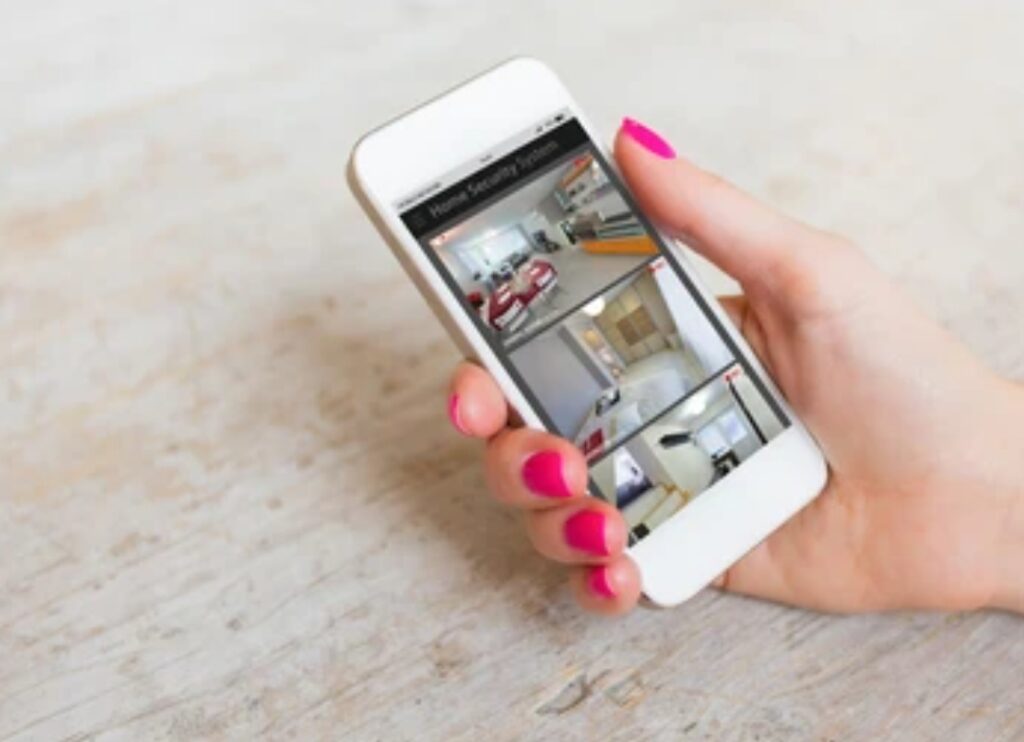
🧩 Step 1: Prepare Your Old Smartphone for the Task
Before installing anything, make sure your old phone is ready for long-term operation.
Here’s what to do:
- 🔋 Fully charge the phone before starting
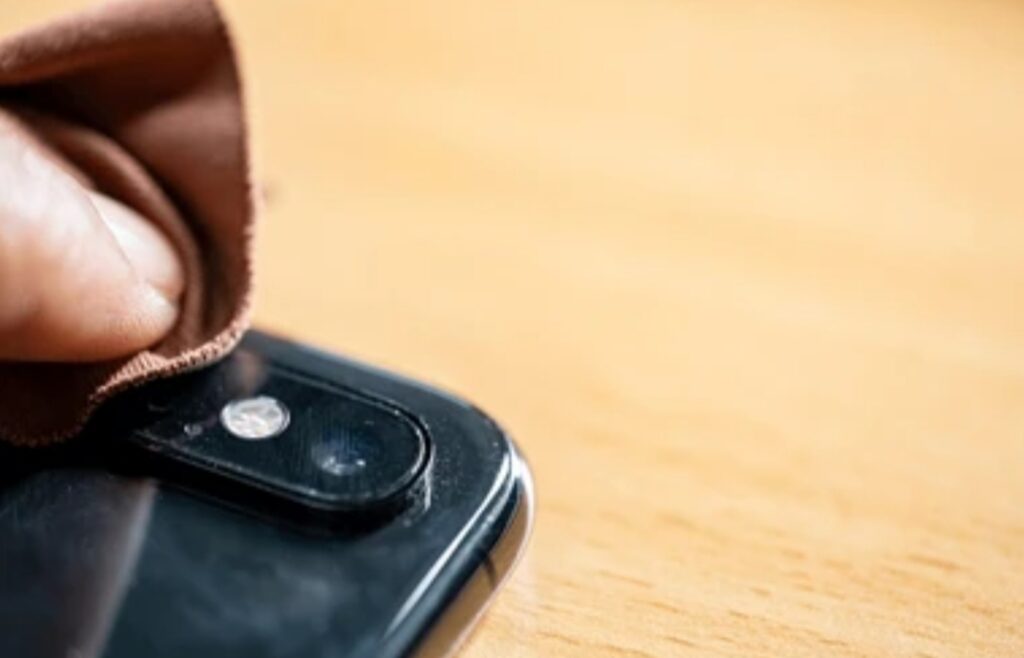
- 🧽 Wipe the screen and lens for clear video
- 🛠️ Reset the device to factory settings (optional, but ensures better performance)
- ⚙️ Disable any unnecessary apps or updates that could drain the battery
- 📴 Turn on Airplane Mode and manually reconnect Wi-Fi to reduce interruptions
- 🌙 Enable Do Not Disturb Mode to avoid distracting notifications
📌 This helps the phone run smoothly with minimal power usage.
📥 Step 2: Download a Security Camera App
Now it’s time to install the app that will transform your phone into a surveillance camera.
Recommended Free Security Apps in 2025:
🔹 AlfredCamera – Best Overall
- Works on both Android & iOS
- Offers motion detection, live streaming, night vision
- Cloud storage and two-way audio
- Easy setup and user-friendly interface
🔹 IP Webcam (For Android Users)
- Turns Android phone into an IP camera
- Streams locally or over the internet
- Compatible with VLC or any browser
🔹 Manything (For iOS users)
- Remote live viewing
- Motion alerts
- Timelapse and cloud options
🛠️ Installation Tips:
- Install the app on both your old phone (camera device) and your current phone (viewer device).
- Sign in using the same account on both devices.
- Grant all requested permissions (camera, microphone, storage, etc.)
🎯 Step 3: Configure Camera Settings for Optimal Performance
Each app has slightly different settings, but here are key features to enable:
📷 Camera Mode on the Old Phone:
- Turn on motion detection
- Enable continuous streaming or recording
- Adjust camera quality to suit your Wi-Fi speed (480p–1080p)
- Turn on infrared or night vision if supported
- Activate battery saver mode or dim the screen brightness
- Optional: Set recording schedules (e.g., only at night)
📱 Viewer Mode on Your Main Phone:
- Enable real-time notifications for motion events
- Choose cloud backup or save recordings locally
- Set up two-way audio to communicate via phone mic
- Add multiple cameras if you’re using more than one device
🔐 Set a strong password or enable two-factor authentication for added security.
🔌 Step 4: Set Up Power Source and Mount Your Phone
You don’t want your DIY cam to die mid-recording.
Here’s how to ensure continuous power and ideal placement:
🔋 Power Setup:
- Use a reliable USB cable and wall adapter
- Secure cable using clips or adhesive hooks
- Optional: Use a smart plug to automate on/off schedules
🖼️ Camera Mounting:
- Mount on high shelves, bookshelves, or corners for wide-angle views
- Use tripods, magnetic mounts, or even DIY stands
- Ensure the camera faces doorways, hallways, or windows
📸 Keep the lens clean and avoid direct sunlight to prevent glare.
🔁 Step 5: Test the Live Feed and Motion Alerts
Before leaving it running 24/7, do a full test:
- Walk in front of the camera and test motion detection
- Review footage quality during day and night
- Test notifications on your main device
- Check for any delay or Wi-Fi lag
💡 Adjust camera angle, sensitivity, or resolution as needed for better performance.
🌍 Step 6: Access Your Security Camera Remotely from Anywhere
Once it’s up and running, you can monitor your space from:
- 📱 Your primary phone
- 💻 Your tablet or desktop
- 🌐 Any web browser that supports your app
With apps like AlfredCamera, you can even record clips, zoom, speak to people, or view a timeline of motion-triggered events—just like with a premium surveillance system.
💾 Bonus: Save Footage for Evidence or Peace of Mind
Most apps allow you to:
- Save recordings to the cloud or phone storage
- Share clips directly via email, text, or social media
- Set auto-delete timelines for older videos
🔐 Important: Always back up important footage, especially in case of incidents like package theft or break-ins.
🧠 Pro Tips & Smart Hacks to Maximize Performance
Here are some advanced phone camera hacks for serious DIYers:
- Use an external lens attachment for wider or zoomed-in views
- Mount the phone behind one-way mirror film for discreet surveillance
- Add a motion-activated smart light for better night visibility
- Use Tasker (Android) or Shortcuts (iOS) to automate camera features
🚨 Common Mistakes to Avoid
❌ Don’t rely on battery power alone
❌ Avoid poor Wi-Fi spots
❌ Don’t place camera behind thick glass—it can interfere with motion sensors
❌ Don’t leave personal data on the phone without factory resetting it
🚀 You Did It! You’re Now a DIY Security Pro
You’ve just created a custom security system using nothing but your old phone, Wi-Fi, and a free app.
No cables. No contracts. No complications.
This powerful setup allows you to:
- Monitor your home remotely
- Deter intruders
- Protect your family and property
- Save hundreds of dollars
👉 Install AlfredCamera or your preferred app now and complete your smart home transformation.
🔥 Why wait for a break-in to start protecting your home?
⚡ Bold Move, Zero Cost—Turn your phone into a smart security cam today!
Best Apps to Use for Phone Security Camera Setup (Free & Paid Options) 📲💡
Once you’ve decided to use your old phone as a security cam, the next crucial step is choosing the right app that turns your smartphone into a fully functioning surveillance system.
Whether you’re looking for free options with essential features or paid apps with premium capabilities, there’s an app tailored for your needs.
This section covers the top-rated, up-to-date apps in 2025 that offer powerful phone camera hacks, real-time alerts, remote access, motion detection, cloud backup, and more.
Let’s explore the best options for both Android and iOS, so you can pick the one that fits your setup perfectly.
🏆 1. AlfredCamera – Best All-In-One App (Free + Premium) 🎥
Compatibility: Android & iOS
Price: Free with optional premium plan
User Rating (2025): ★★★★☆ 4.7/5
Why It’s the Best:
AlfredCamera is the most popular choice for DIY home surveillance and for good reason.
It’s user-friendly, cross-platform, and packed with features—making it a go-to phone camera hack for beginners and pros alike.
Core Features:
- Live video streaming
- Two-way audio
- Motion detection and instant alerts
- Night vision (with screen brightening trick)
- Cloud storage or local recording
- Easy viewer/camera pairing
Premium Perks:
- HD resolution
- Zoom function
- Longer cloud video storage
- Scheduled recording
Perfect For:
Anyone wanting a no-hassle, plug-and-play solution to repurpose an old phone as a smart cam.
Get AlfredCamera here 🔗
📡 2. IP Webcam – Advanced Flexibility for Android Users
Compatibility: Android
Price: Free (Pro version available)
Best For: Tech-savvy users, LAN streaming, integration with desktop software
IP Webcam transforms your Android phone into a streaming IP camera, accessible via browsers or third-party software like VLC.
Unlike other apps, it lets you stream directly over Wi-Fi without needing to log in or connect to the cloud—great for those who value local-only solutions.
Key Features:
- Local and remote video streaming
- Motion detection
- Integration with surveillance software (e.g., Blue Iris, ZoneMinder)
- Supports MJPEG and RTSP protocols
- Audio recording and web server access
🛠️ Ideal if you’re building a DIY security network across multiple devices.
📱 3. Manything – Best for iOS and Cloud Recording Lovers
Compatibility: iOS
Price: Free trial; subscription required for cloud storage
Use Case: Home surveillance with flexible plans
Originally developed for “monitoring anything”, Manything lets iPhone users turn old devices into cloud-connected smart cameras.
It offers a clean interface, smart alerts, and time-lapse features.
Top Features:
- Continuous recording or motion-triggered
- Cloud or local video storage
- View from multiple devices
- Time-lapse creation
- Secure encryption
Perfect For:
Apple users who want professional-grade remote access and off-site backups.
📌 Downside: Limited to iOS and not as feature-rich on the free tier.
🔐 4. AtHome Camera – Great for Multi-Device Surveillance
Compatibility: Android, iOS, Windows, Mac
Price: Free (with ads) or Premium
Unique Advantage: 360° remote control (for compatible devices)
If you’re managing multiple rooms or even a small office, AtHome Camera is a solid option.
It offers powerful remote access features and lets you connect multiple old phones into one seamless system.
Features You’ll Love:
- Motion detection
- Two-way talk
- Scheduled recording
- Remote PTZ control (if device supports it)
- AES encryption for video transmission
- Face recognition (in premium)
Best For:
Users looking to create a multi-room monitoring setup or add webcams from laptops/desktops into the mix.
💡 5. Presence – Perfect for Home Monitoring with Automation
Compatibility: iOS & Android
Price: Free with in-app purchases
Known For: Smart home integration and monitoring tools
Presence is a clean, reliable option with automation-friendly features.
It not only lets you turn old devices into security cameras but also allows you to connect smart plugs, sensors, and other IoT devices.
Core Features:
- Instant video alerts
- Custom rules and automations
- Works with smart home gadgets
- Free video storage
- Upgradeable storage options
Best Use Case:
Smart home enthusiasts who want a centralized security+automation hub.
💼 6. WardenCam – Focused on Cost-Efficiency and Simplicity
Compatibility: Android & iOS
Price: Free trial, then one-time fee
Highlight: Works on 2G, 3G, LTE, and Wi-Fi
WardenCam is perfect for those who want simple setup, low cost, and offline recording options.
It saves files locally or to cloud storage like Google Drive or Dropbox—ideal for those who prefer to manage their own backups.
Key Features:
- Remote access anytime
- Works across all network types
- Save to personal cloud
- Night vision
- Event logging
📌 No monthly fees after one-time app purchase.
💬 Comparison Table: Quick App Overview
| App Name | Platform | Best Feature | Price | Ideal User |
| AlfredCamera | Android/iOS | Best all-in-one setup | Free/Paid | Most users |
| IP Webcam | Android | Advanced local streaming | Free | Tech-savvy DIYers |
| Manything | iOS | Cloud time-lapse & alerts | Paid | iPhone users |
| AtHome Camera | All Devices | Multi-cam & encryption | Free/Paid | Home & office setups |
| Presence | Android/iOS | IoT integration | Free/Paid | Smart home lovers |
| WardenCam | Android/iOS | Cloud + local saving | Low-cost | Budget-conscious users |
🧠 How to Choose the Right App for You
Choosing the right app depends on:
🔍 Your phone’s OS: Android vs iOS
🔍 Your internet speed & router range
🔍 How much footage you want to store (local vs cloud)
🔍 Whether you need advanced features like night vision, zoom, or remote pan/tilt
If you’re just starting out, we recommend starting with AlfredCamera, as it strikes the perfect balance between ease-of-use and functionality.
🔐 Pro Tip: Look for These App Features
When picking your app, make sure it supports:
✔️ Motion detection alerts
✔️ Two-way communication
✔️ Cloud or local storage
✔️ Multi-camera support
✔️ Strong security protocols (SSL encryption, two-factor login)
📦 Your Old Phone Just Became a Home Security Super Tool
By installing one of these top-rated apps, you’ve unlocked the full potential of your old smartphone.
You’ve now got a tool that can:
- Monitor pets, kids, packages, or your front door
- Record suspicious activity
- Provide peace of mind while you’re away
👉 Click here to install AlfredCamera or WardenCam and start securing your home right now!
🔥 Power Move: Turn yesterday’s tech into today’s protection—with ZERO monthly fees.
Where and How to Place Your Phone Camera for Maximum Coverage 🏠📷
One of the most underrated yet critical aspects of setting up a phone as a security camera is camera placement.
Even the most powerful apps and high-definition lenses won’t be effective if your camera is positioned in the wrong location.
If you truly want to maximize the benefits of using an old phone as a security cam, proper placement ensures you’re capturing wide angles, minimizing blind spots, and deterring intruders before they even step foot on your property.
Let’s break down exactly where and how to mount your old smartphone camera for optimal home protection.
🧭 Strategic Locations to Place Your Phone Security Camera
Choosing the right location is the foundation of good surveillance.
Here are the most effective zones:
🔓 Entry Points (Front Door, Back Door, Garage)
- These are the primary access areas for burglars.
- A visible phone camera here not only records activity but acts as a powerful deterrent.
- Mount it above the door, angled downward to capture faces and packages.
- Use a clip-on mount, old tripod, or smartphone wall bracket for stability.
📍 Pro Tip: Place it near a power outlet so you can keep the phone plugged in 24/7.
🪟 Windows Facing the Street or Backyard
- Windows are often overlooked—but they’re common entry points for break-ins.
- Place your phone on a window ledge or stick-on suction mount, facing outward.
- Angle it diagonally to capture movement without intense glare.
- Use privacy glass film if you want to monitor the outside discreetly.
🛋️ Living Room or Hallways
- These are high-traffic areas within your home.
- Great for monitoring kids, pets, or activity when you’re away.
- Use a tabletop stand or hide the phone among books for a stealthy indoor setup.
- Avoid pointing directly at bright windows to reduce overexposure.
🛏️ Baby Room or Elderly Care Area
- Want to repurpose your old phone into a baby monitor or elder cam?
- Mount it on a bookshelf, crib rail, or top corner of the room.
- Use an app with night vision and two-way audio to check in or speak with them.
📌 Make sure the camera is secure and stable—especially in rooms with small children.
🔋 Backyard, Porch, or Driveway
- For outdoor use, your phone needs protection from weather and theft.
- Install it behind a window or inside a weatherproof phone case
- Elevate the phone to a second-floor window or roof eave to monitor driveways and garages.
- Combine with motion-activated lights for nighttime visibility.
⚠️ Note: Most smartphones aren’t rated for outdoor exposure. Always use a sealed mount.
🔧 Tips to Maximize Visibility and Avoid Blind Spots
Now that you’ve picked the perfect spots, let’s talk about the technical tips that enhance surveillance:
🛠️ Use Landscape Mode, Not Portrait
- Landscape gives a wider field of view, capturing more of your space.
- Most apps auto-adjust, but locking the orientation ensures consistent framing.
🌐 Keep It Close to Wi-Fi Router
- A strong signal means less buffering, clearer video, and fewer missed alerts.
- Test the location with your current phone before fixing the old one in place.
🎯 Point Toward Key Areas, Not Wide Empty Spaces
- Focus on doorways, valuables, or walkways—not blank walls.
- A tighter frame on a door is better than a blurry overview of an entire room.
🔋 Power Supply Is Essential
- Keep your phone plugged in using a high-quality charger to avoid battery swelling.
- Use power timers or smart plugs to automatically reboot and prevent lag.
💡 You can even repurpose a solar panel charger for near-window placements.
🕵️♂️ How to Hide or Camouflage Your Old Phone for Discreet Monitoring
If you want to secretly monitor activity, here are stealthy phone camera hacks to consider:
- Hide it behind a photo frame or inside a hollowed-out book.
- Use mirror window film for one-way viewing.
- Mount the phone inside a stuffed animal for nursery cams.
- Place the phone between indoor plants for natural disguise.
🔒 Security cameras work better when intruders don’t see them.
✅ Camera Placement Checklist Before You Hit Record
✔️ Test the angle using the live stream before finalizing placement
✔️ Avoid direct sunlight or bright background that causes glare
✔️ Make sure the camera is not blocked by curtains, glass smudges, or decor
✔️ Secure the mount so the phone doesn’t slip over time
✔️ Double-check Wi-Fi signal strength and test motion alerts
💬 Why Smart Placement Makes All the Difference
Improper placement could mean the difference between catching a trespasser or missing them entirely.
By thoughtfully placing your phone with a clear view, good lighting, and stable power, you’ve now created a pro-grade security camera setup—without spending hundreds.
👉 Ready to level up? Get the perfect mount or weatherproof case here
🚀 Turn Your Old Phone into a Surveillance Powerhouse Today!
Don’t let your old device gather dust in a drawer.
Use your old phone as a security cam by placing it smartly, mounting it securely, and pairing it with the right app.
You’ll instantly gain peace of mind—whether you’re at work, on vacation, or just out for the night.
🔒 Click here to start your DIY security camera setup now!
🔥 Hack Your Home Security—One Phone at a Time.
Powering and Maintaining Your Phone Camera Setup for Long-Term Use 🔋🔧
Once you’ve positioned your old smartphone perfectly as a home surveillance device, your job isn’t over yet.
If you want your setup to run smoothly 24/7 without interruptions, it’s essential to focus on power management, maintenance, and long-term reliability.
Using your old phone as a security cam is more than just a clever tech hack—it’s a smart investment in home safety.
But like any long-term solution, it needs care and the right accessories to stay functional.
Let’s dive into the tools, tips, and hacks to keep your DIY security camera running like a pro, without the risk of shutdowns, overheating, or degraded performance.
🔌 Reliable Power Supply—The Backbone of 24/7 Phone Surveillance
🔋 Keep It Plugged In with a High-Quality Charger
- Avoid relying on the battery alone. Most phone batteries aren’t made to run live video feeds for hours.
- Use a certified fast-charging cable and charger that supports continuous power supply.
- A cheap charger can lead to slow charging, overheating, or even fire hazards over time.
📌 Look for UL-certified or OEM power bricks for safety and efficiency.
🔌 Hide the Power Cable Neatly
- Use cable organizers or adhesive clips to keep wires discreet and safe from pets or kids.
- For outdoor use, invest in weatherproof cable covers or tuck cables under siding or eaves.
🧰 A clean cable setup also helps avoid accidental unplugging or wear over time.
🌞 Consider Solar Charging for Near-Window Setups
- A small solar panel charger near a window can offer eco-friendly and unlimited power.
- Ideal for off-grid setups like garages, sheds, or balconies.
- Just make sure the panel gets consistent sunlight and the phone isn’t overheating from direct rays.
🧊 Prevent Overheating for Long-Term Performance
Smartphones aren’t built like traditional security cams—so heat management is key for safety and device longevity.
❄️ Avoid Direct Sunlight Exposure
- If the phone is facing a window or used outdoors, place it behind UV-filtering film or shade it with a small cover.
- Sunlight can cause your phone to shut down or degrade battery health over time.
🌬️ Use a Mini Fan or Cooling Pad (Optional)
- Especially helpful if your phone runs hot during peak hours or while streaming HD video.
- A small USB-powered fan or laptop cooling pad can improve airflow and reduce temperature.
🧼 Maintain Your Phone Camera Setup Monthly 🧽📱
Consistency is the secret to reliable security. Here’s your easy upkeep checklist:
🗓️ Monthly Maintenance Checklist
✔️ Clean the camera lens with a microfiber cloth to avoid blurry footage
✔️ Restart the phone weekly to clear cache and refresh performance
✔️ Test motion detection and alert settings monthly
✔️ Check for app updates to ensure compatibility and new features
✔️ Inspect cables and mounts for wear, looseness, or fraying
💾 Manage Storage and Cloud Backup
- Most security apps offer cloud backup, but space is limited.
- Regularly check cloud logs and delete outdated footage or upgrade plans as needed.
- If you’re saving footage locally, consider a 128GB+ SD card (if your phone supports it) or set auto-delete after X days.
🔐 Bonus: Some apps allow remote wiping in case your phone is stolen.
🧠 Pro Tips for Long-Term DIY Phone Camera Reliability
These small habits make a big difference over time:
- Keep the screen turned off to save battery and avoid burn-in
- Use a dark wallpaper or screen dimming app if the screen must stay on
- Turn off unnecessary apps and notifications to avoid background drain
- Enable “Do Not Disturb” mode to stop pop-ups from disrupting your video feed
- Enable “Developer Mode” to disable auto-updates or background services that slow down the phone
🚨 Signs It’s Time to Upgrade or Replace Your Phone Camera Setup
Even the best setups wear out. Watch for these red flags:
- 🔻 Video feed is lagging or frequently freezing
- 🔋 Battery won’t hold charge even when plugged in
- 🌡️ Phone shuts down from overheating too often
- 📱 Security app crashes or doesn’t receive updates anymore
When these happen, it might be time to repurpose another phone or switch to a more modern solution.
⚡ Keep Your DIY Security Cam Running Strong—Without the Fuss!
Your DIY home security system is only as strong as its long-term performance.
By powering your phone smartly and maintaining it like a pro, you’ll enjoy round-the-clock surveillance without spending a dime on subscription services or expensive cameras.
🔧 Take control of your home’s safety—without relying on traditional systems!
👉 Click here to grab the best charging kits and phone cooling pads for a hassle-free experience.
Your phone isn’t just a device anymore—it’s your new digital watchdog. 🐾📱
Tips for Optimal Performance 🛠️📱
Now that you’ve set up your old phone as a security cam, it’s time to fine-tune it for maximum reliability, speed, and quality.
After all, the last thing you want is blurry footage, app crashes, or missed alerts when it matters most.
Whether you’re monitoring your front porch, your pets, or your baby’s room, these performance-boosting tips will help your phone camera system run like a pro—for weeks, months, or even years.
These insights are not just hacks—they’re smart optimizations that make your DIY setup rival commercial-grade security systems.
Let’s explore how to get crystal-clear video, real-time alerts, and smooth operation from your trusty old smartphone.
📶 Boost Wi-Fi Signal for Smooth Streaming
One of the biggest culprits of lagging video or app crashes? Weak Wi-Fi.
A strong internet connection is the backbone of any home security camera system, especially when streaming live footage or receiving motion alerts.
📡 Tips to Strengthen Wi-Fi:
- Move your router closer to your camera location
- Add a Wi-Fi range extender or mesh network node near your phone cam
- Avoid placing the phone near metal, walls, or appliances that can block signals
- Use 5GHz networks for faster speeds (if your old phone supports it)
💡 A weak signal can lead to dropped connections and delayed alerts—fixing this improves everything instantly.
🎥 Adjust Camera Settings for Clarity & Efficiency
Most camera apps let you tweak settings like resolution, frame rate, and night mode.
Optimizing these can reduce storage use, conserve bandwidth, and enhance clarity.
⚙️ Recommended Camera Settings:
- Set resolution to 720p or 1080p (balance between clarity and data use)
- Enable night vision or infrared (if supported by the app)
- Turn off audio recording if not needed to save bandwidth
- Use frame rate of 15–24 fps for smooth yet efficient video
- Keep auto-focus and exposure settings on
👀 These small changes prevent your phone from overloading, overheating, or draining too quickly.
🔋 Conserve Battery & Prevent Overheating
Even if your phone is plugged in, constant performance can wear it down fast.
To maintain long-term health and avoid shutdowns:
❄️ Battery-Saving & Cooling Tips:
- Use a dark theme or black wallpaper to reduce screen power usage
- Disable background apps and location services
- Place the phone in a well-ventilated area, away from direct sunlight
- Add a small USB fan or use a passive cooling stand
- Turn off screen mirroring or unnecessary animations
📌 If your phone keeps overheating, try lowering video resolution or turning off unnecessary camera features.
🔄 Restart and Update Regularly
Like any tech device, your phone benefits from regular resets and updates.
Doing this keeps everything fast, bug-free, and protected.
🔁 Best Practices:
- Restart your phone once a week to clear memory and cache
- Update your camera app to the latest version for bug fixes and features
- Clear old footage regularly if saving locally
- Check the camera lens for dust or smudges that can affect image quality
💡 Set a reminder to perform a quick monthly checkup—it takes 5 minutes and can prevent major issues later.
🛡️ Secure Your Connection and Device
To avoid unauthorized access or privacy risks, keep your security system locked down.
🔐 How to Protect Your Setup:
- Use camera apps with end-to-end encryption
- Always create a strong password and change it regularly
- Use two-factor authentication where available
- Keep the device on a secured Wi-Fi network—avoid public hotspots
- If saving data in the cloud, ensure the service has good privacy policies
🔒 Your security system should protect you—not become a target for hackers.
📱 Use Dedicated Security Apps for Better Control
Not all camera apps are created equal.
Some are designed for casual monitoring—others offer professional-grade features for free or at a low cost.
🏆 Top-Recommended Apps:
- AlfredCamera – user-friendly, cloud storage, motion detection
- IP Webcam – turn your phone into an IP camera for remote access
- Manything – cloud recording, smart alerts, two-way audio
- WardenCam – supports Google Drive, Dropbox backup
- Haven – built for privacy, ideal for high-security needs
📱 Choosing the right app means better alerts, more reliable feeds, and added security.
⚡ Optimize for Peace of Mind—Not Just Performance!
You’ve made a genius move by using your old phone as a security cam—but now it’s time to take it up a notch.
By applying these smart tips, you’ll not only get better performance, but you’ll also gain more peace of mind, knowing your DIY setup is as solid as a professionally installed system.
👉 Discover top-rated camera accessories and cooling pads for optimal setup now!
Don’t settle for “just working”—make your old phone work like a pro!
Start optimizing today and experience next-level security with what you already have. 🧠📱
Security and Privacy Considerations 🔒📱
While transforming your old phone into a security cam is a smart and budget-friendly move, it’s absolutely essential to keep your data, footage, and privacy safe from potential threats.
Many DIY users overlook this critical step—leaving their homes and personal information exposed to hackers, data leaks, and digital snooping.
But not you.
You’re here to do it the right way.
Below, you’ll find powerful, actionable tips to make sure your phone camera hack doesn’t backfire—giving you true security instead of a false sense of it.
Let’s protect your setup like a digital fortress 🛡️.
🔐 Use Trusted Security Camera Apps Only
Not all camera apps are created equal.
Many free apps harvest your footage or personal data, or lack encryption altogether.
✅ What to Look For in a Camera App:
- End-to-end encryption of video and audio streams
- Clear and transparent privacy policies
- Regular security updates
- Good user reviews and high app store ratings
- Offline/local storage options (not everything has to go to the cloud!)
📱 Recommended Secure Apps:
- AlfredCamera
- IP Webcam
- Haven (designed by Edward Snowden’s team!)
- WardenCam
💡 Never install shady apps from unknown developers. Always download from the Google Play Store or Apple App Store.
🔒 Set Strong Passwords for Both Device & App
One of the easiest ways for attackers to gain access is through weak or reused passwords.
🧠 Best Practices for Password Security:
- Use a unique, complex password for your phone and security app
- Include uppercase, lowercase, symbols, and numbers
- Never reuse your email or social media passwords
- Use a password manager like Bitwarden or 1Password
👁️ Also, avoid naming your camera something obvious like “living room cam”—that’s giving away too much info!
🛑 Disable Unused Permissions and Features
The more permissions an app has, the more it can access.
Some may use your camera or mic even when you’re not monitoring anything.
📵 Privacy Tips:
- Go to your phone’s settings and revoke unnecessary permissions (like contacts, location, etc.)
- Disable background microphone access unless needed
- Turn off auto-upload to third-party cloud services if you don’t need remote storage
- Use Airplane Mode + Wi-Fi when the device is only for camera use
💡 This reduces the app’s digital footprint and protects your privacy.
🧰 Keep the Device Updated and Secure
Even old phones still receive critical updates (at least for a while).
Always keep your system secure with:
- Latest OS updates
- Security patches from the manufacturer
- Updates to your security camera app
📌 If your phone no longer receives updates from the manufacturer, consider using it on a closed Wi-Fi network only—or installing a custom, lightweight ROM like LineageOS for better privacy.
📤 Be Careful with Cloud Storage
Cloud storage makes it easy to save footage remotely, but it also opens doors for data breaches and unauthorized access.
🛡️ Safer Cloud Practices:
- Choose cloud services with zero-knowledge encryption
- Always enable two-factor authentication (2FA)
- Set automatic deletion after a certain time to reduce data retention
- Encrypt videos before uploading, if storing sensitive footage
🕵️ When possible, save footage locally to an SD card or NAS system for more control.
📊 Monitor Logs and Activity Regularly
Security isn’t “set it and forget it.”
Keep an eye on your setup to ensure nothing suspicious is happening behind the scenes.
👁️ Things to Watch:
- App login attempts or device activity
- Access history—see if there were any unauthorized logins
- Bandwidth usage—sudden spikes could signal something unusual
- Cloud storage access logs
📅 Set a reminder to review everything once a week or at least monthly.
🚨 Use a Guest Network for Extra Isolation
This is a pro tip that boosts your entire home’s digital safety.
If your router allows it, set up a separate Wi-Fi network just for your phone cam.
This way, if something happens to the camera, your main devices (like your laptop, smart TV, or phone) remain safe.
✅ Benefits:
- Reduces risk of cross-device hacking
- Keeps IoT devices from talking to sensitive devices
- Prevents malicious apps from spreading
🔌 Label it something like “CamNet” and only connect your old phones or smart cameras to it.
📣 Take Control of Your Privacy—Don’t Compromise Your Security!
Your old phone can become a powerful security tool, but only when used wisely.
Don’t let a few simple oversights expose your home to digital threats.
👉 Upgrade your security with encrypted apps, privacy accessories, and secure storage options.
Be smart. Be safe. And be in control of your home security—every step of the way. 🔒📱
Pros and Cons of Using a Phone Camera as a Security Cam 📱✅❌
Repurposing an old smartphone as a home security camera is a clever and resourceful idea that’s quickly gaining popularity.
Not only does it save money, but it also gives new life to devices that might otherwise sit in drawers collecting dust.
But just like any tech solution, it comes with trade-offs.
To help you make an informed decision, let’s dive into the advantages and limitations of using your phone camera for home security.
This is crucial if you want to weigh the real-world practicality of using an old phone as a security cam in your home, office, or even as a baby monitor or pet cam.
✅ The Benefits of Using a Phone Camera for Home Security
💰 1. Cost-Effective Alternative to Expensive CCTV Systems
Why spend hundreds on new cameras when you already have a capable device at home?
Using a smartphone eliminates the need to purchase pricey surveillance equipment.
- No need to buy new hardware
- Most apps offer free basic monitoring
- Reduce e-waste by repurposing tech
💡 A perfect low-cost solution for renters, students, and homeowners on a budget.
♻️ 2. Eco-Friendly and Sustainable Choice
Reusing your old devices contributes to reducing electronic waste, making it an environmentally conscious decision.
🌍 Help the planet while protecting your home!
📲 3. Feature-Rich Mobile Apps Enhance Usability
Many modern camera apps offer:
- Live video streaming
- Motion detection
- Two-way audio
- Cloud or local recording
- Alerts and notifications
You can customize alerts and access your camera remotely—often for free or at a low cost.
🔌 4. Flexible Placement and Portability
Unlike fixed cameras, smartphones can be easily repositioned or mounted in different locations using simple tools like phone stands or tripods.
Need to move it from the living room to the front porch? No problem!
📷 5. High-Quality Camera Capabilities
Many older smartphones still have decent 8MP to 12MP cameras with HD or even 4K video.
With night vision features and high-resolution recording, you’re getting a solid visual feed comparable to mid-range IP cameras.
🧠 6. Easy DIY Setup with No Technical Knowledge Needed
Forget complicated installations or hiring technicians.
With apps like AlfredCamera or WardenCam, setup is plug-and-play.
Great for beginners or those who want fast, hassle-free monitoring.
❌ The Drawbacks to Consider Before Converting Your Old Phone
🔋 1. Battery Drain and Overheating Issues
Constant recording or live streaming can overwork your phone’s hardware, leading to:
- Rapid battery degradation
- Device overheating
- Long-term damage if not cooled or unplugged occasionally
💡 Pro tip: Use cooling stands and turn off non-essential features.
📶 2. Wi-Fi Dependency Can Be Limiting
If your Wi-Fi signal isn’t strong in certain parts of your home, the video feed may lag, or alerts may not arrive in real time.
This can compromise your home security—especially in larger homes or multi-level properties.
🔓 3. Security and Privacy Risks
Using third-party apps or unsecured cloud storage can expose your personal data or footage to potential breaches.
If not properly encrypted, your camera stream might be accessible to hackers.
👀 Always use apps with strong privacy protocols and enable two-factor authentication.
♻️ 4. Wear and Tear on Old Devices
Most old phones aren’t designed for 24/7 operation.
Extended use as a security camera can:
- Reduce battery lifespan
- Cause hardware failures
- Lead to touch screen burn-in (if screen is on continuously)
📦 5. Limited Field of View
Unless your phone has a wide-angle lens or is paired with an add-on, it may not cover as wide an area as purpose-built home security cameras.
You might need multiple phones for complete coverage, which can be impractical.
🔧 6. Storage Limitations
Phones generally have limited onboard storage.
If you’re not using cloud backups or external storage, you’ll need to manually delete old footage frequently to keep things running.
🧾 Quick Summary Table: Pros vs. Cons
| Pros | Cons |
| Cost-effective setup | Battery & overheating issues |
| Eco-friendly & sustainable | Wi-Fi dependent |
| Powerful app features | Privacy/security concerns |
| Portable and flexible | Wear and tear on old device |
| High-quality video | Limited field of view |
| Simple DIY setup | Storage limitations |
🚀 Ready to Make the Most of Your Old Phone?
If you’re looking for a clever, low-cost way to monitor your home, using your old phone as a security cam is an incredible solution.
You now know the phone camera hacks, the upsides, and the potential limitations.
👉 Shop for mobile tripods, wide-angle lenses, and secure app recommendations now!
Maximize your old device’s potential—and start monitoring smarter today.
FAQs – Everything You Need to Know About Using an Old Phone as a Security Cam 📱❓
Got questions about how to use your old phone as a security cam? You’re not alone!
Below are the most commonly asked questions (and honest answers) to help you make an informed decision and avoid common mistakes.
These FAQs are designed to give you clarity, save you time, and help you get the most out of your phone camera hacks.
Let’s dive in 👇
1. Can I use any old phone as a security camera?
Yes, most smartphones made in the last 5–7 years can be converted into functional security cameras.
You’ll need:
- A working rear or front camera
- Wi-Fi capability
- A compatible operating system (Android 6.0+ or iOS 11+ preferred)
- The ability to install third-party camera apps
💡 Even budget Android phones often work great with lightweight apps like AlfredCamera or IP Webcam.
2. Does the phone need to be connected to Wi-Fi all the time?
Yes, if you want real-time video streaming, motion detection alerts, or remote access to your live feed, your phone must stay connected to Wi-Fi.
🛑 No Wi-Fi = no live monitoring.
However, for local recording, some apps allow offline use with footage saved to internal storage or an SD card.
3. Is it safe to use free security camera apps?
It depends.
Some free apps are safe and trustworthy—others aren’t.
Here’s what to look for in a safe app:
- End-to-end encryption
- Good reviews and ratings (4.0+ stars)
- Transparent privacy policy
- Frequent updates
- No excessive permissions
✅ Trusted free options include AlfredCamera, WardenCam, and Haven.
Avoid apps that request access to unnecessary features like contacts or SMS.
4. Can I still use the phone for other things while it’s acting as a camera?
Technically yes, but not recommended.
When running as a dedicated security cam, the phone should be focused entirely on monitoring.
Running other apps (YouTube, games, etc.) may:
- Interrupt the video stream
- Overheat the phone
- Drain the battery faster
💡 Treat the device as a single-use gadget for better reliability.
5. What’s the best way to mount the phone for stable footage?
Here are popular mounting options:
- Tripod with phone mount
- Wall-mounted holders (with 360° rotation)
- Flexible arms for shelves or windows
- DIY methods using clamps, zip ties, or 3D-printed stands
Position your phone near power outlets and within a strong Wi-Fi range for uninterrupted use.
🧠 Pro Tip: Use a wide-angle lens attachment for better room coverage.
6. Will the phone overheat or get damaged over time?
Yes, if not managed correctly.
Old phones running 24/7 can overheat, especially if recording HD video or exposed to direct sunlight.
To prevent damage:
- Use a cooling stand or pad
- Turn off unnecessary apps and features
- Keep screen off when not needed
- Use low-res video settings if possible
- Give the device rest time (or scheduled downtime)
7. Can I access the camera feed when I’m away from home?
Absolutely!
Most camera apps allow remote access via your smartphone or desktop.
You can:
- Watch the live feed
- Review recordings
- Get real-time alerts for motion or sound
Just make sure your old phone stays connected to Wi-Fi and the app is running in the background.
🔒 Also, use 2FA login to prevent unauthorized access.
8. Is it legal to use a phone as a home security camera?
Yes, as long as:
- You are monitoring your own property
- You are not recording audio or video in private areas without consent (e.g., bathrooms, bedrooms of guests)
- You follow local laws related to surveillance and privacy
📌 Be especially cautious if using it in shared spaces like apartments or offices.
9. How do I store the recordings—cloud or local?
You have two main options:
🗂️ Local Storage:
- Saves footage directly on your device or SD card
- Doesn’t require internet to store files
- Gives you full control over data
☁️ Cloud Storage:
- Accessible from anywhere
- Offers backups in case the phone is stolen
- Requires strong security to avoid hacks
Many apps let you choose between both.
Pick based on your storage needs, privacy concerns, and internet bandwidth.
10. Can I use multiple old phones together as a camera system?
Absolutely!
In fact, this is a popular phone camera hack among DIY security enthusiasts.
Apps like AlfredCamera allow multi-device pairing, so you can monitor:
- Front door
- Living room
- Garage
- Backyard—all from one account
👁️ The more phones you use, the wider the coverage you get—without buying a single camera!
📣 Still Have Questions? We’ve Got You Covered!
If you’re serious about getting started, we’ve built a full guide just for you.
👉 Check out our step-by-step setup guide, recommended gear, and app comparisons here!
Turn your old phone into a modern home security powerhouse today.
Final Thoughts – Is Turning Your Old Phone into a Security Cam Worth It? 🧠🔐
If you’ve ever found yourself wondering what to do with your old smartphone, here’s your answer: give it a second life as a smart, budget-friendly home security solution.
With just a few simple tools and the right app, you can transform a once-forgotten gadget into a powerful, DIY surveillance camera that rivals many off-the-shelf systems.
Not only is this one of the most underrated phone camera hacks, but it’s also one of the most eco-conscious, cost-effective, and tech-savvy decisions you can make in today’s digital world.
Why This Hack Just Makes Sense in 2025 💡📲
Let’s face it—modern security cameras can be expensive, and managing multiple devices often means buying into complex ecosystems or cloud subscriptions.
But when you choose to use your old phone as a security cam, you’re:
- Saving money
- Reducing e-waste
- Customizing your own smart home setup
- Staying protected—without paying a premium
You’re essentially turning yesterday’s tech into today’s home security powerhouse.
And that’s a smart move, especially if you value convenience, control, and sustainability.
The Key Takeaways 📌
Let’s wrap this up with a quick recap:
✅ Old smartphones can be repurposed into full-fledged security cameras with minimal setup.
✅ You’ll need a reliable phone, power source, strong Wi-Fi, and a trusted camera app.
✅ Apps like AlfredCamera, WardenCam, and Manything offer real-time streaming, cloud storage, and motion alerts.
✅ You’ll benefit from portability, customization, and a virtually free smart security solution.
✅ Be mindful of privacy settings, storage space, and long-term wear on your device.
Is It Right for You?
If you’re looking for a low-risk, high-reward way to upgrade your home security—this hack is for you.
It’s especially ideal for:
- Renters
- Parents
- Pet owners
- Small business owners
- Anyone with an unused phone and a desire to feel safer at home
So don’t toss that old device just yet—it’s got one more job to do.
🚀 It’s Time to Turn Your Old Tech Into Smart Protection
Still holding on to that extra phone in your drawer? Let’s put it to work.
👉 Download a top-rated security camera app now and start monitoring your space in minutes.
Don’t waste tech—transform it.
Your phone may be old, but your home security doesn’t have to be.
🔒 Ready to level up your home security without spending a dime? Get started now!
You might also like :