
Keywords: Google Assistant tricks, voice command tips
Introduction 🗣️ Your Voice-Powered Time Saver Starts Here
In today’s fast-paced world, time is your most valuable asset.
Whether you’re juggling work, errands, or family responsibilities, finding ways to automate repetitive tasks and streamline your daily routine is essential for staying productive and stress-free.
That’s where Google Assistant steps in — your intelligent voice-powered sidekick designed to help you get more done in less time, using just your voice.
From managing schedules to controlling smart home devices, the possibilities are nearly endless.
With just a few simple voice command tips, you can reclaim hours of your day — all without lifting a finger.
If you’ve ever wondered how to use Google Assistant to make your life easier, or you’re searching for the most effective Google Assistant tricks, you’ve landed in the right place.
This guide will walk you through 10 powerful ways to use this smart assistant to speed up your daily routine, boost your productivity, and simplify your life with ease.
✨ Whether you’re an Android enthusiast, a smart home owner, or just someone looking to get more done — learning these voice-powered hacks can change how you handle everyday tasks.
We’ll also sprinkle in practical tips, examples, and expert suggestions so you can implement each strategy immediately.
No fluff. No outdated advice. Just actionable, up-to-date content that works right now.
✅ What You’ll Discover in This Post:
- Real-life Google Assistant time-saving tricks used by productivity pros
- Practical voice command tips you can start using today
- Easy ways to manage your life hands-free
- Automation insights for smart homes, calendars, and routines
- Bonus: Insider tips for boosting productivity with voice assistants
Using Google Assistant effectively goes beyond asking it for the weather or playing your favorite song.
With the right approach, it becomes a digital life assistant that helps you:
- Organize your day
- Control your environment
- Save brainpower for what really matters
Think of it like having a personal virtual assistant in your pocket — always available, always listening, and always ready to help.
And the best part?
Most of these tricks are built-in and completely free. 🎉
No need for paid apps or complicated setups.
All you need is a Google-enabled device (like your smartphone, smart speaker, or smart display) — and the willingness to say a few words out loud.
📌 Pro Tip:
If you’re ready to stop wasting time on repetitive tasks and start using your voice to take control of your day — bookmark this post now or save it to your favorite productivity board.
You’ll want to come back to these voice assistant hacks again and again.
💡 Start Here. Save Time Instantly.
In the sections that follow, you’ll discover the top 10 Google Assistant tricks to save time every day — plus extra voice command tips, smart home automation ideas, and life-changing routines that can transform how you live and work.
Let’s dive in and unlock the power of your voice. 🚀
Ready to take control of your time like a productivity ninja?
Don’t just read — start implementing these tips TODAY! 🔥
📝 Create and Manage Daily To-Do Lists with Google Assistant
If you ever feel like your mind is cluttered with tasks, reminders, and responsibilities, you’re not alone.
Managing daily to-dos can quickly become overwhelming, especially when juggling work, home life, and errands.
That’s why one of the most underrated yet powerful Google Assistant tricks is using voice commands to instantly create and manage your daily to-do lists.
Instead of fumbling with apps or sticky notes, you can now delegate your task management to Google Assistant — using nothing but your voice.
This trick not only helps you stay organized, but it also frees up mental space, allowing you to focus on more important things.

🔊 Voice Command Tips to Get Started:
Here are a few helpful and time-saving voice command tips to start managing your daily tasks with ease:
- “Hey Google, add ‘buy groceries’ to my to-do list”
- “Hey Google, what’s on my to-do list today?”
- “Hey Google, remove ‘call plumber’ from my list”
- “Hey Google, mark ‘email Sarah’ as done”
All of these commands are designed to reduce your reliance on screens and keep your productivity flowing smoothly.
You can even sync tasks across multiple devices using Google Tasks, Google Keep, or third-party apps like Any.do or Todoist — making your assistant even more powerful.
✅ Why This Google Assistant Trick is a Game-Changer:
Using Google Assistant to manage your daily tasks offers several benefits:
- 🕐 Saves Time Instantly: No more typing out your tasks or navigating cluttered apps.
- 💬 Hands-Free Convenience: Add or check tasks even while driving, cooking, or working out.
- 🔁 Boosts Productivity: Keeps your to-do list top of mind and easy to access.
- 🔗 Seamless Syncing: Works across all your connected devices via Google ecosystem.
You can even ask:
“Hey Google, remind me to submit my report at 4 PM” — and it will appear in both your reminders and daily task view.
This makes it perfect for:
- Busy professionals
- Students
- Remote workers
- Stay-at-home parents
- Anyone looking to streamline their productivity using voice automation
🛠️ Pro Tips for Task Management with Google Assistant:
- Create multiple lists: Say, “Create a grocery list” or “Create a work tasks list” to organize by category.
- Use recurring tasks: Set up recurring to-dos with commands like, “Remind me to water the plants every Tuesday at 8 AM.”
- Integrate with Google Calendar: Link your Assistant to Google Calendar so your tasks align with your schedule.
- Review daily: Ask “What are my tasks for today?” every morning to keep your goals in check.
These simple Google Assistant tips can save you minutes every day — which adds up to hours every week.
📌 Expert Suggestion:
If you really want to level up your productivity, consider setting up a daily check-in routine like this:
👉 “Hey Google, start my daily planning” — which can trigger:
✅ Reading today’s tasks
✅ Reviewing calendar events
✅ Giving weather and traffic updates
✅ Even reading motivational quotes!
This one custom routine alone can transform how you start your day. ✨
💡 Bonus Tip: Add Urgency to Your To-Dos
When adding tasks, you can also add time-specific reminders like:
“Remind me to send the proposal before 2 PM today” or “Add ‘finish blog outline’ to today’s list at 5 PM.”
These micro-deadlines keep you more focused and less likely to procrastinate.
🛍️ Don’t Forget the Shopping List Trick:
Yes — your Assistant can also manage your shopping lists!
Simply say:
“Hey Google, add milk and eggs to my shopping list.”
When you’re in the store, just ask:
“Hey Google, what’s on my shopping list?” — and it’ll read it out to you.
Perfect for hands-free shopping trips or when you forget your paper list at home.
✨ Final Thoughts on Task Management:
Using Google Assistant for to-do lists may sound simple at first, but it’s one of the most impactful, time-saving habits you can develop.
Instead of letting tasks slip through the cracks or spending precious minutes fiddling with apps, you’re now one command away from full control of your day.
So if you’re ready to crush your goals, reduce stress, and stay laser-focused — let Google Assistant be your personal task manager.
Don’t wait until tomorrow — start building your voice-powered to-do list right now.
Say “Hey Google…” and take back control of your time today! 🔥
⏰ Set Timers and Reminders Hands-Free with Google Assistant
In a world full of distractions, staying on top of your schedule can be a real challenge.
From meetings to meal prep, it’s easy to forget small but important tasks.
But with Google Assistant, you can now set timers and reminders in seconds — completely hands-free.
This is one of the most practical Google Assistant tricks for staying organized and maximizing productivity.
Just say a few words, and your Assistant takes care of the rest.
No more fumbling through your phone or forgetting important things.
🔊 Top Voice Command Tips to Try Immediately:
Here are some powerful, real-life voice command tips you can use to set reminders and timers on the go:
- “Hey Google, remind me to drink water every 2 hours”
- “Hey Google, set a timer for 25 minutes” (perfect for Pomodoro technique users)
- “Hey Google, remind me to call mom at 6 PM”
- “Hey Google, cancel all my timers”
- “Hey Google, what are my reminders for today?”
These simple commands can instantly boost your time management game, whether you’re working, cooking, studying, or resting.
✅ Why Voice-Controlled Timers and Reminders Are Game-Changing:
Google Assistant doesn’t just remind you — it empowers you to stay focused, act on time, and reduce decision fatigue.
Here’s how:
- 🧠 Memory Offload: You no longer have to remember everything — your Assistant does that for you.
- 🙌 Hands-Free Control: Perfect while your hands are busy (cooking, driving, working out).
- 📱 Cross-Device Sync: Works on your phone, smartwatch, smart speaker, and even on Android Auto.
- 💡 Increased Productivity: Keeps you on schedule and avoids mental distractions.
Whether it’s a one-time reminder or a repeating one, Google Assistant ensures you never miss what matters most.
🧠 Pro Tip: Use Recurring Reminders to Build Habits
If you’re trying to build better habits (like drinking more water, exercising, or taking screen breaks), recurring reminders can help.
Try commands like:
- “Remind me to stretch every hour”
- “Remind me to review goals every morning at 8 AM”
- “Remind me to take vitamins at 9 PM every day”
This powerful voice command trick turns your Google Assistant into a habit coach that keeps you consistent.
⏱️ Productivity Hack: Use Timers with the Pomodoro Technique
Working in short bursts is proven to increase productivity and reduce burnout.
With Google Assistant, you can implement this method using just your voice:
- “Hey Google, set a timer for 25 minutes” → Focus session
- “Hey Google, set a timer for 5 minutes” → Short break
- Repeat this 4x, then take a longer break.
This simple trick can help boost your productivity levels naturally — without the need for complex apps or distractions.
🛠️ Customize Reminders with Context
Did you know you can add context to your reminders?
Try these advanced voice command tips:
- “Remind me to email Sarah when I get home” (uses location-based triggers)
- “Remind me to check laundry in 30 minutes”
- “Remind me to pick up dry cleaning next Tuesday at 11 AM”
Using context-based reminders ensures you never forget a task just because your mind is elsewhere.
🛍️ Shopping, Appointments & Birthdays? Covered.
One of the most useful Google Assistant tricks is remembering important events you’d usually forget:
- “Remind me to buy John a birthday gift next Friday”
- “Remind me of my dentist appointment next month on the 10th at 2 PM”
- “Remind me to pay the electric bill on the 28th”
Set it once and forget it — your voice assistant has you covered.
💡 Bonus Tip: Get Reminder Notifications on All Devices
To make sure you never miss anything:
➡️ Enable notifications on your Google Assistant app, smart display, and smartwatch.
This way, you’ll get reminders wherever you are — even on the go.
It’s perfect for busy people who need a seamless reminder system that works across devices.
🔒 Is It Safe? Yes.
Your reminder and timer data is securely stored in your Google account and only accessible by you.
You can view, edit, and delete your reminders anytime using:
- Google Assistant
- Google Calendar
- Google app
So you can use these voice-powered tricks with full peace of mind.
🧠 Real-Life Use Cases You’ll Love:
- Use reminders to take screen breaks while working on your computer
- Set multiple kitchen timers while cooking different dishes
- Create bedtime routines with reminders for skincare, water intake, or winding down
- Set workout interval timers using just your voice
- Remind yourself to unplug after work with scheduled shutdown alerts
✨ Final Thoughts on Timers and Reminders:
Setting timers and reminders with Google Assistant might sound basic, but it’s one of the most impactful tools you can use to save time and reduce mental overload.
Whether you need help staying on track, sticking to habits, or remembering important details — Google Assistant is like a personal accountability partner that never forgets.
Why rely on memory when your voice assistant can do it all for you?
Try setting a voice reminder right now — and experience hands-free time management at its best. 🧠⏰
🏡 Control Smart Home Devices Efficiently Using Google Assistant
Welcome to the future — where your voice can dim the lights, lock your doors, play music, or even start your coffee maker.
Thanks to Google Assistant, controlling your smart home devices has never been easier — or faster.
This is more than just a convenience; it’s a lifestyle upgrade.
By integrating smart gadgets with your Assistant, you can save time, reduce manual effort, and enjoy a seamless, automated experience in your home.
If you’re looking for Google Assistant tricks that go beyond the basics, this one’s a game-changer.
📱 What Can Google Assistant Control in Your Smart Home?
With a simple “Hey Google,” you can command hundreds of compatible devices, including:
- Smart lights (Philips Hue, Govee, Nanoleaf)
- Thermostats (Nest, Ecobee)
- Smart plugs and switches
- Security cameras and doorbells
- Smart TVs and speakers
- Robot vacuums
- Garage door openers
- Coffee machines, fans, air purifiers, and more
Whether you’re turning on the lights or adjusting your thermostat, Google Assistant voice command tips can save you from dozens of manual actions every day.
🔊 Voice Command Tips for Smart Home Control:
Here are some time-saving, real-world voice commands you can use:
- “Hey Google, turn on the living room lights”
- “Hey Google, set the thermostat to 72 degrees”
- “Hey Google, start the robot vacuum”
- “Hey Google, lock the front door”
- “Hey Google, is the garage door open?”
- “Hey Google, turn off all lights” (perfect for bedtime)
These commands give you complete control of your home environment, hands-free.
No switches. No apps. No wasted time.
✅ Benefits of Using Google Assistant for Smart Home Automation:
Controlling your smart home with Google Assistant isn’t just cool — it’s highly practical and productivity-enhancing.
Let’s break down the key benefits:
- 🕒 Save Time Daily: Eliminate multiple manual actions throughout the day.
- 🧘 Enhance Comfort: Adjust lighting, temperature, and ambiance with ease.
- 🔐 Improve Security: Use voice to check locks, doors, or view security feeds.
- 🛏️ Simplify Bedtime: Create a routine that turns off lights, locks doors, and lowers the thermostat — all with one command.
- 🌍 Accessibility Boost: Especially helpful for seniors or people with disabilities who need hands-free control.
These are just some of the Google Assistant automation tips that can transform your home into a smarter, safer, and more comfortable space.
🛠️ Set Up Google Assistant with Your Smart Devices (Quick Guide)
To start using this Google Assistant trick, follow these quick steps:
- Open the Google Home app on your smartphone
- Tap “+ Add Device”
- Choose your smart device’s brand or manufacturer
- Follow the on-screen steps to connect
- Assign the device to a specific room (optional but helpful for group commands)
- Start using your voice commands!
Once connected, all your devices are available by voice — even from your phone or smartwatch when you’re away.
🧠 Pro Tips to Maximize Smart Home Efficiency:
- Create Device Groups: Group devices by room for one-command control. E.g., “Turn off all bedroom lights.”
- Set up Custom Routines: Say “Good morning” and trigger multiple actions like lights on, coffee brewed, thermostat set.
- Use Geofencing: Automate actions based on your phone’s location. For example, “Turn on porch lights when I arrive home.”
- Schedule Device Actions: Set times to auto-turn on/off appliances — great for energy saving!
💡 Sample Smart Home Routine with Google Assistant:
Here’s an example of a daily morning routine you can set up:
Say: “Hey Google, good morning”
It triggers:
☀️ Lights turn on gradually
🎶 Soft music or news plays
🌡️ Thermostat adjusts
🗓️ Calendar events read aloud
🧠 Morning motivation quote
This powerful combo saves you 5–10 minutes every morning, improves your mood, and helps you start your day right.
🛡️ Security-First Automation Ideas:
Want peace of mind? Let your voice assistant help.
Try commands like:
- “Hey Google, arm the security system”
- “Hey Google, show me the front door camera”
- “Hey Google, turn on away mode”
You can also receive notifications or set automated lights while you’re away to make your home appear occupied.
This adds another layer of security without lifting a finger.
✨ Final Thoughts on Smart Home Control:
Controlling your smart home using Google Assistant isn’t just futuristic — it’s highly efficient, time-saving, and surprisingly easy.
Once you integrate a few devices and build voice habits, you’ll wonder how you ever lived without it.
Whether you’re looking to automate your evening routine, save energy, or just make life more convenient, this is one of the best voice command tricks available today.
Stop wasting time flipping switches and pressing buttons.
Start automating your life today — one voice command at a time.
Try setting up your first smart routine now! 🔌🏠
🚗 Get Real-Time Traffic and Commute Updates Instantly with Google Assistant
Whether you’re heading to the office, picking up the kids, or running late to a meeting, nothing kills your momentum like unexpected traffic.
Fortunately, one of the smartest Google Assistant tricks is its ability to give you real-time traffic and commute updates — hands-free and instantly.
Instead of opening multiple apps or browsing for directions, just ask your Assistant and get instant insights on traffic conditions, ETAs, roadblocks, or even public transport delays.
This simple feature can save you minutes — or even hours — every week.
🔊 Voice Command Tips to Use Right Now:
These voice command tips will help you get started with commute tracking and navigation:
- “Hey Google, what’s the traffic like to work?”
- “Hey Google, how long will it take to get to location?”
- “Hey Google, what’s the best route home?”
- “Hey Google, avoid tolls on the way to downtown”
- “Hey Google, is there traffic on Highway 101?”
- “Hey Google, directions to the nearest gas station”
You’ll get accurate, up-to-date info pulled from Google Maps and Waze — right in your ear or on your screen.
✅ Why This Google Assistant Trick Saves You More Than Just Time:
Using Google Assistant for commute info offers more than just convenience:
- 🚦 Stay Ahead of Traffic Jams: Avoid slowdowns with instant route recommendations.
- ⏱️ Cut Down on Delays: Get the fastest possible route based on real-time conditions.
- 📱 Hands-Free and Safe: Perfect for use in the car via Android Auto or a smart display.
- 🌍 Global Reach: Works for cars, bikes, walking, and public transit in most countries.
- 📍 Personalized Commute Info: Google learns your routines and gives automatic updates on your regular routes.
Just one quick command — and you’ve got everything you need to travel smarter.
🛠️ How to Set Up Your Daily Commute with Google Assistant
Want even more power?
Set your home and work addresses so your Assistant can predict your commute and alert you automatically.
Here’s how to do it:
- Open the Google Assistant or Google app
- Go to Your Places in settings
- Set your Home and Work addresses
- Enable Commute Notifications
- Now say:
- “What’s my commute look like today?”
- Or create a morning routine that tells you weather + commute + calendar
- “What’s my commute look like today?”
This simple setup can make your mornings significantly more efficient.
🧠 Pro Tips for Smarter Commutes:
- Create a Routine:
Say, “Hey Google, start my commute” and get:
✅ Weather
✅ Traffic
✅ Directions
✅ Calendar summary
✅ News or podcast playback - Use Android Auto:
If your car supports Android Auto, Google Assistant becomes your ultimate co-pilot — reading messages, navigating routes, playing music, and more.
All without touching your phone. - Try Public Transit Mode:
Ask things like:
- “What time is the next train to KL Sentral?”
- “When is the next bus to my house?”
Great for city travelers and commuters.
- “What time is the next train to KL Sentral?”
🚨 Real-Life Time-Saving Examples:
Here’s how people use this in daily life:
- Busy executives ask for traffic on the way to meetings
- Parents check school route traffic before school drop-off
- Freelancers on the go ask for directions to client sites
- Remote workers get alerts if there’s heavy traffic before appointments or errands
- Travelers quickly ask for nearby fuel stations or airports without typing
Each use case proves that Google Assistant helps you travel smarter, not harder.
🌟 Bonus Tip: Location-Aware Alerts
Want Google Assistant to notify you before traffic becomes a problem?
Enable location-based alerts or say:
“Hey Google, notify me if there’s traffic on my commute tomorrow morning at 7 AM.”
Google will automatically alert you when it’s time to leave early.
✨ Final Thoughts on Real-Time Traffic Tips
Using Google Assistant for commute and traffic updates is one of the fastest ways to cut down on daily delays, eliminate stress, and travel confidently.
Whether you’re navigating unfamiliar cities or just trying to avoid the morning jam, this feature gives you control, speed, and safety — all in one voice command.
Stop wasting precious time in traffic.
Ask Google Assistant for your commute update before you leave — and take the smartest route every time. 🚦📍
🌞 Automate Your Morning Routine with Google Assistant
Let’s face it — mornings are hectic.
From hitting snooze to rushing out the door, it’s easy to start your day feeling overwhelmed and behind.
But what if you could automate your entire morning routine with just one voice command?
That’s exactly what Google Assistant lets you do.
By setting up a custom routine, you can trigger a series of actions that streamline your morning and help you start the day right — all without lifting a finger.
This is one of the most underrated Google Assistant tricks that saves time, boosts productivity, and helps you stay focused.
🔊 Voice Command Tips to Kickstart Your Day:
With one simple command like “Hey Google, good morning”, you can activate a customized chain of events such as:
- 📅 “Read my schedule for today”
- ☀️ “Tell me the weather”
- 🔔 “List my reminders and to-do tasks”
- 🎵 “Play calming music or my favorite podcast”
- 💡 “Turn on the bedroom lights”
- 🌡️ “Set the thermostat to 72 degrees”
- 📲 “Turn off Do Not Disturb mode on my phone”
These voice command tips let you move from bed to brilliance without touching your phone.
✅ Why Automating Your Morning Routine Matters:
Starting your day with structure and clarity has powerful benefits:
- 🧠 Mental Clarity: No more decision fatigue first thing in the morning
- ⏱️ Saves 10–20 Minutes Daily: Everything happens automatically
- 🏃 Boosts Momentum: You start your day with focus, not chaos
- 🎯 Builds Habits: Repeating the same sequence reinforces positive morning routines
- 📲 Hands-Free Convenience: Stay off your screen while your Assistant does the work
If you want to feel less rushed and more intentional, automating your morning routine is a powerful first step.
🛠️ How to Set Up a Morning Routine in Google Assistant
Setting this up takes just a few taps:
- Open the Google Home or Google Assistant app
- Go to Routines under Settings
- Tap the “+” to create a new routine
- Choose a trigger phrase like:
- “Hey Google, start my day”
- “Hey Google, morning routine”
- “Hey Google, start my day”
- Add actions:
- Weather update
- Calendar overview
- Play news or music
- Adjust smart home settings
- Set device volume
- Weather update
- Save your routine and test it!
You now have a personal morning assistant ready to roll with one voice command.
🧠 Pro Tips for Next-Level Morning Automation
Want to make your routine even more powerful?
Here’s how:
- Add Affirmations: Include “read a daily affirmation” to boost your mindset
- Set Different Routines by Day: Customize weekday and weekend routines
- Play a Playlist: Add Spotify or YouTube Music to energize your morning
- Trigger with Alarms: Link your morning routine to your wake-up alarm
- Add News Briefings: Stay informed while making coffee or getting dressed
These small additions can make your morning feel inspiring, structured, and productive — not rushed and reactive.
🌟 Sample “Power Morning” Routine with Google Assistant
Here’s what a real-world, productivity-focused morning routine might look like:
Voice Trigger: “Hey Google, good morning”
Your Assistant will:
✅ Turn on lights in bedroom and kitchen
✅ Read today’s calendar events
✅ Give you a weather forecast
✅ List your Google Tasks or reminders
✅ Play motivational Spotify playlist
✅ Start coffee maker using smart plug
✅ Remind you of important emails or calls
You’ve just eliminated 7–8 manual steps — and set your day up for success.
💡 Bonus Tip: Don’t Forget Multiple Routine Types
Google Assistant allows you to create different routines based on:
- Time of day
- Your voice command
- Device location
- Even when you dismiss your alarm
This means you can create routines for:
- Waking up
- Leaving home
- Coming back from work
- Going to bed
It’s one of the most flexible voice assistant tools for automating real life.
✨ Final Thoughts on Automating Your Morning
Your morning sets the tone for your entire day.
If you start in a rush, you often stay rushed.
But if you start with structure and calm, your day flows with confidence.
By automating your morning with Google Assistant routines, you can save time, reduce stress, and take back control of your mornings.
Even just one custom routine can give you a powerful productivity boost — no apps, no typing, just your voice.
Ready to revolutionize your mornings?
Create your first voice-activated routine today and turn chaos into calm — all before breakfast. 🌅☕
📞 Send Texts and Make Calls Without Touching Your Phone Using Google Assistant
Imagine being able to send a quick message or make a hands-free phone call — without unlocking your device, opening any apps, or lifting a single finger.
With Google Assistant, this is not just possible — it’s effortless.
Whether you’re driving, cooking, walking, or simply multitasking, this is one of the most practical Google Assistant tricks that helps you stay connected while staying focused.
In a world where productivity is king, being able to communicate quickly using only your voice is a power move.
🔊 Voice Command Tips to Communicate Hands-Free
Here are some real-life voice command tips that will save you time and keep you connected:
- “Hey Google, send a text to Sarah: I’ll be there in 15 minutes”
- “Hey Google, call Mom on speaker”
- “Hey Google, send a WhatsApp message to Jake: Meeting is rescheduled to 3 PM”
- “Hey Google, dial business name near me”
- “Hey Google, make a video call to John using Duo”
- “Hey Google, read my last message”
With these simple commands, you can communicate on the go, stay productive, and avoid the distractions of opening messaging apps.
✅ Why You Should Use Google Assistant for Communication
Here’s why this feature is a must-use time-saver:
- 🚗 Perfect for Driving: Use Android Auto or just your voice while keeping both hands on the wheel
- 📲 No App Hassle: Skip the app switch — Assistant handles it for you
- 🗨️ Multi-Platform Compatible: Works with SMS, WhatsApp, Telegram, Google Duo, and more
- ⏱️ Saves Seconds (That Add Up): Skip typing entirely and send messages faster
- 🧘 Stay Focused: No need to break your flow when working, cooking, or exercising
This makes it one of the top productivity-focused voice command tricks available today.
🛠️ How to Set It Up (If You Haven’t Yet)
To start using Google Assistant for calls and messages:
- Open your Google Assistant app
- Tap your profile picture > Assistant Settings
- Go to “Communications”
- Enable Personal Results
- Sync your default messaging apps (e.g., SMS, WhatsApp, Telegram)
- Grant permissions for microphone, contacts, and message access
Done! Now you can send messages and make calls hands-free from any compatible device.
🧠 Pro Tips for Communication Efficiency:
- Use Nicknames: Assign contacts nicknames so it’s easier to say: “Call My Boss”
- Choose the Default App: Set your preferred messaging app (e.g., “Always use WhatsApp”)
- Ask to Read Back: After sending, say “Read my last message” to confirm
- Use Speaker Option: Add “on speaker” at the end of your voice command for hands-free audio
- Handle Missed Calls: Ask “Do I have any missed calls?” or “Who called me last?”
These small tweaks help you communicate smarter and faster, without the distractions or danger of screen interaction.
🔒 Privacy and Safety Matters
Concerned about privacy?
Your Assistant only sends messages or makes calls when triggered by your voice.
Also, any message previews or call logs are stored securely, and you can delete voice history anytime from your Google Account activity settings.
So you’re in full control.
📱 Use It with Smart Devices & Android Auto
This Google Assistant trick works not just on phones, but also on:
- Smart speakers with voice match
- Smart displays like Nest Hub
- Wear OS smartwatches
- Android Auto systems in vehicles
Which means you can communicate from any device in your ecosystem, wherever you are.
🌟 Real-Life Scenarios You’ll Love:
Here’s how real users save time every day:
- Drivers use it to call clients safely on the road
- Parents send school pick-up updates without putting down the baby
- Remote workers send project updates via WhatsApp while walking
- Cooks text dinner plans while prepping ingredients
- Elderly users call emergency contacts without touching devices
These aren’t just features — they’re life enhancers.
✨ Final Thoughts on Voice-Powered Communication
If you’re still typing out messages or flipping through contact lists manually — stop.
Your time is too valuable.
Let Google Assistant handle it with speed and precision.
By mastering this trick, you can communicate more efficiently, stay hands-free, and reduce screen time — all with the power of your voice.
It’s productivity, redefined.
Next time you need to send a message or make a call, don’t type — talk.
Try it now: “Hey Google, text my team I’ll be there in 10.” 📲💬
🌍 Quickly Find Information or Translate On-the-Go with Google Assistant
Ever been in a situation where you need quick answers, fast translations, or real-time help — but don’t have the time to search manually?
This is where Google Assistant becomes your pocket genius.
One of the most powerful and time-saving Google Assistant tricks is its ability to instantly answer questions, solve problems, and translate languages — all through simple voice commands.
Whether you’re traveling, shopping, studying, or just curious — this feature delivers instant, accurate results hands-free.
🔊 Voice Command Tips to Get Fast Info or Translations:
Here are some highly practical voice command tips to save time and stay informed wherever you are:
- “Hey Google, how do you say ‘thank you’ in Japanese?”
- “Hey Google, what’s the capital of Argentina?”
- “Hey Google, convert 50 dollars to euros”
- “Hey Google, what’s the weather like in London right now?”
- “Hey Google, who is the president of South Korea?”
- “Hey Google, what’s 256 times 74?”
- “Hey Google, how many calories are in a banana?”
These voice queries give you immediate results, which is especially helpful when multitasking, learning, or traveling.
✅ Why This Trick Is a Must-Use in Daily Life
Using your Assistant to gather information or translate saves time and expands your capabilities in seconds.
Here’s how:
- ⏱️ Save Minutes Per Search: No more opening tabs, typing, or scrolling
- 🌐 Multilingual Help: Perfect for travelers, students, and international shoppers
- 📚 Quick Knowledge Boost: Great for learning new things while walking, driving, or cooking
- 📱 Totally Hands-Free: Ideal for when you’re on-the-go or have no time to type
- 🤯 Context-Aware: Assistant understands what you’re asking, even with natural phrasing
This isn’t just a trick — it’s a real productivity superpower.
🧠 Pro Tips for Getting Better, Faster Answers
Make the most of this feature with these expert tips:
- Ask Follow-Up Questions: Assistant remembers context. E.g.,
- “Who’s the president of France?”
- Then ask: “How old is he?”
- “Who’s the president of France?”
- Use Measurement Conversions: Great for cooking or shopping:
- “Convert 2 tablespoons to teaspoons”
- “How many inches in 6 feet?”
- “Convert 2 tablespoons to teaspoons”
- Ask for Definitions:
- “Define cognitive dissonance”
- “What does pragmatic mean?”
- “Define cognitive dissonance”
- Use It As a Translator:
- “Translate ‘I love you’ into French”
- “How do you say ‘Where is the restroom?’ in Spanish?”
- “Translate ‘I love you’ into French”
- Speak the Foreign Phrase:
- “What does ‘Gracias’ mean?”
- Assistant translates it back for you.
- “What does ‘Gracias’ mean?”
These features are perfect for students, travelers, and anyone who needs fast, reliable info without switching apps.
🛠️ Use It in Real-Time Situations Like:
- Shopping abroad: Ask for currency conversions or product translations
- Learning: Use it while studying new topics or preparing for a quiz
- Cooking: Quickly convert units without pausing to search manually
- Commuting: Ask trivia or facts during your morning drive
- Casual Conversations: Impress friends with quick facts or correct pronunciations
This trick helps you turn voice searches into instant results, no typing needed.
🌐 Bonus: Use Interpreter Mode for Live Conversations
Google Assistant has a built-in interpreter mode — ideal for real-time translation between you and someone speaking another language.
Just say:
“Hey Google, be my interpreter for French”
Then speak — Google translates live and speaks back in the selected language.
Perfect for:
- Tourists
- Hotel front desks
- Customer service
- International students
This tool removes language barriers instantly and enhances communication on the fly.
✨ Final Thoughts on Voice-Powered Knowledge and Translations
When it comes to instant information and real-time translation, few tools are as quick, accurate, and convenient as Google Assistant.
Whether you need a fact-check during a meeting, a calorie count in the kitchen, or a language tip while traveling — your Assistant delivers it all in seconds.
It’s not just a search tool — it’s a real-time knowledge partner in your pocket.
Next time you’re about to Google something, try asking out loud instead.
Let your voice get the answers — faster and smarter than typing ever could. 🌍🔎
📅 Control Your Calendar and Events with Ease Using Google Assistant
Managing your day-to-day schedule can be overwhelming — meetings, deadlines, birthdays, and to-do lists all fighting for your attention.
But with the right voice assistant, it doesn’t have to be chaotic.
One of the most powerful Google Assistant tricks is its seamless ability to help you create, edit, and stay on top of your calendar and events using just your voice.
Whether you’re managing a busy workday or a personal schedule, Google Assistant turns your voice into a personal planning powerhouse.

🔊 Voice Command Tips for Smarter Scheduling
Skip tapping through your calendar app — try these voice command tips instead:
- “Hey Google, schedule a meeting with Sarah tomorrow at 2 PM”
- “Hey Google, what’s on my calendar for today?”
- “Hey Google, add dentist appointment to my calendar for next Tuesday at 10 AM”
- “Hey Google, cancel my 3 PM meeting on Friday”
- “Hey Google, remind me about the budget review at 8 AM on Monday”
- “Hey Google, what’s my next event?”
With these simple phrases, you can organize your week, shift appointments, and stay productive — all hands-free.
✅ Benefits of Using Google Assistant for Calendar Management
This feature is more than just convenience — it’s a complete productivity solution:
- ⏰ Save Time: Schedule meetings or events in seconds
- 🧠 Offload Mental Load: Let Assistant keep track of your appointments
- 📲 Syncs Across Devices: Changes reflect instantly on phone, tablet, laptop, or smart display
- 🎯 Boosts Focus: Eliminate distraction by automating time management
- 📅 Works with Google Calendar and third-party apps
If you’re already using Google Calendar, adding voice control gives it next-level flexibility.
🛠️ How to Set Up Calendar Access with Google Assistant
If you haven’t linked your calendar yet, follow these steps:
- Open the Google Assistant app
- Tap your profile photo > Assistant Settings
- Go to “Calendar”
- Link your preferred account (Gmail, G Suite, etc.)
- Enable “Personal Results” for voice-based access
Now your Assistant is fully synced with your calendar, ready to handle anything you throw at it.
🧠 Pro Tips to Supercharge Your Scheduling
- Set Default Calendar: If you manage multiple calendars, choose your primary one to avoid confusion
- Create Events with Details: Try “Schedule lunch with John at 1 PM at Starbucks” for auto-filled location & title
- Set Recurring Events: Say “Add weekly team call every Monday at 10 AM”
- Use Reminders Together: Combine events with reminders for maximum clarity
- Request Daily Briefings: Say “Good morning” and let your Assistant summarize your day
This approach helps you create a personalized, automated agenda that keeps you sharp and on schedule.
🗓️ Use Cases Where Google Assistant Truly Shines
Here’s how real people use this trick in everyday life:
- Busy professionals schedule meetings mid-task without opening apps
- Remote workers stay focused by asking for the next calendar event instead of checking emails
- Freelancers set appointments with clients hands-free while driving
- Parents create event reminders while managing the kids
- Students use it to set study sessions and exam alerts
Whether you’re managing business or personal life, this feature helps you stay organized with zero friction.
🌟 Bonus: Use Smart Displays for Visual Scheduling
If you use a Nest Hub or similar device, try saying:
“Hey Google, show me my calendar”
You’ll get a visual dashboard of your entire day — perfect for quick glances or planning your next task.
It’s like having your own AI-powered desk assistant.
✨ Final Thoughts on Smart Calendar Control
When your schedule is automated, your mind is free.
With just a few voice commands, Google Assistant helps you take charge of your calendar so you can focus on doing what matters most.
No more missed meetings, no more double-booking — just clarity, efficiency, and control.
This is one of the top voice command tips for anyone who juggles multiple responsibilities and wants to save time every single day.
Stop wasting time managing your calendar manually.
Say it out loud, let your Assistant do the work — and reclaim your time. 📅🧠
🎶 Play Music, Podcasts, or News with One Command Using Google Assistant
Imagine waking up and instantly hearing your favorite playlist.
Or catching up on the latest headlines while cooking breakfast.
Or diving into an inspiring podcast during your commute — all without touching your phone.
With Google Assistant, you can access a world of entertainment hands-free, saving you valuable time and effort every day.
This is one of the most popular Google Assistant tricks because it combines convenience, fun, and productivity in a single voice command.

🔊 Voice Command Tips to Play Audio Content Instantly
Here are real-life, time-saving voice command tips you can use to play anything you want — music, podcasts, or breaking news:
- “Hey Google, play my morning playlist on Spotify”
- “Hey Google, resume my podcast on Google Podcasts”
- “Hey Google, play the latest news from BBC”
- “Hey Google, play relaxing music”
- “Hey Google, play motivational podcast on YouTube Music”
- “Hey Google, play jazz music on YouTube”
- “Hey Google, stop the music”
- “Hey Google, skip this song”
You don’t need to search, tap, or type — just ask and enjoy.
✅ Benefits of Using Google Assistant for Audio Control
Here’s why this feature saves you more than just time:
- 🎧 Hands-Free Playback: Ideal for multitasking, commuting, or working out
- 🎙️ Instant Access: Stream your favorite podcast or news source without opening apps
- 🔄 Sync Across Devices: Continue playing from your phone, speaker, or smart display
- 🎼 Supports Multiple Platforms: Works with Spotify, YouTube Music, Apple Music, Pandora, Deezer, and more
- 🧠 Set the Mood Instantly: Change the vibe of your room with just one phrase
This is not just entertainment — it’s effortless access to inspiration, information, and ambiance.
🛠️ How to Link Music and Podcast Services to Google Assistant
To make the most of this trick, follow these simple steps:
- Open the Google Assistant or Google Home app
- Tap your profile > Assistant Settings
- Go to Music or Podcasts
- Select your default services (e.g., Spotify, YouTube Music, Apple Podcasts)
- Link your accounts and grant permission
Now, whenever you ask to play something, your Assistant knows exactly where to pull it from.
🧠 Pro Tips for Better Voice Audio Control:
- Create Custom Routines:
Example: “Hey Google, good night” plays soft music + turns off lights + sets alarm - Adjust Volume by Command:
Say “Set volume to 50%” or “Make it louder” - Add Sleep Timers:
“Hey Google, play white noise for 30 minutes” - Ask for Specific Genres or Moods:
“Play upbeat pop music” or “Play chill Lo-Fi” - Use Multi-Room Audio:
Sync smart speakers in different rooms for whole-house music
These make your Google Assistant feel like a smart DJ or personal news reader.
📱 Use Cases Where This Feature Saves Time:
Real people use this feature in all kinds of situations:
- Morning routines: Wake up with calming music or the latest news
- Work breaks: Say “Play focus music” to reset your brain
- Cooking: Enjoy cooking playlists or culinary podcasts without pausing to search
- Commuting: Instantly play downloaded podcast episodes while driving
- Relaxing: Use ambient music or nature sounds to unwind or fall asleep
This isn’t just smart — it’s how you take back control of your time and attention.
🌍 Bonus: Local News and Radio Integration
Ask your Assistant:
- “Play local news”
- “Play your city weather update”
- “Stream NPR live”
You can stay updated with hyper-local content, curated for your preferences and region.
Perfect for busy professionals, parents, and news junkies alike.
✨ Final Thoughts on Voice-Powered Audio Playback
With just a single command, Google Assistant transforms into your personal radio, DJ, and storyteller.
Whether you’re vibing to music, powering up with a podcast, or catching the day’s headlines, this is a fast, intelligent way to stay informed and entertained without losing focus.
Let your voice be the remote — and your routine will flow better than ever.
Don’t waste another second scrolling through playlists.
Say it out loud and let Google Assistant soundtrack your life — one voice command at a time. 🎧📢
⏰ Set Reminders and Alarms Effortlessly with Google Assistant
In today’s fast-paced world, it’s easy to forget the little things — taking your medication, making that important phone call, or grabbing groceries on the way home.
But forgetting costs you time, energy, and sometimes even money.
That’s why one of the smartest and most reliable Google Assistant tricks is its ability to set reminders and alarms instantly using your voice.
It works like a personal secretary that never forgets — no tapping, no scrolling, no stress.
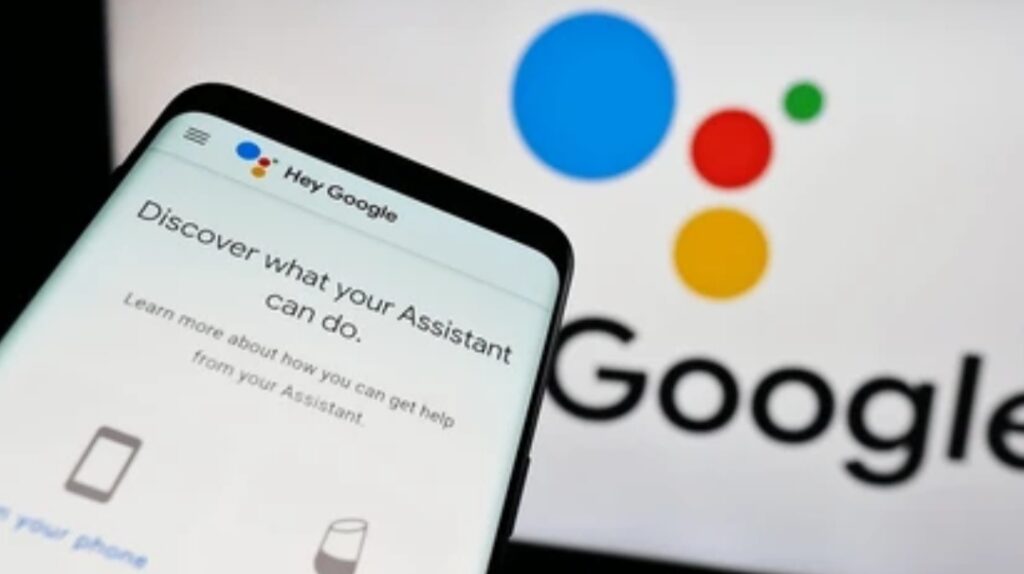
🔊 Voice Command Tips to Set Smart Reminders and Alarms
These voice command tips will make sure nothing slips through the cracks:
- “Hey Google, remind me to call Mike at 4 PM”
- “Hey Google, set an alarm for 6:30 AM tomorrow”
- “Hey Google, remind me to take my medicine every night at 9 PM”
- “Hey Google, set a timer for 15 minutes”
- “Hey Google, wake me up at 5:45 AM with relaxing music”
- “Hey Google, remind me to buy milk when I get to the supermarket”
The beauty of it?
You can create these reminders even while your hands are full.
✅ Why Google Assistant is Perfect for Reminders and Alarms
This feature isn’t just convenient — it’s a major time-saver that improves your focus and reliability.
Here’s how it helps:
- 🧠 Offload Your Brain: Free your mind from remembering every tiny task
- ⏱️ Instant Timers: Great for cooking, workouts, breaks, or productivity sessions
- 📍 Location-Based Reminders: Trigger tasks only when you arrive at specific places
- 📅 Recurring Reminders: Set routines for daily, weekly, or monthly tasks
- 📲 Multi-Device Sync: Alarms and reminders pop up on your phone, speaker, watch, or display
This trick helps you stay on track without mentally juggling your to-do list.
🛠️ How to Set Up Reminders and Alarms
If you’re new to this feature, it’s super easy to start:
- Say your command:
Example: “Hey Google, remind me to submit the report at 3 PM” - Assistant confirms the reminder or alarm
- You’ll get a notification, audio alert, or smart display pop-up at the right time/place
- To manage them later, say:
- “Hey Google, what are my reminders?”
- “Hey Google, delete my alarm for 7 AM”
- Or go to the Google Assistant or Google Calendar app
- “Hey Google, what are my reminders?”
Simple, intuitive, and ultra-reliable.
🧠 Pro Tips for Smarter Time Management
Maximize your time with these practical tips:
- Use Repeating Reminders:
“Remind me to drink water every 2 hours between 8 AM and 8 PM” - Set Reminders for Others:
If they’re in your family group, say:
“Remind Alex to submit homework at 6 PM” - Wake Up Gently:
“Wake me up at 6 AM with ocean sounds” - Name Your Alarms:
“Set an alarm named ‘Zoom Meeting’ for 10:30 AM” - Stack Reminders in Routines:
Combine them with morning or bedtime routines
Each of these can save you minutes daily and hours weekly.
📱 When and Where to Use This Trick
This feature helps in nearly every part of your day:
- Morning wake-ups
- Meeting and call reminders
- Medication schedules
- Household chores
- Time-blocked work sessions
- Cooking timers and laundry reminders
It’s like having a digital assistant that’s always listening and ready to remind you.
🌟 Bonus: Location-Based and Smart Speaker Alarms
Want even more functionality?
Try:
- “Remind me to take out the trash when I get home”
- “Set an alarm for every weekday at 7 AM on the bedroom speaker”
- “Remind me to email the client when I get to the office”
These advanced reminders trigger based on GPS or device context, so they work when — and where — you need them most.
✨ Final Thoughts on Effortless Time Control
There’s no need to keep everything in your head anymore.
Using Google Assistant for reminders and alarms frees up your mind, saves you time, and helps you become more reliable — without opening a single app.
It’s the easiest way to turn your voice into a tool for organization and success.
Don’t miss another meeting, deadline, or important moment.
Just say it out loud — and let Google Assistant handle the rest. ⏰🧠
🛒 Use Google Assistant to Create Shopping Lists and Notes
How often do you find yourself forgetting something at the store, or struggling to remember an idea you had earlier?
With so much to manage every day, it’s no surprise that things slip through the cracks.
That’s why one of the most underrated Google Assistant tricks is using it to create shopping lists and voice notes on the go.
This voice-powered feature is perfect for busy professionals, multitasking parents, students, and anyone trying to stay organized.
With just a simple command, your Assistant can capture ideas, groceries, tasks, and thoughts — instantly and hands-free.
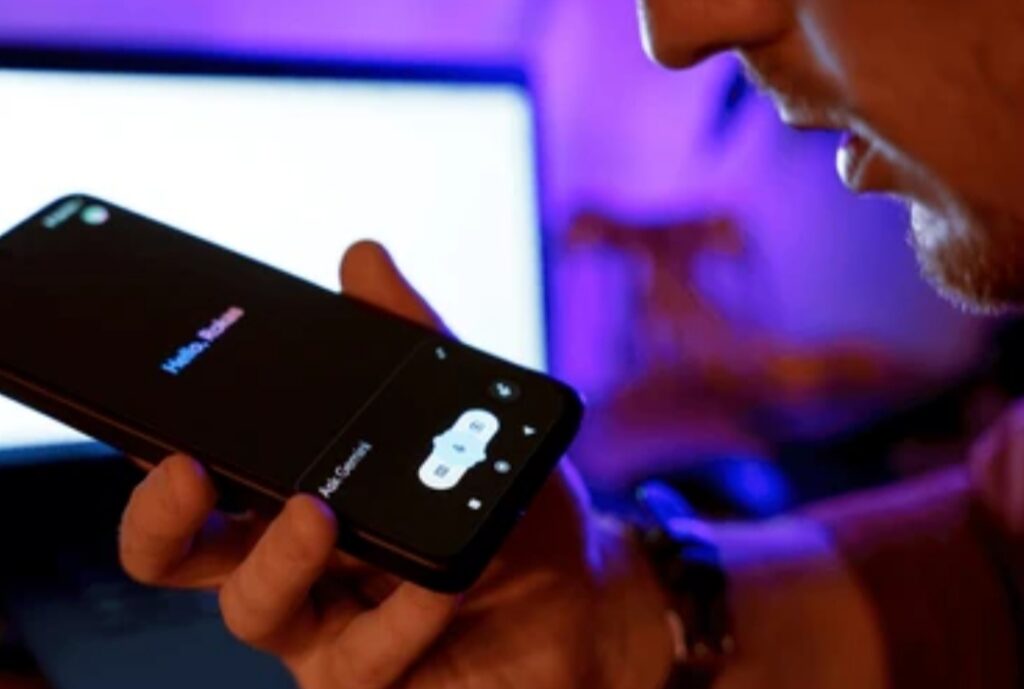
🔊 Voice Command Tips to Add Items and Take Notes Instantly
Forget your pen and paper — these voice command tips will help you stay on top of everything:
- “Hey Google, add eggs, spinach, and oat milk to my shopping list”
- “Hey Google, what’s on my grocery list?”
- “Hey Google, create a new note: Finish article draft before Monday”
- “Hey Google, remind me to buy cat food this evening”
- “Hey Google, add batteries to my shopping list”
- “Hey Google, take a note: Meeting ideas — pitch, follow-up, next steps”
With these quick commands, you’ll never forget what matters most.
✅ Why You Should Use Assistant for Notes and Shopping Lists
Here’s how this powerful trick saves time and helps you stay organized daily:
- 🧾 Never Forget Groceries: Add to your list while you think of it
- 🧠 Capture Ideas Instantly: Record thoughts before they vanish
- 📲 Access Across Devices: Syncs with Google Keep, Tasks, or your default notes app
- 👨👩👧👦 Share with Family: Use shared lists everyone can update
- ⏱️ Real-Time Updating: Items appear immediately on your phone or display
This is a must-use voice command tip for simplifying everyday life.
🛠️ How to Set Up and Sync Shopping Lists & Notes
To make it work smoothly, do this:
- Open your Google Assistant or Google Home app
- Go to Settings > Services > Notes and Lists
- Choose your preferred service:
- Google Keep
- Any.do
- Microsoft OneNote
- Bring!
- Google Keep
- Grant permission to sync
- Start adding notes and list items using your voice
Now everything you say is organized, synced, and searchable.
🧠 Pro Tips to Boost Productivity
- Use Categories for Shopping:
“Add bananas to my grocery list”
“Add soap to my household list”
Google organizes by type for easier shopping - Create Different Lists:
Say: “Add project ideas to my content list”
“Add socks to my Amazon wish list” - Review While Shopping:
“Hey Google, what’s on my grocery list?” (Perfect while walking through the store) - Use Notes for Brain Dumps:
Say “Take a note” to capture ideas, brainstorms, or reminders on the go - Sync with Family or Team:
Share lists and collaborate easily for shopping, events, or tasks
These smart tricks eliminate forgetfulness and help you move through your day with confidence.
🧾 Real-World Scenarios for This Feature
Here’s how real people use it every single day:
- Parents add last-minute school supplies while doing laundry
- Writers and creators jot down content ideas without stopping what they’re doing
- Professionals use it to track office supplies and weekly to-dos
- Shoppers update grocery lists in real time, even mid-recipe
- Students capture assignment reminders while walking between classes
These aren’t just lists — they’re a way to reclaim mental space and stay focused.
🌟 Bonus: Use Google Assistant for Cross-Device Note Syncing
Ask your Assistant on your phone, and see the note on your:
- Smart speaker
- Smart display
- Laptop via Google Keep
- Wear OS smartwatch
Everything stays instantly connected, wherever you are.
✨ Final Thoughts on Smart Lists and Notes
No more scrambling to remember what you needed from the store.
No more missed ideas because you were driving or cooking.
Google Assistant lets you turn your thoughts into action — instantly.
Whether it’s a creative idea, a shopping list, or a task reminder, your voice becomes a powerful tool for organization and productivity.
Stop relying on memory.
Speak it, save it, and stay organized — your Assistant will remember everything, so you don’t have to. 🛒🧠
☀️ Ask Google Assistant for Daily Briefings and Weather Updates
Imagine waking up and getting a personalized snapshot of your entire day — your meetings, the weather forecast, traffic updates, and top news — all without opening a single app.
That’s exactly what happens when you use one of the smartest Google Assistant tricks: asking for a daily briefing and live weather updates.
This feature gives you instant clarity and control, helping you start your day with purpose.

🔊 Voice Command Tips to Get Your Daily Briefing
Here are some powerful voice command tips to get the info you need — fast:
- “Hey Google, good morning”
- “Hey Google, what’s my day like?”
- “Hey Google, tell me today’s weather”
- “Hey Google, what’s my first meeting today?”
- “Hey Google, play the news headlines”
- “Hey Google, what’s the traffic to work?”
- “Hey Google, what’s the temperature right now?”
- “Hey Google, do I need an umbrella today?”
This command combines weather, calendar, news, traffic, and reminders into one voice-powered update.
✅ Why Daily Briefings and Weather Alerts Save Time
This feature eliminates the need to check multiple apps in the morning.
Here’s how it makes life more efficient:
- ☀️ Instant Forecast: Know what to wear or pack before stepping out
- 🗓️ Calendar Snapshot: Review your appointments and events in seconds
- 🚗 Traffic Alerts: Avoid congestion and leave at the best time
- 📰 Morning News: Stay informed without scrolling
- 📲 Device Sync: Works on phones, smart speakers, and displays
This daily habit saves precious morning minutes and improves your decision-making.
🛠️ How to Set Up Your Personalized Daily Briefing
Make sure your Assistant knows what to include each morning:
- Open the Google Home or Google Assistant app
- Tap your profile > Routines
- Select “Good morning” or create a new custom routine
- Choose actions like:
- Weather
- Calendar overview
- Commute info
- News update
- Smart home controls
- Volume or music
- Weather
Now, just say “Hey Google, good morning” and get everything you need to start your day.
🧠 Pro Tips for Smarter Morning Updates
- Customize Your News Sources:
Choose from NPR, BBC, The New York Times, or local news stations - Add Motivation or Music:
End your routine with affirmations or a motivational playlist - Include Smart Device Actions:
“Turn on kitchen lights” or “Start the coffee maker” - Create Separate Routines for Weekends:
Get a more relaxed update when you’re off work - Use Smart Displays:
See your full calendar, commute time, and forecast visually
This makes your morning productive, personalized, and proactive.
🌦️ Real-Life Scenarios Where This Feature Helps
Here’s how people use this feature daily:
- Professionals check meetings, traffic, and headlines during breakfast
- Parents review school drop-off times and weather for the kids
- Remote workers get a rundown of video calls, weather, and news
- Travelers ask for local forecasts in other cities before leaving
- Fitness enthusiasts check weather before morning runs or workouts
It’s like having your own AI-powered morning assistant.
🌍 Bonus: Use Location-Aware and Travel Weather Commands
Google Assistant is smart enough to give weather updates for multiple locations, including places you’re planning to visit.
Try:
- “Hey Google, what’s the weather in Tokyo this weekend?”
- “Hey Google, what’s the forecast for my trip to Florida?”
This is a must-have feature for travelers, digital nomads, and commuters.
✨ Final Thoughts on Getting Daily Updates with Google Assistant
Starting your day with clarity is everything.
When you use Google Assistant to check the weather, your schedule, and the latest news, you eliminate guesswork and take charge of your morning.
It’s fast, informative, and completely customizable to your lifestyle.
Don’t start your day in the dark.
Say “Hey Google, good morning” — and let your voice unlock your day. ☀️📆
❓ FAQs About Google Assistant Tricks and Voice Command Tips
🤖 What are the most useful Google Assistant tricks to save time daily?
Some of the most time-saving Google Assistant tricks include setting voice reminders, controlling smart home devices, translating languages, getting daily briefings, and sending texts or emails hands-free.
You can also use it to play media, set Pomodoro timers, or create location-based alerts that trigger exactly when you need them.
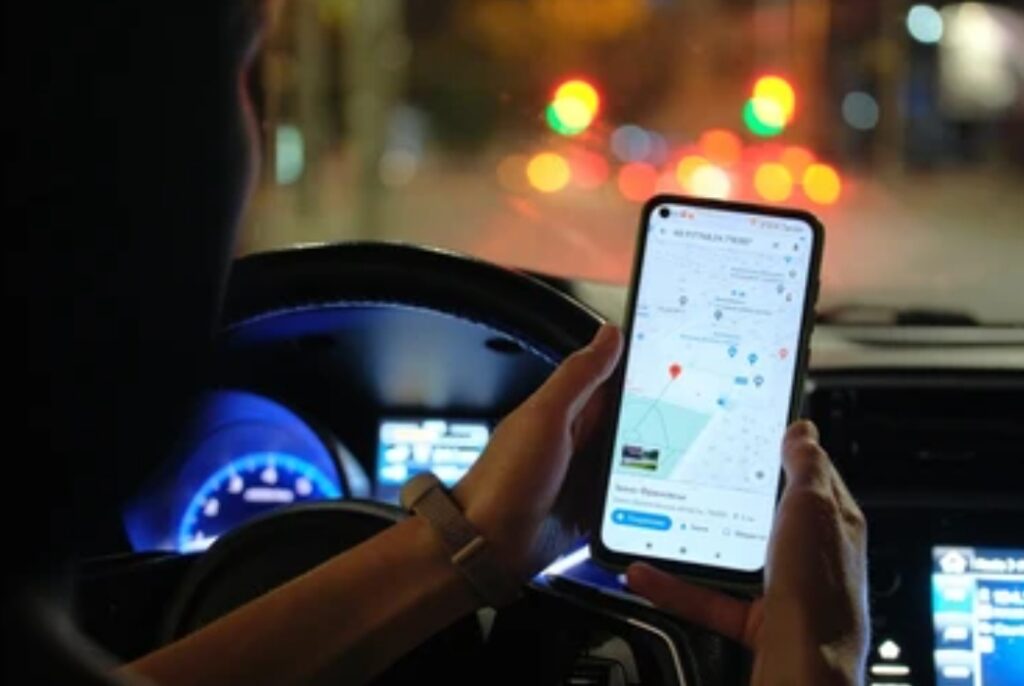
🗣️ How do I activate voice commands on Google Assistant?
Just say “Hey Google” or “OK Google” to wake up the Assistant.
Make sure voice match is enabled in your Google Assistant settings so your device recognizes your voice automatically.
📆 Can Google Assistant remind me of tasks based on time or location?
Yes — Google Assistant supports both time-based and location-based reminders.
You can say things like: “Remind me to call Mom at 7 PM” or “Remind me to grab eggs when I get to the grocery store.”
🌍 Can Google Assistant translate languages in real-time?
Absolutely.
Use commands like “How do you say ‘thank you’ in French?” or activate Interpreter Mode by saying “Be my Spanish interpreter.”
Google Assistant will speak and display the translation on supported devices.
🎧 What media apps work with Google Assistant voice commands?
Google Assistant supports popular apps like Spotify, YouTube Music, Pandora, Apple Music, Audible, and Pocket Casts.
You can use commands like “Play jazz on Spotify” or “Resume my audiobook on Audible.”
⏱️ What is the best way to use Google Assistant for productivity?
Use it to set Pomodoro timers, start focus sessions, dictate emails, and create routines that combine music, lighting, reminders, and more.
This hands-free setup can improve your productivity without switching between apps.
🏠 Can I control my smart home using Google Assistant?
Yes.
You can control smart lights, thermostats, locks, plugs, cameras, and more with simple voice commands like “Turn off the bedroom lights” or “Set the temperature to 22 degrees.”
Make sure your devices are compatible and linked to your Google Home app.
📱 Which devices support Google Assistant voice commands?
Google Assistant works on Android phones, iPhones (via app), smart speakers, smart displays (Nest Hub), smartwatches, tablets, and even cars with Android Auto.
You can also use it on some TVs, earbuds, and third-party smart home products.
🔒 Is Google Assistant safe to use with personal information?
Yes — Google uses encryption and security controls to protect your data.
You can review or delete your Assistant activity anytime by saying: “Hey Google, delete my last command” or visiting Google My Activity.
📎 Can I use Google Assistant without saying ‘Hey Google’ every time?
Yes, on some devices, you can enable Quick Phrases to skip saying “Hey Google” for common tasks like answering calls or dismissing alarms.
You can also use custom routines to trigger multiple actions with a single shortcut phrase.
💡 Pro Tip:
Bookmark this FAQ or save it to your Google Keep — so you’ll always have these tips within reach when you need a voice-powered productivity boost. 🔖📲
🔚 Final Thoughts on Google Assistant Tricks That Save You Time Daily
In today’s fast-paced world, time is your most valuable asset.
The good news?
You don’t need to juggle dozens of apps or rely on sticky notes to stay organized.
Thanks to these powerful Google Assistant tricks, you can streamline daily tasks, improve productivity, and stay one step ahead — using nothing but your voice.
From voice command tips for sending messages, checking the weather, or controlling your smart home — to smart routines, focus timers, and location-based reminders — Google Assistant empowers you to do more with less effort.
It’s like having a personal assistant that’s available 24/7 — across your phone, smartwatch, speaker, or smart display.
No extra cost.
No steep learning curve.
Just pure efficiency, powered by your own voice.
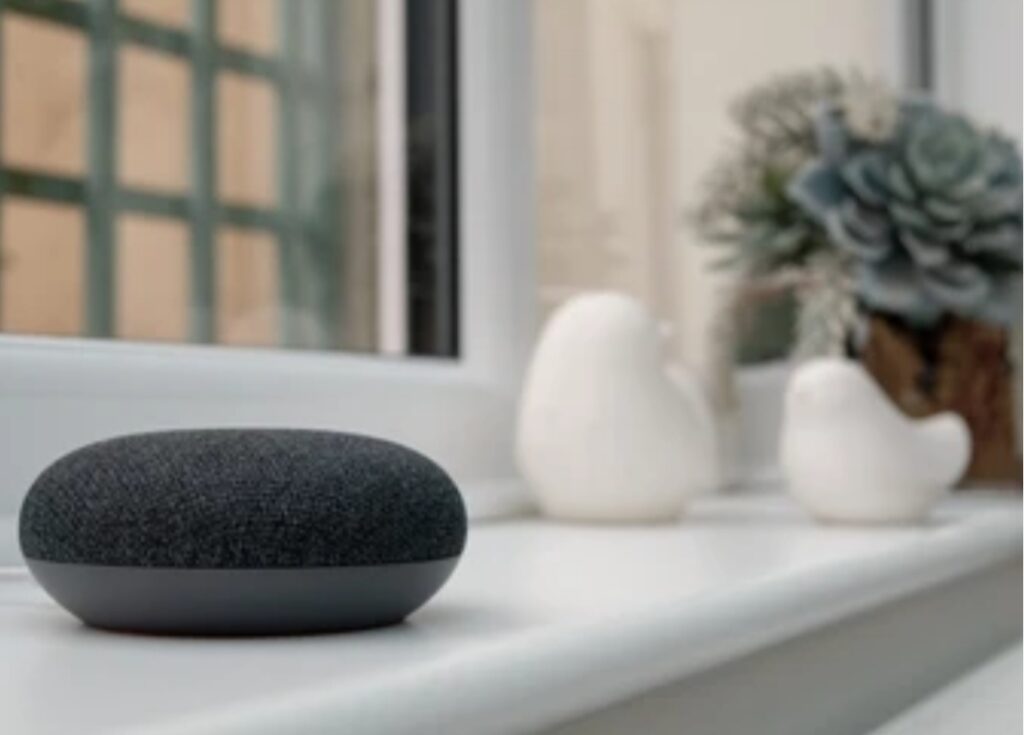
✅ Quick Recap of What You Can Do with Google Assistant:
- Dictate messages and emails hands-free
- Get personalized daily briefings
- Translate languages or get instant answers
- Control music, podcasts, or audiobooks
- Set Pomodoro timers and deep focus sessions
- Create smart, location-based reminders
- Automate your smart home
- Ask follow-up questions naturally
- Trigger entire routines with one phrase
Whether you’re a student, remote worker, parent, or entrepreneur — these tricks work for any lifestyle.
Ready to reclaim your time and boost your productivity?
Start using these voice command tips today — and let Google Assistant do the heavy lifting. 🎯🗣️
📌 Bookmark this guide,
📤 Share it with someone who needs it,
📲 And don’t forget to check out this smart device that works seamlessly with Google Assistant. ✅
You might also like :