

🟢 Introduction
🎙️ In today’s fast-paced digital world, recording high-quality audio on your smartphone is no longer just for professional podcasters or YouTubers.
📱 With powerful mobile technology and the right tools, you can easily transform your phone into a portable studio for content creation, interviews, music, or voiceovers.
Whether you’re planning to record audio on your phone for TikTok, a voice-over project, or even launching a full mobile podcast setup, the possibilities are endless.
But here’s the catch 👉
Not all smartphone recordings are created equal.
If you’ve ever played back a recording and heard muffled vocals, background hissing, or echoey sound, then you know how frustrating poor audio can be.
That’s where this guide comes in.
You’re about to learn how to record high quality audio on smartphone — the smart way.
💡 Why Audio Quality Matters More Than Ever
In an age where attention spans are short, sound quality can make or break your content.
Audiences will tolerate shaky video — but poor audio? That’s a dealbreaker.
Whether you’re a mobile journalist, digital nomad, or content creator on the go, great audio enhances credibility, boosts retention, and builds trust with your audience.
With platforms like Spotify, YouTube Shorts, Instagram Reels, and Clubhouse exploding in popularity, it’s more important than ever to master mobile audio recording.
🎯 What You’ll Learn in This Guide
This in-depth tutorial will walk you through proven audio recording tips used by real creators to get clean, crisp, studio-like sound — all from the comfort of your smartphone.
Here’s what we’ll cover:
✅ The basics of your phone’s built-in mic and how to make the most of it
✅ The best tools and accessories for professional-grade sound
✅ The top free and paid audio recording apps that elevate your output
✅ How to create a mobile podcast setup that rivals studio gear
✅ Editing secrets to polish your recordings like a pro
✅ Common mistakes that ruin mobile audio — and how to avoid them
You don’t need expensive equipment to sound amazing.
You just need the right knowledge — and that’s exactly what you’ll get here.
🎧 Why Smartphones Are the New Audio Studio
Modern smartphones now have multi-mic arrays, high-sample-rate recording capabilities, and software-level DSP (digital signal processing).
Pair that with a few clever tricks and affordable accessories, and you’ll be shocked at what’s possible.
In fact, some top-rated podcasts and vocal tracks on SoundCloud were recorded entirely on phones!
Whether you’re indoors, on a busy street, or working from a remote location, you can record clean, broadcast-quality audio on your phone.
Stop settling for scratchy, amateur audio.
Let’s turn your phone into a professional-grade recorder today.
👉 Scroll down and unlock expert strategies that will change how you record forever!
🟢 Understanding Your Smartphone’s Built-in Capabilities
🎧 Before diving into advanced gear or pro editing apps, it’s essential to understand what your smartphone’s built-in microphone can actually do — and what its limitations are.
Every smartphone today, from iPhones to top-tier Android devices like Samsung Galaxy, Pixel, and Xiaomi, comes equipped with at least one or two high-performance microphones.
In fact, modern devices now include multiple mics that help with noise cancellation, spatial audio, and voice clarity.
But even with this impressive hardware, the default mic setup isn’t designed for professional recording — it’s optimized for phone calls, not podcasts.
Let’s break down how it works and what you need to know to record audio on your phone effectively.
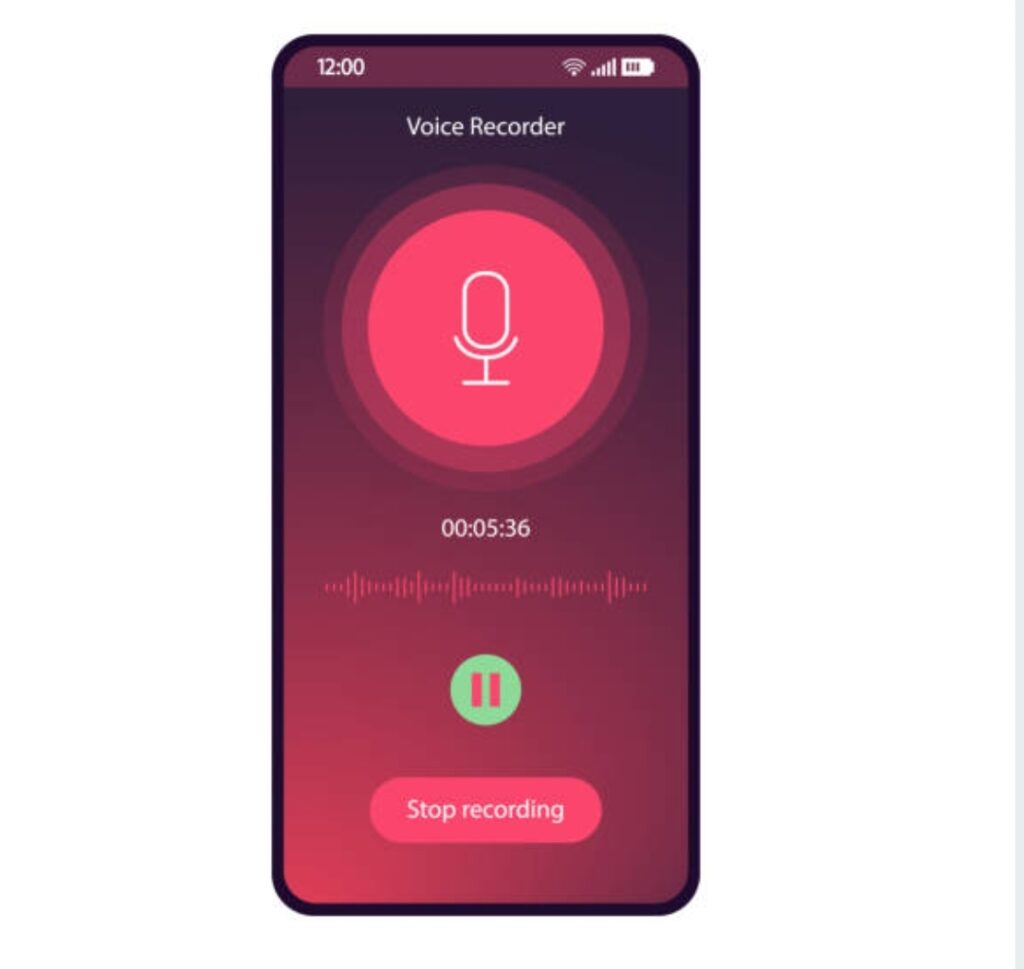
🔍 What Your Built-In Smartphone Mic Can Do (and Can’t Do)
✅ What it can do:
- Record quick voice notes, interviews, or memos
- Capture sound decently in quiet indoor spaces
- Sync audio with video clips for short social media content
- Great for spontaneous on-the-go moments
❌ What it struggles with:
- High levels of background noise or wind
- Echo-heavy environments or large open rooms
- Inconsistent distance from your mouth (like while walking or moving)
- Producing studio-quality clarity, bass, and balance
➡️ Bottom line: The built-in mic is fine for casual recordings.
But if you’re serious about how to record high quality audio on smartphone, you’ll need to go beyond it.
🎤 Where Your Smartphone’s Audio Features Shine
Modern smartphones offer software-level enhancements for audio.
For example:
- iPhones now support lossless audio recording via third-party apps
- Samsung Galaxy devices come with Pro Video mode, allowing manual control over mic input levels
- Google Pixel uses AI noise suppression for clearer speech
These built-in features can help boost your sound quality, especially when combined with proper audio recording tips such as:
- Recording in Airplane Mode
- Turning off unnecessary background apps
- Using “Do Not Disturb” to prevent audio dropouts
These small tweaks might seem insignificant, but they can dramatically improve your recording experience — especially when capturing interviews or voiceovers using only your device.
💬 Choosing the Right Stock App vs. Third-Party App
Your phone’s default voice recorder app is good for basic use — but when quality matters, third-party apps outperform them in almost every aspect.
Here’s why:
📱 Stock Recording Apps
- Limited control over audio bitrate and file type
- Little to no post-processing features
- Designed for speed, not quality
🎙️ Third-Party Recording Apps
- Offer high-bitrate WAV/FLAC support
- Let you control gain, volume, input levels, and stereo modes
- Often include built-in noise reduction, equalization, and voice enhancements
Pro Tip: Download a high-end app like Dolby On, BandLab, Ferrite Recording Studio, or Voice Recorder Pro to make your mobile podcast setup truly powerful.
These apps unlock the full potential of your phone’s audio hardware, giving you control that rivals desktop software.
🛠️ Audio Settings You Should Check Before You Hit Record
Here are the pre-recording settings you should always check:
🔧 Input gain levels – Too low, and you’ll get weak sound. Too high, and you’ll clip (distort).
🎚️ Bitrate settings – Choose at least 256kbps MP3 or WAV for top-tier quality.
🧩 Mono vs. Stereo – Use stereo when capturing music or ambient sound; mono is better for voice.
📁 File format – For editing and publishing, stick to WAV or AIFF formats.
These simple tweaks can boost clarity, reduce background hiss, and help you get clean, pro-quality results — even without external gear.
⚠️ The Limitations You Can’t Ignore
Even the latest smartphones, despite their advancements, still have physical limitations when it comes to audio.
Here’s why you shouldn’t rely solely on your internal mic:
- The mic is omnidirectional, meaning it picks up everything — including unwanted noise
- Soundwaves bounce off glass screens, reducing vocal warmth and depth
- Phones lack dedicated audio preamps, which external recorders or mics have
👉 That’s why most experts recommend using external microphones if you’re serious about learning how to record high quality audio on smartphone.
And don’t worry — we’ll cover the best ones in the next section!
Want to sound like a pro?
Don’t let your phone’s mic limit your potential.
👉 Scroll down to discover game-changing tools that can take your smartphone audio to the next level!
🟢 Essential Tools for Better Audio Recording
🎤 If you’re serious about capturing professional-level sound, one of the smartest investments you can make is in the right audio recording tools.
While smartphones today are incredibly advanced, the reality is that hardware limitations will always cap the quality of your recordings unless you use proper external accessories.
So if you’re ready to unlock true clarity, depth, and dynamic range in your content, these are the essential tools you need for a mobile podcast setup or any high-quality voice/audio capture.

🧲 External Microphones – Your #1 Upgrade for Crystal-Clear Sound
Let’s face it: the tiny mic built into your phone wasn’t designed for professional audio recording.
That’s why your first step to leveling up your sound is getting a dedicated external microphone.
There are three types of smartphone-compatible mics you should consider:
🎙️ Lavalier (Lapel) Microphones – Discreet & Powerful
Perfect for: interviews, YouTube, vlogs, and mobile podcasting
- Small, clip-on mics you attach to your shirt
- Great at isolating your voice from background noise
- Ideal for capturing consistent levels even when you move around
⭐ Recommended models:
- Rode SmartLav+
- BOYA BY-M1
- Shure MVL
These plug directly into your headphone jack, USB-C, or Lightning port, and are budget-friendly — making them perfect for beginners looking to record audio on phone with better quality.
🔊 Shotgun Microphones – Directional Clarity
Perfect for: filming, outdoor recording, event coverage
- Designed to capture audio directly in front of the mic
- Block out sound from the sides and rear (supercardioid pattern)
- Great for controlling ambient noise in busy environments
⭐ Top choices:
- Rode VideoMic Me-L (iPhone)
- Sennheiser MKE 200 Mobile Kit
- Shure MV88+ Video Kit
These provide rich, full-bodied sound and work wonders for content creators on the go.
🎧 USB and Condenser Microphones – Studio Sound Anywhere
Perfect for: voiceovers, narration, podcasts, and streaming
- Designed to capture full frequency range — crisp highs, warm mids, deep lows
- Works well for indoor settings with less background noise
- Delivers broadcast-quality sound when used correctly
⭐ Popular options:
- Blue Yeti Nano with OTG adapter
- Samson Meteor Mic
- Rode NT-USB Mini
Just make sure to use the right adapter (e.g., USB-C to USB-A or Lightning to USB) to connect them to your phone.
📱 Microphone Adapters & Audio Interfaces
Some microphones won’t plug directly into your phone — especially professional XLR or USB mics.
That’s where audio interfaces and mic adapters come in.
🎛️ These devices convert analog signals into digital and let you adjust gain, monitor in real-time, and get superior audio control.
Top interfaces for mobile setups include:
- iRig Pre 2 (XLR to smartphone adapter)
- Focusrite iTrack Solo
- Shure MVi
These allow you to build a portable podcasting studio without needing a bulky mixer.
🌬️ Windshields, Pop Filters & Mic Stands
Even with a great mic, recording in noisy environments can still ruin your audio.
That’s why you need noise control accessories like:
- Foam covers and deadcats for blocking wind outdoors
- Pop filters to eliminate harsh “P” and “S” sounds when speaking close to the mic
- Mic stands or tripods to keep your hands free and avoid movement noise
Most top-quality creators don’t record without these — even indoors.
💡 Pro Tip: Record indoors in a closet, car, or room with curtains and cushions to reduce echo.
🧳 Mobile Podcast Setup Essentials – Pack Light, Sound Big
If you’re building a mobile podcast setup, your gear should be portable, powerful, and easy to deploy.
Here’s a minimalist yet professional podcast kit you can build today:
- ✅ Lavalier or shotgun mic
- ✅ Phone tripod with mount
- ✅ Mic adapter or interface
- ✅ Pop filter or windshield
- ✅ High-quality recording app
- ✅ Optional: Backup power bank + SD card reader
🎒 All of this fits in a small bag — but delivers studio-level results anywhere.
Whether you’re recording interviews at a coffee shop or sharing insights from the road, this setup keeps your sound sharp and audience-ready.
🧠 Don’t Forget About Monitoring & Backup
📢 Always monitor your audio while recording.
Use wired headphones or in-ear monitors connected via a splitter or interface to hear exactly what your mic is capturing in real-time.
Also:
💾 Back up your files using cloud services like Google Drive, Dropbox, or external SD storage.
Never risk losing your best takes due to phone crashes or space issues.
📣 🔥 Make Your Voice Stand Out!
Don’t let your message get lost in the noise.
Equip yourself with the tools that take your smartphone audio from “meh” to “mind-blowing.”
👉 Ready to build your own mobile podcast setup? Check out the best gear options below!
🟢 Best Audio Recording Apps for High-Quality Sound
📲 You’ve got the right smartphone and maybe even some great external gear — but without the right app, your audio will never reach its full potential.
Whether you’re capturing a podcast, singing a track, doing a voiceover, or recording interviews, the app you choose can make or break your audio quality.
This section breaks down the best audio recording apps for Android and iOS, handpicked for creators who want to know exactly how to record high quality audio on smartphone — with total control, clarity, and ease.
Let’s explore the top-rated apps that will turn your phone into a digital recording studio. 🎧

🎙️ What Makes a Good Audio Recording App?
Before we dive into specific apps, here are the must-have features you should look for when selecting a mobile recording app:
✅ High bitrate support (at least 256 kbps MP3, WAV, or FLAC)
✅ Real-time monitoring and gain control
✅ Multi-track support (great for podcasts)
✅ Noise reduction and EQ features
✅ Cloud backup and easy export options
✅ Interface compatibility (USB-C, Lightning, or OTG)
💡 Pro Tip: Free apps can get you started, but premium apps give you finer control and studio-level output — crucial for any mobile podcast setup or high-stakes voice project.
📱 Top Audio Recording Apps for iPhone Users
🎧 Ferrite Recording Studio (iOS)
Best For: Podcasters, voiceover artists, and interview-based content
- Supports multi-track editing and non-destructive edits
- High-res audio export and compression tools built-in
- Voice ducking, EQ, and effects with intuitive gestures
- Free with optional pro upgrades
🟢 Great choice for anyone recording long-form content and editing directly on their iPhone.
🎚️ Dolby On (iOS & Android)
Best For: Musicians, vloggers, live performers
- Uses Dolby’s noise reduction, EQ, and mastering algorithms
- One-touch studio sound quality
- Supports 48kHz WAV audio and auto background noise cleanup
- Cloud backup and easy sharing to YouTube, SoundCloud, Facebook
⭐ It’s FREE and incredibly powerful — a game-changer for creators who want pro-level sound without a learning curve.
🔉 Voice Record Pro (iOS)
Best For: Journalists, students, voice memos
- Supports high bitrate MP3, WAV, AAC
- Trim, convert, and apply effects in-app
- Uploads to Google Drive, Dropbox, or FTP
- Allows real-time monitoring via external mics
Simple UI, but packed with features — ideal for clean, direct voice recording.
📱 Best Audio Recording Apps for Android Devices
🎤 Easy Voice Recorder Pro (Android)
Best For: Casual creators, business meetings, personal notes
- Records in PCM, MP4, or AMR format
- Adjust mic sensitivity and gain
- Widgets for one-tap recording
- Supports Bluetooth and external mics
Affordable, powerful, and lightweight — great for Android beginners learning to record audio phone efficiently.
🔊 BandLab (Android & iOS)
Best For: Musicians and singers
- Built-in music studio with multi-track layering
- Auto-tune, pitch correction, and EQ
- MIDI instruments and royalty-free loops
- Collaborate with other creators online
Not just a recorder — a full DAW (Digital Audio Workstation) in your pocket.
🎛️ Lexis Audio Editor (Android)
Best For: Podcasters and narrators
- Edit like a pro: Cut, normalize, compress, EQ
- Save in WAV, MP3, FLAC, or AAC
- Ideal for trimming long-form audio and adding intro/outro
- Supports recording via mic-in jack or USB-C mics
Perfect for creators who want more than just recording — this is where you polish and produce.
💼 Bonus Tools: For Professionals Who Need More
If you’re a serious podcaster, musician, or audio engineer, consider:
🧩 Auphonic App – Cloud-based mastering and loudness normalization
🎧 Backtrack – For adding music beds and royalty-free background tracks
🎙️ Anchor by Spotify – For podcast publishing directly from your phone
Combine these apps with your external mic, and you’ve got a broadcast-ready mobile audio rig.
⚠️ Mistakes to Avoid When Using Recording Apps
Many creators unknowingly sabotage their sound by:
❌ Using default settings with low bitrate
❌ Recording in noisy environments without filters
❌ Not testing mic input or monitoring audio
❌ Recording too close or too far from the mic
Always test your setup. Even the best audio recording app can’t fix poor mic technique or bad environment choices.
📣 🔥 Elevate Your Sound Game Instantly
Stop recording like an amateur. Start sounding like a pro.
🎯 Download one of these top audio apps today and transform your smartphone into a full-blown studio!
👉 Click here to compare the best apps and find your perfect match
🟢 Pro Tips to Improve Audio Quality on Your Smartphone
📢 If you’ve ever wondered why some smartphone recordings sound like they were made in a professional studio — while others sound like they came from the bottom of a tin can — the answer is simple:
Technique matters. 🎯
Even with the best gear and top-rated apps, your final result hinges on how you record.
This section reveals expert-level audio recording tips that boost clarity, reduce noise, and make your smartphone sound like it’s hooked to a $500 mic.
Whether you’re working on a voiceover, podcast, vlog, or music demo, these techniques will help you master how to record high quality audio on smartphone — the right way.
🎯 Record in the Right Environment
Your recording space is just as important as your mic or app.
Here’s what to do:
✅ Choose quiet locations with minimal external noise
✅ Avoid rooms with echo (bathrooms, kitchens, open halls)
✅ Surround yourself with soft materials: curtains, pillows, carpets, clothes
✅ Use closets, cars, or padded corners for ultra-clean sound
💡 Pro Tip: Even a blanket over your head while recording can reduce echo dramatically. Simple, but effective!
🔕 Eliminate All Interruptions Before You Hit Record
Nothing ruins a perfect take like a notification ping, WhatsApp buzz, or random call.
Before recording:
🔘 Enable Airplane Mode
🔘 Turn on Do Not Disturb
🔘 Close background apps
🔘 Ensure you have enough battery and storage space
This keeps your phone focused only on recording and prevents file corruption or cuts.
🎤 Mind Your Distance from the Microphone
How you position yourself in front of the mic affects the depth, warmth, and clarity of your voice.
Here’s the sweet spot:
✅ 6–12 inches away from your mic
✅ Speak directly but slightly off-center to avoid harsh plosives
✅ Use a pop filter or foam windscreen to tame explosive “P” and “S” sounds
Too far = weak, airy audio.
Too close = distorted, bass-heavy mess.
🎙️ Find the balance and stick to it — especially in mobile podcast setups.
🔊 Set Your Input Gain Correctly
Input gain determines how loud your mic captures sound.
Get this wrong, and your audio is either:
❌ Too quiet to fix
❌ So loud it distorts (clipping)
Use your app’s level meter. Aim for green to low yellow levels, and avoid peaking in red.
Most apps (like Dolby On or Ferrite) allow you to adjust mic sensitivity or gain. Do a test run and monitor playback before starting a full recording.
🧹 Use Noise Reduction — But Use It Wisely
Apps with auto-noise removal, like Dolby On or BandLab, help cut ambient noise — but overdoing it makes your voice sound unnatural or robotic.
🎯 Balance is key:
✅ Apply just enough to soften background hiss
❌ Don’t flatten your voice dynamics or cut vocal range
Manual editing apps like Lexis Audio Editor or Auphonic give you precise control so your sound remains clean and authentic.
🎧 Monitor While You Record (If Possible)
Real-time monitoring lets you hear what your mic hears, instantly catching issues like:
- Buzzing or static
- Breathing too loudly
- Room noise spikes
- Incorrect mic placement
🎧 Use wired headphones via a splitter or mic adapter to monitor.
It’s one of the fastest ways to improve your recording game and avoid re-recording entire sessions.
💾 Always Record in High-Quality Formats
Don’t settle for low-quality formats like AMR or low-bitrate MP3.
Instead, record in:
✅ WAV (Uncompressed) — best for editing
✅ AAC or MP3 (320kbps) — smaller file, decent quality
✅ FLAC — compressed, but lossless audio quality
🔗 Apps like Voice Record Pro, Dolby On, and Easy Voice Recorder Pro give you format control upfront — saving time and avoiding quality loss later.
📁 Back Up Your Recordings Immediately
After recording, don’t wait — save it in at least two places:
✅ Your phone’s internal storage
✅ A cloud drive (Google Drive, Dropbox, OneDrive)
✅ An SD card or OTG USB backup
You never want to lose a great take due to phone issues or file corruption.
🧠 Recap – Smart Habits That Set You Apart
Let’s summarize the best practices that elevate your smartphone recordings:
- Record in quiet, padded rooms
- Use pop filters and proper mic distance
- Monitor your sound and adjust gain
- Use the right file formats
- Save and back up everything
- Apply post-processing only where needed
Master these habits, and your audience will never guess your audio was recorded on a phone.
📣 🔥 Sound Like a Pro, No Studio Required
Your voice deserves to be heard — clearly, confidently, and professionally.
👉 Put these expert audio recording tips to work and give your smartphone recordings the upgrade they deserve.
🎧 Don’t just record — create magic!
🟢 Setting Up a Mobile Podcast Studio
🎙️ Ever dreamed of starting a podcast but think you need a fancy studio, expensive mixer, or bulky setup?
Think again.
Thanks to today’s mobile tech, you can now build a mobile podcast studio that fits in your backpack — without sacrificing sound quality.
Whether you’re recording solo episodes, interviews, or discussions on the go, this guide will show you how to set up a podcast-ready environment using just your smartphone and the right combination of tools and techniques.
If you’re serious about mastering how to record high quality audio on smartphone, this setup is your launchpad.
🧰 What Is a Mobile Podcast Studio?
A mobile podcast studio is a compact, portable recording setup that allows you to capture, edit, and publish high-quality podcast episodes from anywhere.
Instead of needing a full-blown audio booth, you can use:
- Your smartphone
- A quality external mic
- A recording/editing app
- Some simple noise control tools
This setup is ideal for:
✅ Digital nomads
✅ Content creators on a budget
✅ Traveling interviewers
✅ Small businesses launching podcasts
With the right setup, you can create broadcast-quality content in your car, hotel room, coffee shop, or even outdoors.
🎙️ Must-Have Gear for a Portable Podcast Setup
Here’s your checklist for a complete, lightweight podcast recording kit:
🟢 Smartphone (iPhone or Android)
- Choose a recent model with strong audio processing capabilities
- Ensure enough internal storage (or use an SD card/OTG USB backup)
💡 Tip: Clean your mic ports and close background apps for peak performance.
🎤 External Microphone
- Lavalier mic for interviews or solo speaking
- Shotgun mic for directional control
- USB condenser mic for rich, studio-like sound
⭐ Recommended: Shure MV88+, Rode SmartLav+, or Samson Go Mic Mobile
These mics are plug-and-play and work well with audio recording apps like Ferrite or Dolby On.
🎧 Headphones for Monitoring
- Use closed-back headphones to isolate your sound
- Avoid wireless/Bluetooth — latency can throw you off
🎯 Look for wired monitor headphones with flat response for accurate playback.
🛠️ Mic Stand or Phone Tripod
- Keeps your phone stable and mic in the right position
- Reduces handling noise and keeps audio consistent
- Great for interviews or when recording solo outdoors
Consider a tripod with mic mount combo for convenience.
🌬️ Pop Filter or Windshield
- Controls “plosives” (harsh “P” and “S” sounds)
- Prevents wind interference during outdoor recordings
- Essential for both lav mics and shotgun mics
Choose a foam mic cover or deadcat windshield depending on your setup.
🧩 Recommended Mobile Podcast Studio Setups by Budget
💸 Budget Setup (Under $100):
- Smartphone
- BOYA BY-M1 lav mic
- Voice Record Pro app
- Phone tripod
- Free post-editing using Auphonic or Lexis Audio Editor
💼 Mid-Range Setup ($100–$250):
- Smartphone
- Shure MVL mic or Rode VideoMic Me
- Ferrite Recording Studio app
- Compact boom arm
- Cloud backup (Google Drive or Dropbox)
💎 Pro Setup ($250+):
- iPhone 13+ or Galaxy S23+
- Shure MV88+ or Samson Q2U (USB/XLR)
- Focusrite iTrack Solo interface
- Ferrite Pro + Auphonic Mastering
- Sound-treated mobile space (e.g. travel recording booth)
🧠 How to Arrange Your Mobile Podcast Workflow
Here’s a step-by-step mobile podcast workflow that works for both beginners and pros:
- Plan your episode – Outline your topics, questions, or talking points
- Choose your location – Quiet space with soft surfaces
- Connect your mic & monitor gear
- Launch your preferred app (Ferrite, Dolby On, BandLab)
- Record in segments, if needed, for better editing
- Save in high-quality format (WAV, AAC, or 320kbps MP3)
- Edit & polish – Trim silence, normalize audio, add music
- Export & backup
- Upload to podcast hosting platforms like Spotify via Anchor.fm
🎧 With this system, you’ll be ready to publish from your smartphone alone.
📣 🔥 Launch Your Podcast Today
No studio? No problem.
Your smartphone can be your ticket to the airwaves — if you use the right setup and follow the steps.
👉 Start building your mobile podcast studio today and bring your voice to the world — from anywhere.
🎙️ Explore the best gear here and go live with confidence!
🟢 Editing and Enhancing Your Recordings
🎧 Recording is just half the job — the magic happens during editing.
To truly master how to record high quality audio on smartphone, you must know how to polish your audio to perfection.
Post-production is where you remove background noise, cut out dead air, balance sound levels, and make your voice sound smooth, rich, and listener-friendly.
The best part?
You don’t need a desktop or studio gear — you can do it right on your phone with the right apps and techniques.
Let’s break it down step-by-step.

🎛️ Why Editing is Crucial for Professional-Sounding Audio
Even the best raw recordings often have imperfections:
- Background hums or clicks
- Awkward pauses
- Volume inconsistencies
- Harsh “S” or “P” sounds
- Unwanted mouth noise or breathing
Proper editing ensures your audio is clean, consistent, and captivating — especially for podcast listeners, YouTube viewers, or online clients.
If you want your smartphone recordings to sound like they came from a studio, you must learn the post-production process.
✂️ Best Mobile Apps for Editing Audio
Here are the most powerful, creator-approved editing apps you can use directly on your phone:
🎙️ Ferrite Recording Studio (iOS)
- Drag-and-drop editing
- Strip silence, trim clips, and cut noise
- Built-in compressor, EQ, and ducking
- Auto-saves while you work
💡 Perfect for podcasters, journalists, and voiceover artists.
🎚️ Lexis Audio Editor (Android & iOS)
- Manual noise reduction
- Normalization, EQ, and compression
- Cut, copy, paste with waveform visualization
- Export in WAV, MP3, FLAC, AAC
🎯 Great for post-production perfectionists who want full control.
🌀 Dolby On (Android & iOS)
- One-tap mastering
- Automatically reduces noise, levels audio, adds depth
- Real-time preview before saving
- Limited manual control — but excellent for fast polishing
🎵 Ideal for musicians, vloggers, and creators in a hurry.
🔉 BandLab (Android & iOS)
- Multi-track mixing for music and podcast layering
- Add royalty-free beats, effects, and transitions
- Precise volume, pan, and EQ control
- Built-in collaboration and cloud publishing
🧠 Bonus: Works like a mobile DAW (Digital Audio Workstation).
🔧 Audio Enhancements You Should Always Apply
To truly elevate your smartphone recordings, apply the following post-recording enhancements:
✅ Trim silence – Cut out dead air at the beginning and end
✅ Normalize audio levels – Keep the volume consistent throughout
✅ Noise reduction – Remove hiss, hums, and low-level interference
✅ Compression – Smooth out volume spikes for balanced sound
✅ EQ (Equalization) – Boost lows, clean up mids, and reduce harsh highs
✅ Fade in/out – Create a professional intro and outro
🔁 Workflow Example – Editing on Your Phone in 5 Steps
- Import your recording into an app like Ferrite or Lexis
- Trim and remove noise (using built-in tools or plugins)
- Normalize and compress for level balance
- EQ the voice for clarity (roll off lows, boost mids, tame highs)
- Export in high-quality MP3 (320kbps) or WAV, then back it up
📝 Optional: Add music or background tracks using BandLab or a royalty-free audio library.
💾 Save & Export in the Right Format
When you’re done editing, don’t ruin your hard work with the wrong file type.
Here’s what to export in:
✅ WAV – Best for maximum quality, ideal before uploading to platforms like Spotify or SoundCloud
✅ MP3 (320kbps) – Smaller file, good quality, compatible with all podcast platforms
✅ FLAC – Compressed but lossless, great for archiving or music recordings
🔁 Export in multiple formats if needed — especially for different platforms or clients.
🧠 Don’t Over-Edit – Keep It Natural
While cleaning up audio is essential, over-editing can make your voice sound robotic or flat.
Avoid:
❌ Over-compressing (kills dynamics)
❌ Heavy EQing (makes voice sound unnatural)
❌ Removing all breaths (can sound artificial)
❌ Adding too many effects (distracts from your message)
🎧 Aim for clean, crisp, and authentic sound that reflects your real voice — just polished.
📣 🔥 Edit Like a Pro, Right From Your Phone
You don’t need fancy software or years of training to sound amazing.
👉 Download one of these powerful editing apps, follow the simple workflow, and create audio that sounds like it came from a high-end studio.
💥 Your smartphone + smart editing = unstoppable content!
🟢 Common Mistakes to Avoid When Recording Audio on a Smartphone
🎙️ You’ve got the gear.
You’ve installed the right app.
You’ve followed the pro tips.
But here’s the truth: even seasoned creators can still fall into simple audio recording traps that ruin otherwise perfect takes.
If you’re truly serious about how to record high quality audio on smartphone, avoiding these pitfalls is just as important as doing things right.
In this section, we’ll break down the most common mistakes people make when recording audio on their phones, and how you can avoid them like a pro.
❌ Relying on the Built-In Mic
Yes, your phone has a mic.
But it’s meant for phone calls, not crystal-clear audio production.
Built-in mics:
- Capture a lot of background noise
- Lack depth and warmth
- Easily distort in loud environments
✅ Use an external mic — even a $20 lav mic will dramatically improve your audio.
🎯 Avoid this rookie mistake if you’re recording podcasts, voiceovers, or anything that needs to sound polished.
🔇 Ignoring Your Recording Environment
Even the best mic can’t save you from a bad acoustic space.
Common environmental mistakes:
- Recording in rooms with echo (tile floors, hard walls)
- Capturing traffic, fans, or AC noise
- Not accounting for wind when outdoors
✅ Solution: Record in quiet, soft-furnished spaces, use a pop filter or deadcat mic cover, and always test your audio before going all-in.
📶 Not Putting Your Phone in Airplane Mode
A buzzing notification, WhatsApp call, or alert sound can interrupt or corrupt your recording.
✅ Always turn on:
- Airplane Mode
- Do Not Disturb
- Silence Alarms & Media Notifications
⚠️ This single step has saved countless creators from wasted takes.
🔧 Skipping Audio Tests
Never assume your setup is working — test it before recording:
- Record 10–15 seconds and play it back
- Check for distortion, hiss, volume level
- Adjust mic position or app settings as needed
📉 Skipping this step is one of the fastest ways to ruin what could’ve been great content.
🔊 Incorrect Mic Placement
Too close = boomy, distorted sound.
Too far = weak, thin audio.
📏 Keep your mic around 6–12 inches from your mouth and speak slightly off-axis to reduce plosives.
✅ Use a tripod, boom arm, or shirt clip to maintain consistent distance.
🎚️ Recording Too Loud or Too Quiet
Audio that’s too loud clips and distorts.
Audio that’s too soft gets lost in background noise.
Use your recording app’s input gain meter:
- Aim for green levels with occasional yellow
- Avoid red peaks at all costs
- Monitor with headphones if possible
💡 Good levels = less editing stress later.
🎧 Skipping Real-Time Monitoring
Not monitoring your recording = flying blind.
Without headphones, you won’t catch:
- Buzzing cables
- Wind interference
- Echoes or bad mic angles
✅ Use wired headphones with your recording app (via splitter or adapter) for live monitoring.
🎧 This pro move helps you catch problems early — not after it’s too late.
📝 Not Backing Up Immediately
Smartphones crash. Apps freeze. Files vanish.
If you’ve ever lost a perfect take, you know the pain.
✅ Immediately back up your files:
- To cloud storage (Google Drive, Dropbox)
- To a local SD card
- Or an external USB OTG flash drive
📁 Always keep at least two copies of your best work.
📣 🔥 Learn from Mistakes, Create Like a Pro
Great audio isn’t just about what you do — it’s also about what you don’t do.
Avoid these mistakes, and you’ll instantly stand out from 90% of amateur creators.
👉 Double-check your environment, gear, and settings before hitting “record.” Your audience will hear the difference.
🎙️ Start recording like a pro today.
🟢 FAQs – How to Record High Quality Audio on Smartphone
❓ What is the best way to record high-quality audio on a smartphone?
The best way to record high-quality audio on your smartphone is to:
- Use a dedicated external microphone like a lavalier or condenser mic
- Install a high-quality audio recording app (e.g. Ferrite, Dolby On, Lexis Audio Editor)
- Record in a quiet, soft-furnished environment
- Monitor audio in real-time with headphones
- Edit and enhance the recording with EQ, noise reduction, and compression
Following these steps will give you studio-like results from your mobile device.
❓ Can I use my smartphone for podcasting?
Yes! With the right setup, your smartphone can be a fully functional podcasting tool.
All you need is:
- A quality external mic
- A mobile DAW or podcast app (e.g. Ferrite, Anchor, BandLab)
- Quiet space for recording
- Basic editing and mastering tools
Many successful creators and podcasters use smartphones as part of their mobile podcast setup.
❓ Which audio recording app is best for beginners?
For beginners, the best audio recording apps are:
- Dolby On – Free, one-tap studio effects, noise reduction
- Voice Record Pro – Easy to use with high-quality output
- Easy Voice Recorder Pro – Straightforward interface and good file export options
These apps are user-friendly and provide great quality with minimal learning curve.
❓ How can I reduce background noise when recording on my phone?
To reduce background noise when recording audio on your smartphone:
- Record in a quiet room with soft furnishings
- Use an external mic with a windshield or pop filter
- Turn off AC units, fans, and electronics nearby
- Enable noise reduction tools in your recording app
- Apply post-editing filters to clean up remaining noise
Apps like Dolby On and Lexis Audio Editor have built-in noise suppression tools.
❓ What file format should I use to record high-quality audio?
For best results:
- Use WAV for uncompressed, full-quality audio
- Use MP3 (320kbps) for smaller files with good quality
- Use FLAC for compressed but lossless audio
Avoid low-bitrate formats like AMR, as they compromise audio quality.
❓ Can I edit my podcast directly on my smartphone?
Absolutely! You can record, edit, and publish your podcast entirely from your smartphone.
Recommended mobile editing apps:
- Ferrite Recording Studio (iOS) – Great for trimming, editing, and exporting
- Lexis Audio Editor (Android & iOS) – Precise control and filters
- BandLab – Ideal for music, multi-track audio, and collaborations
You can even publish your podcast to Spotify or Apple Podcasts using Anchor.
❓ Do I really need an external mic to record good audio on my phone?
Yes — while your phone’s internal mic can work in a pinch, it’s not designed for professional-quality audio.
External mics offer:
- Improved clarity and directionality
- Better noise rejection
- Consistent tone without distortion
Even budget options like the BOYA BY-M1 or Rode SmartLav+ can dramatically boost your results.
❓ How do I prevent distortion or clipping in my recordings?
To prevent audio distortion or clipping:
- Set proper input gain levels in your recording app
- Maintain 6–12 inches distance from your mic
- Avoid speaking too loudly or too close to the mic
- Use compression to balance spikes in volume
- Always test-record and moaanitor your audio first
Apps like Ferrite and Lexis show visual meters that help you monitor levels.
🟢 Conclusion + Final Thoughts
🎙️ Recording crisp, studio-grade audio is no longer limited to professionals with expensive gear.
With the right tools, techniques, and mindset, you can master how to record high quality audio on smartphone — anywhere, anytime.
We’ve walked you through:
✅ The importance of using the right audio recording apps
✅ Must-have gear for a pro-level mobile podcast setup
✅ Smart, proven audio recording tips
✅ How to edit and enhance your audio like a studio engineer
✅ The most common mistakes to avoid for consistent, clean results
Today’s smartphones are incredibly powerful. With just a few accessories and some best practices, you can transform your device into a full-featured recording studio — perfect for podcasters, musicians, content creators, YouTubers, and voiceover artists alike.
No matter your niche or experience level, your smartphone is more than enough to create premium audio content that sounds polished, professional, and ready to publish.
✅ Ready to Take Action? Here’s What to Do Next:
- 🎧 Choose one of the recommended audio recording apps and install it now
- 🎤 Invest in a high-quality external microphone that fits your needs
- 🔕 Eliminate background noise with the right space and simple accessories
- ✂️ Edit your audio using mobile tools like Ferrite, Lexis, or Dolby On
- 📁 Always export in high-quality formats and back up your recordings
- 🚀 Share your work confidently on podcast platforms, social media, or client projects
🎯 Final Reminder
Don’t wait to sound better — start now.
👉 Your smartphone has the power. You just need the process.
🔊 Click here to discover the best gear and apps to level up your audio instantly.
💡 Pro Tip: Bookmark this blog post as your personal audio recording playbook and come back to it whenever you need a refresher.
📣 Share the Knowledge
If this guide helped you, do someone else a favor:
📤 Share this article with fellow content creators, podcasters, or friends who need better audio.
📌 Bookmark it for your future projects.
💬 Drop a comment below with your recording questions or experiences!
You might also like :