
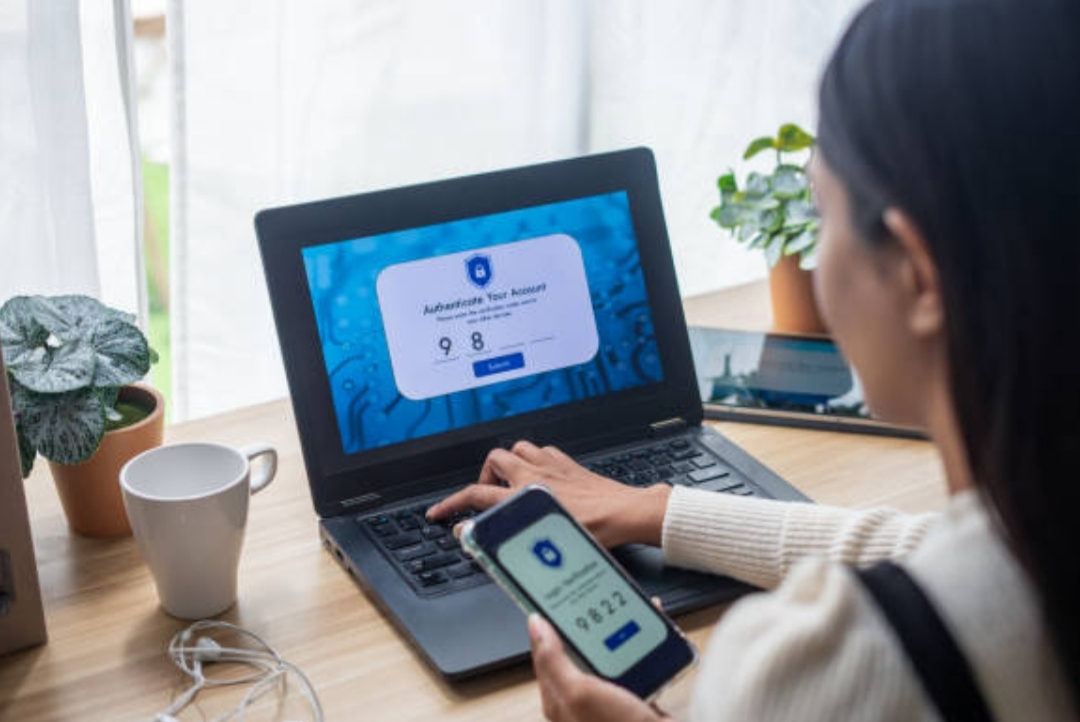
Introduction to Two-Factor Authentication (2FA)
🔐 Protecting your digital identity is no longer optional — it’s essential. In today’s hyper-connected world, where cybercrime is growing at an alarming pace, a simple password is no longer enough to secure your online accounts.
That’s where Two-Factor Authentication (2FA) comes in.
💡 If you’ve ever wondered how to set up two-factor authentication or wanted a clear, simple 2FA setup guide, you’re in the right place.
This article will walk you through everything — step by step — to help you lock down your digital life with secure login tips, easy-to-follow instructions, and the latest methods used in 2025.
✅ What Is Two-Factor Authentication and Why Does It Matter?
Two-Factor Authentication (often called 2FA) is a powerful security feature that adds an extra layer of protection beyond your regular password.
Instead of just asking for “something you know” (like your password), 2FA adds “something you have” (like a mobile device or an authenticator app), or “something you are” (such as a fingerprint or facial recognition).
So even if a hacker steals your password, they won’t be able to log in without the second factor.
📊 Cybersecurity Statistics You Should Know
- 💣 Over 80% of hacking-related breaches are due to weak or stolen passwords.
- 🔓 Accounts without 2FA are 10x more likely to be compromised.
- 📲 Big tech platforms like Google, Apple, Meta, and Microsoft have made 2FA a standard login security feature.
👉 These numbers tell a story: if you’re not using 2FA yet, your online life is vulnerable.
🧠 How Two-Factor Authentication Works (Simple Breakdown)
When you sign into your account, 2FA requires two different types of identity confirmation, typically:
- Something you know – your password
- Something you have – a smartphone, authenticator app, SMS code, or a hardware key
🔁 Example:
You enter your password on Gmail, then receive a 6-digit code on your phone.
Only after entering the correct code can you access your inbox.
That’s the power of two-factor authentication — even if someone has your password, they still can’t access your account without your phone or physical key.
💥 Why Passwords Alone Are Not Safe Anymore
Hackers are smarter. Phishing attacks, brute-force tools, and dark web password leaks are now shockingly common.
Even if you’ve got a “strong” password like @Dmin!2025, it can still be stolen.
But with 2FA, your account stays protected — even if your password is exposed.
✅ Think of 2FA like a deadbolt on your front door. It’s your backup barrier against digital intruders.
🔍 What This 2FA Setup Guide Will Help You Do
In this step-by-step guide, you’ll learn:
- ✅ How to set up two-factor authentication across major platforms like Google, Facebook, WhatsApp, Apple, PayPal, and more
- 🔒 Pro tips and secure login tips to protect your digital identity
- ⚙️ Which 2FA method is right for you (apps vs. SMS vs. hardware keys)
- 📉 How to avoid the biggest mistakes people make when setting up 2FA
Whether you’re new to 2FA or upgrading your current settings, this post will help you make informed, secure decisions about your login safety.
🛠️ Tools You’ll Need Before You Start
Before we jump into the full 2FA setup guide, make sure you have:
- A smartphone 📱
- An authentication app (like Google Authenticator, Authy, or Microsoft Authenticator)
- A list of accounts you want to secure
- Optional: A password manager like Bitwarden or 1Password to save backup codes
🎯 Who Should Use 2FA?
Everyone. Whether you’re a student, freelancer, business owner, or casual user, two-factor authentication can save your data, money, and identity.
Especially if you:
- Use cloud storage or email for sensitive data
- Access online banking or cryptocurrency wallets
- Manage business or social media accounts
- Share devices or use public Wi-Fi frequently
💡 Pro Tip: Start by enabling 2FA on your email accounts first — because if a hacker gets your email, they can reset access to everything else.
🚀 Quick Benefits of Enabling 2FA
- 🧱 Stronger defense against hackers and phishing attacks
- 🔐 Better control over login activities
- 📊 Increased trust and credibility (especially for business owners)
- 🧠 Peace of mind knowing you’ve taken a smart step toward digital safety
- 💵 May help protect against financial losses and identity theft
💬 Real-Life Example: How 2FA Saved a Business Owner
A small business owner had their Gmail hacked despite using a strong password.
Luckily, 2FA was enabled. The hacker couldn’t bypass the mobile authentication.
The account was recovered within minutes, avoiding a potential data breach and financial loss.
🎯 Takeaway: Just one minute to set up 2FA can save you from massive regret later.
➡️ Don’t wait until it’s too late — take control of your account security today by enabling Two-Factor Authentication on every login. Your digital life is worth protecting.
What Are the Different Types of Two-Factor Authentication?
🔐 Two-Factor Authentication (2FA) isn’t just one-size-fits-all.
There are multiple ways you can set it up — each offering different levels of security, convenience, and control.
In this section, we’ll explore the different types of two-factor authentication, how each works, and which option is best for securing your online logins.
If you’re serious about protecting your digital presence, this is where your 2FA setup guide starts to get personal.
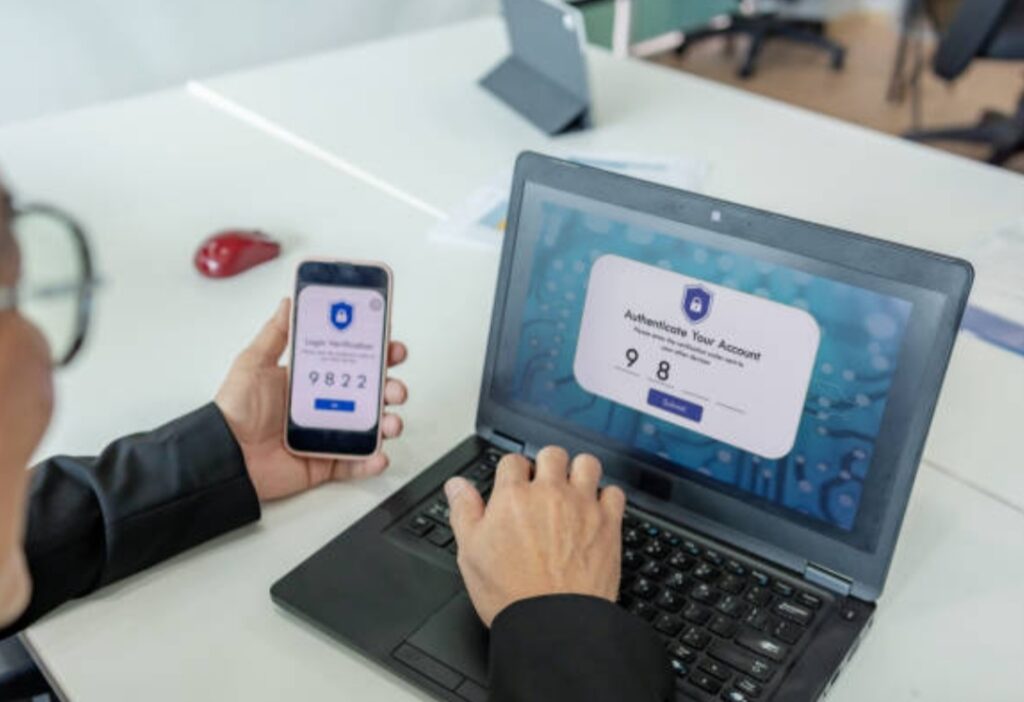
1️⃣ SMS-Based Two-Factor Authentication
This is the most common and widely supported 2FA method.
It works by sending a one-time code (OTP) to your mobile phone via SMS.
You then enter that code after your password to complete the login process.
✅ Advantages of SMS 2FA:
- Easy to set up on almost all platforms
- Doesn’t require installing any app
- Works even on basic phones (non-smartphones)
⚠️ Downsides:
- Vulnerable to SIM swap attacks and phishing
- If your phone signal is weak or offline, you may not receive the code
- Hackers can intercept messages using advanced tools
💡 Best For: Beginners and users with limited technical knowledge
🔐 Secure login tip: Avoid using SMS 2FA for banking or crypto platforms due to higher risk
2️⃣ Authenticator Apps (TOTP-Based 2FA)
This is a more secure and reliable method than SMS.
It uses Time-based One-Time Password (TOTP) technology to generate login codes every 30 seconds — all without needing an internet connection.
Some popular apps include:
- Google Authenticator
- Authy
- Microsoft Authenticator
- Duo Mobile
✅ Benefits of Authenticator Apps:
- Highly secure (not vulnerable to SIM swap or SMS hijacking)
- Doesn’t require cellular network
- Works even when offline
- Some apps offer multi-device support and encrypted backups
⚠️ Downsides:
- If you lose your phone and don’t have backup codes, recovery can be difficult
- Needs setup time and familiarity
💡 Pro Tip: Use Authy if you want cloud backups and the ability to sync between devices
💥 Power Move: Pair an authenticator app with a password manager for ultimate security
🎯 This is the recommended method in most secure login tips.
3️⃣ Hardware Security Keys (FIDO U2F Devices)
This is the gold standard in two-factor authentication security.
Physical security keys like YubiKey, Google Titan Key, or SoloKey plug into your computer or use NFC/Bluetooth to authenticate your login.
✅ Benefits of Hardware Keys:
- Practically unhackable — can’t be phished or intercepted
- No need to type codes
- Extremely fast and easy to use once set up
⚠️ Cons:
- Requires a physical device you must carry
- Costs money (usually $20–$60 per key)
- Not all websites support hardware keys yet
💡 Best For: High-risk users like journalists, business owners, crypto traders, or anyone storing valuable data
📱 Secure login tip: Buy two keys and store one as a backup
4️⃣ Biometric Authentication (Fingerprint, Face ID, Voice)
Biometric 2FA uses your unique physical traits to verify your identity.
It’s built into many modern smartphones and laptops (think Face ID, Touch ID, or fingerprint sensors).
✅ Strengths of Biometric 2FA:
- Fast and convenient
- No codes to enter or devices to carry
- Impossible to guess or replicate
⚠️ Potential Weaknesses:
- Not supported on all platforms
- May have privacy concerns (your biometrics are personal data)
- Some systems can be tricked with high-resolution images or replicas
💬 Real Talk: Biometric 2FA is amazing for daily use, but shouldn’t be your only form of authentication for sensitive accounts
5️⃣ Push Notification-Based 2FA
This is a growing 2FA method where you receive a login request on your phone, and simply tap “Allow” or “Deny.”
Apps like Duo, Okta, and even Google Prompt use this system.
✅ Why People Love It:
- Extremely easy and user-friendly
- No codes to copy or enter
- Great for corporate teams or work logins
⚠️ Downsides:
- Requires internet connection on both devices
- Can be vulnerable to “push fatigue” (accidentally approving malicious logins)
🛡️ Secure login tip: Don’t blindly approve every notification — always verify the request location
6️⃣ Email-Based 2FA (Less Recommended)
Some services still use email as a second factor, where a one-time link or code is sent to your inbox.
While better than nothing, this method is less secure — especially if your email doesn’t have 2FA enabled itself.
📌 Important Reminder: If you’re using email 2FA, make sure your email account has strong 2FA set up first
Which 2FA Method Is Best for You?
The best 2FA method depends on your:
- Risk level
- Type of account
- Technical comfort
- Available devices
Here’s a quick decision guide:
| Use Case | Recommended 2FA |
| Beginners | Authenticator App or SMS |
| Businesses | Hardware Key + Authenticator |
| Crypto/Finance | Hardware Key Only |
| Frequent Travelers | Authenticator App (offline access) |
| Tech-Savvy Users | Biometric + Backup Codes |
🔥 Expert Tip: You can combine 2FA methods where supported — for example, use a hardware key and set up backup codes too.
Final Thoughts on Choosing the Right 2FA Option
Whatever method you choose, the most important thing is to actually enable 2FA.
Even the “least secure” option (like SMS) is far better than no protection at all.
The best approach?
Start with authenticator apps, then upgrade to a hardware key for your most critical accounts.
➡️ Take 3 minutes right now to set up two-factor authentication on your most-used account. The peace of mind is worth it — and your future self will thank you.
General Steps on How to Set Up Two-Factor Authentication (2FA) on Any Account
🔐 Setting up Two-Factor Authentication (2FA) may sound technical, but it’s actually quick, simple, and massively powerful when it comes to safeguarding your online identity.
Whether you’re looking to secure your Gmail, Facebook, Amazon, or banking apps, the process is largely the same across most platforms.
If you’ve ever asked, “how to set up two-factor authentication?”, or searched for a 2FA setup guide, you’re about to get a step-by-step walkthrough that’s easy enough for anyone to follow.
This guide is your trusted blueprint to tighten your digital security — no tech skills required.
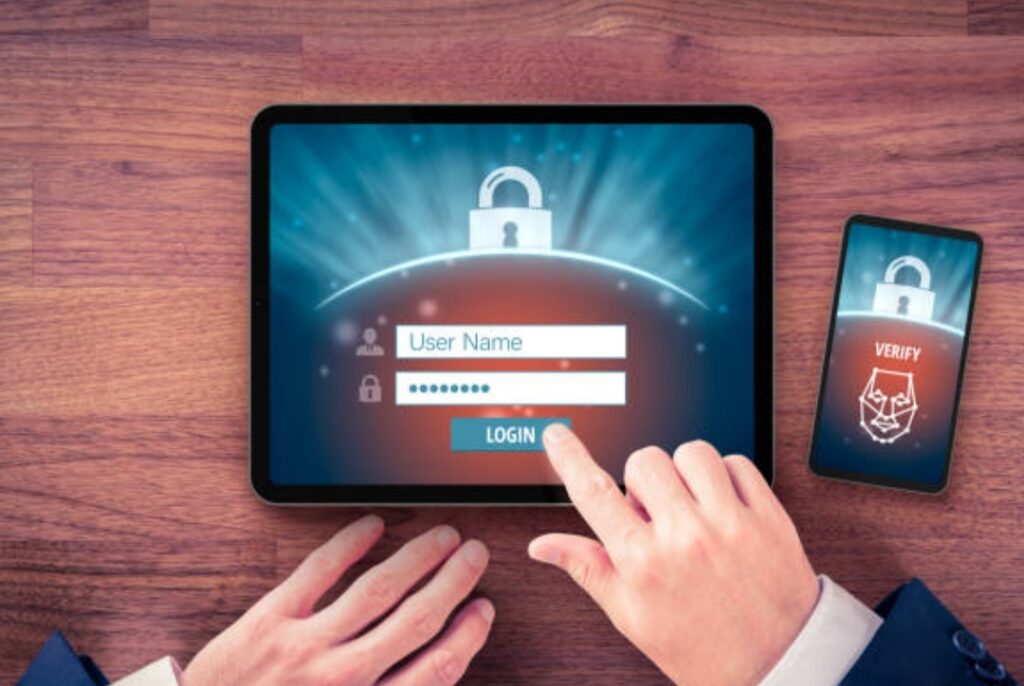
📋 Pre-Setup Checklist — What You Need Before Starting
Before you begin the setup process, make sure you have the following ready:
- ✅ A working email address and phone number
- ✅ A smartphone or tablet
- ✅ An installed authenticator app like Google Authenticator, Authy, or Microsoft Authenticator
- ✅ Access to the account you want to protect
- ✅ A safe place to store your backup/recovery codes
💡 Tip: Consider using a password manager like 1Password or Bitwarden to store 2FA backup codes securely
🚀 Step-by-Step Guide to Set Up Two-Factor Authentication
🔹 Step 1: Log In to the Account You Want to Protect
Start by logging into your account — whether it’s your email, social media, or online banking.
You’ll need full access to change security settings.
🔹 Step 2: Go to Security or Account Settings
Navigate to your account’s settings menu.
Look for tabs like:
- “Security”
- “Privacy”
- “Login & Security”
- “Account Settings”
This is where most platforms hide 2FA or “Two-Step Verification” options.
🔹 Step 3: Find the Two-Factor Authentication Section
Once in the Security section, look for terms such as:
- Two-Factor Authentication
- 2-Step Verification
- Login Verification
- MFA (Multi-Factor Authentication)
Click “Enable” or “Turn On” to begin the setup process.
🔹 Step 4: Choose Your Preferred 2FA Method
Most platforms offer a few 2FA options, including:
- Authenticator App (recommended for higher security)
- SMS Text Message
- Email Verification
- Security Key
- Push Notification
Choose the method that suits your needs best.
✅ Pro Tip: Go with an authenticator app for more security and fewer risks compared to SMS.
🔹 Step 5: Scan QR Code or Enter Secret Key
If using an authenticator app:
- Open the app
- Tap “+” or “Add Account”
- Use your phone to scan the on-screen QR code
- Alternatively, manually enter the secret setup key provided
The app will instantly generate a 6-digit time-based code that refreshes every 30 seconds.
🔹 Step 6: Enter the Code to Confirm Setup
Type the 6-digit code into the platform’s confirmation box.
If the code matches, your 2FA will be successfully activated.
You’ll often see a success message like:
“Two-Factor Authentication is now enabled.”
🔹 Step 7: Save Backup Codes in a Safe Place
Most services offer backup or recovery codes in case you lose access to your device.
Copy these and store them in a secure location:
- Encrypted notes
- Password manager
- Offline paper backup in a safe
⚠️ Warning: Losing your 2FA device without backup codes could lock you out permanently.
🔹 Step 8: Test Your New Login Security
Sign out of the account and try logging back in.
You should now be prompted to:
- Enter your password
- Input a 2FA code from your chosen method
If successful, congrats — you’ve just added a major layer of protection!
🧠 What to Do After You Enable 2FA
Now that you’ve completed your 2FA setup, take a few extra steps to ensure long-term safety:
- 🔁 Enable 2FA on all other critical accounts (email, finance, social, cloud storage)
- 🧾 Write down backup codes or save them to your password manager
- 📲 Install the authenticator app on a second device, if supported (just in case)
- 🔄 Regularly review login activity on your accounts
💥 The more accounts you protect with 2FA, the lower your risk of being hacked.
📊 Platforms That Support Two-Factor Authentication
Most major platforms support some form of 2FA.
Here are some common ones where you should enable it immediately:
| Platform | Recommended 2FA Method |
| Gmail / Google | Authenticator App or Google Prompt |
| Facebook / Instagram | App + SMS Backup |
| 6-digit PIN Setup | |
| PayPal / Online Banking | App or SMS |
| Amazon | App-Based 2FA |
| Apple ID / iCloud | Biometric + App Prompt |
| Microsoft | App or Hardware Key |
| Crypto Exchanges (Binance, Coinbase) | App + Hardware Key |
🔐 Security Tip: If you’re using email to reset passwords for other accounts, your email should be your top priority for enabling 2FA.
➡️ Ready to take back control of your online safety?
Don’t leave your personal info, finances, and accounts exposed — set up two-factor authentication today and lock down what matters most.
🔒 It’s fast, it’s easy, and it’s your first step toward unbreakable security.
2FA Setup Guide for Popular Platforms (Step-by-Step Instructions)
🔐 Now that you understand the types of two-factor authentication, it’s time to put that knowledge into action.
In this section, we’ll walk you through the 2FA setup guide for the most popular online platforms — from email providers to social media and e-commerce giants.
Whether you use Android or iOS, these secure login tips are tailored for real-world users like you.
Don’t worry — each guide is beginner-friendly, up-to-date for 2025, and optimized to help you protect your most critical accounts.
💡 Pro Tip: The sooner you enable 2FA on these accounts, the safer your digital life becomes.
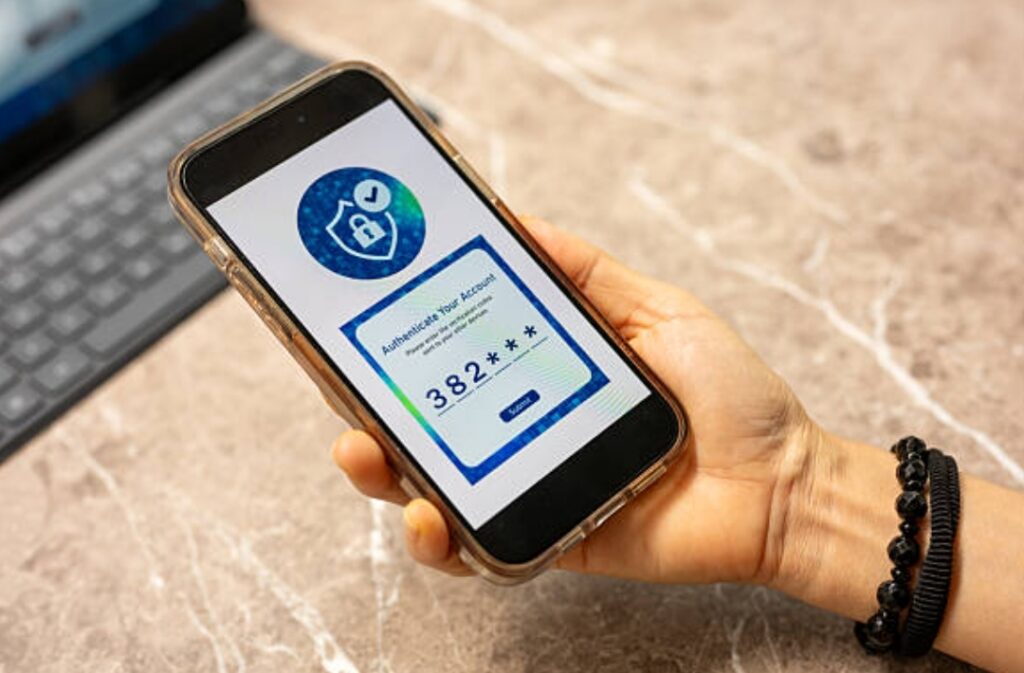
📧 How to Set Up Two-Factor Authentication on Gmail / Google Account
Step-by-Step:
Go to myaccount.google.com/security
- Scroll to the “Signing in to Google” section
- Click “2-Step Verification”
- Sign in to confirm your identity
- Click “Get Started”
- Add your phone number for SMS or choose “Use Another Option” to set up Google Prompt or an Authenticator App
- Follow the on-screen instructions to finish setup
- Save your backup codes and store them securely
✅ Recommended: Use Google Prompt or Google Authenticator for stronger protection
🛡️ Secure login tip: Disable SMS if possible to avoid SIM swap attacks
📘 How to Enable 2FA on Facebook
Step-by-Step:
- Open Facebook Settings
- Go to “Security and Login”
- Scroll to “Two-Factor Authentication” and click “Edit”
- Choose your method: Authentication App, SMS, or Security Key
- Follow the prompts to confirm and activate
- Download or screenshot your recovery codes
🔒 Facebook allows login approvals, alerts for unrecognized logins, and a code generator feature in its mobile app
📸 How to Set Up 2FA on Instagram
Step-by-Step:
- Open the Instagram app
- Go to your profile → Tap ≡ (Menu) → Settings and Privacy
- Tap “Accounts Center” → Password and Security
- Choose Two-Factor Authentication
- Select your preferred method: Text Message, Authentication App, or WhatsApp
- Follow the steps to verify and activate
💬 Tip: Since Facebook owns Instagram, you can link Instagram 2FA to your Facebook security settings.
🛒 How to Enable Two-Factor Authentication on Amazon
Step-by-Step:
- Log in to your Amazon account
- Go to Your Account → Login & Security
- Find Two-Step Verification (2SV) and click “Edit”
- Choose between SMS or Authenticator App
- Scan the QR code if using an app
- Enter the generated code and confirm
- Set up backup methods like an alternate phone number
🧠 Reminder: Amazon 2FA also applies to Amazon Seller accounts, which are frequent targets for fraud
💬 How to Set Up 2FA on WhatsApp
Step-by-Step:
- Open the WhatsApp app
- Tap ⋮ (Menu) → Settings → Privacy
- Tap Two-Step Verification
- Tap Enable
- Create a 6-digit PIN
- Add an email address for recovery (highly recommended)
🔐 WhatsApp uses this PIN in addition to your SMS verification when reinstalling the app
📩 Don’t skip adding your recovery email — it’s your lifeline if you forget your PIN
☁️ How to Set Up Two-Factor Authentication on Apple ID / iCloud (iOS)
Step-by-Step (iPhone/iPad):
- Go to Settings
- Tap your name at the top → Password & Security
- Tap Two-Factor Authentication
- Tap Turn On
- Enter your trusted phone number
- Apple will send a verification code — enter it to finish setup
🔐 Apple uses device-based verification and push prompts to authorize logins
💡 Bonus Tip: Enable Find My iPhone and recovery contacts for extra safety
💼 How to Enable 2FA on Microsoft / Outlook Accounts
Step-by-Step:
- Visit account.microsoft.com/security
- Click Advanced Security Options
- Scroll to Two-Step Verification and click Turn On
- Choose between SMS, Authenticator App, or Email Verification
- Confirm and save your recovery methods
🧠 Best practice: Pair Microsoft Authenticator with Outlook, Teams, and OneDrive for unified protection
💸 How to Enable 2FA on PayPal
Step-by-Step:
- Log in to your PayPal account
- Go to Settings (gear icon)
- Click the Security tab
- Find 2-Step Verification and click Set Up
- Choose SMS or Authenticator App
- Confirm and save your settings
🛡️ PayPal is a common target for phishing — always double-check login links and notifications
₿ How to Set Up Two-Factor Authentication on Binance or Coinbase
For Binance:
- Log into your Binance account
- Go to Profile → Security
- Click “Enable” next to Google Authenticator
- Download Binance Authenticator or use Google Authenticator
- Scan the QR code
- Enter both the code and SMS (if applicable)
- Save your backup key
For Coinbase:
- Go to Settings → Security
- Under 2-Step Verification, click “Enable”
- Choose Authenticator App
- Scan QR code, enter code to confirm
- Save backup codes securely
🔐 Important: For crypto wallets, 2FA is non-negotiable. It’s your first and last line of defense.
➡️ Your digital assets are valuable — protect them with the strongest login security available.
Choose a platform, follow these steps, and activate Two-Factor Authentication NOW.
⚡ One quick setup could prevent a lifetime of regret.
Secure Login Tips to Make Two-Factor Authentication Even Stronger
🛡️ So you’ve followed the steps to set up 2FA — great job!
But here’s the reality: even with two-factor authentication, your accounts can still be vulnerable if you’re not using the right practices.
In this section, we’ll walk you through secure login tips that professionals, ethical hackers, and cybersecurity experts swear by.
These insider techniques will help you maximize the strength of your 2FA setup, avoid common pitfalls, and bulletproof your digital identity from the most advanced attacks of 2025.
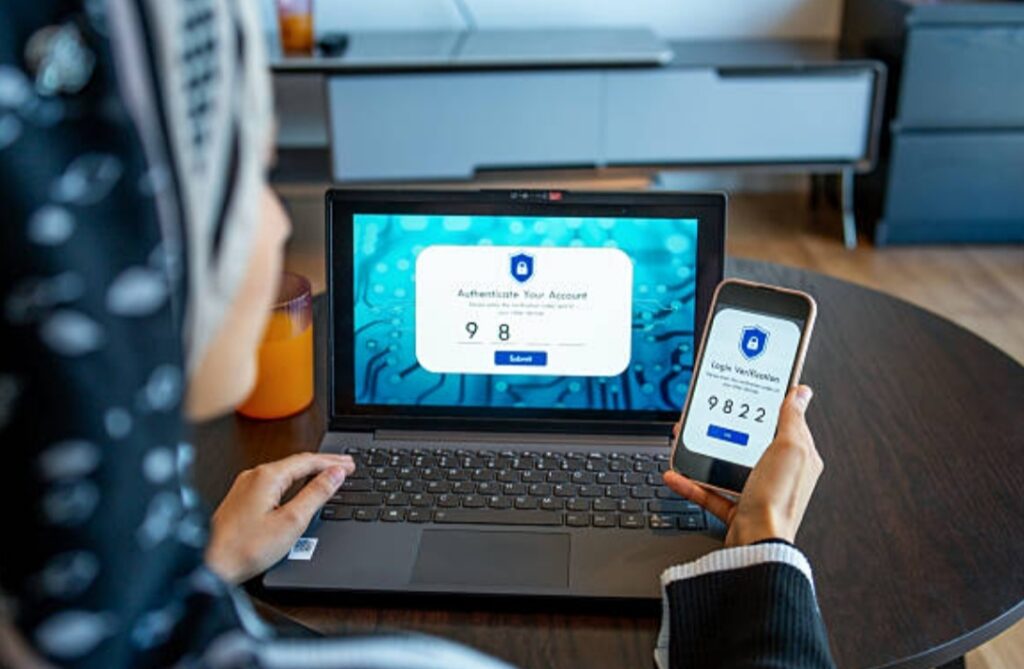
🔥 1. Never Reuse Passwords — Even If You Have 2FA Enabled
🔓 The biggest mistake most people make is assuming 2FA gives them a free pass to reuse weak passwords.
Wrong.
If one of your passwords is leaked in a breach, hackers may still trigger account recovery processes to bypass 2FA — especially if you use the same credentials elsewhere.
✅ Solution:
- Use a unique, complex password for every account
- Combine upper/lowercase, numbers, and symbols
- Consider phrases instead of single words
- Store them securely with a password manager like Bitwarden, 1Password, or NordPass
💡 Power Move: Enable 2FA on your password manager too!
🧠 2. Use Authenticator Apps Over SMS Whenever Possible
SMS-based 2FA is convenient but highly vulnerable to SIM swap attacks, phishing, and interception.
Sophisticated cybercriminals can social-engineer your telecom provider to transfer your number — giving them access to every code sent via SMS.
✅ Best Practice:
- Always choose authenticator apps like Google Authenticator, Authy, or Microsoft Authenticator
- Enable offline backups if supported
- Use biometric locks on the app for added protection
🔐 Secure login tip: Only use SMS 2FA as a backup, not as your primary method.
🧾 3. Backup Codes Are Not Optional — Store Them Wisely
After setting up 2FA, most platforms provide recovery or backup codes.
These are your lifeline if you lose your phone, reset your device, or uninstall your authenticator app.
If you lose both your device and your codes, you may be permanently locked out of your account.
✅ Where to Store Backup Codes:
- Password manager
- Encrypted notes
- Printed and locked in a safe (offline storage)
⚠️ Don’t screenshot or store them in plain text on your phone or cloud storage.
📲 4. Activate Biometric Login as an Extra Layer
For apps and password managers that support it, enabling Face ID, fingerprint, or retina scan adds a third barrier against intruders.
While not a replacement for 2FA, biometric login is a powerful additional factor that strengthens your defense.
✅ Where to Enable Biometric Security:
- Mobile banking apps
- Password managers
- Device unlock
- Cloud storage platforms
🧠 Biometric traits are unique and difficult to forge, making them excellent for securing daily-use apps.
🔁 5. Rotate Your Recovery Keys and Revisit Settings Regularly
Security settings are not “set it and forget it.”
Over time, apps update, device access changes, and even security methods evolve.
You should review your 2FA settings every 3 to 6 months to make sure:
- Backup codes are still valid
- Your trusted devices are up to date
- No suspicious devices are authorized
- You remove old phones or lost hardware keys
🔍 Don’t give cybercriminals time — stay one step ahead by auditing your login activity frequently.
🛑 6. Watch Out for Phishing & Spoofed 2FA Prompts
Even with 2FA, phishing attacks remain a top threat.
Hackers may trick you into entering your 2FA code on fake websites or quickly mirror your login attempt and request your 2FA prompt before you notice.
This is especially dangerous with push-notification-based 2FA like Duo or Google Prompt.
✅ How to Stay Safe:
- Never enter codes from unknown sources
- Look at the URL carefully before logging in
- Set up phishing alerts using services like HaveIBeenPwned
- Deny login prompts you didn’t initiate yourself
📣 Warning: Don’t become a victim of “push fatigue” — always question random approval requests.
💼 7. Use Multiple 2FA Methods for High-Risk Accounts
For your most critical accounts — like email, banking, or cryptocurrency wallets — layering two-factor authentication options is your best bet.
Combine:
- Hardware security key (like YubiKey or Titan Key)
- Authenticator app
- Biometric login
- Strong password with unique passphrase
- Backup codes stored securely offline
💥 Expert Strategy: If a platform supports both a hardware key and app-based 2FA, enable both.
💡 8. Secure Your Devices — 2FA Is Only as Strong as Your Hardware
Even the best 2FA setup can fail if your smartphone or PC is compromised.
Viruses, malware, and spyware can capture your 2FA codes or clone your authenticator apps.
✅ Device Hygiene Checklist:
- Keep your OS and apps updated
- Use antivirus or mobile security apps
- Avoid jailbreaking or rooting your phone
- Set strong passwords and biometric locks for all devices
- Enable full-disk encryption on laptops and external drives
📱 2FA only protects your accounts — you still need to protect the devices where those accounts live.
⚠️ 9. Avoid Public Wi-Fi for Logging into Critical Accounts
Public Wi-Fi is a hacker’s playground.
Even if you use 2FA, a compromised hotspot can lead to man-in-the-middle attacks, session hijacking, or credential theft.
✅ Safer Options:
- Use your mobile hotspot or private Wi-Fi
- Connect through a trusted VPN provider
- Disable auto-connect on unknown networks
🔒 When in doubt, wait until you’re on a secure connection to log in or make sensitive changes.
➡️ Want to stay five steps ahead of hackers?
Apply these advanced secure login tips and make your two-factor authentication setup virtually unbreakable.
⚡ Don’t just stop at setting up 2FA — optimize it, audit it, and upgrade it. Your online safety depends on it.
What to Do If You Lose Access to Your 2FA Method
😨 Lost your phone? Deleted your authenticator app? Forgot your 2FA PIN?
Don’t panic — you’re not alone.
Losing access to your two-factor authentication method can feel like being locked out of your digital life.
But with the right recovery steps and backup strategies, you can regain control quickly and safely.
This section walks you through exactly what to do if you’ve lost access to your 2FA — whether it’s your phone, authenticator app, or backup key — and how to build a bulletproof recovery system that protects you in the future.
✅ Knowing how to set up two-factor authentication is just the first step. Knowing how to recover it is equally important for complete security.
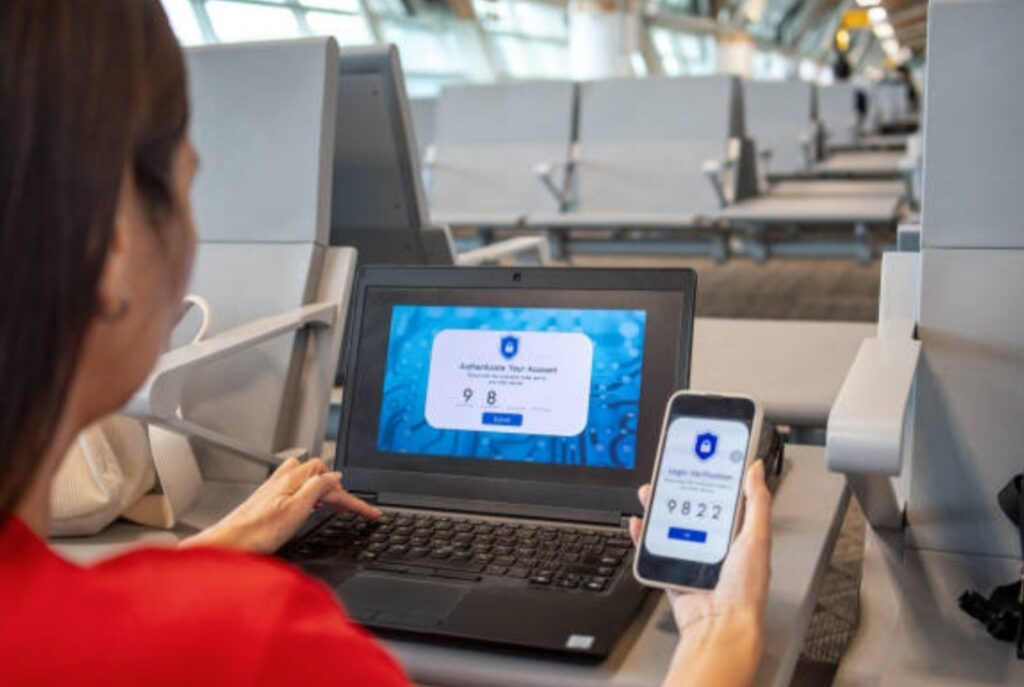
🚨 Immediate Actions to Take If You Lose 2FA Access
📱 If You Lost Your Phone:
- Try to access your account from a device where you’re already signed in
- Use a backup authentication method (email, SMS, or backup codes)
- Use your recovery phone number or trusted device if you’ve set one up
🔁 If You Changed Phones:
- Reinstall your authenticator app
- Use the account transfer feature in apps like [Authy] or [Google Authenticator]
- Use your backup codes to log in and reconfigure 2FA
🔒 If You Deleted the Authenticator App:
- Go to the platform’s login page
- Click “Can’t access your 2FA?” or “Lost your device?” (usually under the 2FA input field)
- Follow account recovery instructions
- You may be asked to confirm via email, ID, or security questions
💡 Tip: Some platforms allow you to bypass 2FA temporarily if you prove your identity.
🧾 Use Your Backup Codes — Your Digital Safety Net
When you first set up 2FA, most services offer you a set of one-time backup codes.
Each code can typically be used once to bypass the 2FA process and log in safely.
✅ Where to Find Them:
- Stored in your password manager
- Saved as a text file or screenshot
- Printed and locked in a secure location
⚠️ Warning: If you didn’t save your backup codes when prompted during setup, you may have no alternative way to access your account.
🔐 Use Recovery Email, Phone Number, or Trusted Devices
Most major platforms offer secondary recovery methods tied to:
- A recovery email address
- A secondary phone number
- Trusted devices already logged in
When trying to recover access, look for prompts like:
- “Send a verification code to your email”
- “Send a code to your backup phone”
- “Log in from a known device”
These recovery routes are often faster and more reliable than support tickets.
📩 Contact Customer Support (Last Resort)
If you’ve exhausted all self-recovery methods, the next step is to contact the platform’s customer support.
Prepare the following:
- A valid government-issued ID (some services require this)
- Proof of account ownership (billing info, recent activity, linked devices)
- Clear explanation of what happened and why you can’t access 2FA
Most services like Google, Facebook, PayPal, and crypto platforms have a manual verification process for these situations.
📞 Tips When Contacting Support:
- Use your registered email for faster response
- Be polite, detailed, and cooperative
- Respond promptly to follow-up questions
🧠 Expect delays — but persistence usually pays off.
🧠 Re-Secure Your Account After Recovery
Once you’ve regained access to your account, immediately reset your login credentials and 2FA settings.
Do the Following:
- Change your password
- Remove old or untrusted 2FA devices
- Re-enable two-factor authentication
- Generate a new set of backup codes
- Set up a new recovery email or phone number
🔄 Rebuilding your 2FA system right after recovery ensures you’re protected from future incidents.
📊 Preventative Measures to Avoid Getting Locked Out Again
Want to avoid ever facing this 2FA nightmare again?
Here’s a security blueprint to bulletproof your setup:
✅ Prevention Checklist:
- ✔️ Save your backup codes offline and in a password manager
- ✔️ Enable multi-device sync in Authy or similar apps
- ✔️ Add a recovery email and phone number to all your accounts
- ✔️ Enable trusted devices where available
- ✔️ Keep a hardware key as a backup for your most sensitive accounts
- ✔️ Never rely on just one device for 2FA access
🛡️ Think of 2FA like a safe: it only works if you keep the keys somewhere smart.
➡️ Don’t wait until you’re locked out.
Set up your 2FA recovery options today — backup codes, trusted devices, and secondary methods — and sleep easy knowing your accounts are bulletproof.
⚡ Protect your future by preparing for the unexpected now.
FAQs About Two-Factor Authentication (2FA)

What is Two-Factor Authentication (2FA) and How Does It Work?
🔐 Two-Factor Authentication (2FA) is a security process where a user must verify their identity using two separate methods before accessing an account.
Typically, this involves:
- Something you know (like a password)
- Something you have (like a phone or hardware key)
2FA adds an extra layer of protection beyond just a username and password, making it much harder for hackers to gain access — even if they steal your credentials.
Why Should I Use Two-Factor Authentication?
Using 2FA greatly reduces the risk of your accounts being hacked.
Even if your password is compromised, a cybercriminal still can’t log in without the second verification step.
It’s one of the most effective, free tools you can use to protect:
- Personal emails
- Social media
- Financial accounts
- Work tools
- Cloud storage
✅ Experts recommend enabling 2FA on every account that supports it.
What Are the Different 2FA Methods I Can Choose From?
Common 2FA methods include:
- SMS codes sent to your phone
- Authenticator apps like Google Authenticator or Authy
- Biometric scans (Face ID or fingerprint)
- Push notifications (like Google Prompt or Duo Push)
- Physical security keys (such as YubiKey)
For most users, an authenticator app is the best balance between security and ease of use.
Is SMS Two-Factor Authentication Safe?
While better than no 2FA at all, SMS-based authentication is considered the weakest method.
It’s vulnerable to:
- SIM swap scams
- Phishing attacks
- Network interception
✅ Instead, use app-based 2FA or hardware security keys for stronger protection.
Can I Use the Same Authenticator App for Multiple Accounts?
Yes.
Apps like Google Authenticator, Authy, or Microsoft Authenticator can store multiple accounts at once.
You’ll see a separate 6-digit code for each service (like Gmail, Facebook, etc.).
Just scan each QR code when setting up 2FA for a new account.
What Happens If I Lose My 2FA Device?
If you lose your phone or authenticator device:
- Use backup codes provided during 2FA setup
- Access your account from a trusted device
- Use recovery options (like email or secondary number)
- Contact customer support and verify your identity
🔐 Always store backup codes in a secure place — this is your fail-safe.
How Do I Transfer My Authenticator App to a New Phone?
The process depends on the app:
- Authy: Supports multi-device sync and encrypted cloud backup
- Google Authenticator: Offers account transfer via QR code
- Microsoft Authenticator: Uses cloud backup linked to your Microsoft account
💡 Tip: Set up 2FA on your new device before wiping the old one.
Can I Use 2FA Without a Smartphone?
Yes.
Alternatives include:
- Security keys (USB or NFC)
- Email-based 2FA
- Desktop-based authenticator apps
- Biometric logins on supported laptops
While phones offer convenience, 2FA doesn’t require one if you use the right methods.
Should I Enable 2FA on All My Accounts?
Absolutely.
Start with your most important accounts:
- Gmail
- Social media
- Banking
- Apple ID or Microsoft
- Crypto exchanges
- Password managers
Then expand to any other platform that offers 2FA.
🧠 Hackers often target the weakest link — don’t let any account be that link.
Can Hackers Bypass Two-Factor Authentication?
It’s rare but possible through:
- Phishing sites that trick users into giving codes
- Man-in-the-middle attacks
- Push fatigue attacks on notification-based 2FA
- SIM swapping if using SMS
But the vast majority of attacks target users without 2FA.
🔒 Using 2FA correctly makes your accounts over 99% more secure than those without it.
➡️ Got a question not answered here?
Drop it in the comments or reach out to us — your digital security deserves expert attention.
Don’t wait — activate and secure your two-factor authentication setup today.
Conclusion — Take Control of Your Digital Security with 2FA
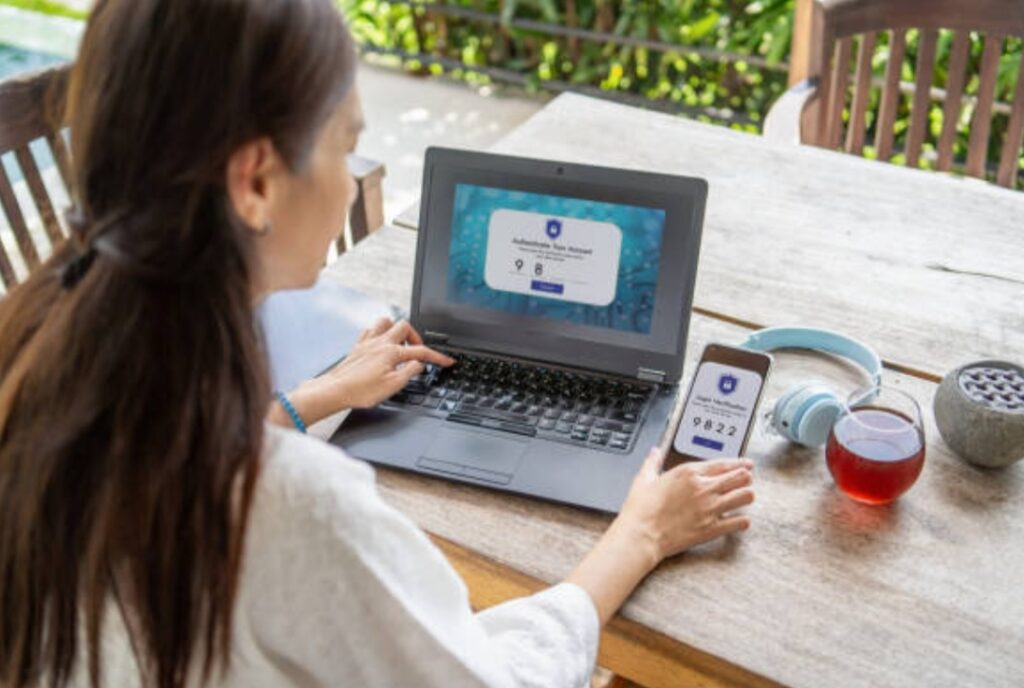
🔐 In today’s hyper-connected world, passwords alone are no longer enough.
Whether you’re a casual user or managing sensitive data, learning how to set up two-factor authentication is one of the smartest, most impactful decisions you can make for your online safety.
Throughout this 2FA setup guide, we’ve broken down:
- 🔹 What two-factor authentication is and how it works
- 🔹 Step-by-step instructions for enabling 2FA on major platforms
- 🔹 Powerful secure login tips to boost your protection even further
- 🔹 Pro recovery strategies if you ever lose access to your 2FA device
- 🔹 Expert answers to the most frequently asked questions
And here’s the truth:
Most security breaches happen not because systems are weak — but because users fail to take simple precautions.
Don’t be that user.
✅ Your Next Steps: Secure Your Accounts Now
If you’ve made it this far, you now have the tools, tips, and knowledge to lock down your digital identity.
Here’s what to do right now:
✅ Pick your most-used account (Gmail, Facebook, etc.)
✅ Follow our 2FA setup steps
✅ Save your backup codes securely
✅ Repeat for every account that matters
It only takes 5 minutes per platform, but the security boost you get is priceless.
📣 Take Action Now
➡️ Don’t wait until your account gets hacked.
Take action today. Choose one account. Set up two-factor authentication. Then another. And another.
Each one you secure is another wall hackers can’t climb.
⚡ Be proactive. Be smart. Be unbreakable.
🛡️ Ready to build a future-proof digital life? Start with 2FA.
You might also like :