
keywords : how to share wi-fi without revealing your password, wi-fi sharing tips, qr code wi-fi
Introduction – Why You Should Share Wi-Fi Without Sharing Your Password 🔒📶
In today’s hyper-connected world, Wi-Fi is more than just a luxury — it’s a digital lifeline.
Whether you’re working from home, entertaining guests, or helping a friend connect to the internet, there’s often a need to share your Wi-Fi.
But here’s the catch: handing out your actual Wi-Fi password can be a huge security risk.
Especially if that password also grants access to other smart home devices, network settings, or even personal files.
That’s why more and more people are asking: “How can I share Wi-Fi without revealing my password?”
Luckily, modern solutions exist — and they’re safe, smart, and surprisingly simple.
From QR code Wi-Fi scanning to built-in sharing options on iOS and Android, you can now grant internet access to others without exposing your private credentials.
This is not only more convenient, but it’s a powerful step towards better digital security in a world of growing cyber threats.
🔐 Whether you’re a tech-savvy homeowner or just someone trying to avoid writing passwords on sticky notes, learning how to share Wi-Fi without revealing your password is an essential digital life skill.
Throughout this guide, we’ll walk you through the latest Wi-Fi sharing tips, tools, and best practices — all updated for the latest smartphone OS versions and security standards.
We’ll also show you exactly how to generate QR codes, create guest networks, and use built-in sharing features from Apple and Android — all without compromising your privacy.
⚡ Pro Tip: If your Wi-Fi password is long, complex, or shared with multiple devices — it’s even more important to keep it private.
That’s where tools like QR code Wi-Fi come to the rescue!

✅ What You’ll Learn in This Guide:
- The risks of sharing your actual password (and how to avoid them)
- Step-by-step instructions to share Wi-Fi without typing a single character
- Smartphone-specific Wi-Fi sharing tips for Android and iPhone users
- How to generate QR codes that auto-connect guests securely
- How to create and manage a Guest Wi-Fi network for added safety
So, whether you’re a small business owner, a digital nomad, or simply someone who hosts friends and family often — this guide will help you stay secure while staying connected.
Let’s dive in and discover how to share Wi-Fi without revealing your password the smart way. 🚀
🔥 Ready to ditch the sticky notes and stay secure?
Scroll down to discover the easiest ways to share your Wi-Fi without ever showing your password!
💡 Pro Tip: Bookmark this post for quick access anytime someone asks for your Wi-Fi!
Method 1 – Use a QR Code to Share Wi-Fi Instantly 📱📷
One of the easiest and most secure ways to share your Wi-Fi without revealing your password is by using a QR code.
This method allows guests to connect to your network by simply scanning a code — no typing, no awkwardly spelling long passwords, and zero risk of them seeing your private credentials.
It’s sleek.
It’s secure.
And best of all — it works on almost any modern smartphone.
If you’ve been searching for smart Wi-Fi sharing tips, this one’s a game changer.
🔍 What is a QR Code Wi-Fi Connection?
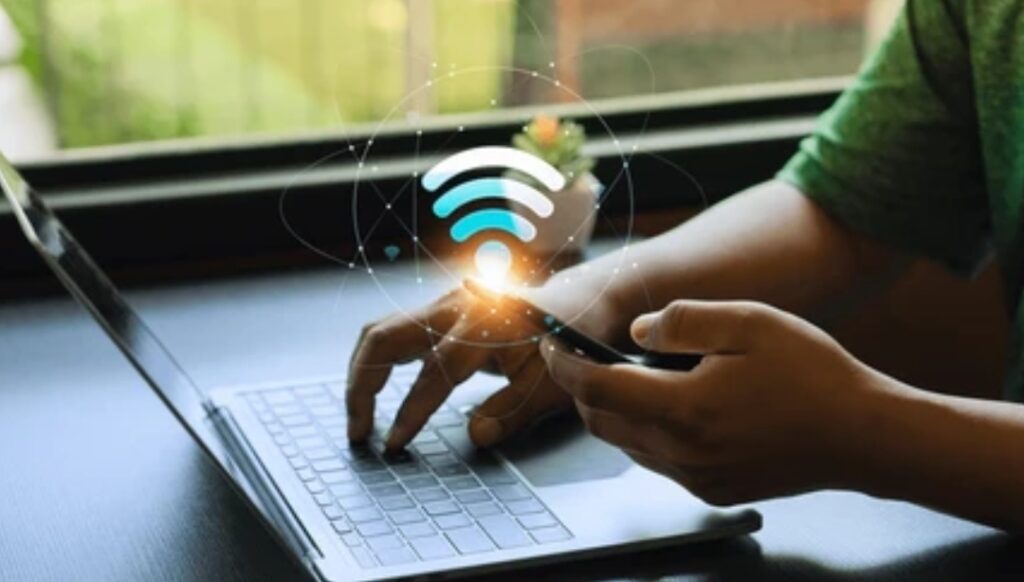
A QR code Wi-Fi connection is a special type of scannable image that holds all your Wi-Fi credentials — including the network name (SSID), encryption type, and password — encrypted within the code.
When scanned by a compatible device, it prompts an automatic connection to your network.
No typing.
No passwords displayed.
Just instant access with one scan.
📲 How to Create a QR Code for Wi-Fi on Android
Most Android devices running Android 10 or later come with this feature built-in.
Here’s how you can do it:
Step-by-Step Guide:
- Open your phone’s Settings
- Go to Network & Internet > Wi-Fi
- Tap on your connected network
- Tap Share (you may be asked to authenticate via fingerprint or PIN)
- A QR code will appear — this is your Wi-Fi sharing code
✅ Your guest just needs to open their camera and scan it — and they’re online within seconds.
💡 Bonus Tip: If your Android doesn’t have this feature, use free apps like QR Code Generator or websites like qifi.org to manually create one.
🍏 How to Share Wi-Fi with QR Code on iPhone (iOS 17 and Above)
While iPhones don’t natively generate Wi-Fi QR codes (yet), there’s a clever workaround using Shortcuts or third-party websites.
Here’s How to Create One Using an Online QR Generator:
- Visit qifi.org or qrstuff.com
- Enter your Wi-Fi SSID (name), password, and security type
- Click Generate QR Code
- Save the image and share it with your guest
They can scan it using the iPhone Camera app and connect in seconds.
🛡️ Security Tip: Be sure to avoid shady QR generators — always use trusted sites or apps.
🧠 Benefits of Sharing Wi-Fi via QR Code
Using a QR code to share Wi-Fi offers more than just convenience.
Here’s why it’s a favorite among digital security pros:
- No password exposure: Your actual password stays hidden
- Fast connection: Perfect for parties, clients, or public spaces
- No typos or confusion: One scan, and you’re in
- Customizable: Print it, save it, or embed in a welcome email
- Great for businesses: Place QR codes in cafés, salons, or offices
✅ Ideal for Airbnb hosts, remote workers, and anyone who shares their Wi-Fi often.
🚫 What to Watch Out For When Using QR Codes
While QR code Wi-Fi sharing is incredibly efficient, there are still a few things to keep in mind:
- 📶 The QR code won’t work if your SSID is hidden
- 📱 Not all older phones can scan QR codes
- 🔒 Anyone who scans the code will get internet access — so don’t post it publicly
⚠️ Best Practice: Print and frame your QR code only in trusted spaces or provide it digitally to specific guests.
Extra Pro Wi-Fi Sharing Tips (QR Edition) 🧩
- ✅ Laminate your QR code for frequent guests or office visitors
- ✅ Use password managers to store and generate your code securely
- ✅ Change your Wi-Fi password periodically and update the QR code when needed
✨ Want a sleek, professional look?
Design your QR code with your brand color and embed it in a guest welcome kit for your Airbnb or office space.
🔁 Quick Recap – Why QR Code Wi-Fi is a Must-Try
- It’s fast, secure, and incredibly user-friendly
- You can share Wi-Fi without ever revealing your password
- It’s supported on most modern Android and iOS devices
- It’s ideal for both home and business use
🎯 Take Action Now:
Generate your own QR code and test it today!
You’ll wonder how you ever lived without it.
🚀 Looking for more secure Wi-Fi sharing tips?
Keep scrolling — the next methods will show you how to share Wi-Fi on iPhone, Android, and via Guest Networks — all without showing your password.
Method 2 – Share Wi-Fi on iPhone Without Revealing the Password 🍏🔐
If you’re an iPhone user, you’re in luck.
Apple has made it incredibly easy to share Wi-Fi access securely — and the best part?
You can do it without ever showing or typing your actual password.
This built-in feature, introduced in iOS 11 and improved in newer versions like iOS 17, lets you instantly share your Wi-Fi connection with other nearby Apple devices.
It’s seamless, smart, and a perfect solution for anyone wondering how to share Wi-Fi without revealing your password on an iPhone.

🔍 How Does iPhone Wi-Fi Sharing Work?
Apple’s Wi-Fi sharing tool uses a combination of Bluetooth, Wi-Fi, and Apple ID to authenticate nearby devices.
Instead of displaying your password, your iPhone sends an encrypted connection request to the other device.
Once accepted, the guest device is automatically connected to your network — no password is shown or stored manually.
It’s a truly passwordless connection experience.
💡 Wi-Fi Sharing Tips: This method only works between Apple devices like iPhones, iPads, and Macs running iOS 11/macOS High Sierra or later.
📱 Step-by-Step Guide to Share Wi-Fi on iPhone Without Password
To get started, follow these easy steps:
✅ Requirements:
- Both devices must be running iOS 11 or later
- Bluetooth and Wi-Fi must be enabled on both devices
- Both devices should be physically close to each other (within a few feet)
- The guest’s Apple ID must be in your Contacts list
🛠️ How to Share:
- Make sure both devices are unlocked and have Wi-Fi and Bluetooth turned on
- Connect your iPhone to your home Wi-Fi network
- Ask the guest to select the same network on their iPhone or iPad
- A “Wi-Fi Password” prompt will pop up on your iPhone
- Tap “Share Password” and wait a moment
- The guest’s iPhone will automatically connect to your Wi-Fi
- Tap “Done” when the process completes
✅ That’s it — no need to write, spell, or show your actual Wi-Fi password!
⚠️ Troubleshooting Tips if Wi-Fi Sharing Doesn’t Work
Sometimes the feature may not work as expected.
Here are a few common fixes:
- Make sure the guest’s Apple ID is saved in your Contacts
- Turn Wi-Fi and Bluetooth off and on again on both devices
- Ensure that Personal Hotspot is disabled on both phones
- Restart both iPhones if the prompt doesn’t appear
- Keep both devices close together
🧠 Pro Insight: Wi-Fi sharing works best when both devices are on the latest iOS version.
💼 Who Should Use This iPhone Wi-Fi Sharing Feature?
This feature is ideal for:
- Families sharing internet at home
- Students on campus
- Co-workers in an Apple ecosystem
- Guests visiting your home
- People hosting events or meetups
✨ Bonus Tip: Use this feature at Airbnbs or client meetings where giving out your main password isn’t ideal. Just share securely in seconds!
🔐 Why It’s Safer Than Telling Someone Your Wi-Fi Password
Let’s face it — even people you trust can make mistakes.
They might write your password down, share it unintentionally, or even pass it to someone else.
By using Apple’s built-in feature, you:
- Avoid giving out passwords verbally or in writing
- Prevent password leaks
- Keep network settings protected
- Maintain better control over who joins your network
✅ Wi-Fi sharing tips like this help protect your home or office network from unnecessary exposure.
Quick Pros & Cons Breakdown for iPhone Wi-Fi Sharing 📊
Pros:
- 🔐 Ultra-secure — no password shown
- ⚡ Lightning fast
- ⚡ Lightning fast
- 🧠 Easy to use with no extra apps
- 🍏 Works across iPhones, iPads, and Macs
Cons:
- ❌ Only works between Apple devices
- 📶 Must be nearby
- 📋 Requires Apple ID in your contacts
🎯 Take Action Now:
Try this feature with a family member or friend today to see how effortless it is.
It’s one of the smartest ways to keep your Wi-Fi secure while staying connected!
💡 Still want a method that works across ALL devices — even non-Apple ones?
Scroll down to the next method and learn how to share Wi-Fi securely on Android too!
Method 3 – Share Wi-Fi on Android Securely 🤖📲
If you’re an Android user, you’re in for a treat.
Sharing Wi-Fi securely on Android has never been easier — especially with features baked into modern Android OS versions like Android 10 and above.
This means you can connect your guests to your network in seconds, without ever showing them your password — just like magic!
If you’ve been asking how to share Wi-Fi without revealing your password, this method is one of the most reliable, fast, and user-friendly ways to do it.
No extra apps needed.
No typing involved.
Just scan and connect — effortlessly.

🔍 How Android Wi-Fi Sharing Works (Without Revealing the Password)
Modern Android devices come with a built-in QR code sharing feature inside the Wi-Fi settings.
It allows you to generate a secure QR code that contains your network name, encryption type, and password — but encrypts all of that into a scannable image.
Once scanned by another device (Android or iPhone), it auto-connects the user to your Wi-Fi.
This way, you’re sharing access — without ever exposing your actual credentials.
💡 Wi-Fi sharing tip: Android’s QR code method works with both Android and iPhone cameras that support QR scanning.
📲 Step-by-Step Guide to Share Wi-Fi on Android
If you’re using Android 10, 11, 12 or later, you can follow these steps:
✅ How to Generate a Wi-Fi QR Code on Android:
- Open Settings on your Android phone
- Go to Network & Internet > Wi-Fi
- Tap on the connected Wi-Fi network
- Tap Share
- Authenticate with your fingerprint, face, or PIN
- A QR code will appear on your screen
✅ Ask your guest to scan the QR code with their phone’s camera — they’ll instantly join your Wi-Fi network without seeing or typing the password.
📸 How Guests Can Scan the QR Code
If They Have an Android:
- Open the Camera app or QR code scanner
- Point it at the QR code
- Tap the pop-up to connect to Wi-Fi
If They Have an iPhone:
- Open the Camera app
- Hover over the QR code
- Tap the Wi-Fi join prompt at the top of the screen
🔐 No passwords shown. No apps downloaded. Just instant connection.
🛠️ Alternate Method – Use Google’s Nearby Share (Advanced Users)
For Android 12 and above, Nearby Share can also be used to send your Wi-Fi details over a secure, encrypted connection.
It works similarly to Apple’s AirDrop.
Here’s How:
- Go to Settings > Network & Internet > Internet
- Tap on the Wi-Fi network name
- Select “Share”, then choose Nearby Share
- The guest device should accept the share request
- They’re connected automatically — no need to scan
🧠 Bonus Tip: You can use Nearby Share to send Wi-Fi credentials AND files at the same time — great for co-working!
📶 Pros and Cons of Android Wi-Fi Sharing
✅ Pros:
- Works with both Android and iPhone
- Fast, simple, and built into Android OS
- No need to tell anyone your password
- Doesn’t require internet access or mobile data
- Works even if your SSID (Wi-Fi name) is hidden
❌ Cons:
- Requires Android 10 or newer
- Some older Android phones won’t support QR code generation
- Nearby Share feature needs Android 12+
✨ When Should You Use Android Wi-Fi Sharing?
Android Wi-Fi sharing is perfect for:
- Guests visiting your home
- Co-workers joining your office network
- Sharing public café or restaurant Wi-Fi with friends
- Tech-savvy event setups where secure access matters
⚡ Power Move: Save your QR code as a screenshot or embed it into a digital welcome guide for frequent visitors, clients, or tenants.
🧠 Extra Wi-Fi Sharing Tips for Android Users
- Always keep your phone updated to access the latest sharing features
- Customize your QR code design using trusted apps like WiFi QR Code Generator
- Avoid sharing your QR code publicly — treat it like a password
- Refresh your network password regularly and regenerate your QR code
- Use guest networks for extra privacy (explained in the next section!)
🎯 Take Action Now:
Open your phone, follow the steps above, and generate your QR code today.
Try scanning it with another device and experience the magic of secure sharing.
🔐 Want to add another layer of safety?
In the next section, you’ll learn how to set up a Guest Wi-Fi Network — a brilliant way to stay connected while locking down your main network.
Method 4 – Use a Guest Network for Safer Sharing 🌐👥
Want to take your Wi-Fi security to the next level?
Setting up a Guest Network is one of the most effective — yet often overlooked — ways to share Wi-Fi without revealing your password.
Instead of giving visitors access to your main private network, you can offer them a separate, isolated Wi-Fi connection that keeps your devices, data, and smart home safe.
It’s an especially smart move for homeowners, small businesses, and anyone who hosts guests regularly.
Let’s break down what a guest network is, how it works, and why it’s one of the most secure Wi-Fi sharing tips you can use.

🔍 What Is a Guest Wi-Fi Network?
A Guest Network is a secondary Wi-Fi network that runs parallel to your primary Wi-Fi connection.
It has its own network name (SSID), password, and access rules — keeping your main network and all its connected devices completely separate.
This means guests can use your internet without having any access to:
- Your personal files
- Smart home devices
- Printers, NAS, or shared folders
- Router settings
🔐 Privacy First: With a guest network, your smart home stays smart — but your visitors stay out of it.
⚙️ How to Set Up a Guest Network on Your Router
Most modern routers (especially dual-band and mesh routers) come with a built-in guest network option.
Here’s how to set it up:
Step-by-Step Setup:
- Connect to your router via browser (usually 192.168.0.1 or 192.168.1.1)
- Log in using your router’s admin credentials
- Navigate to Wireless Settings or Guest Network section
- Enable “Guest Network”
- Create a new SSID (e.g., “YourName_Guest”)
- Set a strong, unique password (separate from your main one)
- ✅ Disable “Allow access to local network” or “Intranet access” to prevent guest devices from accessing your private network
- Click Save or Apply
🧠 Pro Tip: Some routers let you limit bandwidth or auto-disable guest access at certain times — great for managing usage!
🛡️ Why Guest Networks Are the Ultimate Wi-Fi Security Hack
If you’re serious about security and convenience, guest networks offer unbeatable benefits:
✅ Advantages:
- Keeps your main Wi-Fi password private
- Protects connected devices like laptops, printers, security cameras
- Helps manage bandwidth by controlling guest usage
- Prevents malware or viruses from spreading into your main network
- Lets you set time-based access or device limits
🚫 No more worrying about someone accidentally (or intentionally) snooping around your devices.
📱 How Guests Can Connect to a Guest Network
Once your guest network is set up:
- Give your guests the guest SSID and its password
- Or create a QR code with that guest SSID for easy scan-to-connect access
- Optionally, display the code or info on a card, framed sign, or in a digital message
✨ Combine this with QR Code Wi-Fi for a super clean, branded guest experience.
🔄 Keep It Secure – Best Practices for Guest Networks
To keep your guest network safe and efficient:
- Change the guest password regularly
- Limit the number of devices allowed to connect
- Monitor guest connections using your router app
- Disable guest access when not in use
- Use WPA2 or WPA3 encryption — never “Open” or unsecured networks
- Turn off guest network sharing during off-hours
🔒 Security Alert: Never run a guest network with no password — it’s an open door for hackers.
🧠 When to Use a Guest Network Instead of Other Methods
Guest networks are the best choice when:
- You have many or recurring visitors
- You run a home office or business
- You want to separate work from play
- You don’t want to mess with QR codes or device proximity
- You have smart devices and want to protect your IoT network
⚡ Pro-Level Wi-Fi Sharing Tip: Set up smart home devices on your guest network to keep them separate from your work and personal machines — extra security and better bandwidth control.
🎯 Take Action Now:
Log into your router settings and enable a guest network today!
You’ll enjoy peace of mind knowing your main network is protected while guests stay connected.
🧰 Coming Up Next: Want to go beyond just sharing Wi-Fi?
In the next section, we’ll explore pro tips and security best practices that take your network privacy to the next level.
Bonus Wi-Fi Sharing Tips for Extra Security 🛡️📡
So far, you’ve learned several smart ways to share Wi-Fi without revealing your password — using QR codes, iPhone and Android features, and guest networks.
But if you want to level up your Wi-Fi privacy and network hygiene, these bonus security tips will keep your connection not only fast — but locked down like a fortress.
These strategies go beyond simple convenience.
They’re about protecting your data, identity, and connected devices from digital threats.
Let’s dive into the ultimate Wi-Fi sharing tips for smart users who take privacy seriously.
🔁 Change Your Wi-Fi Password Regularly (And Update QR Codes)
One of the simplest — yet most overlooked — security habits is changing your Wi-Fi password regularly.
Doing this every few months helps:
- Prevent unauthorized access
- Force out lingering devices that shouldn’t be connected
- Refresh the security of your network
- Keep your QR codes and guest network access updated
💡 Pro Tip: After updating your password, generate a new QR code or update your guest network to reflect the changes.
🔎 Monitor Who’s Connected to Your Network
If you’re sharing Wi-Fi, you should always know who’s using it.
Most routers today have a built-in dashboard or mobile app that lets you:
- View connected devices
- Identify unknown users
- Disconnect or block suspicious devices
- See usage and bandwidth consumption
Popular router brands like TP-Link, ASUS, Netgear, and Google Nest offer easy-to-use apps like:
- TP-Link Tether
- ASUS Router App
- Netgear Nighthawk
- Google Home App
🧠 Security Insight: Check this weekly — you’ll be surprised how many old devices are still connected!
🧱 Enable WPA3 or At Least WPA2 Encryption
Your network’s encryption is the first line of defense against hackers.
If your router supports WPA3, enable it.
If not, use WPA2-PSK (AES) at a minimum.
Avoid outdated options like:
- WEP (easily hacked)
- Open networks (no password protection)
🔐 Encryption Reminder: WPA3 offers forward secrecy, brute-force resistance, and stronger protection on public hotspots.
🙈 Hide Your Network SSID (Advanced Option)
Want to make your network harder to find?
You can hide your Wi-Fi SSID so it doesn’t show up in public device scans.
While it doesn’t make your network bulletproof, it adds an extra layer of stealth.
How to Hide SSID:
- Log into your router settings
- Navigate to Wireless > SSID Broadcast
- Toggle to “Hide” or “Disable SSID Broadcast”
Keep in mind:
- You’ll need to manually enter your network name when connecting new devices
- This option may affect smart devices like Alexa, Ring, or smart plugs
⚠️ Only use this if you understand the technical trade-offs.
🔌 Disable Wi-Fi Sharing When Not in Use
If you’re not actively sharing Wi-Fi — turn off sharing features.
This includes:
- Guest Network
- QR code sharing displays
- Nearby Share (on Android)
This reduces the window for potential unauthorized access.
🛡️ Security is not just about adding layers — it’s also about reducing exposure.
🧠 Use a Separate Network for Smart Devices (IoT Security Tip)
Your smart lights, cameras, and speakers might be vulnerable entry points.
Set them up on a different network or your guest network to isolate them from sensitive devices like your laptop or phone.
Why?
Because most IoT devices:
- Use outdated firmware
- Have weak default credentials
- Don’t support advanced encryption
💡 Separating your devices minimizes the risk of cross-network hacking.
📤 Limit Bandwidth for Guests (Optional Control Feature)
If you’re sharing your Wi-Fi with guests, especially in a business or cafe setting, consider limiting how much data they can use.
This helps you:
- Avoid slowdowns
- Prevent someone from hogging the connection
- Ensure your devices always have priority
Most routers with QoS (Quality of Service) allow this feature.
🔥 Combine Multiple Methods for Ultimate Wi-Fi Privacy
For the highest level of security and convenience, use these methods together:
✅ Share via QR code Wi-Fi for quick access
✅ Enable a guest network with limits
✅ Set strong passwords and encryption
✅ Regularly monitor connected devices
✅ Segment smart home tech from sensitive devices
✅ Refresh your network every 3–6 months
✨ Want to protect your digital life like a pro? Layer your defenses just like cybersecurity experts do!
🎯 Take Action Now:
Go through this checklist and apply at least 3 of these tips today.
The internet is fast — but it should also be safe, private, and controlled by YOU.
✅ Security isn’t a one-time task — it’s a lifestyle.
Start small, stay consistent, and take back control of your Wi-Fi.
FAQs – Your Top Questions Answered ❓📲
When it comes to sharing Wi-Fi securely, many people still have questions.
So, we’ve gathered the most frequently asked questions about how to share Wi-Fi without revealing your password and answered them in simple, direct, and accurate language.
These answers are optimized for Featured Snippets, voice search, and mobile readability — making this a powerful resource for readers and search engines alike.

❓ Can I share Wi-Fi without giving out my password?
Yes, you can share Wi-Fi without revealing your password by using:
- A QR code Wi-Fi scanner
- Built-in sharing features on iPhone or Android
- Creating a separate Guest Network on your router
These methods allow others to connect securely without seeing or typing your actual password.
❓ How do I generate a QR code to share my Wi-Fi?
To generate a Wi-Fi QR code:
- On Android: Go to Settings > Wi-Fi > Tap your network > Share, then authenticate to view the QR code
- On iPhone: Use a third-party generator like qifi.org to create a scannable QR code
- On PC: Use qifi.org or qrstuff.com by entering your SSID, password, and encryption type
Guests can then scan the QR code using their phone’s camera to connect without typing the password.
❓ How can I share Wi-Fi from iPhone to iPhone without revealing the password?
Apple devices support Wi-Fi sharing via proximity and Apple ID.
To share:
- Both devices must have Bluetooth and Wi-Fi enabled
- The guest should select your Wi-Fi network
- You’ll receive a pop-up asking to Share Password
- Tap Share Password, and the other iPhone connects automatically
✅ The password is never shown, keeping it secure and private.
❓ Is it safe to use a guest network for Wi-Fi sharing?
Absolutely.
A guest network is one of the most secure ways to share Wi-Fi without exposing your main network.
It:
- Keeps your main devices private
- Restricts access to smart devices, printers, and files
- Allows you to control bandwidth or time limits
- Uses a separate password from your main Wi-Fi
🔐 Tip: Always use WPA2/WPA3 encryption and avoid leaving the guest network open.
❓ Can I share Wi-Fi from Android to iPhone using a QR code?
Yes.
If your Android device supports QR code Wi-Fi sharing (Android 10+), your iPhone guest can scan it with the Camera app to instantly connect.
No need for any third-party apps — just scan and connect.
❓ Can someone hack my Wi-Fi if I give them the password?
Technically, yes — especially if they:
- Share the password with others
- Try to access your router settings or connected devices
- Connect to file-sharing devices on your network
To reduce the risk:
- Use a guest network
- Avoid sharing your main password
- Use QR code sharing instead
- Monitor connected devices regularly
❓ Does hiding my SSID make my Wi-Fi more secure?
Hiding your SSID (network name) adds a small layer of “security by obscurity” but it’s not foolproof.
While it may deter casual users, advanced tools can still detect hidden networks.
✅ Combine this with strong encryption (WPA3) and regular password updates for better protection.
❓ What’s the best way to share Wi-Fi with Airbnb guests?
The best way to share Wi-Fi with short-term guests is to:
- Set up a guest Wi-Fi network with limited access
- Create and print a QR code with the guest network details
- Post the QR code in a welcome folder or on a wall frame
- Set bandwidth or time restrictions if needed
This keeps your main network safe while offering guests a frictionless, professional experience.
❓ Is it safe to display a Wi-Fi QR code in public?
It depends.
If the QR code connects to your guest network with limited access and no control over smart devices or files — it’s reasonably safe.
However, avoid displaying QR codes that connect to:
- Your primary network
- Networks without a password
- Networks controlling smart home devices
🚫 Never print QR codes for your main Wi-Fi network and display them publicly.
🎯 Still Have Questions?
Drop them in the comments section or reach out to us via contact form — we’ll be happy to help you protect your Wi-Fi the smart way!
Final Thoughts – Your Phone, Your Wi-Fi, Your Privacy 🔚🔐
In today’s digital world, Wi-Fi is more than just a convenience — it’s a gateway to your digital life.
Whether you’re at home, in the office, or hosting guests, sharing your connection should never come at the cost of your privacy or security.
Thankfully, as you’ve seen, it’s now easier than ever to share Wi-Fi without revealing your password — and without putting your devices or data at risk.
From QR code Wi-Fi sharing to iPhone and Android shortcuts, to setting up guest networks and practicing advanced security tips, you now have multiple smart, modern, and secure ways to stay connected — without giving up control.
No more awkward password exchanges.
No more typing long codes.
And definitely no more exposing your private network to unnecessary risks.

📌 Here’s a Quick Recap of What You’ve Learned:
✅ How to generate a secure Wi-Fi QR code on Android or web tools
✅ How to share Wi-Fi from iPhone to iPhone without ever showing a password
✅ How Android phones can instantly share Wi-Fi using QR or Nearby Share
✅ Why Guest Networks are crucial for privacy and bandwidth control
✅ Pro-level security tips to lock down your network even further
✅ Answers to common questions and misconceptions about Wi-Fi sharing
🧠 Your Network. Your Rules.
By applying these easy yet powerful Wi-Fi sharing tips, you’re no longer just giving someone access to the internet — you’re giving them access smartly, safely, and on your terms.
🚀 Ready to make your Wi-Fi smarter and more secure?
Start with just one method today — whether it’s creating a QR code, enabling guest Wi-Fi, or updating your encryption.
Small changes now can lead to big peace of mind later.
✨ Make It Effortless for Your Guests
Print your QR code.
Frame it in your home.
Share it via message.
Embed it in your Airbnb welcome book.
Or keep it handy for family, friends, and clients.
👉 Click here to create your own QR code instantly and securely
(Perfect for Android, iPhone, businesses, and personal use)
🌐 Keep Learning, Stay Protected
Want more smart tech tutorials like this?
🔒 Follow our blog for practical, real-world tech security tips
📲 Learn how to optimize your phone, smart home, and digital life
📧 Join our free email list for exclusive Wi-Fi hacks, guides, and updates
📥 Subscribe now to get insider tips on staying fast, private, and protected in today’s digital age.
You might also like :