

Introduction – Why You Need to Understand the Difference Between Clear Cache and Clear Data 🧠📱
Have you ever gone to your phone settings, tapped on an app, and been presented with two mysterious options—“Clear Cache” and “Clear Data”?
If you’re like most users, you’ve probably hesitated, unsure which one to choose—or worse, you tapped the wrong one and suddenly your app forgot your login info, preferences, and everything else.
Understanding the difference between clear cache and clear data isn’t just useful—it’s essential if you want to maintain optimal phone performance and avoid frustrating app issues.
🔍 In this guide, we’ll break down what these terms really mean, how they affect your Android phone, and when and why you should use each one. We’ll also clear up common myths, provide expert tips, and help you make informed decisions to keep your device fast, responsive, and clutter-free.
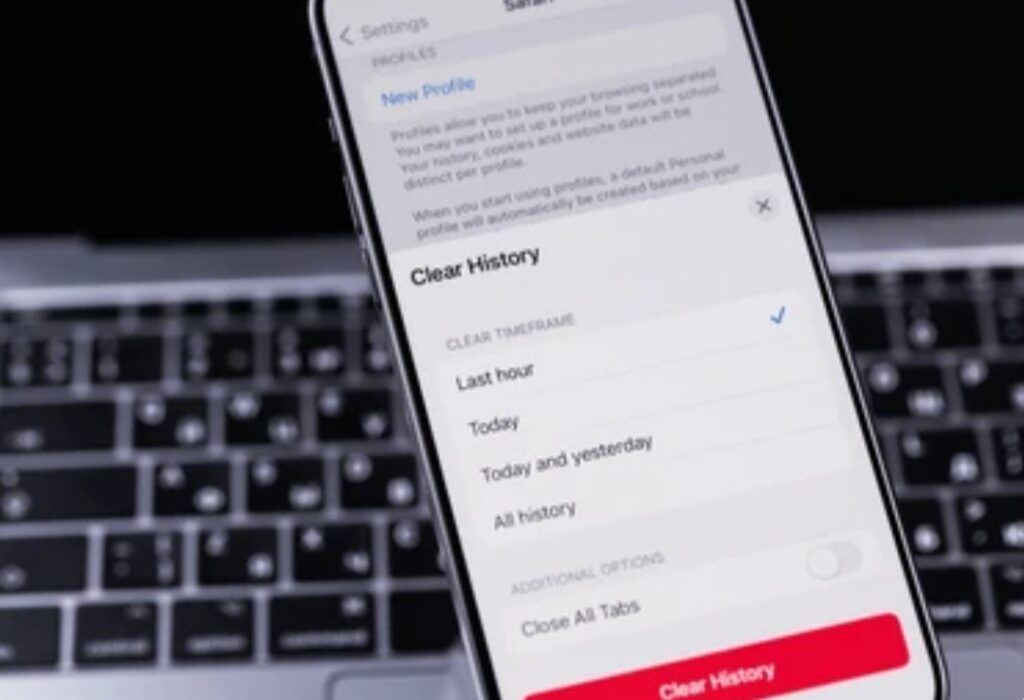
Whether you’re looking to free up storage space, fix a glitchy app, or give your phone a little performance boost without deleting anything important, this post will walk you through everything in detail—no tech jargon, no guesswork.
And yes, this explanation is fully updated for 2025, taking into account the latest changes in Android cache management and app behavior on modern phones.
So if you’ve ever wondered…
- “What happens if I clear my app cache?”
- “Will clearing data delete my photos or accounts?”
- “Does clearing cache improve battery life or phone performance?”
- “Is it safe to clear data often?”
…then you’re in the right place.
✨ Let’s start by getting crystal clear on what these two functions actually do.
But before we dive in, here’s a quick takeaway:
🧩 Clearing cache is like sweeping the floor—it removes temporary clutter.
🧨 Clearing data is like resetting the entire room—it puts everything back to default.
Now let’s take a deep look at what that really means for Android users and everyday phone performance.
Power Tip:
If your apps feel sluggish, unresponsive, or constantly crash, clearing the cache is often the quickest fix.
But if you’re experiencing more serious issues—like repeated login errors or broken app settings—clearing data might be the only way to start fresh.
📌 Why This Topic Matters for Modern Users
In today’s world, our smartphones are loaded with apps that store gigabytes of data in the background.
While this helps with speed and personalization, it can also slow your phone down, cause crashes, or eat up valuable storage space over time.
Many Android users mistakenly believe that clearing cache or data is risky or unnecessary—but the truth is, knowing how and when to use these tools can drastically improve your device’s performance.
💡 In fact, Google itself recommends managing app storage occasionally, especially for apps like Chrome, TikTok, Instagram, or Facebook, which build up significant cached data.
And with newer versions of Android, managing cache and app data has become safer, smarter, and more user-friendly—as long as you know what you’re doing.
🚀 What You’ll Learn in This Guide:
✔ The true Android clear cache meaning (and why it matters)
✔ How clearing cache vs data affects your apps, accounts, and saved files
✔ When to clear cache for quick speed boosts
✔ When clearing data is the smarter solution
✔ Real-world examples to help you decide the best action
✔ Expert tips for maintaining long-term phone performance
💥 Here’s a Bold Promise:
By the end of this blog post, you’ll no longer feel confused when you see the options “Clear Cache” or “Clear Data.”
You’ll be able to confidently choose the right one—without losing anything important and without damaging your phone’s performance.
👉 Stick with us to the end, and we’ll even share insider tips on how to automate these cleanups for a smoother phone experience!
🔥 Ready to stop guessing and start optimizing your Android device the smart way?
Let’s unlock the full potential of your phone now.
📣 Pro Tip:
Bookmark this article or share it with a friend who always asks you for help with their phone. It might just save them from accidentally erasing all their app data!
What Does ‘Clear Cache’ Mean on Android? 🧽📲
If you’ve ever used an app like Chrome, Instagram, or YouTube and noticed it starts to lag, freeze, or load more slowly than usual, there’s a high chance that your phone’s app cache is to blame.
But what exactly is cached data, and why does your Android phone keep it?
Let’s break it down.
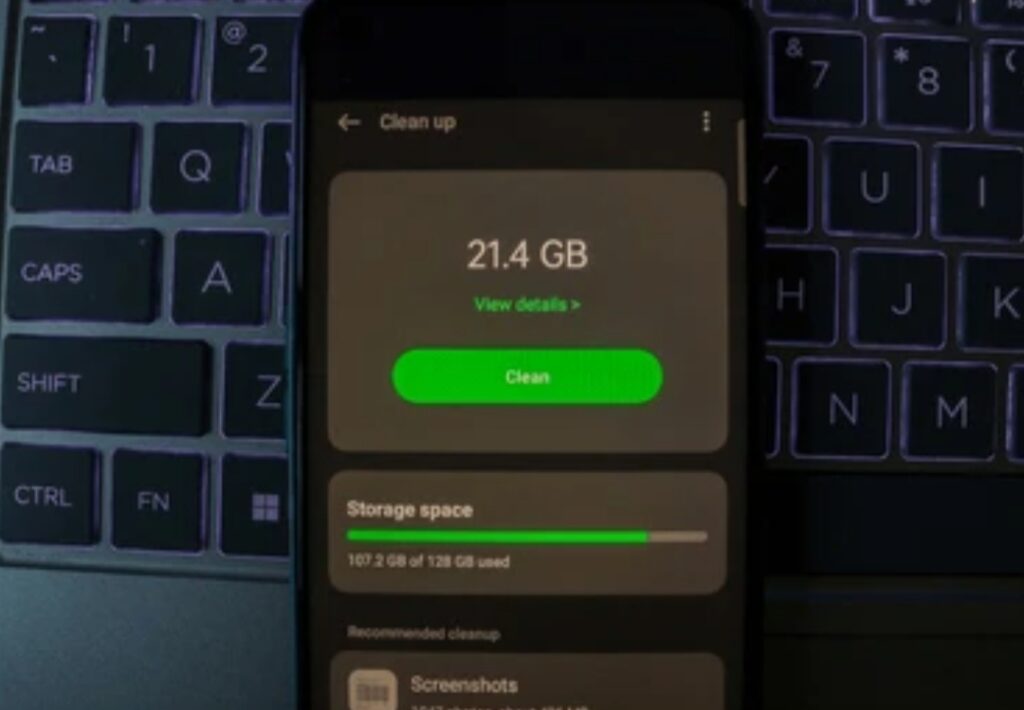
Android Clear Cache Meaning – What It Really Does
When you use apps on your Android phone, they temporarily save bits of information—such as images, videos, scripts, or login sessions—to your device. This stored data is called the cache.
Think of it like a short-term memory system for your apps.
Here’s what cached data helps your phone do:
- Load pages faster (like when you revisit a website)
- Keep recent videos or images handy
- Store temporary preferences
- Save login sessions without asking you to log in again
For example:
When you open Google Chrome, the browser stores thumbnails of recently visited pages, cookies, and website assets.
When you launch YouTube, the app may keep thumbnails of recently viewed videos in cache, so they load instantly next time.
These cached files are not essential, but they do help improve performance—at least initially.
So, What Happens When You Clear the Cache? 🧹
When you tap “Clear Cache” in your Android settings, here’s what happens:
- Temporary files stored by the app are deleted
- App remains installed and your account stays logged in
- All your saved data like preferences, playlists, history, or settings remain untouched
- The app might run slightly slower on the next launch, but it quickly rebuilds a new cache
🧠 Important Note:
Clearing the cache does not delete important data—you won’t lose your login, progress, saved files, or anything permanent.
It simply removes temporary clutter that’s often the root cause of laggy or buggy behavior.
Benefits of Clearing Cache on Android Phones 📈
Here’s how clearing cache can instantly improve your phone performance:
✅ Fix Minor App Glitches or Freezing
✅ Improve App Speed for frequently used apps
✅ Free Up Internal Storage—especially for apps like TikTok or Chrome that can cache hundreds of MBs
✅ Resolve Loading Issues (e.g., videos not playing, images not showing)
✅ Fix Display or Sync Errors without uninstalling anything
And yes—this works not just for smartphones, but also for Android tablets, smart TVs, and even smartwatches.
When Should You Clear the Cache? ⏱
It’s best to clear the cache only when needed, such as when:
- An app starts behaving abnormally
- The app becomes slow or unresponsive
- You’re running out of internal storage
- You’re troubleshooting a feature that isn’t working correctly
⛔ Avoid clearing cache too frequently, as it may slow down app load times temporarily by forcing the app to rebuild the cache from scratch.
How to Clear Cache on Android – Step-by-Step 🔧
Here’s a simple way to clear the cache of any app on your Android phone:
- Go to Settings
- Tap on ‘Apps’ or ‘Apps & Notifications’
- Select the app you want to clear cache for (e.g., Chrome, Facebook)
- Tap on Storage & Cache
- Tap on Clear Cache
That’s it!
🔄 You can repeat this for multiple apps that take up a lot of space or seem to be acting up.
Will Clearing Cache Affect My Data or Phone Usage? ❌📂
Let’s clear up one of the biggest misconceptions:
❓ “If I clear my cache, will I lose my files or photos?”
✅ No. Clearing cache only deletes temporary files. Your saved photos, videos, documents, accounts, and settings will remain completely untouched.
Real-World Examples Where Clearing Cache Helps 🌐
💥 Example 1: Chrome Stops Loading Pages
Clearing Chrome’s cache often solves website loading issues, especially if layouts are broken or outdated data is being loaded.
📷 Example 2: Instagram Feeds Won’t Refresh
Sometimes cached images or login tokens interfere with proper syncing. Clearing the cache helps reset the app’s behavior without logging you out.
🎮 Example 3: Mobile Games Crash Mid-Play
Game apps like PUBG or Mobile Legends store tons of cached assets. Clearing them can fix crashing or graphics glitches without deleting game progress.
How Often Should You Clear Cache? 📅
While it’s safe, there’s no need to do it every day.
Here’s a quick guideline:
- Light Users – Once every 2–3 months
- Heavy Users (social media, games, video) – Once every few weeks
- When troubleshooting issues – Immediately
🔥 Final Takeaway on Clearing Cache
Clearing cache is like hitting the refresh button on your app’s performance. It’s safe, simple, and incredibly effective—especially if your phone is slowing down or acting glitchy.
But remember, it’s not a permanent fix. Cache builds up again over time, which is normal and often beneficial.
So use this option strategically.
If your favorite app has been lagging or crashing lately—head to Settings now and clear the cache to feel the instant difference!
What Does ‘Clear Data’ Mean on Android? 🧨📁
If clearing the cache is like sweeping dust off your shelves, then clearing data is like emptying the entire bookshelf—every bookmark, every note, every favorite—gone.
It’s a powerful tool, but one you must use wisely.
Let’s uncover the truth behind this often misunderstood Android feature, especially how it impacts phone performance, app behavior, and your personal data.
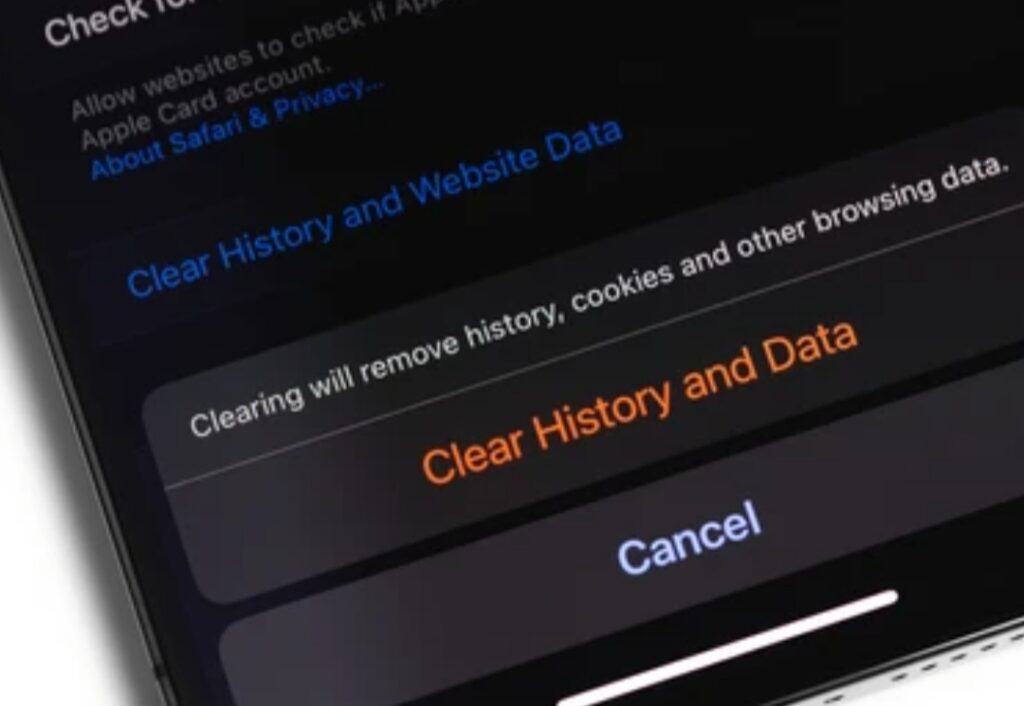
Clear Data on Android – What Does It Really Do? ⚙️
When you tap “Clear Data” (also sometimes labeled “Clear Storage”), you’re telling Android to wipe out everything the app has saved locally—as if it was just installed for the first time.
That includes:
- Account logins
- App preferences and settings
- Saved game progress (if not synced to cloud)
- Offline files (e.g., downloaded media or content)
- In-app customizations (themes, layouts, notifications)
Think of it as a hard reset for the app.
The app itself remains installed, but the moment you open it again, it’ll behave like brand new—prompting you to log in again and reconfigure your settings.
What Happens When You Clear Data? 📦
Here’s what clearing data does, step by step:
- Deletes all user-stored data for that specific app
- Resets app settings back to default
- Logs you out of the app (for most apps)
- Removes any downloaded content saved within the app
- Does not uninstall or remove the app itself
So if you clear data on Facebook or TikTok, for instance:
- You’ll need to log in again
- Your preferences (dark mode, notification settings, autoplay, etc.) will reset
- Offline content will be removed (e.g., saved videos)
⚠️ But don’t worry: Any cloud-synced data (like your Facebook friends, posts, or account info) remains safe on the server.
Real-World Examples of When to Clear Data 💡
Clearing data can be a lifesaver in certain situations.
Here’s when it’s a smart move:
📵 1. App Keeps Crashing After Opening
Corrupt app data can cause instant crashes. Clearing it gives the app a clean slate.
🔁 2. Login or Sync Issues
Can’t sign in or your app won’t sync properly? Data corruption could be the culprit.
🧰 3. You Want to Reconfigure the App from Scratch
Perfect if you’re giving your phone to someone else or just want a fresh start.
📲 4. Installed an App You Haven’t Used in Ages
Instead of uninstalling, clear data to reset and reuse it like new.
🎮 5. Mobile Games with Glitches (non-cloud synced)
Some games store levels, saves, or inventory locally. Be cautious—clearing data could wipe your progress if it’s not backed up.
When Should You Not Clear Data? 🚫
Do not clear app data if:
- You haven’t backed up your game progress or important data
- You don’t remember your login info (especially for less-used apps)
- You rely on the app for personalized settings that take time to reconfigure
- You’re not sure whether the app syncs data online
It’s also unnecessary to clear data just to free up space. Cache is better for that purpose.
🔴 Clearing data should always be a deliberate decision—not a routine one.
How to Clear Data on Android (Safely) 🧷
Here’s how to clear data the right way:
- Go to Settings
- Tap Apps & Notifications or Apps
- Choose the specific app
- Tap on Storage & Cache
- Tap Clear Storage or Clear Data
- Confirm the action
✔ Before you proceed:
- Make sure your important info is backed up or cloud-synced
- Take screenshots of settings if needed
What’s the Difference Between Clear Cache and Clear Data? (Quick Recap Table)
| Feature | Clear Cache | Clear Data |
| Deletes | Temporary files only | All stored user data + settings |
| App impact | Minor refresh | Full reset |
| Keeps login info? | ✅ Yes | ❌ No (You’ll need to log in again) |
| Frees up storage | ✅ Yes (small to moderate) | ✅ Yes (large, depending on app usage) |
| Risk of data loss | ❌ None | ⚠️ Yes, if unsynced |
| Best for | Fixing lags, low storage | Fixing major bugs, resets, clean start |
Does Clearing Data Affect Phone Performance? 📉📲
Yes—but not in the way cache does.
Clearing data won’t directly boost your phone’s speed, but it can:
- Fix deep-seated app errors that slow things down
- Stop apps from draining your battery in the background
- Reduce storage used by bloated apps (some store GBs of data!)
🟢 Use it to resolve stubborn issues. But for regular speed improvement, clearing cache is the better first step.
🔥 Pro Tip Before You Clear Data:
Before wiping app data, consider trying these first:
- Restart your phone
- Force stop the app and reopen it
- Clear just the cache
- Update the app from the Play Store
Only use “Clear Data” as a last resort—but when done right, it’s a game-changer.
⚠️ Think your app is acting beyond repair? Give it a second life—Clear Data safely and enjoy a clean, crash-free experience.
Major Difference Between Clear Cache and Clear Data ⚔️📊
Now that we’ve broken down what Clear Cache and Clear Data each do individually, it’s time to compare them head-to-head.
While both functions are used to manage app storage and fix performance issues, their impacts are drastically different—and using the wrong one at the wrong time can cause more problems than it solves.
So if you’ve ever been unsure whether to “clear cache or clear data,” this section will clear it up completely.
Let’s explore the difference between clear cache and clear data so you can make smarter decisions the next time your phone acts up.

Quick Explanation – What Sets Them Apart 🧠
Clear Cache removes temporary, non-essential files. These are used to help apps load faster or remember recent actions.
Clear Data, on the other hand, wipes out everything the app has stored—including settings, preferences, logins, and saved content.
🟢 Think of it this way:
- Clear Cache is a light refresh
- Clear Data is a full factory reset for the app
Detailed Comparison Table – Cache vs. Data
| Feature | Clear Cache 🧽 | Clear Data 🧨 |
| Deletes | Temporary files (images, scripts, etc.) | All stored app data, settings, and accounts |
| App settings affected? | ❌ No | ✅ Yes – fully reset |
| Keeps you logged in? | ✅ Yes | ❌ No – login required |
| Frees up how much space? | Small to moderate | Moderate to large (depending on app) |
| Speed improvement? | ✅ Usually noticeable | ✅ Sometimes (indirectly) |
| Loss of saved files/preferences? | ❌ No | ⚠️ Yes, if not backed up |
| Ideal for | Lagging apps, bugs, low storage | Crashes, sync errors, major app issues |
| Frequency | Safe to do regularly | Use occasionally (with caution) |
Which One Should You Use – and When? ⏰📱
Use “Clear Cache” when:
- Your app feels sluggish
- Images or content aren’t loading properly
- You need to free up small amounts of storage
- You want a quick fix without resetting the app
Use “Clear Data” when:
- The app won’t open or keeps crashing
- You’re locked out or facing syncing/login problems
- You want to reset the app entirely
- You suspect corrupt files or persistent bugs
Visual Example – Let’s Compare Using Instagram 📸
Let’s say you use Instagram a lot. Over time, it stores cached images, videos, and stories so they load quickly.
If you clear the cache:
- Your feed may take a few extra seconds to load
- But your account stays logged in and nothing important is lost
If you clear the data:
- You’ll be logged out
- All saved drafts, offline videos, and notification settings are erased
- App behaves like it’s freshly installed
⚠️ Big difference, right?
Does One Affect Phone Performance More Than the Other? 🚀
Yes—and here’s how:
✅ Clear Cache has a direct effect on speed, responsiveness, and available storage.
It’s a quick win when your phone feels sluggish or you’re tight on space.
✅ Clear Data, however, affects performance indirectly by fixing underlying bugs or memory corruption that’s causing crashes or freezes.
Best Practice:
Start by clearing the cache first.
If that doesn’t fix the problem—then and only then move on to clear the data.
Don’t Confuse the Two 🚫🤯
It’s easy to assume these options are interchangeable—but they’re not.
Here’s the golden rule:
🧩 Clearing cache is non-destructive. Clearing data is destructive.
The difference between clear cache and clear data lies in the level of reset—and knowing which to use can prevent data loss, save time, and seriously improve phone performance.
⚡ Confused no more! Bookmark this page and share it with a friend—because now YOU know exactly when to clear cache vs clear data like a pro!
When Should You Clear Cache vs Clear Data? 🧭📱
Now that you understand the clear difference between clear cache and clear data, the next question is: When should you actually use each one?
Clearing cache and data are both useful—but they serve different purposes at different times. Using the wrong one can cause unnecessary problems, while using the right one can make your Android phone feel brand new again.
In this section, we’ll walk you through real-world situations, provide expert recommendations, and show you exactly when to clear cache and when to clear data—without risking your app data or phone performance.

✅ When to Clear Cache – The Safe First Step
Clearing the cache is your go-to solution when an app starts behaving oddly but isn’t completely broken.
Here are the most common times you should clear the cache:
🧠 1. App is Sluggish or Lagging
Apps like Facebook, TikTok, or Instagram can slow down over time as their cache piles up. Clearing it gives a temporary boost in speed.
🌐 2. Web Pages Aren’t Loading Properly
If you’re using Chrome or Firefox and websites appear broken, clearing cache often fixes it by forcing the browser to reload fresh files.
📸 3. Images or Videos Won’t Display Correctly
When media doesn’t load in apps like WhatsApp or Twitter, it could be a corrupted cache issue.
📦 4. Low on Internal Storage Space
Cache can easily consume hundreds of MBs—or even GBs—especially on phones with limited space. Deleting it reclaims storage instantly.
🛠️ 5. You Just Updated an App
Sometimes, updated apps don’t work properly because they’re using outdated cached files. Clearing cache forces a refresh.
📱 6. You Want to Improve Battery Life Temporarily
Heavy cached data can sometimes cause background processes to overwork. Clearing it can help reduce drain—at least temporarily.
💬 Pro Tip:
Most users can safely clear cache once every few weeks—especially for heavy apps like Chrome, YouTube, or games.
⚠️ When to Clear Data – Use with Caution
Clearing data should only be used when absolutely necessary, because it resets the app to its factory state and erases all personal configurations.
Here’s when you should consider clearing app data:
🛑 1. App Keeps Crashing Repeatedly
If force-closing and clearing the cache doesn’t help, clearing data is the next fix. This helps remove any corrupted configuration files.
🔒 2. Login Issues or Authentication Errors
Apps like Gmail, Instagram, or banking apps may have issues syncing with the server. Clearing data resets their stored login tokens and allows a fresh start.
🎮 3. Game Progress Isn’t Loading Properly
For games that are buggy, stuck, or not opening—clearing data might solve the issue (⚠️ only if progress is saved to cloud).
🔁 4. You Want to Reset the App Completely
Perfect for apps with complex settings you no longer need or want. It wipes the slate clean.
📲 5. App Has Grown to Several GB in Size
Sometimes apps accumulate massive amounts of local data. Clearing data helps reclaim a lot more space than just clearing the cache.
🧹 6. Selling or Giving Away Your Phone
If you’re handing over your device, clearing data on apps ensures your private info is not accessible to others.
Decision Guide – When to Use Cache vs Data 🤔
Here’s a quick-reference cheat sheet:
| Scenario | Clear Cache ✅ | Clear Data ⚠️ |
| App is slow or laggy | ✅ Yes | ❌ No |
| App crashes immediately on launch | ❌ Maybe | ✅ Yes |
| Images/videos aren’t loading properly | ✅ Yes | ❌ No |
| Login problems or sync issues | ❌ No | ✅ Yes |
| Free up a small amount of space | ✅ Yes | ❌ No |
| Reclaim large app storage (1GB+) | ❌ Maybe | ✅ Yes |
| App misbehaving after update | ✅ Yes | ❌ No |
| Reset app completely | ❌ No | ✅ Yes |
Tips to Use Clear Cache and Clear Data the Right Way 🛡️
💡 Always try clearing the cache first. It’s safe, fast, and non-invasive.
💡 Only clear data if the issue persists, or if you’re troubleshooting an app that refuses to work properly.
💡 Back up your data before clearing data, especially for apps that store files locally (like games or note apps).
💡 Double-check if the app syncs to the cloud before clearing data—so you don’t lose anything important.
Bonus Tip – Automate Cache Cleaning (The Smart Way) 🧼🤖
If you don’t want to manually clear cache every week, try using built-in Android tools or trusted apps like:
- Files by Google – Suggests unused files and apps with large cache sizes
- CCleaner – Lightweight cache cleaner with schedule options (⚠️ use cautiously)
- Device care (Samsung) or Storage Manager (Pixel) – Built-in tools to optimize performance
⏱ Set a reminder to review your cache every 2–4 weeks for smoother performance.
🔥 Timing is Everything
Both “Clear Cache” and “Clear Data” are powerful tools—but their impact depends entirely on when and why you use them.
✅ Use Clear Cache regularly to maintain smooth, clutter-free performance
⚠️ Use Clear Data selectively, only when needed to fix deeper issues
Knowing the right moment to use each is the secret weapon to keeping your Android device running like new.
🛠️ Want to speed up your phone and fix glitchy apps today? Head to your Settings and Clear Cache or Data—the smart way. Don’t guess. Now you know!
Pros and Cons of Clearing Cache and Data ⚖️📲
Before you dive into your phone settings and start tapping “Clear Cache” or “Clear Data,” it’s crucial to understand the benefits and drawbacks of each.
Yes, these options can be incredibly powerful when used correctly—but they also come with side effects that may surprise you.
In this section, we’ll break down the real pros and cons of clearing cache and data, based on how they impact your apps, your privacy, your phone performance, and your overall user experience.

✅ Pros of Clearing Cache
Clearing cache is generally safe and beneficial—especially when used periodically. Here are the key advantages:
🔹 Improves App Performance Instantly
Removing temporary files often makes apps load faster and run smoother—especially apps like Chrome, Facebook, or Spotify that accumulate large caches.
🔹 Frees Up Valuable Storage Space
Apps can consume hundreds of MBs or more in cache. Clearing it can free up space in seconds, especially on phones with limited storage.
🔹 Fixes Minor Glitches and UI Bugs
Cached data can sometimes cause display issues, outdated layouts, or broken elements in apps. Clearing cache resets those elements.
🔹 No Login or Data Loss
One of the biggest advantages: clearing cache won’t remove your settings, accounts, or files. It’s a safe fix that doesn’t disrupt your user experience.
🔹 Great First Step for Troubleshooting
Before you jump to more drastic measures, clearing cache is an ideal first attempt to fix buggy behavior.
❌ Cons of Clearing Cache
Despite its benefits, clearing cache isn’t always the perfect fix. Here’s what to watch out for:
⚠️ Temporary Slowdowns on First Use
After clearing cache, the app may open slightly slower the next time as it rebuilds new cache files.
⚠️ Cache Will Build Up Again Over Time
It’s not a permanent solution—cached data returns as you continue using the app. That’s normal and usually beneficial.
⚠️ Doesn’t Fix Deep-Seated Issues
If an app keeps crashing, clearing cache alone won’t solve it. You’ll likely need to clear data or update the app.
⚠️ May Remove Preloaded Content
Apps like YouTube or Netflix that preload videos for smoother streaming may lose some of that temporary content.
✅ Pros of Clearing Data
Clearing data is like giving your app a fresh start. Here are the times when it works in your favor:
🔹 Fixes Serious App Problems or Crashes
If an app is totally broken, clearing data can eliminate corrupted files and get it working again—no need to uninstall and reinstall.
🔹 Resolves Syncing and Login Errors
Apps like Gmail, Google Drive, or WhatsApp can behave strangely if authentication data becomes corrupted. Clearing data resets the connection.
🔹 Reclaims Large Amounts of Space
Apps like Spotify or TikTok can store massive data (e.g., downloaded songs or videos). Clearing data can recover GBs of storage instantly.
🔹 Resets the App to Factory Settings
Great if you’re handing your phone over, switching accounts, or reconfiguring the app from scratch.
🔹 Protects Privacy Before Selling Your Phone
Clearing data ensures all your personal info is wiped clean from that specific app.
❌ Cons of Clearing Data
Here’s the catch—clearing data is a nuclear option, and it has major side effects:
⚠️ You’ll Be Logged Out of the App
You’ll need to re-enter your username, password, and possibly 2FA codes if the app requires them.
⚠️ All Preferences and Settings Are Erased
Custom themes, notification settings, account preferences—all gone. You’ll have to reconfigure them.
⚠️ Offline Data Will Be Lost
Saved files, offline videos, downloaded songs, and app drafts may be deleted permanently if not synced to the cloud.
⚠️ Risk of Losing Unsynced Data
If you’re using an app that doesn’t auto-sync to the cloud, you could lose important content (e.g., unsaved notes, game progress).
⚠️ May Cause More Hassle Than Help for Some Apps
For complex apps like banking or productivity tools, re-logging and resetting preferences can be time-consuming.
Quick Summary Table – Pros and Cons
| Action | Pros | Cons |
| Clear Cache | – Boosts app speed- Fixes UI bugs- Frees space- Safe to do anytime | – Only a short-term fix- Cache rebuilds- Doesn’t fix major issues |
| Clear Data | – Fixes crashes- Resets app- Clears space- Solves sync errors | – Logs you out- Deletes app settings- Risks data loss if unsynced |
Which One Should You Choose?
🔹 Choose “Clear Cache” if:
- Your app is laggy, unresponsive, or glitchy
- You want a safe, fast way to free up space
- You’re not ready to lose login or settings
🔹 Choose “Clear Data” if:
- The app keeps crashing after opening
- Syncing or login issues persist
- You’re resetting the app or handing over your phone
🔥 Know the Trade-Offs
The key to using both options effectively is knowing the trade-offs. Clearing cache is low risk and high reward in most cases.
Clearing data is powerful, but should be used only when you’re willing to start fresh with that app.
💡 Power Tip: Always clear cache first. If that doesn’t solve the issue, then try clearing data.
⚙️ Ready to fix app issues or recover storage space? Know the pros and cons, then clear cache or clear data with confidence—your phone will thank you!
Does Clearing Cache or Data Affect Phone Performance? 📉📈
This is one of the most frequently asked questions by Android users—does clearing cache or clearing data actually improve your phone’s performance?
The short answer? Yes, but in different ways and for different reasons.
Let’s break it down thoroughly so you know exactly how each action impacts your device’s speed, storage, battery life, and overall responsiveness.
This section is especially important if you’re wondering about the difference between clear cache and clear data in the context of phone performance—a critical point often misunderstood by many.

🚀 How Clearing Cache Impacts Phone Performance
Clearing cache has a more immediate, short-term impact on app responsiveness and storage. Here’s how it helps:
🔹 Frees Up Internal Storage Instantly
Apps like Instagram, Chrome, or YouTube store cached thumbnails, previews, and usage data that quickly pile up.
Over time, this can eat up hundreds of MBs—or even several GBs—of space.Clearing cache clears this bloat, freeing up your phone’s memory so other processes can run faster.
🔹 Improves App Speed and Responsiveness
Cached files can sometimes become outdated or corrupted, causing apps to behave erratically or freeze.
When you clear the cache, the app loads a clean slate of temporary files, which often speeds things up noticeably.
🔹 Fixes UI Lag or Display Bugs
When apps cache interface elements, any corruption or update conflict can cause glitches.
Clearing the cache forces the app to reload its UI, solving issues like disappearing buttons, display bugs, or unresponsive menus.
🔹 Reduces CPU Strain
Outdated or excessive cache can slow down background processes and increase CPU usage.
Clearing cache lightens the load, making your phone snappier during multitasking.
💡 Pro Tip: If your phone feels sluggish but your apps are working fine, try clearing the system cache partition (available on some Android models) for a broader performance boost.
🧹 How Clearing Data Impacts Phone Performance
Clearing data offers a deeper clean, and the performance benefits are more noticeable for apps that have become overloaded or unstable.
🔸 Eliminates Deep-Seated Errors
Apps that crash repeatedly or won’t open might have corrupted internal data or conflicting settings.
Clearing data wipes everything, giving the app a fresh reboot without needing to reinstall it.
🔸 Reclaims Maximum Storage
If an app like Spotify, TikTok, or Google Maps has downloaded large amounts of offline content, clearing data can recover gigabytes of space.
🔸 Can Improve Battery Life Indirectly
Background syncing, notifications, and outdated user data can lead to high battery usage.
Resetting the app (via clear data) often kills these background drains, giving your battery a break.
🔸 Fixes Lag from Misconfigured Settings
Over time, misaligned preferences and stored cache + data combinations can make apps feel laggy.
Clearing data resets them to default, resolving hidden inefficiencies.
⚠️ Heads-Up: Because clearing data wipes everything, including logins and downloaded files, it should only be done after backing up important content or syncing to cloud storage.
📊 Real-World Examples: Before and After Performance
Let’s look at some real-world results after clearing cache or data:
| App | Before Clearing | After Clearing Cache | After Clearing Data |
| Chrome | Laggy tab switching, 1.2GB used | Tabs load faster, 600MB freed | 1.2GB recovered, sign-in required |
| TikTok | App slow to load, lag on video | Snappier UI, 300MB freed | Account reset, full re-login needed |
| Spotify | UI sluggish, storage full | Some space freed, minor boost | Several GB recovered, all downloads gone |
| Stuck stories, freezing UI | UI fixed, 400MB freed | Re-login needed, settings lost | |
| Message delay, slow backup | Slight speed bump | Risk of losing chats if not backed up! |
📌 Key Differences in Performance Impact
| Action | Speed Boost | Storage Gain | Battery Help | Data Loss Risk |
| Clear Cache | ⭐⭐ | ⭐⭐ | ⭐ | ❌ No |
| Clear Data | ⭐⭐⭐ | ⭐⭐⭐ | ⭐⭐ | ✅ Yes |
When Should You Clear Cache or Data for Better Performance?
✅ Clear Cache if:
- Your phone feels slow after app updates
- Apps are lagging or freezing occasionally
- You want a quick speed boost without logging out
✅ Clear Data if:
- An app is crashing repeatedly or won’t open
- You want to reset the app entirely
- You’re facing syncing issues, login loops, or heavy storage usage
⚠️ Important Reminder: Some Apps Depend on Cache for Speed
Apps like Google Maps, YouTube, and Spotify use cache to store offline content and preloaded data.
Clearing cache too often might lead to slower loading the next time you open them—because the app has to rebuild that cache from scratch.
So, instead of doing it daily, aim to clear cache every few weeks or only when issues arise.
🧼 Is your phone crawling, lagging, or low on space? Learn the real difference between clearing cache and data—and take the right action to supercharge your phone performance now!
👉 Tap here to follow our step-by-step guide and start optimizing your device today!
Step-by-Step Guide – How to Clear Cache and Data on Android Safely 🔧📲
Whether your phone performance is sluggish or an app is behaving weirdly, clearing cache or data can often be the quickest fix.
But if you’re not careful, you could delete important files or lose your saved settings.
That’s why it’s essential to follow the correct method—especially if you’re trying to understand the real difference between clear cache and clear data on Android.
This step-by-step guide will walk you through everything you need to know to do it right.
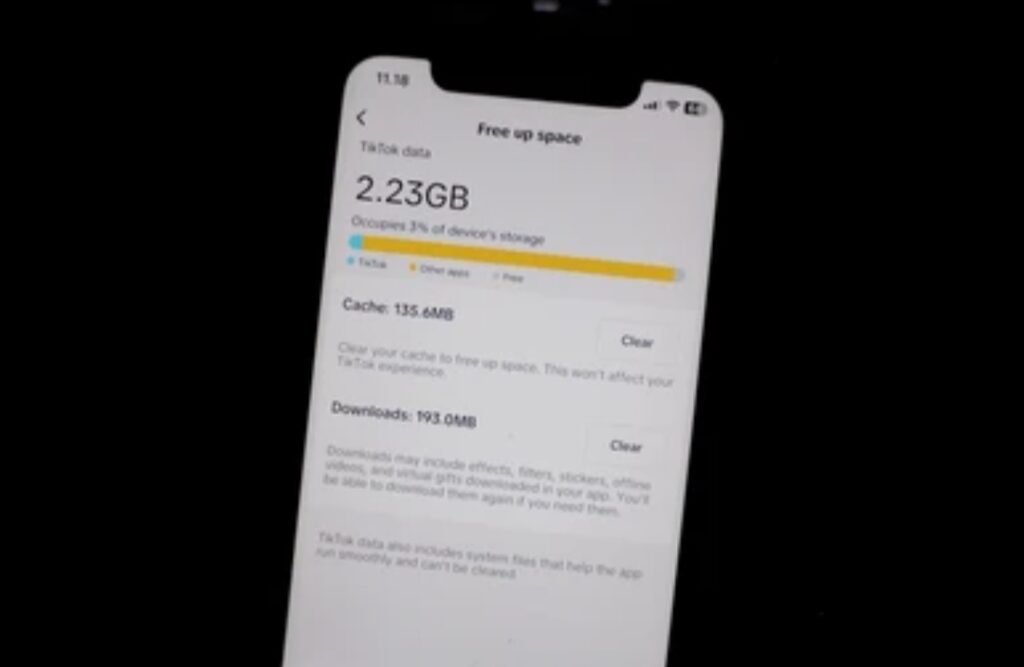
🧭 Quick Navigation – Which Should You Choose?
Before we get into the steps, here’s a simple guide to help you decide which option fits your situation:
- ✅ Clear Cache if: App is laggy, buggy, or using too much storage
- ✅ Clear Data if: App crashes, fails to sync, or needs a fresh reset
🛠 How to Clear Cache on Android (Safe & Fast Method)
1️⃣ Open “Settings” on your Android device.
2️⃣ Scroll down and tap “Apps” or “Apps & notifications”.
3️⃣ Tap “See all apps” (if needed).
4️⃣ Choose the app you want to clear the cache for (e.g., Chrome, YouTube).
5️⃣ Tap “Storage & cache”.
6️⃣ Tap “Clear Cache” ✅.
💡 That’s it! You’ve cleared the temporary files stored by the app.
This won’t affect your logins, saved data, or downloads.
📌 Pro Tip: Do this for heavy apps like Facebook, TikTok, or Google Photos every few weeks to keep them snappy.
⚠️ How to Clear App Data on Android (Caution Required)
⚠️ Important: This will erase all user data from the app—including saved settings, login info, and offline files.
Only use this if the app is malfunctioning badly or you’re starting fresh.
Follow these steps:
1️⃣ Go to “Settings” > “Apps”
2️⃣ Tap the app you want to reset (e.g., Spotify, Instagram)
3️⃣ Tap “Storage & cache”
4️⃣ Tap “Clear Storage” or “Clear Data”
5️⃣ Confirm when prompted: “This will delete app data permanently.”
🎯 Once done, the app will behave like it was just installed.
You’ll need to log back in, resync content, or redownload any offline files.
📷 How to Clear Cache & Data for Multiple Apps at Once
There’s no built-in one-tap option in Android to clear cache for all apps anymore, but here’s a workaround:
Option 1: Use Storage Settings (for cache only)
1️⃣ Go to Settings > Storage > Internal Storage
2️⃣ Tap “Cached Data”
3️⃣ If available, you’ll see the total cache size across apps
4️⃣ Tap “OK” to clear it all in one go
Note: This feature may not be available on all Android versions.
Option 2: Use a Trusted Device Cleaner App 🔗 Recommended Cleaner App Here
Look for a reliable cleaner on the Play Store with good reviews.
It can help you identify apps hogging cache or data quickly.
Avoid ad-heavy or suspicious cleaner apps.
📁 How to Clear System Cache Partition (Advanced Option)
For phones with persistent lag or UI bugs, clearing the system cache partition can help:
🔧 Steps (Varies by Brand):
1️⃣ Turn off your phone
2️⃣ Press and hold Power + Volume Up (or Volume Down) to boot into recovery mode
3️⃣ Use volume buttons to navigate to “Wipe cache partition”
4️⃣ Confirm and reboot
⚠️ This won’t delete your personal files—but should be done cautiously.
🕵️♂️ Best Practices When Clearing Cache or Data
To protect your data and ensure you only remove what’s needed:
✅ Back up important files before clearing data
✅ Avoid clearing data unless you’re facing major issues
✅ For critical apps (like WhatsApp), make sure to sync or back up chats first
✅ Clean cache monthly to keep your phone smooth and apps efficient
Ready to take full control of your Android’s performance?
👉 Follow this guide and boost your phone’s speed, storage, and efficiency—no expert needed!
Don’t forget to clear smart—not wipe blindly.
FAQs About Clear Cache and Clear Data 🤔📱
Got questions about the difference between clear cache and clear data?
You’re not alone!
Whether you’re new to Android or just trying to improve your phone performance, these frequently asked questions will help you understand the topic inside out—without the tech jargon.
Let’s dive into the most common queries to make sure you know when, why, and how to use each option safely and smartly.

❓What is the Android clear cache meaning?
The Android clear cache meaning refers to deleting temporary files that apps use to load faster.
These cache files help speed up processes like loading images, videos, or past activity.
Think of it as wiping off smudges from a mirror—the reflection is clearer, but nothing is erased permanently.
🔍 Example: When you scroll Instagram, it saves images and videos in cache so they load quicker next time.
Clearing cache removes these saved visuals but doesn’t delete your account or settings.
❓Is it safe to clear cache on Android?
Yes—clearing cache is completely safe and often recommended to improve app performance and free up storage space.
It won’t delete personal data, logins, or app preferences.
In fact, regularly clearing cache can fix minor bugs, speed up laggy apps, and improve overall phone performance.
📌 Pro Tip: Clear cache every few weeks for high-storage apps like Facebook, Chrome, or TikTok.
❓What happens if I clear app data?
When you clear app data, you reset the app back to its original state—as if it was just installed.
That means you’ll:
- Be logged out
- Lose saved settings and preferences
- May need to re-download offline content (e.g. Spotify playlists, YouTube videos)
Use this option only if an app is crashing, won’t sync, or misbehaving after updates.
🛑 Warning: Clearing data is a hard reset, so back up anything important first.
❓Will clearing cache or data delete my photos or files?
No. Clearing cache or data will not delete your photos, videos, or personal files stored in your device gallery.
However:
- Apps like WhatsApp or Telegram that store media within the app might lose access to it if data is cleared
- Always check where your data is stored—especially with cloud-linked apps
💡 Safe Rule: If your photos are stored in the Gallery or Google Photos, they’re safe.
❓How often should I clear cache on Android?
There’s no hard rule, but here’s a simple guide:
- 📆 Every 2–4 weeks for frequently used apps
- 🧼 Whenever an app lags, crashes, or acts up
- 📉 If your storage is getting full and you need a quick cleanup
Avoid doing it too often—it can slow down apps briefly as they rebuild cache from scratch.
❓Does clearing cache improve battery life or phone performance?
Yes—especially in the short term.
Clearing cache can:
- Reduce background processing
- Free up RAM and storage
- Stop buggy processes that may drain battery
While not a miracle cure, it’s a quick and easy way to boost your phone’s performance, especially for older devices.
❓What’s the main difference between clear cache and clear data?
Here’s a quick side-by-side breakdown:
| Feature | Clear Cache 🧹 | Clear Data 🗑️ |
| Deletes temporary files | ✅ Yes | ✅ Yes (and more) |
| Deletes login info | ❌ No | ✅ Yes |
| Resets app settings | ❌ No | ✅ Yes |
| Frees up storage | ✅ Yes | ✅ Yes (more) |
| Risk of losing data | ❌ No | ⚠️ Yes – use with caution |
💥 Summary:
Clear Cache = Safe Cleanup
Clear Data = Full Reset (Use only when needed)
❓Should I use third-party apps to clear cache or data?
Generally, you don’t need third-party cleaners if your phone has built-in tools.
Most cleaner apps are either:
- Loaded with ads
- Don’t do much more than what Android already offers
- Can even harm performance or collect private data
If you choose to use one, go for a trusted brand with excellent reviews and no aggressive advertising.
🔒 Security Tip: Avoid apps requesting too many permissions or access to personal files.
❓Can clearing cache or data fix app crashes or bugs?
Yes—many app issues stem from corrupted cache files or outdated settings.
Here’s what works best:
- Clear Cache: First step for slow, glitchy apps
- Clear Data: If cache clearing doesn’t solve the issue
- Reinstall App: Last resort if nothing works
⚙️ Bonus Tip: Always update your app after clearing cache or data—it ensures smoother performance.
Still not sure what to clear?
👉 Follow our proven step-by-step guide to safely clean up your phone without losing your data!
Take charge of your Android performance—no tech degree needed.
Final Thoughts – Which Should You Use for a Faster Phone? ⚡📱
In the world of Android maintenance, knowing the difference between clear cache and clear data isn’t just helpful—it’s essential.
Whether your phone is lagging, apps are crashing, or you’re trying to save space, the choice between these two actions can either fix a problem fast or accidentally wipe your preferences.
So, let’s summarize what we’ve learned and help you decide the best action for improving overall phone performance.

When Should You Clear Cache?
Clearing cache is your go-to move when:
- Apps are running slow or freezing
- Your phone starts to feel sluggish or delayed
- You’re running low on internal storage space
- You just updated an app, and it’s behaving weirdly
🧼 Why it works:
Temporary files can pile up and clutter your system.
By clearing cache, you’re giving your phone a fresh breath of air without losing any important data.
✔️ Safe to do anytime
✔️ No logins lost
✔️ Quick storage boost
👉 Best for: Routine cleanup and fixing minor glitches
👉 Frequency: Every 2–4 weeks for high-usage apps
When Should You Clear Data?
Clearing app data is best used when:
- An app crashes repeatedly, even after updates
- You want to reset the app completely
- Your settings or preferences are corrupted
- The app isn’t syncing or working as it should
⚠️ Why it’s risky:
Clearing data removes login info, user preferences, and saved content (like offline music or downloaded videos).
While it can solve stubborn problems, it’s like hitting the reset button.
✔️ Good for fixing major bugs
❌ Not ideal if you want to keep your custom settings
👉 Best for: Major app problems or storage-heavy apps
👉 Frequency: Only when necessary
Which One Should You Use?
If you’re simply looking to boost your phone’s speed, fix minor lags, or recover storage without any risk—clearing cache is the safest and fastest option.
But if an app is deeply broken, clearing data might be the only fix.
Here’s a quick decision chart:
| Goal | Best Action |
| Free up space safely | ✅ Clear Cache |
| Speed up slow apps | ✅ Clear Cache |
| Fix an app crash or bug | 🔁 Clear Cache → Clear Data if needed |
| Reset an app completely | 🗑️ Clear Data |
| Protect login and preferences | 🚫 Don’t clear Data |
🔥 Pro Tips for Optimizing Your Phone Performance
To keep your Android device running at peak performance:
- ✅ Use built-in storage tools like Device Care or Storage Manager
- 🧠 Regularly clear cache for heavy apps like Instagram, Chrome, or TikTok
- ☁️ Back up important app data before clearing data
- 📱 Restart your phone weekly to clear memory and refresh background apps
- 🔄 Keep your apps updated from the Google Play Store
Want your phone to run smoother without deleting your stuff?
👉 Learn how to clean up your Android the smart way—with our foolproof guide!
Don’t let your phone slow you down.
Take control today and give your device the performance it deserves!
You might also like :