

Introduction – Why Choosing a Mobile Video Editor with No Watermark is a Game-Changer
📱 In today’s fast-paced world, creating videos directly from your smartphone has become not just convenient but essential.
Whether you’re producing engaging TikToks, Instagram Reels, YouTube Shorts, or personal vlogs, the quality of your video can make or break your content’s success.
One of the biggest frustrations for creators is spending hours editing only to find an annoying watermark slapped across their final video.
This is why finding the right mobile video editor with no watermark can be a true game-changer for anyone who values professionalism and brand credibility.
With billions of videos uploaded every day, standing out in a crowded feed means your content must be visually appealing and distraction-free.
A watermark not only looks unprofessional but can also reduce viewer engagement and limit your video’s shareability.
For personal projects, it might be a minor annoyance—but for content creators, influencers, and small business owners, it can directly affect brand trust and audience retention.
🎯 Why This Guide Matters
In this article, we’ll explore up-to-date and highly-rated mobile video editing apps that give you professional-grade features—without the ugly watermark.
These aren’t outdated tools from years ago.
We’ve tested and reviewed current 2025 versions of these apps to ensure they’re fast, reliable, and compatible with the latest Android and iOS devices.
You’ll also get insight into which app works best for quick edits, cinematic productions, and even AI-assisted video creation.
🚀 The Benefits of Using a Free No-Watermark Video Editor on Mobile
- Professional Branding – No distractions in your final content.
- Cost-Effective – Save money while still accessing powerful editing features.
- Creative Freedom – Add effects, transitions, and music without restrictions.
- Faster Publishing – Edit and upload directly from your phone, anytime.
💡 Who Should Read This?
If you’re:
- A beginner creator wanting to learn video editing without paying for expensive software.
- A social media influencer who needs to post polished content daily.
- A small business owner who wants to promote products through engaging videos.
- A student or hobbyist working on personal projects.
Then this guide will save you time, money, and frustration.
🔥 Pro Tip: Always choose a trusted and reliable video editing app to ensure your work stays safe and secure.
Some unknown apps might add hidden watermarks or reduce your video quality during export.
We’ve carefully filtered out such apps so you only get 100% watermark-free editing tools that deliver crisp, high-quality results.
✅ Call to Action:
Before you start editing your next video, bookmark this guide so you’ll always have a list of the best mobile video editor with no watermark options at your fingertips.
Factors to Consider When Choosing a Mobile Video Editor with No Watermark
Choosing the right mobile video editor with no watermark isn’t just about removing a logo from your final video.
It’s about finding a balance between features, ease of use, performance, and compatibility with your device.
Not all free video editing apps are created equal, and picking the wrong one can lead to poor quality exports, crashes, or hidden limitations.
Here are the key factors you should look at before downloading any video editor.

1️⃣ User-Friendly Interface and Ease of Learning
If you’re a beginner, you’ll want an app that’s intuitive and easy to navigate.
Look for video editors that offer drag-and-drop tools, clear icons, and minimal clutter.
Some professional-grade apps can be overwhelming with too many menus—great for advanced users, but not ideal for someone learning the basics.
Apps like VN Video Editor and CapCut are known for their beginner-friendly layouts without compromising on editing power.
2️⃣ Available Editing Features and Tools
Even if you’re getting the app for free, you shouldn’t have to compromise on features.
A good no-watermark mobile video editor should offer essentials like:
- Cutting, trimming, and splitting clips.
- Adding music, sound effects, and voiceovers.
- Filters and color grading.
- Smooth transitions.
- Text and subtitles.
Extra features like keyframe animation, chroma key (green screen), and multi-layer editing can take your videos to the next level.
3️⃣ Export Quality and Resolution
There’s no point in spending time editing only to export a blurry video.
Always check whether the app supports HD (1080p) or even 4K exports in the free version.
Some apps might secretly downgrade the resolution unless you pay, so be sure to read the app’s details before committing.
4️⃣ Platform Compatibility (Android and iOS)
Some video editors are designed specifically for one operating system.
If you switch between devices or collaborate with someone using a different phone, you’ll want an app available on both Android and iOS.
Editors like CapCut and InShot work seamlessly across platforms, so your workflow stays smooth.
5️⃣ Hidden Limitations and In-App Ads
Many free video editors remove watermarks but show frequent ads during editing or exporting.
Ads can disrupt your workflow and make the process frustrating.
Look for apps with minimal advertising or an optional one-time payment to remove them permanently.
6️⃣ Cloud Storage and Cross-Device Sync
If you edit videos on multiple devices—say, a phone and a tablet—cloud syncing can save you a lot of time.
Some modern editors let you start editing on your phone and finish on your tablet without transferring files manually.
💡 Quick Tip:
When testing a mobile video editor with no watermark, always try exporting a short sample video first.
This way, you can check for export speed, file size, and any hidden branding before committing to a longer project.
Before you download your next editing app, use this checklist to make sure it has the features you need, works smoothly on your device, and gives you professional-quality videos—without a single watermark.
Top 5 Free Mobile Video Editors with No Watermark
Finding the best mobile video editor with no watermark can be overwhelming with so many apps on Google Play and the App Store.
To save you time, I’ve handpicked five outstanding apps that offer professional features without slapping an ugly logo on your masterpiece.
These apps are updated for 2025, work on both Android and iOS, and are perfect for beginners and pros alike.
1️⃣ CapCut – Best All-in-One Editor for Social Media Creators
CapCut has exploded in popularity thanks to its easy interface and deep integration with TikTok.
It’s not just for short videos—this app is powerful enough for full-length vlogs.
Key Features:
- Free to use, no watermark on exports.
- Large library of music, effects, and filters.
- Advanced tools like keyframe animation, chroma key, and motion tracking.
- Supports 4K exports at 60fps.
Pros:
✅ Beginner-friendly interface.
✅ Built-in trending templates for fast edits.
✅ Perfect for TikTok, Reels, and Shorts.
Cons:
❌ Some advanced effects require internet access.
Best For:
Creators who want fast, trendy videos ready to post on social platforms.
2️⃣ InShot – Best for Quick, Polished Social Media Videos
InShot is one of the most popular mobile editors, especially for Instagram users.
The free version lets you export without a watermark if you watch a short ad—making it a budget-friendly choice.
Key Features:
- Trim, cut, merge, and adjust speed easily.
- Large library of stickers, emojis, and text effects.
- Built-in photo editor for multi-format content.
Pros:
✅ Very easy to learn.
✅ Perfect for quick edits.
✅ Lightweight and works well on older phones.
Cons:
❌ Free version has occasional ads.
Best For:
Busy creators who want fast edits without a learning curve.
3️⃣ VN Video Editor – Best Free Alternative to Desktop Software
VN is often called the “mobile version of Final Cut Pro” because of its advanced features.
It’s completely free with zero watermarks—making it one of the best deals for serious editors.
Key Features:
- Multi-layer editing timeline.
- Professional color grading tools.
- Speed ramping for smooth slow-motion.
- Preset filters for cinematic looks.
Pros:
✅ No ads, no watermark.
✅ Perfect for YouTubers and vloggers.
✅ Desktop-like editing experience.
Cons:
❌ Slightly more complex for complete beginners.
Best For:
Creators who want professional-grade edits on a phone.
4️⃣ YouCut – Best for Lightweight Editing Without Ads
YouCut is perfect for those who want a simple, no-watermark experience without unnecessary extras.
It’s fast, lightweight, and great for quick edits on budget devices.
Key Features:
- Trim, merge, and crop videos with ease.
- No forced ads during editing.
- Built-in compression for smaller file sizes.
Pros:
✅ Extremely lightweight.
✅ Smooth performance even on older devices.
✅ Free exports without watermark.
Cons:
❌ Fewer advanced features than other apps.
Best For:
Beginners who want clean, simple editing tools.
5️⃣ LightCut – Best AI-Powered Mobile Video Editor
LightCut stands out for its AI-assisted editing, making video creation lightning fast.
It’s perfect for those who want professional-looking results without spending hours editing.
Key Features:
- AI templates for instant edits.
- Smart scene detection and auto-cutting.
- Rich filter library for cinematic looks.
Pros:
✅ Very fast editing process.
✅ Great for travel and event videos.
✅ No watermark in final exports.
Cons:
❌ Limited manual control compared to others.
Best For:
Users who want quick, automated video creation.
💡 Quick Tip:
If you’re still unsure which app to choose, start with CapCut or VN Video Editor—both are free, no-watermark, and offer enough tools to grow with your skills.
Don’t waste time editing videos that end up covered in a watermark.
Pick one of these top 5 apps today and start creating professional, share-worthy content—right from your phone.
Quick Comparison Table of the 5 Best Free Mobile Video Editors with No Watermark
The table below compares features, compatibility, export quality, and ad presence of the top five apps we reviewed.
This quick glance will help you decide which mobile video editor with no watermark fits your editing style and needs.
| Video Editor App | Platform | Key Features | Export Quality | Ads in Free Version | Best For |
| CapCut | Android, iOS | Templates, effects, keyframe animation, chroma key | Up to 4K 60fps | Minimal | Social media creators |
| InShot | Android, iOS | Trim, cut, stickers, text effects, photo editing | Up to 1080p HD | Occasional | Quick social edits |
| VN Video Editor | Android, iOS | Multi-layer timeline, color grading, speed ramping | Up to 4K 60fps | None | Professional editing |
| YouCut | Android | Basic trimming, merging, compression | Up to 1080p HD | Minimal | Simple, lightweight editing |
| LightCut | Android, iOS | AI-assisted editing, smart scene detection | Up to 1080p HD | Minimal | Fast, automated edits |
💡 How to Use This Table:
- If you want maximum features without paying, choose VN Video Editor or CapCut.
- If you prefer speed and automation, go with LightCut.
- If you’re on a low-storage device, YouCut is the best lightweight option.
🔥 Pro Tip:
Always test your chosen no-watermark mobile video editor by exporting a short clip first.
This ensures you get the exact quality, format, and style you want before editing a longer project.
Tips for Editing Like a Pro on Mobile (No Watermark Required)
Once you’ve chosen the right mobile video editor with no watermark, the next step is making sure your videos actually look professional.
Even with the best tools, poor editing can hurt your content’s impact and engagement.
Follow these pro editing tips to make your mobile videos stand out—whether you’re posting on TikTok, YouTube, Instagram, or any other platform.
1️⃣ Plan Your Story Before You Edit
Jumping straight into editing without a plan can waste time and lead to messy results.
Write down your video flow, including scenes, transitions, and text overlays before you start.
This makes the editing process faster and ensures your final cut feels smooth and intentional.
2️⃣ Keep Your Clips Short and Engaging
Attention spans are shorter than ever.
Cut out unnecessary footage and keep your video moving at a steady pace.
Use jump cuts, quick transitions, and visual effects to maintain viewer interest from start to finish.
3️⃣ Master the Art of Transitions
Transitions can make or break your video’s flow.
Subtle fades, slides, or zoom effects can enhance storytelling, while overly flashy transitions can feel distracting.
Experiment with your editor’s built-in options and find a style that matches your content’s tone.
4️⃣ Use High-Quality Audio
Bad audio can ruin even the most stunning visuals.
Choose royalty-free music or sound effects that fit your video’s mood.
If your app allows, adjust background music volume so it doesn’t overpower speech or narration.
5️⃣ Apply Color Grading for a Cinematic Look
Most modern video editors—like VN Video Editor and CapCut—offer color filters, LUTs, and manual adjustments.
Use them to make your footage pop and set a consistent tone.
Warm colors can create a cozy vibe, while cooler tones work for a sleek, modern feel.
6️⃣ Optimize for the Platform You’re Posting On
Different platforms have different aspect ratios and resolutions.
- TikTok & Reels: 9:16 vertical format.
- YouTube: 16:9 horizontal format.
- Instagram feed: 1:1 square format.
Export your videos in the right size to avoid cropping or black bars.
7️⃣ Avoid Overusing Effects and Text
Effects should enhance, not distract.
Too many filters, transitions, or text overlays can make your video feel amateur.
Use them strategically to highlight important moments.
8️⃣ Export in the Highest Quality Possible
Always choose the highest resolution and frame rate your app allows, especially if it’s still free.
Most good editors without watermarks will let you export in 1080p HD or even 4K without extra cost.
💡 Pro Tip:
When using a no-watermark mobile video editor, save your project files before exporting.
This way, you can easily make changes later without starting over.
Start applying these editing tips today and you’ll notice your videos becoming more polished, engaging, and professional—without spending a single cent.
FAQs on Mobile Video Editors with No Watermark
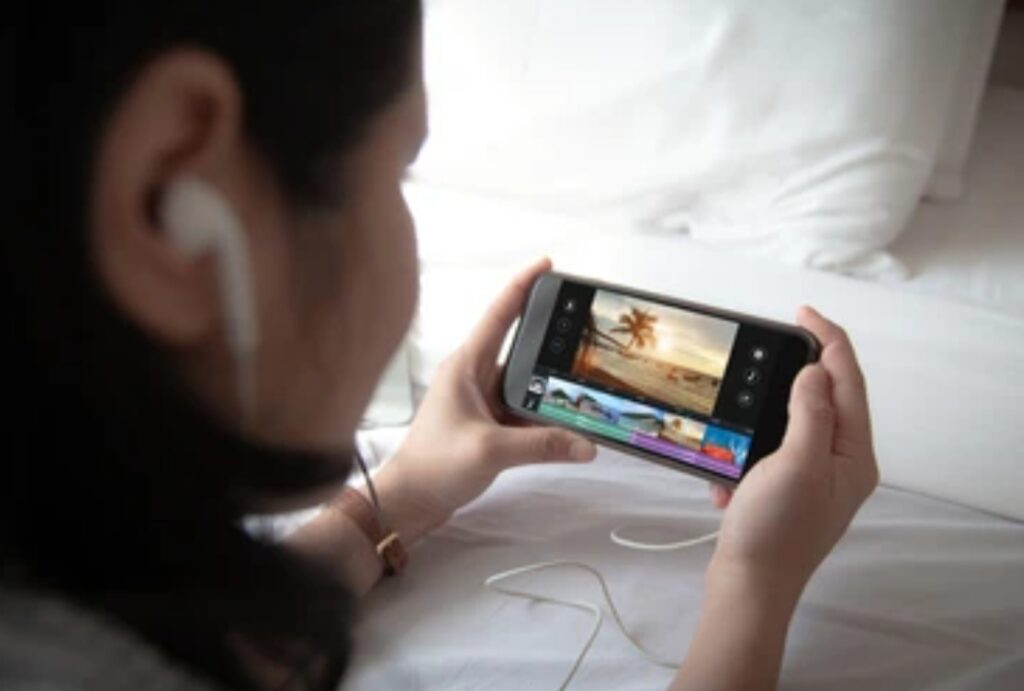
1️⃣ What is a mobile video editor with no watermark?
A mobile video editor with no watermark is an app that lets you edit and export videos without adding a visible logo or branding to your final video.
These apps give your content a clean, professional look, making it ideal for personal branding, social media, and business promotions.
2️⃣ Are all no-watermark video editors completely free?
Not always.
Some apps are completely free with no watermark (like VN Video Editor), while others may remove the watermark if you watch an ad or use certain export settings.
It’s important to check the app’s description and reviews before downloading.
3️⃣ Which free video editor without watermark is best for beginners?
For beginners, CapCut and InShot are great choices.
They have an easy-to-use interface, plenty of tutorials, and a wide selection of templates for quick edits.
4️⃣ Which mobile video editor is best for professional editing?
VN Video Editor is one of the best free options for professional-style editing on a phone.
It offers multi-layer timelines, color grading, and advanced speed control—all without a watermark.
5️⃣ Can I use these editors for commercial projects?
Yes, but always check each app’s terms of use.
Most free no-watermark video editors allow commercial usage, but you must ensure the music, fonts, and effects you use are royalty-free.
6️⃣ Do these apps work on both Android and iOS?
Yes, all five apps in this guide work on Android and iOS except YouCut, which is Android-only.
7️⃣ Can I edit 4K videos on my phone?
Yes, apps like VN Video Editor and CapCut allow free 4K exports at 60fps with no watermark.
Just make sure your phone has enough processing power and storage space.
8️⃣ Will these apps leave hidden branding or metadata?
No—if it’s a genuine no-watermark mobile video editor, it will export a clean video without logos or visible marks.
However, some apps may still include file metadata, which you can remove if needed.
💡 Pro Tip:
If you want to avoid hidden branding, always test by exporting a short video before editing an entire project.
Download one of these free apps today and enjoy professional-quality videos with zero watermarks—perfect for social media, business, and personal projects.
Final Thoughts – Choosing the Best Mobile Video Editor with No Watermark for You
In 2025, there’s no excuse for publishing videos covered in distracting watermarks.
With the right mobile video editor with no watermark, you can create clean, professional, and attention-grabbing content—straight from your smartphone.
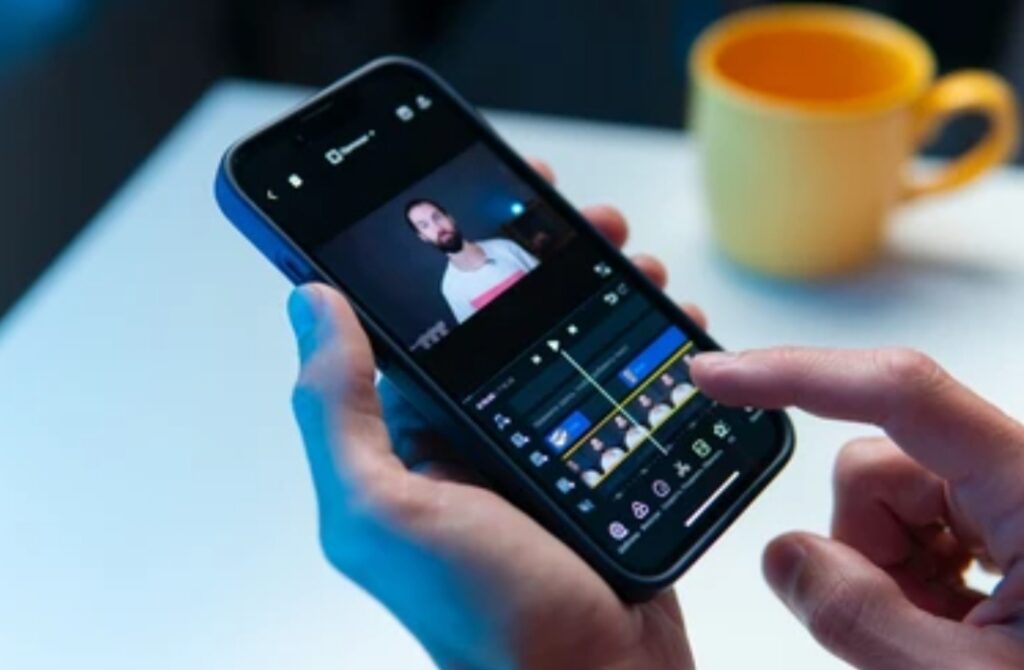
Whether you’re editing for TikTok, YouTube, Instagram Reels, or business promotions, the five apps we’ve covered—CapCut, InShot, VN Video Editor, YouCut, and LightCut—offer a perfect mix of power, ease-of-use, and flexibility.
Each one caters to different needs:
- CapCut for trendy social videos.
- InShot for quick, polished edits.
- VN Video Editor for pro-level editing.
- YouCut for lightweight, ad-free editing.
- LightCut for AI-powered speed.
💡 Here’s the truth:
Video editing is no longer about expensive software or high-end computers.
You can produce cinema-quality videos on your phone—and now you know exactly which apps to use.
🔥 Your Next Step:
Don’t wait until your next video project to make the switch.
Pick one of the apps from this guide today, download it now, and start creating watermark-free videos that truly showcase your creativity and brand.
✅ Pro Creator Tip:
If you find this guide helpful, share it with other creators, bookmark it for future reference, and check back often for updates on the latest no-watermark video editing tools.
🎯 Final Word:
Great editing is a combination of the right tools and your creative vision.
Now that you have both, the only thing left to do is hit record, start editing, and wow your audience.
You might also like :