

Introduction to Hybrid Computing at Home
In today’s fast-paced digital world, the way we use technology at home has dramatically evolved.
Gone are the days when people relied solely on a single desktop or laptop for all their needs.
Instead, a modern best home setup often combines the power of local devices with the flexibility of cloud services.
This balanced approach is widely known as hybrid computing, and it is quickly becoming a must-have for families, remote workers, and even tech enthusiasts who want both speed and privacy.

Why Hybrid Computing Matters Today
With the rise of remote work, online learning, streaming, and data-heavy tasks like video editing or gaming, choosing between cloud vs local computing is no longer a simple decision.
Each option has its own advantages and drawbacks, and the smartest choice is often not one or the other, but a combination of both.
That’s where hybrid computing tips come into play — helping you balance convenience with control, so you always get the best of both worlds.
Cloud vs Local Computing – The Everyday Reality
Let’s face it — our daily digital life already involves hybrid computing, even if we don’t realize it.
Think about it:
- When you store family photos on Google Drive but edit them on your personal laptop, that’s hybrid computing in action.
- When you stream movies from Netflix but keep your favorite old films saved on a hard drive for offline viewing, you’re already balancing cloud vs local computing.
- When you use Dropbox to collaborate with colleagues but rely on your desktop for heavy data crunching, you’re using both systems together.
The beauty of this setup is flexibility — and flexibility is what makes hybrid computing ideal for a modern home.
The Growing Need for Speed and Privacy
Two main factors make hybrid computing essential today: speed and privacy.
- Speed: Cloud services are great for sharing and syncing, but local devices often deliver faster performance for heavy-duty tasks like gaming, video rendering, or AI-powered software.
- Privacy: Local storage ensures sensitive files remain under your control, while the cloud offers convenience but sometimes raises concerns about data exposure or breaches.
Balancing these two elements is the key to building the best home setup for productivity, entertainment, and security.
How Hybrid Computing Improves Your Daily Life
Here’s how hybrid computing naturally fits into different home environments:
- Remote workers use the cloud for collaboration while keeping confidential files stored locally.
- Students save assignments online for easy access across devices but prefer local storage for faster offline study.
- Gamers rely on powerful local PCs or consoles for speed but enjoy cloud gaming for portability.
- Families back up memories to the cloud while keeping private financial documents securely offline.
In short, hybrid computing isn’t just a tech trend — it’s a practical lifestyle choice.
Setting the Stage for the Best Home Setup
If you’re serious about upgrading your digital life, you need to understand how to set up a hybrid environment that balances cloud vs local computing.
The right approach will:
- Reduce stress about losing important files.
- Give you faster performance for tasks that matter most.
- Protect your privacy while still allowing the convenience of the cloud.
- Future-proof your home against growing digital demands.
By following expert hybrid computing tips, you’ll be able to create a seamless, secure, and supercharged environment that supports both work and play.
A Sneak Peek at What’s Ahead
In the next sections of this guide, we’ll dive deeper into:
- The pros and cons of cloud computing at home.
- When local computing is the better choice.
- How to mix both for maximum efficiency.
- Security best practices for hybrid users.
- Recommendations for the best home setup that supports your lifestyle.
So, if you’ve ever wondered whether you should keep your files in the cloud or on your personal device, stick around — because this guide will give you the exact answers you need to make smarter choices.
👉 Pro Tip: Start thinking of hybrid computing as your personal digital ecosystem. The more balanced it is, the more control you have over speed, privacy, and efficiency.
Don’t leave your digital life to chance.
The right hybrid computing setup can save you time, protect your privacy, and supercharge your productivity at home.
What is Hybrid Computing?
When most people hear the word hybrid, they think of cars that run on both electricity and fuel.
Hybrid computing works in a very similar way — it blends cloud computing and local computing into one seamless system, giving you the freedom to use whichever method is best for the task at hand.
Instead of choosing between storing everything online or relying only on your computer’s hard drive, hybrid computing allows you to combine the speed of local devices with the flexibility of the cloud.
This powerful approach is quickly becoming the backbone of the best home setups across the world.

The Simple Definition of Hybrid Computing
At its core, hybrid computing means you’re not locked into just one option.
- Cloud computing lets you store, access, and share data online using services like Google Drive, Dropbox, or OneDrive.
- Local computing means relying on your personal computer, NAS (Network Attached Storage), or external drives for performance and privacy.
When these two methods are combined, you get a hybrid system that works smarter, faster, and more securely.
Everyday Examples of Hybrid Computing
You might be surprised to realize that you’re already using hybrid computing in daily life without even calling it by name.
Here are some real-world examples:
- Photo storage: Upload your pictures to iCloud for safe backup, but edit them on your high-performance laptop for speed.
- Work projects: Collaborate on shared documents through Google Workspace, then store sensitive contracts locally for confidentiality.
- Gaming: Enjoy the convenience of cloud gaming platforms like Xbox Cloud Gaming, but still use your gaming PC or console for graphics-heavy sessions.
- Entertainment: Stream TV shows from Netflix but keep your personal movie collection saved on a home media server.
These situations highlight how hybrid computing naturally fits into a modern lifestyle, balancing cloud vs local computing based on what makes sense for each scenario.
Why Hybrid Computing is Different from Just “Cloud” or “Local”
One of the most common misconceptions is that you have to choose one system and stick with it.
That’s no longer true.
Hybrid computing is different because it allows flexibility.
- You can keep critical data private and offline, while still enjoying the collaboration power of the cloud.
- You can enjoy ultra-fast processing locally, while still benefiting from the scalability of online services.
- You don’t have to worry about losing access when your internet is down, because your local storage has you covered.
This combination is why experts often recommend hybrid setups for both home users and businesses.
Benefits of Hybrid Computing in Home Environments
Here’s why more households are adopting hybrid systems instead of going 100% cloud or 100% local:
- Flexibility – Choose the right system for the right task.
- Speed – Heavy tasks like gaming or video editing run faster on local machines.
- Privacy – Sensitive files stay under your control.
- Accessibility – Cloud makes it easy to share or work across devices.
- Backup security – Data is protected both online and offline.
- Future-proofing – Hybrid setups grow with your needs instead of forcing costly overhauls.
Hybrid Computing Tips for Getting Started
If you’re just starting to think about hybrid computing, here are a few practical suggestions:
- Identify your needs: Do you prioritize privacy, speed, or collaboration?
- Start small: Use free cloud services for non-sensitive files while keeping important ones local.
- Invest wisely: Consider a NAS device for local storage combined with encrypted cloud backup.
- Balance the load: Use cloud for portability and local for performance-heavy tasks.
- Stay secure: Apply encryption, two-factor authentication, and strong passwords across both systems.
By applying these hybrid computing tips, you’ll quickly see how powerful and efficient this approach can be for creating the best home setup.
The Future Role of Hybrid Computing
The trend is clear — as technology advances, hybrid computing will become the default rather than the exception.
We’re already seeing AI-powered cloud services that sync intelligently with local devices, smarter edge computing for faster processing, and more privacy-focused hybrid solutions designed for everyday users.
For home users, this means more control, better efficiency, and a future-ready digital environment.
Why limit yourself to one system when you can enjoy the best of both?
Start exploring a hybrid computing setup today and unlock the perfect balance of speed, privacy, and convenience in your home.
Cloud Computing at Home: Pros and Cons
Cloud computing has completely transformed the way we store, share, and use data at home.
From backing up family photos to streaming Netflix and collaborating on work files, the cloud has become an everyday tool that offers convenience and accessibility like never before.
But while cloud computing offers incredible benefits, it’s not perfect — and understanding its strengths and weaknesses will help you decide when it fits into your best home setup.

What is Cloud Computing in Simple Terms?
Cloud computing simply means storing and accessing data over the internet instead of on your personal computer’s hard drive.
Think of it as renting space on powerful servers run by companies like Google, Microsoft, Amazon, or Apple.
When you upload files to Google Drive, iCloud, Dropbox, or OneDrive, you’re using cloud computing.
When you stream movies from Netflix or play games on Xbox Cloud Gaming, that’s also cloud computing in action.
It’s fast, flexible, and incredibly scalable — which is why it has become a go-to option for many households.
Advantages of Cloud Computing at Home
Here are the biggest benefits of using cloud computing in your daily life:
- Accessibility from anywhere
- Your files, media, or apps are available on any device, as long as you have an internet connection.
- Your files, media, or apps are available on any device, as long as you have an internet connection.
- Scalability and storage flexibility
- No need to keep upgrading your hardware — the cloud grows with you, offering extra storage instantly when you need it.
- No need to keep upgrading your hardware — the cloud grows with you, offering extra storage instantly when you need it.
- Seamless collaboration
- Perfect for families, students, and remote workers who need to share documents and work together in real time.
- Perfect for families, students, and remote workers who need to share documents and work together in real time.
- Automatic backups
- Reduce the risk of data loss by keeping your files safe in the cloud, even if your device fails.
- Reduce the risk of data loss by keeping your files safe in the cloud, even if your device fails.
- Cost efficiency
- Instead of buying expensive hardware upfront, you can pay monthly or even use free cloud storage options.
- Instead of buying expensive hardware upfront, you can pay monthly or even use free cloud storage options.
- Integration with apps and services
- From smart home devices to productivity tools, most modern software integrates directly with cloud platforms.
- From smart home devices to productivity tools, most modern software integrates directly with cloud platforms.
Disadvantages of Cloud Computing at Home
While the cloud sounds like a dream, it comes with limitations that every home user should be aware of:
- Internet dependency
- Without a stable, fast internet connection, accessing your files or running apps in the cloud can be frustrating or even impossible.
- Without a stable, fast internet connection, accessing your files or running apps in the cloud can be frustrating or even impossible.
- Privacy concerns
- Storing personal data on third-party servers always carries a risk of unauthorized access, data breaches, or surveillance.
- Storing personal data on third-party servers always carries a risk of unauthorized access, data breaches, or surveillance.
- Ongoing subscription costs
- While entry-level cloud services may be free, larger storage or advanced features require monthly or yearly payments that can add up over time.
- While entry-level cloud services may be free, larger storage or advanced features require monthly or yearly payments that can add up over time.
- Performance limitations
- Cloud platforms are convenient, but they can’t always match the raw speed of local computing for resource-heavy tasks like video editing, 3D rendering, or high-end gaming.
- Cloud platforms are convenient, but they can’t always match the raw speed of local computing for resource-heavy tasks like video editing, 3D rendering, or high-end gaming.
- Data transfer limits
- Uploading or downloading large files can be time-consuming and may eat into your bandwidth caps, depending on your internet plan.
- Uploading or downloading large files can be time-consuming and may eat into your bandwidth caps, depending on your internet plan.
Real-World Examples of Cloud Computing at Home
- Family use: Parents store children’s schoolwork on Google Drive so it’s available on phones, tablets, and laptops.
- Students: Use Microsoft OneDrive to sync assignments and collaborate with classmates.
- Remote workers: Store project files in Dropbox for easy team access while traveling.
- Entertainment lovers: Stream their favorite shows, music, and games directly from the cloud.
These examples show how cloud services deliver flexibility, but also highlight the importance of combining them with local computing for a balanced approach.
Hybrid Computing Tips for Cloud Users
If you plan to rely heavily on cloud computing at home, here are some hybrid computing tips to keep things efficient and secure:
- Use cloud for collaboration, local for privacy: Keep sensitive files (like tax records or personal documents) offline.
- Mix storage methods: Use cloud for sharing and backup, while storing large media files or projects on a local drive.
- Choose reputable providers: Stick to trusted names like Google, Microsoft, or Apple that offer strong encryption and regular updates.
- Optimize internet speed: Upgrade your router and internet plan if cloud services are lagging.
- Use redundancy: Pair your cloud storage with a local NAS device to ensure double protection for your data.
Is Cloud Computing Right for Your Best Home Setup?
The answer depends on your priorities.
- If you value convenience, collaboration, and access across devices, then cloud computing will play a huge role in your setup.
- If your top concerns are privacy, speed, and control, then you’ll need to complement cloud services with strong local computing solutions.
That’s why the smartest choice isn’t going all-in on the cloud, but instead finding the right balance between cloud vs local computing.
Don’t just rely on the cloud alone.
Build a hybrid computing setup that combines the convenience of the cloud with the security of local storage for the ultimate home experience.
Local Computing: When it Works Best
While cloud computing gets a lot of attention, local computing still plays a critical role in everyday home technology.
Local computing simply means using the power of your own hardware — like a desktop, laptop, NAS, or external drive — to store data and process tasks.
For certain situations, it’s not just better than the cloud, it’s essential for achieving the best home setup that delivers both performance and privacy.

Advantages of Local Computing at Home
Local computing shines in areas where speed, security, and independence are top priorities.
Here are the biggest reasons why many users continue to rely on local storage and processing:
- Speed and performance
- Tasks like video editing, 3D rendering, or gaming run much faster on a high-performance local device than in the cloud.
- Tasks like video editing, 3D rendering, or gaming run much faster on a high-performance local device than in the cloud.
- Offline reliability
- You don’t need to depend on your internet connection. Files and apps remain accessible even during outages.
- You don’t need to depend on your internet connection. Files and apps remain accessible even during outages.
- Stronger privacy control
- Sensitive files like financial records, medical documents, or personal journals stay under your direct control with no third-party access.
- Sensitive files like financial records, medical documents, or personal journals stay under your direct control with no third-party access.
- One-time investment
- Unlike ongoing cloud subscriptions, once you invest in a good device or storage system, it’s yours without recurring monthly fees.
- Unlike ongoing cloud subscriptions, once you invest in a good device or storage system, it’s yours without recurring monthly fees.
- Full customization
- You can choose your storage capacity, encryption methods, and performance upgrades to fit your needs perfectly.
- You can choose your storage capacity, encryption methods, and performance upgrades to fit your needs perfectly.
Disadvantages of Local Computing
Of course, local computing has its limitations, and understanding them helps you see why a cloud vs local computing balance is often best.
- Limited accessibility
- Unless you set up remote access, files are only available on the device itself.
- Unless you set up remote access, files are only available on the device itself.
- Higher upfront cost
- Powerful PCs, NAS systems, or external drives can be expensive compared to starting with free or low-cost cloud storage.
- Powerful PCs, NAS systems, or external drives can be expensive compared to starting with free or low-cost cloud storage.
- Risk of hardware failure
- If your hard drive crashes or your device is damaged, you could lose valuable data without proper backup.
- If your hard drive crashes or your device is damaged, you could lose valuable data without proper backup.
- Scalability issues
- Expanding storage means physically upgrading hardware, which isn’t always convenient.
- Expanding storage means physically upgrading hardware, which isn’t always convenient.
- Maintenance required
- Local devices require updates, antivirus protection, and occasional repairs or upgrades.
- Local devices require updates, antivirus protection, and occasional repairs or upgrades.
Real-World Scenarios Where Local Computing Wins
There are specific times when local computing is the smarter choice:
- Video editing & creative work: Professional editing software runs more smoothly on a powerful local machine.
- Gaming: High-performance PCs and consoles deliver better graphics and lower latency than cloud gaming services.
- Data privacy: Sensitive personal documents or private family photos are safer on an encrypted local drive than stored on someone else’s server.
- Offline productivity: Students or workers in areas with unstable internet rely on local apps and files to stay productive.
- Media servers: Many households use a NAS or external hard drive to store movies and music collections that can be streamed locally.
These examples show why even in a cloud-first world, local computing remains essential.
Hybrid Computing Tips for Local Users
If you rely heavily on local computing, here are some practical hybrid computing tips to improve your setup:
- Back up locally stored data: Use the cloud as a secondary backup to protect against hardware failure.
- Invest in encryption: Secure sensitive files with encryption software or password-protected drives.
- Upgrade hardware wisely: Prioritize fast SSDs and sufficient RAM for speed-intensive tasks.
- Pair with NAS + cloud: Store large media libraries locally but mirror critical files to the cloud for redundancy.
- Keep it balanced: Use local for speed-heavy or sensitive tasks and the cloud for sharing, syncing, and collaboration.
Is Local Computing Right for Your Best Home Setup?
The choice depends on your priorities.
- If you value speed, privacy, and independence, local computing will form the foundation of your setup.
- But if you also need flexibility and access from anywhere, combining local with cloud services gives you the true power of hybrid computing.
In other words, neither system is complete on its own.
The smartest households are using cloud vs local computing together in a hybrid way — achieving a balance that offers both control and convenience.
Don’t put all your data in one basket.
Create a hybrid computing setup that uses the speed of local devices with the flexibility of the cloud, giving you the ultimate home advantage.
Hybrid Computing Tips for Home Users
Hybrid computing isn’t just a buzzword — it’s the smartest way to balance the power of cloud vs local computing at home.
By combining the speed and privacy of local devices with the accessibility of the cloud, you create a flexible system that works for every scenario.
The key is knowing how to set up and manage this balance properly.
Here are practical hybrid computing tips that will help you design the best home setup for productivity, entertainment, and security.

1. Decide What Belongs in the Cloud vs Local Storage
Not all files or apps need to be treated the same way.
A simple rule of thumb is:
- Use local computing for: large files, sensitive data, gaming, and resource-heavy tasks.
- Use cloud computing for: collaboration, backups, cross-device access, and media streaming.
👉 Example: Store private financial documents on an encrypted hard drive while uploading school assignments or family photos to Google Drive for easy access anywhere.
2. Invest in a NAS for the Best Home Setup
If you want the perfect middle ground between cloud and local computing, a Network Attached Storage (NAS) device is a game-changer.
NAS works like your private cloud:
- Store large files locally but access them remotely over the internet.
- Enjoy cloud-like features without giving full control to third-party providers.
- Pair your NAS with services like Dropbox or OneDrive for extra redundancy.
This approach ensures you’re never 100% dependent on outside servers.
3. Use the Cloud as a Backup, Not Your Main Storage
One of the most important hybrid computing tips is treating the cloud as a safety net.
Instead of uploading everything to the cloud, use it as a backup for critical data.
That way, even if your device crashes or your hard drive fails, your files remain safe.
At the same time, your local system remains the main hub for speed and privacy.
4. Optimize Internet and Local Hardware Together
A best home setup doesn’t just rely on powerful local devices — it also needs a strong internet connection for smooth cloud access.
- Upgrade to fiber internet if available.
- Invest in a high-quality Wi-Fi 6 router to reduce latency.
- Use SSDs in your local machine for faster file processing.
- Expand RAM or GPU power if you regularly do video editing or gaming.
The goal is to make sure both sides — cloud and local — perform at their best.
5. Secure Both Cloud and Local Environments
Security is where many people overlook the importance of hybrid computing.
To truly benefit, you need strong protection on both sides:
- Cloud security tips: Enable two-factor authentication, use strong unique passwords, and choose providers with robust encryption.
- Local security tips: Keep your OS updated, use antivirus software, and encrypt sensitive files.
- Backup strategy: Follow the 3-2-1 rule — 3 copies of your data, 2 storage types (local + cloud), 1 copy offsite.
This simple practice protects you from cyber threats, accidental deletions, and hardware failures.
6. Use Hybrid Workflows for Maximum Efficiency
Hybrid computing isn’t just about storage — it’s also about how you work.
Here are examples of hybrid workflows you can try:
- Students: Write assignments on a laptop (local) → Save to OneDrive (cloud) → Review on a smartphone later.
- Remote workers: Keep confidential contracts on a local drive → Share drafts or presentations with the team through Google Docs.
- Gamers: Play high-performance games locally → Use cloud gaming services for casual play on mobile devices.
- Families: Stream Netflix from the cloud → Keep old family movies saved on a local media server.
By mixing both, you reduce stress, save time, and improve efficiency.
7. Regularly Audit Your Hybrid Setup
Technology moves fast, and so should your strategy.
At least once every 6 months, review your setup and ask yourself:
- Do I need more local storage or more cloud space?
- Am I overpaying for unused cloud subscriptions?
- Are my privacy settings still up to date?
- Is my home network strong enough for hybrid use?
Regular check-ins keep your system optimized and cost-effective.
8. Balance for the Future of Hybrid Computing
With AI-powered tools, edge computing, and smarter cloud services on the rise, hybfuture-rnd unlock a faster, safer, and smarter home experience.
Security and Privacy in Hybrid Computing
When using both cloud and local systems, your data flows between two environments.
That means security and privacy become even more important — because a single weak link can expose everything.
The good news is that with the right hybrid computing security practices, you can protect cloud and local storage without slowing down productivity.
Here’s how to keep your files, apps, and devices safe.
1. Understand the Security Risks of Hybrid Computing
Before setting up defenses, you need to know what you’re protecting against.
Common risks in hybrid computing include:
- Data leaks in the cloud → Weak passwords, poor encryption, or provider breaches.
- Local device theft → Losing laptops, USB drives, or hard drives with sensitive files.
- Ransomware attacks → Malicious software locking files until you pay.
- Man-in-the-middle attacks → Hackers intercepting data between cloud and local transfers.
- Misconfigured settings → Weak sharing permissions exposing private files.
Awareness is the first step toward building a stronger privacy shield.
2. Use Strong Encryption Everywhere
Encryption is the backbone of data privacy tips in hybrid computing.
- Local storage → Encrypt hard drives using BitLocker (Windows) or FileVault (Mac).
- Cloud storage → Choose providers that use AES-256 encryption and enable end-to-end encryption where possible.
- File transfers → Always upload/download through secure connections (HTTPS, SFTP, or VPN).
👉 Bonus tip: For ultra-sensitive files, encrypt them manually with tools like VeraCrypt before uploading to the cloud.
3. Lock Down Access with Multi-Factor Authentication
Passwords alone are no longer enough.
Enable multi-factor authentication (MFA) on all cloud accounts and even local logins where available.
Options include:
- SMS or app-based codes
- Biometric login (fingerprint, face recognition)
- Hardware security keys like YubiKey
This creates a second wall of defense if your password is stolen.
4. Keep Your Local Devices Secure
Since hybrid computing relies heavily on local systems, device protection is critical.
- Install reliable antivirus software.
- Keep your operating system and apps updated.
- Use a firewall to monitor traffic.
- Avoid installing suspicious software from unverified sources.
- Enable auto-lock on laptops, tablets, and phones.
Physical security also matters — never leave laptops unattended in public spaces.
5. Secure Cloud Accounts Like a Pro
Not all cloud providers are created equal.
When choosing a cloud service, check for:
- Strong data encryption policies
- Zero-knowledge security (provider cannot read your files)
- Clear privacy policies about how data is handled
- Option to set expiration dates for shared links
👉 Pro tip: Always review default sharing settings. Many users accidentally make files public without realizing it.
6. Create a Hybrid Backup Strategy
One of the smartest hybrid computing security moves is having a rock-solid backup plan.
Follow the 3-2-1 backup rule:
- 3 total copies of your data
- 2 storage types (local + cloud)
- 1 offsite or offline copy (e.g., external hard drive kept in a safe place)
This ensures even if one system fails, your data stays safe.
7. Use a VPN for Safe Cloud Access
When accessing the cloud from public Wi-Fi (cafés, airports, hotels), always use a Virtual Private Network (VPN).
VPNs:
- Encrypt your internet connection
- Hide your IP address
- Prevent hackers from intercepting files in transit
Think of it as a secure tunnel between your local device and the cloud.
8. Regularly Audit Permissions and Activity Logs
Most cloud platforms (Google Drive, OneDrive, Dropbox) let you:
- Review file-sharing permissions
- Track login activity
- Get alerts for suspicious activity
Make it a habit to check these logs every month.
On the local side, review which apps have access to your files and revoke permissions you don’t need.
9. Educate Everyone in Your Household
If multiple family members share devices or cloud accounts, train them on data privacy tips too.
Teach them to:
- Avoid phishing emails
- Use strong, unique passwords
- Log out from shared devices
- Never save sensitive files to public folders
Even the strongest system can fail if users don’t practice safe habits.
10. Future-Proof Your Hybrid Security
As AI-driven cyberattacks grow, staying ahead means upgrading your practices regularly.
Look out for:
- AI-based antivirus tools that detect new threats
- Cloud services offering zero-trust architecture
- Hardware-level encryption for home NAS systems
By future-proofing, you’ll always stay one step ahead of hackers.
Don’t leave your digital life exposed.
Start applying these hybrid computing security strategies today to protect cloud and local storage and keep your privacy safe — no matter where your data lives.
Future Trends in Hybrid Computing
Hybrid computing is not just a temporary fix between cloud vs local computing.
It’s becoming the default model for how we manage work, entertainment, and security at home.
If you want the best home setup, it’s important to look ahead at the technologies shaping the future of hybrid systems.
Here are the top trends you should be aware of.

1. Rise of AI-Powered Hybrid Computing
Artificial intelligence is becoming the brain of hybrid systems.
AI tools can automatically decide:
- Which tasks should run locally for speed and privacy
- Which workloads are better handled in the cloud for scalability
- How to optimize energy use across devices
For example, AI-assisted assistants like Copilot, Siri, or Alexa could soon manage your hybrid setup by intelligently shifting resources.
👉 Imagine editing a heavy 4K video: AI may keep raw processing local for speed while syncing smaller, compressed versions to the cloud for sharing.
This is one of the smartest hybrid computing tips for the future — let automation handle resource balancing.
2. Edge Computing for Faster Local Performance
While cloud computing has grown rapidly, edge computing is bringing processing power closer to home.
Edge devices (like smart routers, NAS drives, or even IoT hubs) act as “mini-clouds” inside your house.
Benefits include:
- Ultra-low latency for gaming and VR
- More privacy by keeping sensitive data within your network
- Reduced internet dependency for critical tasks
For the best home setup, combining edge devices with the cloud gives you both speed and reliability.
3. Zero-Trust Security Models
The old idea of “trusting devices inside your home network” is fading.
Future hybrid systems will use zero-trust security, where every login, file transfer, and device request must be verified.
This means stronger protection against hackers — even if they somehow breach your Wi-Fi.
Expect cloud providers and even local NAS systems to adopt zero-trust principles.
4. Quantum Computing Impact
Quantum computing may still feel futuristic, but it’s already influencing hybrid system design.
Why it matters:
- Quantum encryption could secure both cloud and local computing.
- Hybrid models may evolve to offload certain ultra-complex calculations to quantum-enabled cloud services.
While we won’t have quantum processors in our living rooms soon, expect to see quantum cloud access for specialized industries and advanced home users.
5. Smarter Cloud-Local Balancing Tools
Right now, users manually decide when to save files locally or in the cloud.
Future systems will likely include:
- Dynamic syncing tools that move files automatically based on usage
- Predictive storage AI that pre-downloads files you’ll likely need offline
- Cost-optimization dashboards to show how much cloud storage is costing vs local upgrades
These will help households strike the perfect balance between convenience, security, and cost.
6. Green and Sustainable Hybrid Computing
As energy costs rise, eco-friendly setups are becoming a priority.
Sustainable hybrid computing practices include:
- Using energy-efficient local devices (low-power CPUs, ARM-based systems)
- Optimizing cloud storage to reduce data center load
- Leveraging green IT tips like solar-powered NAS drives or smart energy scheduling
👉 Pro tip: For the best home setup, choose providers that commit to renewable energy and practice eco-friendly computing.
7. Expansion of Hybrid Cloud Services for Home Users
Hybrid cloud was once just for big enterprises.
Now, major tech companies are tailoring hybrid solutions for personal and home use.
- Microsoft OneDrive + Windows integration makes hybrid syncing seamless.
- Apple iCloud Drive offers local optimization for speed and cloud backup for security.
- Google Drive + Workspace AI is moving toward predictive hybrid management.
Soon, home hybrid systems will feel as natural as plugging in a USB drive.
8. Personal Data Sovereignty
Privacy is becoming a bigger issue as governments pass stricter data regulations.
Hybrid setups will evolve to give users more control over where their data lives — whether that’s stored locally, in a specific country’s cloud, or split between both.
Expect services that let you pick where your cloud data is hosted for extra compliance and peace of mind.
The future of hybrid computing is clear: smarter, faster, greener, and more secure.
If you want the best home setup, start preparing now by exploring AI-powered tools, edge devices, and zero-trust security.
Stay ahead of the curve and turn your home into a future-ready hybrid computing powerhouse.
Best Practices for Setting Up Hybrid Computing at Home
Setting up a strong hybrid system at home is more than just connecting your devices to the cloud.
It’s about balancing speed, privacy, and reliability so that you can work, stream, and store data without friction.
Here are practical hybrid computing tips for building the best home setup.

1. Start with a Hybrid-Friendly Device Setup
Not every device handles hybrid computing equally well.
For the smoothest experience:
- Laptops & PCs → Use SSDs for local speed, plus built-in cloud sync like OneDrive or iCloud.
- Smart NAS (Network Attached Storage) → Acts as your private cloud for local-first storage with remote access.
- Smartphones & Tablets → Sync photos and documents automatically to avoid data loss.
- Routers with hybrid features → Some modern routers include local caching and VPN support.
👉 Pro tip: Choose devices with cross-platform compatibility, so you can easily switch between Windows, macOS, Android, and iOS.
2. Decide What Stays Local vs What Goes to the Cloud
This is the core of cloud vs local computing.
A good rule of thumb:
- Keep local → Large files (video editing, raw photos), private data (tax records, ID scans), offline apps.
- Store in the cloud → Collaboration documents, media backups, files you need on multiple devices.
⚡ Quick example: Gamers often keep their games locally for speed, but sync save files to the cloud for safety.
3. Use a Secure Hybrid Storage Strategy
For the best home setup, follow these storage rules:
- Use at least two cloud providers to avoid lock-in.
- Keep one external hard drive or NAS for offline redundancy.
- Enable automatic syncing but set rules (e.g., only sync work folders, not everything).
👉 Smart tip: Apply the 3-2-1 backup rule — 3 copies, 2 different storage types, 1 offline.
4. Optimize for Speed Without Sacrificing Privacy
Hybrid computing can slow down if not optimized.
Boost speed while keeping data safe:
- Use SSD-based local drives for fast performance.
- Enable selective cloud sync to avoid syncing unneeded files.
- Schedule heavy uploads/downloads overnight.
- Use a VPN with split tunneling — critical apps run securely, while others bypass VPN for speed.
This ensures you get a balance of performance + privacy.
5. Secure Your Hybrid Environment
Without security, hybrid setups are vulnerable.
Apply these data privacy tips:
- Enable multi-factor authentication on all accounts.
- Encrypt files before uploading to cloud storage.
- Regularly update your OS and cloud apps.
- Review cloud permissions monthly.
- Use strong, unique passwords stored in a password manager.
💡 Remember: One weak password can compromise both cloud and local systems.
6. Automate Hybrid Workflows
Manual management wastes time.
Instead, automate tasks:
- Use IFTTT or Zapier to auto-sync files between platforms.
- Enable cloud auto-backup for mobile photos.
- Use smart scheduling to update local backups weekly.
👉 Hybrid automation keeps your system running smoothly without constant supervision.
7. Balance Cost vs Performance
Cloud services can get expensive if unmanaged.
Here’s how to cut costs:
- Compare cloud storage plans (Google One, iCloud+, Dropbox, OneDrive).
- Use free tiers strategically for less sensitive data.
- Store large archives locally instead of paying extra cloud fees.
- Track usage monthly and downgrade plans you don’t fully use.
The best home setup saves money while maintaining efficiency.
8. Personalize for Your Household
If multiple family members use hybrid systems, organize your setup:
- Create separate cloud accounts for each member.
- Use shared folders for family media (photos, videos).
- Enable parental controls where necessary.
- Set up different permission levels for local NAS users.
This way, everyone gets personalized access without privacy risks.
9. Plan for Future Scalability
Hybrid setups aren’t static — they evolve as your needs grow.
Future-proof your system by:
- Choosing scalable cloud plans (upgrade only when needed).
- Buying modular NAS systems where you can add storage later.
- Staying updated on AI-driven hybrid tools that optimize performance automatically.
👉 A future-ready setup means you won’t need to rebuild everything in 2–3 years.
10. Create a Hybrid Computing Routine
Even the best system fails without consistency.
Follow this routine:
- Weekly → Sync files & check local storage health.
- Monthly → Review cloud activity logs & permissions.
- Quarterly → Update backup drives and security settings.
- Yearly → Re-evaluate cloud plans and storage costs.
⚡ Consistency is key for hybrid computing success.
Don’t wait until you lose files or face slowdowns.
Start applying these hybrid computing tips today to build the best home setup — one that combines local speed, cloud convenience, and top-level privacy.
Your future-ready hybrid system begins now.
Conclusion – Building the Perfect Hybrid Computing Setup
Hybrid computing is no longer just for tech experts — it’s the smartest way to get the best of both worlds at home.
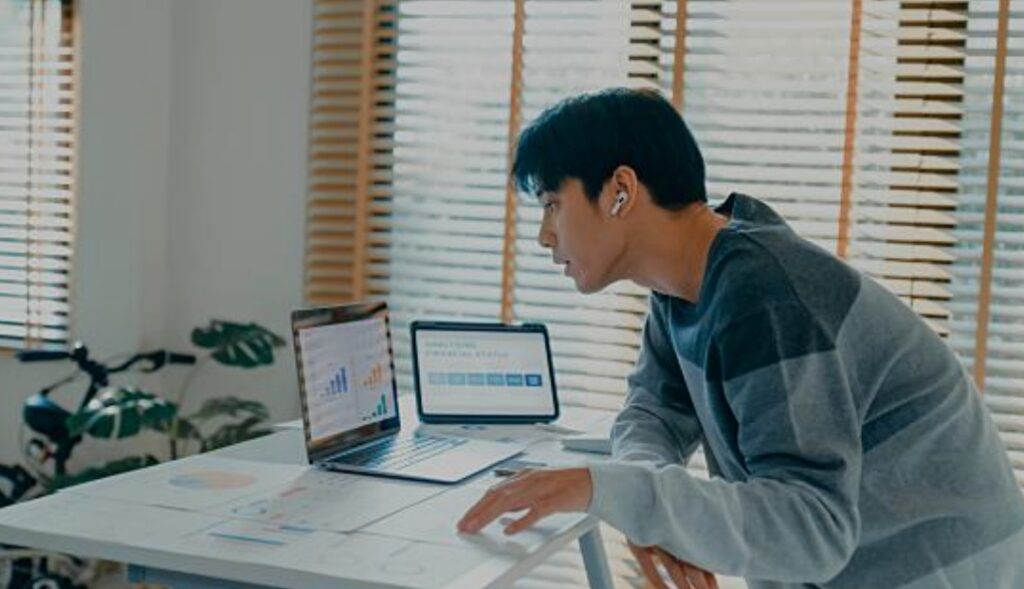
By understanding when to rely on cloud vs local computing, you can enjoy:
- Local speed for tasks that demand quick performance and privacy
- Cloud convenience for collaboration, scalability, and remote access
The secret lies in balance.
With the right hybrid computing tips, you can:
- Secure your personal files while keeping them accessible
- Save money by storing only what’s necessary in the cloud
- Boost speed without sacrificing data privacy
- Build the best home setup that grows with your needs
👉 Whether you’re a student, professional, gamer, or remote worker, hybrid computing adapts to your lifestyle.
And with trends like AI, edge computing, and zero-trust security shaping the future, setting up your hybrid system now ensures you’ll stay ahead.
Don’t just settle for one option.
Take control of your digital life today by combining cloud vs local computing into a powerful hybrid system.
Start small, follow the best practices we’ve outlined, and upgrade step by step until your home setup becomes a future-ready hybrid powerhouse.
✅ The future is hybrid — and your journey starts now.